light MINI Countryman 2015 (Mini Connected) Repair Manual
[x] Cancel search | Manufacturer: MINI, Model Year: 2015, Model line: Countryman, Model: MINI Countryman 2015Pages: 283, PDF Size: 6.76 MB
Page 149 of 283
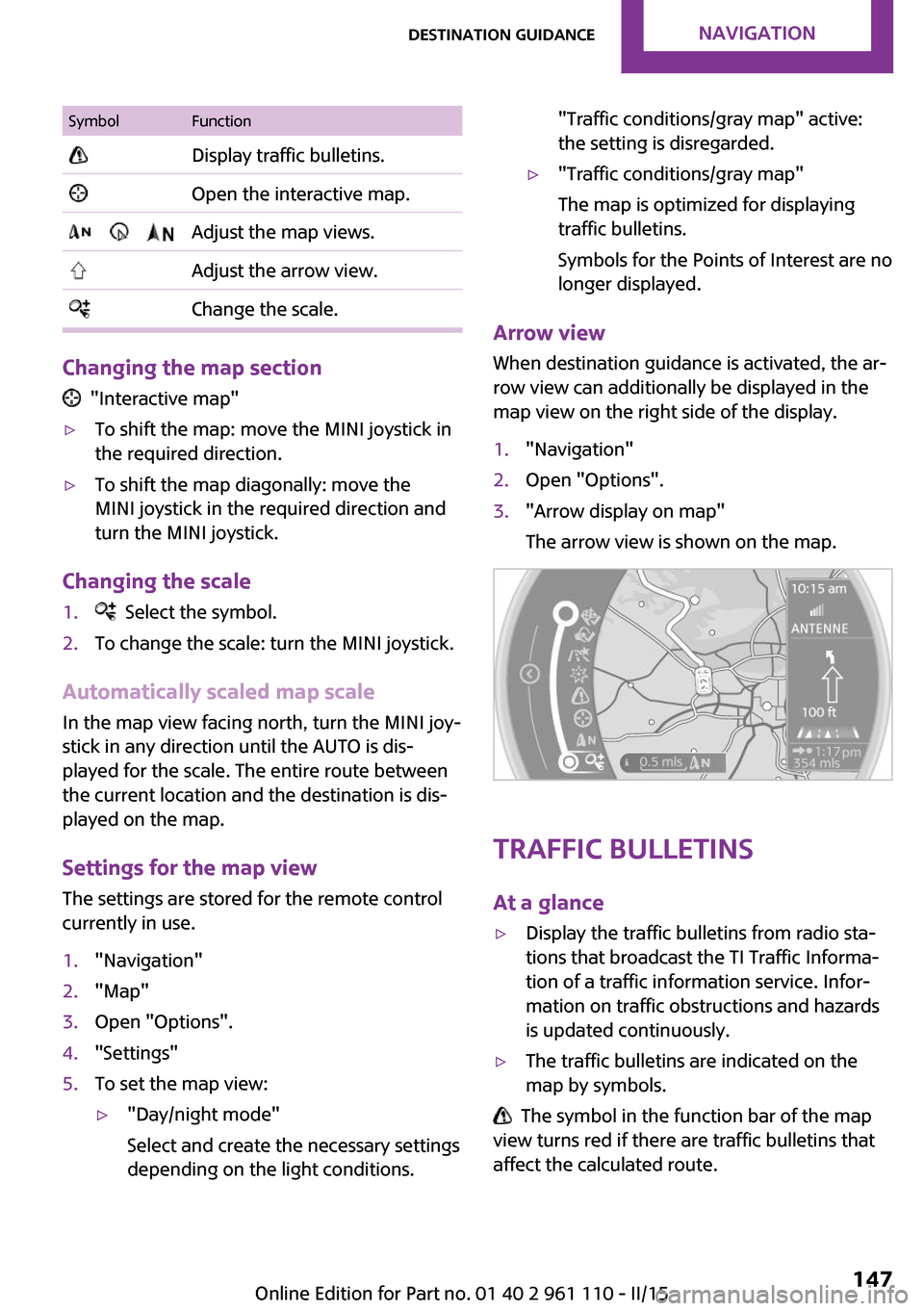
SymbolFunction Display traffic bulletins. Open the interactive map. Adjust the map views. Adjust the arrow view. Change the scale.
Changing the map section
"Interactive map"
▷To shift the map: move the MINI joystick in
the required direction.▷To shift the map diagonally: move the
MINI joystick in the required direction and
turn the MINI joystick.
Changing the scale
1. Select the symbol.2.To change the scale: turn the MINI joystick.
Automatically scaled map scale
In the map view facing north, turn the MINI joy‐
stick in any direction until the AUTO is dis‐
played for the scale. The entire route between
the current location and the destination is dis‐
played on the map.
Settings for the map view
The settings are stored for the remote control
currently in use.
1."Navigation"2."Map"3.Open "Options".4."Settings"5.To set the map view:▷"Day/night mode"
Select and create the necessary settings
depending on the light conditions."Traffic conditions/gray map" active:
the setting is disregarded.▷"Traffic conditions/gray map"
The map is optimized for displaying
traffic bulletins.
Symbols for the Points of Interest are no
longer displayed.
Arrow view
When destination guidance is activated, the ar‐
row view can additionally be displayed in the
map view on the right side of the display.
1."Navigation"2.Open "Options".3."Arrow display on map"
The arrow view is shown on the map.
Traffic bulletins
At a glance
▷Display the traffic bulletins from radio sta‐
tions that broadcast the TI Traffic Informa‐
tion of a traffic information service. Infor‐
mation on traffic obstructions and hazards
is updated continuously.▷The traffic bulletins are indicated on the
map by symbols.
The symbol in the function bar of the map
view turns red if there are traffic bulletins that
affect the calculated route.
Seite 147Destination guidanceNAVIGATION147
Online Edition for Part no. 01 40 2 961 110 - II/15
Page 159 of 283

3.Select the desired station.
Selecting the waveband using the
button on the radio
Press the button repeatedly until the
desired waveband is displayed.
Changing the station Turn and press the MINI joystick
or
Press the button
or
Press the buttons on the steering wheel.
All saved stations are stored for the remote
control currently in use.
Storing a station
1."Radio"2."FM" or "AM"3.Highlight the desired station.4.Press the MINI joystick.5.Select the desired memory location.Press and hold the MINI joystick to store a sta‐
tion that is displayed in the station list but is not
being played.
The stations are stored for the remote control
currently in use.
Selecting a station manually Station selection via the frequency.1."Radio"2."FM" or "AM"3."Manual"4.To select a frequency: turn the MINI joy‐
stick.
To save a station: press and hold the
MINI joystick.
RDS
RDS broadcasts additional information, such as
the station name, in the FM wave band.
Switching the RDS on/off
1."Radio"2."FM"Seite 157RadioENTERTAINMENT157
Online Edition for Part no. 01 40 2 961 110 - II/15
Page 162 of 283
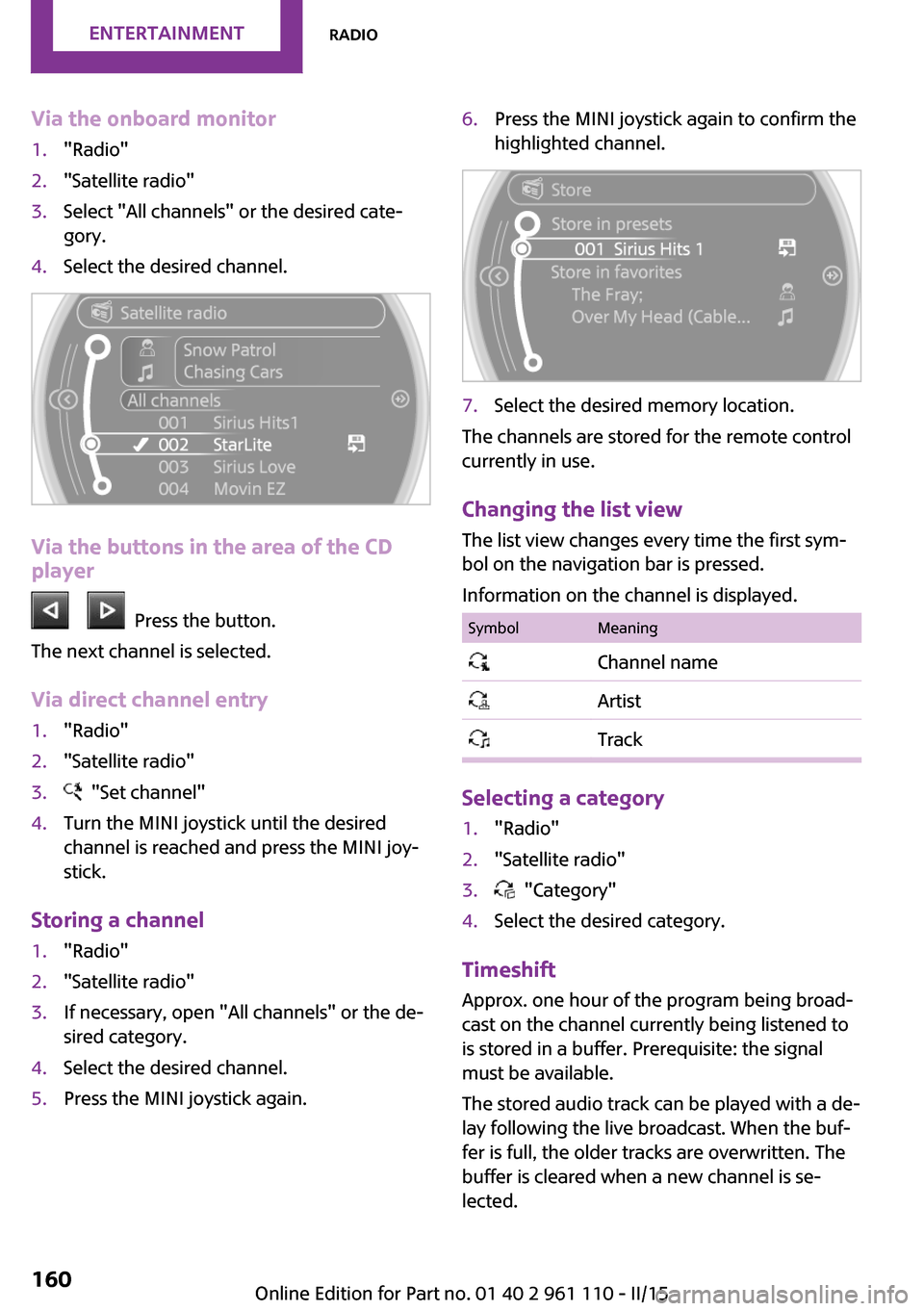
Via the onboard monitor1."Radio"2."Satellite radio"3.Select "All channels" or the desired cate‐
gory.4.Select the desired channel.
Via the buttons in the area of the CD
player
Press the button.
The next channel is selected.
Via direct channel entry
1."Radio"2."Satellite radio"3. "Set channel"4.Turn the MINI joystick until the desired
channel is reached and press the MINI joy‐
stick.
Storing a channel
1."Radio"2."Satellite radio"3.If necessary, open "All channels" or the de‐
sired category.4.Select the desired channel.5.Press the MINI joystick again.6.Press the MINI joystick again to confirm the
highlighted channel.7.Select the desired memory location.
The channels are stored for the remote control
currently in use.
Changing the list view
The list view changes every time the first sym‐
bol on the navigation bar is pressed.
Information on the channel is displayed.
SymbolMeaning Channel name Artist Track
Selecting a category
1."Radio"2."Satellite radio"3. "Category"4.Select the desired category.
Timeshift Approx. one hour of the program being broad‐
cast on the channel currently being listened to is stored in a buffer. Prerequisite: the signal
must be available.
The stored audio track can be played with a de‐
lay following the live broadcast. When the buf‐ fer is full, the older tracks are overwritten. The
buffer is cleared when a new channel is se‐
lected.
Seite 160ENTERTAINMENTRadio160
Online Edition for Part no. 01 40 2 961 110 - II/15
Page 164 of 283
4."Add sports information"5.Select the league.6.Select "Add all teams" or the desired team.
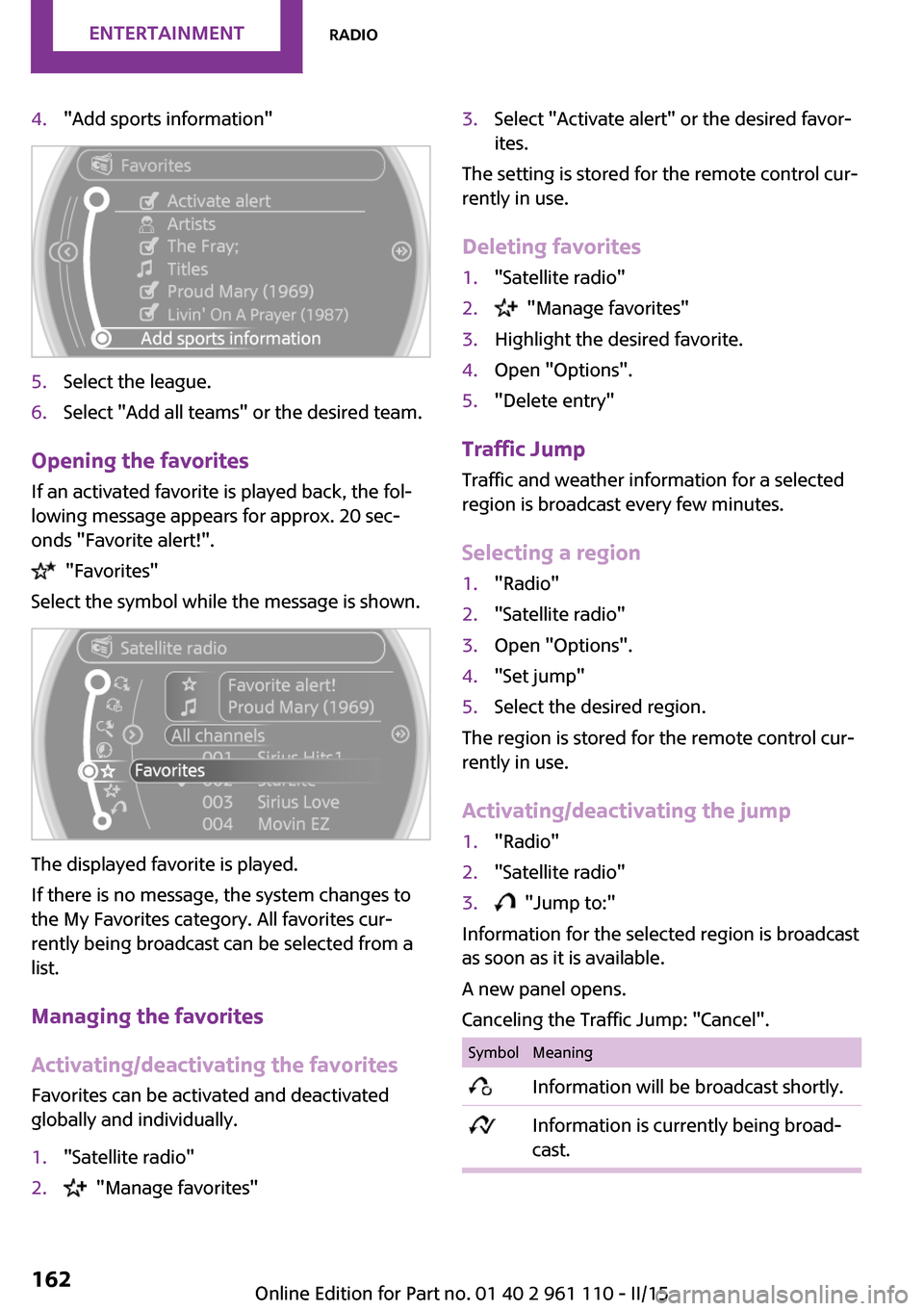
Opening the favoritesIf an activated favorite is played back, the fol‐
lowing message appears for approx. 20 sec‐
onds "Favorite alert!".
"Favorites"
Select the symbol while the message is shown.
The displayed favorite is played.
If there is no message, the system changes to
the My Favorites category. All favorites cur‐
rently being broadcast can be selected from a
list.
Managing the favorites
Activating/deactivating the favorites
Favorites can be activated and deactivated
globally and individually.
1."Satellite radio"2. "Manage favorites"3.Select "Activate alert" or the desired favor‐
ites.
The setting is stored for the remote control cur‐
rently in use.
Deleting favorites
1."Satellite radio"2. "Manage favorites"3.Highlight the desired favorite.4.Open "Options".5."Delete entry"
Traffic Jump Traffic and weather information for a selected
region is broadcast every few minutes.
Selecting a region
1."Radio"2."Satellite radio"3.Open "Options".4."Set jump"5.Select the desired region.
The region is stored for the remote control cur‐
rently in use.
Activating/deactivating the jump
1."Radio"2."Satellite radio"3. "Jump to:"
Information for the selected region is broadcast
as soon as it is available.
A new panel opens.
Canceling the Traffic Jump: "Cancel".
SymbolMeaning Information will be broadcast shortly. Information is currently being broad‐
cast.Seite 162ENTERTAINMENTRadio162
Online Edition for Part no. 01 40 2 961 110 - II/15
Page 166 of 283
CD/multimediaVehicle equipment
This chapter describes all series equipment as
well as country-specific and special equipment
offered for this model series. Therefore, it also
describes equipment that may not be found in
your vehicle, for instance due to the selected
special equipment or the country version. This
also applies to safety-related functions and sys‐
tems.
When using the features and systems described
here, adhere to local regulations.
Sound output
Switching on/off
When the ignition is switched off: press ON/OFF
button on the radio.
Muting When the ignition is switched on or the engine
is running: press the ON/OFF button on the
radio.
This symbol at the upper edge of the Con‐
trol Display indicates that the sound is switched
off.
CD player
Playback
Inserting the CD
Insert the CD with the printed side facing up.
Playback begins automatically.
Reading can take a few minutes with com‐
pressed audio files.
Starting playback
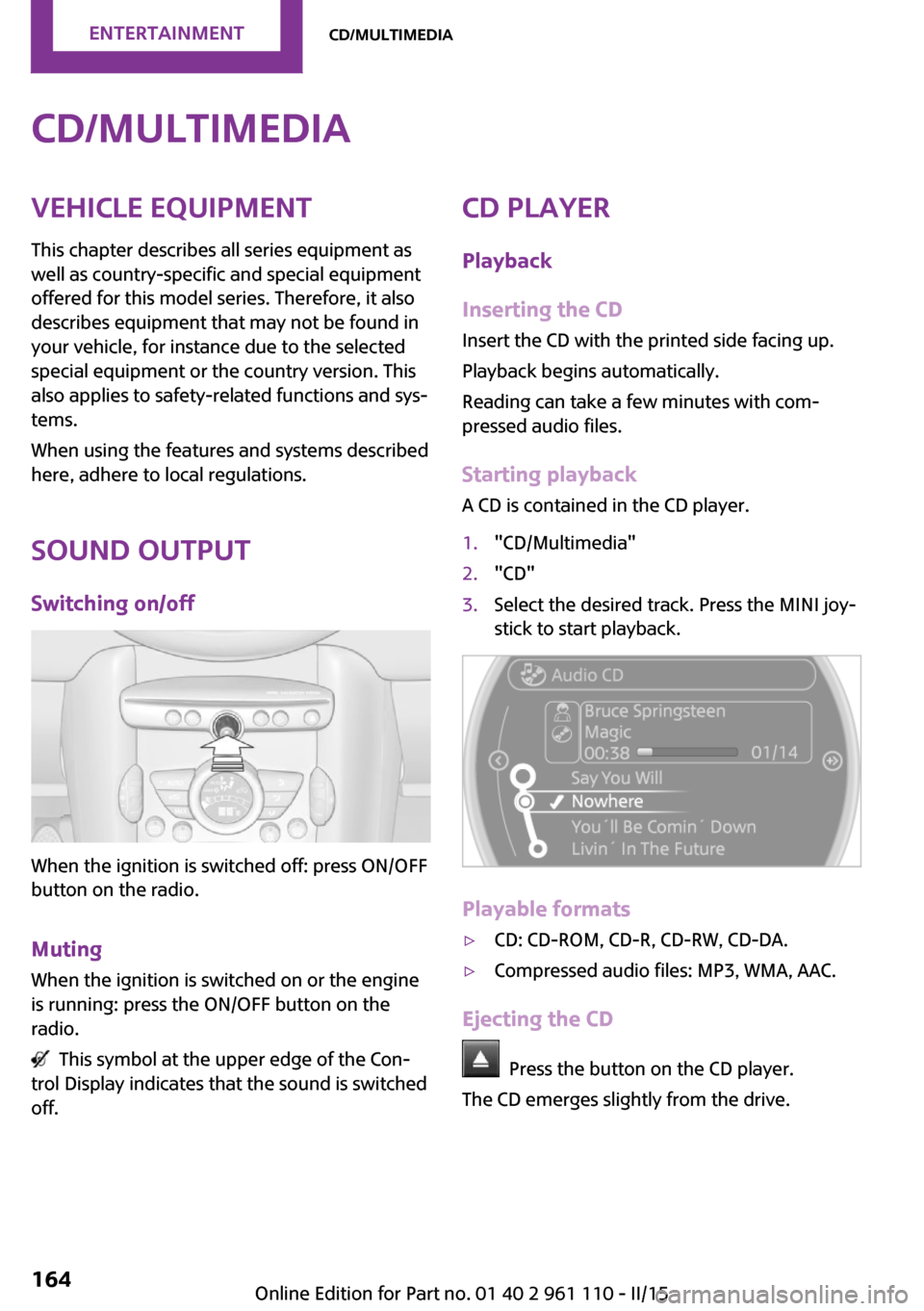
A CD is contained in the CD player.1."CD/Multimedia"2."CD"3.Select the desired track. Press the MINI joy‐
stick to start playback.
Playable formats
▷CD: CD-ROM, CD-R, CD-RW, CD-DA.▷Compressed audio files: MP3, WMA, AAC.
Ejecting the CD
Press the button on the CD player.
The CD emerges slightly from the drive.
Seite 164ENTERTAINMENTCD/multimedia164
Online Edition for Part no. 01 40 2 961 110 - II/15
Page 168 of 283

4.Open "Options".5."Random"
To switch off random playback: press the
MINI joystick.
Fast forward/reverse
Press and hold the button for the
corresponding direction.
Automatic repeat
The selected track, directories, or CDs are re‐
peated automatically.
Notes
CD player Do not remove the cover
The CD players are officially designated
Class 1 laser products. Do not operate if the
cover is damaged; otherwise, severe eye dam‐
age can result. ◀
CDs Using CDs
▷Do not use self-recorded CDs with la‐
bels applied, as these can become
detached during playback due to
heat buildup and can cause irrepara‐
ble damage to the device.▷Only use round CDs with a standard diame‐
ter of 4.7 in/12 cm and do not play CDs
with an adapter, e.g., single CDs; otherwise,
the CDs or the adapter may jam and no lon‐
ger eject. ◀
General malfunctions
▷The CD players have been optimized for
performance in vehicles. In some instances
they may be more sensitive to faulty CDs
than stationary devices would be.▷If a CD cannot be played, first check if it has
been inserted correctly.
Humidity
High levels of humidity can lead to condensa‐
tion on the CD or the laser's scan lens, and tem‐
porarily prevent playback.
Malfunctions with particular CDs If malfunctions occur only with particular CDs,
this can be due to one of the following causes:
Self-recorded CDs
▷Possible reasons for malfunctions with self-
recorded CDs are inconsistent data creation
or recording processes, or poor quality or
old age of the blank CD.▷Only label CDs on the upper side with a pen
intended for this purpose.
Damage
▷Avoid fingerprints, dust, scratches and
moisture.▷Store CDs in a sleeve.▷Do not subject CDs to temperatures over
50 ℃/122 ℉, high humidity, or direct sun‐
light.
CDs with copy protection
CDs are often provided with a copy protection
feature by the manufacturer. This can mean
Seite 166ENTERTAINMENTCD/multimedia166
Online Edition for Part no. 01 40 2 961 110 - II/15
Page 175 of 283
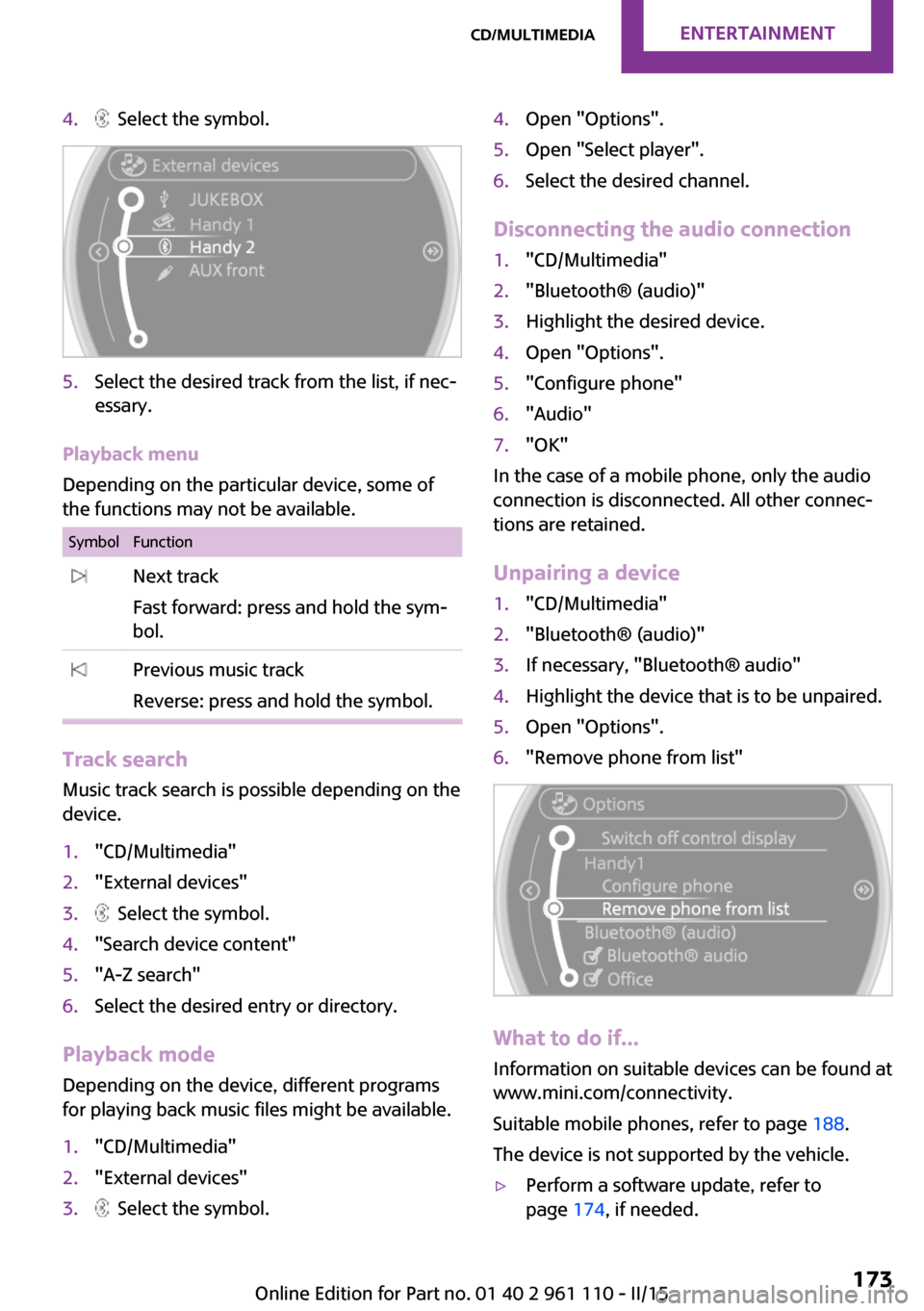
4. Select the symbol.5.Select the desired track from the list, if nec‐
essary.
Playback menu
Depending on the particular device, some of
the functions may not be available.
SymbolFunction Next track
Fast forward: press and hold the sym‐
bol. Previous music track
Reverse: press and hold the symbol.
Track search Music track search is possible depending on the
device.
1."CD/Multimedia"2."External devices"3. Select the symbol.4."Search device content"5."A-Z search"6.Select the desired entry or directory.
Playback mode
Depending on the device, different programs
for playing back music files might be available.
1."CD/Multimedia"2."External devices"3. Select the symbol.4.Open "Options".5.Open "Select player".6.Select the desired channel.
Disconnecting the audio connection
1."CD/Multimedia"2."Bluetooth® (audio)"3.Highlight the desired device.4.Open "Options".5."Configure phone"6."Audio"7."OK"
In the case of a mobile phone, only the audio
connection is disconnected. All other connec‐
tions are retained.
Unpairing a device
1."CD/Multimedia"2."Bluetooth® (audio)"3.If necessary, "Bluetooth® audio"4.Highlight the device that is to be unpaired.5.Open "Options".6."Remove phone from list"
What to do if...
Information on suitable devices can be found at
www.mini.com/connectivity.
Suitable mobile phones, refer to page 188.
The device is not supported by the vehicle.
▷Perform a software update, refer to
page 174, if needed.Seite 173CD/multimediaENTERTAINMENT173
Online Edition for Part no. 01 40 2 961 110 - II/15
Page 182 of 283
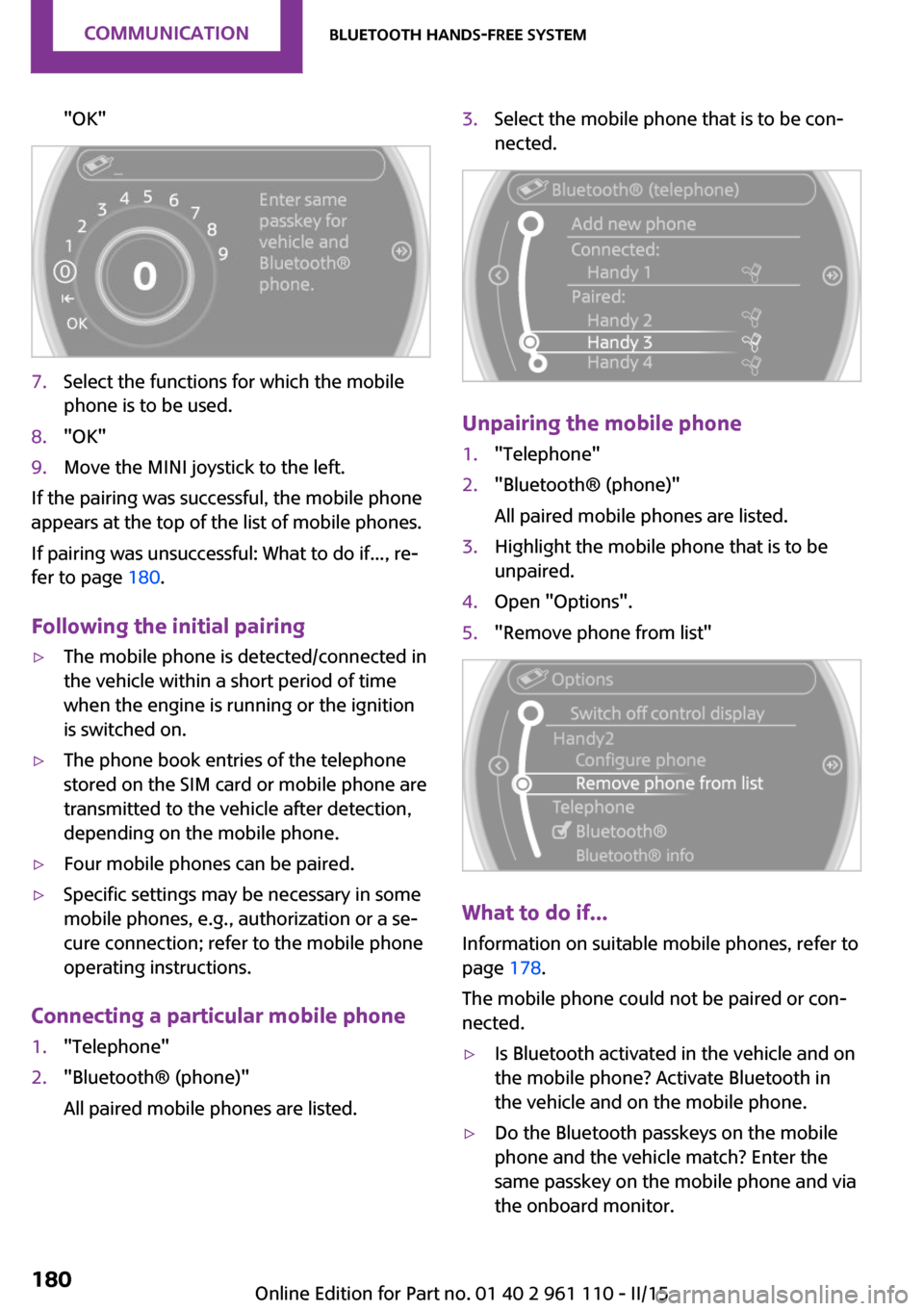
"OK"7.Select the functions for which the mobile
phone is to be used.8."OK"9.Move the MINI joystick to the left.
If the pairing was successful, the mobile phone
appears at the top of the list of mobile phones.
If pairing was unsuccessful: What to do if..., re‐
fer to page 180.
Following the initial pairing
▷The mobile phone is detected/connected in
the vehicle within a short period of time
when the engine is running or the ignition
is switched on.▷The phone book entries of the telephone
stored on the SIM card or mobile phone are
transmitted to the vehicle after detection,
depending on the mobile phone.▷Four mobile phones can be paired.▷Specific settings may be necessary in some
mobile phones, e.g., authorization or a se‐
cure connection; refer to the mobile phone
operating instructions.
Connecting a particular mobile phone
1."Telephone"2."Bluetooth® (phone)"
All paired mobile phones are listed.3.Select the mobile phone that is to be con‐
nected.
Unpairing the mobile phone
1."Telephone"2."Bluetooth® (phone)"
All paired mobile phones are listed.3.Highlight the mobile phone that is to be
unpaired.4.Open "Options".5."Remove phone from list"
What to do if...
Information on suitable mobile phones, refer to
page 178.
The mobile phone could not be paired or con‐
nected.
▷Is Bluetooth activated in the vehicle and on
the mobile phone? Activate Bluetooth in
the vehicle and on the mobile phone.▷Do the Bluetooth passkeys on the mobile
phone and the vehicle match? Enter the
same passkey on the mobile phone and via
the onboard monitor.Seite 180COMMUNICATIONBluetooth hands-free system180
Online Edition for Part no. 01 40 2 961 110 - II/15
Page 185 of 283
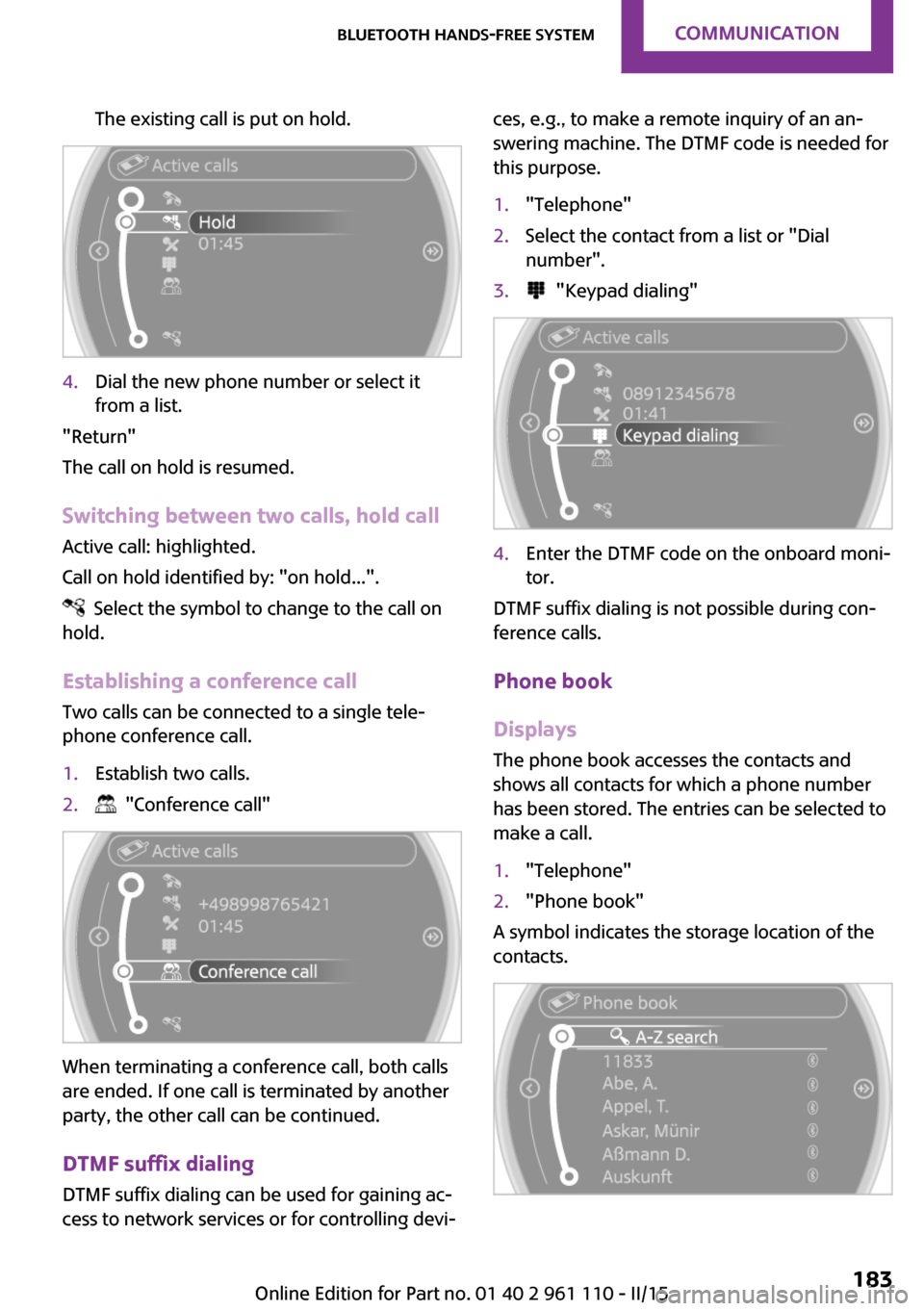
The existing call is put on hold.4.Dial the new phone number or select it
from a list.
"Return"
The call on hold is resumed.
Switching between two calls, hold call Active call: highlighted.
Call on hold identified by: "on hold...".
Select the symbol to change to the call on
hold.
Establishing a conference call
Two calls can be connected to a single tele‐
phone conference call.
1.Establish two calls.2. "Conference call"
When terminating a conference call, both calls
are ended. If one call is terminated by another
party, the other call can be continued.
DTMF suffix dialing
DTMF suffix dialing can be used for gaining ac‐
cess to network services or for controlling devi‐
ces, e.g., to make a remote inquiry of an an‐
swering machine. The DTMF code is needed for
this purpose.1."Telephone"2.Select the contact from a list or "Dial
number".3. "Keypad dialing"4.Enter the DTMF code on the onboard moni‐
tor.
DTMF suffix dialing is not possible during con‐
ference calls.
Phone book
Displays The phone book accesses the contacts and
shows all contacts for which a phone number
has been stored. The entries can be selected to
make a call.
1."Telephone"2."Phone book"
A symbol indicates the storage location of the
contacts.
Seite 183Bluetooth hands-free systemCOMMUNICATION183
Online Edition for Part no. 01 40 2 961 110 - II/15
Page 186 of 283

Calling a contactSymbolMeaningContact with one stored phone num‐
ber.Contact with more than one stored
phone number.Call not possible; mobile phone with‐
out reception or network.
For contacts with one stored phone number:
select the required contact. The connection is
being established.
For contacts with more than one stored phone
number: select the required contact and the
phone number. The connection is being estab‐
lished.
Editing a contact
Changing the entries in "Contacts". When a
contact is changed, the changes are not stored
on the mobile phone. A copy of the entry is
stored in the vehicle.
1.Highlight the contact.2.Open "Options".3."Edit entry"
The contact can be edited.
Redialing
General information
The list of dialed numbers in the mobile phone
is transmitted to the vehicle depending on the
mobile phone. Possibly only those numbers are
displayed that were dialed from the vehicle.
The 20 phone numbers dialed last are dis‐
played. The sorting order of the phone num‐
bers depends on the particular mobile phone.
Dialing a number on the onboard
monitor1."Telephone"2."Redial"3.Select the desired entry and the phone
number if necessary.
The connection is established.
Deleting a single entry or all entries
The deletion of entries depends on your partic‐
ular mobile phone.
1.Highlight the entry.2.Open "Options".3."Delete entry" or "Delete list"
Saving an entry in the contacts
1.Highlight the entry.2.Open "Options".3."Store as new contact" or "Add to existing
contact"4.Select the contact if necessary.5.Select the type of number: "Home",
"Business", "Mobile" or "Other"6.Complete the entries if necessary.7."Store contact"
Received calls
Displaying calls
The list of received calls on the mobile phone is
transmitted to the vehicle, depending on the
particular mobile phone. It is possible that only
Seite 184COMMUNICATIONBluetooth hands-free system184
Online Edition for Part no. 01 40 2 961 110 - II/15