audio MINI Countryman 2016 (Mini Connected) User Guide
[x] Cancel search | Manufacturer: MINI, Model Year: 2016, Model line: Countryman, Model: MINI Countryman 2016Pages: 282, PDF Size: 6.79 MB
Page 164 of 282
CD/multimediaVehicle features and op‐
tions
This chapter describes all standard, country-
specific and optional features offered with the
series. It also describes features that are not
necessarily available in your car, e. g., due to
the selected options or country versions. This
also applies to safety-related functions and sys‐
tems.
When using the features and systems described
here, adhere to local regulations.
Sound output
Switching on/off
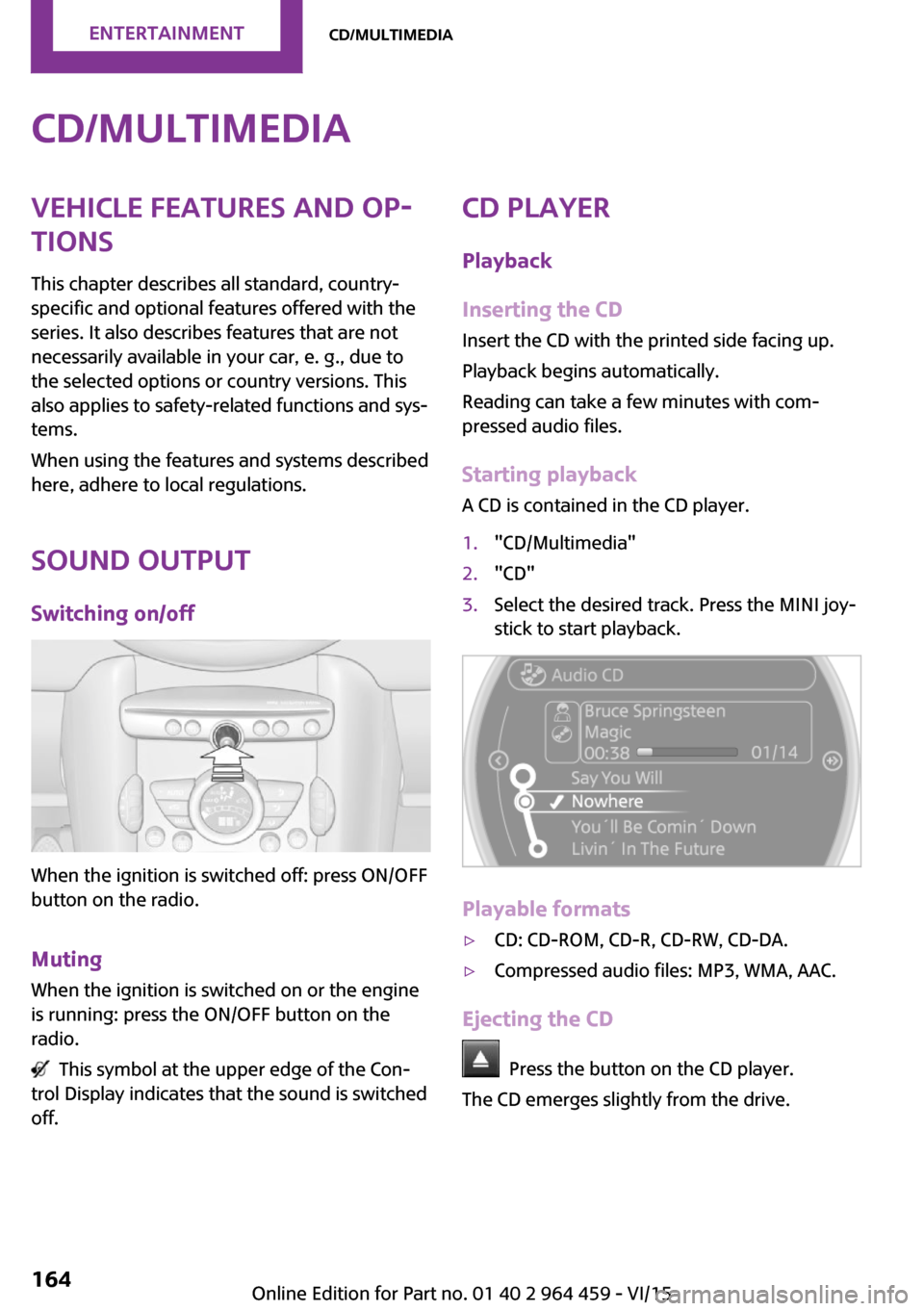
When the ignition is switched off: press ON/OFF
button on the radio.
Muting When the ignition is switched on or the engine
is running: press the ON/OFF button on the
radio.
This symbol at the upper edge of the Con‐
trol Display indicates that the sound is switched
off.
CD player
Playback
Inserting the CD
Insert the CD with the printed side facing up.
Playback begins automatically.
Reading can take a few minutes with com‐
pressed audio files.
Starting playback
A CD is contained in the CD player.1."CD/Multimedia"2."CD"3.Select the desired track. Press the MINI joy‐
stick to start playback.
Playable formats
▷CD: CD-ROM, CD-R, CD-RW, CD-DA.▷Compressed audio files: MP3, WMA, AAC.
Ejecting the CD
Press the button on the CD player.
The CD emerges slightly from the drive.
Seite 164ENTERTAINMENTCD/multimedia164
Online Edition for Part no. 01 40 2 964 459 - VI/15
Page 165 of 282
Audio playback
Selecting the track using the button
Press the button for the appropri‐
ate direction as often as necessary until the de‐
sired track is played back.
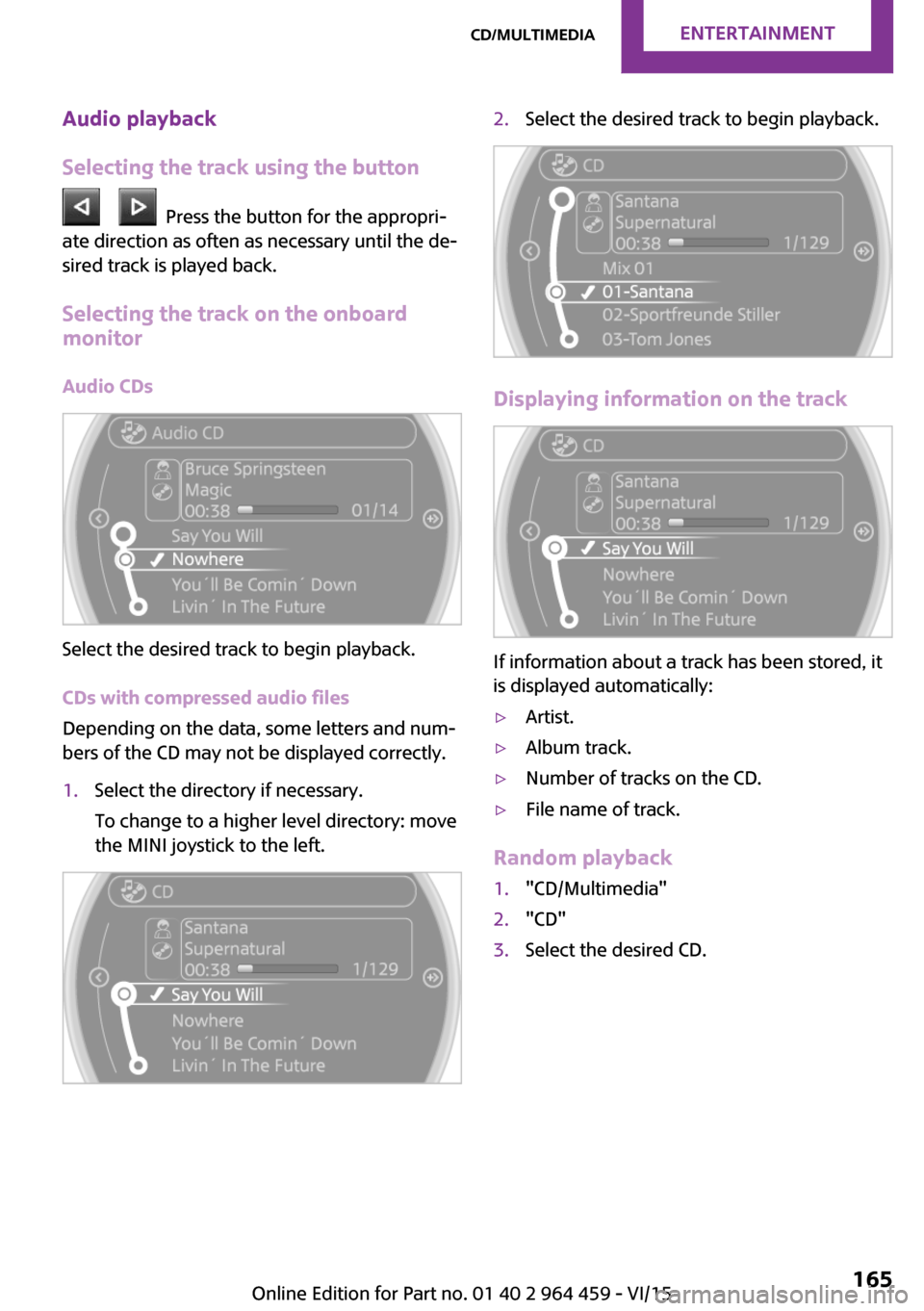
Selecting the track on the onboard
monitor
Audio CDs
Select the desired track to begin playback.
CDs with compressed audio files
Depending on the data, some letters and num‐
bers of the CD may not be displayed correctly.
1.Select the directory if necessary.
To change to a higher level directory: move
the MINI joystick to the left.2.Select the desired track to begin playback.
Displaying information on the track
If information about a track has been stored, it
is displayed automatically:
▷Artist.▷Album track.▷Number of tracks on the CD.▷File name of track.
Random playback
1."CD/Multimedia"2."CD"3.Select the desired CD.Seite 165CD/multimediaENTERTAINMENT165
Online Edition for Part no. 01 40 2 964 459 - VI/15
Page 167 of 282
that some CDs cannot be played or can only be
played to a limited extent.
MACROVISION
This product contains copyrighted technology
that is based on multiple registered US patents
and the intellectual property of the Macrovision
Corporation and other manufacturers. The use
of this copy protection must be approved by
Macrovision. Media protected by this product -
unless otherwise agreed with Macrovision -
may only be used for private purposes. Copying
of this technology is prohibited.
External devices Overview
Various external devices can be connected with
the vehicle. Depending on how the device is
connected to the vehicle, it may be possible to
operate it using the MINI joystick.SymbolMeaning AUX-IN port USB audio interface Music interface for smartphones Bluetooth audio
AUX-IN port
Overview
▷For connecting audio devices, e.g., MP3
player. The sound is output on the vehicle
loudspeakers.▷Recommendation: use medium tone and
volume settings on the audio device. The
tone depends on the quality of the audio
files.Connecting
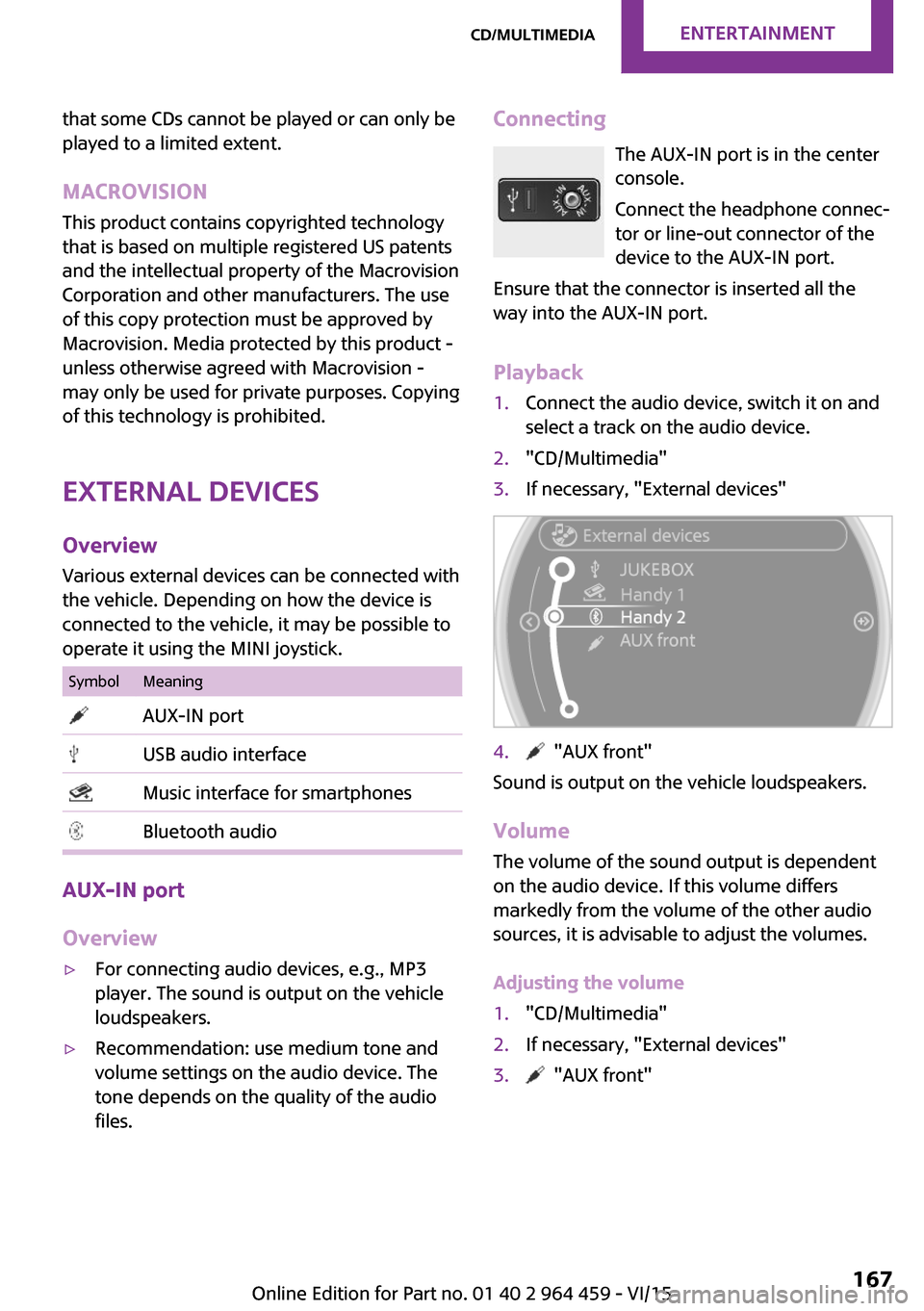
The AUX-IN port is in the center
console.
Connect the headphone connec‐
tor or line-out connector of the
device to the AUX-IN port.
Ensure that the connector is inserted all the
way into the AUX-IN port.
Playback1.Connect the audio device, switch it on and
select a track on the audio device.2."CD/Multimedia"3.If necessary, "External devices"4. "AUX front"
Sound is output on the vehicle loudspeakers.
Volume
The volume of the sound output is dependent
on the audio device. If this volume differs
markedly from the volume of the other audio
sources, it is advisable to adjust the volumes.
Adjusting the volume
1."CD/Multimedia"2.If necessary, "External devices"3. "AUX front"Seite 167CD/multimediaENTERTAINMENT167
Online Edition for Part no. 01 40 2 964 459 - VI/15
Page 168 of 282

4."Volume"5.Turn the MINI joystick until the desired vol‐
ume is set and press the MINI joystick.
USB audio interface/music interface for
smartphones
Overview
It is possible to connect external audio devices.
They are operated via the onboard monitor.
The sound is output on the vehicle loudspeak‐
ers.
Connectors for external devices
▷Connection via USB audio interface: Apple
iPod/iPhone, USB devices, e.g., MP3 play‐
ers, USB flash drives, or mobile phones that
are supported by the USB audio interface.▷Connection via snap-in adapter, when
equipped with the music interface for
smartphones: Apple iPhone or mobile
phones.
Playback is only possible if no audio device
is connected to the analog AUX-IN port.
Due to the large number of different audio de‐
vices available on the market, it cannot be en‐
sured that every audio device/mobile phone is
operable on the vehicle.
Ask a dealer’s service center or another quali‐
fied service center or repair shop about com‐
patible audio devices/mobile phones.
Audio files
Standard audio files can be played back:
▷MP3.▷WMA.▷WAV (PCM).▷AAC, M4A.▷Without the voice activation system: play‐
back lists: M3U▷With the voice activation system: playback
lists: M3U, WPL, PLS
Video files
Standard video files can be played back with a
compatible Apple device:
▷MPEG4▷H.264
File system
Standard file systems for USB devices are sup‐
ported. The FAT 32 format is recommended.
Connecting The USB audio interface is in the
center console.
Connection of Apple iPod/iPhone via USB
audio interface
To connect the iPod, use the special cable
adapter for the Apple iPod. Further information
is available from a dealer’s service center or an‐
other qualified service center or repair shop or
on the Internet: www.mini.com/connectivity
Connect the Apple iPod/iPhone with the AUX-
IN port and USB interface.
The Apple iPod/iPhone menu structure is sup‐
ported by the USB audio interface.
Seite 168ENTERTAINMENTCD/multimedia168
Online Edition for Part no. 01 40 2 964 459 - VI/15
Page 169 of 282
Connection of a USB device via the USB
audio interface
Connect using a flexible adapter cable to pro‐
tect the USB audio interface and the USB device
against physical damage.
Connect the USB device to the USB interface.
After connecting for the first time
Information on all music tracks, e.g. artist or
type of music, as well as playback lists are
transmitted into the vehicle. This may take
some time, depending on the USB device and
the number of tracks.
During transmission, the tracks can be called up
via the file directory.
Number of tracks
Information from up to four USB devices or for
approx. 26,000 tracks can be stored in the ve‐
hicle. If a fifth device is connected or if more
than 26,000 tracks are stored, information on
existing tracks may be deleted.
Copy protection
Music tracks with integrated Digital Rights Man‐
agement (DRM) cannot be played.
Audio playback1."CD/Multimedia"2."External devices"3.Select the or symbol.
The playback starts with the first track.
The CD cover belonging to the track may ap‐
pear on the Control Display after several sec‐
onds.
Track search
Selection is possible via:
▷Playback lists.▷Information: type of music, artist, and, if
available, composer, album, track.▷Additionally for USB devices: file directory,
composer.
Tracks are displayed if they have been saved in
the Latin alphabet.
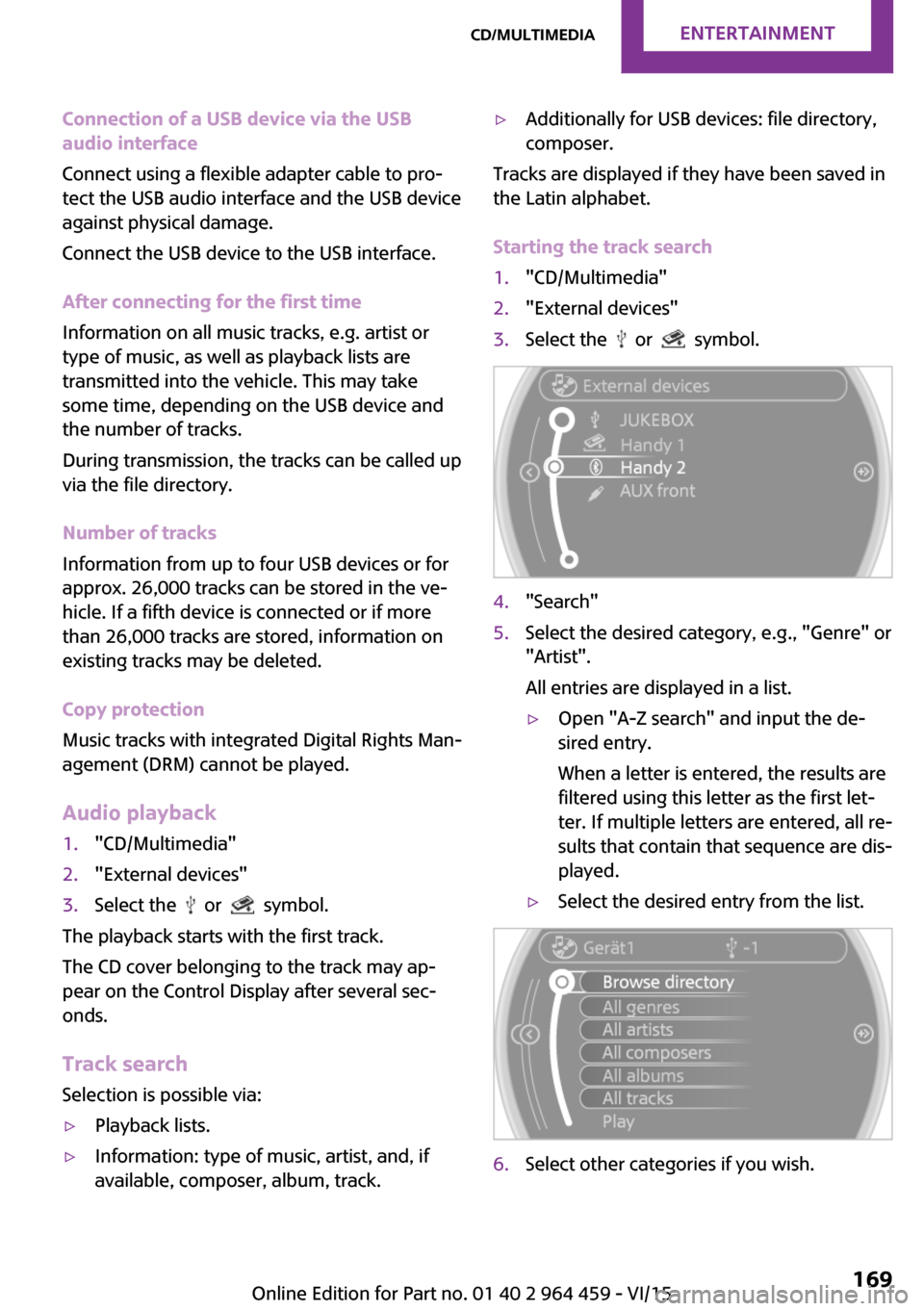
Starting the track search
1."CD/Multimedia"2."External devices"3.Select the or symbol.4."Search"5.Select the desired category, e.g., "Genre" or
"Artist".
All entries are displayed in a list.▷Open "A-Z search" and input the de‐
sired entry.
When a letter is entered, the results are
filtered using this letter as the first let‐
ter. If multiple letters are entered, all re‐
sults that contain that sequence are dis‐
played.▷Select the desired entry from the list.6.Select other categories if you wish.Seite 169CD/multimediaENTERTAINMENT169
Online Edition for Part no. 01 40 2 964 459 - VI/15
Page 171 of 282
InformationDo not expose the audio device to extreme en‐
vironmental conditions, such as very high tem‐ peratures; refer to the audio device operating
instructions.
Depending on the configuration of the audio
files, e.g., bit rates greater than 256 kbit/s, the
files may not play back correctly in each case.
Audio and video playback from the snap-in
adapter is only possible if no cable is connected
to the AV-IN port.
Information on connection▷The connected audio device is supplied
with a max. power of 500 mA if supported
by the device. Therefore, do not addition‐
ally connect the device to a socket in the
vehicle; otherwise, playback may be com‐
promised.▷Do not use force when plugging the con‐
nector into the USB interface.▷Do not connect devices such as fans or
lamps to the USB audio interface.▷Do not connect USB hard drives.▷Do not use the USB audio interface to re‐
charge external devices.
Bluetooth audio
Overview
▷Music files on external devices such as au‐
dio devices or mobile phones can be played
back via Bluetooth.
Use of a mobile phone as an audio source,
refer to page 190.▷Bluetooth® is a registered trademark of
Bluetooth® SIG, Inc.▷The sound is output on the vehicle loud‐
speakers.▷The volume of the sound output is depend‐
ent on the device. If necessary, adjust the
volume on the device.▷Up to four external devices can be paired
with the vehicle.
Requirements
▷The device is compatible. Information un‐
der www.mini.com/connectivity.▷The device is ready for operation.▷The ignition is switched on.▷Bluetooth is activated on the vehicle, refer
to page 189, and on the device.▷Bluetooth presettings must be made on the
device, such as for a connection without
confirmation or visibility; refer to the device
operating instructions.▷A number with at least four and a maxi‐
mum of 16 digits is defined as the Blue‐
tooth passkey. It is only required once for
pairing.
Pairing and connecting
WARNING
Operating the integrated information sys‐
tems and communication devices while driving
can distract from traffic. It is possible to lose
control of the vehicle. There is risk of an acci‐
dent. Only use the systems or devices when the
traffic situation allows. If necessary stop and
use the systems and devices while the vehicle is
stationary. ◀
1."CD/Multimedia"2."Bluetooth® (audio)"3.If necessary, "Bluetooth® audio"4."Add new phone"Seite 171CD/multimediaENTERTAINMENT171
Online Edition for Part no. 01 40 2 964 459 - VI/15
Page 172 of 282
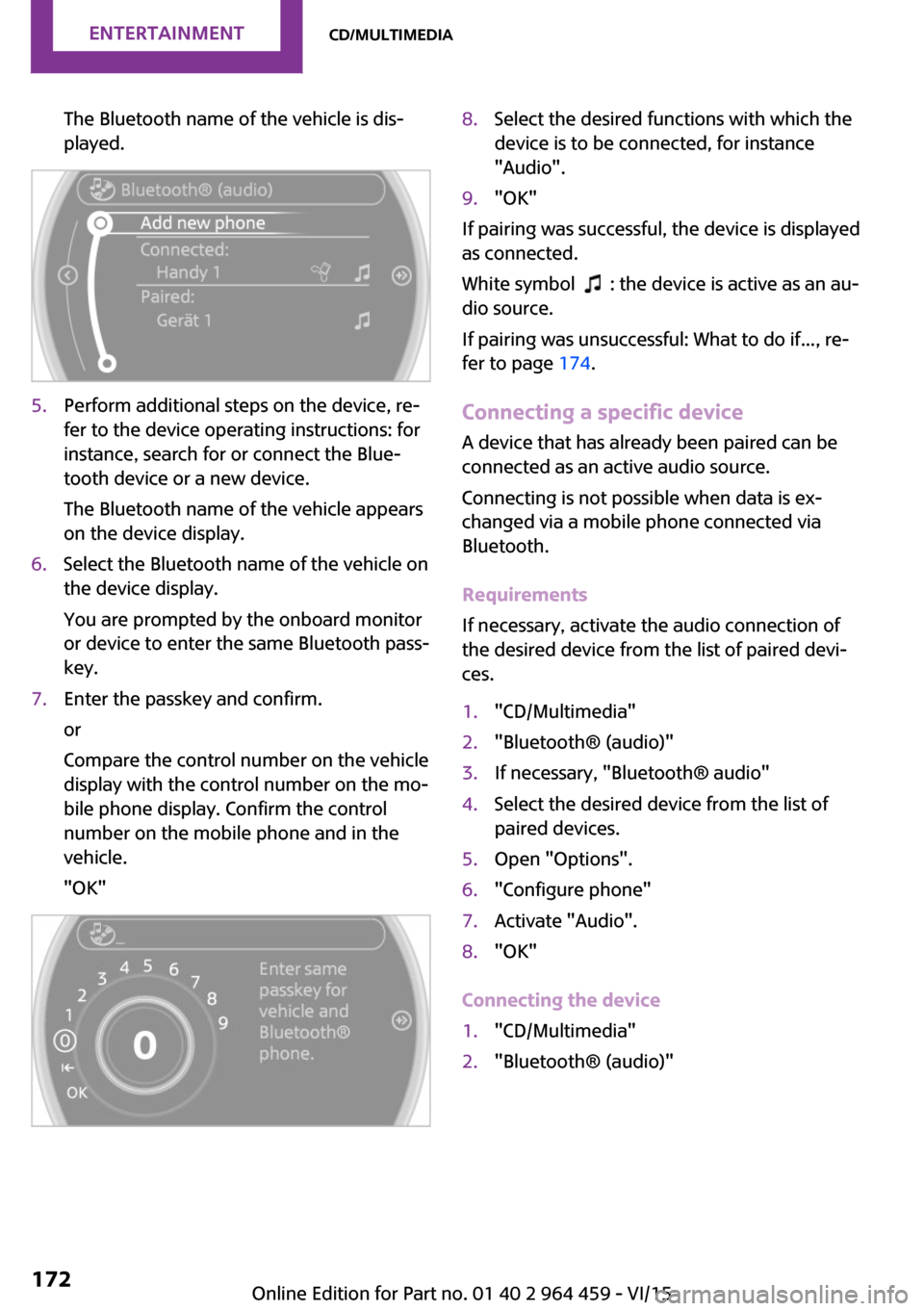
The Bluetooth name of the vehicle is dis‐
played.5.Perform additional steps on the device, re‐
fer to the device operating instructions: for
instance, search for or connect the Blue‐
tooth device or a new device.
The Bluetooth name of the vehicle appears
on the device display.6.Select the Bluetooth name of the vehicle on
the device display.
You are prompted by the onboard monitor
or device to enter the same Bluetooth pass‐
key.7.Enter the passkey and confirm.
or
Compare the control number on the vehicle
display with the control number on the mo‐
bile phone display. Confirm the control
number on the mobile phone and in the
vehicle.
"OK"8.Select the desired functions with which the
device is to be connected, for instance
"Audio".9."OK"
If pairing was successful, the device is displayed
as connected.
White symbol
: the device is active as an au‐
dio source.
If pairing was unsuccessful: What to do if..., re‐
fer to page 174.
Connecting a specific device A device that has already been paired can be
connected as an active audio source.
Connecting is not possible when data is ex‐
changed via a mobile phone connected via
Bluetooth.
Requirements
If necessary, activate the audio connection of
the desired device from the list of paired devi‐
ces.
1."CD/Multimedia"2."Bluetooth® (audio)"3.If necessary, "Bluetooth® audio"4.Select the desired device from the list of
paired devices.5.Open "Options".6."Configure phone"7.Activate "Audio".8."OK"
Connecting the device
1."CD/Multimedia"2."Bluetooth® (audio)"Seite 172ENTERTAINMENTCD/multimedia172
Online Edition for Part no. 01 40 2 964 459 - VI/15
Page 173 of 282
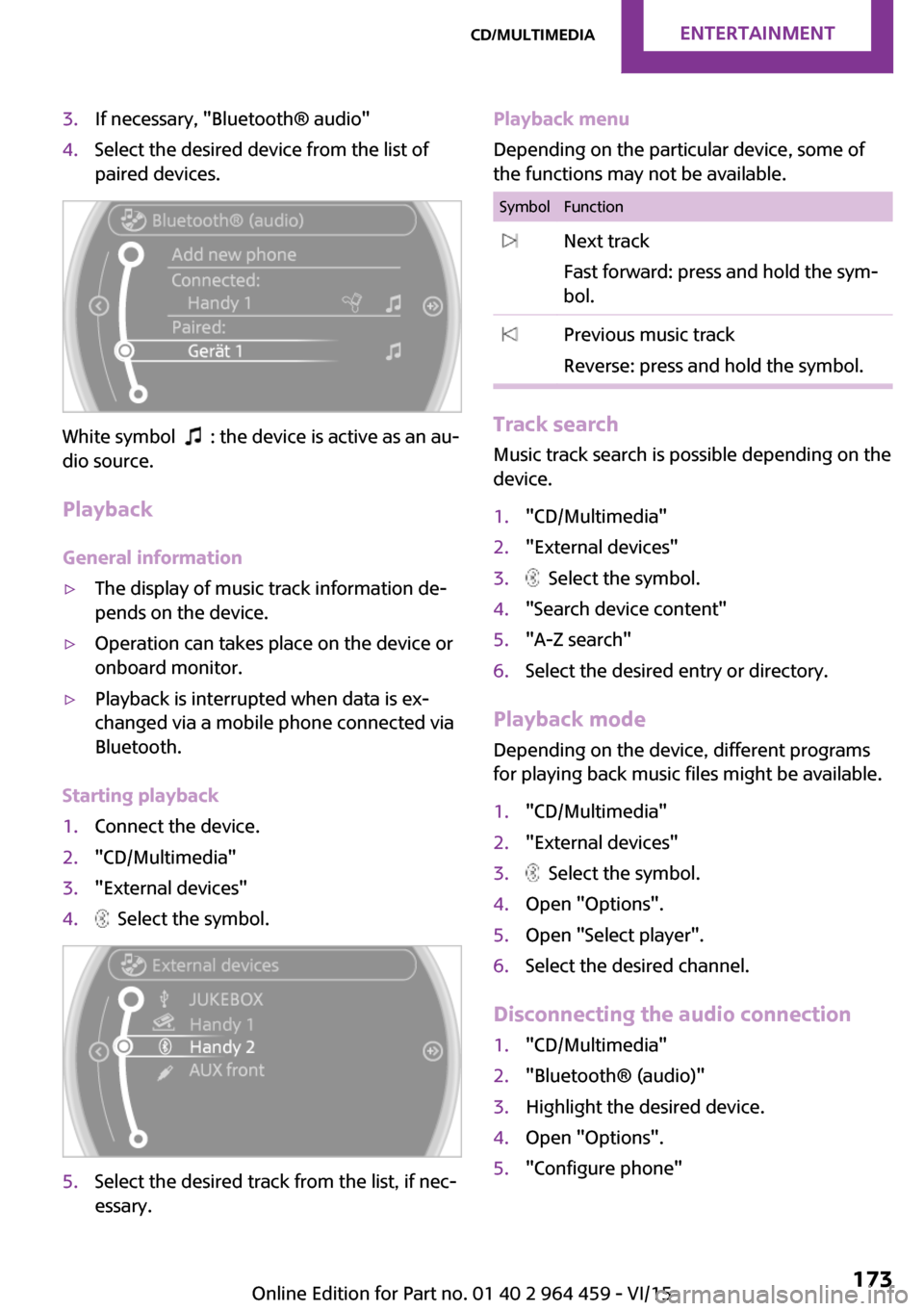
3.If necessary, "Bluetooth® audio"4.Select the desired device from the list of
paired devices.
White symbol : the device is active as an au‐
dio source.
Playback
General information
▷The display of music track information de‐
pends on the device.▷Operation can takes place on the device or
onboard monitor.▷Playback is interrupted when data is ex‐
changed via a mobile phone connected via
Bluetooth.
Starting playback
1.Connect the device.2."CD/Multimedia"3."External devices"4. Select the symbol.5.Select the desired track from the list, if nec‐
essary.Playback menu
Depending on the particular device, some of
the functions may not be available.SymbolFunction Next track
Fast forward: press and hold the sym‐
bol. Previous music track
Reverse: press and hold the symbol.
Track search Music track search is possible depending on the
device.
1."CD/Multimedia"2."External devices"3. Select the symbol.4."Search device content"5."A-Z search"6.Select the desired entry or directory.
Playback mode
Depending on the device, different programs
for playing back music files might be available.
1."CD/Multimedia"2."External devices"3. Select the symbol.4.Open "Options".5.Open "Select player".6.Select the desired channel.
Disconnecting the audio connection
1."CD/Multimedia"2."Bluetooth® (audio)"3.Highlight the desired device.4.Open "Options".5."Configure phone"Seite 173CD/multimediaENTERTAINMENT173
Online Edition for Part no. 01 40 2 964 459 - VI/15
Page 174 of 282
6."Audio"7."OK"
In the case of a mobile phone, only the audio
connection is disconnected. All other connec‐
tions are retained.
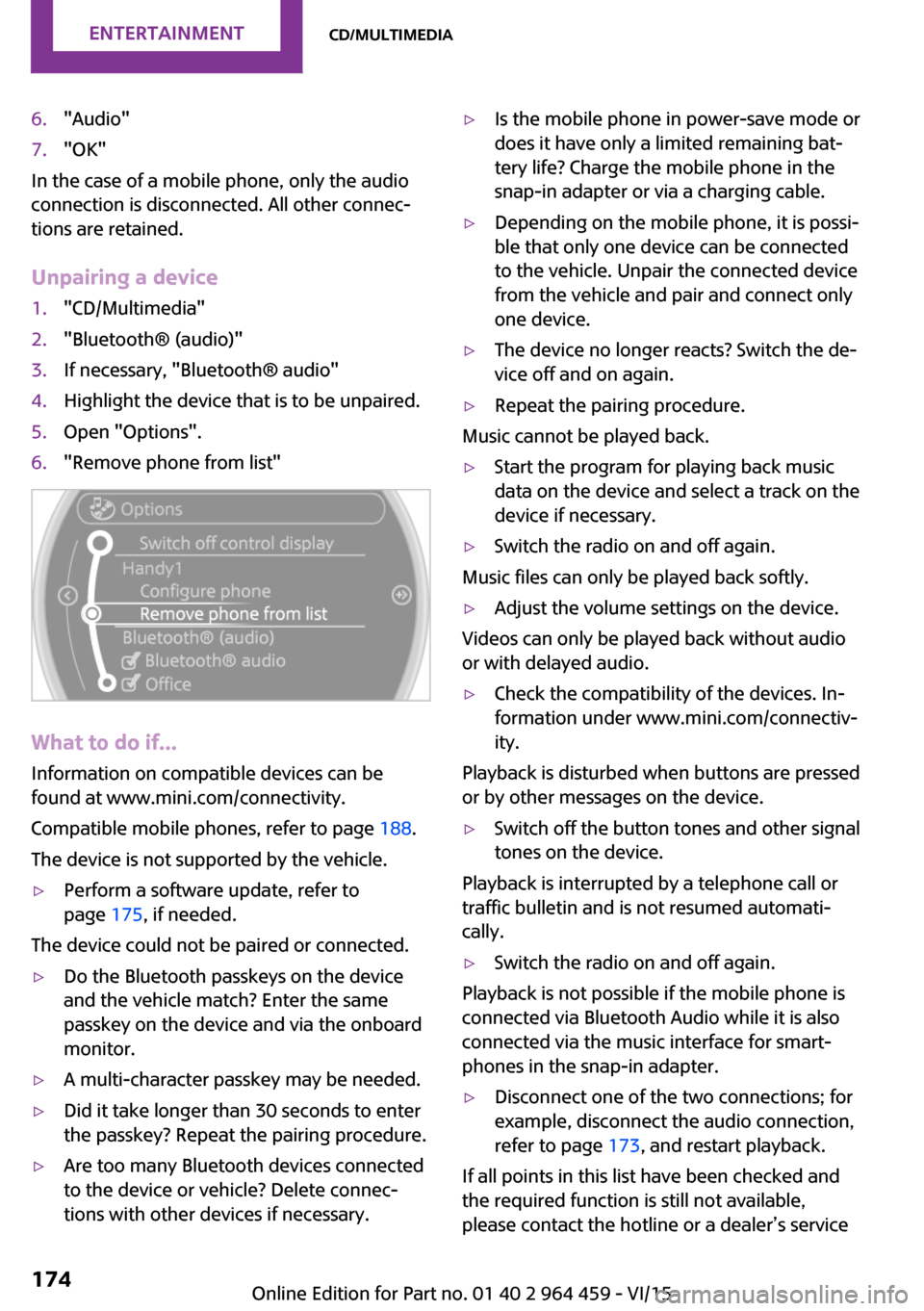
Unpairing a device
1."CD/Multimedia"2."Bluetooth® (audio)"3.If necessary, "Bluetooth® audio"4.Highlight the device that is to be unpaired.5.Open "Options".6."Remove phone from list"
What to do if...
Information on compatible devices can be
found at www.mini.com/connectivity.
Compatible mobile phones, refer to page 188.
The device is not supported by the vehicle.
▷Perform a software update, refer to
page 175, if needed.
The device could not be paired or connected.
▷Do the Bluetooth passkeys on the device
and the vehicle match? Enter the same
passkey on the device and via the onboard
monitor.▷A multi-character passkey may be needed.▷Did it take longer than 30 seconds to enter
the passkey? Repeat the pairing procedure.▷Are too many Bluetooth devices connected
to the device or vehicle? Delete connec‐
tions with other devices if necessary.▷Is the mobile phone in power-save mode or
does it have only a limited remaining bat‐
tery life? Charge the mobile phone in the
snap-in adapter or via a charging cable.▷Depending on the mobile phone, it is possi‐
ble that only one device can be connected
to the vehicle. Unpair the connected device
from the vehicle and pair and connect only
one device.▷The device no longer reacts? Switch the de‐
vice off and on again.▷Repeat the pairing procedure.
Music cannot be played back.
▷Start the program for playing back music
data on the device and select a track on the
device if necessary.▷Switch the radio on and off again.
Music files can only be played back softly.
▷Adjust the volume settings on the device.
Videos can only be played back without audio
or with delayed audio.
▷Check the compatibility of the devices. In‐
formation under www.mini.com/connectiv‐
ity.
Playback is disturbed when buttons are pressed
or by other messages on the device.
▷Switch off the button tones and other signal
tones on the device.
Playback is interrupted by a telephone call or
traffic bulletin and is not resumed automati‐
cally.
▷Switch the radio on and off again.
Playback is not possible if the mobile phone is
connected via Bluetooth Audio while it is also
connected via the music interface for smart‐
phones in the snap-in adapter.
▷Disconnect one of the two connections; for
example, disconnect the audio connection,
refer to page 173, and restart playback.
If all points in this list have been checked and
the required function is still not available,
please contact the hotline or a dealer’s service
Seite 174ENTERTAINMENTCD/multimedia174
Online Edition for Part no. 01 40 2 964 459 - VI/15
Page 179 of 282
Pairing/unpairing the
mobile phone
Requirements▷The mobile phone is compatible, refer to
page 178.▷The mobile phone is ready for operation.▷Bluetooth is activated in the vehicle and on
the mobile phone.▷Bluetooth presettings may need to be
made on the mobile phone, e.g., for a con‐
nection without confirmation or visibility,
refer to the mobile phone operating in‐
structions.▷Deactivate Bluetooth audio if necessary.▷A number with at least four and a maxi‐
mum of 16 digits was defined as the Blue‐
tooth passkey. It is only required once for
pairing.▷Compare the control number on the Control
Display with the control number on the mo‐
bile phone display. Confirm the control
number on the mobile phone and in the
vehicle.▷The radio ready state is switched on.
Activating/deactivating Bluetooth
Bluetooth is not permitted everywhere. Comply
with all safety guidelines and regulations.
1."Telephone"2.Open "Options".3."Bluetooth®"Pairing and connecting a mobile phone
WARNING
Operating the integrated information sys‐
tem and communication devices while driving
can distract from traffic. It is possible to lose
control of the vehicle. There is risk of an acci‐
dent. Only use the systems or devices when the
traffic situation allows. If necessary stop and
use the systems and devices while the vehicle is
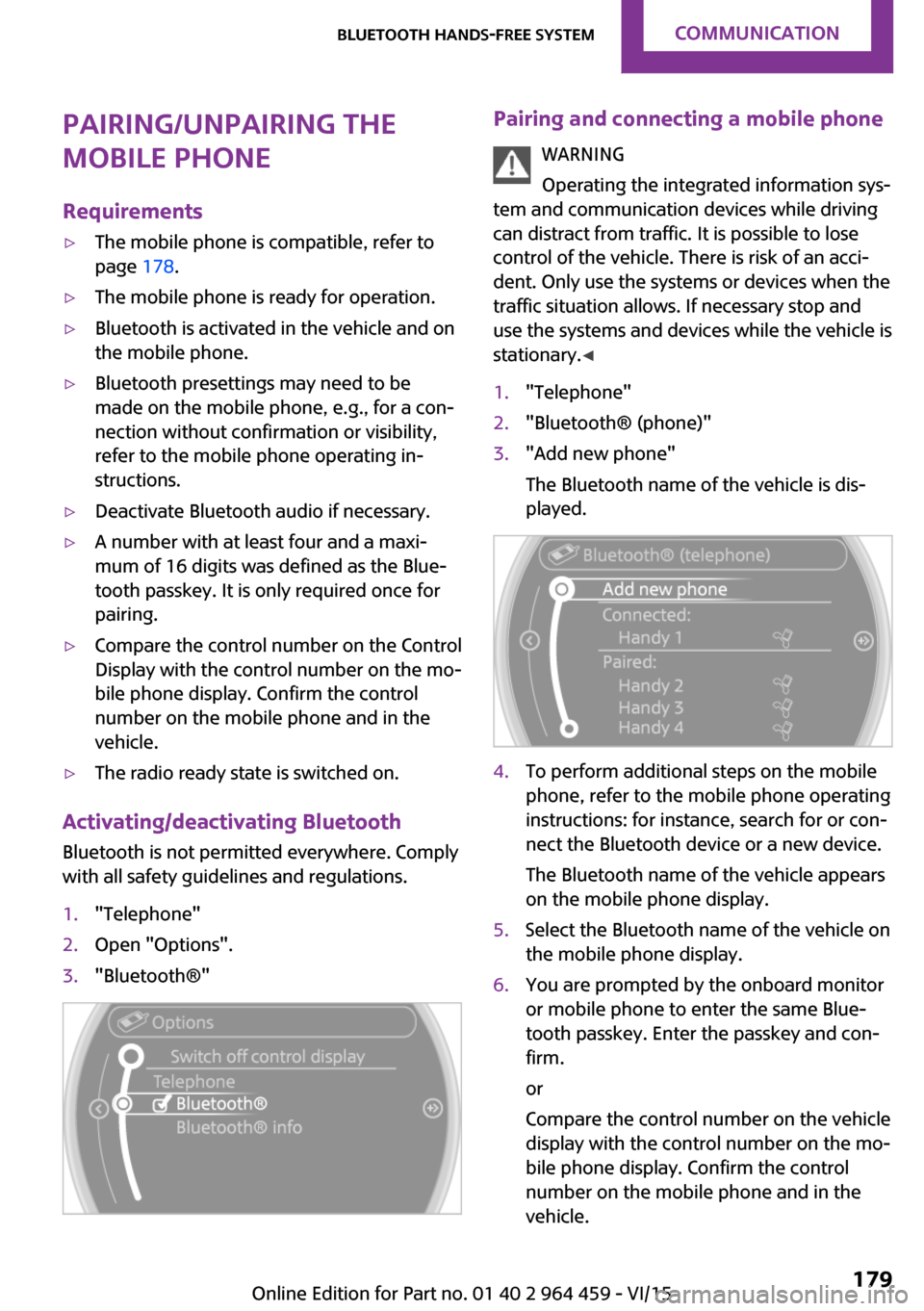
stationary. ◀1."Telephone"2."Bluetooth® (phone)"3."Add new phone"
The Bluetooth name of the vehicle is dis‐
played.4.To perform additional steps on the mobile
phone, refer to the mobile phone operating
instructions: for instance, search for or con‐
nect the Bluetooth device or a new device.
The Bluetooth name of the vehicle appears
on the mobile phone display.5.Select the Bluetooth name of the vehicle on
the mobile phone display.6.You are prompted by the onboard monitor
or mobile phone to enter the same Blue‐
tooth passkey. Enter the passkey and con‐
firm.
or
Compare the control number on the vehicle
display with the control number on the mo‐
bile phone display. Confirm the control
number on the mobile phone and in the
vehicle.Seite 179Bluetooth hands-free systemCOMMUNICATION179
Online Edition for Part no. 01 40 2 964 459 - VI/15