USB MINI COUPE ROADSTER CONVERTIBLE 2012 User Guide
[x] Cancel search | Manufacturer: MINI, Model Year: 2012, Model line: COUPE ROADSTER CONVERTIBLE, Model: MINI COUPE ROADSTER CONVERTIBLE 2012Pages: 283, PDF Size: 9.38 MB
Page 202 of 283
MINI ConnectedCOMMUNICATIONS
201
MINI Connected
Vehicle equipment
In this chapter, all production, country, and
optional equipment that is offered in the model
range is described. Equipment is also described
that is not available because of, for example,
selected options or count ry version. This also
applies to safety related functions and systems.
Overview
The concept
You can use MINI Connected to integrate certain
software applications of a suitable mobile phone
into your MINI. These software applications are
displayed on the Control Display. They are oper-
ated using the MINI joystick.
The range of software applications can be
country-specific.
Requirements
The following requirements must be met for the
function of MINI Connected:
> The operating system of the mobile phone
must support the software applications of
MINI Connected.
> The software applications are installed on
the mobile phone and are operational.
> Suitable mobile phone.
> Appropriate mobile phone contract.
Possible additional costs incurred are not
included with MINI Connected.
Only make entries when the traffic
situation allows you to do so. If you do not
observe this precaution, your being distracted
can endanger vehicle occupants and other road
users.
For safety reasons, some software applications
can only be used when the vehicle is stopped.
wise, malfunctions may result. <
Notes
For information on suitable mobile phones,
available software applications, and their
installation:
> At: www.mini.com/connectivity
> At your MINI dealer.
Connecting a mobile
phone
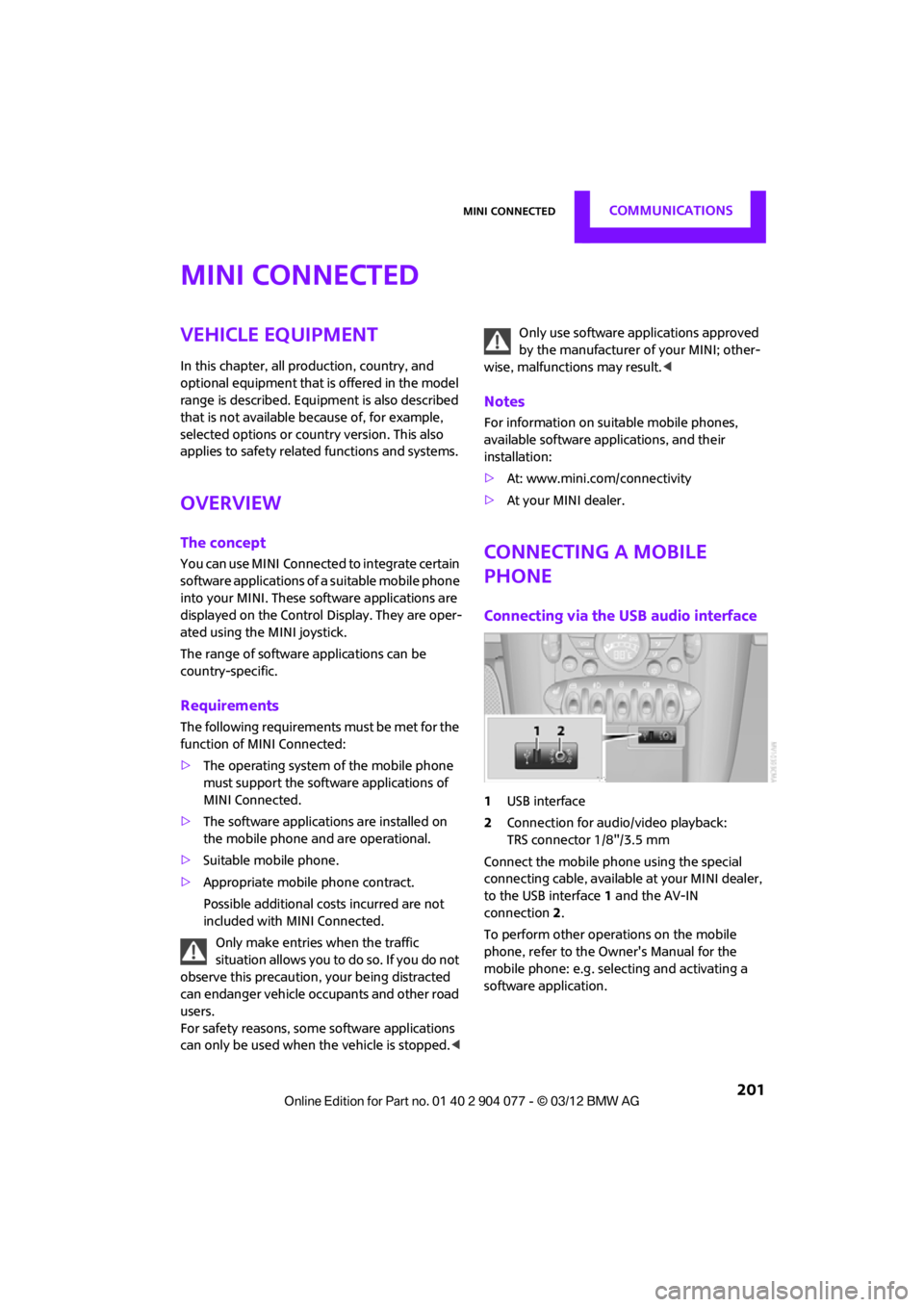
Connecting via the USB audio interface
1USB interface
2 Connection for audi o/video playback:
TRS connector 1/8"/3.5 mm
Connect the mobile phone using the special
connecting cable, available at your MINI dealer,
to the USB interface 1 and the AV-IN
connection 2.
To perform other operations on the mobile
phone, refer to the Owner's Manual for the
mobile phone: e.g. selecting and activating a
software application.
00320051004F004C00510048000300280047004C0057004C005200510003
Page 203 of 283
COMMUNICATIONSMINI Connected
202
Connecting via the snap-in adapter
The mobile phone can also be connected using
the snap-in adapter, refer to page191.
Using MINI Connected
After successful connection of the mobile phone
to the vehicle and activation of MINI Connected,
the applications are di splayed on the Control
Display and can be operated using the MINI
joystick.
Volume adjustments can be made using the
buttons on the steering wheel, refer to page 10,
or using the volume control knob on the radio,
refer to page 147.
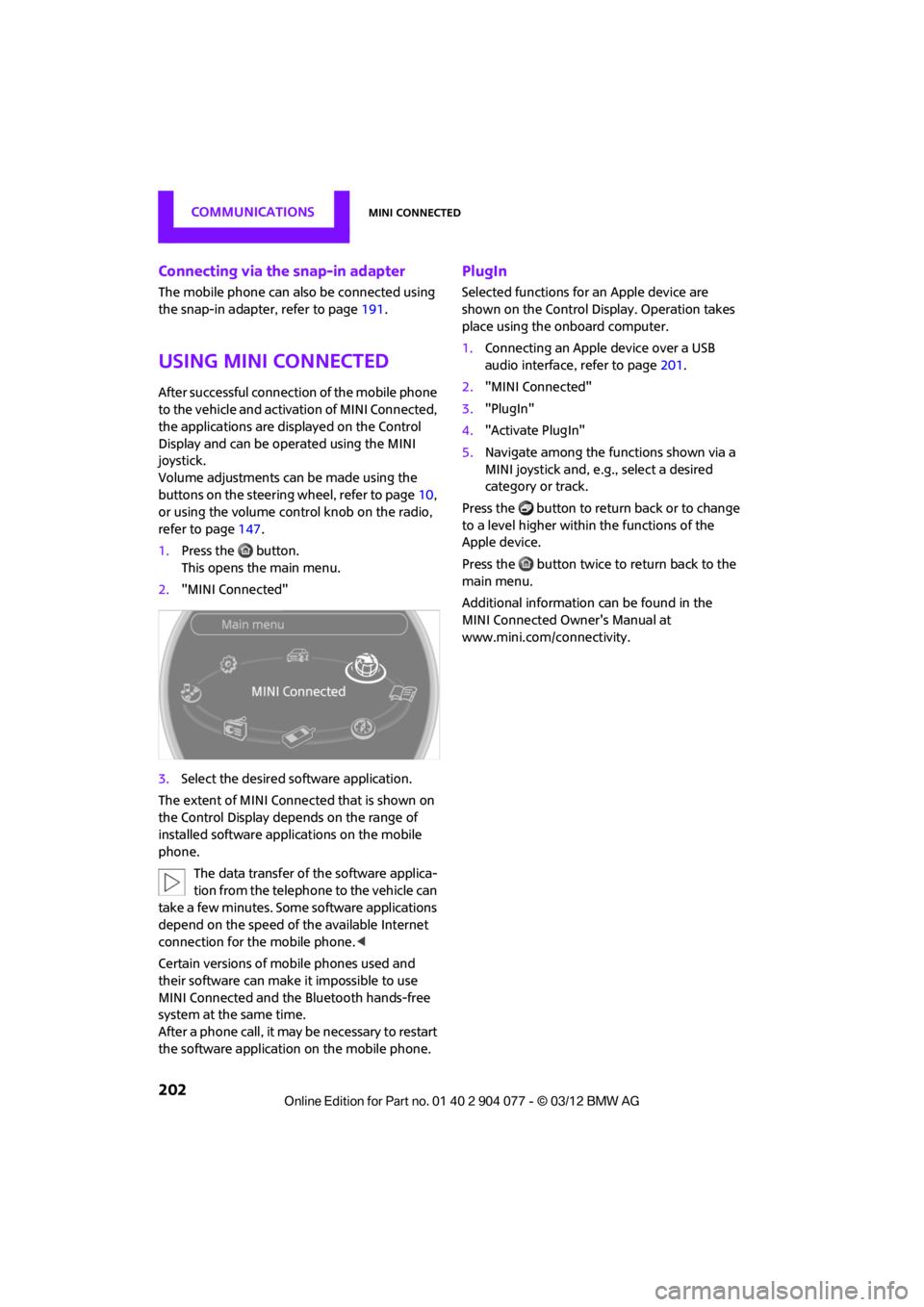
1. Press the button.
This opens the main menu.
2. "MINI Connected"
3. Select the desired so ftware application.
The extent of MINI Connected that is shown on
the Control Display depends on the range of
installed software applic ations on the mobile
phone.
The data transfer of the software applica-
tion from the telephone to the vehicle can
take a few minutes. Some software applications
depend on the speed of the available Internet
connection for the mobile phone. <
Certain versions of mobile phones used and
their software can make it impossible to use
MINI Connected and the Bluetooth hands-free
system at the same time.
After a phone call, it may be necessary to restart
the software application on the mobile phone.
PlugIn
Selected functions for an Apple device are
shown on the Control Display. Operation takes
place using the onboard computer.
1. Connecting an Apple device over a USB
audio interface, refer to page 201.
2. "MINI Connected"
3. "PlugIn"
4. "Activate PlugIn"
5. Navigate among the functions shown via a
MINI joystick and, e. g., select a desired
category or track.
Press the button to return back or to change
to a level higher within the functions of the
Apple device.
Press the button twice to return back to the
main menu.
Additional information can be found in the
MINI Connected Owner's Manual at
www.mini.com/c onnectivity.
00320051004F004C00510048000300280047004C0057004C005200510003
Page 281 of 283

REFERENCEEverything from A to Z
280
Traffic information in navigation
– screen display in the map view 141
Trailer operation
– trailer loads and gross vehicle weight 257
Transmission
– automatic transmission with Steptronic 62
– manual transmission 62
– overriding selector lever lock for automatic transmission
with Steptronic 64
Transporting children safely 56
Transport securing devices,
refer to Securing cargo 119
Tread depth, refer to Minimum tire tread 218
Treble, refer to Tone control 147
Trip computer 73
Trip-distance counter, refer to Trip odometer 71
Triple turn si gnal activation 65
Trip odometer 71
Trunk, refer to Luggage compartment in the MINI
Convertible 117
Trunk lid
– emergency operation, refer to Manual unlocking 33
Turning circle, refer to
Dimensions 251
Turn signal 65
– front, replacing bulb 234
– indicator lamp 12,13
– rear, replacing bulb 235
– side, replacing bulb 235
Tying down load s, refer to
Cargo loading 119U
Uniform Tire Quality Grading
UTQR 217
Units
– average fuel consumption 74
– temperature 74
Unlatching, refer to Unlocking 37
Unlocking
– from inside 32
– from outside 30
– tailgate 37
– without remote control, refer
to Comfort Access 36
Updating the navigation
data 124
Upholstery, care 229
USB audio interface 160
USB interface 107
Using contact data 199
V
Valve
– dust cap240
Vehicle
– battery 241
– breaking in 114
– cargo loading 116
– dimensions 251
– identification number, refer to Engine compartment 221
– parking 61
– storage 230
– weight 257
Vehicle equipment 4
Vehicle jack 231
– jacking points 241
Ventilation
– air conditioner 106
Vents, refer to Air vents 101
Vents, refer to Ventilation 106Voice commands
– overview
23
– short commands 260
– telephone 189
Voice instructions for navigation system 139
– repeating 139
– switching on/off 139
– volume 139
Voice phone book 190
Volume 146
– audio sources 146
– mobile phone 173,185
– voice instructions 139
Volume balance, tone setting 147
Volume of cargo area 257
W
Warning and indicator
lamps 13
Warning messages, refer to Check Control 77
Warning triangle 243
Washer fluid 67
– capacity of reservoir 67
Washer fluid reservoir 67
Waste tray, refer to Ashtray 109
Waterfall lighti ng, refer to
Ambient lighting 100
Water on roads, refer to
Driving through water 115
Waveband for radio 149
Wear indicators in tires, refer to
Minimum tread depth 218
Weights 257
Welcome lamps 97
Wheelbase, refer to Dimensions 251
Wheels, new 219
Wheels and tires 209
Wheel stud wrench
– space-saver spare tire 231
00320051004F004C00510048000300280047004C0057004C005200510003