transmission MINI Roadster 2013 User Guide
[x] Cancel search | Manufacturer: MINI, Model Year: 2013, Model line: Roadster, Model: MINI Roadster 2013Pages: 292, PDF Size: 7.02 MB
Page 124 of 292
Things to remember when drivingVehicle equipmentThis chapter describes all series equipment as
well as country-specific and special equipment
offered for this model series.Therefore, it also
describes equipment that may not be found in
your vehicle, for instance due to the selected
special equipment or the country version. This
also applies to safety-related functions and sys‐
tems.
Breaking-in period General information Moving parts need to be broken in to adjust to
each other.
The following instructions will help achieve a
long vehicle life and good economy.
Engine and differential
Always obey all official speed limits.
Up to 1,200 miles/2,000 kmDrive at various engine and vehicle speeds, but
do not exceed:▷For a gasoline engine, 4,500 rpm and
100 mph/160 km/h.
Avoid full-throttle operation and use of the
transmission's kickdown mode for the initial
miles.
From 1,200 miles/2,000 km
The engine and vehicle speed can gradually be
increased.
Tires Due to technical factors associated with their
manufacture, tires do not achieve their full trac‐
tion potential until after an initial breaking-in
period.
Drive conservatively for the first
200 miles/300 km.
Brake system Brakes require an initial break-in period of ap‐
prox. 300 miles/500 km to achieve optimized
contact and wear patterns between brake pads
and discs. Drive cautiously during this break-in
period.
Clutch
The clutch requires an initial break-in period of
approx. 300 miles/500 km to function at an op‐ timal level.
During this break-in period, engage the clutch
gently.
Following part replacementThe same breaking in procedures should be ob‐
served if any of the components mentioned
above have to be renewed in the course of the
vehicle's operating life.
General driving notes
Ground clearance Ensure adequate ground clearance
Ensure adequate ground clearance, e.g.,
when driving into underground garages, when
driving over curbs, or when driving in winter;
otherwise, damage may occur to the vehicle. ◀Seite 124Driving tipsThings to remember when driving124
Online Edition for Part no. 01 40 2 919 017 - II/13
Page 125 of 292
Closing the tailgateDrive with the tailgate closed
Only drive with the tailgate closed; other‐
wise, passengers and other road users may be
endangered or the vehicle may be damaged if
an accident occurs or during braking or swerv‐
ing. In addition, exhaust fumes may enter the
passenger compartment. ◀
If, despite this, the vehicle must be driven with
the tailgate open:▷Drive moderately.▷Coupe: close all windows.▷Switch off recirculated air mode and greatly
increase the blower speed.
Hot exhaust system
Hot exhaust system
High temperatures are generated in the
exhaust system.
Do not remove the heat shields installed and
never apply undercoating to them. Make sure
that flammable materials, e. g. hay, leaves,
grass, etc. do not come in contact with the hot
exhaust system during driving, while in idle po‐
sition mode, or when parked. Such contact
could lead to a fire, and with it the risk of seri‐
ous personal injury as well as property damage.
Do not touch hot exhaust pipes; otherwise,
there is the danger of getting burned. ◀
Mobile communication devices in the
vehicle
Mobile communication devices in the ve‐
hicle
It is not recommended to use mobile phones,
such as mobile phones without a direct con‐
nection to an external aerial in the vehicle's
passenger compartment. Otherwise, the vehi‐
cle electronics and mobile communication de‐
vices can interfere with each other. In addition,
there is no assurance that the radiation gener‐
ated during transmission will be discharged
from the vehicle interior. ◀
Hydroplaning On wet or slushy roads, a wedge of water can
form between the tires and road surface.
This phenomenon is referred to as hydroplan‐
ing. It is characterized by a partial or complete
loss of contact between the tires and the road
surface, ultimately undermining your ability to
steer and brake the vehicle.
Hydroplaning
When driving on wet or slushy roads, re‐
duce your speed to prevent hydroplaning. ◀
The risk of hydroplaning increases as the tire
tread depth decreases. Minimum tread depth,
refer to page 230.
Driving through water Drive though calm water only if it is not deeper
than 12 inches/30 cm and at this height, no
faster than walking speed, up to
6 mph/10 km/h.
Adhere to water depth and speed limita‐
tions
Do not exceed this water depth and walking
speed; otherwise, the vehicle's engine, the
electrical systems and the transmission may be
damaged. ◀
Using the handbrake on inclines Using the handbrake
On inclines, do not hold the vehicle sta‐
tionary with a slipping clutch for extended pe‐
riod; use the handbrake instead. Otherwise, the
clutch will be subject to increased wear. ◀
Support from the hill drive-off assistant, refer to
page 103.Seite 125Things to remember when drivingDriving tips125
Online Edition for Part no. 01 40 2 919 017 - II/13
Page 126 of 292
Braking safelyThe vehicle is equipped with ABS as a standardfeature.
Applying the brakes fully is the most effective
way of braking in situations when this is neces‐
sary.
The vehicle maintains steering responsiveness.
You can still avoid any obstacles with a mini‐
mum of steering effort.
Pulsation of the brake pedal and sounds from
the hydraulic circuits indicate that ABS is in its
active mode.
Do not let your foot rest on the brake
pedal
Do not drive with your foot resting on the brake
pedal. Even light but consistent pedal pressure
can lead to high temperatures, brake wear and
possibly even brake failure. ◀
Objects in the area around the pedals No objects in the area around the pedals
Keep floor mats, carpets, and any other
objects out of the area of motion of the pedals;
otherwise, the function of the pedals could be
impeded while driving
Do not place additional floor mats over existing
mats or other objects.
Only use floor mats that have been approved
for the vehicle and can be properly fixed in
place.
Ensure that the floor mats are securely fastened
again when they are returned after being re‐
moved, such as for cleaning. ◀
Driving in wet conditions When roads are wet or there is heavy rain,
briefly exert gentle pressure on the brake pedal
every few miles.
Ensure that this action does not endanger other
road users.The heat generated in this process helps dry
the brake discs and pads.
In this way braking efficiency will be available
when you need it.
HillsDrive long or steep downhill gradients in the
gear in which the least braking is required. Oth‐
erwise, the brake system may overheat, result‐
ing in a reduction in the brake system effi‐
ciency.
You can increase the engine's braking effect by
shifting down, going all the way to first gear, if
necessary.
Downshifting in manual mode of the automatic
transmission, refer to page 72.
Avoid load on the brakes
Avoid placing excessive load on the brake
system. Light but consistent brake pressure can
lead to high temperatures, brake wear and
possibly even brake failure. ◀
Do not drive in neutral
Never drive with the transmission in neu‐
tral, with the engine switched off or with the
clutch depressed; otherwise, you will have nei‐
ther the braking action of the engine or nor its
power assistance when braking or steering. ◀
Brake disc corrosion
Corrosion on the brake discs and contamina‐
tion on the brake pads are furthered by:▷Low mileage.▷Extended periods when the vehicle is not
used at all.▷Infrequent use of the brakes.
Corrosion occurs when the minimum pressure
that must be exerted by the pads during brake
applications to clean the discs is not reached.
Should corrosion form on the brake discs, the
brakes will tend to respond with a pulsating ef‐
fect that generally cannot be corrected.
Seite 126Driving tipsThings to remember when driving126
Online Edition for Part no. 01 40 2 919 017 - II/13
Page 155 of 292
What to do if...Vehicle equipment
This chapter describes all series equipment as
well as country-specific and special equipment
offered for this model series.Therefore, it also
describes equipment that may not be found in
your vehicle, for instance due to the selected
special equipment or the country version. This
also applies to safety-related functions and sys‐
tems.
What to do if...▷The current transmission position cannot be
displayed?
The vehicle is located in an unrecognized
region, is in a poor reception area, or the
system is currently determining the posi‐
tion. Reception is usually best when you
have an unobstructed view of the sky.▷The destination without street information
is not used for route guidance?
When city has been input, no downtown
can be determined. Input any street in the
selected city and start destination guid‐
ance.▷The destination is not used for route guid‐
ance?
The destination data are not contained in
the navigation data. Select a destination
that is as close as possible to the original.▷Letters for destination input cannot be se‐
lected?
The stored data do not contain the data of
the destination. Select a goal that is as close
as possible to the original.▷Is the map displayed in shades of gray?
"Traffic conditions/gray map" active:The Control Display changes to a black and
white display. This enables a better view of
the traffic bulletins.▷Spoken instructions are no longer output
during route guidance in front of intersec‐
tions?
The area has not yet been fully recorded, or
you have left the recommended route and
the system requires a few seconds to calcu‐
late a new route suggestion.▷Does the navigation system fail to react to
entries?
If the battery was disconnected, it takes up
to 10 minutes for the system to becoming
functional again.Seite 155What to do if...Navigation155
Online Edition for Part no. 01 40 2 919 017 - II/13
Page 164 of 292
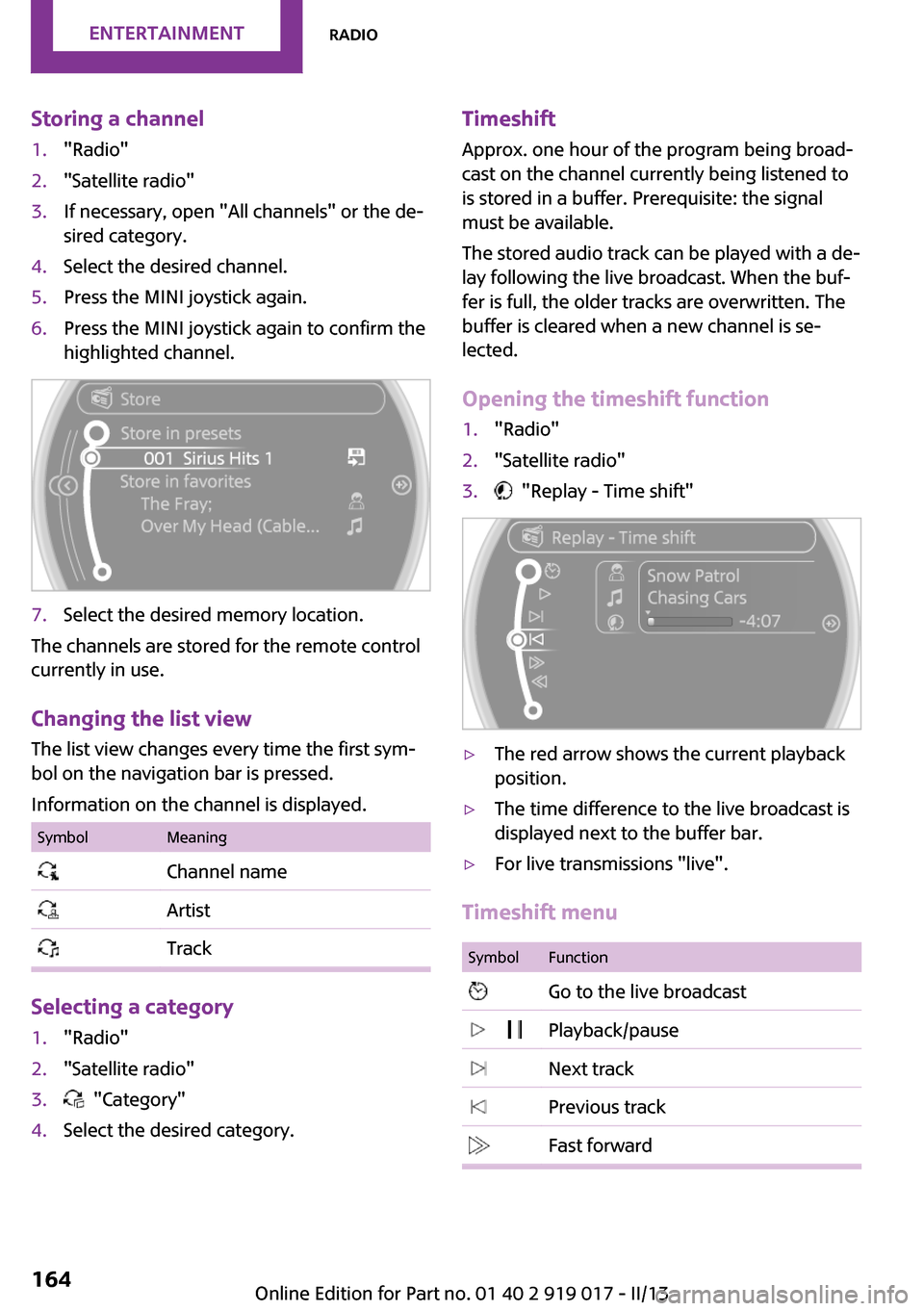
Storing a channel1."Radio"2."Satellite radio"3.If necessary, open "All channels" or the de‐
sired category.4.Select the desired channel.5.Press the MINI joystick again.6.Press the MINI joystick again to confirm the
highlighted channel.7.Select the desired memory location.
The channels are stored for the remote control
currently in use.
Changing the list view
The list view changes every time the first sym‐
bol on the navigation bar is pressed.
Information on the channel is displayed.
SymbolMeaning Channel name Artist Track
Selecting a category
1."Radio"2."Satellite radio"3. "Category"4.Select the desired category.Timeshift Approx. one hour of the program being broad‐
cast on the channel currently being listened to is stored in a buffer. Prerequisite: the signal
must be available.
The stored audio track can be played with a de‐
lay following the live broadcast. When the buf‐ fer is full, the older tracks are overwritten. The
buffer is cleared when a new channel is se‐
lected.
Opening the timeshift function1."Radio"2."Satellite radio"3. "Replay - Time shift"▷The red arrow shows the current playback
position.▷The time difference to the live broadcast is
displayed next to the buffer bar.▷For live transmissions "live".
Timeshift menu
SymbolFunction Go to the live broadcast Playback/pause Next track Previous track Fast forwardSeite 164EntertainmentRadio164
Online Edition for Part no. 01 40 2 919 017 - II/13
Page 173 of 292
After connecting for the first time
Information on all music tracks, e.g. artist or
type of music, as well as playback lists are
transmitted into the vehicle. This may take
some time, depending on the USB device and
the number of tracks.
During transmission, the tracks can be called up
via the file directory.
Number of tracks
Information from up to four USB devices or for
approx. 26,000 tracks can be stored in the ve‐
hicle. If a fifth device is connected or if more
than 26,000 tracks are stored, information on
existing tracks may be deleted.
Copy protection
Music tracks with integrated Digital Rights Man‐
agement (DRM) cannot be played.
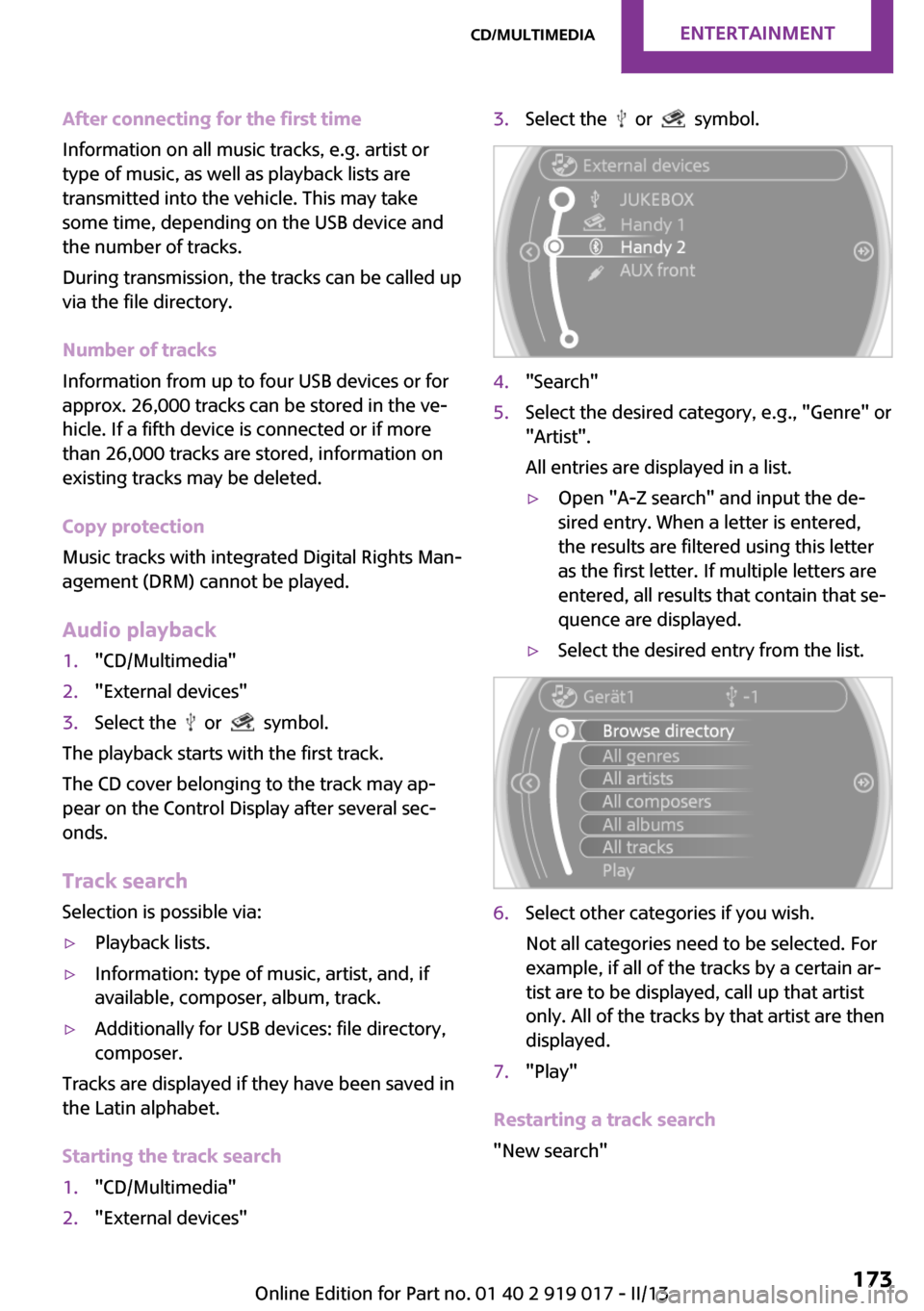
Audio playback1."CD/Multimedia"2."External devices"3.Select the or symbol.
The playback starts with the first track.
The CD cover belonging to the track may ap‐
pear on the Control Display after several sec‐
onds.
Track search
Selection is possible via:
▷Playback lists.▷Information: type of music, artist, and, if
available, composer, album, track.▷Additionally for USB devices: file directory,
composer.
Tracks are displayed if they have been saved in
the Latin alphabet.
Starting the track search
1."CD/Multimedia"2."External devices"3.Select the or symbol.4."Search"5.Select the desired category, e.g., "Genre" or
"Artist".
All entries are displayed in a list.▷Open "A-Z search" and input the de‐
sired entry. When a letter is entered,
the results are filtered using this letter
as the first letter. If multiple letters are
entered, all results that contain that se‐
quence are displayed.▷Select the desired entry from the list.6.Select other categories if you wish.
Not all categories need to be selected. For
example, if all of the tracks by a certain ar‐
tist are to be displayed, call up that artist
only. All of the tracks by that artist are then
displayed.7."Play"
Restarting a track search
"New search"
Seite 173CD/multimediaEntertainment173
Online Edition for Part no. 01 40 2 919 017 - II/13
Page 185 of 292
▷A multi-character passkey may be needed.▷Did it take longer than 30 seconds to enter
the passkey? Repeat the pairing procedure.▷Are too many Bluetooth devices connected
to the mobile phone or vehicle? Delete con‐
nections with other devices if necessary.▷The mobile phone is in power-save mode
or has only a limited remaining battery life.
Charge the mobile phone via the charging
cable.▷Depending on the mobile phone, it is possi‐
ble that only one mobile phone can be con‐
nected to the vehicle. Unpair the connected
mobile phone from the vehicle and pair
and connect only one mobile phone.
The mobile phone no longer reacts.
▷Switch the mobile phone off and on again.▷Is the ambient temperature too high or
low? Do not expose the mobile phone to
extreme environmental conditions.
No phone book entries or only some phone
book entries are displayed, or they are incom‐
plete.
▷Transmission of the phone book entries is
not yet complete.▷It is possible that only the phone book en‐
tries of the mobile phone or the SIM card
are transmitted.▷It may not be possible to display phone
book entries with special characters.▷The number of phone book entries to be
stored is too high.▷Is the data volume of the contact too large,
e. g., due to stored information such as
notes? Reduce the data volume of the con‐
tact.
The phone connection quality is poor.
▷The strength of the Bluetooth signal on the
mobile phone can be adjusted, depending
on the mobile phone.▷Place the mobile phone in the area of the
center console.If all points in this list have been checked and
the required function is still not available, con‐
tact Customer Relations or the service center.
Controls Adjusting the volume
Turn the knob until the desired volume is se‐
lected. The setting is stored for the remote con‐
trol currently in use.
Incoming call
Receiving calls If the number of the caller is stored in the
phone book and is transmitted by the network,
the name of the contact is displayed. Other‐
wise, only the phone number is displayed.
If more than one phone number is assigned to
a contact, only the name of the contact is dis‐
played.
Accepting a call Press the button on the steering
wheel.
or
"Accept"
Seite 185Bluetooth hands-free systemCommunication185
Online Edition for Part no. 01 40 2 919 017 - II/13
Page 197 of 292
The mobile phone no longer reacts.▷Switch the mobile phone off and on again.▷Is the ambient temperature too high or
low? Do not expose the mobile phone to
extreme environmental conditions.
The telephone functions are not available.
▷Is the mobile phone paired as an additional
telephone and is the additional telephone
function deactivated? Activate the function.▷Is an outgoing call not possible? Connect
the mobile phone as a telephone.
No phone book entries or only some phone
book entries are displayed, or they are incom‐
plete.
▷Transmission of the phone book entries is
not yet complete.▷It is possible that only the phone book en‐
tries of the mobile phone or the SIM card
are transmitted.▷It may not be possible to display phone
book entries with special characters.▷The number of phone book entries to be
stored is too high.▷Is the data volume of the contact too large,
e. g., due to stored information such as
notes? Reduce the data volume of the con‐
tact.▷Is the mobile phone connected as an audio
source or additional telephone? The mobile
phone must be connected as a telephone.
The phone connection quality is poor.
▷The strength of the Bluetooth signal on the
mobile phone can be adjusted, depending
on the mobile phone.▷Insert the mobile phone into the snap-in
adapter or place it in the area of the center
console.▷Adjust the volume of the microphone and
loudspeakers separately.
If all points in this list have been checked and
the required function is still not available, con‐
tact Customer Relations or the service center.
Controls
Adjusting the volume
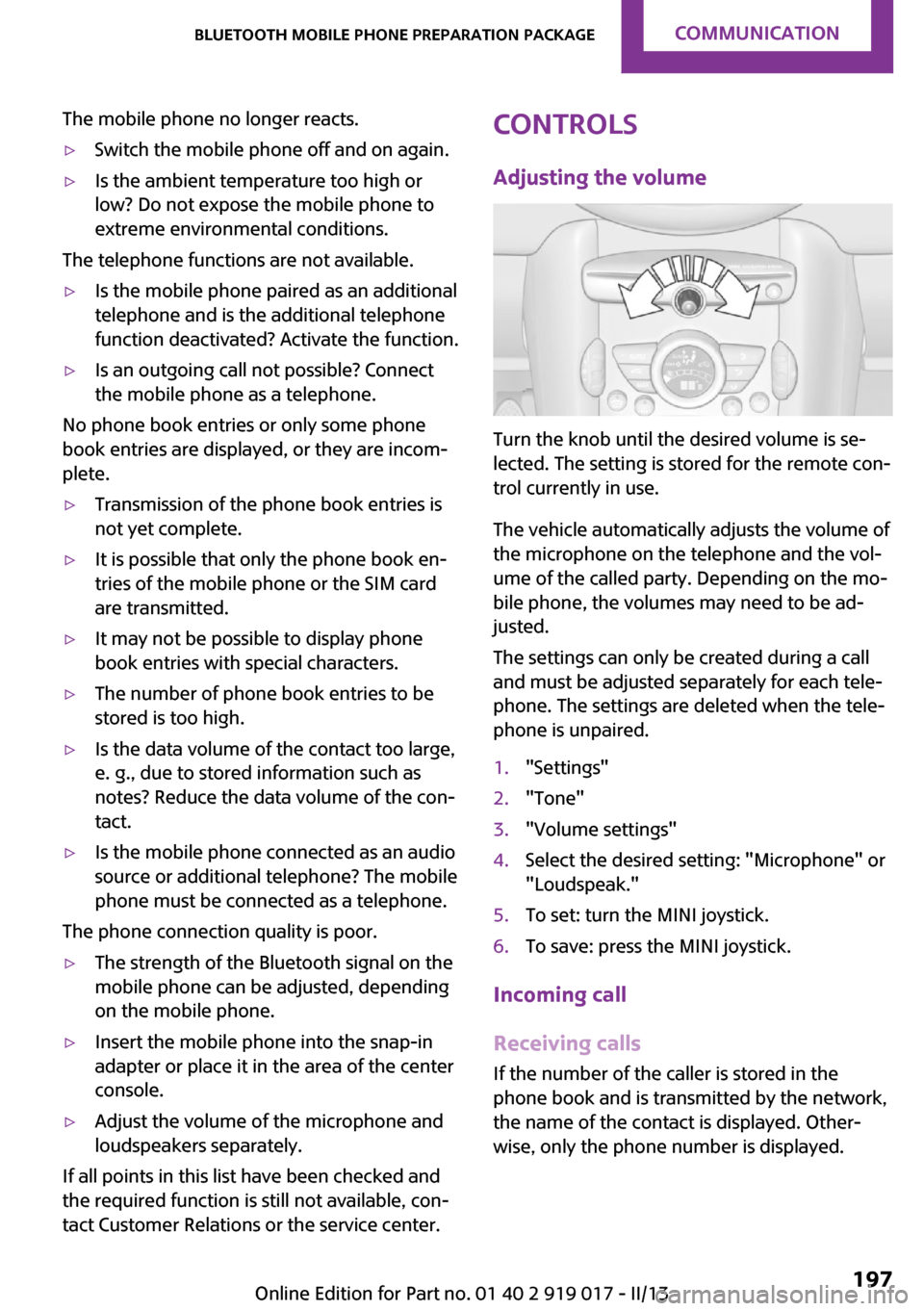
Turn the knob until the desired volume is se‐
lected. The setting is stored for the remote con‐
trol currently in use.
The vehicle automatically adjusts the volume of
the microphone on the telephone and the vol‐
ume of the called party. Depending on the mo‐
bile phone, the volumes may need to be ad‐
justed.
The settings can only be created during a call
and must be adjusted separately for each tele‐
phone. The settings are deleted when the tele‐
phone is unpaired.
1."Settings"2."Tone"3."Volume settings"4.Select the desired setting: "Microphone" or
"Loudspeak."5.To set: turn the MINI joystick.6.To save: press the MINI joystick.
Incoming call
Receiving calls If the number of the caller is stored in the
phone book and is transmitted by the network,
the name of the contact is displayed. Other‐
wise, only the phone number is displayed.
Seite 197Bluetooth mobile phone preparation packageCommunication197
Online Edition for Part no. 01 40 2 919 017 - II/13
Page 207 of 292
Show contact pictures
Pictures stored with the contacts are stored in
the vehicle when the mobile phone is con‐
nected to the vehicle. The number of transmit‐
ted pictures depends on the mobile phone. The
mobile phone must support this function.1."Office"2."Contacts"3.Open "Options".4."Configure Bluetooth®"5."Show images"
Display of all contact pictures is activated or de‐
activated.
Deleting contacts
Only contacts that are stored in the vehicle are
deleted. The contacts on the mobile phone
cannot be deleted.
1."Office"2."Contacts"3.Highlight the contact.4.Open "Options".5."Delete contact" or "Delete all contacts"
Messages
General information Whether or not text messages and e-mails from
the mobile phone are displayed depends on
whether transmission from the mobile phone
to the vehicle is supported. Text messages and
e-mails may not be supported by the service
provider, or the function may need to be ena‐
bled separately. After the mobile phone is first
paired, transmission may take several minutes.
Messages are only displayed in full length when
the vehicle is stationary. Messages from the ad‐
ditional telephone are not transmitted.
Displaying messages1."Office"2."Messages"
A symbol identifies the type of message.
SymbolMessage type Text messages. E-mail from mobile phone.
Filtering the message list
The message list can be filtered if more than
one type of message exists.
1."Filter:"2.Select the type of message.▷"All"
All messages are displayed.▷"Text message"
Only text messages from the mobile
phone are displayed.▷"E-mail"
Only e-mails from the mobile phone
are displayed.
Text messages
Calling the sender of a text message
1.Select the desired message.2. Select the symbol.
Saving the sender in the contacts
1.Highlight the desired message.2.Open "Options".3."Store as new contact" or "Add to existing
contact"
Using contact data
Contact data from appointments, tasks, text
messages, e-mails, and notes can be stored or
selected, refer to page 210.
Seite 207OfficeCommunication207
Online Edition for Part no. 01 40 2 919 017 - II/13
Page 213 of 292
Control Display and can be operated using the
MINI joystick.
The volume can be set using the following con‐
trols:▷
Buttons on the steering
wheel or
▷Volume button on the radio, refer to
page 1601.Connect the mobile phone via the snap-in
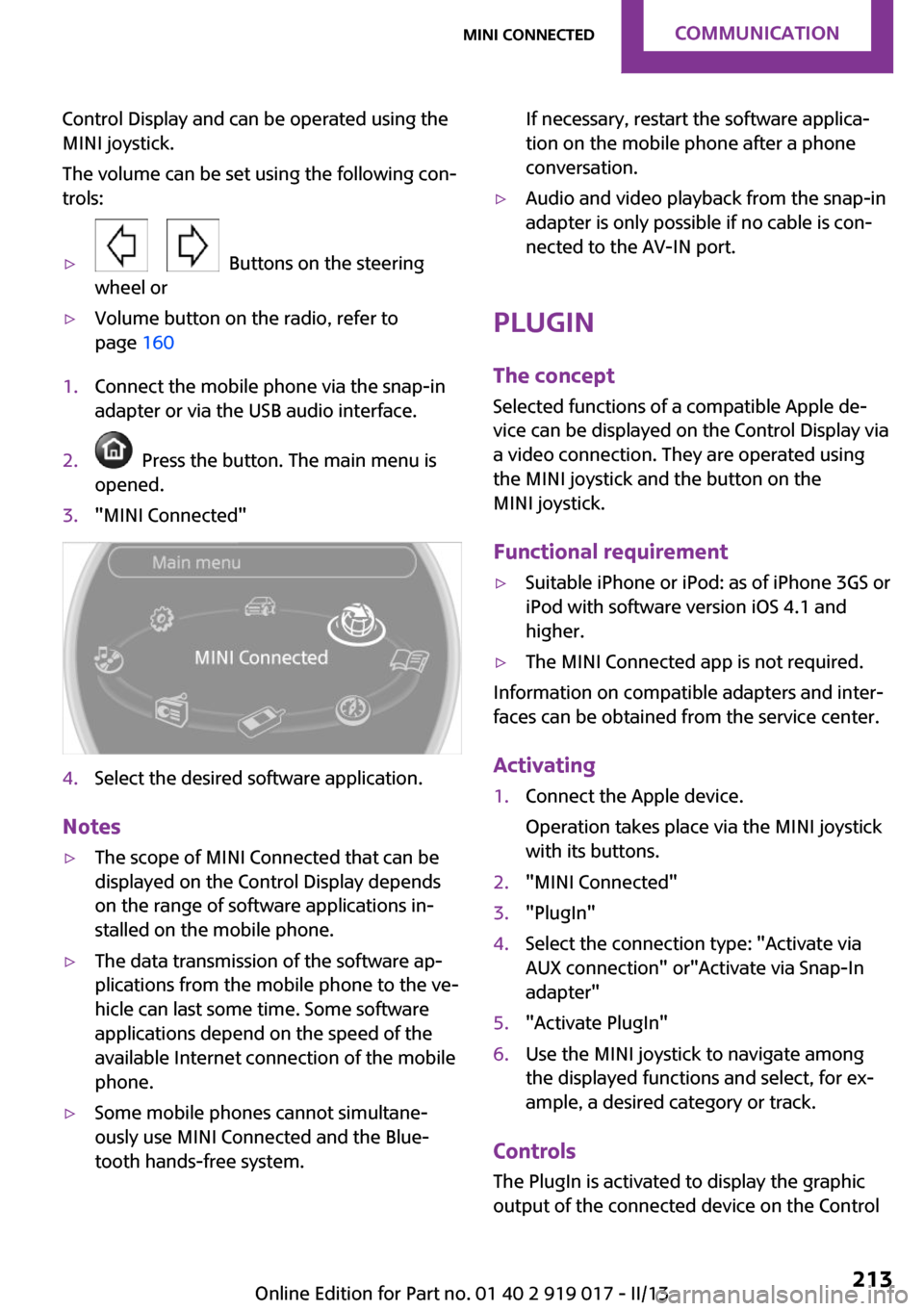
adapter or via the USB audio interface.2. Press the button. The main menu is
opened.3."MINI Connected"4.Select the desired software application.
Notes
▷The scope of MINI Connected that can be
displayed on the Control Display depends
on the range of software applications in‐
stalled on the mobile phone.▷The data transmission of the software ap‐
plications from the mobile phone to the ve‐
hicle can last some time. Some software
applications depend on the speed of the
available Internet connection of the mobile
phone.▷Some mobile phones cannot simultane‐
ously use MINI Connected and the Blue‐
tooth hands-free system.If necessary, restart the software applica‐
tion on the mobile phone after a phone
conversation.▷Audio and video playback from the snap-in
adapter is only possible if no cable is con‐
nected to the AV-IN port.
PlugIn
The concept
Selected functions of a compatible Apple de‐
vice can be displayed on the Control Display via
a video connection. They are operated using
the MINI joystick and the button on the
MINI joystick.
Functional requirement
▷Suitable iPhone or iPod: as of iPhone 3GS or
iPod with software version iOS 4.1 and
higher.▷The MINI Connected app is not required.
Information on compatible adapters and inter‐
faces can be obtained from the service center.
Activating
1.Connect the Apple device.
Operation takes place via the MINI joystick
with its buttons.2."MINI Connected"3."PlugIn"4.Select the connection type: "Activate via
AUX connection" or"Activate via Snap-In
adapter"5."Activate PlugIn"6.Use the MINI joystick to navigate among
the displayed functions and select, for ex‐
ample, a desired category or track.
Controls
The PlugIn is activated to display the graphic
output of the connected device on the Control
Seite 213MINI ConnectedCommunication213
Online Edition for Part no. 01 40 2 919 017 - II/13