ECO mode MITSUBISHI iMiEV 2013 (in English) Owner's Guide
[x] Cancel search | Manufacturer: MITSUBISHI, Model Year: 2013, Model line: iMiEV, Model: MITSUBISHI iMiEV 2013Pages: 258, PDF Size: 13 MB
Page 161 of 258
2.
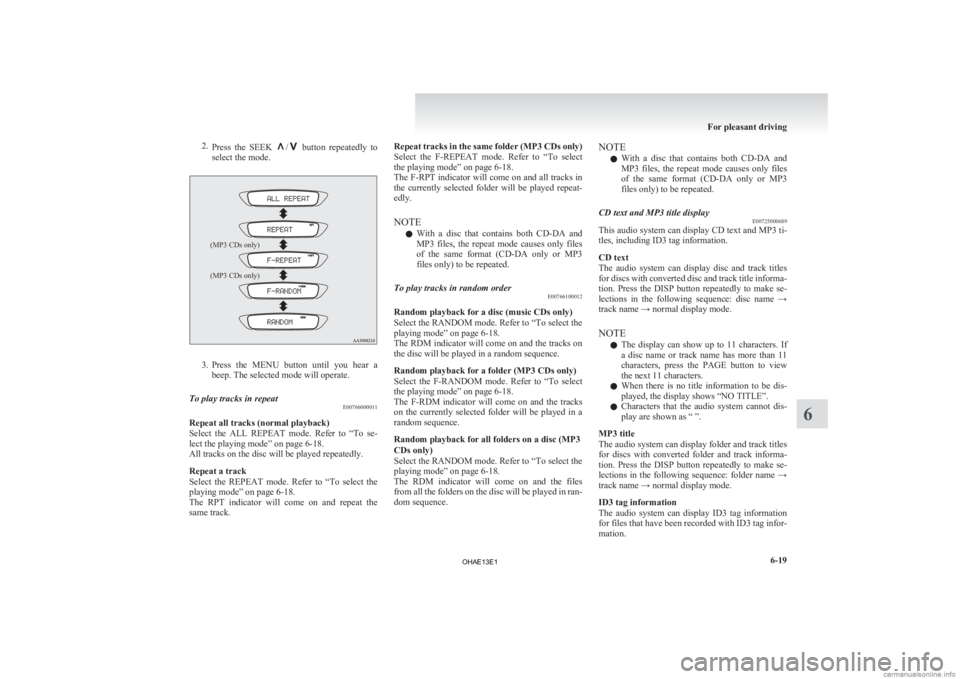
Press the SEEK / button repeatedly to
select the mode.
(MP3 CDs only)
(MP3 CDs only) 3. Press
the MENU button until you hear a
beep. The selected mode will operate.
To play tracks in repeat E00766000011
Repeat all tracks (normal playback)
Select
the ALL REPEAT mode. Refer to “To se-
lect the playing mode” on page 6-18.
All tracks on the disc will be played repeatedly.
Repeat a track
Select the REPEAT mode. Refer to “To select the
playing mode” on page 6-18.
The RPT indicator will come on and repeat the
same track. Repeat tracks in the same folder (MP3 CDs only)
Select
the F-REPEAT mode. Refer to “To select
the playing mode” on page 6-18.
The F-RPT indicator will come on and all tracks in
the currently selected folder will be played repeat-
edly.
NOTE
l With a disc that contains both CD-DA and
MP3 files, the repeat mode causes only files
of the same format (CD-DA only or MP3
files only) to be repeated.
To play tracks in random order E00766100012
Random playback for a disc (music CDs only)
Select the RANDOM mode. Refer to
“To select the
playing mode” on page 6-18.
The RDM indicator will come on and the tracks on
the disc will be played in a random sequence.
Random playback for a folder (MP3 CDs only)
Select the F-RANDOM mode. Refer to “To select
the playing mode” on page 6-18.
The F-RDM indicator will come on and the tracks
on the currently selected folder will be played in a
random sequence.
Random playback for all folders on a disc (MP3
CDs only)
Select the RANDOM mode. Refer to “To select the
playing mode” on page 6-18.
The RDM indicator will come on and the files
from all the folders on the disc will be played in ran-
dom sequence. NOTE
l With
a disc that contains both CD-DA and
MP3 files, the repeat mode causes only files
of the same format (CD-DA only or MP3
files only) to be repeated.
CD text and MP3 title display E00725000689
This audio system can display CD text and MP3 ti-
tles, including ID3 tag information.
CD text
The
audio system can display disc and track titles
for discs with converted disc and track title informa-
tion. Press the DISP button repeatedly to make se-
lections in the following sequence: disc name →
track name → normal display mode.
NOTE
l The display can show up to 11 characters. If
a disc name or track name has more than 11
characters, press the PAGE button to view
the next 11 characters.
l When there is no title information to be dis-
played, the display shows “NO TITLE”.
l Characters that the audio system cannot dis-
play are shown as “ ”.
MP3 title
The audio system can display folder and track titles
for discs with converted folder and track informa-
tion. Press the DISP button repeatedly to make se-
lections in the following sequence: folder name →
track name → normal display mode.
ID3 tag information
The audio system can display ID3 tag information
for files that have been recorded with ID3 tag infor-
mation. For pleasant driving
6-19 6
OHAE13E1
Page 162 of 258
1. Press the DISP button for 2 seconds or lon-
ger to switch to the ID3 tag information.
“TAG” will appear on the display.
2. Press the DISP button repeatedly to make se- lections in the following sequence: album
name → track name → artist name → nor-
mal display mode.
NOTE l To return from ID3 tag information to the
folder name, press the DISP button again for
2 seconds or longer.
l When there is no title information to be dis-
played, the display shows “NO TITLE”.
l The display can show up to 11 characters. If
a folder name, track name, or item of ID3 tag
information has more than 11 characters,
press the PAGE button to view the next 11
characters.
l Folder names, track names and ID3 tag infor-
mation can each be displayed up to a length
of 32 characters.
l Characters that the audio system cannot dis-
play are shown as “ ”. To play tracks from USB device*
E00756100211
You
can connect your iPod or USB memory device
to the USB input terminal and play music files stor-
ed in the iPod or USB memory device.
See the following section for the types of connecta-
ble devices and supported files.
Refer to “Types of connectable devices and suppor-
ted file specifications” on page 6-34.
See the following sections for the connecting meth-
ods, “How to connect an iPod” on page 6-34 and
“How to connect a USB memory device” on page
6-33.
NOTE
l A file protected by copyright may not be
able to playback.
l It is recommended to adjust the equalizer of
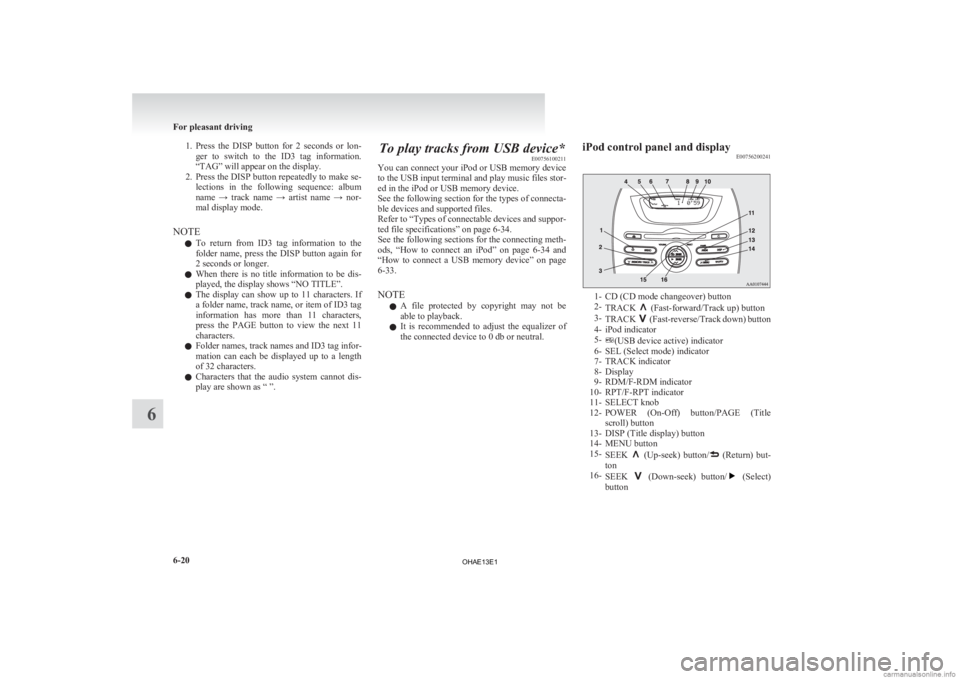
the connected device to 0 db or neutral. iPod control panel and display
E00756200241 1- CD (CD mode changeover) button
2-
TRACK (Fast-forward/Track up) button
3- TRACK (Fast-reverse/Track down) button
4-
iPod indicator
5- (USB device active) indicator
6-
SEL (Select mode) indicator
7- TRACK indicator
8- Display
9- RDM/F-RDM indicator
10- RPT/F-RPT indicator
11- SELECT knob
12- POWER (On-Off) button/PAGE (Title scroll) button
13- DISP (Title display) button
14- MENU button
15- SEEK (Up-seek) button/ (Return) but-
ton
16- SEEK (Down-seek) button/ (Select)
button For pleasant driving
6-20
6
OHAE13E1
Page 163 of 258
To play from an iPod
E00756300385
1. Press
the POWER button to turn on the au-
dio system. The system turns on in the last
mode used.
2. Connect your iPod to the USB input terminal. Refer to “How to connect an iPod” on page
6-34.
3. Press the CD button to switch to the iPod mode. The mode changes every time the CD
button is pressed.
CD mode → iPod mode → CD mode
The iPod indicator is illuminated and then
the iPod mode will be activated.
4. Once the device is selected, playback starts
and indicator appears on the display.
NOTE l Depending
on the condition of your iPod, it
may take a longer time before the playback
starts.
5. To stop the playback, change over to a differ- ent mode.
NOTE l Buttons on the iPod are disabled while the
iPod is connected to the audio system.
l To adjust the volume and tone, refer to “To
adjust the volume” and “To adjust the tone”.
To fast-forward/reverse the track E00756400126
Fast-forward
To
fast-forward the current track, press the
TRACK button. While the button is pressed,
the track will be fast-forwarded. Fast-reverse
To
fast-reverse the current track, press the TRACK button. While the button is pressed, the track
will be fast-reversed.
To select a desired track E00756500101
Track up
Press
the TRACK button repeatedly until the de-
sired track number appears on the display.
Track down
Press
the TRACK button repeatedly until the de-
sired track number appears on the display.
NOTE
l Pressing
the TRACK button once during
the
song will cause the audio system to re-
start playback from the beginning of the song.
To find a track from the iPod menu E00756600199
You can select desired tracks from the “Playlists”,
“Artists”,
“Albums” or “Songs” menus on your iPod.
Operate the following buttons or knob to select de-
sired tracks.
When this mode is activated by pressing the but-
ton,
the SEL indicator will be displayed in the dis-
play. button
: Press the button to start this
mode or cancel the selection.
SELECT knob : Turn the knob to show the menu or category or track. button
: Press the button to select the
menu or category or track. NOTE
l If
no operation is performed for 10 seconds
or more or other button is operated after the
SELECT knob has been pressed, searching
of the desired tracks is cancelled.
l If no operation is performed for 5 seconds or
more after the track is displayed, playback
starts.
l If the button is pressed when the category
is
delected, playback of the first tracks in the
selected category starts.
l When the SEL indicator is not shown on the
display and the SELECT knob is operated,
the volume adjustment is effective.
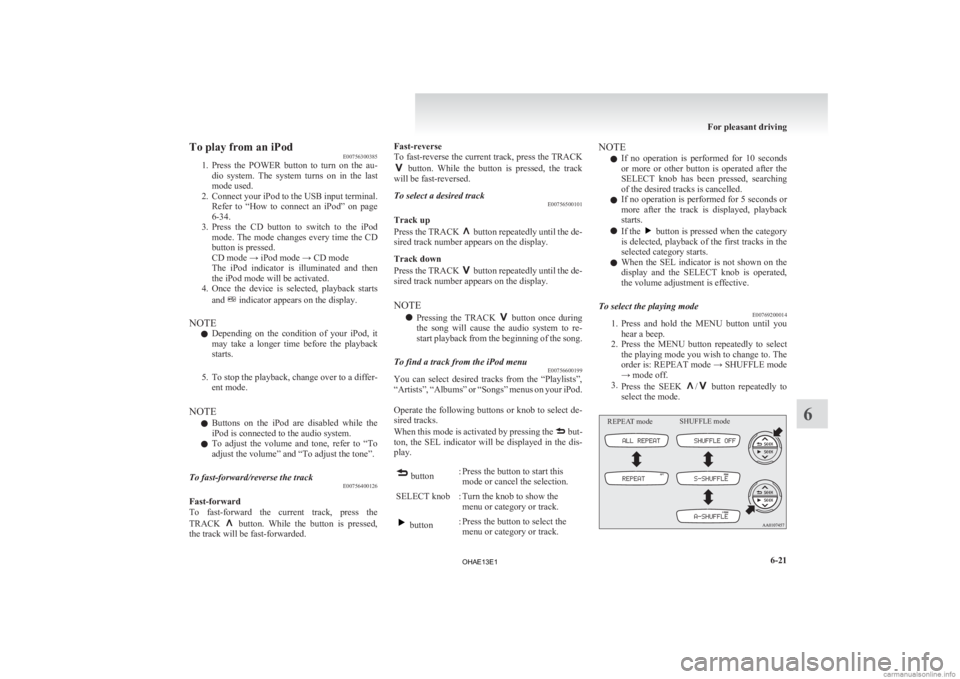
To select the playing mode E00769200014
1. Press
and hold the MENU button until you
hear a beep.
2. Press the MENU button repeatedly to select the playing mode you wish to change to. The
order is: REPEAT mode → SHUFFLE mode
→ mode off.
3. Press the SEEK / button repeatedly to
select the mode.
REPEAT mode SHUFFLE mode For pleasant driving
6-21 6
OHAE13E1
Page 165 of 258
To play from a USB memory device
E00762500379
1. Press
the POWER button to turn on the au-
dio system. The system turns on in the last
mode used.
2. Connect your USB memory device to the USB input terminal.
Refer to “How to connect a USB memory de-
vice” on page 6-33.
3. Press the CD button to switch to the USB mode. The mode changes as follows every
time the CD button is pressed.
CD mode → USB mode → CD mode
The USB indicator is illuminated and then
the USB mode will be activated.
4. Once the device is selected, playback starts and the indicator appears on the display.
NOTE l Depending on the condition of your USB de-
vice, it may take a longer time before the play-
back starts.
5. To stop the playback, change over to a differ- ent mode.
NOTE l To adjust the volume and tone, refer to “To
adjust the volume” and “To adjust the tone”.
Supported compressed music files E00758300376
This audio can play MP3, WMA, AAC and WAV
files
recorded in a USB memory device. This audio
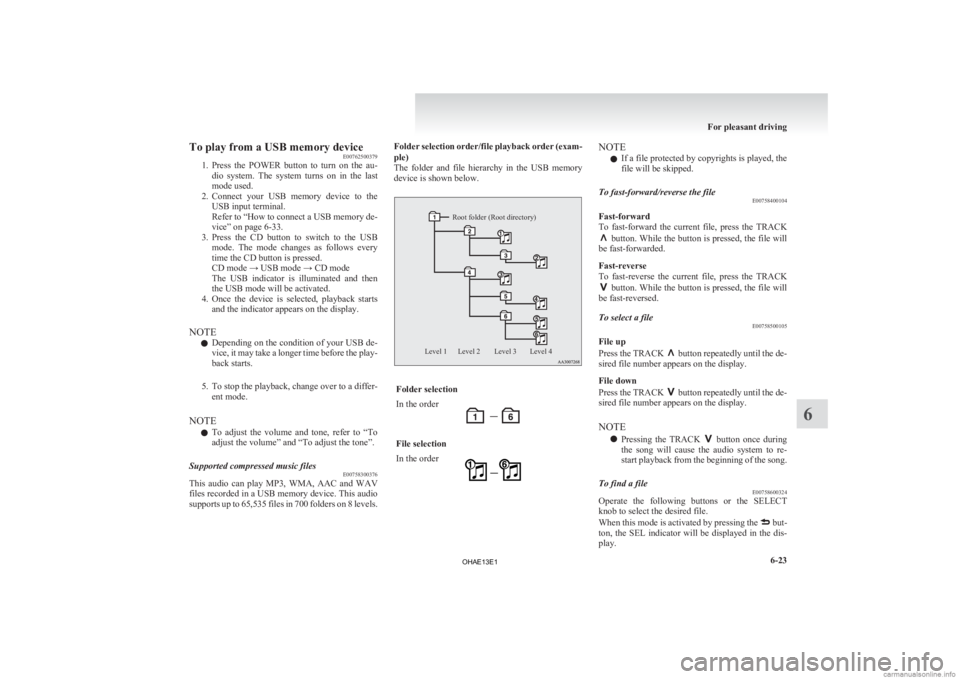
supports up to 65,535 files in 700 folders on 8 levels. Folder selection order/file playback order (exam-
ple)
The
folder and file hierarchy in the USB memory
device is shown below.
Root folder (Root directory)
Level 4
Level 3
Level 2
Level 1 Folder selection
In the order
File selection
In the order NOTE
l If a file protected by copyrights is played, the
file will be skipped.
To fast-forward/reverse the file E00758400104
Fast-forward
To fast-forward the current file, press the TRACK button. While the button is pressed, the file will
be fast-forwarded.
Fast-reverse
To
fast-reverse the current file, press the TRACK button. While the button is pressed, the file will
be fast-reversed.
To select a file E00758500105
File up
Press
the TRACK button repeatedly until the de-
sired file number appears on the display.
File down
Press
the TRACK button repeatedly until the de-
sired file number appears on the display.
NOTE
l Pressing
the TRACK button once during
the
song will cause the audio system to re-
start playback from the beginning of the song.
To find a file E00758600324
Operate the following buttons or the SELECT
knob to select the desired file.
When
this mode is activated by pressing the but-
ton,
the SEL indicator will be displayed in the dis-
play. For pleasant driving
6-23 6
OHAE13E1
Page 166 of 258
button
:Press the button to start this
mode or cancel the selection.
SELECT knob : Turn the knob to show the fold- er or file. button
: Press the button to select the
folder or file.
NOTE l If
no operation is performed for 10 seconds
or more or another button is operated after
the SELECT knob has been turned, search-
ing of the desired file is cancelled.
l If no operation is performed for 5 seconds or
more after the file is displayed, playback
starts.
l When the SEL indicator is not shown on the
display and the SELECT knob is operated,
the volume adjustment is effective.
To select the playing mode E00769400016
1. Press
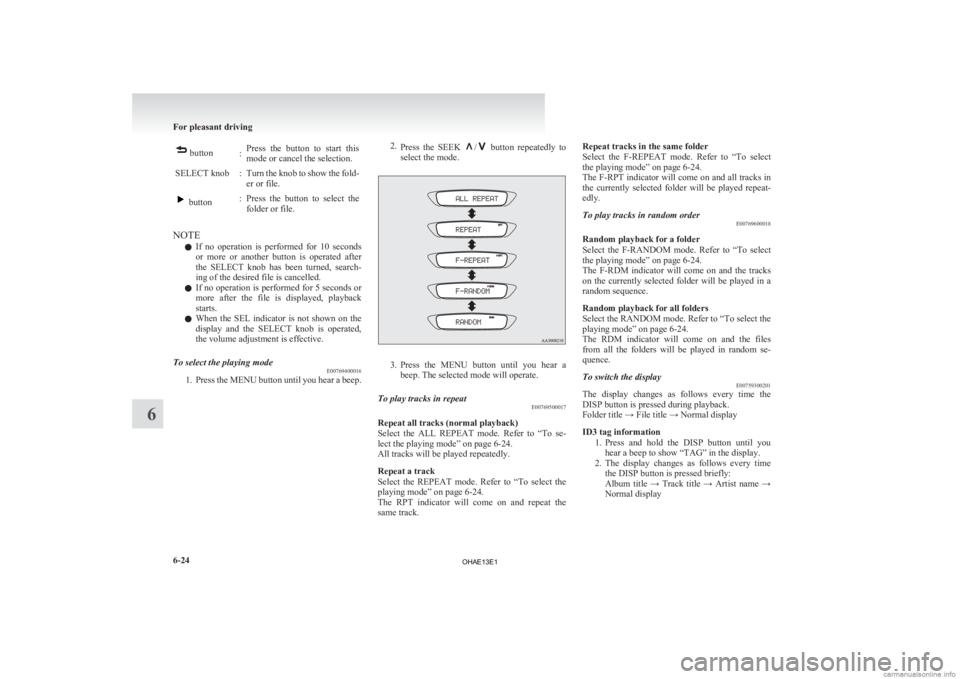
the MENU button until you hear a beep. 2.
Press
the SEEK / button repeatedly to
select the mode. 3. Press
the MENU button until you hear a
beep. The selected mode will operate.
To play tracks in repeat E00769500017
Repeat all tracks (normal playback)
Select
the ALL REPEAT mode. Refer to “To se-
lect the playing mode” on page 6-24.
All tracks will be played repeatedly.
Repeat a track
Select the REPEAT mode. Refer to “To select the
playing mode” on page 6-24.
The RPT indicator will come on and repeat the
same track. Repeat tracks in the same folder
Select
the F-REPEAT mode. Refer to “To select
the playing mode” on page 6-24.
The F-RPT indicator will come on and all tracks in
the currently selected folder will be played repeat-
edly.
To play tracks in random order E00769600018
Random playback for a folder
Select
the F-RANDOM mode. Refer to “To select
the playing mode” on page 6-24.
The F-RDM indicator will come on and the tracks
on the currently selected folder will be played in a
random sequence.
Random playback for all folders
Select the RANDOM mode. Refer to “To select the
playing mode” on page 6-24.
The RDM indicator will come on and the files
from all the folders will be played in random se-
quence.
To switch the display E00759300201
The display changes as follows every time the
DISP button is pressed during playback.
Folder title → File title → Normal display
ID3 tag information
1. Press
and hold the DISP button until you
hear a beep to show “TAG” in the display.
2. The display changes as follows every time the DISP button is pressed briefly:
Album title → Track title → Artist name →
Normal display For pleasant driving
6-24
6
OHAE13E1
Page 173 of 258
Digital clock*
E00711800527
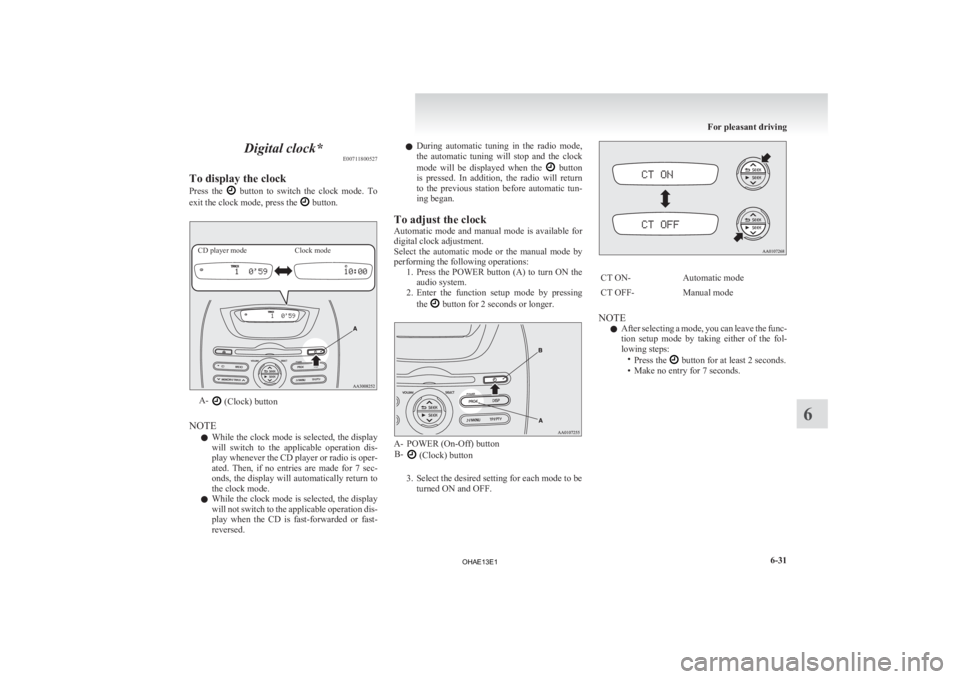
To display the clock
Press
the button to switch the clock mode. To
exit the clock mode, press the button.
CD player mode
Clock modeA-
(Clock) button
NOTE l While
the clock mode is selected, the display
will switch to the applicable operation dis-
play whenever the CD player or radio is oper-
ated. Then, if no entries are made for 7 sec-
onds, the display will automatically return to
the clock mode.
l While the clock mode is selected, the display
will not switch to the applicable operation dis-
play when the CD is fast-forwarded or fast-
reversed. l
During
automatic tuning in the radio mode,
the automatic tuning will stop and the clock
mode will be displayed when the button
is
pressed. In addition, the radio will return
to the previous station before automatic tun-
ing began.
To adjust the clock
Automatic mode and manual mode is available for
digital clock adjustment.
Select the automatic mode or the manual mode by
performing the following operations: 1. Press the POWER button (A) to turn ON theaudio system.
2. Enter the function setup mode by pressing
the button for 2 seconds or longer.
A- POWER (On-Off) button
B- (Clock) button
3.
Select the desired setting for each mode to be turned ON and OFF. CT ON-
Automatic mode
CT OFF- Manual mode
NOTE l After
selecting a mode, you can leave the func-
tion setup mode by taking either of the fol-
lowing steps: •Press the button for at least 2 seconds.
•
Make no entry for 7 seconds. For pleasant driving
6-31 6
OHAE13E1
Page 174 of 258
Automatic mode
The
automatic adjustment mode can set the local
time automatically by using the signal from local
RDS stations. In this mode, the CT indicator (A) is
shown in the display. Refer to “Radio data system
(RDS)” on page 6-13. Manual mode
The
manual mode is also available in case the auto-
matic mode shows the incorrect time when the ad-
jacent local RDS stations are located in a different
time zone. Refer to “Radio data system (RDS)” on
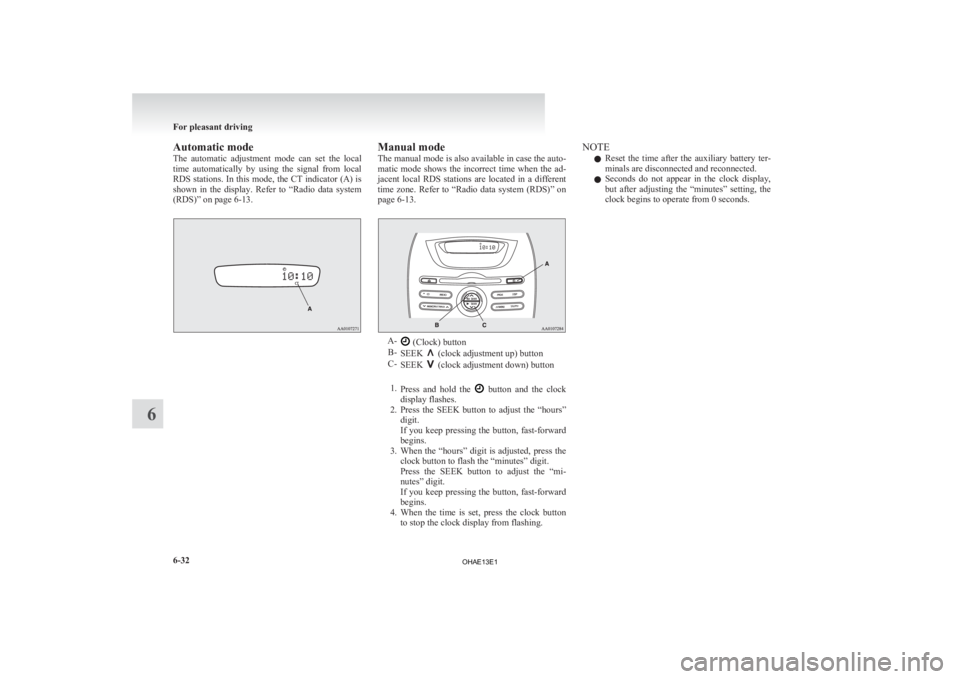
page 6-13. A-
(Clock) button
B- SEEK (clock adjustment up) button
C- SEEK (clock adjustment down) button
1. Press
and hold the button and the clock
display flashes.
2. Press
the SEEK button to adjust the “hours”
digit.
If you keep pressing the button, fast-forward
begins.
3. When the “hours” digit is adjusted, press the clock button to flash the “minutes” digit.
Press the SEEK button to adjust the “mi-
nutes” digit.
If you keep pressing the button, fast-forward
begins.
4. When the time is set, press the clock button to stop the clock display from flashing. NOTE
l Reset
the time after the auxiliary battery ter-
minals are disconnected and reconnected.
l Seconds do not appear in the clock display,
but after adjusting the “minutes” setting, the
clock begins to operate from 0 seconds. For pleasant driving
6-32
6
OHAE13E1
Page 177 of 258
Model name Condition
USB memory device Storage capacity of 256
Mbytes or more
iPod touch *
F/W Ver.1.1.1 or later
iPod classic *
F/W Ver.1.0 or later
iPod (fifth generation) *
F/W Ver.1.2.2 or later
iPod nano (fifth genera-
tion) *
F/W Ver.1.2 or later
iPod nano (second gen-
eration) *
F/W Ver.1.1.2 or later
Models other than USB
memory devices and
iPods Digital audio player sup-
porting
mass storage
class
* :
“iPod touch,” “iPod classic,” “iPod” and “iPod
nano” are registered trademarks of Apple Inc. in
the United States and other countries. NOTE
l Depending
on the type of the USB memory
device or other device connected, the connec-
ted device may not function properly or the
available functions may be limited.
l Use the iPod whose firmware has been upda-
ted to the latest version.
l You can charge your iPod by connecting it to
the USB input terminal when the electric mo-
tor switch is in the “ACC” or “ON” position.
l Do not keep your USB memory device or
iPod in your vehicle.
l It is recommended that you back up files in
case of data damage. l
Do
not connect to the USB input terminal
any device (hard disk, card reader, memory
reader, etc.) other than the connectable devi-
ces specified in the previous section. The de-
vice and/or data may be damaged. If any of
these devices was connected by mistake, re-
move it after turning the electric motor
switch to the “LOCK” position.
File specifications E00762400017
You can play music files of the following specifica-
tions
that are saved in a USB memory device or oth-
er device supporting mass storage class. Item Condition
File format MP3, WMA, AAC,
WAV
Maximum number of
levels
(including the
root) Level 8
Number of folders 700
Number of files 65,535 Sun visors
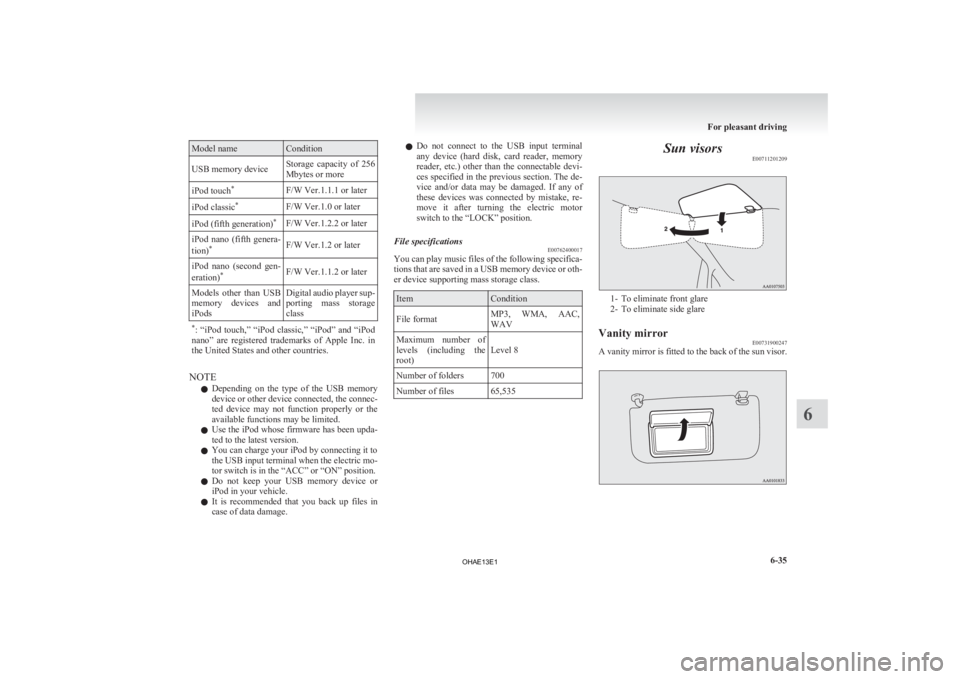
E00711201209 1- To eliminate front glare
2-
To eliminate side glare
Vanity mirror E00731900247
A vanity mirror is fitted to the back of the sun visor. For pleasant driving
6-35 6
OHAE13E1