ad blue MITSUBISHI iMiEV 2017 1.G Owner's Manual
[x] Cancel search | Manufacturer: MITSUBISHI, Model Year: 2017, Model line: iMiEV, Model: MITSUBISHI iMiEV 2017 1.GPages: 296, PDF Size: 7.79 MB
Page 177 of 296

Bluetooth® 2.0 interface (if so equipped)
Features and controls 5-69
5
When the confirmation function is on, the system will check the target name andlocation again. Answer “Yes” if you want to continue with the editing. Answer “No,” the system will return toStep 3. 6. The voice guide will say “Number, please.” Say the
telephone number you
want to register. 7. The voice guide will repeat the telephone number. When the confirmation function is on, thesystem will ask if th
e number is correct.
Answer “Yes.”the Step 3. 8. Once the telephone number is registered, the voice guide will say “Number saved” main menu.
N00580100084
1. Press the PICK-UP button. 2. Say “Phonebook.”3. The voice guide will say “Select one of the following: new entry, edit number, edit name, list names, delete, erase all, orimport contact.”
Say “Edit name.”
name of the entry you would like to edit,or say list names.”
Say the name you want
to edit. 5. The voice guide
will say “Changing
system will check if the name is correct.Answer “Yes” if you want to continue with the editing based on this information. Answer “No,” the system will return toStep 4. 6. The voice guide will say “Name please.” Say the new name you
want to register.
7. The registered name will be changed. When the change is complete, the system will return to the main menu.
N00580200072
1. Press the PICK-UP button.2. Say “Phonebook.” 3. The voice guide will
say “Select one of
the following: new entry, edit number,edit name, list names, delete, erase all, or import contact.” Sa
y “List names.”
4. Bluetooth
® 2.0 interface will read out the
entries in the phonebook in order. 5. When the voice guide
is done reading the
list, it will say “End
of list, would you like
to start from the beginning?” When you want to check the list again from the beginning, answer “Yes.”When you are done, answer “No” to return to the previous or main menu.
NOTE
If the telephone number is already registered in the selected location, the voice guide will say “The current number is
se.” Say a new tele-
phone number to change the current number.
NOTE
If the location where a telephone number was already registered
has been overwritten
with a new number, the voice guide will say“Number changed” and
then the system will
return to the main menu.
Editing a name
NOTE
Say “List names,” and the names registered in the phonebook are read out in order. Refer to “Listening to the list
of registered names”
Listening to the list of registered names
BK0220401US.book 69 ページ 2015年6月3日 水曜日 午前7時42分
Page 178 of 296

Bluetooth® 2.0 interface (if so equipped) 5-70 Features and controls
5
N00580300099
1. Press the PICK-UP button. 2. Say “Phonebook.”3. The voice guide will say “Select one of the following: new entry, edit number, edit name, list names, delete, erase all, orimport contact.” Say “Delete.” name of the entry you would like todelete, or say list names.” Say the name of the phonebook entry in which the tele- phone number you want to
delete is regis-
tered.
5. If only one telephone
number is registered
in the selected phonebook entry, the voice guide will say “Deleting
ed phonebook entry, the
voice guide will say “Would you like to delete [home], [work], [mobile], [other], or all?”Select the location to delete, and the voice guide will say “Deleting
number(s) and then
return to Step 4.
7. When the telephone number deletion is complete, the voice guide will say“
deleted” and then
the system will return to the main menu. If all locations are deleted, the system willsay “
removed from the
phonebook. If numbers still remain underthe entry, the name will retain the other associated numbers.
N00580400074
You can delete all registered informationfrom the vehicle phonebook. 1. Press the PICK-UP button. 2. Say “Phonebook.”3. The voice guide will say “Select one of the following: new entry, edit number, edit name, list names, delete, erase all, orimport contact.” Say “Erase all.” guide will ask “Are
you sure you want to
erase everything from your hands-free system phonebook?” Answer “Yes.” Answer “No” to cancel the deletion of allregistered information in the phonebook and return to the main menu.
NOTE
You can call, edit or delete a name that is being read out.Press the SPEECH butt
on and say “Call” to
call the name, “Edit name” to edit it, or “Delete” to delete it. The system will beep and then execute yourcommand. If you press the SPEECH button and say “Continue” or “Previous” while the list is being read, the system will advance or rewind the list. Say “C
ontinue” to proceed to
the next entry or “Previous” to return to the previous entry.
Deleting a telephone number
NOTE
Say “List names,” and
the names registered
in the phonebook are read out in order. Referto “Listening to the list
of registered names”
on page 5-69.NOTE
To delete the telephone
numbers from all
locations, say “All.”
BK0220401US.book 70 ページ 2015年6月3日 水曜日 午前7時42分
Page 179 of 296

Bluetooth® 2.0 interface (if so equipped)
Features and controls 5-71
5
5. The voice guide will say “You are about to delete everything from your hands-freesystem phonebook. Do
you want to con-
tinue?” Answer “Yes” to continue. Answer “No” to cancel the deletion of allregistered information in the phonebook and return to the main menu. 6. The voice guide wi
ll say “Please wait,
erasing the hands-free system phone- book” and then the syst
em will de
lete all
data in the phonebook. When the deletion is complete, the voice guide will say “Ha
nds-free system phone-
book erased” and then the system will return to the main menu.
N00566201105
All entries in the phonebook stored in the cel-lular phone can be transferred in a batch and registered in the mobile phonebook.Up to 7 mobile phonebooks, each containing up to 1,000 names, can be registered. The Bluetooth
® 2.0 interface automatically
converts from text to
voice the names regis-
tered in the transferred phonebook entries, and creates names.
Follow the steps below to transfer to the mobile phonebook the phonebook stored in the cellular phone.
1. Press the PICK-UP button. 2. Say “Phonebook.” 3. The voice guide will
say “Select one of
the following: new entry, edit number, edit name, list names, delete, erase all, or import contact.
” Say “Import contact.”
to import a single entry or all contacts?” Say “All contacts.”5. The voice guide will say “Importing the contact list from the mobile phonebook. This may take several minutes to com-plete. Would you like to continue?” phonebook the phonebook stored in thecellular phone will start. Answer “No,” the system will return to the main menu.
Mobile phonebook
NOTE
Only the mobile phonebook transferred from the connected cellul
ar phone can be used
with that cellular phone. You cannot change the names and telephone numbers in the phonebook entries registeredin the mobile phonebook. You cannot select and delete spec
ific phonebook entries, either.
To change or delete any of the above, changethe applicable information in the source phonebook of the cellular phone and then transfer the phonebook again.
To import a devices phonebook
NOTE
Transfer should be completed while the vehi- cle is parked. Before transferring, make sure that the vehicle is park
ed in a safe location.
The already stored phonebook in the mobile phonebook is overwritten by the storedphonebook in the cellular phone. All or part of data may not be transferred, even when the cellular phone supports Blue- tooth
®, depending on the compatibility of
the device. Only a home, a work, and a mobile number can be imported.
The maximum supported telephone number length is 19 digits. A
ny telephone number of
20 digits or more will be
truncated to the first
19 digits. If telephone numbers
contain characters
other than 0 to 9,
*, # or +, these characters
are deleted before the transfer. For the connection set
tings on the cellular
phone side, refer to the instructions for the cellular phone.NOTE
BK0220401US.book 71 ページ 2015年6月3日 水曜日 午前7時42分
Page 180 of 296
Bluetooth® 2.0 interface (if so equipped) 5-72 Features and controls
5
6. When the transfer is complete, the voice guide will say “Import complete” and then the system will return to the mainmenu.
N00566301092
MODEL: MMC FCC ID: CB2MDGMY10IC: 279B-MDGMY10
Your Bluetooth
® 2.0 interface operates on a
radio frequency subject to Federal Communi-cations Commission (FCC)
Rules (For vehi-
cles sold in U.S.A.
) and Industry Canada
Rules (For vehicles so
ld in Canada). This
device complies with Part 15 of the FCC Rules and RSS-210 of the Industry Canada Rules. Operation is subject to the followingtwo conditions: This device may not
cause harmful inter-
ference. This device must ac
cept any interference
received, including interference that may cause undesired operation.
The term “IC:” before the radio certification number only signifies that Industry Canadatechnical specifications were met. The antenna used for this transmitter must not be co-located or operating in conjunctionwith any other antenn
a or transmitter. End-
users and installers
must be provided with
installation inst
ructions and transmitter oper-
ating conditions for sa
tisfying RF exposure
compliance.
FCC Notice: This equipment has been tested and found to comply with the limits for aClass B digital device, pursuant to part 15 of the FCC Rules. These limits are designed to provide reasonable prot
ection against harmful
interference in a residential installation. This equipment generate
s, use and can radiate
radio frequency energy a
nd, if not installed
and used in accordance with the instructions, may cause harmful interf
erence to radio com-
munications. However, there is no guarantee that interfer- ence will not occur in a particular installation.If this equipment does
cause harmful interfer-
ence to radio or tele
vision reception, which
can be determined by turning the equipmentoff and on, the user is encouraged to try to correct the interference by one or more of the following measures: Reorient or relocate the receiving antenna. Increase the separation between the equipment and receiver. Connect the equipment into an outlet on a circuit different from that to which the receiver is connected. Consult the dealer or an experienced radio/TV technician for help.
ICES Notice: This Class B digital apparatus complies with Canadian ICES-003.
NOTE
The transfer may take some time to complete depending on the number of contacts. If the Bluetooth
® 2.0 interface could not be
connected to the Bluetooth
® compatible cel-
lular phone, the voice gui
de will sa
y “Unable
to transfer contact list from phone” and then the system will return to the main menu. If you press the HANG-UP button or press and hold the SPEECH button during the data transfer, the transfer will be cancelled andthe system will return to the main menu. If an error occurs during the data transfer, all transfer will be canc
elled and the voice guide
will say “Unable to complete the phonebook import” and then the system will return tothe main menu. If there are no contacts in the phonebook, the voice guide will say
“There are no contacts
on the connected phone.”
General information
CAUTION Changes or modifica
tions made to this
equipment not expressly approved by the manufacturer may void the FCC authoriza-tion to operate this equipment.
BK0220401US.book 72 ページ 2015年6月3日 水曜日 午前7時42分
Page 203 of 296
7
Comfort controlsVents ................................................................................................7-2 Air conditioning ..........
...........
...........
...........
...........
...........
.........
.....7-4
Important air conditioning operating tips ..
...........
...........
.........
.....7-10
Air purifier ..................................................................................... 7-11 Remote Climate Control ................................................................ 7-11 AM/FM electronically tune
d radio with CD player
(if so equipped) .......................................................................... 7-11 To play iPod/USB memory devi
ce tracks via
voice operation
(vehicles with Bluetooth
® 2.0 interface) ...................................7-20
Steering wheel audio remote control
switch (if so equipped) ........7-22
Error codes .....................................................................................7-24 Handling of compact discs .............................................................7-25Antenna ..........................................................................................7-27 Clock (if so equipped) ....................................................................7-27 General information about your radio .....
...........
...........
...........
.....7-28
BK0220401US.book 1 ページ 2015年6月3日 水曜日 午前7時42分
Page 222 of 296
To play iPod/USB memory device tracks via voice op
eration (vehicles with
Bluetooth® 2.0 interface)
7-20 Comfort controls
7
N00772001025
Desired tracks can be
selected and played
from your iPod or USB memory device by “Artist”, “Album”, “Playlist” and “Genre” For information concerning the voice recog- nition function or speak
er registration func-
tion, refer to “Bluetooth
® 2.0 interface” on
page 5-53.The following explains how to prepare for voice operation and play the tracks.
N00772101026
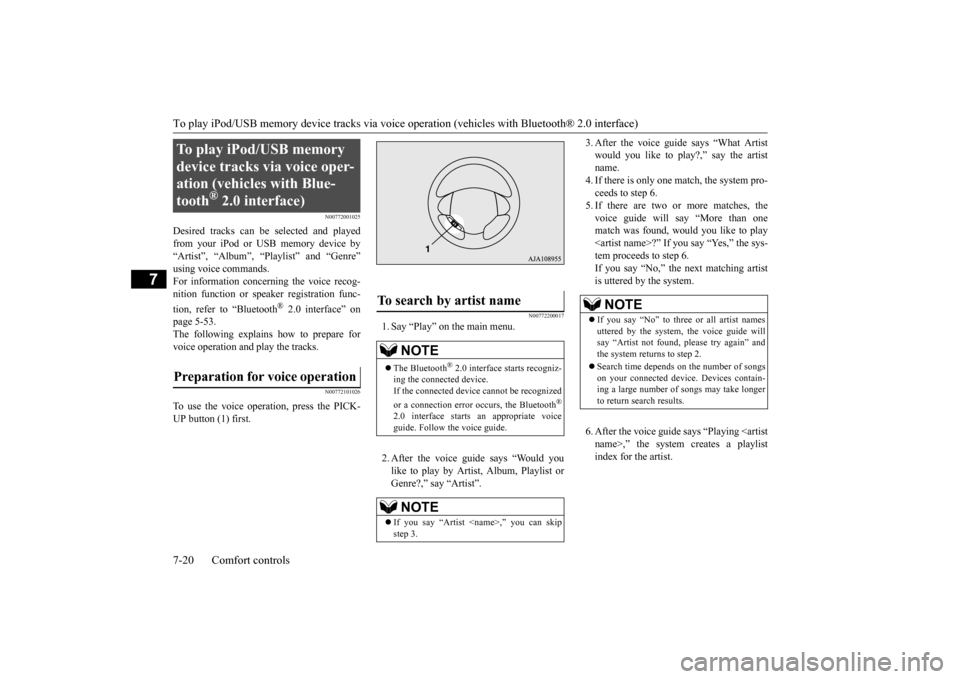
To use the voice operation, press the PICK-UP button (1) first.
N00772200017
1. Say “Play” on the main menu. 2. After the voice guide says “Would you like to play by Artist, Album, Playlist orGenre?,” say “Artist”.
3. After the voice guide
says “What Artist
would you like to play?,” say the artistname. 4. If there is only one ma
tch, the system pro-
ceeds to step 6.5. If there are two or more matches, the voice guide will say “More than one match was found, would you like to play
say “Yes,” the sys-
tem proceeds to step 6. If you say “No,” the next matching artist is uttered by the system. 6. After the voice guide
says “Playing
To play iPod/USB memory device tracks via voice oper-ation (vehicles with Blue-tooth
® 2.0 interface)
Preparation for voice operation
To search by artist name
NOTE
The Bluetooth
® 2.0 interface
starts recogniz-
ing the connected device. If the connected device
cannot be recognized
or a connection error
occurs, the Bluetooth
®
2.0 interface starts an appropriate voice guide. Follow the voice guide.NOTE
If you say “Artist
NOTE
If you say “No” to three or all artist names uttered by the system, the voice guide will say “Artist not found, please try again” and the system returns to step 2. Search time depends
on the number of songs
on your connected devi
ce. Devices contain-
ing a large number of songs may take longer to return search results.
BK0220401US.book 20 ページ 2015年6月3日 水曜日 午前7時42分
Page 223 of 296

To play iPod/USB memory device tr
acks via voice operation (vehicles with Bluetooth® 2.0 interface)
Comfort controls 7-21
7
7. The system exits
the voice recognition
mode and starts playback.
N00772300018
1. Say “Play” on the main menu. 2. After the voice guide says “Would you like to play by Artist, Album, Playlist or Genre?,” say “Album”.
3. After the voice gui
de says “What Album
would you like to play?” say the albumtitle. 4. If there is only one match, the system pro- ceeds to step 6.5. If there are two or more matches, the voice guide will say “More than one match was found, would you like to play
u say “Yes,” the sys-
tem proceeds to step 6. If you say “No,” the name of the next matching album is uttered by the system. 6. After the voice gui
de says “Playing
7. The system exits the voice recognition mode and starts playback.
N00772400019
1. Say “Play” on the main menu. 2. After the voice guide says “Would you like to play by Artist, Album, Playlist or Genre?,” say
“Playlist”.
3. After the voice guide says “What Playlist would you like to play?,” say the playlist name. 4. If there is only one match, the system pro-ceeds to step 6.
NOTE
If the confirmation f
unction is active, the
voice guide confirms if
the artist name is
correct. If the artist name is correct, say“Yes”. If not, say “No”. After the voice guide says “Artist not found, please try again,” the system returns to step 2.
To search by album title
NOTE
The Bluetooth
® 2.0 interface
starts recogniz-
ing the connected device. If the connected device
cannot be recognized
or a connection error
occurs, the Bluetooth
®
2.0 interface starts an appropriate voice guide. Follow th
e voice guide.
NOTE
If you say “Album <
title>,” you can skip
step 3.
NOTE
If you say “No” to three or all album titles uttered by the system, the voice guide will say “Album not found, please try again” and the system returns to step 2.NOTE
If the confirmation function is active, the voice guide confirms if
the album title is cor-
rect. If the album title is correct, say “Yes”.
the voice guide says
“Album not found, please try again,” the sys- tem returns to step 2.
To search by playlist
NOTE
The Bluetooth
® 2.0 interface
starts recogniz-
ing the connected device. If the connected device
cannot be recognized
or a connection error
occurs, the Bluetooth
®
2.0 interface starts an appropriate voice guide. Follow th
e voice guide.
NOTE
If you say “Playlist
step 3. If the device has no playlist, the voice guidewill say “There are no
playlists stored on
device” and the system returns to step 2.
BK0220401US.book 21 ページ 2015年6月3日 水曜日 午前7時42分
Page 224 of 296
Steering wheel audio remote cont
rol switch (if so equipped)
7-22 Comfort controls
7
5. If there are two or more matches, the voice guide will say “More than onematch was found, would you like to play
de says “Playing
N00772500010
1. Say “Play” on the main menu. 2. After the voice guide says “Would you like to play by Artist, Album, Playlist or Genre?,” say “Genre”. would you like to play?,” say the musictype. 4. If there is only one match, the system pro- ceeds to step 6.5. If there are two or more matches, the voice guide will say “More than one match was found, would you like to play
If you say “No,” the next matching genre is uttered by the system. 6. After the voice gui
de says “Playing
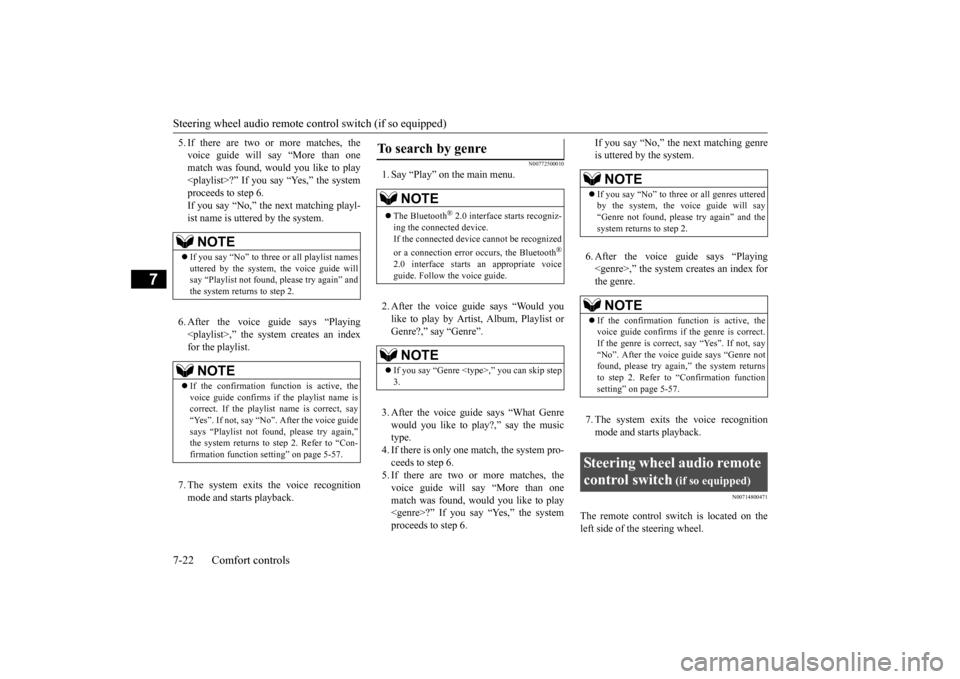
N00714800471
The remote control switch is located on theleft side of th
e steering wheel.
NOTE
If you say “No” to three
or all playlist names
uttered by the system, the voice guide willsay “Playlist not found,
please try again” and
the system returns to step 2.NOTE
If the confirmation function is active, the voice guide confirms if
the playlist name is
correct. If the playlist name is correct, say “Yes”. If not, say “No”. After the voice guidesays “Playlist not foun
d, please try again,”
the system returns to step 2. Refer to “Con- firmation function se
tting” on page 5-57.
To search by genre
NOTE
The Bluetooth
® 2.0 interface
starts recogniz-
ing the connected device.If the connected device
cannot be recognized
or a connection error
occurs, the Bluetooth
®
2.0 interface starts an appropriate voice guide. Follow the voice guide.NOTE
If you say “Genre
NOTE
If you say “No” to three or all genres uttered by the system, the voice guide will say “Genre not found, please try again” and thesystem returns to step 2.NOTE
If the confirmation function is active, the voice guide confirms if the genre is correct. If the genre is correct, say “Yes”. If not, say“No”. After the voice
guide says “Genre not
found, please try again,” the system returns to step 2. Refer to
“Confirmation function
setting” on page 5-57.
Steering wheel audio remote control switch
(if so equipped)
BK0220401US.book 22 ページ 2015年6月3日 水曜日 午前7時42分
Page 225 of 296
Steering wheel audio remote control switch (if so equipped)
Comfort controls 7-23
7
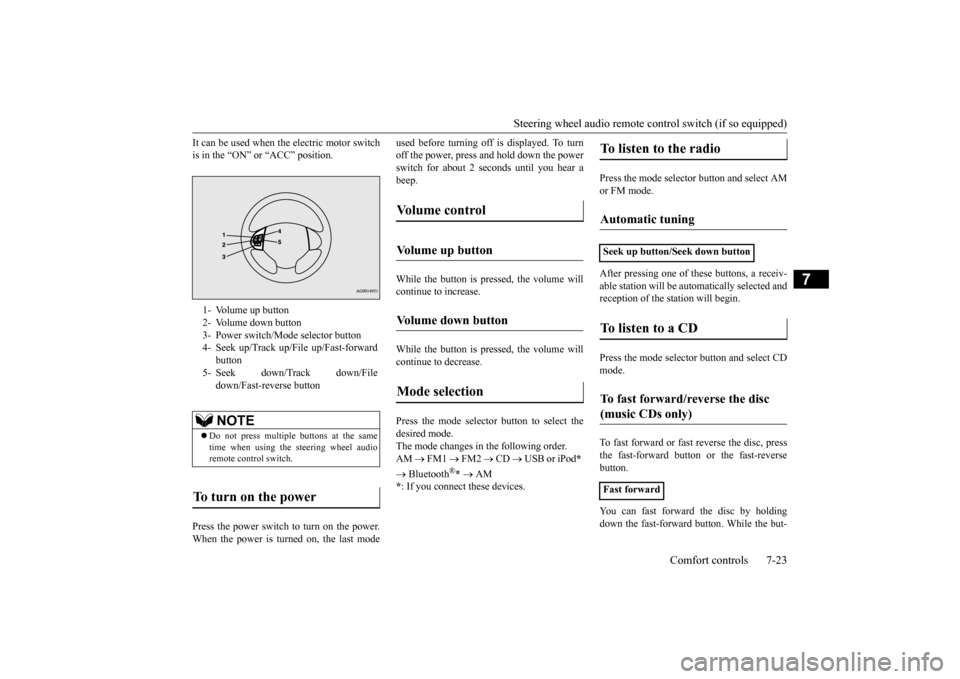
It can be used when the electric motor switch is in the “ON” or “ACC” position. Press the power switch to turn on the power. When the power is turned on, the last mode
used before turning off is displayed. To turn off the power, press and hold down the powerswitch for about 2 seconds until you hear a beep. While the button is pressed, the volume will continue to increase. While the button is pressed, the volume will continue to decrease. Press the mode selector button to select the desired mode.The mode changes in the following order. AM
FM1
FM2
CD
USB or iPod
*
Bluetooth
®* AM
* : If you connect these devices.
Press the mode selector button and select AM or FM mode. After pressing one of
these buttons, a receiv-
able station will be automatically selected and reception of the st
ation will begin.
Press the mode selector
button and select CD
mode. To fast forward or fast
reverse the disc, press
the fast-forward button or the fast-reverse button. You can fast forward the disc by holding down the fast-forward button. While the but-
1- Volume up button 2- Volume down button 3- Power switch/Mode selector button4- Seek up/Track up/File up/Fast-forward
button
5- Seek down/Track down/File
down/Fast-reverse buttonNOTE
Do not press multiple buttons at the same time when using the steering wheel audioremote control switch.
To turn on the power
Vo l u m e c o n t r o l
Volume up button
Volume down button
Mode selection
To listen to the radio
Automatic tuning
Seek up button/Seek down buttonTo listen to a CD
To fast forward/reverse the disc (music CDs only)
Fast forward
BK0220401US.book 23 ページ 2015年6月3日 水曜日 午前7時42分
Page 267 of 296
Replacement of light bulbs
Vehicle care and maintenance 9-21
9
Some fuses may not be installed on your vehicle, depending on
the vehicle model
or specifications. The table above show
s the main equip-
ment corresponding to each fuse.
N00901100078 N00954900115
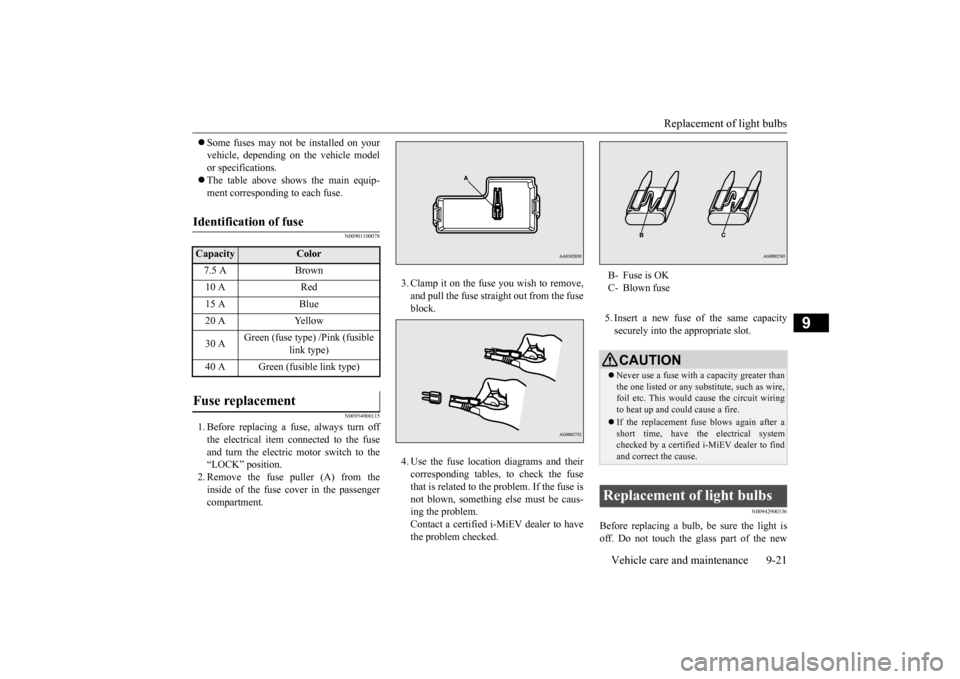
1. Before replacing a fuse, always turn off the electrical item connected to the fuse and turn the electric motor switch to the “LOCK” position.2. Remove the fuse puller (A) from the inside of the fuse cover in the passenger compartment.
3. Clamp it on the fuse you wish to remove, and pull the fuse straight out from the fuseblock. 4. Use the fuse location diagrams and their corresponding tables, to check the fuse that is related to the problem. If the fuse is not blown, something
else must be caus-
ing the problem.Contact a certified i-MiEV dealer to have the problem checked.
5. Insert a new fuse of the same capacity securely into the appropriate slot.
N00942900336
Before replacing a bulb,
be sure the light is
off. Do not touch the glass part of the new
Identification of fuse Capacity
Color
7.5 A Brown 10 A Red 15 A Blue 20 A Yellow 30 A
Green (fuse type) /Pink (fusible
link type)
40 A Green (fusible link type)
Fuse replacement
B- Fuse is OK C- Blown fuseCAUTION Never use a fuse with a capacity greater than the one listed or any substitute, such as wire, foil etc. This would
cause the circuit wiring
to heat up and could cause a fire. If the replacement fuse blows again after a short time, have the electrical systemchecked by a certified i-MiEV dealer to find and correct the cause.
Replacement of light bulbs
BK0220401US.book 21 ページ 2015年6月3日 水曜日 午前7時42分