change time MITSUBISHI L200 2013 (in English) Owner's Guide
[x] Cancel search | Manufacturer: MITSUBISHI, Model Year: 2013, Model line: L200, Model: MITSUBISHI L200 2013Pages: 362, PDF Size: 21.07 MB
Page 238 of 362
Answer “No,” and the voice guide will say
“Please say.” Say the number of the music
player that you want to connect to.
NOTE l You can connect to a music player at any
time by pressing the SPEECH button and say-
ing the number, even before all of the paired
numbers and device tags of corresponding mu-
sic players are read out by the system.
5. The selected music player will be connected
to the Bluetooth ®
2.0 interface.
The voice guide will say “
ted” and then the system will return to the
main menu.
Deleting a device
Use the following procedure to delete a paired Blue-
tooth ®
device from the Bluetooth ®
2.0 interface.
1. Press the SPEECH button.
2. Say “Setup”.
3. Say “Pairing options.”
4. The voice guide will say “Select one of the
following: pair, edit, delete, or list.” Say “De-
lete.”
5. After the voice guide says “Please say,” the
numbers of the devices and device tags of cor-
responding devices will be read out in order,
starting with the device that has been most re-
cently connected. After it completes reading
all pairs, the voice guide will say “or all.”
Say the number of the device that you want
to delete from the system.
If you want to delete all paired phones from
the system, say “All.”6. For confirmation purposes, the voice guide
will say “Deleting
Is this correct?” or “Deleting all devices. Is
this correct?”
Answer “Yes” to delete the phone(s).
Answer “No” to return to Step 4.
7. The voice guide will say “Deleted,” and then
the system will end the device deletion proc-
ess.
NOTE l If the device deletion process fails for some
reason, the voice guide will say “Delete
failed” and then the system will cancel delet-
ing the device.To check a paired Bluetooth ®
device
E00760800017
You can check a paired Bluetooth ®
device by fol-
lowing the steps below. 1. Press the SPEECH button.
2. Say “Setup”.
3. Say “Pairing options.”
4. The voice guide will say “Select one of the
following: pair, edit, delete, or list.” Say
“List.”
5. The voice guide will read out device tags of
corresponding devices in order, starting with
the Bluetooth ®
device that has been connec-
ted most recently.
6. After the device tags of all paired Bluetooth ®
devices have been read, the system will say
“End of list, would you like to start from the
beginning?”
To hear the list again from the beginning , an-
swer “Yes.”
When you are done, answer “No” to return to
the main menu.
NOTE
l If you press and release the SPEECH button
and say “Continue” or “Previous” while the
list is being read, the system will advance or
rewind the list.
Say “Continue” to proceed to the device with
the next highest number or “Previous” to re-
turn to the phone with the previous number.
l You can change the device tag by pressing
and releasing the SPEECH button and then
saying “Edit” while the list is being read.
l You can change the phone to be connected
by pressing and releasing the SPEECH but-
ton and then saying “Select phone” while the
list is being read.
l You can change the music player to be con-
nected by pressing and releasing the
SPEECH button and then saying “Select mu-
sic player” while the list is being read.Changing a device tag E00760900018
You can change the device tag of a paired cellular
phone or music player.
Follow the steps below to change a device tag. 1. Press the SPEECH button.
2. Say “Setup”.
3. Say “Pairing options.”
4. The voice guide will say “Select one of the
following: pair, edit, delete, or list.” Say “Ed-
it.”
5. The voice guide will say “Please say,” and
read out the numbers of the Bluetooth ®
devi-
ces and device tags of corresponding devices
in order, starting with the Bluetooth ®
that
has been most recently connected.
After all paired device tags have been read,
the voice guide will say “Which device,
For pleasant driving
5-58 OKTE13E1
5
Page 240 of 362
es, the voice guide will say “More than one
match was found, would you like to call
want to call, answer “Yes.”
Answer “No,” and the name of the next match-
ing person will be uttered by the voice guide.
NOTE l If you say “No” to all names read by the sys-
tem, the voice guide will say “Name not
found, returning to main menu” and the sys-
tem will return to the main menu.
5. If only one telephone number is registered un-
der the name you just said, the voice guide
proceeds to Step 6.
If two or more telephone numbers are regis-
tered that match the name you just said, the
voice guide will say “Would you like to call
er]?” Select the location to call.
NOTE l If the name you selected has matching data
in the vehicle phone book but no telephone
number is registered under the selected loca-
tion, the voice guide will say “{home/work/
mobile/other} not found for
you like to add location or try again?”
Say “Try again,” and the system will return
to Step 3.
Say “Add location” and you can register an
additional telephone number under the selec-
ted location.l If the name you selected has matching data
in the mobile phone book but no telephone
number is registered under the selected loca-
tion, the voice guide will say “{home/work/
mobile/other} not found for
you like to try again?”
Answer “Yes,” and the system will return to
Step 3.
Answer “No,” and the call will be cancelled.
Start over again from Step 1.
6. The voice guide will say “Calling
telephone number.
NOTE l When the confirmation function is on, the sys-
tem will ask if the name and location of the
receiver are correct.
If the name is correct, answer “Yes.”
To change the name or location to call, an-
swer “No.” The system will return to Step 3.
Redialing
You can redial the last number called, based on the
history of dialed calls in the paired cellular phone.
Use the following procedure to redial. 1. Press the SPEECH button.
2. Say “Redial.”SEND function E00761300035
During a call, press the SPEECH button to enter
voice recognition mode, then say “
SEND” to generate DTMF tones.
For example, if during a call you need to simulate
the press of a phone button as a response to an auto-
mated system, press the SPEECH button and speak
“1 2 3 4 pound SEND” and the 1234# will be sent
on your cellular phone.Receiving calls E00761600012
If an incoming phone call is received while the ig-
nition switch is in the “ACC” or “ON” position, the
audio system will be automatically turned on and
switched to the incoming call, even when the audio
system was originally off.
The voice guide announcement for the incoming
call will be output from the front passenger’s seat
speaker.
If the CD player or radio was playing when the in-
coming call was received, the audio system will
mute the sound from the CD player or radio and out-
put only the incoming call.
To receive the call, press the PICK-UP button on
the steering wheel control switch.
When the call is over, the audio system will return
to its previous state.
MUTE function E00760300041
At any time during a call, you can mute the vehicle
microphone.
Pressing the SPEECH button and then saying
“Mute” during a call will turn ON the MUTE func-
tion and mute the microphone.
Saying “Mute off” in the same way will turn off
the MUTE function and cancel the mute on the mi-
crophone.
For pleasant driving
5-60 OKTE13E1
5
Page 245 of 362
The Bluetooth®
2.0 interface automatically con-
verts from text to voice the names registered in the
transferred phone book entries, and creates names.
NOTE l Only the mobile phone book transferred
from the connected cellular phone can be
used with that cellular phone.
l You cannot change the names and telephone
numbers in the phone book entries registered
in the mobile phone book. You cannot select
and delete specific phone book entries, either.
To change or delete any of the above, change
the applicable information in the source
phone book of the cellular phone and then
transfer the phone book again.
To import a devices phone book
Follow the steps below to transfer to the mobile
phone book the phone book stored in the cellular
phone.
NOTE l Transfer should be completed while the vehi-
cle is parked.
Before transferring, make sure that the vehi-
cle is parked in a safe location.
l The already stored phone book in the mobile
phone book is overwritten by the stored
phone book in the cellular phone.
l All or part of data may not be transferred,
even when the cellular phone supports Blue-
tooth ®
, depending on the compatibility of the
device.
l Only a home, a work, and a mobile number
can be imported.l The maximum supported telephone number
length is 19 digits. Any telephone number of
20 digits or more will be truncated to the
first 19 digits.
l If telephone numbers contain characters oth-
er than 0 to 9, *, # or +, these characters are
deleted before the transfer.
l For the connection settings on the cellular
phone side, refer to the instructions for the
cellular phone.
1. Press the SPEECH button.
2. Say “Phone book.”
3. The voice guide will say “Select one of the
following: new entry, edit number, edit
name, list names, delete, erase all, or import
contact.” Say “Import contact.”
4. The voice guide will say “Would you like to
import a single entry or all contacts?” Say
“All contacts.”
5. The voice guide will say “Importing the con-
tact list from the mobile phone book. This
may take several minutes to complete.
Would you like to continue?” Answer “Yes,”
transferring to the mobile phone book the
phone book stored in the cellular phone will
start.
Answer “No,” to return to the main menu.
NOTE l The transfer may take some time to complete
depending on the number of contacts.
l If the Bluetooth ®
2.0 interface could not be
connected to the Bluetooth ®
compatible cel-
lular phone, the voice guide will say “Unable
to transfer contact list from phone” and then
the system will return to the main menu.l If you press the
HANG-UP button or press
and hold the SPEECH button during the data
transfer, the transfer will be cancelled and
the system will return to the main menu.
l If an error occurs during the data transfer, all
transfer will be cancelled and the voice guide
will say “Unable to complete the phone book
import” and then the system will return to
the main menu.
l If there are no contacts in the phone book,
the voice guide will say “There are no con-
tacts on the connected phone.”
6. When the transfer is complete, the voice
guide will say “Import complete” and then
the system will return to the main menu.
For pleasant driving
5-65
OKTE13E1
5
Page 253 of 362
Digital clock*E00711700193
The digital clock indicates the time with the igni-
tion switch in either “ON” or “ACC” position.
To set the time
Set the time by pressing the various buttons as de-
scribed below.
1- To adjust the hour
2- To adjust the minutes
3- To reset the minutes to zero
10:30 - 11:29...... Changes to 11:00
11:30 - 12:29...... Changes to 12:00
NOTE l If the battery cables are disconnected during
repairs or for any other reason, reset the
clock to the correct time after they are recon-
nected.
Interior lamps E00712000917
1- Room lamp (Front)*
Personal lamps*
2- Room lamp (Rear)*
3- Door courtesy lamps*
4- Centre console downlight
NOTE l If you leave the lamps on without running
the engine, you will run down the battery. Be-
fore you leave the vehicle, make sure that all
the lamps are off.
Room lamps E00712101289Front*Rear (Type 1)*
For pleasant driving
5-73
OKTE13E1
5
Page 275 of 362
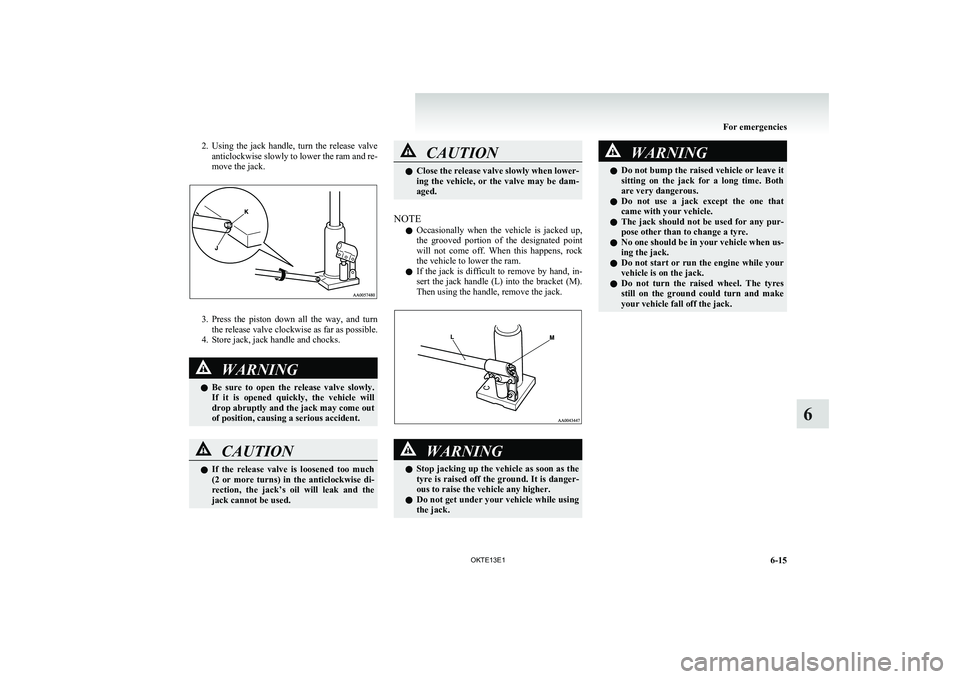
2.Using the jack handle, turn the release valve
anticlockwise slowly to lower the ram and re-
move the jack.
3. Press the piston down all the way, and turn
the release valve clockwise as far as possible.
4. Store jack, jack handle and chocks.
WARNINGl Be sure to open the release valve slowly.
If it is opened quickly, the vehicle will
drop abruptly and the jack may come out
of position, causing a serious accident.CAUTIONl If the release valve is loosened too much
(2 or more turns) in the anticlockwise di-
rection, the jack’s oil will leak and the
jack cannot be used.CAUTIONl Close the release valve slowly when lower-
ing the vehicle, or the valve may be dam-
aged.
NOTE
l Occasionally when the vehicle is jacked up,
the grooved portion of the designated point
will not come off. When this happens, rock
the vehicle to lower the ram.
l If the jack is difficult to remove by hand, in-
sert the jack handle (L) into the bracket (M).
Then using the handle, remove the jack.
WARNINGl Stop jacking up the vehicle as soon as the
tyre is raised off the ground. It is danger-
ous to raise the vehicle any higher.
l Do not get under your vehicle while using
the jack.WARNINGl Do not bump the raised vehicle or leave it
sitting on the jack for a long time. Both
are very dangerous.
l Do not use a jack except the one that
came with your vehicle.
l The jack should not be used for any pur-
pose other than to change a tyre.
l No one should be in your vehicle when us-
ing the jack.
l Do not start or run the engine while your
vehicle is on the jack.
l Do not turn the raised wheel. The tyres
still on the ground could turn and make
your vehicle fall off the jack.
For emergencies
6-15
OKTE13E1
6