lock MITSUBISHI LANCER 2014 8.G Owners Manual
[x] Cancel search | Manufacturer: MITSUBISHI, Model Year: 2014, Model line: LANCER, Model: MITSUBISHI LANCER 2014 8.GPages: 434, PDF Size: 57.5 MB
Page 317 of 434
Listen to Radio 7-42 Comfort controls
7
N00716900027
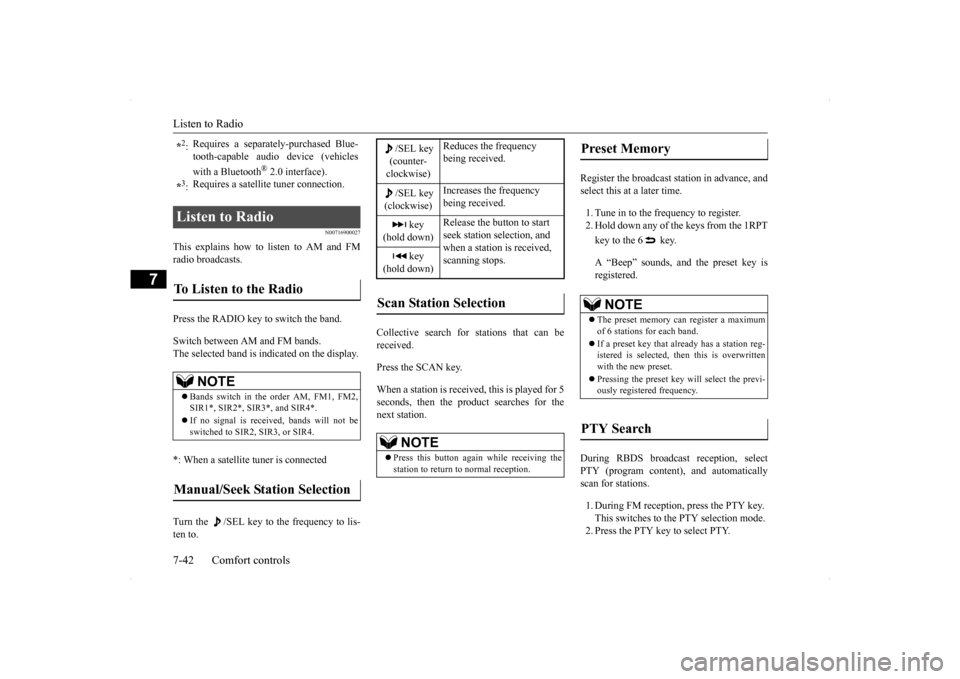
This explains how to listen to AM and FM radio broadcasts. Press the RADIO key to switch the band. Switch between AM and FM bands. The selected band is indicated on the display. *: When a satellite tuner is connected Turn the /SEL key to the frequency to lis- ten to.
Collective search for stations that can be received. Press the SCAN key.When a station is received, this is played for 5 seconds, then the product searches for the next station.
Register the broadcast station in advance, and select this at a later time. 1. Tune in to the frequency to register. 2. Hold down any of the keys from the 1RPT key to the 6 key. A “Beep” sounds, and the preset key is registered.
During RBDS broadcast reception, select PTY (program content), and automatically scan for stations. 1. During FM reception, press the PTY key. This switches to the PTY selection mode. 2. Press the PTY key to select PTY.
*2: Requires a separately-purchased Blue- tooth-capable audio device (vehicles with a Bluetooth
® 2.0 interface).
*3: Requires a satellite tuner connection.
Listen to Radio To Listen to the Radio
NOTE
Bands switch in the order AM, FM1, FM2, SIR1*, SIR2*, SIR3*, and SIR4*. If no signal is received, bands will not be switched to SIR2, SIR3, or SIR4.
Manual/Seek Station Selection
/SEL key (counter- clockwise)
Reduces the frequency being received.
/SEL key (clockwise)
Increases the frequency being received.
key
(hold down)
Release the button to start seek station selection, and when a station is received, scanning stops.
key
(hold down)Scan Station Selection
NOTE
Press this button again while receiving the station to return to normal reception.
Preset Memory
NOTE
The preset memory can register a maximum of 6 stations for each band. If a preset key that already has a station reg- istered is selected, then this is overwritten with the new preset. Pressing the preset key will select the previ- ously registered frequency.
PTY Search
Page 320 of 434
Listen to CDs
Comfort controls 7-45
7
6. To continue the search, turn the /SEL key to select the channel. The selected channel is received. 7. Press the /SEL key. Cancels the search mode and returns to normal reception.
The CODE required for changing the LOCK settings in the satellite settings is initialized.(The factory setting is “1111”.) When the power is off, press the PWR/VOL key while holding down the /SEL key. “Turn the Power ON/OFF” (P7-39)
N00717100026
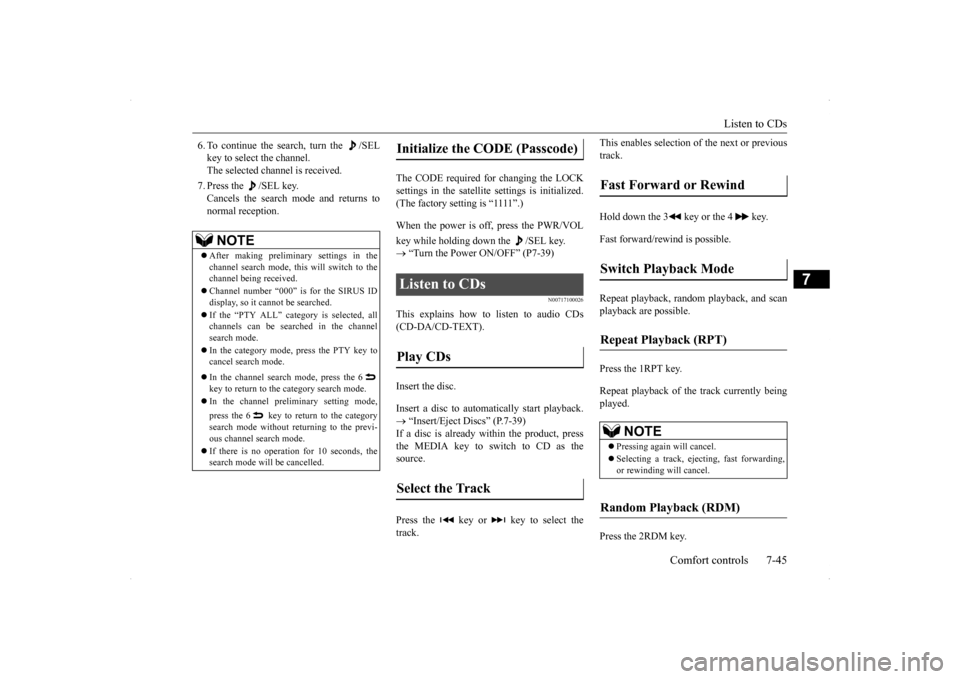
This explains how to listen to audio CDs (CD-DA/CD-TEXT). Insert the disc. Insert a disc to automatically start playback. “Insert/Eject Discs” (P.7-39) If a disc is already within the product, press the MEDIA key to switch to CD as the source. Press the key or key to select the track.
This enables selection of the next or previous track. Hold down the 3 key or the 4 key. Fast forward/rewind is possible. Repeat playback, random playback, and scan playback are possible. Press the 1RPT key. Repeat playback of th
e track currently being
played. Press the 2RDM key.
NOTE
After making preliminary settings in the channel search mode, th
is will switch to the
channel being received. Channel number “000” is for the SIRUS ID display, so it cannot be searched. If the “PTY ALL” category is selected, all channels can be searched in the channel search mode. In the category mode, press the PTY key to cancel search mode. In the channel search mode, press the 6 key to return to the category search mode. In the channel preliminary setting mode, press the 6 key to return to the category search mode without returning to the previ- ous channel search mode. If there is no operati
on for 10 seconds, the
search mode will be cancelled.
Initialize the CODE (Passcode)
Listen to CDs Play CDs Select the Track
Fast Forward or Rewind Switch Playback Mode Repeat Playback (RPT)
NOTE
Pressing again will cancel. Selecting a track, ejecting, fast forwarding, or rewinding will cancel.
Random Playback (RDM)
Page 324 of 434
Listen to Audio Files on a USB Device
Comfort controls 7-49
7
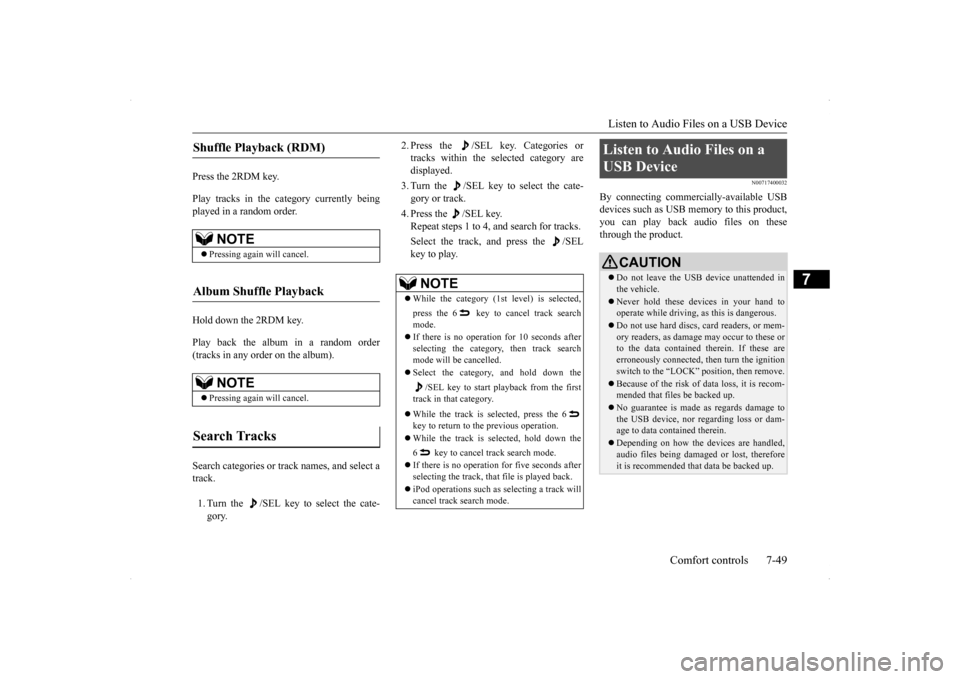
Press the 2RDM key. Play tracks in the category currently being played in a random order. Hold down the 2RDM key. Play back the album in a random order (tracks in any order on the album). Search categories or track names, and select a track. 1. Turn the /SEL key to select the cate- gory.
2. Press the /SEL key. Categories or tracks within the selected category are displayed. 3. Turn the /SEL key to select the cate- gory or track. 4. Press the /SEL key. Repeat steps 1 to 4, and search for tracks. Select the track, and press the /SEL key to play.
N00717400032
By connecting commercially-available USBdevices such as USB memory to this product,you can play back audio files on these through the product.
Shuffle Playback (RDM)
NOTE
Pressing again will cancel.
Album Shuffle Playback
NOTE
Pressing again will cancel.
Search Tracks
NOTE
While the category (1st level) is selected, press the 6 key to cancel track search mode. If there is no operation for 10 seconds after selecting the category, then track search mode will be cancelled. Select the category, and hold down the
/SEL key to start playback from the first
track in that category. While the track is selected, press the 6 key to return to the previous operation. While the track is selected, hold down the 6 key to cancel track search mode. If there is no operation for five seconds after selecting the track, that file is played back. iPod operations such as selecting a track will cancel track search mode.
Listen to Audio Files on a USB Device
CAUTION Do not leave the USB device unattended in the vehicle. Never hold these devices in your hand to operate while driving, as this is dangerous. Do not use hard discs, card readers, or mem- ory readers, as damage may occur to these or to the data contained therein. If these are erroneously connected, then turn the ignitionswitch to the “LOCK” position, then remove. Because of the risk of data loss, it is recom- mended that files be backed up. No guarantee is made as regards damage to the USB device, nor regarding loss or dam- age to data contained therein. Depending on how the devices are handled, audio files being damaged or lost, therefore it is recommended that data be backed up.
Page 332 of 434
System Settings
Comfort controls 7-57
7
N00718500030
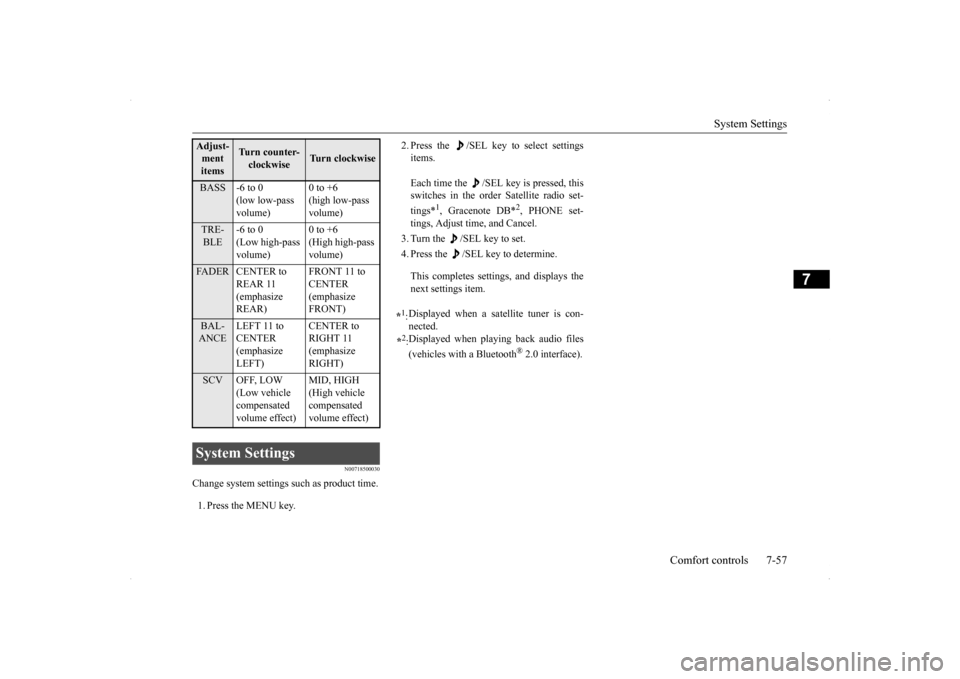
Change system settings such as product time. 1. Press the MENU key.
2. Press the /SEL key to select settings items. Each time the /SEL key is pressed, this switches in the order Satellite radio set- tings*
1, Gracenote DB*
2, PHONE set-
tings, Adjust time, and Cancel. 3. Turn the /SEL key to set.4. Press the /SEL key to determine. This completes settings, and displays the next settings item.
Adjust- ment items
Turn counter-clockwise
Turn clockwise
BASS -6 to 0
(low low-pass volume)
0 to +6 (high low-pass volume)
TRE- BLE
-6 to 0 (Low high-pass volume)
0 to +6 (High high-pass volume)
FADER CENTER to
REAR 11 (emphasize REAR)
FRONT 11 to CENTER (emphasize FRONT)
BAL- ANCE
LEFT 11 to CENTER (emphasize LEFT)
CENTER to RIGHT 11 (emphasize RIGHT)
SCV OFF, LOW
(Low vehicle compensated volume effect)
MID, HIGH (High vehicle compensated volume effect)
System Settings
*1: Displayed when a satellite tuner is con- nected.
*2: Displayed when playing back audio files (vehicles with a Bluetooth
® 2.0 interface).
Page 333 of 434
System Settings 7-58 Comfort controls
7
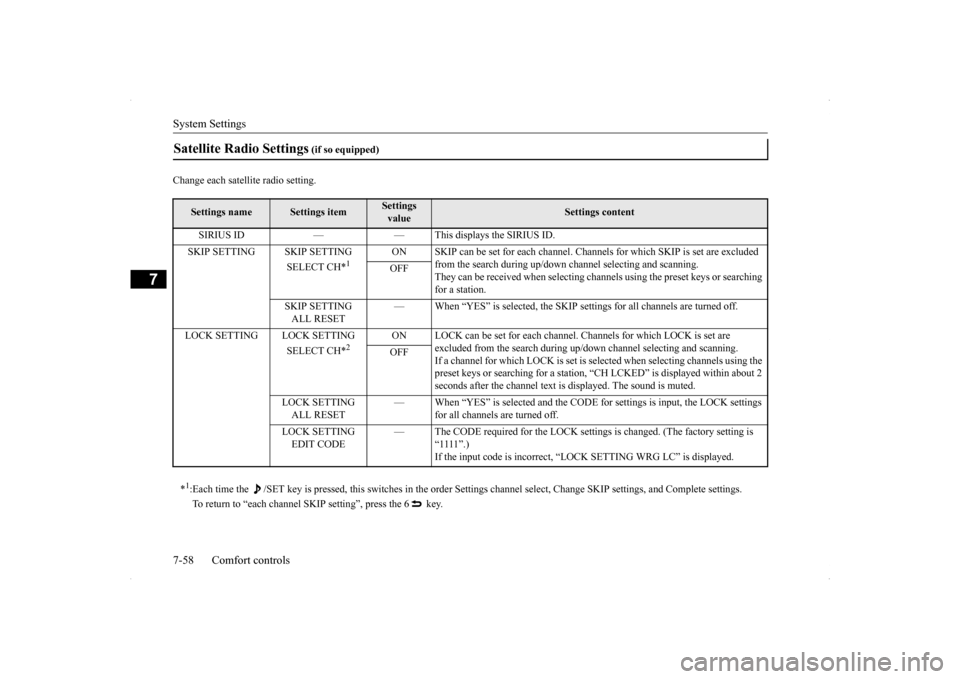
Change each satellite radio setting.Satellite Radio Settings
(if so equipped)
Settings name
Settings item
Settings value
Settings content
SIRIUS ID — — This displays the SIRIUS ID. SKIP SETTING SKIP SETTING
SELECT CH*
1
ON SKIP can be set for each channel. Channe
ls for which SKIP is set are excluded
from the search during up/down channel selecting and scanning.They can be received when selecting chan
nels using the preset keys or searching
for a station.
OFF
SKIP SETTING ALL RESET
— When “YES” is selected, the SKIP settings for all channels are turned off.
LOCK SETTING LOCK SETTING
SELECT CH*
2
ON LOCK can be set for each channel. Channels for which LOCK is set are
excluded from the search during up/do
wn channel selecting and scanning.
If a channel for which LOCK is set is sel
ected when selecting channels using the
preset keys or searching for a station, “CH LCKED” is displayed within about 2 seconds after the channel text is displayed. The sound is muted.
OFF
LOCK SETTING ALL RESET
— When “YES” is selected and the CODE
for settings is input, the LOCK settings
for all channels are turned off.
LOCK SETTING EDIT CODE
— The CODE required for the LOCK settings is changed. (The factory setting is
“1111”.)If the input code is incorrect, “LOCK SETTING WRG LC” is displayed.
*1: Each time the /SET key is pressed, this switches in the order Sett
ings channel select, Change SKIP settings, and Complete setti
ngs.
To return to “each channel SKIP setting”, press the 6 key.
Page 334 of 434
System Settings
Comfort controls 7-59
7
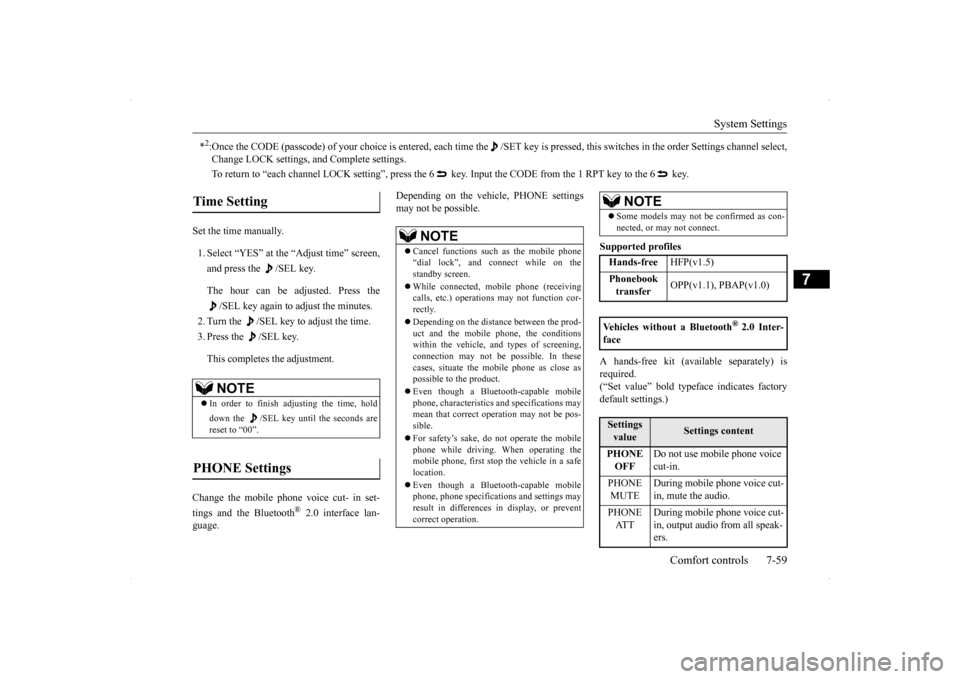
Set the time manually. 1. Select “YES” at the “Adjust time” screen, and press the /SEL key. The hour can be adjusted. Press the
/SEL key again to adjust the minutes.
2. Turn the /SEL key to adjust the time.3. Press the /SEL key. This completes the adjustment.
Change the mobile phone voice cut- in set- tings and the Bluetooth
® 2.0 interface lan-
guage.
Depending on the vehicle, PHONE settings may not be possible.
Supported profiles A hands-free kit (available separately) is required.(“Set value” bold typeface indicates factory default settings.)
*2:Once the CODE (passcode) of your choice is entered, each time th
e /SET key is pressed, this switches in the order Settings chan
nel select,
Change LOCK settings, and Complete settings. To return to “each channel LOCK setting”, press the 6
key. Input the CODE from the 1 RPT key to the 6 key.
Time Setting
NOTE
In order to finish adjusting the time, hold down the /SEL key until the seconds are reset to “00”.
PHONE Settings
NOTE
Cancel functions such as the mobile phone “dial lock”, and connect while on the standby screen. While connected, mobile phone (receiving calls, etc.) operations may not function cor- rectly. Depending on the distance between the prod- uct and the mobile phone, the conditions within the vehicle, and types of screening, connection may not be possible. In thesecases, situate the mobile phone as close as possible to the product. Even though a Bluetooth-capable mobile phone, characteristics and specifications may mean that correct operation may not be pos-sible. For safety’s sake, do not operate the mobile phone while driving. When operating the mobile phone, first stop the vehicle in a safe location. Even though a Bluetooth-capable mobile phone, phone specifications and settings mayresult in differences in display, or prevent correct operation.
Some models may not be confirmed as con- nected, or may not connect.Hands-free
HFP(v1.5)
Phonebook transfer
OPP(v1.1), PBAP(v1.0)
Vehicles without a Bluetooth
® 2.0 Inter-
faceSettings value
Settings content
PHONE OFF
Do not use mobile phone voice cut-in.
PHONE MUTE
During mobile phone voice cut- in, mute the audio.
PHONE AT T
During mobile phone voice cut- in, output audio from all speak- ers.
NOTE
Page 337 of 434
Antenna 7-62 Comfort controls
7
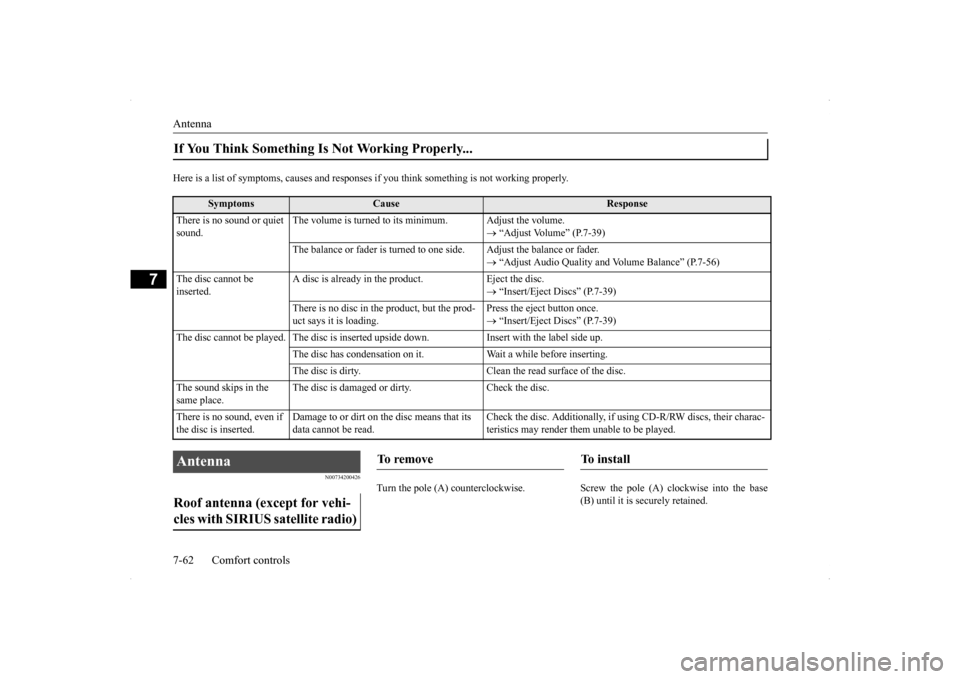
Here is a list of symptoms, causes and responses
if you think something is not working properly.
N00734200426
Turn the pole (A) counterclockwise. Screw
the pole (A) clockwise into the base
(B) until it is securely retained.
If You Think Something Is Not Working Properly...
Symptoms
Cause
Response
There is no sound or quiet sound.
The volume is turned to its minimum. Adjust the volume.
“Adjust Volume” (P.7-39)
The balance or fader is turned to one side. Adjust the balance or fader.
“Adjust Audio Quality and Volume Balance” (P.7-56)
The disc cannot be inserted.
A disc is already in the product. Eject the disc.
“Insert/Eject Discs” (P.7-39)
There is no disc in the product, but the prod- uct says it is loading.
Press the eject button once. “Insert/Eject Discs” (P.7-39)
The disc cannot be played. The disc is inserted upside down. Insert with the label side up.
The disc has condensation on it. W
ait a while before inserting.
The disc is dirty. Clean the read surface of the disc.
The sound skips in the same place.
The disc is damaged or dirty. Check the disc.
There is no sound, even if the disc is inserted.
Damage to or dirt on the disc means that its data cannot be read.
Check the disc. Additionally, if using CD-R/RW discs, their charac- teristics may render them unable to be played.
Antenna Roof antenna (except for vehi- cles with SIRIUS satellite radio)
To remove
To i n s t a l l
Page 338 of 434
General information about your radio
Comfort controls 7-63
7
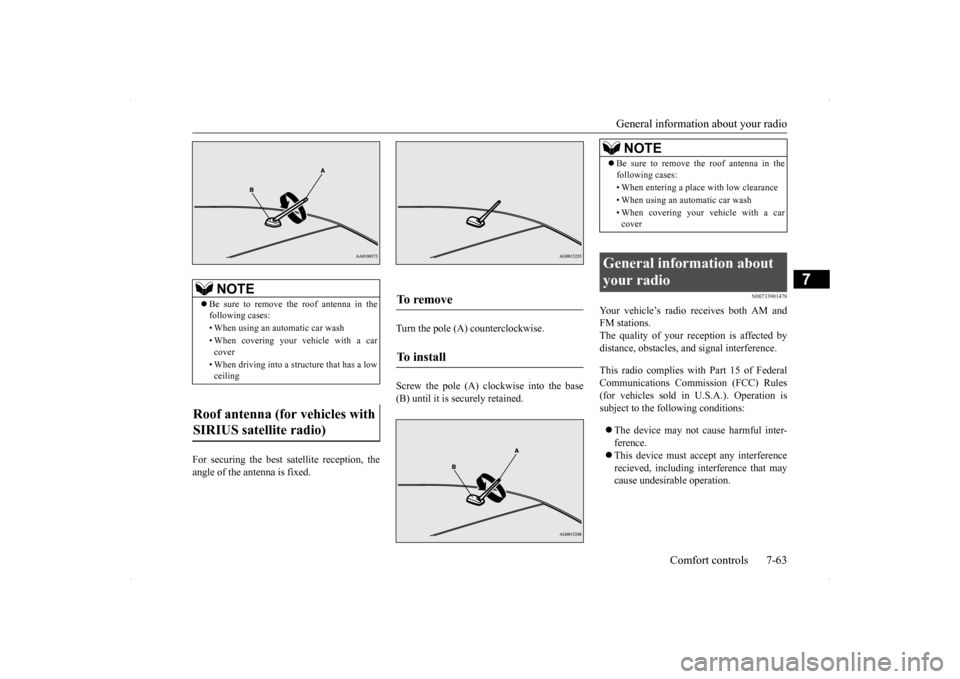
For securing the best satellite reception, the angle of the antenna is fixed.
Turn the pole (A) counterclockwise. Screw the pole (A) clockwise into the base (B) until it is securely retained.
N00733901478
Your vehicle’s radio receives both AM andFM stations.The quality of your reception is affected by distance, obstacles, and signal interference. This radio complies with Part 15 of Federal Communications Commission (FCC) Rules(for vehicles sold in U.S.A.). Operation is subject to the following conditions: The device may not cause harmful inter- ference. This device must accept any interference recieved, including interference that may cause undesirable operation.
NOTE
Be sure to remove the roof antenna in the following cases: • When using an automatic car wash• When covering your vehicle with a car cover • When driving into a structure that has a low ceiling
Roof antenna (for vehicles with SIRIUS satellite radio)
To remove To install
NOTE
Be sure to remove the roof antenna in the following cases: • When entering a place with low clearance • When using an automatic car wash • When covering your vehicle with a car cover
General information about your radio
Page 339 of 434
General information about your radio 7-64 Comfort controls
7
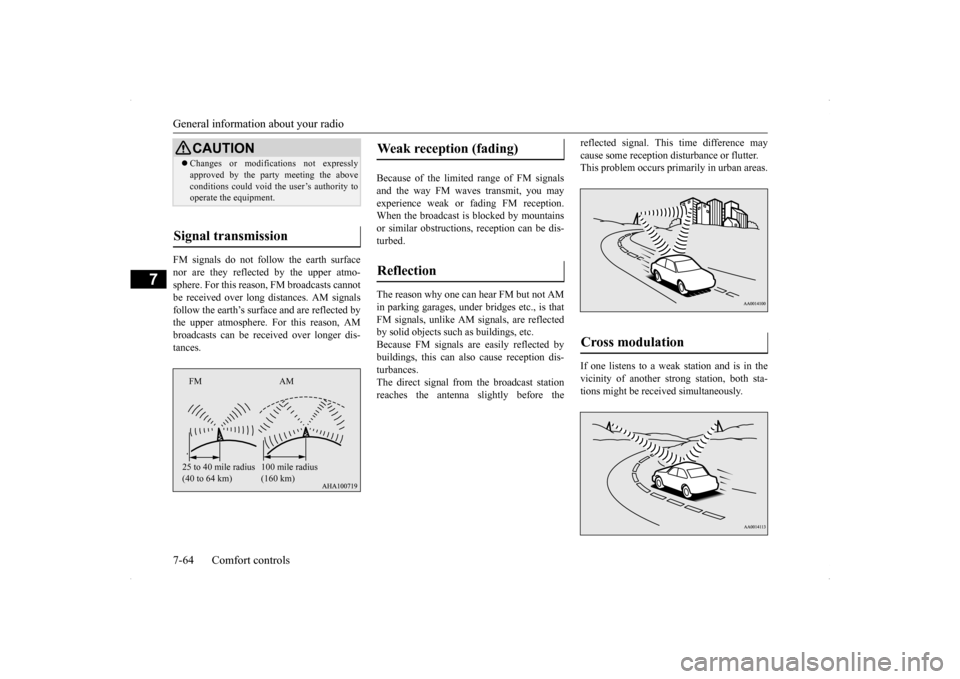
FM signals do not follow the earth surface nor are they reflected by the upper atmo- sphere. For this reason, FM broadcasts cannot be received over long distances. AM signalsfollow the earth’s surface and are reflected by the upper atmosphere. For this reason, AM broadcasts can be received over longer dis-tances.
Because of the limited
range of FM signals
and the way FM waves transmit, you mayexperience weak or fading FM reception. When the broadcast is blocked by mountains or similar obstructions, reception can be dis-turbed. The reason why one can hear FM but not AM in parking garages, under bridges etc., is that FM signals, unlike AM signals, are reflectedby solid objects such as buildings, etc. Because FM signals are easily reflected by buildings, this can also cause reception dis-turbances. The direct signal from the broadcast station reaches the antenna slightly before the
reflected signal. This time difference may cause some reception disturbance or flutter. This problem occurs primarily in urban areas. If one listens to a weak station and is in the vicinity of another strong station, both sta-tions might be received simultaneously.
CAUTION Changes or modifications not expressly approved by the party meeting the above conditions could void the user’s authority to operate the equipment.
Signal transmission
FM AM 25 to 40 mile radius (40 to 64 km)
100 mile radius (160 km)
Weak reception (fading) Reflection
Cross modulation
Page 343 of 434
If the vehicle breaks down 8-2 For emergencies
8
N00836300161
If your vehicle breaks down on the road, move to the shoulder and turn on the hazardwarning flashers. If there is no shoulder, or the shoulder is not safe, drive in the right lane slowly, with the hazard lights flashing, untilyou come to a safe stopping place. Keep the flashers flashing. If the engine stops, there will be no power assist to the steering and brakes, making these difficult to use. The brake booster will not work, so the brakes will not grip well. The brake pedalwill be harder to press than usual. Since there is no power steering assist, the steering wheel will be hard to turn.
Get help from your passengers, bystanders, etc. to push the vehicl
e and move it to a safe
zone.
N00836400713
If the engine cannot be started because the battery is weak or dead, you can start it withthe battery from another vehicle using jumper cables. 1. Take off any metal jewelry such as watch bands or bracelets that might make an accidental electrical contact.
2. Position the vehicles close enough together so that the jumper cables can reach, but be sure the vehicles aren’t touching each other. 3. You could be injured if the vehicles move. Set the parking brake firmly on each vehi- cle. Put an automatic transaxle, CVT or Twin Clutch SST in “P” (PARK) or amanual transaxle in “N” (Neutral). Turn the ignition key to the “LOCK” position.
If the vehicle breaks down If the engine stops/fails When the engine fails at the intersection
Jump-starting the engine
WA R N I N G When using jumper cables to start a vehi- cle, follow the procedures and be very cau- tious. CAUTION Do not try to start your vehicle by pushing or towing. Vehicles with continuously variable transmission (CVT) or Twin Clutch SST cannot be started this way. Pushing or towinga vehicle that has a manual transaxle may overheat and damage the catalytic converter. Also, there is more ri
sk of an accident when
a vehicle is being pushed or towed.
CAUTION Check the other vehicle. It must have a 12- volt battery. If the other system isn’t 12-volt, both systems can be damaged.WA R N I N G Turn the ignition key to the “LOCK” posi- tion on both vehicles. Make sure that the cables or your clothes cannot be caught by the fan or drive belt. Personal injurycould result. NOTE
Turn off all lights, heater, and other electrical loads. This will avoid sparks and help save both batteries.