reset MITSUBISHI LANCER 2014 8.G User Guide
[x] Cancel search | Manufacturer: MITSUBISHI, Model Year: 2014, Model line: LANCER, Model: MITSUBISHI LANCER 2014 8.GPages: 434, PDF Size: 57.5 MB
Page 315 of 434
Operation Keys 7-40 Comfort controls
7
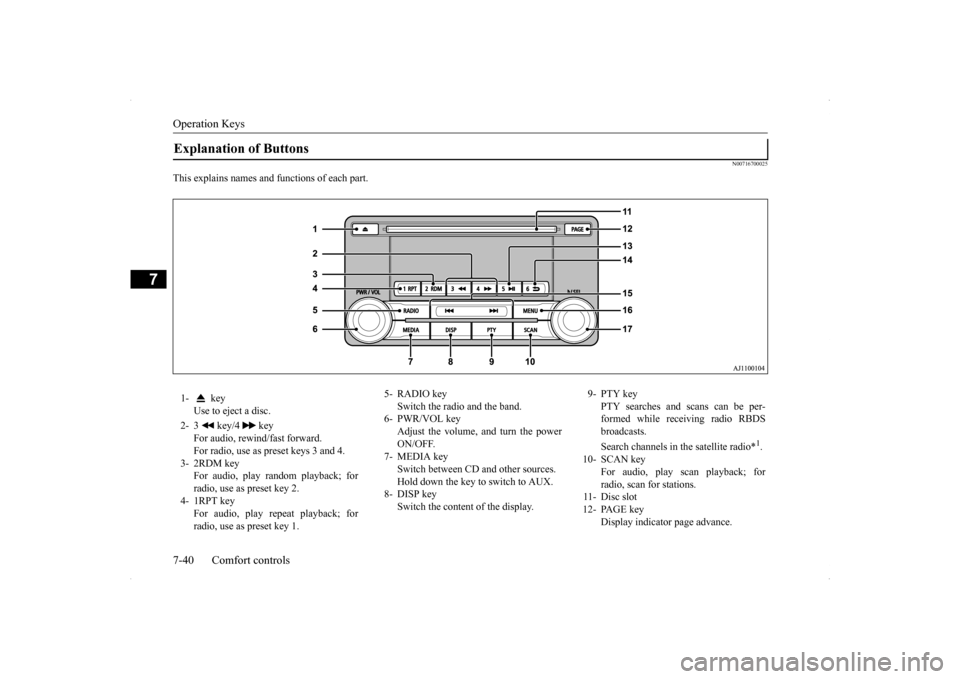
N00716700025
This explains names and functions of each part.Explanation of Buttons 1- key
Use to eject a disc.
2- 3 key/4 key
For audio, rewind/fast forward. For radio, use as preset keys 3 and 4.
3- 2RDM key
For audio, play random playback; for radio, use as preset key 2.
4- 1RPT key
For audio, play repeat playback; forradio, use as preset key 1.
5- RADIO key
Switch the radio and the band.
6- PWR/VOL key
Adjust the volume, and turn the power ON/OFF.
7- MEDIA key
Switch between CD and other sources. Hold down the key to switch to AUX.
8- DISP key
Switch the content of the display.
9- PTY key
PTY searches and scans can be per-formed while receiving radio RBDS broadcasts. Search channels in the satellite radio*
1.
10- SCAN key
For audio, play scan playback; for radio, scan for stations.
11- Disc slot 12- PAGE key
Display indicator page advance.
Page 316 of 434
Operation Keys
Comfort controls 7-41
7
N00716800039
13-
5 key Play/Pause Bluetooth Audio
*2, and use
as preset key 5 for radio.
14-
6 key Return during audio track search, and stop Bluetooth Audio
*2.
For radio, use as preset key 6.
15-
key/ key
For audio, select audio track/file; forradio, perform automatic station selec- tion. Select channels in the satellite radio*
1.
16- MENU key
Switch to Menu mode.
17-
/SEL key
Adjust audio quality and select items.For radio, manually select stations. Select channels in the satellite radio*
1.
*1: Requires a satellite tuner connection.*2: Requires a separately-purchased Blue- tooth-capable audio device in equip- ment by type (vehicles with a Bluetooth
® 2.0 interface).
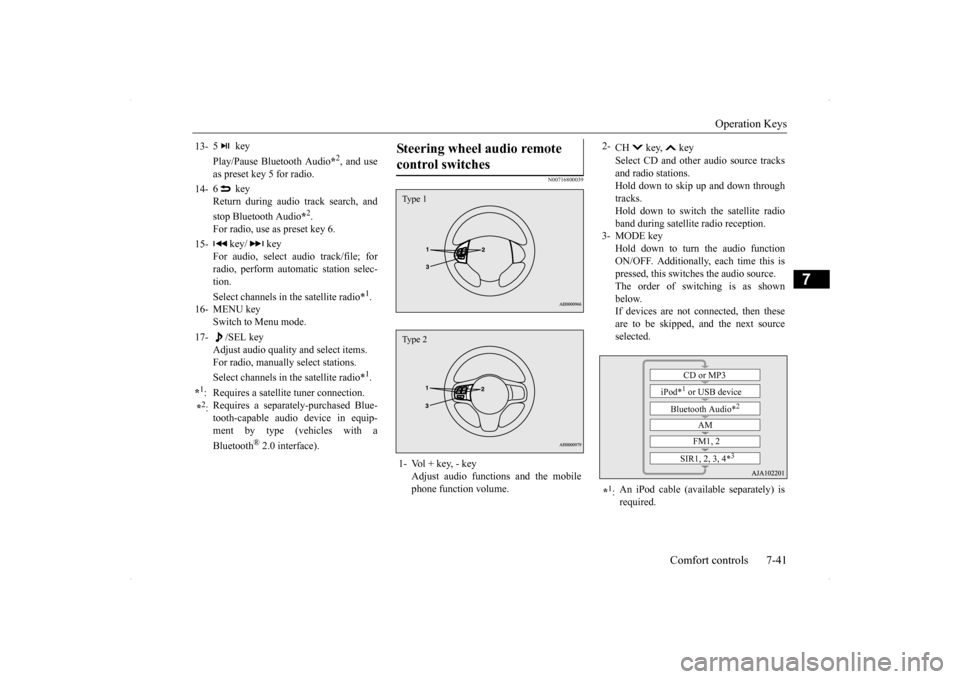
Steering wheel audio remote control switches 1- Vol + key, - key
Adjust audio functions and the mobilephone function volume.Type 1Type 2
2-
CH key, key Select CD and other audio source tracks and radio stations.Hold down to skip up and down through tracks. Hold down to switch the satellite radioband during satellite radio reception.
3- MODE key
Hold down to turn the audio functionON/OFF. Additionally, each time this is pressed, this switches the audio source. The order of switching is as shownbelow. If devices are not connected, then these are to be skipped, and the next sourceselected.
*1: An iPod cable (available separately) is required.
CD or MP3
iPod*
1 or USB device
Bluetooth Audio*
2
AM FM1, 2
SIR1, 2, 3, 4*
3
Page 317 of 434
Listen to Radio 7-42 Comfort controls
7
N00716900027
This explains how to listen to AM and FM radio broadcasts. Press the RADIO key to switch the band. Switch between AM and FM bands. The selected band is indicated on the display. *: When a satellite tuner is connected Turn the /SEL key to the frequency to lis- ten to.
Collective search for stations that can be received. Press the SCAN key.When a station is received, this is played for 5 seconds, then the product searches for the next station.
Register the broadcast station in advance, and select this at a later time. 1. Tune in to the frequency to register. 2. Hold down any of the keys from the 1RPT key to the 6 key. A “Beep” sounds, and the preset key is registered.
During RBDS broadcast reception, select PTY (program content), and automatically scan for stations. 1. During FM reception, press the PTY key. This switches to the PTY selection mode. 2. Press the PTY key to select PTY.
*2: Requires a separately-purchased Blue- tooth-capable audio device (vehicles with a Bluetooth
® 2.0 interface).
*3: Requires a satellite tuner connection.
Listen to Radio To Listen to the Radio
NOTE
Bands switch in the order AM, FM1, FM2, SIR1*, SIR2*, SIR3*, and SIR4*. If no signal is received, bands will not be switched to SIR2, SIR3, or SIR4.
Manual/Seek Station Selection
/SEL key (counter- clockwise)
Reduces the frequency being received.
/SEL key (clockwise)
Increases the frequency being received.
key
(hold down)
Release the button to start seek station selection, and when a station is received, scanning stops.
key
(hold down)Scan Station Selection
NOTE
Press this button again while receiving the station to return to normal reception.
Preset Memory
NOTE
The preset memory can register a maximum of 6 stations for each band. If a preset key that already has a station reg- istered is selected, then this is overwritten with the new preset. Pressing the preset key will select the previ- ously registered frequency.
PTY Search
Page 319 of 434

Listen to Satellite Radio (if so equipped) 7-44 Comfort controls
7
Channels are received in order and take 10 seconds each. Press the SCAN key. All of the channels are scanned. 1. Press the PTY key. Switches to the category search mode, and the category name is indicated on the display.
2. Turn the /SEL key to select the cate- gory. 3. Press the SCAN key.The channels in the selected category are scanned.
Register the channel in advance, and select this at a later time. 1. Tune in to the channel to register. 2. Hold down any of the keys from the 1RPT key to the 6 key. A “Beep” sounds, and the preset key isregistered.
Other channels can be selected while listen- ing to a channel. 1. Press the PTY key. Switches to the category search mode, and the category name is indicated on thedisplay. 2. Turn the /SEL key to select the cate- gory. 3. Press the /SEL key. Switches to channel search mode. 4. Turn the /SEL key to select the chan- nel. 5. Press the /SEL key. A “Beep” sounds, and the selected chan-nel is received. (Channel preliminary set-ting mode) The channel name shown on the display flashes. Press the /SEL key again to cancel the search mode and return to normal recep- tion.
NOTE
When cycling up/down through channels, the channel number display in the upper level of the display changes. When channel number “000” is selected, the SIRIUS ID (12 digits) is displayed.
Scan Station Selection
Scan All Channels
NOTE
Press this key again while receiving the channel to return to normal reception. Selecting a channel will cancel this.
Scan Category Channels
NOTE
Press the SCAN key or PTY key again while receiving the channel to return to normalreception. Turning the /SET key will cancel.
Preset Memory
NOTE
The preset memory can register a maximum of 6 stations per band. If a preset key that already has a channel reg- istered is selected, then this is overwritten with the new preset.
Pressing the preset key will select the previ- ously registered channel. The preset channels on the display are shown as “P1” though “P6”.
Channel Search
NOTE
Page 323 of 434

Listen to an iPod 7-48 Comfort controls
7
Press the MEDIA key to set the iPod as the source. The selected source is indicated on the dis- play.
Press the key or key to select the track. This enables selection of the next or previous track. Hold down the 3 key or the 4 key. Fast forward/rewind is possible. Repeat playback and shuffle playback are possible. Press the 1RPT key. Repeat playback of th
e track currently being
played.
NOTE
Depending on the generation, model, or soft- ware version of the iPod/iPhone, playback on this product may not be possible. ( P.7-30) Additionally, playback as
explained in this document may not be possi-ble. Regarding details such as types of iPod/iPhone that can be connected to equip- ment by type (vehicles with a Bluetooth
® 2.0
interface), and types of files that can beplayed back, refer to “Types of connectable devices and supported file specifications” on page 5-185. Regarding how to connect the iPod/iPhone, refer to “How to connect an iPod” on page5-184. When connecting the iPod/iPhone, use a commercially-available iPod connection cable. Set up the device in order that no unsafe actions, such as plugging in the connectioncable are taken while driving. When inserting and removing the iPod/iPhone, for safety’s sake first stop the vehicle. Depending on the status of the iPod/iPhone, it may take some time until the device is rec- ognized, or playback starts. Buttons on the product will not operate while iPod/iPhone is connected. iPod/iPhone specifications and settings may mean that connection is not possible, orresult in differences in operation or display.
Depending on audio data in the iPod/iPhone, track information may not be displayed cor- rectly. Depending on the status of the vehicle and device, the iPod/iPhone may not play back after starting the engine. Data containing copyright information may not play back. It is recommended that the iPod/iPhone equalizer settings be set to flat. Operate the iPod/iPhone while connected to this product. If the iPod/iPhone is connected via Bluetooth as a Bluetooth-capable audio device, then do not connect the iPod/iPhone using an iPodcable. Connection using both methods will result in erroneous operation. If an iPod/iPhone does not operate correctly, then remove the iPod/iPhone from the prod- uct, reset, then reconnect.
Play iPod
NOTE
Select the Track (File) Fast Forward or Rewind Switch Playback Mode Repeat Playback (RPT)
NOTE
Pressing again will cancel.
Page 333 of 434
System Settings 7-58 Comfort controls
7
Change each satellite radio setting.Satellite Radio Settings
(if so equipped)
Settings name
Settings item
Settings value
Settings content
SIRIUS ID — — This displays the SIRIUS ID. SKIP SETTING SKIP SETTING
SELECT CH*
1
ON SKIP can be set for each channel. Channe
ls for which SKIP is set are excluded
from the search during up/down channel selecting and scanning.They can be received when selecting chan
nels using the preset keys or searching
for a station.
OFF
SKIP SETTING ALL RESET
— When “YES” is selected, the SKIP settings for all channels are turned off.
LOCK SETTING LOCK SETTING
SELECT CH*
2
ON LOCK can be set for each channel. Channels for which LOCK is set are
excluded from the search during up/do
wn channel selecting and scanning.
If a channel for which LOCK is set is sel
ected when selecting channels using the
preset keys or searching for a station, “CH LCKED” is displayed within about 2 seconds after the channel text is displayed. The sound is muted.
OFF
LOCK SETTING ALL RESET
— When “YES” is selected and the CODE
for settings is input, the LOCK settings
for all channels are turned off.
LOCK SETTING EDIT CODE
— The CODE required for the LOCK settings is changed. (The factory setting is
“1111”.)If the input code is incorrect, “LOCK SETTING WRG LC” is displayed.
*1: Each time the /SET key is pressed, this switches in the order Sett
ings channel select, Change SKIP settings, and Complete setti
ngs.
To return to “each channel SKIP setting”, press the 6 key.
Page 334 of 434
System Settings
Comfort controls 7-59
7
Set the time manually. 1. Select “YES” at the “Adjust time” screen, and press the /SEL key. The hour can be adjusted. Press the
/SEL key again to adjust the minutes.
2. Turn the /SEL key to adjust the time.3. Press the /SEL key. This completes the adjustment.
Change the mobile phone voice cut- in set- tings and the Bluetooth
® 2.0 interface lan-
guage.
Depending on the vehicle, PHONE settings may not be possible.
Supported profiles A hands-free kit (available separately) is required.(“Set value” bold typeface indicates factory default settings.)
*2:Once the CODE (passcode) of your choice is entered, each time th
e /SET key is pressed, this switches in the order Settings chan
nel select,
Change LOCK settings, and Complete settings. To return to “each channel LOCK setting”, press the 6
key. Input the CODE from the 1 RPT key to the 6 key.
Time Setting
NOTE
In order to finish adjusting the time, hold down the /SEL key until the seconds are reset to “00”.
PHONE Settings
NOTE
Cancel functions such as the mobile phone “dial lock”, and connect while on the standby screen. While connected, mobile phone (receiving calls, etc.) operations may not function cor- rectly. Depending on the distance between the prod- uct and the mobile phone, the conditions within the vehicle, and types of screening, connection may not be possible. In thesecases, situate the mobile phone as close as possible to the product. Even though a Bluetooth-capable mobile phone, characteristics and specifications may mean that correct operation may not be pos-sible. For safety’s sake, do not operate the mobile phone while driving. When operating the mobile phone, first stop the vehicle in a safe location. Even though a Bluetooth-capable mobile phone, phone specifications and settings mayresult in differences in display, or prevent correct operation.
Some models may not be confirmed as con- nected, or may not connect.Hands-free
HFP(v1.5)
Phonebook transfer
OPP(v1.1), PBAP(v1.0)
Vehicles without a Bluetooth
® 2.0 Inter-
faceSettings value
Settings content
PHONE OFF
Do not use mobile phone voice cut-in.
PHONE MUTE
During mobile phone voice cut- in, mute the audio.
PHONE AT T
During mobile phone voice cut- in, output audio from all speak- ers.
NOTE
Page 376 of 434
Tires
Vehicle care and maintenance 9-17
9
N00939201563
It is important to fami
liarize yourself with the
following terms: Cold tire pressure: • The measured pressure after the vehiclehas been parked for at least three hours, or • The measured pressure when the vehicleis driven less than 1 mile (1.6 km) after having been parked for three hours.
Maximum inflation pressure: the maxi- mum permissible cold tire inflation pres- sure for this tire.
Recommended inflation pressure: the inflation pressure for optimum tire perfor- mance. Intended outboard sidewall: • The sidewall that contains a whitewall, bears white lettering or bears manufac- turer, brand, and/or model name moldingthat is higher or deeper than the same molding on the other sidewall of the tire, or• The outward facing sidewall of an asym-metrical tire that has a particular side that must always face outward when mounted on a vehicle.
Passenger car tire: a tire intended for use on passenger cars, multipurpose passen- ger vehicles, and trucks, that have a grossvehicle weight rating (GVWR) of 10,000 pounds or less. Light truck (LT) tire: a tire designated by its manufacturer as primarily intended for use on lightweight trucks or multipurpose passenger vehicles. Tread: portion of a tire that comes into contact with the road. Tread rib: a tread section running circum- ferentially around a tire. Tread separation: pulling away of the tread from the tire carcass. Carcass: the tire structure, except tread and sidewall rubber which, when inflated, bears the load.
Battery terminals and related accessories contain lead and lead compounds. Wash hands after handling. NOTE
Check each battery terminal for corrosion. You can stop more corrosion by washing with a solution of baking soda and water.Grease the posts and clamps after cleaning or tightening them. Check to see that the battery is securely installed and cannot be moved. Also check each terminal for tightness. If you will not be driving your vehicle for a long period of time, remove the battery andstore it in a place where the battery fluid will not freeze. Memory data for settings made by the user may be erased when the battery isremoved. If this happens, reset the settings again using the relevant procedures. The bat- tery only should be stored with a full charge. Before cleaning the battery, tighten all the filler port caps to keep dirt and moisture out.WA R N I N G
Tires
WA R N I N G Driving with tires that are worn, damaged or improperly inflated is dangerous. These type tire conditions will adversely affect vehicle performance.These type tire conditions can also cause a tread separation or blowout which may result in an accident causing seriousinjury or death. Tires, including spare tire, degrade over time with age even when they are not being used. It is recommended that tires over 6 years generally be replaced even ifdamage is not obvious.