USB MITSUBISHI LANCER 2016 8.G User Guide
[x] Cancel search | Manufacturer: MITSUBISHI, Model Year: 2016, Model line: LANCER, Model: MITSUBISHI LANCER 2016 8.GPages: 392, PDF Size: 13.12 MB
Page 275 of 392
Audio Files (MP3/WMA/AAC)
Comfort controls 7-25
7
N00715700028
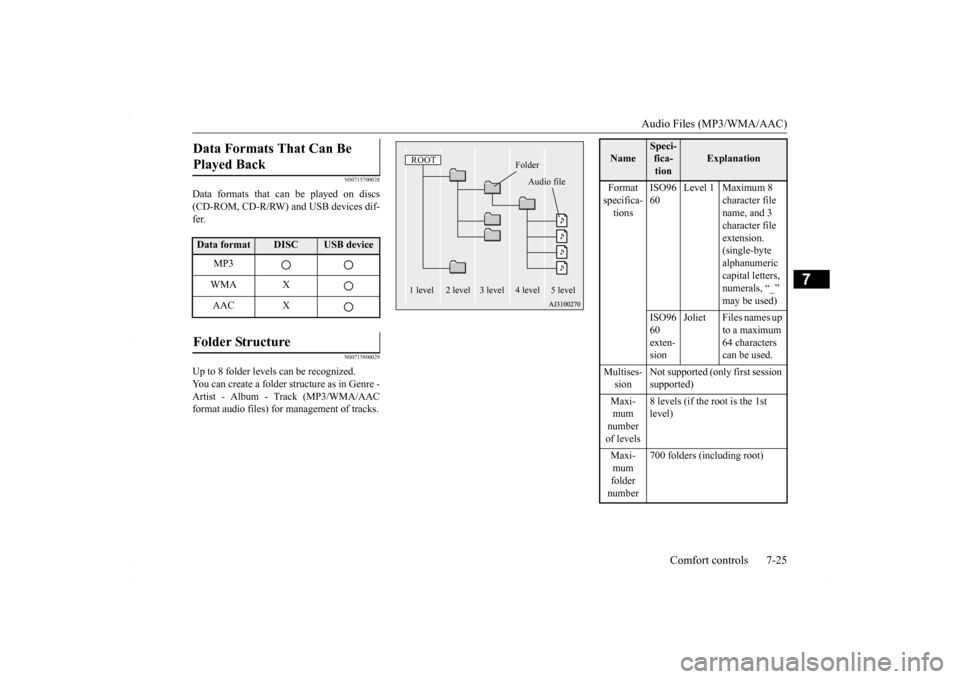
Data formats that can be played on discs (CD-ROM, CD-R/RW) and USB devices dif- fer.
N00715800029
Up to 8 folder levels can be recognized.You can create a folder structure as in Genre - Artist - Album - Track (MP3/WMA/AACformat audio files) for management of tracks.Data Formats That Can Be Played Back Data format
DISC
USB device
MP3 WMA XAAC X
Folder Structure
ROOT
Folder
Audio file
1 level 2 level 3 level 4 level 5 level
Name
Speci- fica- tion
Explanation
Format specifica- tions
ISO96 60
Level 1 Maximum 8
character file name, and 3 character file extension. (single-byte alphanumeric capital letters, numerals, “_” may be used)
ISO96 60 exten- sion
Joliet Files names up
to a maximum 64 characters can be used.
Multises- sion
Not supported (only first session supported)
Maxi- mum number of levels
8 levels (if the root is the 1st level)
Maxi- mum folder number
700 folders (including root)
BK0230300US.bo
ok 25 ページ 2015年7月30日 木曜日 午後8時38分
Page 276 of 392
Audio Files (MP3/WMA/AAC) 7-26 Comfort controls
7
N00715900020
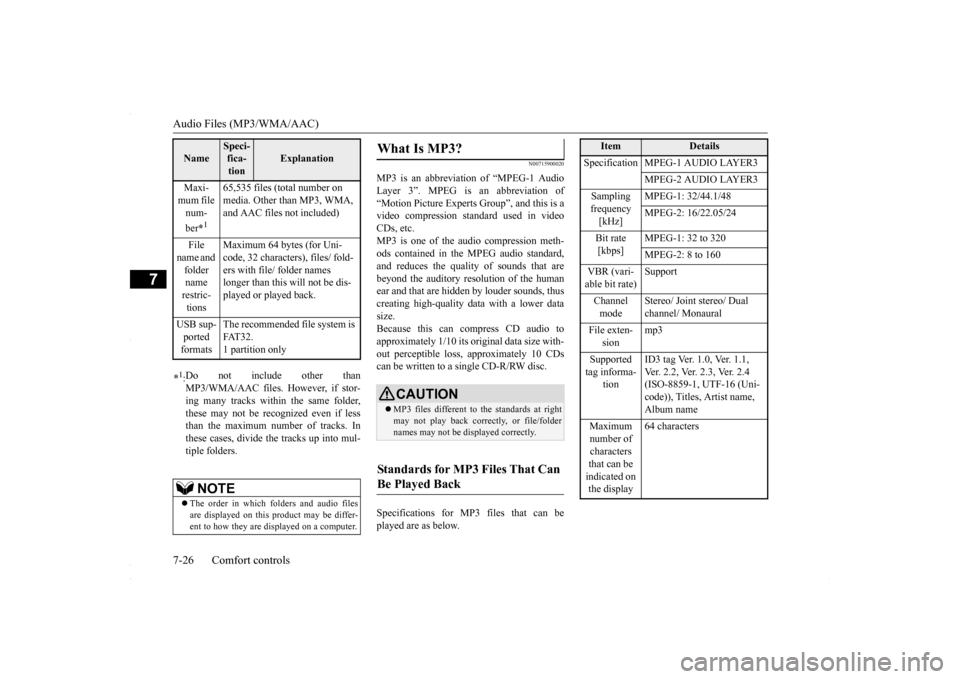
MP3 is an abbreviation of “MPEG-1 Audio Layer 3”. MPEG is an abbreviation of“Motion Picture Experts Group”, and this is a video compression standard used in video CDs, etc.MP3 is one of the audio compression meth- ods contained in the MPEG audio standard, and reduces the quality of sounds that arebeyond the auditory resolution of the humanear and that are hidden by louder sounds, thus creating high-quality data with a lower data size.Because this can compress CD audio to approximately 1/10 its original data size with- out perceptible loss, approximately 10 CDscan be written to a single CD-R/RW disc. Specifications for MP3 files that can be played are as below.
Maxi- mum file num- ber
*1
65,535 files (total number on media. Other than MP3, WMA, and AAC files not included)
File
name and folder name restric- tions
Maximum 64 bytes (for Uni- code, 32 characters), files/ fold- ers with file/ folder names longer than this will not be dis-played or played back.
USB sup- ported formats
The recommended file system is FAT32.1 partition only
*1: Do not include other than MP3/WMA/AAC files. However, if stor- ing many tracks within the same folder, these may not be recognized even if lessthan the maximum number of tracks. In these cases, divide the tracks up into mul- tiple folders.
NOTE
The order in which folders and audio files are displayed on this product may be differ-ent to how they are displayed on a computer.Name
Speci- fica- tion
Explanation
What Is MP3?
CAUTION MP3 files different to the standards at right may not play back correctly, or file/folder names may not be displayed correctly.
Standards for MP3 Files That Can Be Played Back
Item
Details
Specification MPEG-1 AUDIO LAYER3
MPEG-2 AUDIO LAYER3
Sampling frequency [kHz]
MPEG-1: 32/44.1/48 MPEG-2: 16/22.05/24
Bit rate [kbps]
MPEG-1: 32 to 320 MPEG-2: 8 to 160
VBR (vari- able bit rate)
Support
Channel mode
Stereo/ Joint stereo/ Dual channel/ Monaural
File exten-
sion
mp3
Supported tag informa-
tion
ID3 tag Ver. 1.0, Ver. 1.1, Ver. 2.2, Ver. 2.3, Ver. 2.4 (ISO-8859-1, UTF-16 (Uni- code)), Titles, Artist name, Album name
Maximum number of characters that can be indicated on the display
64 characters
BK0230300US.bo
ok 26 ページ 2015年7月30日 木曜日 午後8時38分
Page 281 of 392
Operation Keys
Comfort controls 7-31
7
N00716800084
13-
5 key Play/Pause Bluetooth Audio
*2, and use
as preset key 5 for radio.
14-
6 key Return during audio track search, and stop Bluetooth Audio
*2.
For radio, use as preset key 6.
15-
key/ key
For audio, select audio track/file; forradio, perform automatic station selec- tion. Select channels in the satellite radio*
1.
16- MENU key
Switch to Menu mode.
17-
/SEL key
Adjust audio quality and select items.For radio, manually select stations. Select channels in the satellite radio*
1.
*1: Requires a satellite tuner connection.*2: Requires a separately-purchased Blue- tooth-capable audio device in equip- ment by type (vehicles with a Bluetooth
® 2.0 interface).
Steering wheel audio remote control switches 1- Vol + key, - key
Adjust audio functions and the mobilephone function volume.
2-
CH key, key Select CD and other audio source tracks and radio stations.Hold down to skip up and down through tracks. Hold down to switch the satellite radioband during satellite radio reception.
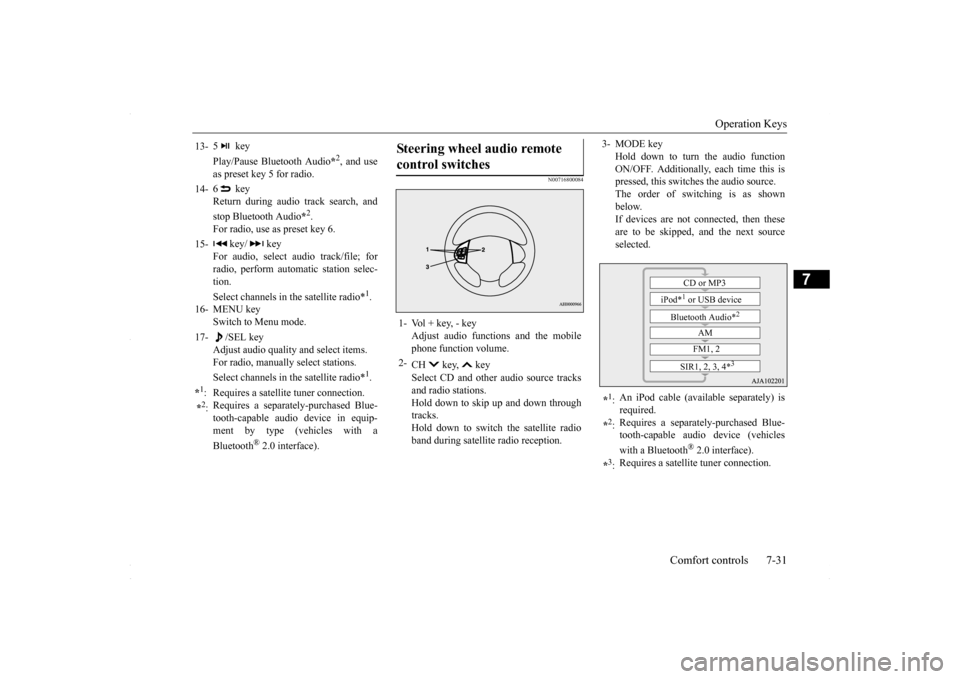
3- MODE key
Hold down to turn the audio functionON/OFF. Additionally, each time this is pressed, this switches the audio source. The order of switching is as shownbelow. If devices are not connected, then these are to be skipped, and the next sourceselected.
*1: An iPod cable (available separately) is required.
*2: Requires a separately-purchased Blue- tooth-capable audio device (vehicles with a Bluetooth
® 2.0 interface).
*3: Requires a satellite tuner connection.
CD or MP3
iPod*
1 or USB device
Bluetooth Audio*
2
AM FM1, 2
SIR1, 2, 3, 4*
3
BK0230300US.bo
ok 31 ページ 2015年7月30日 木曜日 午後8時38分
Page 289 of 392
Listen to Audio Files on a USB Device
Comfort controls 7-39
7
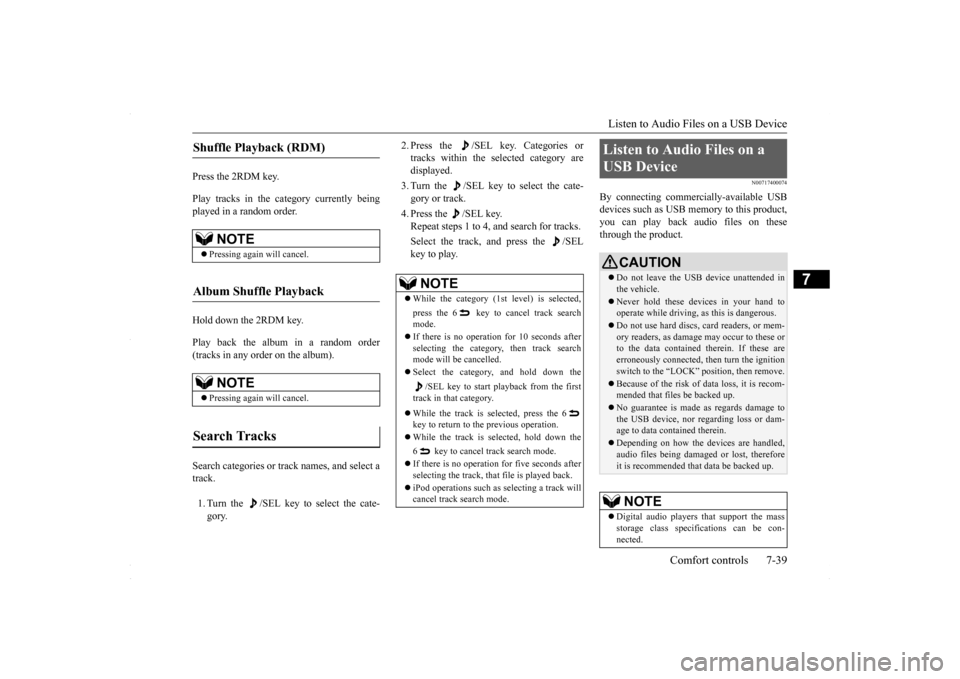
Press the 2RDM key. Play tracks in the category currently being played in a random order. Hold down the 2RDM key. Play back the album in a random order (tracks in any order on the album). Search categories or track names, and select a track. 1. Turn the /SEL key to select the cate- gory.
2. Press the /SEL key. Categories or tracks within the selected category are displayed. 3. Turn the /SEL key to select the cate- gory or track. 4. Press the /SEL key. Repeat steps 1 to 4, and search for tracks. Select the track, and press the /SEL key to play.
N00717400074
By connecting commercially-available USBdevices such as USB memory to this product,you can play back audio files on these through the product.
Shuffle Playback (RDM)
NOTE
Pressing again will cancel.
Album Shuffle Playback
NOTE
Pressing again will cancel.
Search Tracks
NOTE
While the category (1st level) is selected, press the 6 key to cancel track search mode. If there is no operation for 10 seconds after selecting the category, then track search mode will be cancelled. Select the category, and hold down the
/SEL key to start playback from the first
track in that category. While the track is selected, press the 6 key to return to the previous operation. While the track is selected, hold down the 6 key to cancel track search mode. If there is no operation for five seconds after selecting the track, that file is played back. iPod operations such as selecting a track will cancel track search mode.
Listen to Audio Files on a USB Device
CAUTION Do not leave the USB device unattended in the vehicle. Never hold these devices in your hand to operate while driving, as this is dangerous. Do not use hard discs, card readers, or mem- ory readers, as damage may occur to these or to the data contained therein. If these are erroneously connected, then turn the ignitionswitch to the “LOCK” position, then remove. Because of the risk of data loss, it is recom- mended that files be backed up. No guarantee is made as regards damage to the USB device, nor regarding loss or dam- age to data contained therein. Depending on how the devices are handled, audio files being damaged or lost, therefore it is recommended that data be backed up.NOTE
Digital audio players that support the mass storage class specifications can be con-nected.
BK0230300US.bo
ok 39 ページ 2015年7月30日 木曜日 午後8時38分
Page 290 of 392
Listen to Audio Files on a USB Device 7-40 Comfort controls
7
Press the MEDIA key to set USB as the source. The selected source is indicated on the dis- play.
Press the key or key to select the track. This enables selection of the next or previous track. Hold down the 3 key or the 4 key. Fast forward/rewind is possible. Repeat playback, random playback, and scan playback are possible. Press the 1RPT key. Repeat playback of th
e track currently being
played.
For details regarding the types of USB devices that can be connected and the types of files that can be played back in vehicles with a Bluetooth
® 2.0 interface, refer to
“Types of connectable devices and supportedfile specifications” on page 5-164. Regarding how to connect USB devices, refer to “How to connect a USB memory device” on page 5-163. When connecting a USB device, use a con- nection cable. Failure to use a connection cable when connecting may place undue loadon, or damage the USB connector. Set up the device in order that no unsafe actions, such as plugging in the connection cable are taken while driving. When inserting and removing the USB device, for safety’s sake first stop the vehi- cle. Do not insert other than audio devices into the USB port. Damage to the device or equipment may result. Depending on the status of the USB device, it may take some time until the device is rec- ognized, or playback starts. Depending on USB devices, buttons on the product will not operate while the USBdevice is connected. USB device specifications and settings may mean that connection is not possible, or result in differences in operation or display.NOTE
Depending on audio data in the USB device, track information may not be displayed cor- rectly. Depending on the status of the vehicle and device, the iPod/iPhone may not play back after starting the engine. Data containing copyright information may not play back. This product can play back MP3, WMA, and AAC format audio files. Depending on the type of USB device, usage may not be possible, or functions that can be used may be restricted. The recommended file system for USB memory is FAT32. The maximum supported capacity for USB memory is 32GB. Operate the USB device containing recorded audio files while connected to this product.
Play Back of Audio Files on a USB Device
NOTE
Select the Track (File) Fast Forward or Rewind Switch Playback Mode Repeat Playback (RPT)
NOTE
Pressing again will cancel.
BK0230300US.bo
ok 40 ページ 2015年7月30日 木曜日 午後8時38分
Page 291 of 392
Listen to Audio Files on a USB Device
Comfort controls 7-41
7
Hold down the 1RPT key. Repeat playback of the tracks within the folder currently being played. Press the 2RDM key. Play tracks in the folder currently being played in a random order.
Hold down the 2RDM key. Play the tracks in all folders in a random order. Press the SCAN key. Play the first 10 seconds of each of the tracks on the whole USB device in order.
Hold down the SCAN key. Play the first 10 seconds of the first track in each folder on the USB device in order. Search folders and files, and select a track. 1. Turn the /SEL key to select the folder. 2. Press the /SEL key. Files within the selected folder are dis- played. 3. Turn the /SEL key to select the file.4. Press the /SEL key.
Selecting a file will cancel this. However, it will not be cancelled in vehicles with a Bluetooth
® 2.0 interface.
Folder Repeat Playback
NOTE
Pressing again will cancel. Selecting a folder will cancel this. Cycling up/down through files will cancel this. Even if the file is selected, folder repeat playback will not be cancelled.
Folder Random Playback (RDM)
NOTE
Pressing again will cancel. Selecting a folder will cancel this.NOTE
Cycling up/down through files will cancel this. Even if the file is selected, folder random playback will not be cancelled.
All Folder Random Playback
NOTE
Pressing again will cancel. Selecting a folder will cancel this. Cycling up/down through files will cancel this. Even if the file is selected, all folder random playback will not be cancelled.
Scan Playback (SCAN)
NOTE
NOTE
Press this button again during playback if you wish to hear that track, and that track will play normally.
Folder Scan Playback
NOTE
Press this button again during playback if you wish to hear that track, and that track will play normally.
Search Tracks
BK0230300US.bo
ok 41 ページ 2015年7月30日 木曜日 午後8時38分
Page 292 of 392
To play iPod/USB memory device tracks via voice
operation (vehicles with
Bluetooth 2.0 interface)
7-42 Comfort controls
7
This plays the selected file (track).
N00772001041
When connected to the USB input terminal, desired tracks on the iPod/USB memorydevice which is connected to the USB input
terminal can be selected and played via voice operation. For information concerning the voice recog- nition function or speaker registration func- tion, refer to “Bluetooth
® 2.0 interface” on
page 5-139. The following explains how to prepare forvoice operation and play the tracks.
N00772101042
To use the voice operation, press theSPEECH button (except for vehicles withMitsubishi Multi-Communication System) or PICKUP button (for vehicles with Mitsubishi Multi-Communication System) first.
N00772201027
1. Say “Play” on the main menu. 2. After the voice guide says “Would you like to play by Artist, Album, Playlist or Genre?,” say “Artist”. 3. After the voice guide says “What Artist would you like to play?,” say the artist name. 4. If there is only one match, the system pro-ceeds to step 6. 5. If there are two or more matches, the voice guide will say “More than onematch was found, would you like to play
NOTE
While the folder is selected, press the 6 key to cancel track search mode. If there is no operation for 10 seconds after selecting the folder, then track search mode will be cancelled. Select the folder, and hold down the /SEL key to start playback from the first track in that folder. While the file is selected, press the 6 key to return to the previous operation. While the file is selected, hold down the 6 key to cancel track search mode. If there is no operation for five seconds after selecting the file, that file is played back. Operations such as selecting a track will can- cel track search mode.
To play iPod/USB memory device tracks via voice oper-ation (vehicles with Blue-tooth 2.0 interface)
Preparation for voice operation 1- SPEECH button 2- PICK-UP button
To search by artist name
NOTE
The Bluetooth
® 2.0 interface starts recogniz-
ing the connected device. If the connected device cannot be recognized or a connection error occurs, the Bluetooth
®
2.0 interface starts an appropriate voice guide. Follow the voice guide.NOTE
If you say “Artist
BK0230300US.bo
ok 42 ページ 2015年7月30日 木曜日 午後8時38分
Page 293 of 392
To play iPod/USB memory device tracks via voice
operation (vehicles with Bluetooth 2.0 interface)
Comfort controls 7-43
7
If you say “No,” the next matching artist is uttered by the system. 6. After the voice guide says “Playing
N00772301028
1. Say “Play” on the main menu.
2. After the voice guide says “Would you like to play by Artist, Album, Playlist or Genre?,” say “Album”. 3. After the voice guide says “What Album would you like to play?” say the albumtitle. 4. If there is only one match, the system pro- ceeds to step 6.5. If there are two or more matches, the voice guide will say “More than one match was found, would you like to play
6. After the voice guide says “Playing
N00772401029
1. Say “Play” on the main menu.
NOTE
If you say “No” to three or all artist names uttered by the system, the voice guide willsay “Artist not found, please try again” and the system returns to step 2. Search time is dependant on the number of songs on your connected device. Devices containing a large number of songs may takelonger to return search results.NOTE
If the confirmation function is active, the voice guide confirms if the artist name is correct. If the artist name is correct, say “Yes”. If not, say “No”. After the voice guidesays “Artist not found, please try again,” the system returns to step 2.
To search by album title
NOTE
The Bluetooth
® 2.0 interface starts recogniz-
ing the connected device.If the connected device cannot be recognized or a connection error occurs, the Bluetooth
®
2.0 interface starts an appropriate voice guide. Follow the voice guide.NOTE
If you say “Album