audio MITSUBISHI LANCER 2016 8.G User Guide
[x] Cancel search | Manufacturer: MITSUBISHI, Model Year: 2016, Model line: LANCER, Model: MITSUBISHI LANCER 2016 8.GPages: 392, PDF Size: 13.12 MB
Page 214 of 392
Bluetooth® 2.0 interface (if so equipped) 5-152 Features and controls
5
N00565301024
You can change the device tag of a paired cel- lular phone or music player. Follow the steps below to change a devicetag.
1. Press the SPEECH button (except for vehicles with Mitsubishi Multi-Commu- nication System) or PICK-UP button (for vehicles with Mitsubishi Multi-Commu-nication System). 2. Say “Setup.” 3. Say “Pairing Options.”4. The voice guide will say “Select one of the following: pair, edit, delete, or list.” Say “Edit.”5. The voice guide will say “Please say,” and read out the numbers of the Bluetooth
®
devices and device tags of corresponding devices in order, starting with the Blue- tooth
® that has been most recently con-
nected. After all paired device tags have beenread, the voice guide will say “Which device, please?” Say the number of the device tag you want to change. 6. The voice guide will say “New name, please.” Say the name you want to regis-ter as a new device tag.
When the confirmation function is on, the voice guide will say “
N00565401083
For the operation of a music player connected via Bluetooth
®, refer to the following sec-
tions. Refer to “Listen to Bluetooth Audio” on page 7-45. Refer to the separate owner’s manual.
NOTE
If you press and release the SPEECH button and say “Continue” or “Previous” while the list is being read, the system will advance or rewind the list. Say “Continue” to proceed to the device withthe next highest number or “Previous” to return to the phone with the previous num- ber. You can change the device tag by pressing and releasing the SPEECH button and thensaying “Edit” while the list is being read. You can change the phone to be connected by pressing and releasing the SPEECH but- ton and then saying “S
elect phone” while the
list is being read. You can change the music player to be con- nected by pressing and releasing theSPEECH button and then saying “Select music player” while the list is being read.
Changing a device tag
NOTE
You can press and release the SPEECH but- ton while the list is being read, and immedi-ately say the number of the device tag you want to change.
Operating a music player con- nected via Bluetooth
®
For vehicles equipped with the AM/FM radio/CD player For vehicles equipped with the DISPLAY AUDIO
BK0230300US.book
152 ページ 2015年7月30日 木曜日 午後8時38分
Page 217 of 392
Bluetooth® 2.0 interface (if so equipped)
Features and controls 5-155
5
“
N00565800019
If an incoming phone call is received whilethe ignition switch is in the “ACC” or “ON”position, the audio system will be automati- cally turned on and switched to the incoming call, even when the audio system was origi-nally off. The voice guide announcement for the incoming call will be output from the frontpassenger’s seat speaker. If the CD player or radio was playing when the incoming call was received, the audio sys-tem will mute the sound from the CD player or radio and output only the incoming call. To receive the call, press the PICK-UP buttonon the steering wheel control switch. When the call is over,
the audio system will
return to its previous state.
N00565900010
At any time during a call, you can mute thevehicle microphone. Pressing the SPEECH button and then saying “Mute” during a call will turn ON the mute function and mute the microphone.Saying “Mute off” in the same way will turn off the mute function and cancel the mute on the microphone.
N00566600014
The Bluetooth
® 2.0 interface can switch
between hands-free mode (hands-free calls) and private mode (calls using cellular phone). If you press the SPEECH button and say“Transfer call” during a hands-free call, you can stop the hands-free mode and talk in pri- vate mode. To return to hands-free mode, press the SPEECH button again and say “Transfer call.”
N00566000018
The Bluetooth
® 2.0 interface has 2 types of
unique phonebooks that are different from thephonebook stored in the cellular phone. They
are the vehicle phonebook and the mobile phonebook. These phonebooks are used to register tele- phone numbers and make calls to desirednumbers via voice recognition function.
N00566101117
This phonebook is us
ed when making calls
with the voice recognition function. Up to 32 names can be registered in the vehi- cle phonebook per language.Also, each entry has 4 locations associated with: home, work, mobile and other. You can register one telephone number for each loca-tion. You can register a desired name as a name for any phonebook entry registered in the vehicle phonebook.Names and telephone numbers can be changed later on. The vehicle phonebook can be used with all paired cellular phones.
Receiving calls
Mute function
Switching between hands-free mode and private mode
Phonebook function
NOTE
Disconnecting the battery cable will not delete information registered in the phone- book.
Vehicle phonebook
BK0230300US.book
155 ページ 2015年7月30日 木曜日 午後8時38分
Page 225 of 392
USB input terminal
Features and controls 5-163
5
Refer to “Listen to Audio Files on a USB Device” on page 7-39. Refer to “To play iPod/USB memory device tracks via voice operation” on page 7-42.
N00566801127
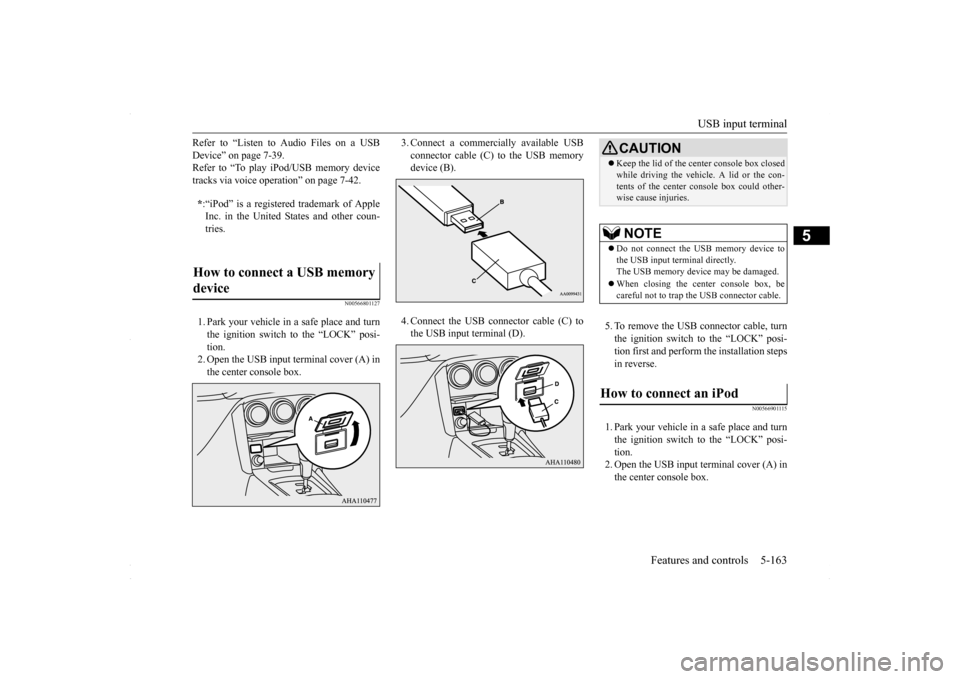
1. Park your vehicle in a safe place and turn the ignition switch to the “LOCK” posi- tion.2. Open the USB input terminal cover (A) in the center console box.
3. Connect a commercially available USB connector cable (C)
to the USB memory
device (B). 4. Connect the USB connector cable (C) to the USB input terminal (D).
5. To remove the USB connector cable, turn the ignition switch to the “LOCK” posi-tion first and perform the installation steps in reverse.
N00566901115
1. Park your vehicle in a safe place and turn the ignition switch to the “LOCK” posi-tion. 2. Open the USB input terminal cover (A) in the center console box.
* :“iPod” is a registered trademark of Apple Inc. in the United States and other coun-tries.
How to connect a USB memory device
CAUTION Keep the lid of the center console box closed while driving the vehicle. A lid or the con- tents of the center console box could other- wise cause injuries.NOTE
Do not connect the USB memory device to the USB input terminal directly. The USB memory device may be damaged. When closing the center console box, be careful not to trap the USB connector cable.
How to connect an iPod
BK0230300US.book
163 ページ 2015年7月30日 木曜日 午後8時38分
Page 226 of 392
USB input terminal 5-164 Features and controls
5
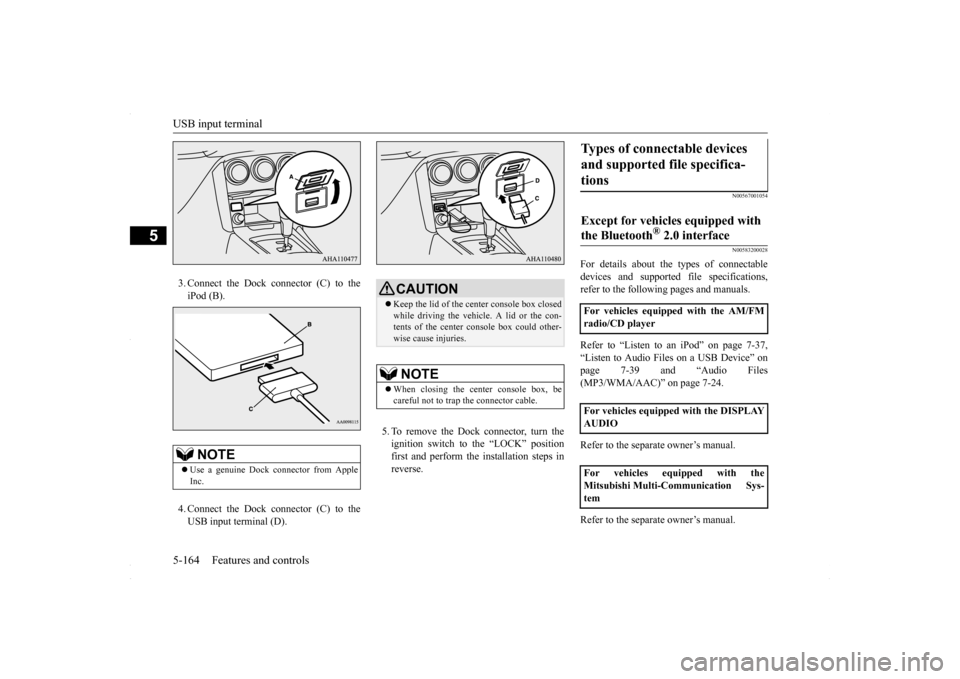
3. Connect the Dock connector (C) to the iPod (B). 4. Connect the Dock connector (C) to the USB input terminal (D).
5. To remove the Dock connector, turn the ignition switch to the “LOCK” position first and perform the installation steps inreverse.
N00567001054 N00583200028
For details about the types of connectable devices and supported file specifications,refer to the following pages and manuals. Refer to “Listen to an iPod” on page 7-37, “Listen to Audio Files on a USB Device” on page 7-39 and “Audio Files (MP3/WMA/AAC)” on page 7-24. Refer to the separate owner’s manual. Refer to the separate owner’s manual.
NOTE
Use a genuine Dock connector from Apple Inc.
CAUTION Keep the lid of the center console box closed while driving the vehicle. A lid or the con- tents of the center console box could other-wise cause injuries.NOTE
When closing the center console box, be careful not to trap the connector cable.
Types of connectable devices and supported file specifica- tions Except for vehicles equipped with the Bluetooth
® 2.0 interface
For vehicles equipped with the AM/FM radio/CD player For vehicles equipped with the DISPLAY AUDIO For vehicles equipped with the Mitsubishi Multi-Communication Sys-tem
BK0230300US.book
164 ページ 2015年7月30日 木曜日 午後8時38分
Page 227 of 392
USB input terminal
Features and controls 5-165
5
N00583300029
For details about the types of connectable devices and supported file specifications, refer to the following section.
N00583400020
Devices of the following types can be con-nected. For these connectable device types, “iPod*,” “iPod classic*,” “iPod nano*,” “iPod touch*” and “iPhone*,” refer to the following web- site:[For vehicles sold in U.S.A.] You can access the Mitsubishi Motors North America website.[For vehicles sold in Canada and Mexico] You can access the Mitsubishi Motors web- site. Please read and agree to the “Warningabout Links to the Web Sites of Other Com-
panies”. The websites mentioned above may connect you to websites other than the Mitsubishi Motors website. http://www.mitsubishi-motors.com/en/prod-ucts/index.html
N00583500021
You can play music files of the following specifications that are saved in a USB mem- ory device or other device supporting massstorage class. When you connect your iPod, playable file specifications depend on the connected iPod.
For vehicles equipped with the Bluetooth
® 2.0 interface
Device types Model name
Condition
USB memory device
Storage capacity of 256 Mbytes or more
Models other than USB memory devices and iPods
Digital audio player supporting mass storage class
* : “iPod,” “iPod classic,” “iPod nano,” “iPod touch,” and “iPhone” are regis- tered trademarks of Apple Inc. in the United States and other countries.NOTE
Depending on the type of the USB memory device or other device connected, the con- nected device may not function properly or the available functions may be limited. It is recommended to use an iPod with firm- ware updated to the latest version. You can charge your iPod by connecting it to the USB input terminal when the ignitionswitch is in the “ACC” or “ON” position. Do not keep your USB memory device or iPod in your vehicle. It is recommended that you back up the files in case of data damage. Do not connect to the USB input terminal any device (hard disk, card reader, memory reader, etc.) other than the connectabledevices specified in the previous section. The device and/or data may be damaged. If any of these devices was connected by mis-take, remove it after turning the ignition switch to the “LOCK” position.
File specifications Item
Condition
File format
MP3, WMA, AAC, WAV
Maximum number of levels(including the root)
Level 8
Number of folders 700 Number of files 65,535
BK0230300US.book
165 ページ 2015年7月30日 木曜日 午後8時38分
Page 251 of 392
7
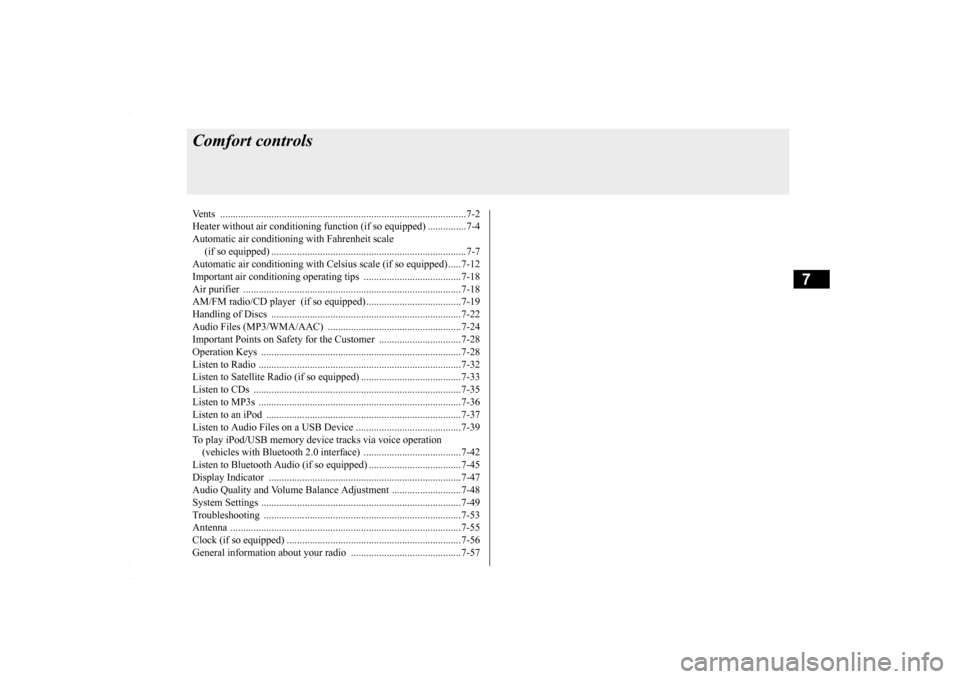
Comfort controlsVents .........................................
.......................................................7-2
Heater without air conditioning function (if so equipped) ...............7-4 Automatic air conditioning
with Fahrenheit scale
(if so equipped) .
.................................................
..........................7-7
Automatic air conditioning with Cels
ius scale (if so equipped) .....7-12
Important air conditioning op
erating tips ......................................7-18
Air purifier ......................
...............................................................7-18
AM/FM radio/CD player (if so equipped) .....................................7-19 Handling of Discs .
.................................................
........................7-22
Audio Files (MP3/WMA/
AAC) ....................................................7-24
Important Points on Safety fo
r the Customer ................................7-28
Operation Keys ...............
...............................................................7-28
Listen to Radio ......
.................................................
........................7-32
Listen to Satellite Radio (if so equipped) .......................................7-33 Listen to CDs ..................
...............................................................7-35
Listen to MP3s ......
.................................................
........................7-36
Listen to an iPod ...
.................................................
........................7-37
Listen to Audio Files on
a USB Device .........................................7-39
To play iPod/USB memory device tracks via voice operation (vehicles with Bluetooth 2.0
interface) ......................................7-42
Listen to Bluetooth Audio (i
f so equipped) ....................................7-45
Display Indicator ..
.................................................
........................7-47
Audio Quality and Volume Balance Adjustment ...........................7-48System Settings .....
.................................................
........................7-49
Troubleshooting ..............
...............................................................7-53
Antenna .....................................
.....................................................7-55
Clock (if so equipped)
............................................
........................7-56
General information about
your radio ...........................................7-57
BK0230300US.bo
ok 1 ページ 2015年7月30日 木曜日 午後8時38分
Page 269 of 392
AM/FM radio/CD player (if so equipped)
Comfort controls 7-19
7
N00734302098
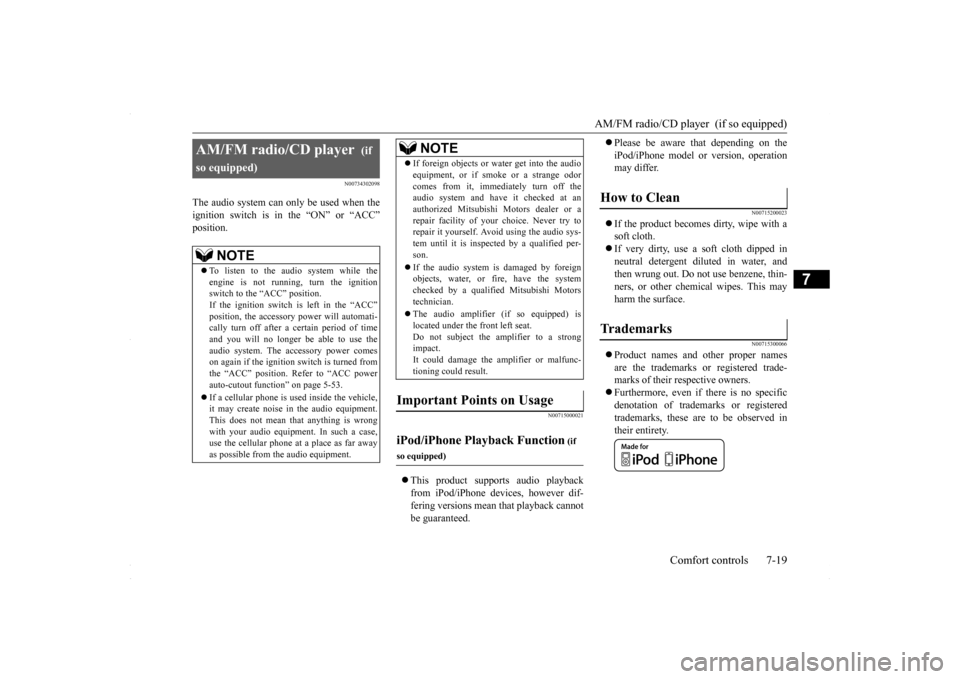
The audio system can only be used when the ignition switch is in the “ON” or “ACC” position.
N00715000021
This product supports audio playback from iPod/iPhone devices, however dif- fering versions mean that playback cannot be guaranteed.
Please be aware that depending on the iPod/iPhone model or version, operation may differ.
N00715200023
If the product becomes dirty, wipe with a soft cloth. If very dirty, use a soft cloth dipped in neutral detergent diluted in water, andthen wrung out. Do not use benzene, thin- ners, or other chemical wipes. This may harm the surface.
N00715300066
Product names and other proper names are the trademarks or registered trade-marks of their respective owners. Furthermore, even if there is no specific denotation of trademarks or registeredtrademarks, these are to be observed in their entirety.
AM/FM radio/CD player
(if
so equipped)
NOTE
To listen to the audio system while the engine is not running, turn the ignition switch to the “ACC” position. If the ignition switch is left in the “ACC”position, the accessory power will automati- cally turn off after a
certain period of time
and you will no longer be able to use theaudio system. The accessory power comes on again if the ignition switch is turned from the “ACC” position. Refer to “ACC powerauto-cutout function” on page 5-53. If a cellular phone is used inside the vehicle, it may create noise in the audio equipment. This does not mean that anything is wrong with your audio equipment. In such a case,use the cellular phone at a place as far away as possible from the audio equipment.
If foreign objects or water get into the audio equipment, or if smoke or a strange odor comes from it, immediately turn off the audio system and have it checked at an authorized Mitsubishi Motors dealer or arepair facility of your choice. Never try to repair it yourself. Avoid using the audio sys- tem until it is inspected by a qualified per-son. If the audio system is damaged by foreign objects, water, or fire, have the system checked by a qualified Mitsubishi Motors technician. The audio amplifier (if so equipped) is located under the front left seat.Do not subject the amplifier to a strong impact. It could damage the amplifier or malfunc-tioning could result.
Important Points on Usage
iPod/iPhone Playback Function
(if
so equipped)
NOTE
How to Clean
Tr a d e m a r k s
BK0230300US.bo
ok 19 ページ 2015年7月30日 木曜日 午後8時38分
Page 274 of 392
Audio Files (MP3/WMA/AAC) 7-24 Comfort controls
7
Discs that have not been finalized cannot be played back. Even if recorded using the correct format on a recorder or computer, applicationsoftware settings and environments; disc peculiarities, damage, or marking; or dirt or condensation on the lens inside theproduct may render the disc unplayable. Depending on the disc, some functions may not be used, or the disc may not playback. Do not use discs with cracks or warps. If the disc has stickers affixed, remains from removed stickers, or affixed adhe-sive, then do not use the disc. Discs that have decorative labels or stick- ers may not be used.
This product will play back audio CDs, how- ever please be aware of
the following points
regarding CD standards. Ensure that you use discs with on the label surface. Playback of other than standard CDs is not guaranteed. Even if the audio can be played back, the audio quality cannot be guaranteed. When playing back other than standard CDs, the following may occur.
• There may be noise during playback. • There may be jumping in the audio. • The disc may not be recognized. • The first track may not be played back.• It may take longer than usual until start of playback of tracks. • Playback may start from within thetrack. • Some parts may not be played back. • Tracks may freeze during playback.• Tracks may be displayed erroneously.
N00715600027
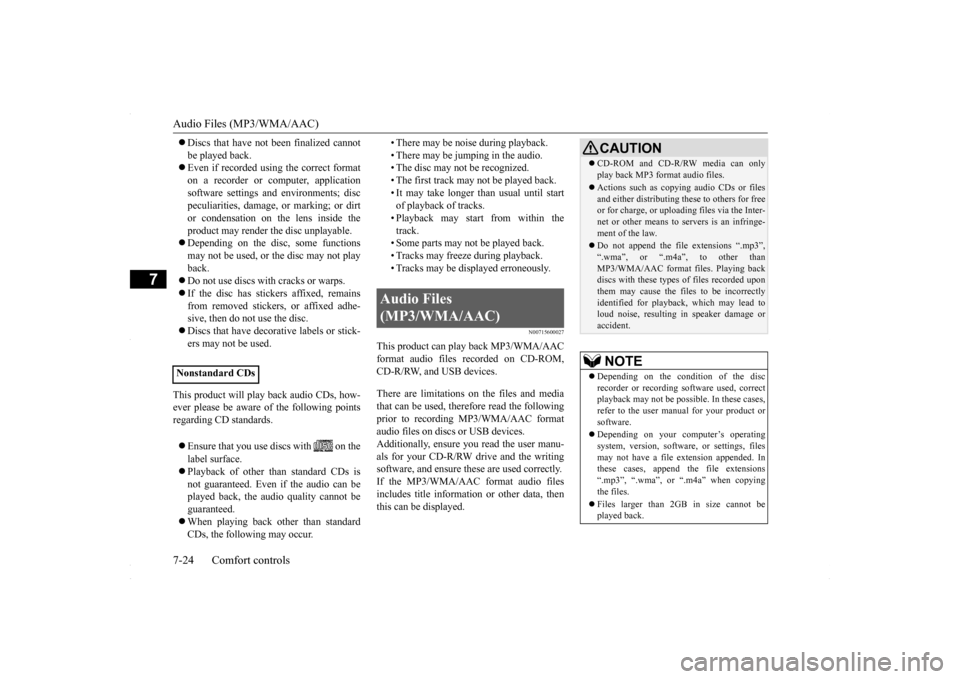
This product can play back MP3/WMA/AACformat audio files recorded on CD-ROM,CD-R/RW, and USB devices. There are limitations on the files and media that can be used, therefore read the following prior to recording MP3/WMA/AAC formataudio files on discs or USB devices. Additionally, ensure you read the user manu- als for your CD-R/RW drive and the writingsoftware, and ensure these are used correctly. If the MP3/WMA/AAC format audio files includes title information or other data, thenthis can be displayed.
Nonstandard CDs
Audio Files (MP3/WMA/AAC)
CAUTION CD-ROM and CD-R/RW media can only play back MP3 format audio files. Actions such as copying audio CDs or files and either distributing these to others for freeor for charge, or uploading files via the Inter- net or other means to servers is an infringe- ment of the law. Do not append the file extensions “.mp3”, “.wma”, or “.m4a”, to other thanMP3/WMA/AAC format files. Playing back discs with these types of files recorded upon them may cause the files to be incorrectlyidentified for playback, which may lead to loud noise, resulting in speaker damage or accident.NOTE
Depending on the condition of the disc recorder or recording software used, correct playback may not be possible. In these cases,refer to the user manual for your product or software. Depending on your computer’s operating system, version, software, or settings, files may not have a file extension appended. In these cases, append the file extensions “.mp3”, “.wma”, or “.m4a” when copyingthe files. Files larger than 2GB in size cannot be played back.
BK0230300US.bo
ok 24 ページ 2015年7月30日 木曜日 午後8時38分
Page 275 of 392
Audio Files (MP3/WMA/AAC)
Comfort controls 7-25
7
N00715700028
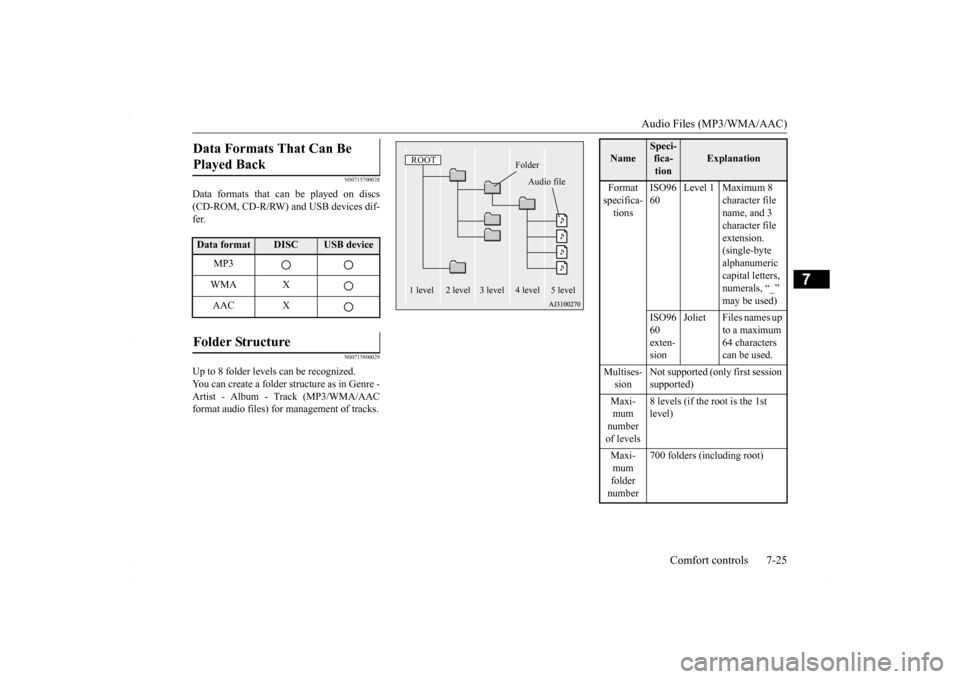
Data formats that can be played on discs (CD-ROM, CD-R/RW) and USB devices dif- fer.
N00715800029
Up to 8 folder levels can be recognized.You can create a folder structure as in Genre - Artist - Album - Track (MP3/WMA/AACformat audio files) for management of tracks.Data Formats That Can Be Played Back Data format
DISC
USB device
MP3 WMA XAAC X
Folder Structure
ROOT
Folder
Audio file
1 level 2 level 3 level 4 level 5 level
Name
Speci- fica- tion
Explanation
Format specifica- tions
ISO96 60
Level 1 Maximum 8
character file name, and 3 character file extension. (single-byte alphanumeric capital letters, numerals, “_” may be used)
ISO96 60 exten- sion
Joliet Files names up
to a maximum 64 characters can be used.
Multises- sion
Not supported (only first session supported)
Maxi- mum number of levels
8 levels (if the root is the 1st level)
Maxi- mum folder number
700 folders (including root)
BK0230300US.bo
ok 25 ページ 2015年7月30日 木曜日 午後8時38分
Page 276 of 392
Audio Files (MP3/WMA/AAC) 7-26 Comfort controls
7
N00715900020
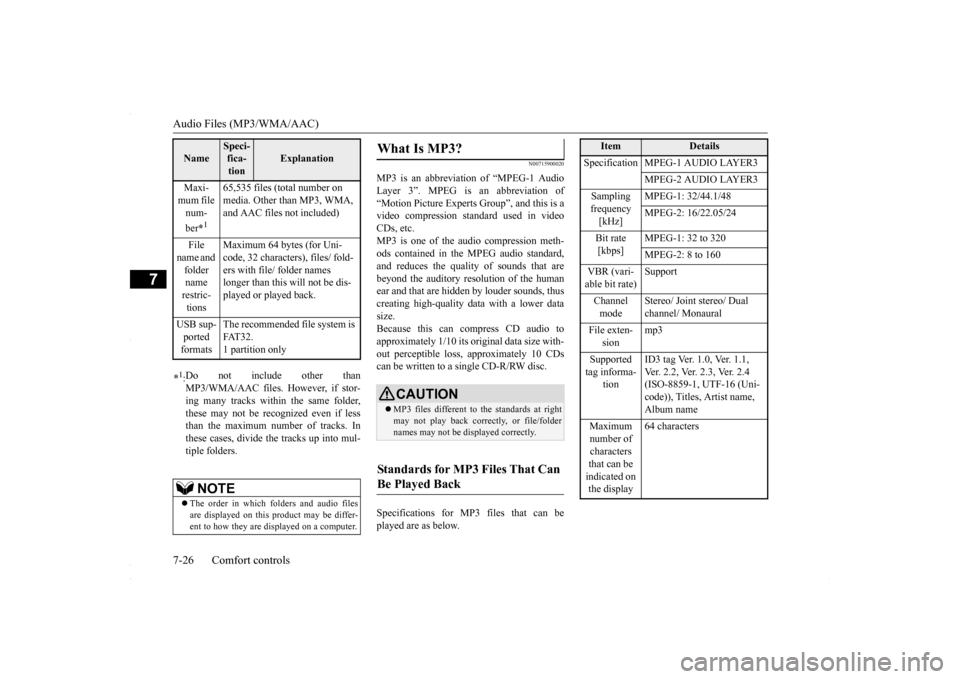
MP3 is an abbreviation of “MPEG-1 Audio Layer 3”. MPEG is an abbreviation of“Motion Picture Experts Group”, and this is a video compression standard used in video CDs, etc.MP3 is one of the audio compression meth- ods contained in the MPEG audio standard, and reduces the quality of sounds that arebeyond the auditory resolution of the humanear and that are hidden by louder sounds, thus creating high-quality data with a lower data size.Because this can compress CD audio to approximately 1/10 its original data size with- out perceptible loss, approximately 10 CDscan be written to a single CD-R/RW disc. Specifications for MP3 files that can be played are as below.
Maxi- mum file num- ber
*1
65,535 files (total number on media. Other than MP3, WMA, and AAC files not included)
File
name and folder name restric- tions
Maximum 64 bytes (for Uni- code, 32 characters), files/ fold- ers with file/ folder names longer than this will not be dis-played or played back.
USB sup- ported formats
The recommended file system is FAT32.1 partition only
*1: Do not include other than MP3/WMA/AAC files. However, if stor- ing many tracks within the same folder, these may not be recognized even if lessthan the maximum number of tracks. In these cases, divide the tracks up into mul- tiple folders.
NOTE
The order in which folders and audio files are displayed on this product may be differ-ent to how they are displayed on a computer.Name
Speci- fica- tion
Explanation
What Is MP3?
CAUTION MP3 files different to the standards at right may not play back correctly, or file/folder names may not be displayed correctly.
Standards for MP3 Files That Can Be Played Back
Item
Details
Specification MPEG-1 AUDIO LAYER3
MPEG-2 AUDIO LAYER3
Sampling frequency [kHz]
MPEG-1: 32/44.1/48 MPEG-2: 16/22.05/24
Bit rate [kbps]
MPEG-1: 32 to 320 MPEG-2: 8 to 160
VBR (vari- able bit rate)
Support
Channel mode
Stereo/ Joint stereo/ Dual channel/ Monaural
File exten-
sion
mp3
Supported tag informa-
tion
ID3 tag Ver. 1.0, Ver. 1.1, Ver. 2.2, Ver. 2.3, Ver. 2.4 (ISO-8859-1, UTF-16 (Uni- code)), Titles, Artist name, Album name
Maximum number of characters that can be indicated on the display
64 characters
BK0230300US.bo
ok 26 ページ 2015年7月30日 木曜日 午後8時38分