Phone MITSUBISHI MIRAGE 2015 6.G Owner's Manual
[x] Cancel search | Manufacturer: MITSUBISHI, Model Year: 2015, Model line: MIRAGE, Model: MITSUBISHI MIRAGE 2015 6.GPages: 300, PDF Size: 43.44 MB
Page 159 of 300
![MITSUBISHI MIRAGE 2015 6.G Owners Manual Bluetooth® 2.0 interface (if so equipped) 5-98 Features and controls
5
[Listening to the list
of registered names]
1. Press the SPEECH button. 2. Say “Phonebook.”3. The voice guide will say â€](/img/19/7511/w960_7511-158.png "MITSUBISHI MIRAGE 2015 6.G Owners Manual Bluetooth® 2.0 interface (if so equipped) 5-98 Features and controls
5
[Listening to the list
of registered names]
1. Press the SPEECH button. 2. Say “Phonebook.”3. The voice guide will say â€")
Bluetooth® 2.0 interface (if so equipped) 5-98 Features and controls
5
[Listening to the list
of registered names]
1. Press the SPEECH button. 2. Say “Phonebook.”3. The voice guide will say “Select one of the following: new entry, edit number, edit name, list names, delete, erase all, orimport contact.” Sa
y “List names.”
4. Bluetooth
® 2.0 interface will read out the
entries in the phonebook in order.5. When the voice guide is done reading the list, it will say “End of
list, would you like
to start from the beginning?” When you want to check the list again from the beginning, answer “Yes.”When you are done, answer “No” to return to the previous or main menu.
[Deleting a te
lephone number]
1. Press the SPEECH button. 2. Say “Phonebook.”3. The voice guide will
say “Select one of
the following: new entry, edit number, edit name, list names, delete, erase all, orimport contact.” Say “Delete.” 4. The voice guide will
say “Please say the
name of the entry you would like todelete, or say list names.” Say the name of the phonebook entry in which the tele- phone number you want to delete is regis- tered. 5. If only one telephone
number is registered
in the selected phonebook entry, the voiceguide will say “Deleting
ed phonebook entry, the
voice guide will say “Would you like to delete [home], [work], [mobile], [other],or all?”
Select the location to delete, and the voice guide will say “Del
eting
if you really want to
delete the selected
telephone number(s) to
go ahead with the deletion, answer “Yes.” Answer “No,” the system will cancel deleting the telephone number(s) and thenreturn to Step 4. 7. When the telephone number deletion is complete, the voice guide will say“
deleted” and then
the system will return to the main menu. If all locations are deleted, the system willsay “
removed from the
phonebook. If numbers still remain underthe entry, the name will retain the other associated numbers.
You can delete all registered information from the vehicle phonebook. 1. Press the SPEECH button. 2. Say “Phonebook.”
NOTE
You can call, edit or delete a name that is being read out. Press the SPEECH butt
on and say “Call” to
call the name, “Edit name” to edit it, or“Delete” to delete it. The system will beep and then execute your command. If you press the SPEECH button and say “Continue” or “Previous” while the list isbeing read, the system will advance or rewind the list. Say “C
ontinue” to proceed to
the next entry or “Previous” to return to theprevious entry.
NOTE
Say “List names,” and
the names registered
in the phonebook are read out in order. Refer to “Vehicle phonebook: Listening to the list of registered names” on page 5-98.
NOTE
To delete the telepho
ne numbers from all
locations, say “All.”
Erasing the phonebook
BK0212400US.book 98 ページ 2014年4月1日 火曜日 午後2時21分
Page 160 of 300

Bluetooth® 2.0 interface (if so equipped)
Features and controls 5-99
5
3. The voice guide will
say “Select one of
the following: new entry, edit number,edit name, list names, delete, erase all, or import contact.” Say “Erase all.” 4. For confirmation purposes, the voiceguide will ask “Are you sure you want to erase everything from your hands-free system phonebook?” Answer “Yes.”Answer “No” to cancel the deletion of all registered information in the phonebook and return to the main menu. 5. The voice guide will say “You are about to delete everything from your hands-freesystem phonebook. Do
you want to con-
tinue?” Answer “Yes” to continue. Answer “No” to cancel the deletion of allregistered information in the phonebook and return to the main menu. 6. The voice guide wi
ll say “Please wait,
erasing the hands-free system phone- book” and then the syst
em will de
lete all
data in the phonebook.When the deletion is complete, the voice guide will say “Ha
nds-free system phone-
book erased” and then the system willreturn to the main menu.
N00566200049
All entries in the phonebook stored in the cel-lular phone can be transferred in a batch and registered in the mobile phonebook.
Up to 7 mobile phonebooks, each containing up to 1,000 names, can be registered. The Bluetooth
® 2.0 interface automatically
converts from text to
voice the na
mes regis-
tered in the transferred phonebook entries, and creates names. Follow the steps below to transfer to the mobile phonebook the phonebook stored inthe cellular phone.
1. Press the SPEECH button. 2. Say “Phonebook.” 3. The voice guide will
say “Select one of
the following: new entry, edit number,edit name, list names, delete, erase all, or import contact.
” Say “Import contact.”
4. The voice guide will say “Would you liketo import a single entry or all contacts?” Say “All contacts.”
Mobile phonebook
NOTE
Only the mobile phonebook transferred from the connected cellul
ar phone can be used
with that cellular phone. You cannot change the names and telephone numbers in the phonebook entries registered in the mobile phonebook. You cannot selectand delete spec
ific phonebook entries, either.
To change or delete any of the above, change the applicable information in the sourcephonebook of the cellular phone and then transfer the phonebook again.
To import a devices phonebook
NOTE
Transfer should be completed while the vehi- cle is parked. Before transferring, make surethat the vehicle is park
ed in a safe location.
The already stored phonebook in the mobile phonebook is overwritten by the storedphonebook in the cellular phone. All or part of data
may not be transferred,
even when the cellular phone supports Blue- tooth
®, depending on the compatibility of
the device. Only a home, a work, and a mobile number can be imported. The maximum supported telephone number length is 19 digits. A
ny telephone number of
20 digits or more will be
truncated to the first
19 digits. If telephone numbers
contain characters
other than 0 to 9,
*, # or +, these characters
are deleted before the transfer. For the connection set
tings on the cellular
phone side, refer to the instructions for thecellular phone.NOTE
BK0212400US.book 99 ページ 2014年4月1日 火曜日 午後2時21分
Page 161 of 300
Bluetooth® 2.0 interface (if so equipped) 5-100 Features and controls
5
5. The voice guide will say “Importing the contact list from the mobile phonebook.This may take several minutes to com- plete. Would you li
ke to continue?”
Answer “Yes,” transferring to the mobilephonebook the phonebook stored in the cellular phone will start. Answer “No,” the system will return tothe main menu.
6. When the transfer is complete, the voice guide will say “Import complete” andthen the system will return to the main menu.
N00566301092
MODEL: MMC FCC ID: CB2MDGMY10IC: 279B-MDGMY10 Your Bluetooth
® 2.0 interface operates on a
radio frequency subject to Federal Communi- cations Commission (FCC)
Rules (For vehi-
cles sold in U.S.A.
) and Industry Canada
Rules (For vehicles so
ld in Canada). This
device complies with Part 15 of the FCCRules and RSS-210 of the Industry Canada Rules. Operation is subject to the following two conditions: This device may not
cause harmful inter-
ference. This device must ac
cept any interference
received, including interference that maycause undesired operation.
The term “IC:” before
the radio certification
number only signifies th
at Industry Canada
technical specifications were met. The antenna used for this transmitter must not be co-located or operating in conjunctionwith any other antenna
or transmitter. End-
users and installers must be provided with installation instructions
and transmitter oper-
ating conditions for sa
tisfying RF exposure
compliance. FCC Notice: This equipment has been tested and found to comply with the limits for a Class B digital device, pursuant to part 15 ofthe FCC Rules. These limits are designed to provide reasonable prot
ection against harmful
interference in a residential installation.This equipment generate
s, use and can radiate
radio frequency energy a
nd, if not installed
and used in accordance with the instructions,may cause harmful interf
erence to radio com-
munications. However, there is no guarantee that interfer-ence will not occur in a particular installation. If this equipment does
cause harmful interfer-
ence to radio or tele
vision reception, which
can be determined by turning the equipment off and on, the user is encouraged to try to correct the interference by one or more of thefollowing measures: Reorient or relocate the receiving antenna. Increase the separation between the equipment and receiver.
NOTE
The transfer may take some time to complete depending on the number of contacts. If the Bluetooth
® 2.0 interface could not be
connected to the Bluetooth
® compatible cel-
lular phone, the voice gui
de will sa
y “Unable
to transfer contact list from phone” and thenthe system will return to the main menu. If you press the HANG-UP button or press and hold the SPEECH button during the data transfer, the transfer will be cancelled and the system will return to the main menu. If an error occurs during the data transfer, all transfer will be canc
elled and the voice guide
will say “Unable to complete the phonebook import” and then the system will return to the main menu. If there are no contacts in the phonebook, the voice guide will say
“There are no contacts
on the connected phone.”
General information
CAUTION Changes or modifica
tions made to this
equipment not expressly approved by the manufacturer may void the FCC authoriza- tion to operate this equipment.
BK0212400US.book 100 ページ 2014年4月1日 火曜日 午後2時21分
Page 165 of 300
USB input terminal (if so equipped) 5-104 Features and controls
5
On vehicles equipped with the Bluetooth
®
2.0 interface, for thes
e connectable device
types, “iPod
*,” “iPod classic
*,” “iPod
nano
*,” “iPod touch
*” and “iPhone
*,” refer
to the following website: [For vehicles sold in U.S.A.]You can access the Mitsubishi Motors North America website. [For vehicles sold in Canada]You can access the Mi
tsubishi Motors web-
site. Please read and agree to the “Warning about Links to the Web Sites of Other Com-panies”. The websites
mentioned above may
connect you to websites
other than the Mit-
subishi Motors website.
http://www.mitsubishi-motors.com/en/prod- ucts/index.html * : “iPod,” “iPod classic,” “iPod nano,” “iPod touch” and “iPhone” are registered trade- marks of Apple Inc. in the United States and other countries.
iPod clas- sic
*
80GB/180 GB
F/W Ver.1.1.2 or later
120GB
F/W Ver.2.0.1 or later
160GB (late 2009)
F/W Ver.2.0.4 or later
iPod nano
*
first gener- ation
F/W Ver.1.3.1 or later
second generation
F/W Ver.1.1.3 or later
third gen- eration
F/W Ver.1.1.3 or later
fourth generation
F/W Ver.1.0.4 or later
fifth gen- eration
F/W Ver.1.0.2 or later
sixth gen- eration
F/W Ver.1.0 or later
iPod touch
*
first gener- ation
F/W Ver.3.1.3 or later
second generation
F/W Ver.4.2.1 or later
third gen- eration
F/W Ver.4.3.1 or later
fourth generation
F/W Ver.4.3.1 or later
Model name
Condition
iPhone
*
iPhone
F/W Ver.3.1.3 or later
iPhone 3G
F/W Ver.4.2.1 or later
iPhone 3GS
F/W Ver.4.3.1 or later
iPhone 4
F/W Ver.4.3.1 or later
iPhone 4S
F/W Ver.5.0.1 or later
Models other than USB memory devices and iPods
Digital audio player supporting mass storage class
Model name
Condition
NOTE
Depending on the type of the USB memory device or other devi
ce connected, the con-
nected device may not
function properly or
the available functi
ons may be limited.
It is recommended to use an iPod with firm- ware updated to th
e latest version.
You can charge your
iPod by connecting it to
the USB input terminal
when the ignition
switch or the operati
on mode is in ON or
ACC. Do not keep your US
B memory device or
iPod in your vehicle. It is recommended that you back up the files in case of
data damage.
Do not connect to the USB input terminal any device (hard disk, card reader, memory reader, etc.) other than the connectabledevices specified in the previous section. The device and/or data
may be damaged. If
any of these devices
was connected by mis-
take, remove it afte
r turning the ignition
switch to the “OFF” position or putting the operation mode in OFF.
BK0212400US.book 104 ページ 2014年4月1日 火曜日 午後2時21分
Page 199 of 300
Air purifier (if so equipped) 7-18 Comfort controls
7
N00733800180
The air conditioning system is equipped with an air filter to re
move pollen
and dust.
The air filter’s ability to collect pollen and dirt is reduced as it be
comes dirty, so replace
it periodically. For the maintenance interval,refer to the “WARRANTY AND MAINTE- NANCE MANUAL”.
N00734302131
The audio system can onl
y be used when the
ignition switch or the operation mode is inON or ACC.
N00711900729 N00712000411
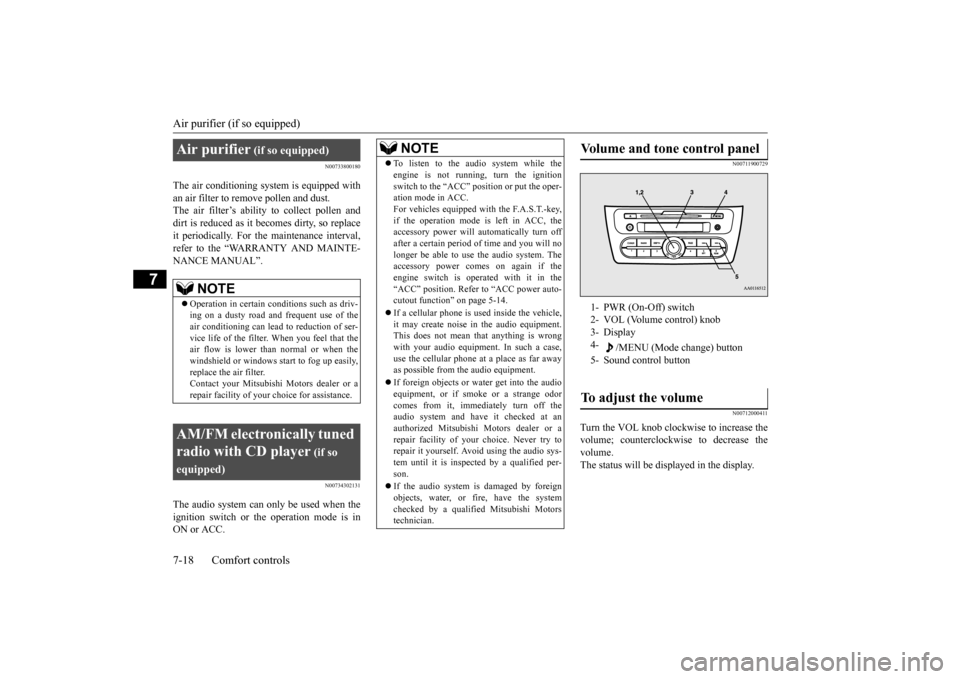
Turn the VOL knob clockwise to increase the volume; counterclockwis
e to decrease the
volume. The status will be displayed in the display.
Air purifier
(if so equipped)
NOTE
Operation in certain conditions such as driv- ing on a dusty road and frequent use of the air conditioning
can lead to re
duction of ser-
vice life of the filter. When you feel that the air flow is lower than normal or when the windshield or windows st
art to fog up easily,
replace the air filter. Contact your Mitsubishi
Motors dealer or a
repair facility of your
choice for assistance.
AM/FM electronically tuned radio with CD player
(if so
equipped)
NOTE
To listen to the audio system while the engine is not running, turn the ignitionswitch to the “ACC” position or put the oper-ation mode in ACC. For vehicles equipped with the F.A.S.T.-key, if the operation mode is left in ACC, theaccessory power will automatically turn off after a certain period
of time and you will no
longer be able to use the audio system. Theaccessory power comes on again if the engine switch is operated with it in the “ACC” position. Refer
to “ACC power auto-
cutout function” on page 5-14. If a cellular phone is
used inside the vehicle,
it may create noise in the audio equipment. This does not mean that anything is wrong with your audio equipment. In such a case,use the cellular phone at
a place as far away
as possible from the audio equipment. If foreign objects or wa
ter get into the audio
equipment, or if smoke or a strange odor comes from it, immediately turn off theaudio system and have
it checked at an
authorized Mitsubishi Motors dealer or a repair facility of your
choice. Never try to
repair it yourself. Avoid using the audio sys- tem until it is inspected by a qualified per- son. If the audio system is damaged by foreign objects, water, or fire, have the systemchecked by a qualified
Mitsubishi Motors
technician.
Volume and tone control panel
1- PWR (On-Off) switch 2- VOL (Volume control) knob3- Display 4-
/MENU (Mode change) button
5- Sound control buttonTo adjust the volume
BK0212400US.book 18 ページ 2014年4月1日 火曜日 午後2時21分
Page 206 of 300
AM/FM electronically tuned radio with CD player (if so equipped)
Comfort controls 7-25
7
If you keep pressing the button, fast-for- ward begins.3. When the “hours” digit is adjusted, press the button to flash the “minutes” digit.Press the or button to adjust the “minutes” digit. If you keep pressing the button, fast-for-ward begins. 4. When the time is set, press the button to stop the clock display from flashing.
N00702800012
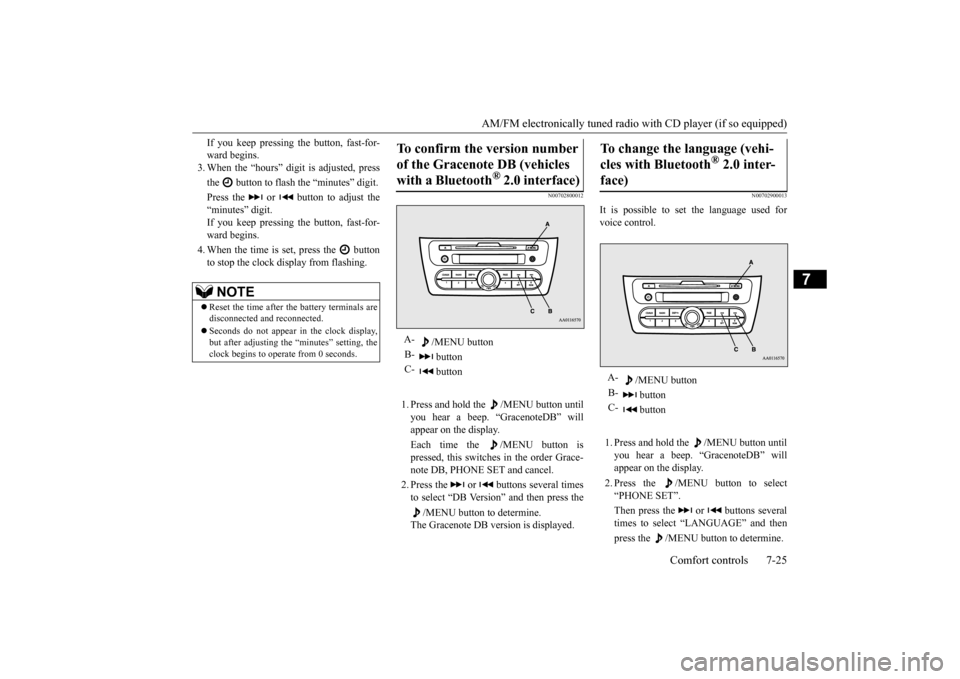
1. Press and hold the /MENU button untilyou hear a beep. “GracenoteDB” will appear on the display. Each time the /MENU button is pressed, this switches in the order Grace- note DB, PHONE SET and cancel. 2. Press the or buttons several times to select “DB Version” and then press the
/MENU button to determine.
The Gracenote DB ve
rsion is displayed.
N00702900013
It is possible to set the language used for voice control. 1. Press and hold the /MENU button until you hear a beep. “GracenoteDB” will appear on the display. 2. Press the /MENU button to select “PHONE SET”. Then press the or buttons several times to select “LANGUAGE” and then press the /MENU button to determine.
NOTE
Reset the time after the battery terminals are disconnected an
d reconnected.
Seconds do not appear
in the clock display,
but after adjusting the “minutes” setting, the clock begins to operate from 0 seconds.
To confirm the version number of the Gracenote DB (vehicles with a Bluetooth
® 2.0 interface)
A-
/MENU button
B-
button
C-
button
To change the language (vehi- cles with Bluetooth
® 2.0 inter-
face)
A-
/MENU button
B-
button
C-
button
BK0212400US.book 25 ページ 2014年4月1日 火曜日 午後2時21分
Page 207 of 300
AM/FM electronically tuned radio with CD player (if so equipped) 7-26 Comfort controls
7
3. Press the or buttons to select “LangChg YES” and then press the
/MENU button to determine.
4. Press the or buttons to select lan- guage and then press the /MENU but- ton to determine. 5. Press the or buttons to select “LangSet YES” and then press the
/MENU button to determine.
N00703000011
You can listen to commercially available audio equipment, such
as a portable audio
system, from your vehicl
e’s speakers, by con-
necting the audio equi
pment to the auxiliary
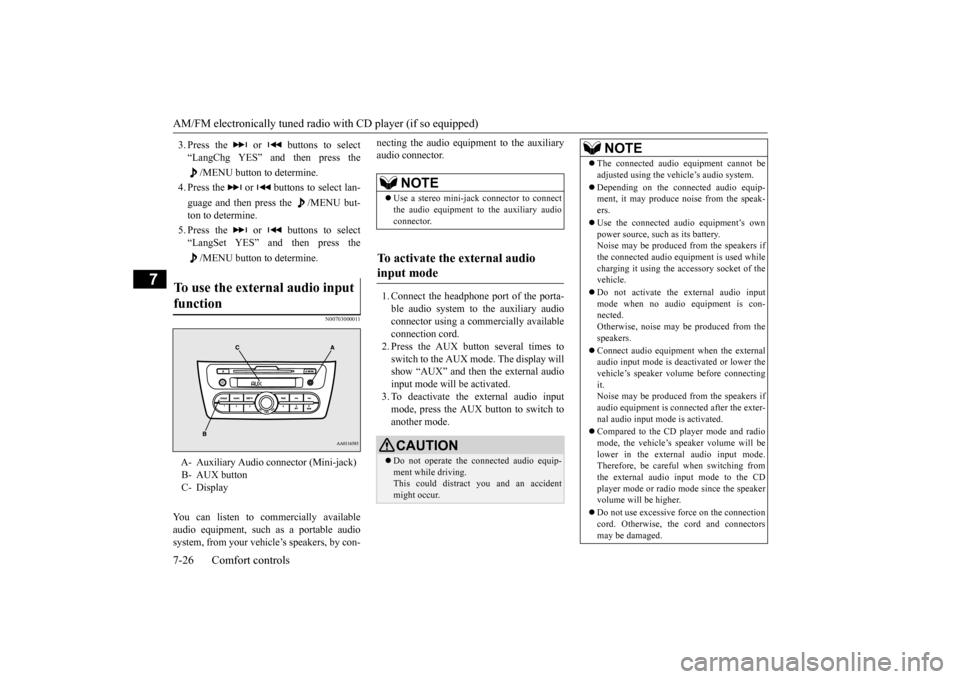
audio connector. 1. Connect the headphone port of the porta- ble audio system to the auxiliary audio connector using a comm
ercially available
connection cord.2. Press the AUX button several times to switch to the AUX mode. The display will show “AUX” and then the external audioinput mode will be activated. 3. To deactivate the external audio input mode, press the AUX button to switch toanother mode.
To use the external audio input function
A- Auxiliary Audio connector (Mini-jack) B- AUX button C- Display
NOTE
Use a stereo mini-jac
k connector to connect
the audio equipment to the auxiliary audio connector.
To activate the external audio input mode
CAUTION Do not operate the c
onnected audio equip-
ment while driving. This could distract
you and an accident
might occur.
NOTE
The connected audio
equipment cannot be
adjusted using the vehicle’s audio system. Depending on the conne
cted audio equip-
ment, it may produce noise from the speak- ers. Use the connected audio equipment’s own power source, such as its battery.Noise may be produced from the speakers if the connected audio equipment is used while charging it using the ac
cessory socket of the
vehicle. Do not activate the external audio input mode when no audio equipment is con- nected. Otherwise, noise may be produced from thespeakers. Connect audio equipment when the external audio input mode is deactivated or lower the vehicle’s speaker volume before connecting it.Noise may be produced from the speakers if audio equipment is conne
cted after the exter-
nal audio input mode is activated. Compared to the CD player mode and radio mode, the vehicle’s speaker volume will belower in the external audio input mode. Therefore, be careful when switching from the external audio input mode to the CDplayer mode or radio mode since the speaker volume will be higher. Do not use excessive force on the connection cord. Otherwise, the
cord and connectors
may be damaged.
BK0212400US.book 26 ページ 2014年4月1日 火曜日 午後2時21分
Page 216 of 300
To play tracks from a Bluetooth® device (vehicles with Bluetooth® 2.0 interface)
Comfort controls 7-35
7
N00765200073
Desired tracks can be
selected and played
from your USB memory device by “Artist”, “Album”, “Playlist”
and “Genre” using voice
commands.For information concerning the voice recog- nition function or spea
ker registration func-
tion, refer to “Bluetooth
® 2.0 interface” on
page 5-81. The playback sequence of tracks is the same as when an iPod is connected. Refer to the “To play iPod tracks via voice operation” onpage 7-29. To use the voice operation, press the SPEECH button (A) first.
N00765300104
You can wirelessly c
onnect a digital audio
player or cellular phone supporting Blue- tooth
® to listen to the tracks on the connected
device. Refer to “Bluetooth
® 2.0 interface” for the
connecting method, etc. on page 5-81. The following explains
the basic playback
method.
N00765400062
If no title is stored, “NO TITLE” is shown in the display. Characters that cannot
be displayed are sub-
stituted by “•”.
To play USB memory device tracks via voice operation (vehi- cles with Bluetooth
® 2.0 inter-
face)
Preparation for voice operation
NOTE
To play tracks from a Blue- tooth
® device (vehicles with
Bluetooth
® 2.0 interface)
NOTE
Depending on the connected device, opera- tion of the connected de
vice is limited to its
available functions. Depending on the connected device, the device may not ope
rate correctly.
A file protected by c
opyright might not be
able to playback. It is recommended to adjust the equaliser of the connected device to 0 db or neutral. The voice operation is not
available to access
music files on the c
onnected Bluetooth
®
device.
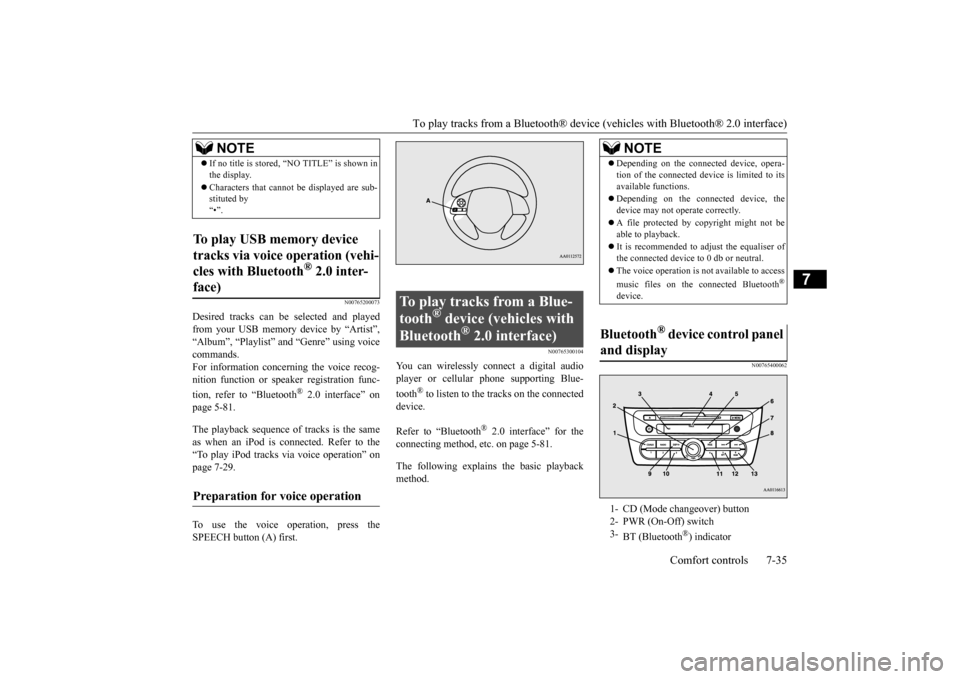
Bluetooth
® device control panel
and display 1- CD (Mode changeover) button 2- PWR (On-Off) switch 3-
BT (Bluetooth
®) indicator
BK0212400US.book 35 ページ 2014年4月1日 火曜日 午後2時21分
Page 218 of 300
Steering wheel audio remote control switches (if so equipped)
Comfort controls 7-37
7
N00765900038
Press the RPT button several times to switch to show “RPT” in the display. The mode changes as follows every time the RPT button is pressed:No display (not repeat)
RPT (repeat same
track)
F-RPT (repeat all tracks)
No dis-
play To exit this mode, press the button again.
N00703300014
Press the RPT button several times to switch to show “F-RPT” in the display. The mode changes as follows every time the RPT button is pressed:No display (not repeat)
RPT (repeat same
track)
F-RPT (repeat all tracks)
No dis-
play All tracks in the Bluetooth
® device are played
repeatedly. To exit this mode, press the button again.
N00766000023
Press the RDM button to show “RDM” in thedisplay. The system randomly selects and plays tracks from all tracks in the Bluetooth
® device.
To exit this mode, press the button again.
N00766200041
The system can display tag information. 1. Press the DISP button. 2. The display changes
as follows every time
the DISP button is pressed: Album title
Title name
Artist name
Genre
Normal display
N00714800484
The remote control switches are located on the left side of
the steering wheel.
These switches can be us
ed when the ignition
switch or the operation mode is in ON or ACC.
To play the same track repeatedly (if supported by the device) To play the all tracks repeatedly (if supported by the device)
To play tracks in
random order (if
supported by the device) To switch the display (if supported by the device)
NOTE
Up to 11 characters are shown in the display at once. If the title is cut off in the middle, press the PAGE button. The next characters are displayed every time this button ispressed. If no title is stored, “NO TITLE” is shown in the display. Characters that cannot
be displayed are sub-
stituted by “•”.
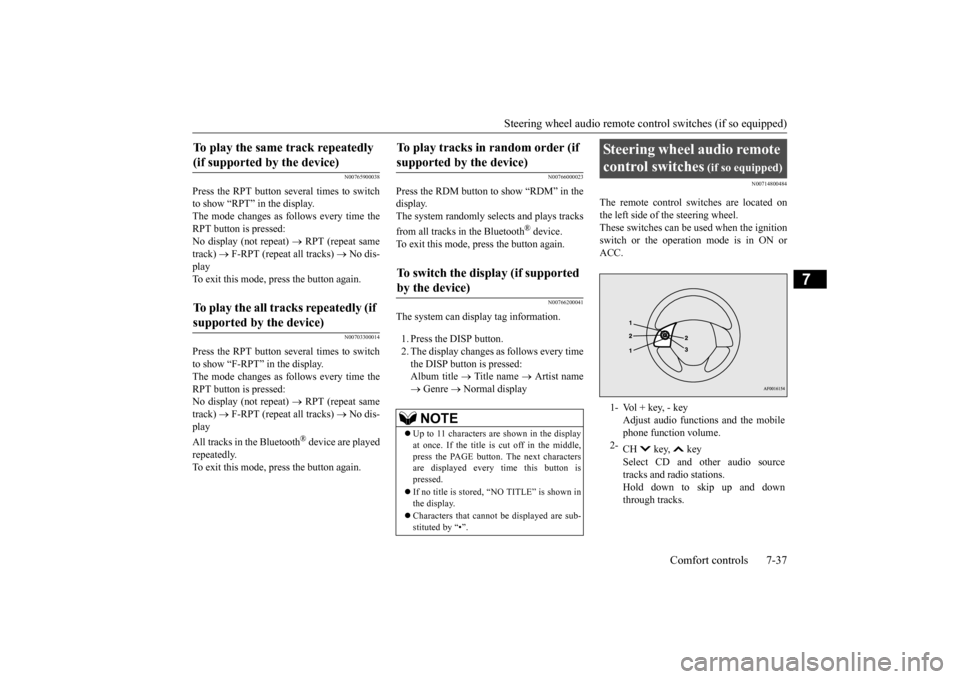
Steering wheel audio remote control switches
(if so equipped)
1- Vol + key, - key
Adjust audio functions and the mobile phone function volume.
2-
CH key, key Select CD and ot
her audio source
tracks and radio stations. Hold down to skip up and downthrough tracks.
BK0212400US.book 37 ページ 2014年4月1日 火曜日 午後2時21分