display MITSUBISHI OUTLANDER 2016 3.G Owners Manual
[x] Cancel search | Manufacturer: MITSUBISHI, Model Year: 2016, Model line: OUTLANDER, Model: MITSUBISHI OUTLANDER 2016 3.GPages: 464, PDF Size: 60.77 MB
Page 337 of 464
Automatic climate cont
rol air conditioner
Comfort controls 7-9
7
N00737101221
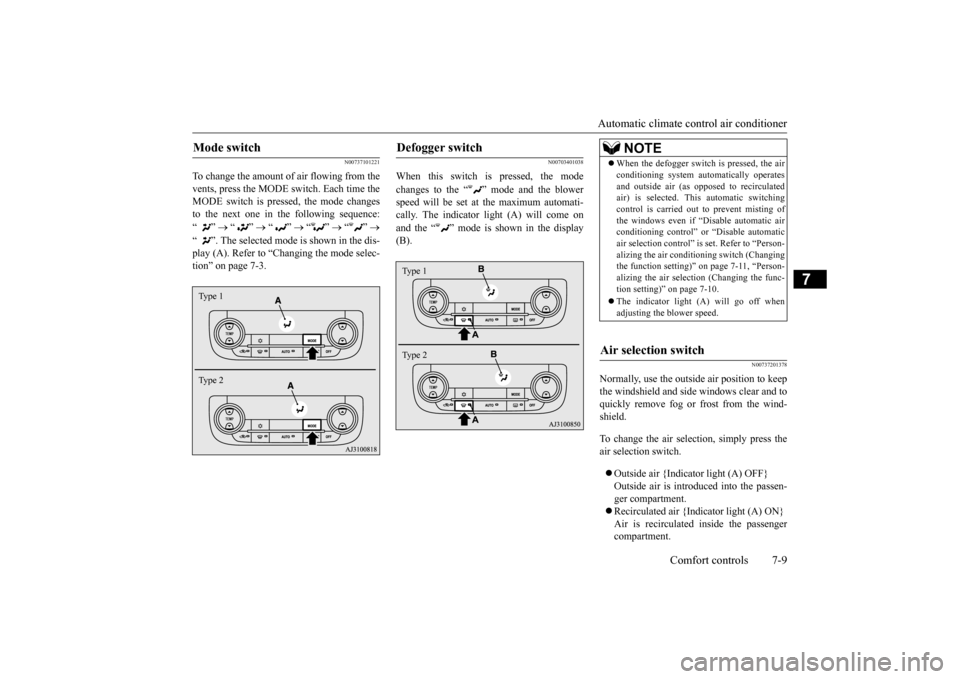
To change the amount of air flowing from the vents, press the MODE switch. Each time the MODE switch is pressed, the mode changesto the next one in the following sequence: “”
“”
“”
“”
“”
“ ”. The selected mode is shown in the dis- play (A). Refer to “C
hanging the mode selec-
tion” on page 7-3.
N00703401038
When this switch is pressed, the mode changes to the “ ”
mode and the blower
speed will be set at the maximum automati- cally. The indicator light (A) will come on and the “ ” mode is shown in the display (B).
N00737201378
Normally, use the outside
air position to keep
the windshield and side
windows clear and to
quickly remove fog or frost from the wind-shield. To change the air selection, simply press the air selection switch. Outside air {Indicator light (A) OFF} Outside air is introduced into the passen-ger compartment. Recirculated air {Indicator light (A) ON} Air is recirculated
inside the passenger
compartment.
Mode switch Type 1 Type 2
Defogger switch Type 1 Type 2
NOTE
When the defogger switch
is pressed, the air
conditioning system au
tomatically operates
and outside air (as opposed to recirculatedair) is selected. This automatic switching control is carried out to prevent misting of the windows even if “D
isable automatic air
conditioning control” or
“Disable
automatic
air selection control” is
set. Refer to “Person-
alizing the air conditi
oning switch (Changing
the function setting)”
on page 7-11, “Person-
alizing the air selecti
on (Changing the func-
tion setting)” on page 7-10. The indicator light
(A) will go off when
adjusting the blower speed.
Air selection switch
BK0223400US.book 9 ページ 2015年2月13日 金曜日 午後12時15分
Page 338 of 464
Automatic climate cont
rol air conditioner
7-10 Comfort controls
7
When the air conditioning turns on, the air selection is controlled automatically. Whenthe air conditioning turns
off, the air selection
automatically goes back
to the outside posi-
tion.If high cooling performanc
e is desired, or if
the outside air is dusty
or contaminated in
some way, use the
recirculat
ion position.
Switch to the outside position every now and then to keep the windows from fogging up.
N00712300036
You can change the following functions tomatch your preference. Enable automatic air selection control: When the AUTO switch is pressed, the airselection switch will also be automatically controlled. Disable automatic air selection control: Even when the AUTO switch is pressed,the air selection switch will not be auto- matically controlled. Changing the settings Press the air selection switch for approxi-mately 10 seconds or longer. When the setting has changed, the system will beep and the indi
cator light will flash.
• When the setting has changed from enabled to disabled, the system will beepthree times and the indicator light will flash three times. • When the setting has changed from dis-abled to enabled, the system will beep two times and the i
ndicator light will
flash three times.On vehicles equippe
d with Mitsubishi
Multi-Communication System, screen operations can also be used to change the setting. Refer to th
e separate owner’s
manual for details.
N00737301353
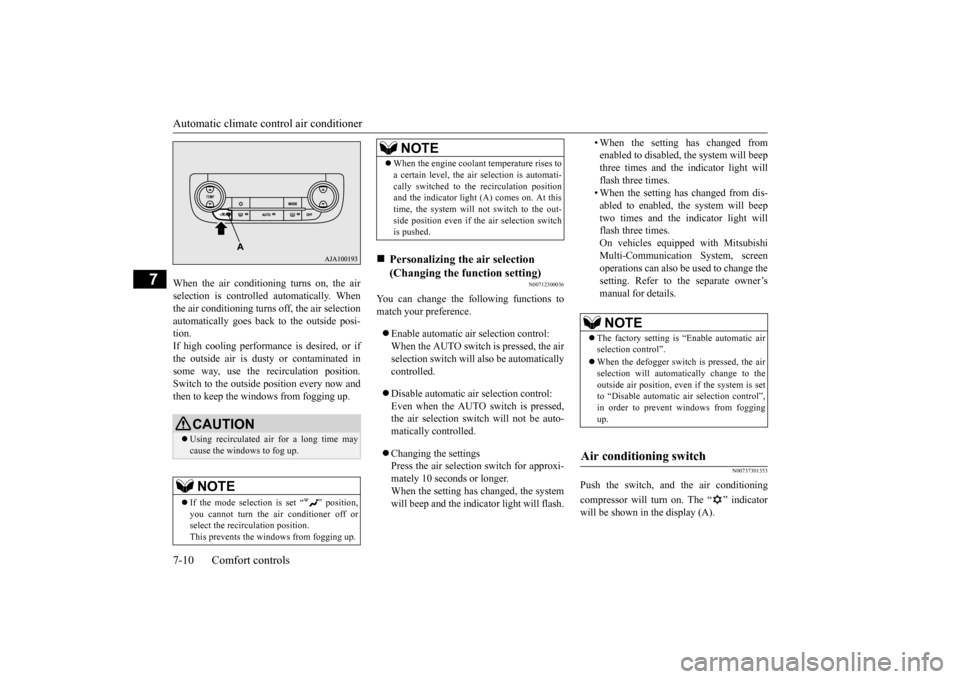
Push the switch, and the air conditioning compressor will turn on. The “ ” indicator will be shown in the display (A).
CAUTION Using recirculated air for a long time may cause the windows to fog up.NOTE
If the mode selection
is set “ ” position,
you cannot turn the ai
r conditioner off or
select the recirc
ulation position.
This prevents the windows from fogging up.
When the engine coolan
t temperature rises to
a certain level, the air selection is automati-cally switched to the recirculation positionand the indicator light (A) comes on. At this time, the system will not switch to the out- side position even if th
e air selection switch
is pushed.
Personalizing the air selection (Changing the function setting) NOTE
NOTE
The factory setting is “Enable automatic air selection control”. When the defogger switch is pressed, the air selection will automati
cally change to the
outside air position, even if the system is setto “Disable automatic air selection control”, in order to prevent windows from fogging up.
Air conditioning switch
BK0223400US.book 10 ページ 2015年2月13日 金曜日 午後12時15分
Page 340 of 464
Automatic climate cont
rol air conditioner
7-12 Comfort controls
7
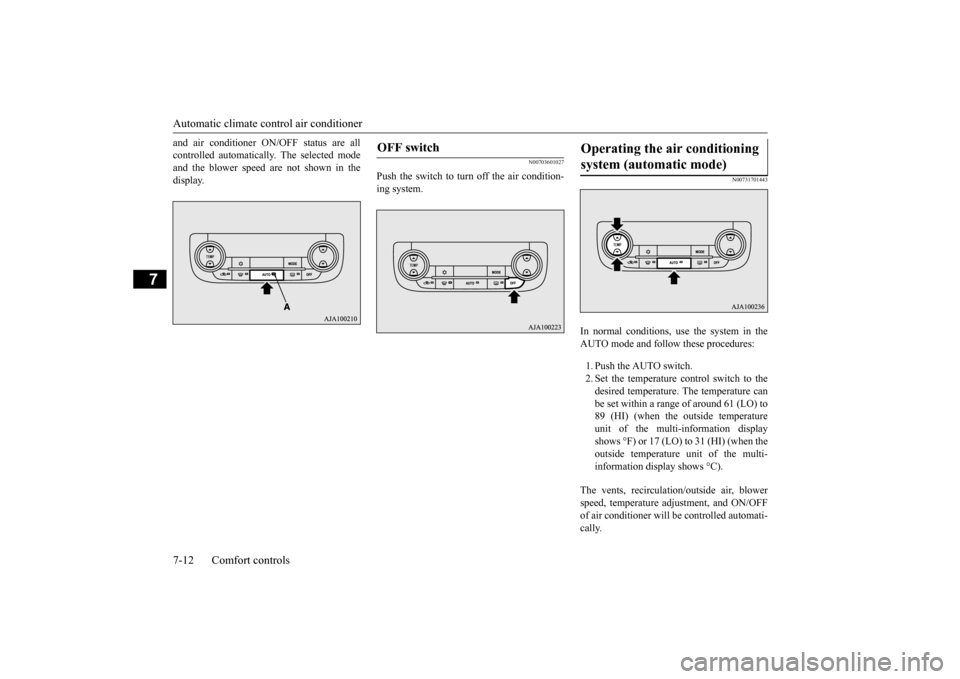
and air conditioner ON/O
FF status are all
controlled automatically. The selected modeand the blower speed are not shown in the display.
N00703601027
Push the switch to turn off the air condition-ing system.
N00731701443
In normal conditions, use the system in the AUTO mode and follow these procedures: 1. Push the AUTO switch. 2. Set the temperature control switch to the desired temperature. The temperature can be set within a range of around 61 (LO) to89 (HI) (when the outside temperature unit of the multi-information display shows °F) or 17 (LO) to 31 (HI) (when theoutside temperature
unit of the multi-
information display shows °C).
The vents, recirculati
on/outside air, blower
speed, temperature ad
justment, and ON/OFF
of air conditioner will
be controlled automati-
cally.
OFF switch
Operating the air conditioning system (automatic mode)
BK0223400US.book 12 ページ 2015年2月13日 金曜日 午後12時15分
Page 341 of 464
Automatic climate cont
rol air conditioner
Comfort controls 7-13
7
N00731801125
Blower speed and vent mode may be con- trolled manually by setting the blower speedselection switch and the MODE switch to the desired positions. To return to automatic operation, press the AUTO switch.
N00732401506
To remove frost or mist from the windshieldand door windows, use the MODE switch or defogger switch (“ ” or “ ”). Use this setting to ke
ep the windshield and
door windows clear of mist, and to keep the leg area heated (when driving in rain or snow).
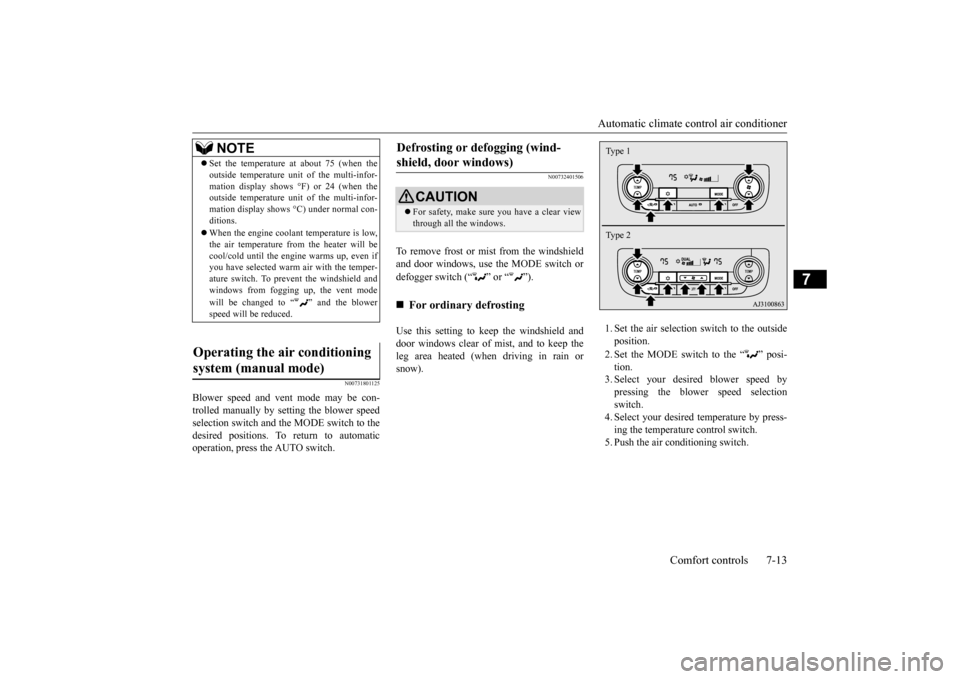
1. Set the air selection
switch to the outside
position. 2. Set the MODE switch to the “ ” posi- tion. 3. Select your desire
d blower speed by
pressing the blower speed selection switch. 4. Select your desired temperature by press-ing the temperature control switch. 5. Push the air conditioning switch.
NOTE
Set the temperature at
about 75 (when the
outside temperature uni
t of the multi-infor-
mation display shows °F) or 24 (when theoutside temperature uni
t of the multi-infor-
mation display shows
°C) under normal con-
ditions. When the engine coolan
t temperature is low,
the air temperature from the heater will becool/cold until the engine warms up, even if you have selected warm
air with the temper-
ature switch. To prevent the windshield andwindows from fogging up, the vent mode will be changed to “ ” and the blower speed will be reduced.
Operating the air conditioning system (manual mode)
Defrosting or defogging (wind- shield, door windows)
CAUTION For safety, make sure
you have a clear view
through all the windows.
For ordinary defrosting
Type 1 Type 2
BK0223400US.book 13 ページ 2015年2月13日 金曜日 午後12時15分
Page 348 of 464
Audio Files (MP3/WMA/AAC) 7-20 Comfort controls
7
Discs that have not
been finalized cannot
be played back. Even if recorded using the correct format on a recorder or computer, application software settings and environments; discpeculiarities, damage,
or marking; or dirt
or condensation on the lens inside the product may render the disc unplayable. Depending on the disc
, some functions
may not be used, or the disc may not play back. Do not use discs with cracks or warps. If the disc has sticke
rs affixed, remains
from removed stickers, or affixed adhe- sive, then do not use the disc. Discs that have decora
tive labels or stick-
ers may not be used.
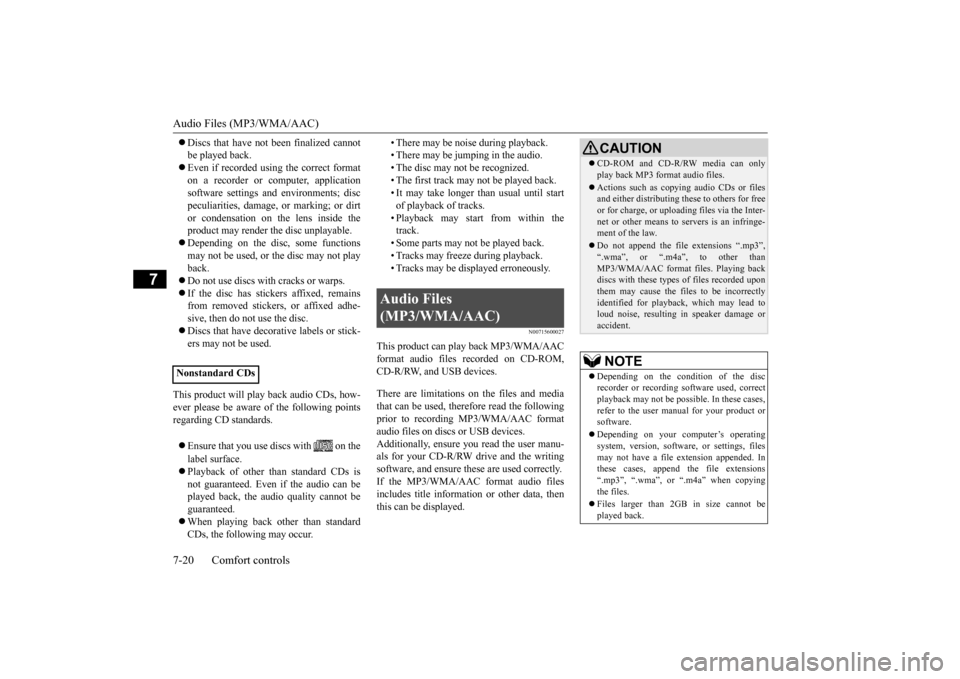
This product will play
back audio CDs, how-
ever please be aware of the following points regarding CD standards. Ensure that you use discs with on the label surface. Playback of other than standard CDs is not guaranteed. Even
if the audio can be
played back, the audio quality cannot beguaranteed. When playing back other than standard CDs, the following may occur.
• There may be noise during playback. • There may be jumping in the audio.• The disc may not be recognized. • The first track may not be played back. • It may take longer than usual until startof playback of tracks. • Playback may start from within the track.• Some parts may not be played back. • Tracks may freeze during playback. • Tracks may be displayed erroneously.
N00715600027
This product can play back MP3/WMA/AACformat audio files recorded on CD-ROM, CD-R/RW, and USB devices. There are limitations on the files and media that can be used, therefore read the followingprior to recording MP3/WMA/AAC format audio files on discs or USB devices. Additionally, ensure y
ou read the user manu-
als for your CD-R/RW drive and the writing software, and ensure these are used correctly. If the MP3/WMA/AAC
format audio files
includes title informati
on or other data, then
this can be displayed.
Nonstandard CDs
Audio Files (MP3/WMA/AAC)
CAUTION CD-ROM and CD-R/RW media can only play back MP3 fo
rmat audio files.
Actions such as copying audio CDs or files and either distributing these to others for free or for charge, or uploading files via the Inter-net or other means to servers is an infringe- ment of the law. Do not append the file
extensions “.mp3”,
“.wma”, or “.m4a”, to other than MP3/WMA/AAC format
files. Playing back
discs with these types of files recorded upon them may cause the files to be incorrectly identified for playback, which may lead toloud noise, resulting in speaker damage or accident.NOTE
Depending on the condition of the disc recorder or recording software used, correctplayback may not be po
ssible. In these cases,
refer to the user manual for your product or software. Depending on your computer’s operating system, version, softwa
re, or settings, files
may not have a file
extension appended. In
these cases, append
the file extensions
“.mp3”, “.wma”, or “.m4a” when copying the files. Files larger than 2GB in size cannot be played back.
BK0223400US.book 20 ページ 2015年2月13日 金曜日 午後12時15分
Page 350 of 464
Audio Files (MP3/WMA/AAC) 7-22 Comfort controls
7
N00715900020
MP3 is an abbreviation of “MPEG-1 Audio Layer 3”. MPEG is an abbreviation of “Motion Picture Experts Group”, and this is avideo compression standard used in video CDs, etc. MP3 is one of the audio compression meth-ods contained in the MPEG audio standard, and reduces the quality
of sounds that are
beyond the auditory resolution of the human ear and that are hidden by louder sounds, thus creating high-qua
lity data with a lower data
size. Because this can co
mpress CD audio to
approximately 1/10 its orig
inal data size with-
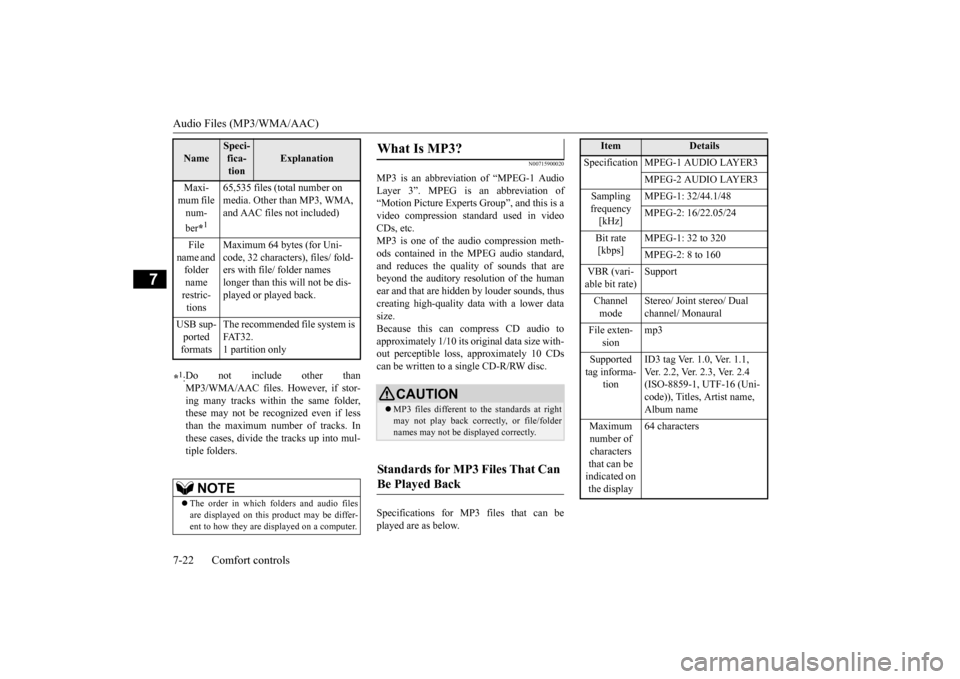
out perceptible loss, approximately 10 CDs can be written to a single CD-R/RW disc. Specifications for MP3 files that can be played are as below.
Maxi- mum file num- ber
*1
65,535 files (total number on media. Other than MP3, WMA, and AAC files not included)
File
name and folder name restric-tions
Maximum 64 bytes (for Uni- code, 32 characters), files/ fold-ers with file/ folder names longer than this will not be dis- played or played back.
USB sup- ported formats
The recommended file system is FAT32. 1 partition only
*1: Do not include other than MP3/WMA/AAC files. However, if stor- ing many tracks within the same folder,these may not be recognized even if less than the maximum number of tracks. In these cases, divide the tracks up into mul-tiple folders.
NOTE
The order in which folders and audio files are displayed on this product may be differ- ent to how they are displayed on a computer.Name
Speci- fica- tion
Explanation
What Is MP3?
CAUTION MP3 files different to the standards at right may not play back corr
ectly, or file/folder
names may not be di
splayed correctly.
Standards for MP3 Files That Can Be Played Back
Item
Details
Specification MPEG-1 AUDIO LAYER3
MPEG-2 AUDIO LAYER3
Sampling frequency [kHz]
MPEG-1: 32/44.1/48 MPEG-2: 16/22.05/24
Bit rate [kbps]
MPEG-1: 32 to 320 MPEG-2: 8 to 160
VBR (vari- able bit rate)
Support
Channel mode
Stereo/ Joint stereo/ Dual channel/ Monaural
File exten-
sion
mp3
Supported tag informa-
tion
ID3 tag Ver. 1.0, Ver. 1.1, Ver. 2.2, Ver. 2.3, Ver. 2.4 (ISO-8859-1, UTF-16 (Uni-code)), Titles, Artist name, Album name
Maximum number of characters that can be indicated on the display
64 characters
BK0223400US.book 22 ページ 2015年2月13日 金曜日 午後12時15分
Page 351 of 464
Audio Files (MP3/WMA/AAC)
Comfort controls 7-23
7
N00716000028
WMA is an abbreviation of Windows Media Audio, and this is an
audio compression for-
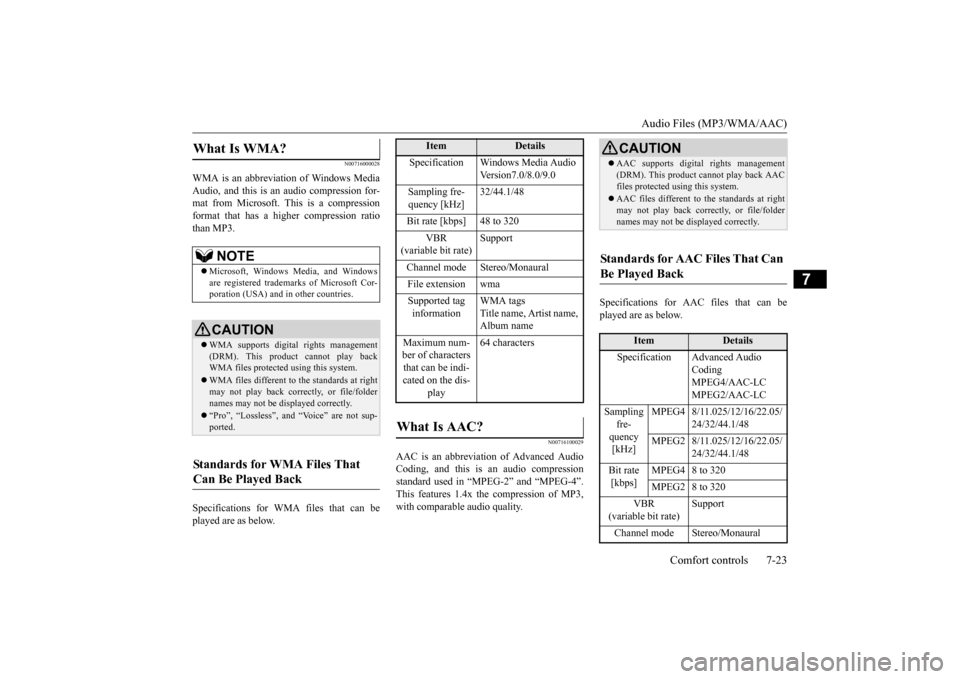
mat from Microsoft. This is a compressionformat that has a higher compression ratio than MP3. Specifications for WMA files that can be played are as below.
N00716100029
AAC is an abbreviation of Advanced Audio Coding, and this is
an audio compression
standard used in “MPEG-2” and “MPEG-4”. This features 1.4x th
e compression of MP3,
with comparable audio quality.
Specifications for AAC files that can be played are as below.
What Is WMA?
NOTE
Microsoft, Windows Media, and Windows are registered trademarks of Microsoft Cor- poration (USA) and in
other countries.
CAUTIONWMA supports digita
l rights management
(DRM). This product cannot play back WMA files protected
using this system.
WMA files different to the standards at right may not play back correctly, or file/folder names may not be displayed correctly. “Pro”, “Lossless”, and “Voice” are not sup- ported.
Standards for WMA Files That Can Be Played Back
Item
Details
Specification Windows Media Audio
Version7.0/8.0/9.0
Sampling fre- quency [kHz]
32/44.1/48
Bit rate [kbps] 48 to 320
VBR
(variable bit rate)
Support
Channel mode Stereo/Monaural File extension wma Supported tag information
WMA tags Title name, Artist name, Album name
Maximum num- ber of characters that can be indi- cated on the dis-
play
64 characters
What Is AAC?
CAUTION AAC supports digita
l rights management
(DRM). This product cannot play back AACfiles protected using this system. AAC files different to
the standards at right
may not play back correctly, or file/foldernames may not be displayed correctly.
Standards for AAC Files That Can Be Played Back
Item
Details
Specification Advanced Audio
CodingMPEG4/AAC-LC MPEG2/AAC-LC
Sampling
fre- quency [kHz]
MPEG4 8/11.025/12/16/22.05/
24/32/44.1/48
MPEG2 8/11.025/12/16/22.05/
24/32/44.1/48
Bit rate [kbps]
MPEG4 8 to 320 MPEG2 8 to 320
VBR
(variable bit rate)
Support
Channel mode Stereo/Monaural
BK0223400US.book 23 ページ 2015年2月13日 金曜日 午後12時15分
Page 352 of 464
Important Points on Safety for the Customer 7-24 Comfort controls
7
N00716200020
This product features a number of pictorial indications as well as
points concerning han-
dling so that you can use the product cor- rectly and in a safe manner, as well as preventinjury or damage to yourself, other users, or property.
N00716300021 N00716400048
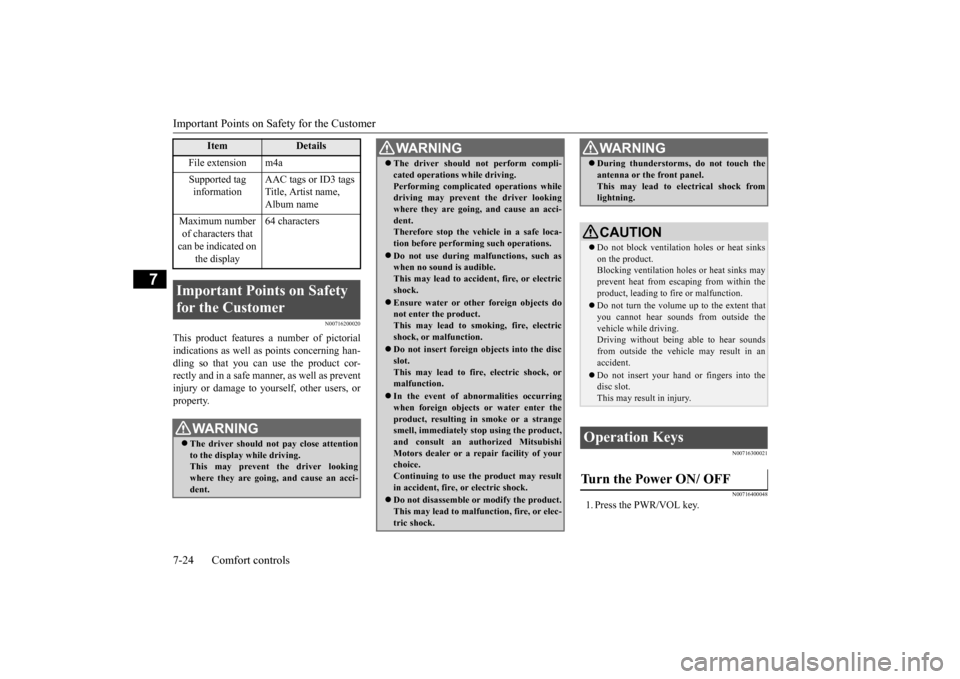
1. Press the PWR/VOL key.
File extension m4a Supported tag information
AAC tags or ID3 tags Title, Artist name, Album name
Maximum number of characters that can be indicated on
the display
64 characters
Important Points on Safety for the Customer
WA R N I N G The driver should not pay close attention to the display while driving.This may prevent the driver looking where they are going, and cause an acci- dent.
Item
Details
The driver should not perform compli- cated operations while driving.Performing complicated operations whiledriving may prevent the driver looking where they are going, and cause an acci- dent.Therefore stop the vehicle in a safe loca- tion before performi
ng such operations.
Do not use during malfunctions, such as when no sound is audible. This may lead to accident, fire, or electricshock. Ensure water or othe
r foreign objects do
not enter the product. This may lead to smoking, fire, electric shock, or malfunction. Do not insert foreign objects into the disc slot.This may lead to fire
, electric shock, or
malfunction. In the event of abnormalities occurring when foreign objects or water enter the product, resulting in smoke or a strangesmell, immediately st
op using the product,
and consult an auth
orized Mitsubishi
Motors dealer or a repair facility of yourchoice. Continuing to use the product may result in accident, fire, or electric shock. Do not disassemble or modify the product. This may lead to malfun
ction, fire, or elec-
tric shock.WA R N I N G
During thunderstorms, do not touch the antenna or the front panel.This may lead to electrical shock fromlightning.CAUTION Do not block ventilati
on holes or heat sinks
on the product. Blocking ventilation hol
es or heat sinks may
prevent heat from escaping from within theproduct, leading to fire or malfunction. Do not turn the volume up to the extent that you cannot hear sounds from outside the vehicle while driving. Driving without being able to hear soundsfrom outside the vehicle may result in an accident. Do not insert your hand or fingers into the disc slot. This may result in injury.
Operation Keys Turn the Power ON/ OFF
WA R N I N G
BK0223400US.book 24 ページ 2015年2月13日 金曜日 午後12時15分
Page 354 of 464
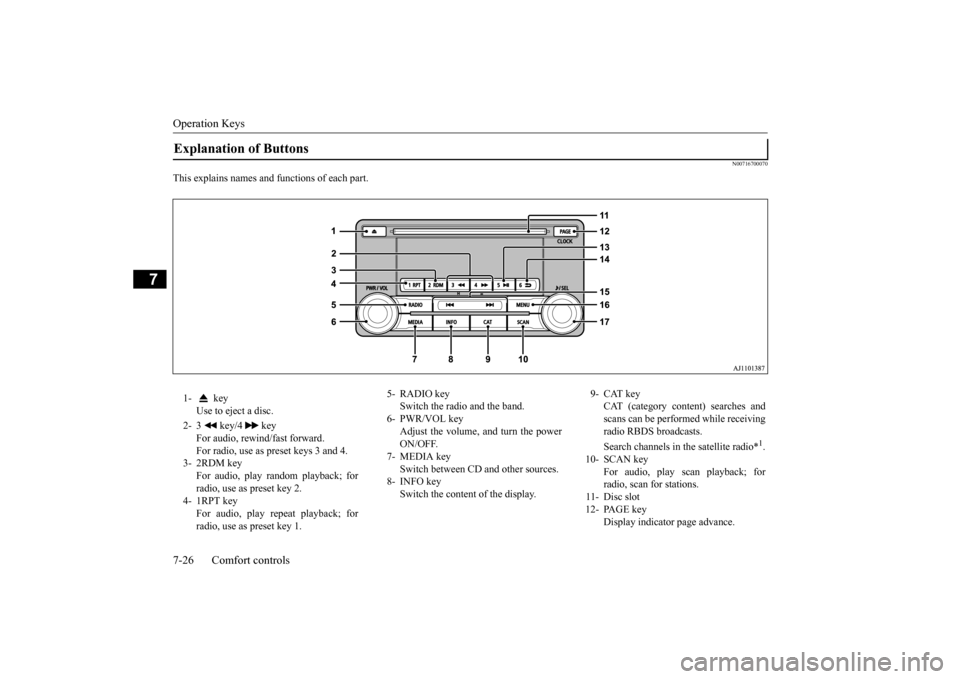
Operation Keys 7-26 Comfort controls
7
N00716700070
This explains names and functions of each part.Explanation of Buttons 1- key
Use to eject a disc.
2- 3 key/4 key
For audio, rewind/fast forward. For radio, use as preset keys 3 and 4.
3- 2RDM key
For audio, play random playback; for radio, use as preset key 2.
4- 1RPT key
For audio, play repeat playback; for radio, use as preset key 1.
5- RADIO key
Switch the radio and the band.
6- PWR/VOL key
Adjust the volume, and turn the powerON/OFF.
7- MEDIA key
Switch between CD
and other sources.
8- INFO key
Switch the content of the display.
9- CAT key
CAT (category content) searches and scans can be performed while receiving radio RBDS broadcasts. Search channels in the satellite radio*
1.
10- SCAN key
For audio, play scan playback; forradio, scan for stations.
11- Disc slot 12- PAGE key
Display indicator page advance.
BK0223400US.book 26 ページ 2015年2月13日 金曜日 午後12時15分
Page 356 of 464

Listen to Radio 7-28 Comfort controls
7
N00716900069
This explains how to listen to AM and FM radio broadcasts. Press the RADIO key to switch the band. Switch between AM and FM bands. The selected band is indicated on the display. *: When a satellite
tuner is connected
Turn the /SEL key to the frequency to lis- ten to.
Collective search for stations that can be received. Press the SCAN key.When a station is received, this is played for 5 seconds, then the product searches for the next station. Register the broadcast st
ation in advance, and
select this at a later time. 1. Tune in to the frequency to register.
2. Hold down any of the keys from the 1RPT key to the 6 key. A “Beep” sounds, and the preset key is registered.
During RBDS broadcast
reception,
select
CAT (category conten
t), and automatically
scan for stations. 1. During FM reception, press the CAT key. This switches to the CAT selection mode. 2. Press the CAT key to select CAT. 3. Press the key or key. The CAT (category content) indicator will flash, and station selection will automati- cally start.When a station is received, the frequency is displayed.
Listen to Radio To Listen to the Radio
NOTE
Bands switch in the order AM, FM1, FM2, SIR1*, SIR2*, SIR3*, and SIR4*. If no signal is receiv
ed, bands will not be
switched to SIR2, SIR3, or SIR4.
Manual/Seek Station Selection
/SEL key (counter- clockwise)
Reduces the frequency being received.
/SEL key (clockwise)
Increases the frequency being received.
key
(hold down)
Release the button to start seek station selection, and when a station is received, scanning stops.
key
(hold down)Scan Station Selection
NOTE
Press this button again while receiving the station to return
to normal reception.
Preset Memory
NOTE
The preset memory can register a maximum of 6 stations for each band. If a preset key that al
ready has a station reg-
istered is selected, then this is overwritten with the new preset. Pressing the preset ke
y will select the previ-
ously registered frequency.
CAT Search
BK0223400US.book 28 ページ 2015年2月13日 金曜日 午後12時15分