audio MITSUBISHI OUTLANDER 2016 3.G User Guide
[x] Cancel search | Manufacturer: MITSUBISHI, Model Year: 2016, Model line: OUTLANDER, Model: MITSUBISHI OUTLANDER 2016 3.GPages: 464, PDF Size: 60.77 MB
Page 270 of 464

Bluetooth® 2.0 interface (if so equipped) 5-194 Features and controls
5
Press this button to decrease the volume. Press this button to ch
ange to voice recog-
nition mode.While the system is in voice recognition mode, “Listening” will appear on the audio display. If you press the button briefly while in voice recogniti
on mode, it will interrupt
prompting and allow voice commandinput. Pressing the button lo
nger will deactivate
the voice recognition mode. Pressing this button briefly during a call will enable voice
recognition and allow
voice command input.
Press this button when an incoming call is received to answer the telephone. When another call is received during a call, press this button to put the first caller on hold and talk to the new caller. • In such circumstance
s, you can press the
button briefly to switch between callers. You will switch to the first caller and theother caller will
be put on hold.
• To establish a three-way call in such situ- ations, press the SPEECH button to entervoice recognition mode and then say “Join calls.”
Press this button when an incoming call is received to refuse the call. Press this button during a call to end the current call.When another call is on hold, you will switch to that call.
If this button is presse
d in the voice recog-
nition mode, the voi
ce recognition mode
will be deactivated.
Your voice will be
recognized by a micro-
phone in the overhead console, allowing youto make hands-free ca
lls with voice com-
mands.
Volume down button
SPEECH button
NOTE
On vehicles equipped
with the Mitsubishi
Multi-Communication System, pressing the SPEECH button will ac
tivate the voice rec-
ognition mode (a beep will sound when suc- cessfully activated)
. To use the voice
recognition of the Bluetooth
® 2.0 interface,
press the PICK-UP button.
PICK-UP button
NOTE
When not receiving in
coming calls, pressing
the PICK-UP button on
vehicles equipped
with the Mitsubishi Multi-Communication System, will activate
the voice recognition of
the Bluetooth
® 2.0 interface.
HANG-UP button
NOTE
When you press the SPEECH button (except for vehicles with Mitsubishi Multi-Commu-nication System) or
PICK-UP button (for
vehicles with Mitsubishi Multi-Communica- tion System) to enter
voice recognition mode
with a cellular phone paired to the system, current information on the cellular phone, such as “remaining ba
ttery life,” “signal
strength” or “roaming,”
will be displayed on
the audio display.
*
* : Some cellular phones will not send this information to the Bluetooth
® 2.0 interface.
Call waiting and three-
way calls can be used
by the Bluetooth
® 2.0 interface, only if it is
possible to use those services with your cel- lular phone.
Microphone
BK0223400US.book 194 ページ 2015年2月13日 金曜日 午後12時15分
Page 271 of 464

Bluetooth® 2.0 interface (if so equipped)
Features and controls 5-195
5
N00564101113
The Bluetooth
® 2.0 interface is equipped
with a voice recognition function. Simply say voice commands and you can per- form various operations and make or receivehands-free calls. With the Bluetooth
® 2.0 interface, voice rec-
ognition is possible fo
r US English, North
American Spanish, Canadian French and Jap-anese. The factory se
tting is “English.”
1. Press the SPEECH button (except for vehicles with Mitsubishi Multi-Commu- nication System) or
PICK-UP button (for
vehicles with Mitsubishi Multi-Commu-nication System). 2. Say “Setup.” 3. Say “Language.”4. The voice guide wi
ll say “Select a lan-
guage: English, Spanis
h, French or Japa-
nese.” Say the desired language.(Example: “English”)
5. The voice guide will say “English (Span- ish, French or Japanese) selected. Is thiscorrect?” Say “Yes.” If you say “No,” the system will return to Step 4. 6. When the voice guide says “English (Spanish, French or Japanese) selected,” the language change process will be com- pleted and the system will return to themain menu.
NOTE
If a cellular phone is within close proximity of the microphone, it may distort the soundquality. In this case, place the cellular phoneas far as possible from the microphone.
Voice recognition function
NOTE
If the voice command that you say differs from the predefined command or cannot be recognised due to ambient noise or some other reason, the Bluetooth
® 2.0 interface
will ask you for the voice command again up to 3 times.
For best performance and further reduction of ambient noise, the vehicle windowsshould be closed, lower the blower speed andrefrain from conversat
ion with your passen-
gers while engaging
the voice recognition
function. Some voice commands have alternative commands. Depending on the sele
cted language, some
functions may not
be available.
Language can be change
d by using the audio
control panel besides
the following proce-
dure. For details, refer to
“System settings” on
page 7-45. For DISPLAY AUDIO and Mit-subishi Multi-Communication System, refer to the separate owner’s manuals.
Selecting the language
NOTE
NOTE
The voice guide will
repeat the same mes-
sage twice. The first message is in the cur- rent language, and the
second message is in
the selected language. If many entries are registered in the vehicle phonebook, changing th
e language will take
a longer time. Changing the language
deletes the mobile
phonebook imported to the Bluetooth
® 2.0
interface. If you wish to use it, you will have to import it again.
BK0223400US.book 195 ページ 2015年2月13日 金曜日 午後12時15分
Page 281 of 464

Bluetooth® 2.0 interface (if so equipped)
Features and controls 5-205
5
N00565401070
For the operation of a music player connected via Bluetooth®, refer to the following sec-tions. [For vehicles equi
pped with the AM/FM
radio/CD player] Refer to “Listen to Bl
uetooth Audio” on page
7-41. [For vehicles equippe
d with the Mitsubishi
Multi-Communication System (MMCS)] Refer to the separate owner’s manual. [For vehicles equipped with the DISPLAYAUDIO] Refer to the separate owner’s manual.
N00565501097
You can make or re
ceive hands-free calls
using a Bluetooth
® compatible cellular phone
connected to the Bluetooth
® 2.0 interface.
You can also use the phonebooks in the Blue- tooth
® 2.0 interface to make calls without
dialing telephone numbers. To make a call P.5-205 Send function P.5-207
Receiving calls P.5-207 Mute function P.5-207Switching between hand
s-free mode and pri-
vate mode P.5-207
N00565601098
You can make a call in the following 3 ways using the Bluetooth
® 2.0 interface:
By saying a telephone number By using the Bluetooth
® 2.0 interface’s
phonebook By redialing a
telephone number
You can make a call
by saying the telephone
number.
1. Press the SPEECH button (except for vehicles with Mitsubishi Multi-Commu-nication System) or PICK-UP button (for vehicles with Mitsubishi Multi-Commu- nication System).2. Say “Dial.” 3. After the voice gui
de says “Number
please,” say the
telephone number.
4. The voice guide wi
ll say “Dialing
® 2.0 interface will then
make the call. When the confirmation function is on, thesystem will confirm
the telephone number
again. To continue with that number, answer “Yes.” To change the telephone number, answer “No.” The system will say “Number please” then say
the telephone number
again.
Operating a music player con- nected via Bluetooth
®
How to make or receive hands-free calls
NOTE
Hands-free calls may not
operate correctly
when you place or receive the call directly from your cellular phone, instead of using the Bluetooth
® 2.0 interface.
To m a k e a c a l l
Making a call by us
ing the telephone
number
NOTE
In the case of English,
the system will recog-
nise both “zero” and “oh”
(Letter “o”) for the
number “0.” The Bluetooth
® 2.0 interface supports num-
bers (0 to 9) and characters (+, # and
*).
The maximum supported telephone number length is as follows: • International telephone
number: + and tele-
phone numbers (to 18 digits).
BK0223400US.book 205 ページ 2015年2月13日 金曜日 午後12時15分
Page 283 of 464

Bluetooth® 2.0 interface (if so equipped)
Features and controls 5-207
5
You can redial the last
number called, based
on the history of dialed calls in the paired cel-lular phone. Use the following procedure to redial. 1. Press the SPEECH button (except for vehicles with Mitsubishi Multi-Commu- nication System) or PICK-UP button (forvehicles with Mitsubishi Multi-Commu- nication System). 2. Say “Redial.”
N00565700018
During a call, press the SPEECH button toenter voice recognitio
n mode, then say
“
a call you need to sim-
ulate the pressing of a phone button as a
response to an automated system, press the SPEECH button and speak “1 2 3 4 poundsend” and the 1234# will be sent via your cel- lular phone.
N00565801045
If an incoming phone call is received whilethe ignition switch or
the operation mode is in
ON or ACC, the audio sy
stem will be auto-
matically turned on and switched to the incoming call, even when the audio systemwas originally off. The voice guide a
nnouncement for the
incoming call will be output from the frontpassenger’s seat speaker. If the CD player or radio was playing when the incoming call was received, the audio sys-tem will mute the sound from the CD player or radio and output onl
y the incoming call.
To receive the call, press the PICK-UP buttonon the steering wheel control switch. When the call is over, the audio system will return to its previous state.
N00565900010
At any time during a ca
ll, you can mute the
vehicle microphone.
Pressing the SPEECH button and then saying “Mute” during a call will turn ON the mutefunction and mute the microphone. Saying “Mute off” in the same way will turn off the mute function and cancel the mute onthe microphone.
N00566600014
The Bluetooth
® 2.0 interface can switch
between hands-free m
ode (hands-free calls)
and private mode (calls
using cellular phone).
If you press the SPEECH button and say“Transfer call” duri
ng a hands-free call, you
can stop the hands-free m
ode and talk in pri-
vate mode. To return to hands-free mode, press the SPEECH button again and say “Transfer call.”
N00566000018
The Bluetooth
® 2.0 interface has 2 types of
unique phonebooks that are different from thephonebook stored in the cellular phone. They are the vehicle phonebook and the mobile phonebook.
NOTE
When the confirmation function is on, the system will check if
the name and location of
the receiver are correct. If the name is cor-rect, answer “Yes.” To change the name
or location to call,
answer “No.” The system will return to Step3.
RedialingSend function
Receiving calls
Mute function
Switching between hands-free mode and private mode
Phonebook function
BK0223400US.book 207 ページ 2015年2月13日 金曜日 午後12時15分
Page 291 of 464
USB input terminal (if so equipped)
Features and controls 5-215
5
Connect the equipment into an outlet on a circuit different from that to which thereceiver is connected. Consult the dealer or an experienced radio/TV technician for help.
ICES Notice: This Class B digital apparatus complies with Canadian ICES-003.
N00566401080
N00566701100
You can connect your USB memory device or iPod
* to play music files stored in the USB
memory device or iPod. This section explains how to connect and remove a USB memory device or iPod.See the following sect
ion for details on how
to play music files. Refer to “Listen to an iPod” on page 7-33. Refer to “Listen to Audio Files on a USB Device” on page 7-35. Refer to “To play iPod/USB memory devicetracks via voice ope
ration” on page 7-38.
* : “iPod” is a registered trademark of Apple Inc. in the United Stat
es and other countries.
N00566801114
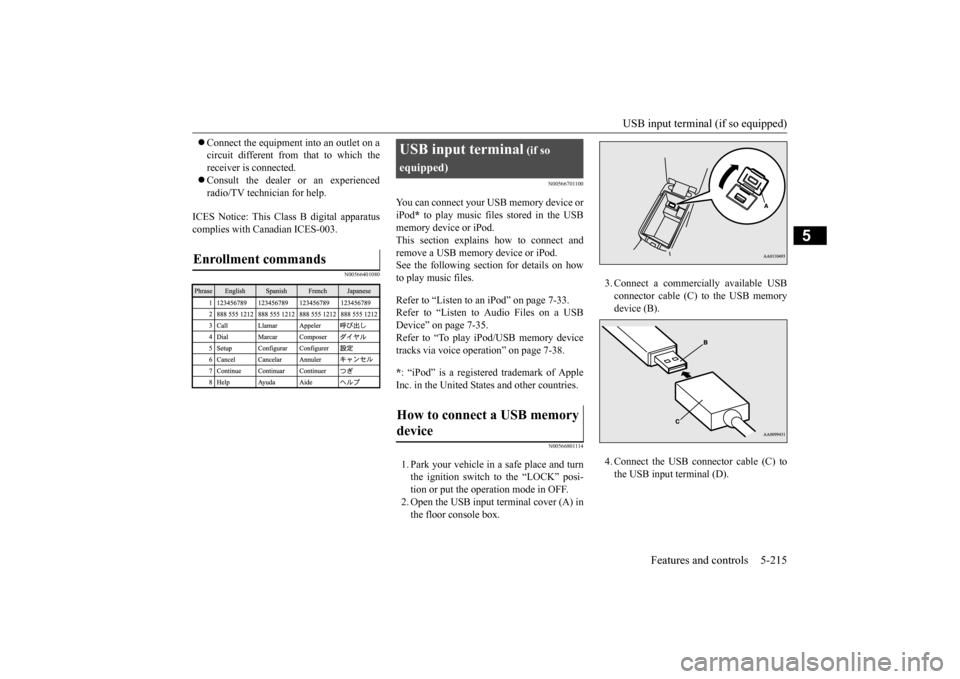
1. Park your vehicle in a safe place and turn the ignition switch to the “LOCK” posi- tion or put the operation mode in OFF. 2. Open the USB input terminal cover (A) inthe floor console box.
Enrollment commands
USB input terminal
(if so
equipped)How to connect a USB memory device
3. Connect a commercia
lly available USB
connector cable (C) to the USB memorydevice (B). 4. Connect the USB connector cable (C) to the USB input terminal (D).
BK0223400US.book 215 ページ 2015年2月13日 金曜日 午後12時15分
Page 293 of 464

USB input terminal (if so equipped)
Features and controls 5-217
5
5. To remove the Dock connector, turn the ignition switch to the “LOCK” position orput the operation mode in OFF first and perform the installation steps in reverse.
N00567001041
For details about the
types of connectable
devices and supported fi
le specifications,
refer to the following pages and manuals. [For vehicles equipped with the AM/FM radio/CD player] Refer to “Listen to an iPod” on page 7-33, “Listen to Audio File
s on a USB Device” on
page 7-35 and “Audio Files (MP3/WMA/AAC)” on page 7-20. [For vehicles equipped with the Mitsubishi Multi-Communication
System (MMCS)]
Refer to the separate owner’s manual. [For vehicles equipped with the DISPLAY AUDIO] Refer to the separate owner’s manual.
For details about the types of connectable devices and supported fi
le specifications,
refer to the following section.
N00567101130
Devices of the follow
ing types can be con-
nected. For these connectable de
vice types, “iPod*,”
“iPod classic*,” “iPo
d nano*,” “iPod touch*”
and “iPhone*,” refer to the following web- site: [For vehicles sold in U.S.A.]You can access the Mitsubishi Motors North America website. [For vehicles sold in Canada and Mexico]
You can access the Mi
tsubishi Motors web-
site. Please read and agree to the “Warningabout Links to the Web Sites of Other Com- panies”. The websites
mentioned above may
connect you to websites
other than the Mit-
subishi Motors website. http://www.mitsubishi-
motors.com/en/prod-
ucts/index.html * : “iPod,” “iPod classi
c,” “iPod nano,” “iPod
touch,” and “iPhone” are registered trade- marks of Apple Inc. in the United States and other countries.
Types of connectable devices and supported file specifica-tions
Except for vehicles equipped with the Bluetooth
® 2.0 interface
For vehicles equipped with the Blue- tooth
® 2.0 interface
Device types
Model name
Condition
USB memory device
Storage capac- ity of 256 Mbytes or more
Models other than USB memory devices and iPods
Digital audio player support-ing mass stor- age class
NOTE
Depending on the type of the USB memory device or other devi
ce connected, the con-
nected device may not
function properly or
the available functi
ons may be limited.
It is recommended to use an iPod with firm- ware updated to th
e latest version.
You can charge your iP
od by connecting it to
the USB input terminal
when the ignition
switch or the operation mode is in ON or ACC. Do not keep your USB memory device or iPod in your vehicle. It is recommended that you back up the files in case of data damage.
BK0223400US.book 217 ページ 2015年2月13日 金曜日 午後12時15分
Page 329 of 464
7
Comfort controlsVents ................................................................................................7-2 Automatic climate control air conditioner
..............
...........
.........
.....7-5
Important air conditioning operating tips ..
...........
...........
.........
.....7-14
Air purifier .....................................................................................7-15 AM/FM radio/CD player (if so equipped) .....................................7-15 Handling of Discs ..........................................................................7-18Audio Files (MP3/WMA/AAC) ....................................................7-20 Important Points on Safety for the Customer ................................7-24 Operation Keys ..............................................................................7-24Listen to Radio ...............................................................................7-28 Listen to Satellite Radio (if so equipped) .......................................7-29 Listen to CDs .................................................................................7-31Listen to MP3s ...............................................................................7-32 Listen to an iPod ............................................................................7-33 Listen to Audio Files on a USB Device .........................................7-35To play iPod/USB memory devi
ce tracks via
voice operation
(vehicles with Bluetooth
® 2.0 interface) ...................................7-38
Listen to Bluetooth Audio (if so equipped) ....................................7-41Display Indicator ...........................................................................7-43 Audio Quality and Volume Balance Adjustment ...........................7-44 System Settings ..............................................................................7-45Troubleshooting ..........
...........
...........
...........
...........
.........
.........
.....7-49
Antenna ..........................................................................................7-51 Clock (if so equipped) ....................................................................7-51General information about your radio .....
...........
...........
...........
.....7-52
BK0223400US.book 1 ページ 2015年2月13日 金曜日 午後12時15分
Page 343 of 464
Air purifier
Comfort controls 7-15
7
The air conditioner should be operated for at least five minutes each week, even in cold weather. This includes the quick defrostingmode. Operating the
air condition system
weekly maintains lubrication of the compres- sor internal parts to keep the air conditionerin the best operating condition.
N00733801190
The air conditioning syst
em is equipped with
an air filter to remove pollen and dust. The air filter’s ability to collect pollen anddirt is reduced as it be
comes dirty, so replace
it periodically. For the
maintenance interval,
refer to the “WARRANTY AND MAINTE-NANCE MANUAL”.
N00734302102
The audio system can only be used when theignition switch or the
operation mode is in
ON or ACC.
N00715000021
This product supports audio playback from iPod/iPhone devi
ces, however dif-
fering versions mean
that playback cannot
be guaranteed. Please be aware that depending on the iPod/iPhone model or
version, operation
may differ.
During a long period of disuse Air purifier
NOTE
Operation in certain conditions such as driv- ing on a dusty road and frequent use of the air conditioner can lead
to reduction of ser-
vice life of the filter. When you feel that theair flow is lower than normal or when the windshield or windows start to fog up easily, replace the air filter.Contact your Mitsubishi
Motors dealer or a
repair facility of your
choice for assistance.
AM/FM radio/CD player
(if
so equipped)
NOTE
To listen to the audio system while the engine is not running, turn the ignitionswitch to the “ACC”
position or put the oper-
ation mode in ACC. If the ignition switch
or the operation mode
is left in ACC, the accessory power will automatically turn off after a certain period of time and you will no
longer be able to use
the audio system. The accessory power comes on again if the ignition switch or the engine switch is operated with it in the“ACC” position. Refer to “ACC power auto- cutout function” on page 5-19 and 5-60. If a cellular phone is used inside the vehicle, it may create noise in
the audio equipment.
This does not mean that anything is wrongwith your audio equipmen
t. In such a case,
use the cellular phone at a place as far away as possible from the audio equipment.
If foreign objects or wa
ter get into the audio
equipment, or if smoke or a strange odorcomes from it, immediately turn off theaudio system and have
it checked at an
authorized Mitsubishi Motors dealer or a repair facility of your choice. Never try torepair it yourself. Avoid using the audio sys- tem until it is inspected by a qualified per- son. If the audio system is damaged by foreign objects, water, or fire, have the systemchecked by a qualified Mitsubishi Motors technician.
Important Points on Usage
iPod/iPhone Playback Function
(if
so equipped)
NOTE
BK0223400US.book 15 ページ 2015年2月13日 金曜日 午後12時15分
Page 348 of 464
Audio Files (MP3/WMA/AAC) 7-20 Comfort controls
7
Discs that have not
been finalized cannot
be played back. Even if recorded using the correct format on a recorder or computer, application software settings and environments; discpeculiarities, damage,
or marking; or dirt
or condensation on the lens inside the product may render the disc unplayable. Depending on the disc
, some functions
may not be used, or the disc may not play back. Do not use discs with cracks or warps. If the disc has sticke
rs affixed, remains
from removed stickers, or affixed adhe- sive, then do not use the disc. Discs that have decora
tive labels or stick-
ers may not be used.
This product will play
back audio CDs, how-
ever please be aware of the following points regarding CD standards. Ensure that you use discs with on the label surface. Playback of other than standard CDs is not guaranteed. Even
if the audio can be
played back, the audio quality cannot beguaranteed. When playing back other than standard CDs, the following may occur.
• There may be noise during playback. • There may be jumping in the audio.• The disc may not be recognized. • The first track may not be played back. • It may take longer than usual until startof playback of tracks. • Playback may start from within the track.• Some parts may not be played back. • Tracks may freeze during playback. • Tracks may be displayed erroneously.
N00715600027
This product can play back MP3/WMA/AACformat audio files recorded on CD-ROM, CD-R/RW, and USB devices. There are limitations on the files and media that can be used, therefore read the followingprior to recording MP3/WMA/AAC format audio files on discs or USB devices. Additionally, ensure y
ou read the user manu-
als for your CD-R/RW drive and the writing software, and ensure these are used correctly. If the MP3/WMA/AAC
format audio files
includes title informati
on or other data, then
this can be displayed.
Nonstandard CDs
Audio Files (MP3/WMA/AAC)
CAUTION CD-ROM and CD-R/RW media can only play back MP3 fo
rmat audio files.
Actions such as copying audio CDs or files and either distributing these to others for free or for charge, or uploading files via the Inter-net or other means to servers is an infringe- ment of the law. Do not append the file
extensions “.mp3”,
“.wma”, or “.m4a”, to other than MP3/WMA/AAC format
files. Playing back
discs with these types of files recorded upon them may cause the files to be incorrectly identified for playback, which may lead toloud noise, resulting in speaker damage or accident.NOTE
Depending on the condition of the disc recorder or recording software used, correctplayback may not be po
ssible. In these cases,
refer to the user manual for your product or software. Depending on your computer’s operating system, version, softwa
re, or settings, files
may not have a file
extension appended. In
these cases, append
the file extensions
“.mp3”, “.wma”, or “.m4a” when copying the files. Files larger than 2GB in size cannot be played back.
BK0223400US.book 20 ページ 2015年2月13日 金曜日 午後12時15分
Page 349 of 464
Audio Files (MP3/WMA/AAC)
Comfort controls 7-21
7
N00715700028
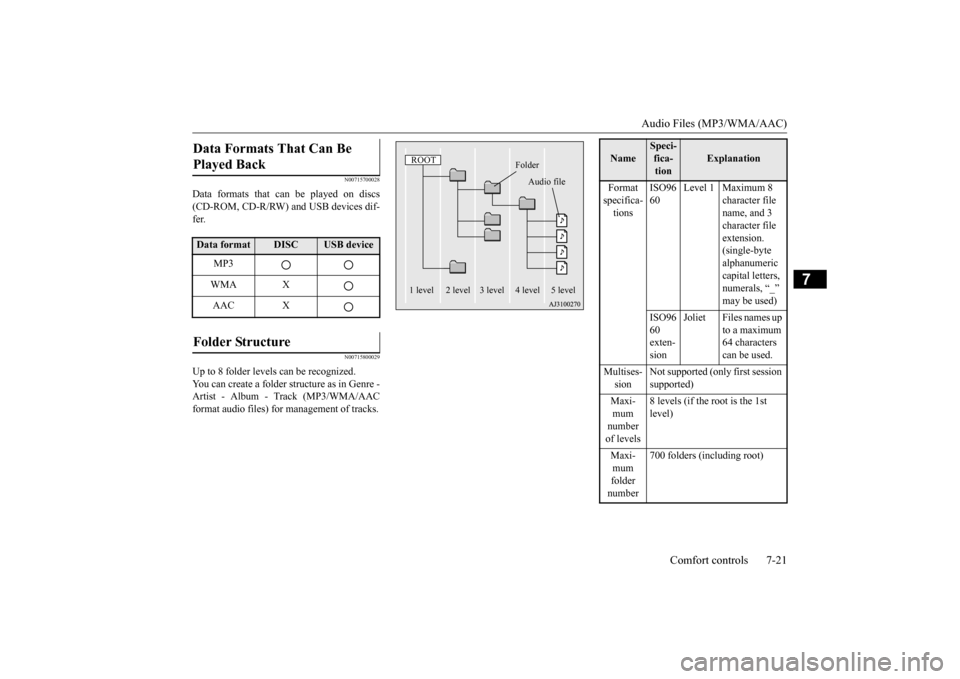
Data formats that can be played on discs (CD-ROM, CD-R/RW) and USB devices dif-fer.
N00715800029
Up to 8 folder levels can be recognized.You can create a folder structure as in Genre -Artist - Album - Track (MP3/WMA/AAC format audio files) for
management of tracks.
Data Formats That Can Be Played Back Data format
DISC
USB device
MP3 WMA XAAC X
Folder Structure
ROOT
Folder
Audio file
1 level 2 level 3 level 4 level 5 level
Name
Speci- fica- tion
Explanation
Format specifica- tions
ISO96 60
Level 1 Maximum 8
character file name, and 3 character file extension. (single-byte alphanumeric capital letters, numerals, “_” may be used)
ISO96 60 exten- sion
Joliet Files names up
to a maximum 64 characters can be used.
Multises- sion
Not supported (only first session supported)
Maxi- mum number of levels
8 levels (if the root is the 1st level)
Maxi- mum folder number
700 folders (including root)
BK0223400US.book 21 ページ 2015年2月13日 金曜日 午後12時15分