radio MITSUBISHI OUTLANDER III 2017 User Guide
[x] Cancel search | Manufacturer: MITSUBISHI, Model Year: 2017, Model line: OUTLANDER III, Model: MITSUBISHI OUTLANDER III 2017Pages: 521, PDF Size: 14.95 MB
Page 229 of 521
Parking sensors (Front/Rear) (if so equipped) 5-148 Features and controls
5
“Normal mode” and “Tow
ing hitch mode” for
a vehicle equipped with a towing hitch can beselected.
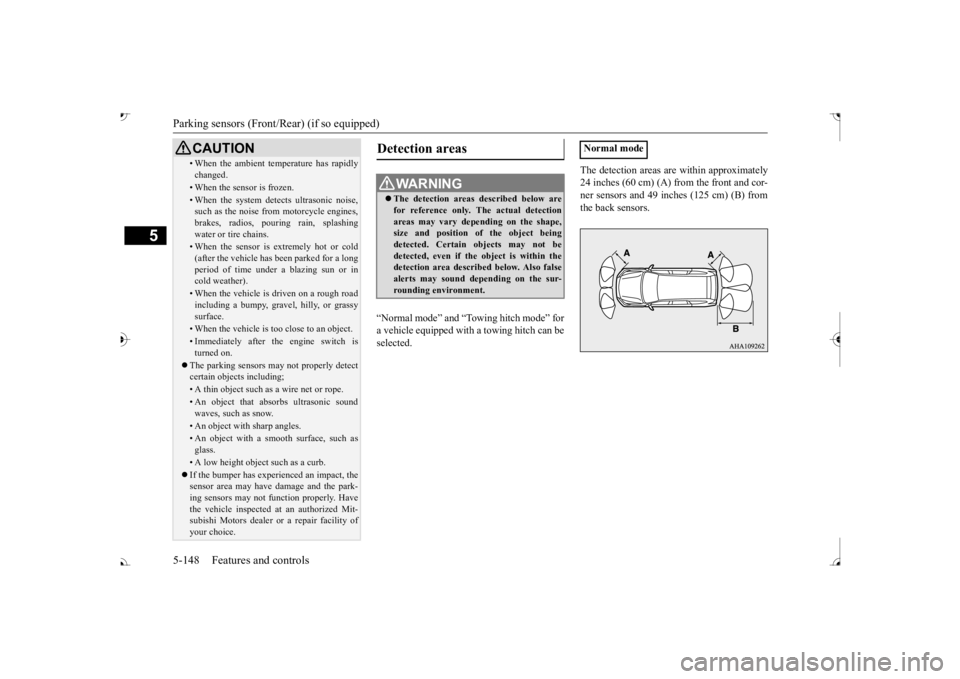
The detection areas are within approximately 24 inches (60 cm) (A) from the front and cor-ner sensors and 49 inches (125 cm) (B) from the back sensors.
• When the ambient temp
erature has rapidly
changed.• When the sensor is frozen.• When the system detects ultrasonic noise,such as the noise from motorcycle engines, brakes, radios, pouring rain, splashing water or tire chains.• When the sensor is extremely hot or cold(after the vehicle has
been parked for a long
period of time under
a blazing sun or in
cold weather).• When the vehicle is driven on a rough roadincluding a bumpy, gravel, hilly, or grassy surface.• When the vehicle is too close to an object.• Immediately after the engine switch is turned on.
The parking sensors may not properly detect certain objects including;• A thin object such as a wire net or rope.• An object that absorbs ultrasonic sound waves, such as snow.• An object with sharp angles.• An object with a sm
ooth surface, such as
glass.• A low height object such as a curb. If the bumper has experienced an impact, the sensor area may have
damage and the park-
ing sensors may not f
unction properly. Have
the vehicle inspected at an authorized Mit- subishi Motors dealer or a repair facility of your choice.CAUTION
Detection areas
WA R N I N G The detection areas described below are for reference only. The actual detectionareas may vary depend
ing on the shape,
size and position of
the object being
detected. Certain objects may not bedetected, even if the object is within the detection area described below. Also false alerts may sound de
pending on the sur-
rounding environment.
Normal mode
BK0239700US.book 148 ページ 2016年6月16日 木曜日 午前10時58分
Page 273 of 521

Indicator light, warning light, and information screen display list (multi information display - Type 1)
5
N00557901092
When there is information to be announced,
such as light reminder, the
tone sounds and the screen sw
itches to the displays show
n below. Refer to
the appropriate page and ta
ke the necessary measures.
When the cause of the warning display is elimin
ated, the warning displa
y goes out automatically.
Refer to Warning disp
lay list on page 5-193.
Refer to Navigation informat
ion display on page 5-209.
Refer to Other interrupt displays on page 5-210. 15- Seat belt remi
nder/warning light
P.4-23
16- Tire pressure monitoring system warn-
ing light
P.5-143
17- Brake auto hold indicator (if so
equipped)
P.5-93
18- Brake warning light (red)
P.5-216
19- Information screen display list
P.5-192
Information screen display list
NOTE
In the following cases, a warning may be
displayed on the information screen and th
e buzzer may sound for a
few seconds, at tim
es.
This is caused by the system picking up in
terference such as strong el
ectromagnetic waves
or noise, and is not a functional pro
blem.
• An extremely strong electrom
agnetic wave is received from a s
ource such as an illegal radio se
t, a spark from a wire, or a rad
ar station.
• Abnormal voltage or a static
electricity disc
harge is generated by the operation of
your vehicle’s electr
onics (including afte
r-market parts).
If the warning display has oc
curred a number of times, take your
vehicle to an author
ized Mitsubishi Motors
dealer or a repair
facility of your choice and
have the system checked.
BK0239700US.book 192 ページ 2016年6月16日 木曜日 午前10時58分
Page 334 of 521
Bluetooth® 2.0 interface
Features and controls 5-253
5
N00565401155
For the operation of a music player connected via Bluetooth®, refer to the following sec-tions. [For vehicles equi
pped with the AM/FM
radio/CD player] Refer to “Listen to Bl
uetooth Audio” on page
7-40. [For vehicles equippe
d with the Mitsubishi
Multi-Communication System, the Smart- phone Link Display Audio or the DISPLAY AUDIO]Refer to the separate owner’s manual.
N00565501097
You can make or re
ceive hands-free calls
using a Bluetooth
® compatible cellular phone
connected to the Bluetooth
® 2.0 interface.
You can also use the phonebooks in the Blue- tooth
® 2.0 interface to make calls without
dialing telephone numbers. To make a call P.5-253 Send function P.5-255 Receiving calls P.5-255
Mute function P.5-255 Switching between hand
s-free mode and pri-
vate mode P.5-255
N00565601098
You can make a call in the following 3 ways using the Bluetooth
® 2.0 interface:
By saying a telephone number By using the Bluetooth
® 2.0 interface’s
phonebook By redialing a
telephone number
You can make a call
by saying the telephone
number. 1. Press the SPEECH button (except for vehicles with Mitsubishi Multi-Commu- nication System) or
PICK-UP button (for
vehicles with Mitsubishi Multi-Commu- nication System).
2. Say “Dial.” 3. After the voice gui
de says “Number
please,” say the
telephone number.
4. The voice guide wi
ll say “Dialing
® 2.0 interface will then
make the call. When the confirmation function is on, thesystem will confirm
the telephone number
again. To continue with that number, answer “Yes.” To change the telephone number, answer “No.” The system will say “Numberplease” then say
the telephone number
again.
Operating a music player con- nected via Bluetooth
®
How to make or receive hands- free calls
NOTE
Hands-free calls may not
operate correctly
when you place or receive the call directlyfrom your cellular phone, instead of using the Bluetooth
® 2.0 interface.
To m a k e a c a l l Making a call by us
ing the telephone
number
NOTE
In the case of English,
the system will recog-
nise both “zero” and “oh”
(Letter
Page 336 of 521
Bluetooth® 2.0 interface
Features and controls 5-255
5
You can redial the last
number called, based
on the history of dialed calls in the paired cel-lular phone. Use the following procedure to redial. 1. Press the SPEECH button (except for vehicles with Mitsubishi Multi-Commu- nication System) or PICK-UP button (forvehicles with Mitsubishi Multi-Commu- nication System). 2. Say “Redial.”
N00565700018
During a call, press the SPEECH button toenter voice recognitio
n mode, then say
“
a call you need to sim-
ulate the pressing of a phone button as a
response to an automated system, press the SPEECH button and speak “1 2 3 4 poundsend” and the 1234# will be sent via your cel- lular phone.
N00565801045
If an incoming phone call is received whilethe ignition switch or
the operation mode is in
ON or ACC, the audio sy
stem will be auto-
matically turned on and switched to the incoming call, even when the audio systemwas originally off. The voice guide a
nnouncement for the
incoming call will be output from the frontpassenger’s seat speaker. If the CD player or radio was playing when the incoming call was received, the audio sys-tem will mute the sound from the CD player or radio and output onl
y the incoming call.
To receive the call, press the PICK-UP buttonon the steering wheel control switch. When the call is over, the audio system will return to its previous state.
N00565900010
At any time during a ca
ll, you can mute the
vehicle microphone.
Pressing the SPEECH button and then saying “Mute” during a call will turn ON the mutefunction and mute the microphone. Saying “Mute off” in the same way will turn off the mute function and cancel the mute onthe microphone.
N00566600014
The Bluetooth
® 2.0 interface can switch
between hands-free m
ode (hands-free calls)
and private mode (calls
using cellular phone).
If you press the SPEECH button and say“Transfer call” duri
ng a hands-free call, you
can stop the hands-free m
ode and talk in pri-
vate mode. To return to hands-free mode, press the SPEECH button again and say “Transfer call.”The Bluetooth
® 2.0 interface has 2 types of
unique phonebooks that are different from thephonebook stored in the cellular phone. They are the vehicle phonebook and the mobile phonebook.
NOTE
When the confirmation function is on, the system will check if
the name and location of
the receiver are correct. If the name is cor-rect, answer “Yes.”
or location to call,
answer “No.” The system will return to Step3.
RedialingSend function
Receiving calls Mute function
Switching between hands-free mode and private mode Phonebook function
BK0239700US.book 255 ページ 2016年6月16日 木曜日 午前10時58分
Page 343 of 521
Bluetooth® 2.0 interface 5-262 Features and controls
5
5. The voice guide will say “Importing the contact list from the mobile phonebook.This may take several minutes to com- plete. Would you li
ke to continue?”
Answer “Yes,” transferring to the mobilephonebook the phonebook stored in the cellular phone will start. Answer “No,” the system will return tothe main menu.
6. When the transfer is complete, the voice guide will say “Import complete” andthen the system will return to the main menu.
N00566301119
Model name: MMC or MDGMY10FCC ID: CB2MDGMY10 or NT8MDGMY10 IC: 279B-MDGMY10 or 3043A-MDGMY10 Your Bluetooth
® 2.0 interface operates on a
radio frequency subject to Federal Communi- cations Commission (FCC)
Rules (For vehi-
cles sold in U.S.A.
) and Industry Canada
Rules (For vehicles so
ld in Canada). This
device complies with Part 15 of the FCC Rules and RSS-210 of the Industry CanadaRules. Operation is subject to the following two conditions: This device may not
cause harmful inter-
ference. This device must ac
cept any interference
received, including interference that may cause undesired operation.
The term “IC:” before
the radio certification
number only signifies th
at Industry Canada
technical specifications were met. The antenna used for this transmitter must not be co-located or operating in conjunctionwith any other antenna
or transmitter. End-
users and installers must be provided with installation instructions
and transmitter oper-
ating conditions for sa
tisfying RF exposure
compliance. FCC Notice: This equipment has been testedand found to comply with the limits for a Class B digital device, pursuant to part 15 of the FCC Rules. These limits are designed toprovide reasonable prot
ection against harmful
interference in a residential installation. This equipment generate
s, use and can radiate
radio frequency energy a
nd, if not installed
and used in accordance with the instructions, may cause harmful interf
erence to radio com-
munications. However, there is no guarantee that interfer- ence will not occur in a particular installation.If this equipment does
cause harmful interfer-
ence to radio or tele
vision reception, which
can be determined by turning the equipment
NOTE
The transfer may take some time to complete depending on the number of contacts. If the Bluetooth
® 2.0 interface could not be
connected to the Bluetooth
® compatible cel-
lular phone, the voice gui
de will sa
y “Unable
to transfer contact list from phone” and thenthe system will return to the main menu. If you press the HANG-UP button or press and hold the SPEECH button during the data transfer, the transfer will be cancelled and the system will return to the main menu. If an error occurs during the data transfer, all transfer will be canc
elled and the voice guide
will say “Unable to complete the phonebook import” and then the system will return to the main menu. If there are no contacts in the phonebook, the voice guide will say
“There are no contacts
on the connected phone.”
General information
CAUTION Changes or modifications made to this equipment not expressly approved by themanufacturer may void the FCC authoriza-tion to operate this equipment.
BK0239700US.book 262 ページ 2016年6月16日 木曜日 午前10時58分
Page 344 of 521
USB input terminal
Features and controls 5-263
5
off and on, the user is encouraged to try to correct the interference by
one or more of the
following measures: Reorient or relocate
the receiving antenna.
Increase the sepa
ration between the
equipment and receiver. Connect the equipment into an outlet on a circuit different from that to which the receiver is connected. Consult the dealer or an experienced radio/TV technician for help.
ICES Notice: This Class B digital apparatus complies with Canadian ICES-003.
N00566401136
N00566701142
You can connect your USB memory device or iPod
* to play music files stored in the USB
memory device or iPod.This section explains how to connect and remove a USB memory device or iPod. See the following sect
ion for details on how
to play music files. Refer to “Listen to an iPod” on page 7-32. Refer to “Listen to Audio Files on a USBDevice” on page 7-34. Refer to “To play iPod/USB memory device tracks via voice ope
ration” on page 7-37.
* : “iPod” is a registered trademark of Apple Inc. in the United Stat
es and other countries.
N00566801156
1. Park your vehicle in a safe place and turn the ignition switch to the “LOCK” posi-tion or put the operation mode in OFF.
Enrollment commands
USB input terminal How to connect a USB memory device
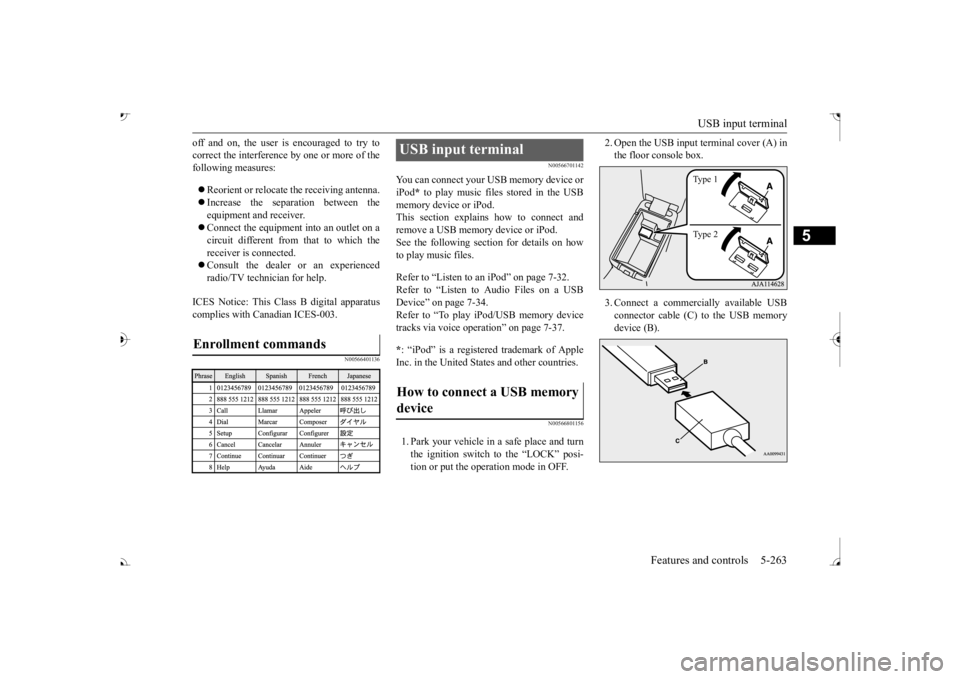
2. Open the USB input
terminal cover (A) in
the floor console box. 3. Connect a commercia
lly available USB
connector cable (C) to the USB memory device (B).
Ty p e 1 Ty p e 2
BK0239700US.book 263 ページ 2016年6月16日 木曜日 午前10時58分
Page 349 of 521
HomeLink® Wireless Control System (if so equipped) 5-268 Features and controls
5
N00554301040
HomeLink
® Wireless Contro
l System is a
registered trademark of Gentex Corporation. HomeLink
® provides a convenient way to
replace up to 3 hand-held radio-frequency (RF) transmitters used to activate devicessuch as gate operators
, garage door openers,
entry door locks, security systems, even home lighting. Additional HomeLink
® information
can be found at www.homelink.com, www.youtube.com/HomeLinkGentex, or by calling the toll-free HomeLink
®-Hotline at 1-
800-355-3515.
N00584600029
Some garage door openers manufactured after 1995 have “rolli
ng code protection”.
To program a garage door openerequipped with “rolli
ng code protection”; cess the garage door
opener motor to press the motor’s “Learn”
For convenience, use
a ladder and another pe
rson to assist you.
It is recommended that a new battery be placed in the hand-held
transmitter of the
device being progr
ammed to HomeLink
®
for quicker training and accurate trans- mission of the radio-frequency signal.
HomeLink
® Wireless Con-
trol System
(if so equipped)
WA R N I N G Do not use HomeLink
® with any garage
door opener that la
cks safety stop and
reverse features as required by U.S. Fed- eral Regulations.
A garage door opener
which cannot detect an object in the path of a closing garage d
oor and then auto-
matically stop and reverse, does not meetcurrent U.S. Federal
Regulations. Using a
garage door opener wi
thout these features
increases the risk of serious injury ordeath.
During programming, your garage door or gate may open or close. Make sure thatpeople and objects are clear of the garagedoor or gate that
you are programming.
NOTE
Once HomeLink
® is programmed, retain the
original transmitter for future programming procedures (for example, new vehicle pur-chases). Upon sale of the vehicle, the pro- grammed HomeLink
® buttons should be
erased for security purposes. Refer to “Cleaning the progra
mmed information” on
page 5-272. You can program a ma
ximum of 3 devices.
To change or replace any of the 3 devicesafter it has been in
itially programmed, you
must first erase the current settings. See “Cleaning the programmed information”on page 5-272 or “Reprogramming a single HomeLink
® button” on page 5-272.
WA R N I N G
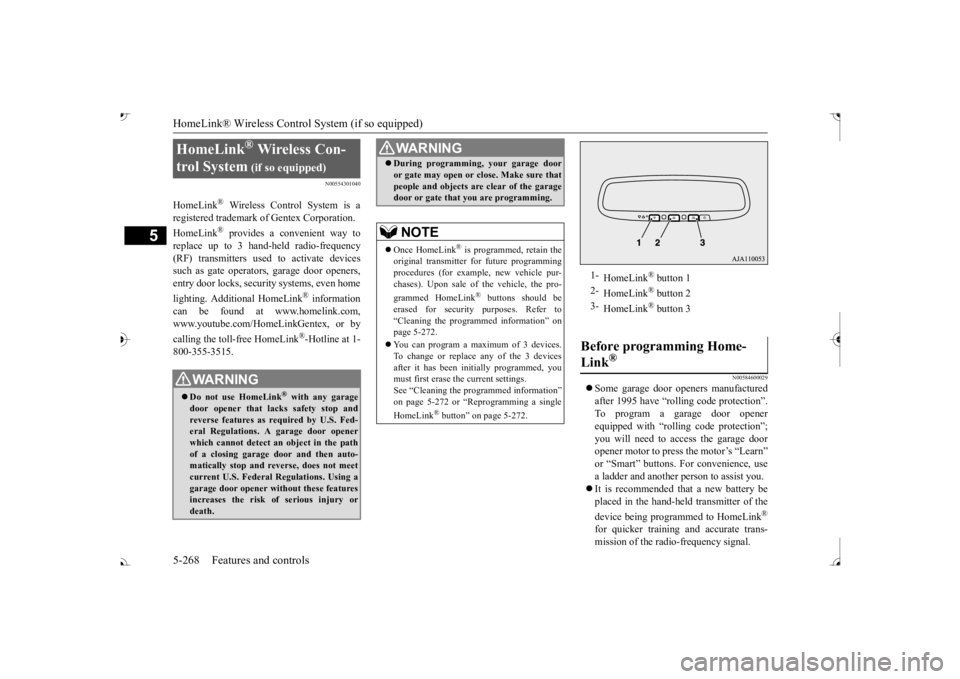
1-
HomeLink
® button 1
2-
HomeLink
® button 2
3-
HomeLink
® button 3
Before programming Home- Link
®
BK0239700US.book 268 ページ 2016年6月16日 木曜日 午前10時58分
Page 353 of 521
HomeLink® Wireless Control System (if so equipped) 5-272 Features and controls
5
The HomeLink
® has the capability of listen-
ing to these messages at a range up to 820.2feet (250 m) (open line of sight), but range may be reduced by obst
acles such as houses
or trees. You may have to slow your vehiclespeed to receive the CLOSED or OPENED message feedback from the garage door opener. If the unit is out of range beforereceiving either the UP or DOWN message from the door opener, both the UP and DOWN indicators will
flash red followed by
a continuous lit orange indicator in the direc- tion the door was last moving.Recall of the door state after initial feedback is possible by simultaneously pressing either HomeLink
® buttons 1 and 2 or buttons 2 and
3 for 2 seconds. The la
st recorded message
will be displayed for 3 seconds, again follow- ing the garage door stat
us indication of the
figure above.
N00585300023
To erase programming from the 3 buttons (individual buttons cannot
be erased but can
be “reprogrammed” as
outlined below), fol-
low the steps noted:
1. Press and hold the 2 outer HomeLink
®
buttons for at least
10 seconds. The indi-
cator will change from continuous yellow to rapidly flashing green. 2. Release both buttons. 3. HomeLink
® is now in the train (or learn-
ing) mode and can be programmed at anytime beginning with
“Programming a new
HomeLink
®” step 1.
N00585400024
To reprogram a HomeLink
® button, complete
the following. 1. Press and hold the desired HomeLink
®
button. Do not release the button. 2. The indicator light
will begin to slowly
flash orange after 20 seconds. The Home- Link
® button can be released at this point.
Proceed with “Programming a new HomeLink
®” step 2.
N00585600026
Your HomeLink
® system operates on a radio
frequency subject to
Federal Communica-
tions Commission (FCC)
Rules (For vehicles
sold in U.S.A.) and Industry Canada Rules (For vehicles sold in
Canada). This device
complies with Part 15 of the FCC Rules and RSS- 210 of the Industry Canada Rules. Operation is subject to
the following two con-
ditions. This device may not
cause harmful inter-
ference. This device must ac
cept any interference
that may be received, including interfer- ence that may caus
e undesired operation.
Clearing the programmed information
NOTE
Do not hold for longer than 20 seconds.
Reprogramming a single HomeLink
® button
NOTE
If you do not complete the programming of a new device to the button,
it will revert to the
previously stored programming.For questions or comments, visit www.homelink.com, www.youtube.com/HomeL
inkGentex, or by
calling the HomeLink
® Hotline.
General information
BK0239700US.book 272 ページ 2016年6月16日 木曜日 午前10時58分
Page 372 of 521
Loading information Driving safety 6-7
6
installed options, and
the tongue weight of
the trailer, if any, being towed. The tire andloading information placard located on the driver’s door sill of your vehicle will show how much weight it may properly carry. It is important to famil
iarize yourself with the
following terms before loading your vehicle: Vehicle maximum load on the tire: load on an individual tire that is determined by distributing to each axle its share of the maximum loaded vehicle weight anddividing by two. Vehicle normal load on the tire: load on an individual tire that is determined by dis-tributing to each axle its share of the curb weight, accessory weight, and normal occupant weight and dividing by two. Maximum loaded vehicle weight: the sum of - (a) Curb weight;(b) Accessory weight; (c) Vehicle capacity weight; and (d) Production options weight.
Curb weight: the weight of a motor vehi- cle with standard equipment including themaximum capacity of
fuel, oil, and cool-
ant. Accessory weight: the combined weight (in excess of those st
andard items which
may be replaced) of automatic transaxle, power steering, power brakes, power win-dows, power seats, radio, and heater, to the extent that these items are available as factory- installed equipment (whether installed or not). Vehicle capacity weight: the rated cargo and luggage load plus 150 lbs (68 kg) * times the vehicle’s designated seating capacity. Production options weight: the combined weight of those installed regular produc- tion options weighing over 5 lbs (2.3 kg)in excess of those standard items which they replace, not prev
iously considered in
curb weight or accessory weight, includ-ing heavy duty brakes,
ride levelers, roof
rack, heavy duty battery, and special trim. Normal occupant weight: 150 lbs (68 kg) * times the number of
specified occupants
(3 in the case of your vehicle) Occupant distribution:
Occupant distribu-
tion within the passenger compartment (In your vehicle the distribution is 2 in front, 1 in second row seat)
N00630101407
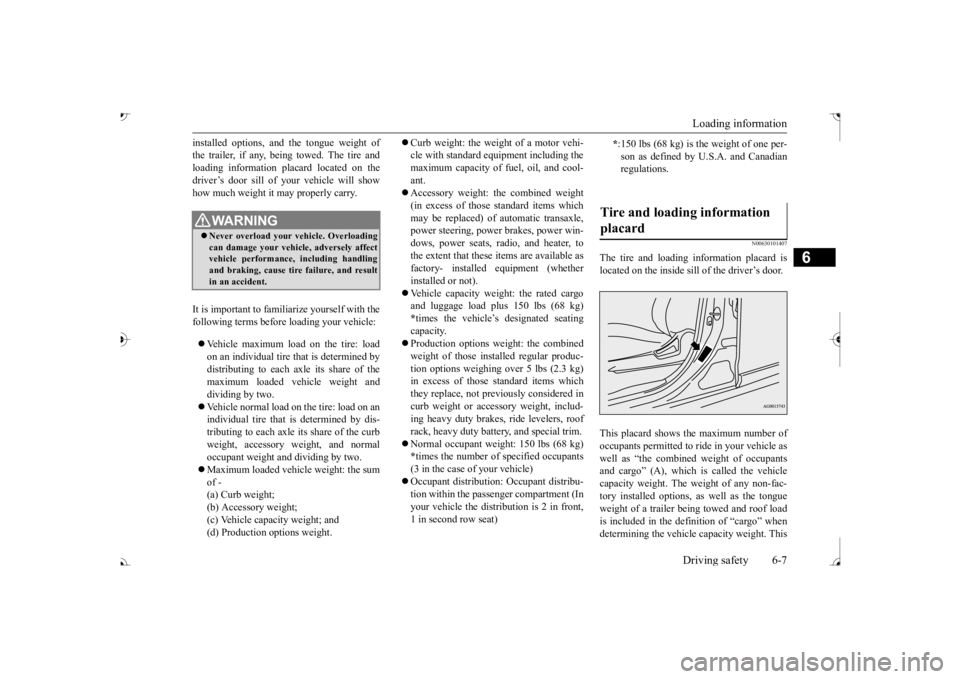
The tire and loading information placard islocated on the inside sill of the driver’s door. This placard shows the maximum number of occupants permitted to
ride in your vehicle as
well as “the combined
weight of occupants
and cargo” (A), which
is called the vehicle
capacity weight. The weight of any non-fac- tory installed options, as well as the tongueweight of a trailer being towed and roof load is included in the defi
nition of “cargo” when
determining the vehicle
capacity weight. This
WA R N I N GNever overload your ve
hicle. Overloading
can damage your vehicl
e, adversely affect
vehicle performance, including handling and braking, cause tire failure, and resultin an accident.
* :150 lbs (68 kg) is the weight of one per- son as defined by U.
S.A. and Canadian
regulations.
Tire and loading information placard
BK0239700US.book 7 ページ 2016年6月16日 木曜日 午前10時58分
Page 384 of 521
7
Comfort controlsVents ................................................................................................7-2 Dual-zone automatic climate control air conditioner ......................7-5 Important air conditioning operating tips ..
...........
...........
.........
.....7-13
Air purifier .....................................................................................7-14 AM/FM radio/CD player (if so equipped) .....................................7-14 Handling of Discs ..........................................................................7-18Audio Files (MP3/WMA/AAC) ....................................................7-19 Important Points on Safety for the Customer ................................7-23 Operation Keys ..............................................................................7-24Listen to Radio ...............................................................................7-26 Listen to Satellite Radio (if so equipped) .......................................7-28 Listen to CDs .................................................................................7-30Listen to MP3s ...............................................................................7-31 Listen to an iPod ............................................................................7-32 Listen to Audio Files on a USB Device .........................................7-34To play iPod/USB memory device tr
acks via voice ope
ration ......7-37
Listen to Bluetooth Audio .............................................................7-40 Display Indicator ...........................................................................7-42Audio Quality and Volume Balance Adjustment ...........................7-44 System Settings ..............................................................................7-44 Troubleshooting ..........
...........
...........
...........
...........
.........
.........
.....7-47
Clock (if so equipped) ....................................................................7-49 General information about your radio .....
...........
...........
...........
.....7-50
BK0239700US.book 1 ページ 2016年6月16日 木曜日 午前10時58分