CD player MITSUBISHI OUTLANDER SPORT 2015 3.G Owners Manual
[x] Cancel search | Manufacturer: MITSUBISHI, Model Year: 2015, Model line: OUTLANDER SPORT, Model: MITSUBISHI OUTLANDER SPORT 2015 3.GPages: 384, PDF Size: 61.37 MB
Page 198 of 384
Link System (if so equipped) Features and controls 5-135
5
N00563701082
The Link System takes overall control of the devices connected via the USB input terminal or the Bluetooth
® 2.0 interface allowing the
connected devices to be operated by using theswitches in the vehicle or voice commands. See the following section for details on how to operate. Refer to “Bluetooth
® 2.0 interface” on page
5-135.Refer to “USB input terminal” on page 5-157. Refer to “Listen to Audio Files on a USB Device” on page 7-46.Refer to “Listen to Bluetooth Audio” on page 7-49. Bluetooth
® is a registered trademark of
BLUETOOTH SIG, INC.
N00563800015
You have acquired a device that includes soft-ware licensed by Mitsubishi Motors Corpora- tion from JOHNSON CONTROLS Inc (the automotive experience business unit), andtheir subsequent 3rd party suppliers. For a complete list of these 3rd party products and
their end user license agreements, please go to the following website. http://www.jciblueconnect.com/faq/fulldis- closure.pdf
N00563901273
The Bluetooth
® 2.0 interface allows for mak-
ing/receiving hands-free calls in the vehicle using a Bluetooth
® compatible cellular phone
based on the wireless communication tech- nology commonly known as Bluetooth
®. It
also allows the user to
play music, saved in a
Bluetooth
® music player, from the vehicle’s
speakers. The system is equipped with a voice recogni-tion function, which allows you to make hands-free calls with simple switch opera- tions and voice command operations using adefined voice tree. The Bluetooth
® 2.0 interface can be used
when the ignition switch or the operation mode is set to ON or ACC. Before you can use the Bluetooth
® 2.0 inter-
face, you must pair the Bluetooth
® device
and Bluetooth
® 2.0 interface. Refer to “Con-
necting the Bluetooth
® 2.0 interface and
Bluetooth
® device” on page 5-142.
Bluetooth
® is a registered trademark of
BLUETOOTH SIG, INC.
Link System
(if so equipped)
Link System End User License Agreement
Bluetooth
® 2.0 interface (if
so equipped)
WA R N I N G Although the Bluetooth
® 2.0 interface
allows you to make hands-free calls, if you choose to use the cellular phone whiledriving, you must not allow yourself to be distracted from the safe operation of your vehicle. Anything, including cellularphone usage, that distracts you from the safe operation of your vehicle increases your risk of an accident. Refer to and comply with all state and local laws in your area regarding cellularphone usage while driving.NOTE
If the ignition switch or the operation mode is left in ACC, the accessory power will automatically turn off after a certain period of time and you will no longer be able to use the Bluetooth
® 2.0 interface. The accessory
power comes on again if the ignition switch or the engine switch is operated. Refer to“ACC power auto-cutout function” on page 5-45. The Bluetooth
® 2.0 interface cannot be used
if the Bluetooth
® device has a dead battery
or the device power is turned off.
BK0206700US.book
135 ページ 2014年3月25日 火曜日 午後4時42分
Page 199 of 384
Bluetooth® 2.0 interface (if so equipped) 5-136 Features and controls
5
Steering control switch and microphone
P.5-136
Voice recognition function
P.5-137
Useful voice commands
P.5-138
Speaker enrollment function
P.5-140
Connecting the Bluetooth
® 2.0 interface and
the Bluetooth
® device
P.5-142
Operating a music player connected via Blue- tooth
® P.5-146
How to make or receive hands-free calls
P.5-146 Phonebook function
P.5-149
N00564001167
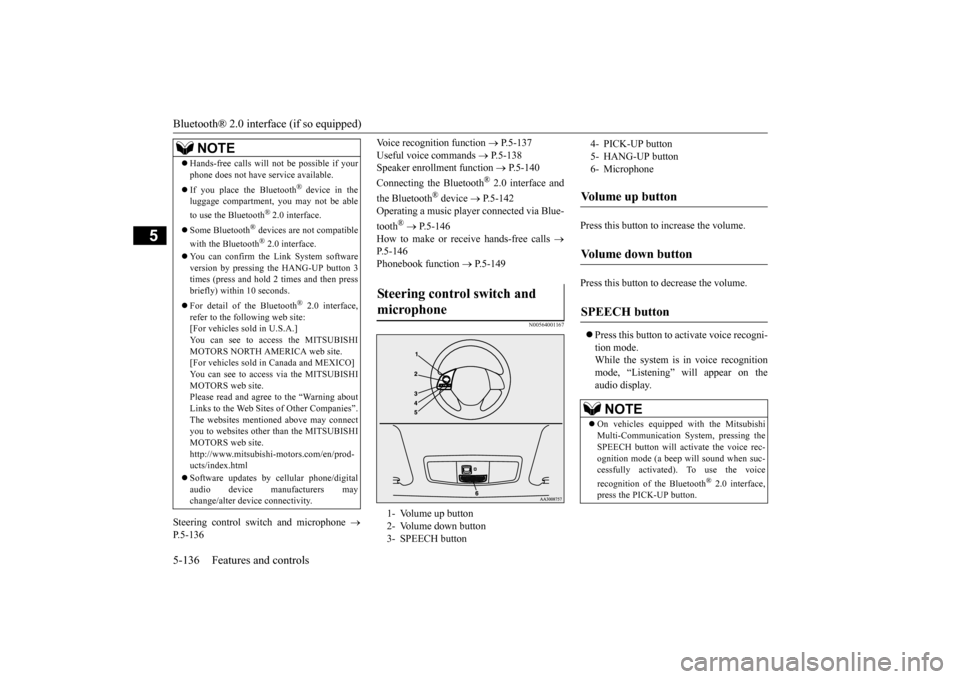
Press this button to increase the volume. Press this button to decrease the volume. Press this button to activate voice recogni- tion mode. While the system is in voice recognition mode, “Listening” will appear on theaudio display.
Hands-free calls will not be possible if your phone does not have service available. If you place the Bluetooth
® device in the
luggage compartment, you may not be able to use the Bluetooth
® 2.0 interface.
Some Bluetooth
® devices are not compatible
with the Bluetooth
® 2.0 interface.
You can confirm the Link System software version by pressing the HANG-UP button 3 times (press and hold 2 times and then pressbriefly) within 10 seconds. For detail of the Bluetooth
® 2.0 interface,
refer to the following web site: [For vehicles sold in U.S.A.]You can see to access the MITSUBISHI MOTORS NORTH AMERICA web site. [For vehicles sold in Canada and MEXICO]You can see to access via the MITSUBISHI MOTORS web site. Please read and agree to the “Warning aboutLinks to the Web Sites of Other Companies”. The websites mentioned above may connect you to websites other than the MITSUBISHIMOTORS web site. http://www.mitsubishi-motors.com/en/prod- ucts/index.html Software updates by cellular phone/digital audio device manufacturers maychange/alter device connectivity.NOTE
Steering control switch and microphone 1- Volume up button 2- Volume down button3- SPEECH button
4- PICK-UP button5- HANG-UP button6- MicrophoneVolume up button Volume down button SPEECH button
NOTE
On vehicles equipped with the Mitsubishi Multi-Communication System, pressing the SPEECH button will activate the voice rec- ognition mode (a beep will sound when suc- cessfully activated). To use the voice recognition of the Bluetooth
® 2.0 interface,
press the PICK-UP button.
BK0206700US.book
136 ページ 2014年3月25日 火曜日 午後4時42分
Page 205 of 384
Bluetooth® 2.0 interface (if so equipped) 5-142 Features and controls
5
N00565001249
Before you can make or receive hands-free calls or play music using the Bluetooth
® 2.0
interface function, you must pair the Blue- tooth
® device and Bluetooth
® 2.0 interface.
Up to 7 Bluetooth
® devices can be paired
with the Bluetooth
® 2.0 interface.
If multiple paired Bluetooth
® devices are
available in the vehicle, the cellular phone or music player most recently connected is auto- matically connected to the Bluetooth
® 2.0
interface. You can also change a Bluetooth
® device to
be connected.
To pair a Bluetooth
® device with the Blue-
tooth
® 2.0 interface, follow the steps below.
1. Stop your vehicle in a safe area, put the gearshift lever in the “N” (Neutral) posi- tion (manual transaxle), or the selector lever in the “P” (PARK) position (contin-uously variable transmission (CVT)), and pull the parking brake lever. 2. Press the SPEECH button (except for vehicles with Mitsubishi Multi-Commu- nication System) or PICK-UP button (for vehicles with Mitsubishi Multi-Commu-nication System).3. Say “Setup.” 4. Say “Pairing Options.”
5. The voice guide will say “Select one of the following: pair, edit, delete, or list.” Say “Pair.” 6. The voice guide will say “Please say a 4- digit pairing code.” Say a 4-digit number. When the confirmation function is on, the system will confirm whether the numbersaid is acceptable. Answer “Yes.” Answer “No” to return to the pairing code selection.
Connecting the Bluetooth
® 2.0
interface and Bluetooth
® device
NOTE
Pairing is required only when the device is used for the first time. Once the device has been paired with the Bluetooth
® 2.0 inter-
face, all you need is
to bring the device into
the vehicle next time and the device will connect to the Bluetooth
® 2.0 interface auto-
matically (if supported by the device). The device must have Bluetooth
® turned ON to
connect.
To p a i r
NOTE
You cannot pair any Bluetooth
® device with
the Bluetooth
® 2.0 interface unless the vehi-
cle is parked. Before pairing a Bluetooth
®
device with the Bluetooth
® 2.0 interface,
confirm that the vehicle is parked in a safe location.
NOTE
If 7 devices have already been paired, the voice guide will say “Maximum devices paired” and then the system will end thepairing process. To register a new device, delete one device and then repeat the pairing process.(Refer to “Selecting a device: Deleting a device” on page 5-143.)NOTE
Some Bluetooth
® devices require a specific
pairing code. Please refer to the device man- ual for pairing code requirements.
BK0206700US.book
142 ページ 2014年3月25日 火曜日 午後4時42分
Page 206 of 384
Bluetooth® 2.0 interface (if so equipped)
Features and controls 5-143
5
7. The voice guide will say “Start pairing procedure on the device. See the device manual for instructions.” Enter in the Bluetooth
® device the 4-digit number you
have registered in Step 6.
8. The voice guide will say “Please say the name of the device after the beep.” You can assign a desired name for the Blue- tooth
® device and register it as a device
tag. Say the name you want to register after the beep. 9. The voice guide will say “Pairing com- plete,” and the pairing process will end.
N00565101110
If multiple paired Bluetooth
® devices are
available in the vehicle, the cellular phone ormusic player most recently connected is auto-
matically connected to the Bluetooth
® 2.0
interface. You can connect to the other paired cellular phone or music player by following the set-ting change procedures. 1. Press the SPEECH button (except for vehicles with Mitsubishi Multi-Commu- nication System) or PICK-UP button (forvehicles with Mitsubishi Multi-Commu-nication System). 2. Say “Setup.” 3. Say “Select phone.”
The pairing code entered here is only used for the Bluetooth
® connection certification.
It is any 4-digit number the user would like to select. Remember the pairing code as it needs to be keyed into the Bluetooth
® device later in the
pairing process. Depending on the connection settings of the Bluetooth
® device, this code may have to be
entered each time you connect the Blue- tooth
® device to the Bluetooth
® 2.0 inter-
face. For the default connection settings, refer to the instructions for the device.NOTE
Depending on the Bluetooth
® device, it may
take a few minutes to pair it with the Blue- tooth
® 2.0 interface.
If the Bluetooth
® 2.0 interface cannot recog-
nize the Bluetooth
® device, the voice guide
will say “Pairing has timed out” and the pair-ing process will be cancelled. Confirm that the device you are pairing sup- ports Bluetooth
®, and try pairing it again.
NOTE
If you enter the wrong number, the voice guide will say “Pairing failed” and the pair- ing process will be cancelled. Confirm the number is right, and try pairing it again.NOTE
When the confirmation function is on, after repeating the device tag you have said, the voice guide will ask “Is this correct?” Answer “Yes.”To change the device tag, answer “No” and then say the device tag again.
Selecting a device
NOTE
To select a cellular phone
BK0206700US.book
143 ページ 2014年3月25日 火曜日 午後4時42分
Page 207 of 384
Bluetooth® 2.0 interface (if so equipped) 5-144 Features and controls
5
4. After the voice guide says “Please say,” the numbers of the cellular phones and device tags of corresponding cellular phones will be read out in order, startingwith the cellular phone that has been most recently connected. Say the number of the cellular phone thatyou want to connect to. When the confirmation function is on, the system will ask you again whether thephone that you want to connect to is cor-rect. Answer “Yes” to continue and con- nect to the cellular phone. Answer “No,” and the voice guide willsay “Please say.” Say the number of the phone that you want to connect to. 5. The selected phone will be connected to the Bluetooth
® 2.0 interface. The voice
guide will say “
1. Press the SPEECH button (except for vehicles with Mitsubishi Multi-Commu- nication System) or PICK-UP button (for vehicles with Mitsubishi Multi-Commu-nication System). 2. Say “Setup.” 3. Say “Select music player.”
4. After the voice guide says “Please say,” the numbers of the music players and device tags of corresponding music play- ers will be read out in order, starting withthe music player that has been most recently connected. Say the number of the music player thatyou want to connect to. When the confirmation function is on, the system will ask you again whether themusic player that you want to connect tois correct. Answer “Yes” to continue and connect to the music player. Answer “No,” and the voice guide willsay “Please say.” Say the number of the music player that you want to connect to. 5. The selected music player will be con- nected to the Bluetooth
® 2.0 interface.
The voice guide will say “
NOTE
You can connect to a phone at any time by pressing the SPEECH button and saying the number, even before all of the paired num- bers and device tags of corresponding cellu-lar phones are read out by the system.
To select a music player
NOTE
You can connect to a music player at any time by pressing the SPEECH button and saying the number, even before all of the paired numbers and device tags of corre-sponding music players are read out by the system.
BK0206700US.book
144 ページ 2014年3月25日 火曜日 午後4時42分
Page 209 of 384
Bluetooth® 2.0 interface (if so equipped) 5-146 Features and controls
5
N00565301040
You can change the device tag of a paired cel- lular phone or music player. Follow the steps below to change a device tag. 1. Press the SPEECH button (except for vehicles with Mitsubishi Multi-Commu- nication System) or PICK-UP button (for vehicles with Mitsubishi Multi-Commu-nication System). 2. Say “Setup.” 3. Say “Pairing Options.”4. The voice guide will say “Select one of the following: pair, edit, delete, or list.” Say “Edit.”
5. The voice guide will say “Please say,” and read out the numbers of the Bluetooth
®
devices and device tags of corresponding devices in order, starting with the Blue- tooth
® that has been most recently con-
nected. After all paired device tags have beenread, the voice guide will say “Which device, please?” Say the number of the device tag you want to change. 6. The voice guide will say “New name, please.” Say the name you want to regis- ter as a new device tag.When the confirmation function is on, the voice guide will say “
N00565401067
For the operation of a music player connected via Bluetooth
®, refer to “Listen to Bluetooth
Audio” on page 7-49.
N00565500087
You can make or receive hands-free calls using a Bluetooth
® compatible cellular phone
connected to the Bluetooth
® 2.0 interface.
You can also use the phonebooks in the Blue- tooth
® 2.0 interface to make calls without
dialing telephone numbers. To make a call P.5-147 Send function P.5-148 Receiving calls P.5-149 Mute function P.5-149Switching between hands-free mode and pri- vate mode P.5-149
You can change the music player to be con- nected by pressing and releasing the SPEECH button and then saying “Select music player” while the list is being read.
Changing a device tag
NOTE
NOTE
You can press and release the SPEECH but- ton while the list is being read, and immedi- ately say the number of the device tag you want to change.
Operating a music player con- nected via Bluetooth
®
How to make or receive hands- free calls
NOTE
Hands-free calls may not operate correctly when you place or receive the call directly from your cellular phone, instead of using the Bluetooth
® 2.0 interface.
BK0206700US.book
146 ページ 2014年3月25日 火曜日 午後4時42分
Page 212 of 384
Bluetooth® 2.0 interface (if so equipped)
Features and controls 5-149
5
“
N00565801058
If an incoming phone call is received whilethe ignition switch is in the “ACC” or “ON”position, the audio system will be automati- cally turned on and switched to the incoming call, even when the audio system was origi-nally off. The voice guide announcement for the incoming call will be emitted from the frontpassenger’s seat speaker. If the CD player or radio was playing when the incoming call was received, the audio sys-tem will mute the sound from the CD player or radio and emit only the incoming call. To receive the call, press the PICK-UP buttonon the steering wheel control switch. When the call is over,
the audio system will
return to its previous state.
N00565900010
At any time during a call, you can mute thevehicle microphone. Pressing the SPEECH button and then saying “Mute” during a call will turn ON the mute function and mute the microphone.Saying “Mute off” in the same way will turn off the mute function and cancel the mute on the microphone.
N00566600014
The Bluetooth
® 2.0 interface can switch
between hands-free mode (hands-free calls) and private mode (calls using cellular phone). If you press the SPEECH button and say“Transfer call” during a hands-free call, you can stop the hands-free mode and talk in pri- vate mode. To return to hands-free mode, press the SPEECH button again and say “Transfer call.”
N00566000018
The Bluetooth
® 2.0 interface has 2 types of
unique phonebooks that are different from thephonebook stored in the cellular phone. They
are the vehicle phonebook and the mobile phonebook. These phonebooks are used to register tele- phone numbers and make calls to desirednumbers via voice recognition function.
N00566101146
This phonebook is us
ed when making calls
with the voice recognition function. Up to 32 names can be registered in the vehi- cle phonebook per language.Also, each entry has 4 locations associated with: home, work, mobile and other. You can register one telephone number for each loca-tion. You can register a desired name as a name for any phonebook entry registered in the vehicle phonebook.Names and telephone numbers can be changed later on. The vehicle phonebook can be used with all paired cellular phones.
Receiving calls
Mute function Switching between hands-free mode and private mode Phonebook function
NOTE
Disconnecting the battery cable will not delete information registered in the phone- book.
Vehicle phonebook
BK0206700US.book
149 ページ 2014年3月25日 火曜日 午後4時42分
Page 222 of 384
Sun visors
Features and controls 5-159
5
N00567000015 N00567100090
Devices of the following types can be con- nected. * : “iPod touch,” “iPod classic,” “iPod” and “iPod nano” are registered trademarks of
Apple Inc. in the United States and other countries.
N00567200017
You can play music files of the followingspecifications that are saved in a USB mem-
ory device or other device supporting mass storage class.
N00524601376
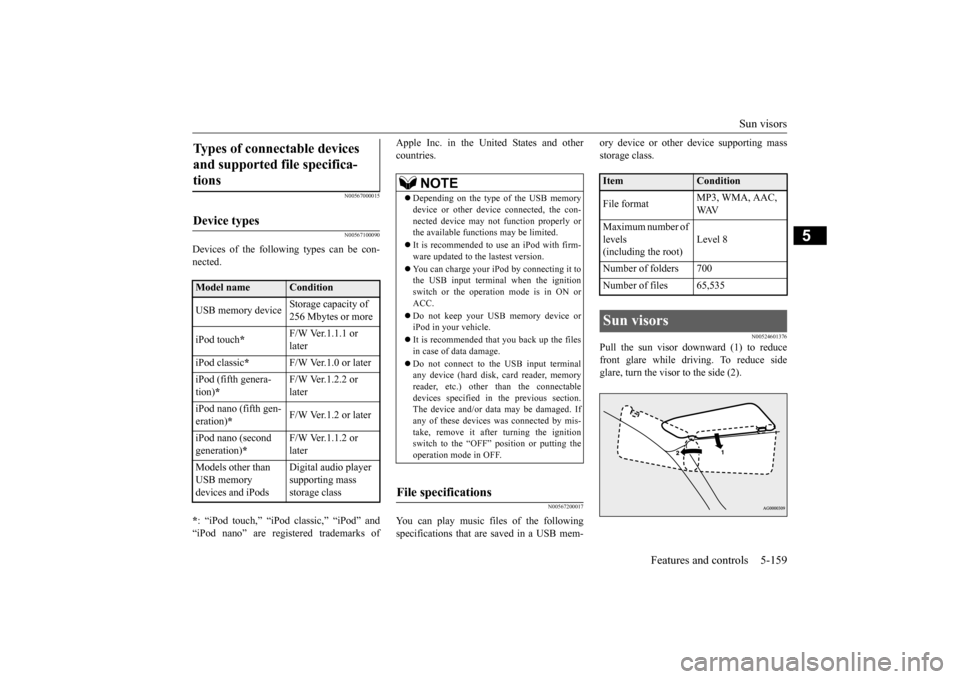
Pull the sun visor downward (1) to reducefront glare while driving. To reduce sideglare, turn the visor to the side (2).
Types of connectable devices and supported file specifica- tions
Device types
Model name
Condition
USB memory device
Storage capacity of 256 Mbytes or more
iPod touch
*
F/W Ver.1.1.1 or later
iPod classic
*
F/W Ver.1.0 or later
iPod (fifth genera- tion)
*
F/W Ver.1.2.2 or later
iPod nano (fifth gen- eration)
*
F/W Ver.1.2 or later
iPod nano (second generation)
*
F/W Ver.1.1.2 or later
Models other than USB memory devices and iPods
Digital audio player supporting mass storage class
NOTE
Depending on the type of the USB memory device or other device connected, the con- nected device may not function properly orthe available functions may be limited. It is recommended to use an iPod with firm- ware updated to the lastest version. You can charge your iPod by connecting it to the USB input terminal when the ignition switch or the operation mode is in ON or ACC. Do not keep your USB memory device or iPod in your vehicle. It is recommended that you back up the files in case of data damage. Do not connect to the USB input terminal any device (hard disk, card reader, memoryreader, etc.) other than the connectable devices specified in the previous section. The device and/or data may be damaged. Ifany of these devices was connected by mis- take, remove it after turning the ignition switch to the “OFF”
position or putting the
operation mode in OFF.
File specifications
Item
Condition
File format
MP3, WMA, AAC, WAV
Maximum number of levels (including the root)
Level 8
Number of folders 700 Number of files 65,535Sun visors
BK0206700US.book
159 ページ 2014年3月25日 火曜日 午後4時42分
Page 248 of 384
7
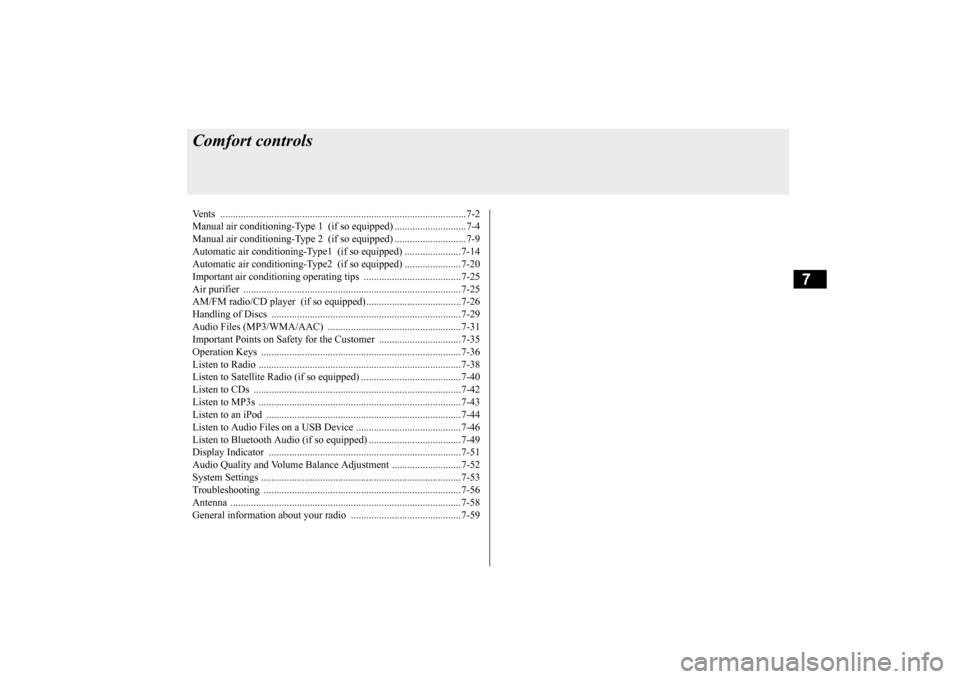
Comfort controlsVents .........................................
.......................................................7-2
Manual air conditioning-Type 1
(if so equipped) ............................7-4
Manual air conditioning-Type 2
(if so equipped) ............................7-9
Automatic air conditioning-Type1 (if so equipped) ......................7-14Automatic air conditioning-Type2 (if so equipped) ......................7-20 Important air conditioning op
erating tips ......................................7-25
Air purifier ......................
...............................................................7-25
AM/FM radio/CD player (if so equipped) .....................................7-26 Handling of Discs .
.................................................
........................7-29
Audio Files (MP3/WMA/
AAC) ....................................................7-31
Important Points on Safety fo
r the Customer ................................7-35
Operation Keys ...............
...............................................................7-36
Listen to Radio ......
.................................................
........................7-38
Listen to Satellite Radio (if so equipped) .......................................7-40 Listen to CDs ..................
...............................................................7-42
Listen to MP3s ......
.................................................
........................7-43
Listen to an iPod ...
.................................................
........................7-44
Listen to Audio Files on
a USB Device .........................................7-46
Listen to Bluetooth Audio (i
f so equipped) ....................................7-49
Display Indicator ..
.................................................
........................7-51
Audio Quality and Volume Balance Adjustment ...........................7-52 System Settings .....
.................................................
........................7-53
Troubleshooting ..............
...............................................................7-56
Antenna .....................................
.....................................................7-58
General information about
your radio ...........................................7-59
BK0206700US.bo
ok 1 ページ 2014年3月25日 火曜日 午後4時42分
Page 273 of 384
AM/FM radio/CD player (if so equipped) 7-26 Comfort controls
7
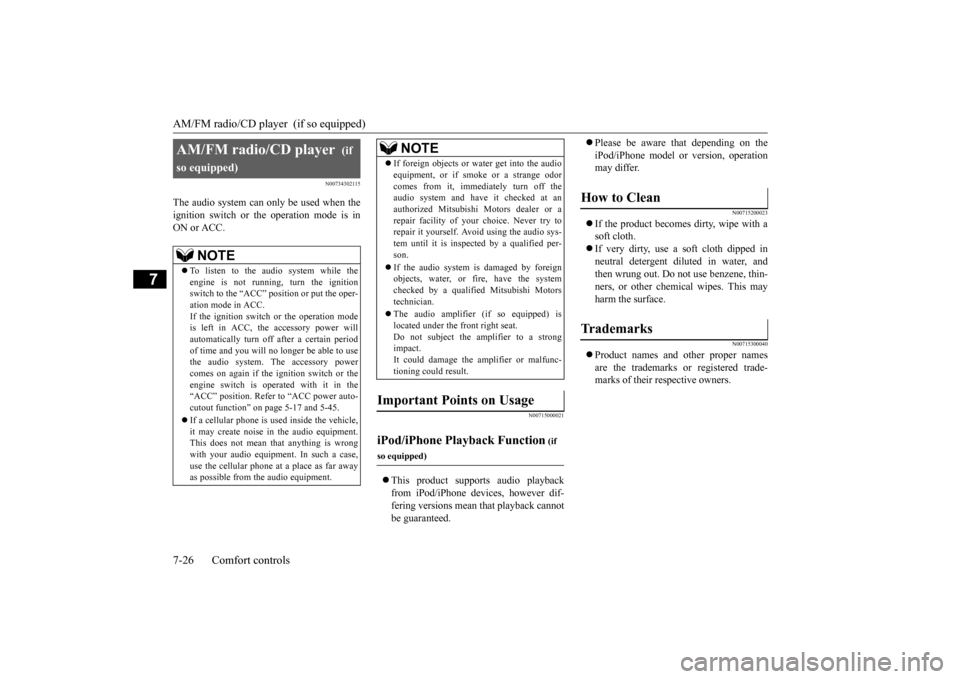
N00734302115
The audio system can only be used when the ignition switch or the operation mode is in ON or ACC.
N00715000021
This product supports audio playback from iPod/iPhone devices, however dif- fering versions mean that playback cannot be guaranteed.
Please be aware that depending on the iPod/iPhone model or version, operation may differ.
N00715200023
If the product becomes dirty, wipe with a soft cloth. If very dirty, use a soft cloth dipped in neutral detergent diluted in water, andthen wrung out. Do not use benzene, thin- ners, or other chemical wipes. This may harm the surface.
N00715300040
Product names and other proper names are the trademarks or registered trade-marks of their respective owners.
AM/FM radio/CD player
(if
so equipped)
NOTE
To listen to the audio system while the engine is not running, turn the ignition switch to the “ACC” position or put the oper- ation mode in ACC.If the ignition switch or the operation mode is left in ACC, the accessory power will automatically turn off after a certain periodof time and you will no longer be able to use the audio system. The accessory power comes on again if the ignition switch or theengine switch is operated with it in the “ACC” position. Refer to “ACC power auto- cutout function” on page 5-17 and 5-45. If a cellular phone is used inside the vehicle, it may create noise in the audio equipment.This does not mean that anything is wrong with your audio equipment. In such a case, use the cellular phone at a place as far away as possible from the audio equipment.
If foreign objects or water get into the audio equipment, or if sm
oke or a strange odor
comes from it, immediately turn off the audio system and have it checked at an authorized Mitsubishi Motors dealer or arepair facility of your choice. Never try to repair it yourself. Avoid using the audio sys- tem until it is inspected by a qualified per-son. If the audio system is damaged by foreign objects, water, or fire, have the system checked by a qualified Mitsubishi Motors technician. The audio amplifier (if so equipped) is located under the front right seat.Do not subject the amplifier to a strong impact. It could damage the amplifier or malfunc-tioning could result.
Important Points on Usage
iPod/iPhone Playback Function
(if
so equipped)
NOTE
How to Clean
Trademarks
BK0206700US.bo
ok 26 ページ 2014年3月25日 火曜日 午後4時42分