ECO mode MITSUBISHI TRITON 2011 Owner's Guide
[x] Cancel search | Manufacturer: MITSUBISHI, Model Year: 2011, Model line: TRITON, Model: MITSUBISHI TRITON 2011Pages: 369, PDF Size: 26.15 MB
Page 223 of 369
CAUTION
l
Do not operate the connected audio equip-
ment while driving.
This could distract you and an accident
might occur.
NOTE l The
connected audio equipment cannot
be op-
erated with the vehicle’s audio system.
l Depending on the connected audio equip-
ment, it may produce noise from the speakers.
l Use the connected audio equipment’s own
power source, such as its battery.
Noise may be produced from the speakers if
the connected audio equipment is used while
charging it using the accessory socket of the
vehicle.
l Do not activate the external audio input
mode when no audio equipment is connected.
Otherwise, noise may be produced from the
speakers.
l Connect audio equipment when the external
audio input mode is deactivated or lower the
vehicle’s speaker volume before connecting it.
Noise may be produced from the speakers if
audio equipment is connected after the exter-
nal audio input mode is activated.
l For information on how to connect and oper-
ate the audio equipment, refer to the owner’s
manual for the equipment. Steering wheel remote control
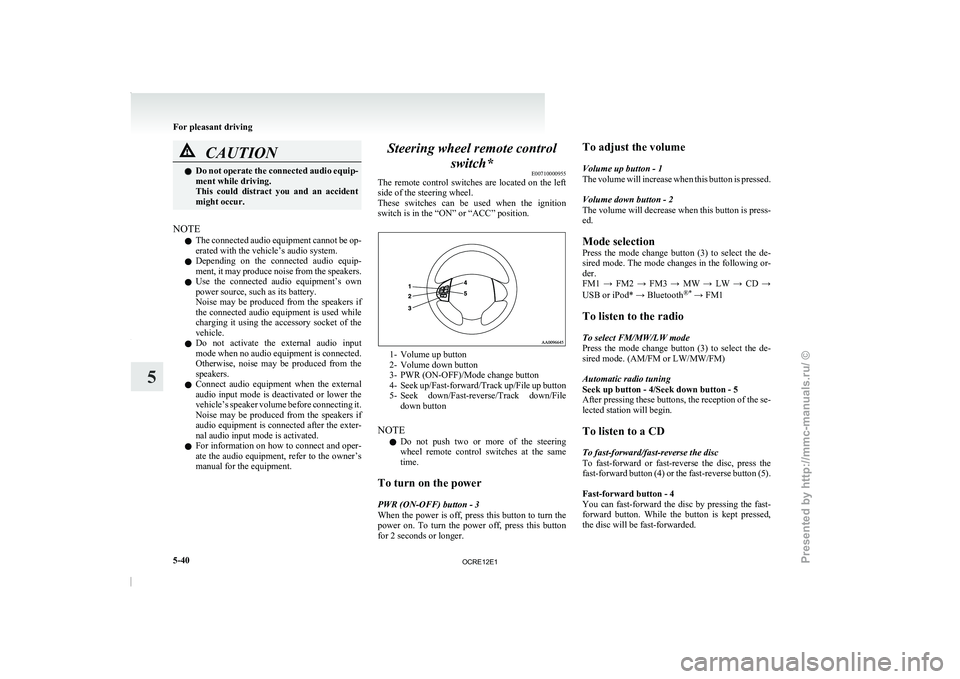
switch* E00710000955
The remote control switches are
located on the left
side of the steering wheel.
These switches can be used when the ignition
switch is in the “ON” or “ACC” position. 1- Volume up button
2-
Volume down button
3- PWR (ON-OFF)/Mode change button
4- Seek up/Fast-forward/Track
up/File up button
5- Seek down/Fast-reverse/Track down/File down button
NOTE l Do not push two or more of the steering
wheel remote control switches at the same
time.
To turn on the power
PWR (ON-OFF) button - 3
When the power is off, press this button to turn the
power on. To turn the power off, press this button
for 2 seconds or longer. To adjust the volume
Volume up button - 1
The volume will increase
when
this button is pressed.
Volume down button - 2
The volume will decrease when this button is press-
ed.
Mode selection
Press the mode change button (3) to select the de-
sired mode. The mode changes in the following or-
der.
FM1 → FM2 → FM3 → MW → LW → CD →
USB or iPod* → Bluetooth ®*
→ FM1
To listen to the radio
To select FM/MW/LW mode
Press the mode change button (3) to select the de-
sired mode. (AM/FM or LW/MW/FM)
Automatic radio tuning
Seek up button - 4/Seek down button - 5
After pressing these buttons, the reception of the se-
lected station will begin.
To listen to a CD
To fast-forward/fast-reverse the disc
To fast-forward or fast-reverse the disc, press the
fast-forward button (4) or the fast-reverse button (5).
Fast-forward button - 4
You can fast-forward the disc by pressing the fast-
forward button. While the button is kept pressed,
the disc will be fast-forwarded.
For pleasant driving
5-40
5
OCRE12E1
Presented by http://mmc-manuals.ru/ \251
Page 235 of 369
WARNING
l Although the Bluetooth ®
2.0 interface al-
lows you to make hands-free calls, if you
choose to use the cellular phone while driv-
ing, you must not allow yourself to be dis-
tracted from the safe operation of your ve-
hicle. Anything, including cellular phone
usage, that distracts you from the safe op-
eration of your vehicle increases your
risk of an accident.
l Refer to and comply with all state and lo-
cal laws in your area regarding cellular
phone usage while driving.
NOTE l The Bluetooth ®
2.0 interface cannot
be used
if the Bluetooth ®
device has a flat battery or
the device power is turned off.
l Hands-free calls will not be possible if your
phone does not have service available.
l If you place the Bluetooth ®
device in the car-
go area, you may not be able to use the Blue-
tooth ®
2.0 interface.
l Some Bluetooth ®
devices are not compatible
with the Bluetooth ®
2.0 interface.
l For details on the Bluetooth ®
2.0 interface,
you can see them by accessing the
MITSUBISHI MOTORS website.
Please read and agree on the “Warning about
Links to the Web Sites of Other Companies”
because it connects to other than
MITSUBISHI MOTORS website.
http://www.mitsubishi-motors.com/en/prod-
ucts/index.html
Steering control switch ® p. 5-52 Voice recognition function
® p. 5-53
Useful voice commands ® p. 5-53
Speaker enrollment function ® p. 5-54
Connecting the Bluetooth®
2.0 interface and Blue-
tooth® device ® p. 5-55
Operating a music player connected via Blue-
tooth® ® p. 5-58
How to make or receive hands-free
calls ® p. 5-58
Phone book function ® p. 5-60
Steering control switch E00727200223 1- Volume up button
2- Volume down button
3- SPEECH button
4- PICK-UP button
5-
HANG-UP button
Volume up button
Press this button to increase the volume.
Volume down button
Press this button to decrease the volume. SPEECH button
l Press
this button to
change
to voice recogni-
tion mode.
While the system is in voice recognition
mode, “Listening” will appear on the audio
display.
l If you press the button briefly while in voice
recognition mode, it will interrupt prompting
and allow voice command input.
Pressing the button longer will deactivate the
voice recognition mode.
l Pressing this button briefly during a call will
enable voice recognition and allow voice com-
mand input.
PICK-UP button l Press this button when an incoming call is re-
ceived to answer the telephone.
l When another call is received during a call,
press this button to put the first caller on
hold and talk to the new caller.
• In such circumstances, you can press thebutton briefly to switch between callers.
You will switch to the first caller and the
other caller will be put on hold.
• To establish a three-way call in such sit- uations, press the SPEECH button to en-
ter voice recognition mode and then say
“Join calls”.
HANG-UP button l Press this button when an incoming call is re-
ceived to refuse the call.
l Press this button during a call to end the cur-
rent call.
When another call is on hold, you will
switch to that call. For pleasant driving
5-52
5
OCRE12E1
Presented by http://mmc-manuals.ru/ \251
Page 236 of 369
l
If this button is
pressed in the voice recogni-
tion mode, the voice recognition mode will
be deactivated.
NOTE l When you press the SPEECH button to enter
voice recognition mode with a cellular phone
paired to the system, current information on
the cellular phone, such as “remaining bat-
tery life,” “signal strength” or “roaming,”
will be displayed on the audio display.*
*: Some cellular phones will not send this in-
formation to the Bluetooth ®
2.0 interface.
l Call waiting and three-way calls can be used
by the Bluetooth ®
2.0 interface, only if it is
possible to use those services with your cellu-
lar phone.
Voice recognition function E00727300471
The Bluetooth ®
2.0 interface is equipped
with a
voice recognition function.
Simply say voice commands and you can perform
various operations and make or receive hands-free
calls.
With the Bluetooth ®
2.0 interface, voice recogni-
tion is possible for English, French, Spanish, Ital-
ian, German, Dutch, Portuguese and Russian. The
factory setting is English. NOTE
l If
the voice command that
you say differs
from the predefined command or cannot be
recognised due to ambient noise or some oth-
er reason, the Bluetooth ®
2.0 interface will
ask you for the voice command again up to 3
times.
l For best performance and further reduction
of ambient noise, the vehicle windows
should be closed while engaging the voice rec-
ognition function.
l Depending on the selected language, some
functions may not be available.
Selecting the Language 1. Press the SPEECH button.
2. Say “Setup”.
3. Say “Language.”
4. The voice guide will say “Select a language:English, French, Spanish, Italian, German,
Dutch, Portuguese or Russian” Say the de-
sired language. (Example: Say “English.”)
5. The voice guide will say “English (French, Spanish, Italian, German, Dutch, Portuguese
or Russian) selected. Is this correct?” Say
“Yes.”
Answer “No” to return to Step 4.
NOTE l The voice guide will repeat the same mes-
sage twice. The first message is in the cur-
rent language, and the second message is in
the selected language.
l If many entries are registered in the vehicle
phone book, changing the language will take
longer. l
Changing the language deletes
the mobile
phone book imported to the Bluetooth ®
2.0
interface. If you wish to use it, you will have
to import it again.
6. When the voice guide says “English (French, Spanish, Italian, German, Dutch, Portuguese
or Russian) selected,” the language change
process will be completed and the system
will return to the main menu.
Useful voice commands E00760000019
Help function E00760100010
The Bluetooth ®
2.0 interface is equipped
with a
help function. If you say “Help” when the system
is waiting for a voice command input, the system
will tell you a list of the commands that can be
used under the circumstances.
Cancelling E00760200011
There are two cancel functions.
If you are
at the
main menu, say “Cancel” to exit
from the Bluetooth ®
2.0 interface.
If you are anywhere else within the system, say
“Cancel” to return to the main menu.
Confirmation function setting E00760400013
The Bluetooth ®
2.0 interface is equipped
with a con-
firmation function.
With the confirmation function activated, you are
given more opportunities than normal to confirm a
command when making various settings to the Blue-
tooth ®
2.0 interface. This allows you to decrease
the possibility that a setting is accidentally changed.
The confirmation function can be turned on or off
by following the steps below. For pleasant driving
5-53 5
OCRE12E1
Presented by http://mmc-manuals.ru/ \251
Page 237 of 369
1. Press the SPEECH button.
2. Say “Setup”.
3. Say “Confirmation prompts”.
4. The voice
guide will say “Confirmation
prompts are
confirmation prompts
Answer “Yes” to change the setting or an-
swer “No” to keep the current setting.
5. The voice guide will say “Confirmation prompts are
will return to the main menu.
Security function E00760500131
It is possible to use a password as a security func-
tion by setting a password
of your choice for the
Bluetooth ®
2.0 interface.
When the security function is turned on, it is neces-
sary to make a voice input of a 4-digit password in
order to use all functions of the Bluetooth ®
2.0 in-
terface, except for reception.
Setting the password
Use the following procedure to turn on the security
function by setting a password. 1. Press the SPEECH button.
2. Say “Setup”.
3. Say “Password.”
4. The voice guide will say “Password is disa-bled. Would you like to enable it?” Answer
“Yes.”
Answer “No” to cancel the setting of the pass-
word and return to the main menu.
5. The voice guide will say “Please say a 4-dig- it password. Remember this password. It will
be required to use this system”.
Say a 4-digit number which you want to set
as a password. 6. For confirmation purposes, the voice guide
will say “Password <4-digit
password>. Is
this correct?” Answer “Yes.”
Answer “No” to return to the password input
in Step 5.
7. When the registration of the password is com- pleted, the voice guide will say “Password is
enabled” and the system will return to the
main menu.
NOTE l Password will be required to access the sys-
tem after the next ignition cycle.
l It is required for a little time after engine
stop that the entered password is actually re-
corded in the system.
If the ignition switch is made to “ACC” or
“ON” or the engine is started immediately af-
ter engine stop, there is a case when the en-
tered password is not recorded in the system.
At this time, please try to enter the password
again.
Entering the password
If a password has been set and the security function
is enabled, the voice guide will say “Hands-free sys-
tem is locked. State the password to continue”
when the SPEECH button is pressed to enter voice
recognition mode. Say the 4-digit password num-
ber to enter the password.
If the entered password is wrong, the voice guide
will say “<4- digit password>, Incorrect password.
Please try again”. Enter the correct password.
NOTE l You can re-enter the password as many times
as you want. l
If
you have forgotten your password, say
“Cancel” to quit the voice input mode and
then check with a MITSUBISHI MOTORS
Authorized Service Point.
Disabling the password
Use the following procedure to turn off the security
function by disabling the password.
NOTE l System must be unlocked to disable the pass-
word.
1. Press the SPEECH button.
2. Say “Setup”.
3. Say “Password.”
4. The voice guide will say “Password is ena- bled. Would you like to disable it?”
Answer “Yes.” Answer “No” to cancel the
disabling of the password and return to the
main menu.
5. When the disabling of the password is com- pleted, the voice guide will say “Password is
disabled” and the system will return to the
main menu.
Speaker enrollment function E00727400209
The Bluetooth ®
2.0 interface can use
the speaker en-
rollment function to create a voice model for one
person per language.
This makes it easier for the Bluetooth ®
2.0 inter-
face to recognise voice commands said by you.
You can turn a voice model registered with the
speaker enrollment function on and off whenever
you want. For pleasant driving
5-54
5
OCRE12E1
Presented by http://mmc-manuals.ru/ \251
Page 238 of 369
Speaker enrollment
E00727500196
It takes about 2 to
3 minutes to complete the speak-
er enrollment process.
To ensure the best results, run through the process
while in the driver’s seat, in an environment that is
as quiet as possible (when there is no rain or strong
winds and the vehicle windows are closed). Please
turn off your phone while in speaker enrollment to
prevent interruption of the process.
Use the following procedure for speaker enrollment. 1. Stop your vehicle in a safe area, put the gear-shift lever in the “N” (Neutral) position
(M/T), or the selector lever in the “P”
(PARK) position (A/T), and pull the parking
brake lever.
NOTE l Speaker enrollment is not possible unless the
vehicle is parked. Make sure you park the ve-
hicle in a safe area before attempting speaker
enrollment.
2. Press the SPEECH button.
3. Say “Voice training”.
4. The voice guide will say “This operation must be performed in a quiet environment
while the vehicle is stopped. See the owner’s
manual for the list of required training phra-
ses. Press and release the SPEECH button
when you are ready to begin. Press the HANG-
UP button to cancel at any time”.
Press the SPEECH button to start the speaker
enrollment process. NOTE
l If
you do not start
the speaker enrollment proc-
ess within 3 minutes of pressing the
SPEECH button, the speaker enrollment func-
tion will time out.
The voice guide will say “Speaker Enroll-
ment has timed out”. The system will then
beep and the voice recognition mode will be
deactivated.
5. The voice guide will prompt for phrase 1. Re- peat the corresponding phrase listed in table
“Enrollment commands” on page 5-66.
The system will register your voice and then
move on to the registration of the next com-
mand. Continue the process until all phrases
have been registered.
NOTE l To repeat the most recent voice training com-
mand, press and release the SPEECH button.
l If you press the HANG-UP button anytime
during the process, the system will beep and
stop the speaker enrollment process.
6. When all enrollment commands have been read out, the voice guide will say “Speaker
enrollment is complete”. The system will
then end the speaker enrollment process and
return to the main menu.
NOTE l Completing the speaker enrollment process
will turn on the voice model automatically.
l The commands “Help” and “Cancel” will not
work in this mode. Enabling and disabling the voice model and re-
training
E00727600096
You can turn a voice
model registered with the
speaker enrollment function on and off whenever
you want.
You can also retrain the system.
Use the following procedure to perform these ac-
tions. 1. Press the SPEECH button.
2. Say “Voice training”.
3. If you have completed a speaker enrollmentprocess once already, the voice guide will
say either “Enrollment is enabled. Would
you like to disable or retrain?” or “Enroll-
ment is disabled. Would you like to enable
or retrain?”
4. When enrollment is “enabled”, the voice mod- el is on; when enrollment is “disabled”, the
voice model is off. Say the command that
fits your needs.
Say “Retrain” to start the speaker enrollment
process and recreate a new voice model. (Re-
fer to “Speaker enrollment” on page 5-55.)
Connecting the Bluetooth ®
2.0 inter-
face and Bluetooth ®
device
E00760600204
Before you can make or receive hands-free calls or
play music using the Bluetooth ®
2.0 interface func-
tion, you must pair the
Bluetooth®
device and Blue-
tooth ®
2.0 interface. For pleasant driving
5-55 5
OCRE12E1
Presented by http://mmc-manuals.ru/ \251
Page 242 of 369
“To make a call” on page 5-59
“SEND function” on page 5-60
“Receiving calls” on page 5-60
“MUTE function” on page 5-60
“Switching between hands-free
mode and private
mode” on page 5-60
NOTE
l The hands-free calls might not be operated
correctly when it makes calling or receiving
by operating the cellular phone directly.
To make a call E00761200122
You can make a call in the following 3 ways using
the Bluetooth ®
2.0 interface:
Making a call by saying
a telephone number, mak-
ing a call using the Bluetooth ®
2.0 interface’s
phone book, and making a call by redialing.
Making a call by using the telephone number
You can make a call by saying the telephone number. 1. Press the SPEECH button.
2. Say “Dial.”
3. After the voice guide says “Number please,”say the telephone number.
4. The voice guide will say “Dialing
2.0 interface
will then make the call.
When the confirmation function is on, the sys-
tem will confirm again the telephone num-
ber. To continue with that number, answer
“Yes.”
To change the telephone number, answer
“No.” The system will say “Number please”
then say the telephone number again. NOTE
l In
the case of English,
the system will recog-
nise both “zero” and “oh” (Letter “o”) for the
number “0.”
l The Bluetooth ®
2.0 interface supports num-
bers (0 to 9) and characters (+, # and *).
l The maximum supported telephone number
length is as follows:
• International telephone number: + and tel-ephone numbers (to 18 digits).
• Except for international telephone num- ber: telephone numbers (to 19 digits).
Making a call using a phone book
You can make calls using the vehicle phone book
or mobile phone book of the Bluetooth ®
2.0 inter-
face.
For details on the phone books, refer to “Phone
book function” on page 5-60. 1. Press the SPEECH button.
2. Say “Call.”
NOTE l If you say “Call” when the vehicle phone
book and the mobile phone book are empty,
the voice guide will say “The vehicle phone
book is empty. Would you like to add a new
entry now?”
Answer “Yes,” and the voice guide will say
“Entering the phone book - new entry
menu.” You can now create data in the vehi-
cle phone book.
Answer “No,” to return to the main menu.
3. After the voice guide says “Name please,” say the name you want to call, from those reg-
istered in the phone book.
4. If there is only 1 match, the system will pro- ceed to Step 5. If there are 2 or more match- es, the voice guide will say “More than one
match was found, would
you
like to call
want to call, answer “Yes.”
Answer “No,” and the name of the next match-
ing person will be uttered by the voice guide.
NOTE l If you say “No” to all names read by the sys-
tem, the voice guide will say “Name not
found, returning to main menu” and the sys-
tem will return to the main menu.
5. If only one telephone number is registered un- der the name you just said, the voice guide
proceeds to Step 6.
If two or more telephone numbers are regis-
tered that match the name you just said, the
voice guide will say “Would you like to call
er]?” Select the location to call.
NOTE l If the name you selected has matching data
in the vehicle phone book but no telephone
number is registered under the selected loca-
tion, the voice guide will say “{home/work/
mobile/other} not found for
you like to add location or try again?”
Say “Try again,” and the system will return
to Step 3.
Say “Add location” and you can register an
additional telephone number under the selec-
ted location. For pleasant driving
5-59 5
OCRE12E1
Presented by http://mmc-manuals.ru/ \251
Page 243 of 369
l
If the name you
selected has matching data
in the mobile phone book but no telephone
number is registered under the selected loca-
tion, the voice guide will say “{home/work/
mobile/other} not found for
you like to try again?”
Answer “Yes,” and the system will return to
Step 3.
Answer “No,” and the call will be cancelled.
Start over again from Step 1.
6. The voice guide will say “Calling
telephone number.
NOTE l When the confirmation function is on, the sys-
tem will ask if the name and location of the
receiver are correct.
If the name is correct, answer “Yes.”
To change the name or location to call, an-
swer “No.” The system will return to Step 3.
Redialing
You can redial the last number called, based on the
history of dialed calls in the paired cellular phone.
Use the following procedure to redial. 1. Press the SPEECH button.
2. Say “Redial.”
SEND function E00761300035
During a call, press the SPEECH button to enter
voice recognition mode, then say
“
SEND” to generate DTMF tones. For example, if during a call you need to simulate
the press of a
phone
button as a response to an auto-
mated system, press the SPEECH button and speak
“1 2 3 4 pound SEND” and the 1234# will be sent
on your cellular phone.
Receiving calls E00761600012
If an incoming phone call is received while the ig-
nition switch is in the “ACC” or “ON” position, the
audio system will be automatically
turned on and
switched to the incoming call, even when the audio
system was originally off.
The voice guide announcement for the incoming
call will be output from the front passenger’s seat
speaker.
If the CD player or radio was playing when the in-
coming call was received, the audio system will
mute the sound from the CD player or radio and out-
put only the incoming call.
To receive the call, press the PICK-UP button on
the steering wheel control switch.
When the call is over, the audio system will return
to its previous state.
MUTE function E00760300041
At any time during a call, you can mute the vehicle
microphone.
Pressing the SPEECH button and
then saying
“Mute” during a call will turn ON the MUTE func-
tion and mute the microphone.
Saying “Mute off” in the same way will turn off
the MUTE function and cancel the mute on the mi-
crophone. Switching between hands-free mode and private
mode
E00761400036
The Bluetooth ®
2.0 interface can
switch between
Hands-free mode (Hands-free calls) and private
mode (calls using cellular phone).
If you press the SPEECH button and say “Transfer
call” during a Hands-free call, you can stop the
Hands-free mode and talk in private mode.
To return to Hands-free mode, press the SPEECH
button again and say “Transfer call”.
Phone book function E00763700017
The Bluetooth ®
2.0 interface has 2
types of unique
phone books that are different from the phone book
stored in the cellular phone. They are the vehicle
phone book and the mobile phone book.
These phone books are used to register telephone
numbers and to make calls to desired numbers via
the voice recognition function.
NOTE
l Disconnecting the battery cable will not de-
lete information registered in the phone book.
Vehicle phone book E00763800177
This phone book is used when making calls with
the voice recognition function.
Up to 32 names can
be registered in the vehicle
phone book per language.
Also, each entry has 4 locations associated with:
home, work, mobile and other. You can register
one telephone number for each location.
You can register a desired name as a name for any
phone book entry registered in the vehicle phone
book. For pleasant driving
5-60
5
OCRE12E1
Presented by http://mmc-manuals.ru/ \251
Page 251 of 369
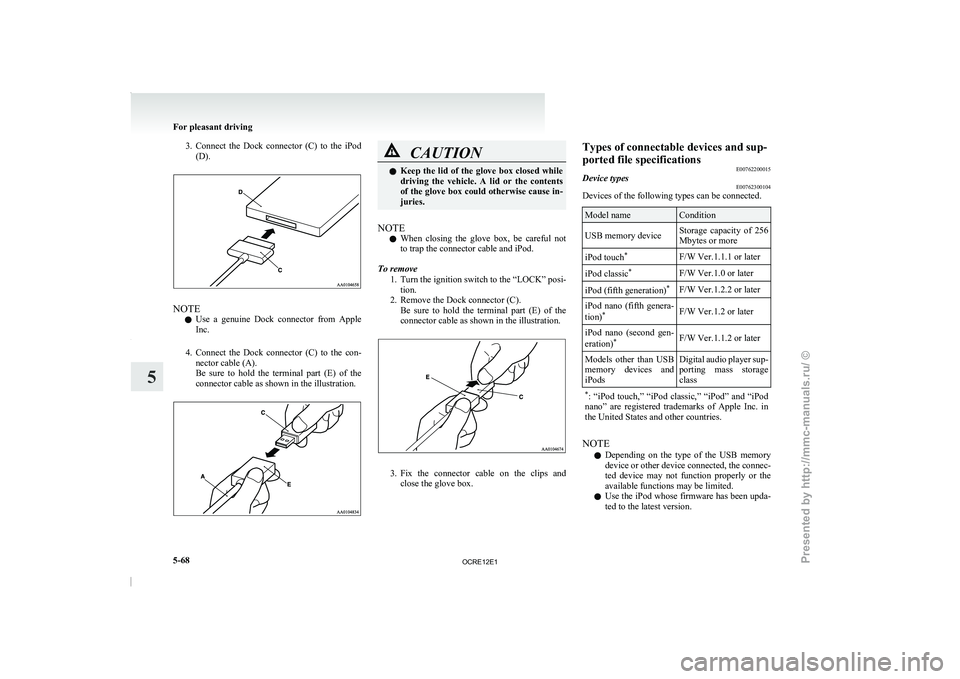
3. Connect the Dock connector (C) to the iPod
(D). NOTE
l Use
a genuine Dock connector
from Apple
Inc.
4. Connect the Dock connector (C) to the con- nector cable (A).
Be sure to hold the terminal part (E) of the
connector cable as shown in the illustration. CAUTION
l
Keep the lid of the
glove box closed while
driving the vehicle. A lid or the contents
of the glove box could otherwise cause in-
juries.
NOTE l When
closing the glove box,
be careful not
to trap the connector cable and iPod.
To remove 1. Turn the ignition switch to the “LOCK” posi-tion.
2. Remove the Dock connector (C). Be sure to hold the terminal part (E) of the
connector cable as shown in the illustration. 3. Fix the connector cable on the clips and
close the glove box. Types of connectable devices and sup-
ported file specifications
E00762200015
Device types E00762300104
Devices of the following types can be connected. Model name Condition
USB memory device Storage capacity of 256
Mbytes or more
iPod touch *
F/W Ver.1.1.1 or later
iPod classic *
F/W Ver.1.0 or later
iPod (fifth generation) *
F/W Ver.1.2.2 or later
iPod nano (fifth genera-
tion) *
F/W Ver.1.2 or later
iPod nano (second gen-
eration) *
F/W Ver.1.1.2 or later
Models other than USB
memory devices and
iPods Digital audio
player
sup-
porting mass storage
class
* : “iPod touch,” “iPod classic,”
“iPod” and “iPod
nano” are registered trademarks of Apple Inc. in
the United States and other countries. NOTE
l Depending
on the
type of
the USB memory
device or other device connected, the connec-
ted device may not function properly or the
available functions may be limited.
l Use the iPod whose firmware has been upda-
ted to the latest version. For pleasant driving
5-68
5
OCRE12E1
Presented by http://mmc-manuals.ru/ \251