language NISSAN 370Z 2018 Owner´s Manual
[x] Cancel search | Manufacturer: NISSAN, Model Year: 2018, Model line: 370Z, Model: NISSAN 370Z 2018Pages: 453, PDF Size: 2.19 MB
Page 98 of 453
2-28Instruments and controls
ALERT:
Alert menu can be set to notify the
following items.
.UPSHIFT
Select this submenu to set the engine
speed (RPM) of the upshift indicator.
See “Upshift indicator” (P.5-20) (MT
models) or “Manual shift mode” (P.5-
14) (AT models).
. TIMER
Select this submenu to specify when
the “TIMER” indicator activates.
. ICY
Select this submenu to display the low
outside temperature warning.
To return to the top page of the setting
mode, select “BACK”.
MAINTENANCE:
The maintenance intervals of the follow-
ing items can be set or reset for the
reminders.
. OIL
Select this submenu to set or reset the
distance for changing the engine oil.
. FILTER
Select this submenu to set or reset the
distance for replacing the oil filter.
. TIRE
Select this submenu to set or reset the
distance for replacing tires. .
OTHER
Select this submenu and set or reset
the distance for replacing items other
than the engine oil, oil filter and tires.
To return to the top page of the setting
mode, select “BACK”.
OPTIONS:
The 3 option menus can be set to your
preference.
. LANGUAGE
Select this submenu to choose English
or French for display.
. UNIT
Select this submenu to choose the
unit from US or METRIC.
. EFFECTS
Select this menu to set the dial effects
described below to on or off.
— The indicator needles sweep in the
meters when the engine is started.
To return to the top page of the setting
mode, select “BACK”.
SIC3993
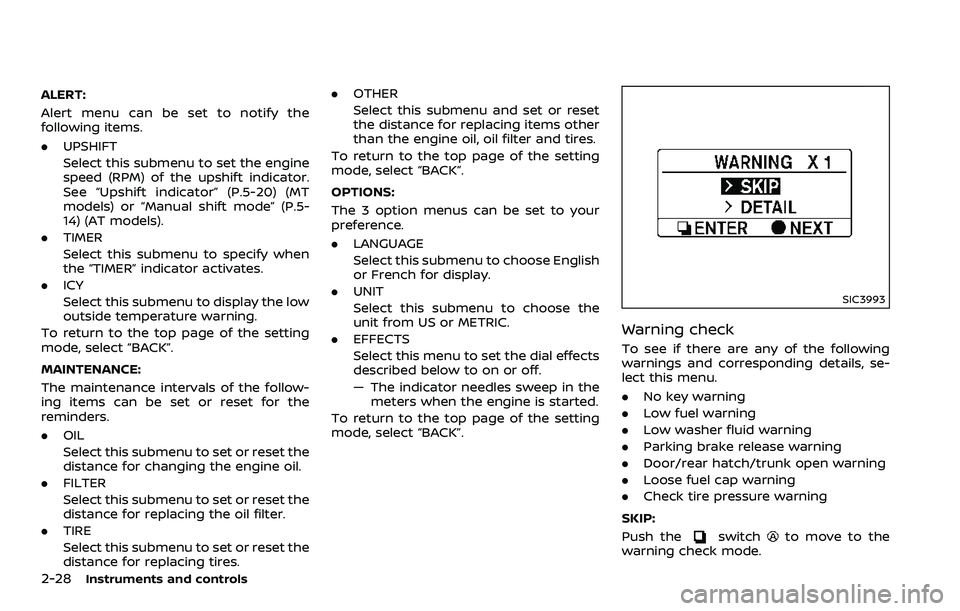
Warning check
To see if there are any of the following
warnings and corresponding details, se-
lect this menu.
. No key warning
. Low fuel warning
. Low washer fluid warning
. Parking brake release warning
. Door/rear hatch/trunk open warning
. Loose fuel cap warning
. Check tire pressure warning
SKIP:
Push the
switchto move to the
warning check mode.
Page 182 of 453
4-14Center display, heater, air conditioner, audio, phone and voice recognition systems
SAA2487
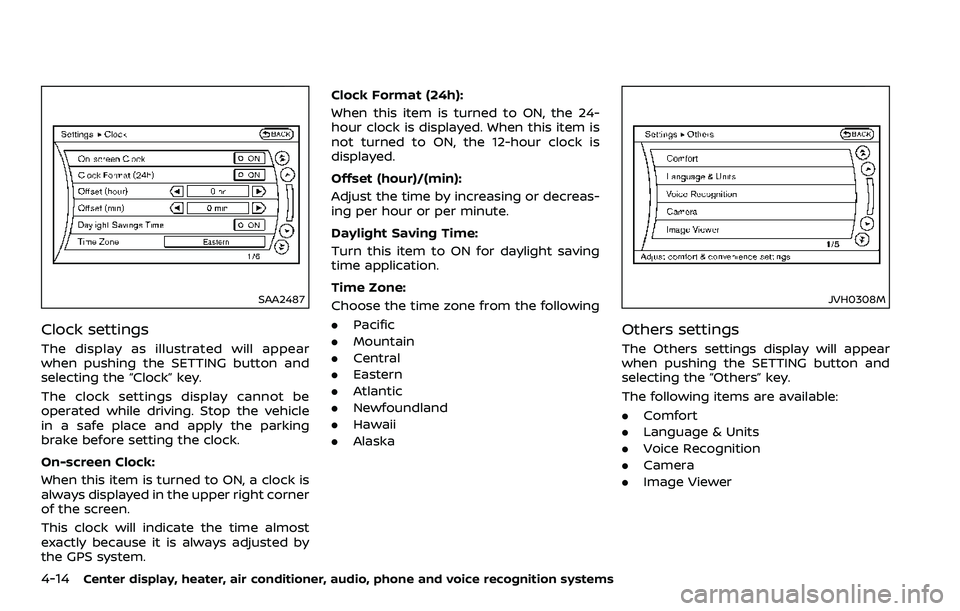
Clock settings
The display as illustrated will appear
when pushing the SETTING button and
selecting the “Clock” key.
The clock settings display cannot be
operated while driving. Stop the vehicle
in a safe place and apply the parking
brake before setting the clock.
On-screen Clock:
When this item is turned to ON, a clock is
always displayed in the upper right corner
of the screen.
This clock will indicate the time almost
exactly because it is always adjusted by
the GPS system.Clock Format (24h):
When this item is turned to ON, the 24-
hour clock is displayed. When this item is
not turned to ON, the 12-hour clock is
displayed.
Offset (hour)/(min):
Adjust the time by increasing or decreas-
ing per hour or per minute.
Daylight Saving Time:
Turn this item to ON for daylight saving
time application.
Time Zone:
Choose the time zone from the following
. Pacific
. Mountain
. Central
. Eastern
. Atlantic
. Newfoundland
. Hawaii
. Alaska
JVH0308M
Others settings
The Others settings display will appear
when pushing the SETTING button and
selecting the “Others” key.
The following items are available:
.Comfort
. Language & Units
. Voice Recognition
. Camera
. Image Viewer
Page 183 of 453
SAA2488
Example
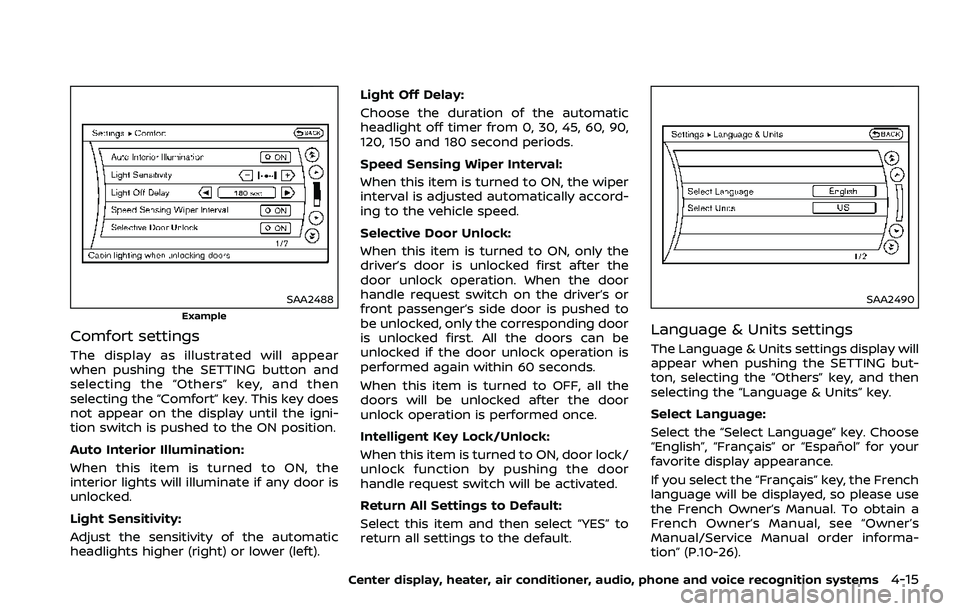
Comfort settings
The display as illustrated will appear
when pushing the SETTING button and
selecting the “Others” key, and then
selecting the “Comfort” key. This key does
not appear on the display until the igni-
tion switch is pushed to the ON position.
Auto Interior Illumination:
When this item is turned to ON, the
interior lights will illuminate if any door is
unlocked.
Light Sensitivity:
Adjust the sensitivity of the automatic
headlights higher (right) or lower (left).Light Off Delay:
Choose the duration of the automatic
headlight off timer from 0, 30, 45, 60, 90,
120, 150 and 180 second periods.
Speed Sensing Wiper Interval:
When this item is turned to ON, the wiper
interval is adjusted automatically accord-
ing to the vehicle speed.
Selective Door Unlock:
When this item is turned to ON, only the
driver’s door is unlocked first after the
door unlock operation. When the door
handle request switch on the driver’s or
front passenger’s side door is pushed to
be unlocked, only the corresponding door
is unlocked first. All the doors can be
unlocked if the door unlock operation is
performed again within 60 seconds.
When this item is turned to OFF, all the
doors will be unlocked after the door
unlock operation is performed once.
Intelligent Key Lock/Unlock:
When this item is turned to ON, door lock/
unlock function by pushing the door
handle request switch will be activated.
Return All Settings to Default:
Select this item and then select “YES” to
return all settings to the default.
SAA2490
Language & Units settings
The Language & Units settings display will
appear when pushing the SETTING but-
ton, selecting the “Others” key, and then
selecting the “Language & Units” key.
Select Language:
Select the “Select Language” key. Choose
“English”, “Français” or “Español” for your
favorite display appearance.
If you select the “Français” key, the French
language will be displayed, so please use
the French Owner’s Manual. To obtain a
French Owner’s Manual, see “Owner’s
Manual/Service Manual order informa-
tion” (P.10-26).
Center display, heater, air conditioner, audio, phone and voice recognition systems4-15
Page 203 of 453
CAUTION
.Do not force the USB device into
the USB connection port. Insert-
ing the USB device tilted or up-
side-down into the port may da-
mage the port. Make sure that
the USB device is connected cor-
rectly into the USB connection
port.
. Do not grab the USB connection
port cover (if so equipped) when
pulling the USB device out of the
port. This could damage the port
and the cover.
. Do not leave the USB cable in a
place where it can be pulled
unintentionally. Pulling the cable
may damage the port.
The vehicle is not equipped with a USB
device. USB devices should be purchased
separately as necessary.
This system cannot be used to format
USB devices. To format a USB device, use
a personal computer.
In some states/area, the USB device for
the front seats plays only sound without
images for regulatory reasons, even when
the vehicle is parked. This system supports various USB mem-
ory devices, USB hard drives and iPod®
players. Some USB devices may not be
supported by this system.
.
Partitioned USB devices may not be
played correctly.
. Some characters used in other lan-
guages (Chinese, Japanese, etc.) may
not appear properly in the display.
Using English language characters
with a USB device is recommended.
General notes for USB use:
Refer to your device manufacturer’s own-
er information regarding the proper use
and care of the device.
Notes for iPod® use:
“Made for iPod®”, “Made for iPhone®”, and
“Made for iPad®” mean that an electronic
accessory has been designed to connect
specifically to iPod®, iPhone®, or iPad®,
respectively, and has been certified by the
developer to meet Apple performance
standards.
Apple is not responsible for the operation
of this device or its compliance with
safety and regulatory standards.
Please note that the use of this accessory
with iPod®, iPhone®, or iPad® may affect
wireless performance.
iPad®, iPhone®, iPod®, iPod classic®, iPod
nano®, iPod shuffle®, and iPod touch® are trademarks of Apple Inc., registered in the
U.S. and other countries. Lightning is a
trademark of Apple Inc.
.
Improperly plugging in the iPod® may
cause a checkmark to be displayed on
and off (flickering). Always make sure
that the iPod® is connected properly.
. An iPod nano® (1st Generation) may
remain in fast forward or rewind mode
if it is connected during a seek opera-
tion. In this case, please manually
reset the iPod®.
. An iPod nano® (2nd Generation) will
continue to fast-forward or rewind if it
is disconnected during a seek opera-
tion.
. An incorrect song title may appear
when the Play Mode is changed while
using an iPod nano® (2nd Generation)
. Audiobooks may not play in the same
order as they appear on an iPod®.
. Large video files cause slow responses
in an iPod®. The vehicle center display
may momentarily black out, but will
soon recover.
. If an iPod® automatically selects large
video files while in the shuffle mode,
the vehicle center display may mo-
mentarily black out, but will soon
recover.
Center display, heater, air conditioner, audio, phone and voice recognition systems4-35
Page 212 of 453
4-44Center display, heater, air conditioner, audio, phone and voice recognition systems
SETUP button:
To configure Audio, Clock, Language or
Scroll direction settings, perform the
following procedure:
1. Push the SETUP button.
2. Push the ENTER button.
3. Turn the TUNE/MENU knob clockwiseor counterclockwise, the display will
appear in the following order:
Audio œClock œLanguage œScroll
Direction
After the desired levels have been set,
push either the back button repeatedly,
the SETUP button, or wait for 8 seconds
without pushing any buttons to exit the
menu screen.
Audio adjustments:
Push the SETUP button to enter the setup
menu screen then select Audio by using
TUNE/MENU knob.
Each time the ENTER button is pushed,
the mode will change as follows:
Bass ?Treble ?Fade ?Balance ?AUX
VOL ?SPD VOL ?Audio (setup menu
screen)
Turn the TUNE/MENU knob clockwise or
counterclockwise to adjust the following
items and push the ENTER button to
confirm. Bass control:
Use this control to enhance or attenuate
bass response sound.
Treble control:
Use this control to enhance or attenuate
the treble.
Fade control:
Use this control to adjust the balance of
the volume between the front and rear (if
so equipped) speakers.
Balance control:
Use this control to adjust the balance of
the volume between the left and right
speakers.
AUX VOL (Auxiliary volume) control:
Use this control to adjust the volume
output from the auxiliary source.
SPD VOL (Speed volume) control:
This mode controls the volume output
from the speakers automatically in rela-
tion to vehicle speed.
Adjusting the setting to 0 (zero) turns off
the speed volume feature.
Clock setting:
Push the SETUP button to enter the setup
menu screen then select Clock.
Turn the TUNE/MENU knob, the mode will
change as follows: Set Time
œON/OFF œClock Format œ
Set time
Set Time:
Select Set Time then adjust the clock as
follows:
1. The hour display will start flashing. Turn the TUNE/MENU knob to adjust
the hour and push the ENTER button.
2. The minute display will start flashing. Turn the TUNE/MENU knob to adjust
the minute and push the ENTER
button to finish the clock adjustment.
ON/OFF:
Set the clock display between on or off
when the audio unit is turned off. If set in
the ON position, the clock will be dis-
played when the audio unit is turned off
either by pushing the power button or
when the ignition switch is placed in the
“OFF” position.
Clock Format:
Switch the clock display between 24-hour
mode and 12-hour clock mode.
Language setting:
Push the SETUP button to enter the setup
menu screen then select Language.
Select the appropriate language and
push the ENTER button. Upon completion,
the screen will automatically adapt the
Page 213 of 453
language setting.
Scroll direction:
Set the scrolling behavior of the TUNE/
MENU knob to scroll UP or DOWN.
FM·AM radio operation
The audio system operates when the
ignition switch is in the “ACC” or “ON”
position.
FM·AM button:
When the FM·AM button is pushed while
the audio system is off, the audio system
will turn on and the radio will turn on.
When the FM·AM button is pushed while
another audio source is already operat-
ing, it will automatically turn off, and the
radio will turn on.
To change the radio bands, push the
FM·AM button until the desired band
appears.
AM ?FM 1 ?FM 2 ?AM
TUNE/MENU knob:
When adjusting the broadcasting station
frequency manually, turn the TUNE/MENU
knob until the preferred frequency is
achieved.
Seek tuning button:
When adjusting the broadcasting station
frequency automatically, push the
button. When the system detects a
broadcasting station, it will stop at the
station.
Radio memory buttons:
During radio reception, pushing the radio
memory button for less than 2 seconds
will select the stored radio station.
The audio system can store up to 12 FM
station frequencies (six in each of FM 1and
FM 2) and 6 AM station frequencies.
To store the station frequency manually:
1. Tune to the desired broadcasting station frequency by using the
button.
2. Push and hold a radio memory button
-until a beep sounds. (The radio
mutes when the radio memory button
is pushed.)
3. The channel indicator will display and the radio mute disengages, indicating
that the memory is stored properly.
4. Perform steps 1 - 3 for all other memory buttons.
If the battery cable is disconnected, or if
the audio fuse blows, the radio memory
will be erased. In such a case, reset the desired stations.
SCAN button:
Push the SCAN button to tune from low
to high frequencies and stops at each
broadcasting station for 5 seconds. Push-
ing the SCAN button again during this 5
seconds period will stop SCAN tuning and
the radio will remain tuned to that
station.
If the SCAN button is not pushed within 5
seconds, SCAN tuning moves to the next
station.
CD player operation
The audio system operates when the
ignition switch is in the “ACC” or “ON”
position.
Loading:
Insert a CD into the slot with the label side
facing up. The CD will be guided auto-
matically into the slot and will start
playing. After loading the CD, the number
of tracks and the playtime will appear on
the display.
CAUTION
Do not force the CD into the slot. This
could damage the player.
Center display, heater, air conditioner, audio, phone and voice recognition systems4-45
Page 226 of 453
4-58Center display, heater, air conditioner, audio, phone and voice recognition systems
: Move the cursor to select a DVDmenu.
Enter: Enter the selected menu.
Move: Change the display location by mov- ing the operation key.
Back: Return to the previous screen.
Hide: Hide the operation key.
Title Menu (DVD-VIDEO):
Some menus specific to each disc will be
shown. For details, see the instructions on
the disc.
Title Search (DVD-VIDEO, DVD-VR):
The scene with the specified title will be
displayed each time the “+” side or “−” side
is selected.
Group Search (VIDEO CD):
A scene in the specified group will be
displayed each time the “+” side or “−” side
is selected.
10 Key Search (DVD-VIDEO, VIDEO-CD,
CD-DA, DVD-VR):
Select the “10 Key Search” key to open the
number entry screen. Input the number
to be searched and select the “OK” key.
The specified Title/Chapter or Group/
Track will be played.
Select No. (VIDEO-CD):
Select the “Select No.” key to open the
number entry screen. Input the number to be searched and select the “OK” key.
The specified scene will be played.
Angle (DVD-VIDEO):
If the DVD contains different angles (such
as moving images), the current image
angle can be switched to another one.
Select the “Angle” key. The angle will
change each time the “+” side or “−” side
is selected.
Angle Mark (DVD-VIDEO):
When this item is turned on, an angle
mark will be shown on the bottom of the
screen if the scene can be seen from a
different angle.
Menu Skip (DVD-VIDEO):
DVD menus are automatically configured
and the contents will be played directly
when the “Menu Skip” key is turned on.
Note that some discs may not be played
directly even if this item is turned on.
CM Skip (DVD-VIDEO):
Select the “CM Skip” key. Choose the
setting time from 15, 30 or 60 seconds
by selecting the “+” side or “−” side.
DRC (DVD-VIDEO, DVD-VR):
DRC (Dynamic Range Compression) auto-
matically adjusts the soundtrack volume
level to maintain a more even sound to
the speakers. DVD Language (DVD-VIDEO, VIDEO-CD):
Select the “DVD Language” key to open
the number entry screen. Input the num-
ber corresponding to the preferred lan-
guage and select the “OK” key. The DVD
top menu language will be changed to
the one specified.
Display:
To adjust the image quality of the screen,
select the preferred adjustment items.
Audio:
Select the preferred language for audio.
Subtitle (DVD-VIDEO, DVD-VR):
Select the preferred language for sub-
titles.
Display Mode (DVD-VIDEO, VIDEO-CD,
DVD-VR):
Select from the “Full”, “Wide”, “Normal” or
“Cinema” modes.
Title List (DVD-VR):
Select the preferred title from the list.
Play Mode:
Select the preferred play mode.
PG/PL Mode (DVD-VR):
Select the “PG” or “PL” mode.
Page 231 of 453
SAA2504
Example
Settings:
Select the “Settings” key to adjust the
following settings.
.Audio File Playback
Switch to the audio playback mode.
This item is displayed only when the
USB memory contains the audio files.
. Play Mode
Select the “Normal” or “1 Track Repeat”
play mode.
. 10 Key Search
Select the “10 Key Search” key to open
the number entry screen.
Input the number to be searched and
select the “OK” key. The specified folder/file will be played.
. Display
To adjust the image quality of the
screen, select the preferred adjust-
ment items.
. DRC
DRC (Dynamic Range Compression)
automatically adjusts the soundtrack
volume level to maintain a more even
sound to the speakers.
. Audio
Select the preferred language for
audio.
. Subtitle
Select the preferred language for
subtitle.
. Display Mode
Select the “Normal”, “Wide”, “Cinema” or
“Full” mode.
Bluetooth® STREAMING AUDIO
(models with navigation system)
Your NISSAN is equipped with Bluetooth®
Streaming Audio. If you have a compati-
ble Bluetooth® device with streaming
audio (A2DP profile), you can set up the
wireless connection between your Blue-
tooth® device and the in-vehicle audio
system. This connection allows you to
listen to the audio from the Bluetooth®
device using your vehicle speakers. It also
may allow basic control of the device for playing and skipping audio files using the
AVRCP Bluetooth® profile. All Bluetooth®
Devices do not have the same level of
controls for AVRCP. Please consult the
manual for your Bluetooth® Device for
more details.
Once your Bluetooth® device is con-
nected to the in-vehicle audio system, it
will automatically reconnect whenever
the device is present in the vehicle and
you select Bluetooth® Audio from your
audio system. You do not need to manu-
ally reconnect for each usage.
Wireless LAN (Wi-Fi) and the Bluetooth®
functions share the same frequency band
(2.4 GHz). Using the Bluetooth® and the
wireless LAN functions at the same time
may slow down or disconnect the com-
munication and cause undesired noise. It
is recommended that you turn off the
wireless LAN (Wi-Fi) when using the Blue-
tooth® functions.
Center display, heater, air conditioner, audio, phone and voice recognition systems4-63
Page 258 of 453
4-90Center display, heater, air conditioner, audio, phone and voice recognition systems
.When you speak numbers, you can
speak both “zero” or “oh” for “0”.
Manual command selection
Commands can be selected manually.
While the commands are displayed on
the audio screen, select a command by
operating the audio tuning switch, and
then push the
button. Once a com-
mand is manually selected, the voice
command function is cancelled. To return
to voice command mode, push the
button to cancel the current operation,
and then perform the first procedure of
voice command.
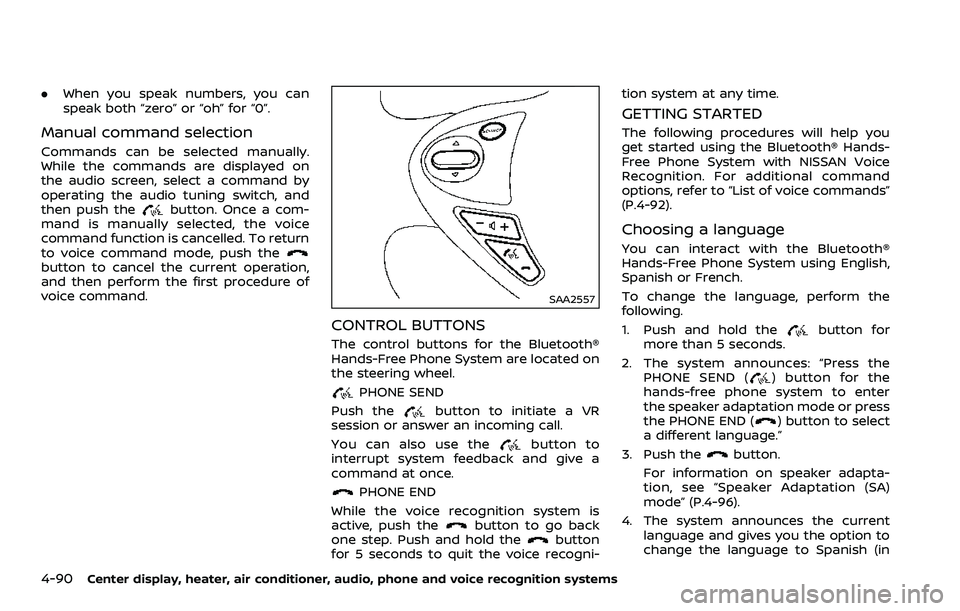
SAA2557
CONTROL BUTTONS
The control buttons for the Bluetooth®
Hands-Free Phone System are located on
the steering wheel.
PHONE SEND
Push the
button to initiate a VR
session or answer an incoming call.
You can also use the
button to
interrupt system feedback and give a
command at once.
PHONE END
While the voice recognition system is
active, push the
button to go back
one step. Push and hold thebutton
for 5 seconds to quit the voice recogni- tion system at any time.
GETTING STARTED
The following procedures will help you
get started using the Bluetooth® Hands-
Free Phone System with NISSAN Voice
Recognition. For additional command
options, refer to “List of voice commands”
(P.4-92).
Choosing a language
You can interact with the Bluetooth®
Hands-Free Phone System using English,
Spanish or French.
To change the language, perform the
following.
1. Push and hold the
button for
more than 5 seconds.
2. The system announces: “Press the PHONE SEND (
) button for the
hands-free phone system to enter
the speaker adaptation mode or press
the PHONE END (
) button to select
a different language.”
3. Push the
button.
For information on speaker adapta-
tion, see “Speaker Adaptation (SA)
mode” (P.4-96).
4. The system announces the current language and gives you the option to
change the language to Spanish (in
Page 259 of 453
Spanish) or French (in French). Use the
following chart to select the language.
NOTE:
You must push the
button or thebutton within 5 seconds to
change the language.
Current lan-
guage Push(TALK/PHONE
SEND) to select Push(MODE/
PHONE END) to select
English Spanish French
Spanish English French
French English Spanish
5. If you decide not to change the
language, do not push either button.
After 5 seconds, the VR session will
end, and the language will not be
changed.
Connecting procedure
NOTE:
The connecting procedure must be
performed when the vehicle is station-
ary. If the vehicle starts moving during
the procedure, the procedure will be
cancelled.
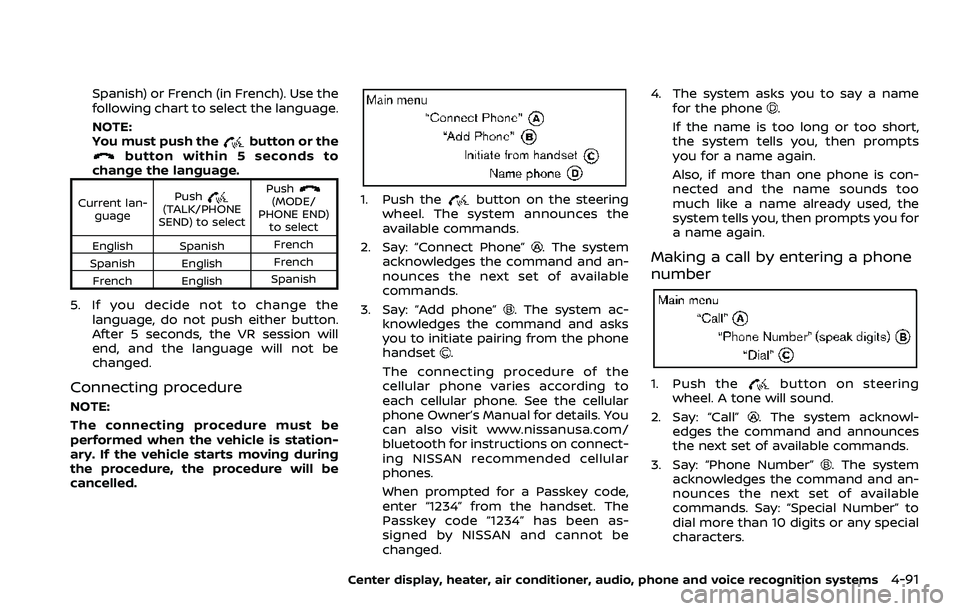
1. Push thebutton on the steering
wheel. The system announces the
available commands.
2. Say: “Connect Phone”
. The system
acknowledges the command and an-
nounces the next set of available
commands.
3. Say: “Add phone”
. The system ac-
knowledges the command and asks
you to initiate pairing from the phone
handset
.
The connecting procedure of the
cellular phone varies according to
each cellular phone. See the cellular
phone Owner’s Manual for details. You
can also visit www.nissanusa.com/
bluetooth for instructions on connect-
ing NISSAN recommended cellular
phones.
When prompted for a Passkey code,
enter “1234” from the handset. The
Passkey code “1234” has been as-
signed by NISSAN and cannot be
changed. 4. The system asks you to say a name
for the phone
.
If the name is too long or too short,
the system tells you, then prompts
you for a name again.
Also, if more than one phone is con-
nected and the name sounds too
much like a name already used, the
system tells you, then prompts you for
a name again.
Making a call by entering a phone
number
1. Push thebutton on steering
wheel. A tone will sound.
2. Say: “Call”
. The system acknowl-
edges the command and announces
the next set of available commands.
3. Say: “Phone Number”
. The system
acknowledges the command and an-
nounces the next set of available
commands. Say: “Special Number” to
dial more than 10 digits or any special
characters.
Center display, heater, air conditioner, audio, phone and voice recognition systems4-91