steering NISSAN 370Z 2019 Owner´s Manual
[x] Cancel search | Manufacturer: NISSAN, Model Year: 2019, Model line: 370Z, Model: NISSAN 370Z 2019Pages: 460, PDF Size: 2.26 MB
Page 125 of 460

3 Pre-driving checks and adjustments
Keys ........................................................................\
................................. 3-3Intelligent Key ........................................................................\
... 3-3
Valet hand-off ........................................................................\
... 3-4
Doors ........................................................................\
.............................. 3-5 Locking with mechanical key ...................................... 3-5
Opening and closing windows with the
mechanical key ........................................................................\
3-5
Locking with inside lock knob ..................................... 3-6
Locking with power door lock switch ................... 3-6
Automatic door locks ......................................................... 3-6
Intelligent Key system .............................................................. 3-7 Intelligent Key operating range ................................ 3-9
Door locks/unlocks precaution ................................ 3-9
Intelligent Key operation .............................................. 3-10
Battery saver system ....................................................... 3-12
Warning signals .................................................................... 3-12
Troubleshooting guide ................................................... 3-13
Remote keyless entry system ......................................... 3-14 How to use remote keyless entry system ...... 3-14
Hood ........................................................................\
............................. 3-17
Rear hatch (Coupe models) .............................................. 3-18 Rear hatch opener switch ........................................... 3-18
Rear hatch release switch ........................................... 3-19
Secondary rear hatch release .................................. 3-20 Trunk lid (Roadster models) ............................................. 3-20
Trunk lid opener switch .............................................. 3-21
Trunk release power cancel switch .................. 3-21
Interior trunk lid release ............................................. 3-21
Secondary trunk lid release ..................................... 3-22
Soft top (Roadster models) .............................................. 3-23
Before operating the top ........................................... 3-23
When operating the top ............................................. 3-25
Opening the top ................................................................ 3-27
Closing the top ................................................................... 3-27
Opening the top using the
Intelligent Key ...................................................................... 3-28
Troubleshooting guide ................................................ 3-29
If the top does not open or
close electrically ................................................................ 3-30
Care of the soft top and the
vehicle body ........................................................................\
.. 3-33
Front, side and rear unique parts
(NISMO models) ........................................................................\
.. 3-34
Fuel-filler door ........................................................................\
..... 3-35
Opening the fuel-filler door ...................................... 3-35
Fuel-filler cap ....................................................................... 3-36
Tilt steering ........................................................................\
............ 3-38
Manual operation ............................................................. 3-38
Page 162 of 460
3-38Pre-driving checks and adjustments
WARNING
.Do not adjust the steering wheel
while driving. You could lose con-
trol of your vehicle and cause an
accident.
. Do not adjust the steering wheel
any closer to you than is neces-
sary for proper steering opera-
tion and comfort. The driver’s air
bag inflates with great force. If
you are unrestrained, leaning for-
ward, sitting sideways or out of
position in any way, you are at
greater risk of injury or death in a
crash. You may also receive ser-
ious or fatal injuries from the air
bag if you are up against it when
it inflates. Always sit back against
the seatback and as far away as
practical from the steering wheel.
Always use the seat belts.
SPA2583
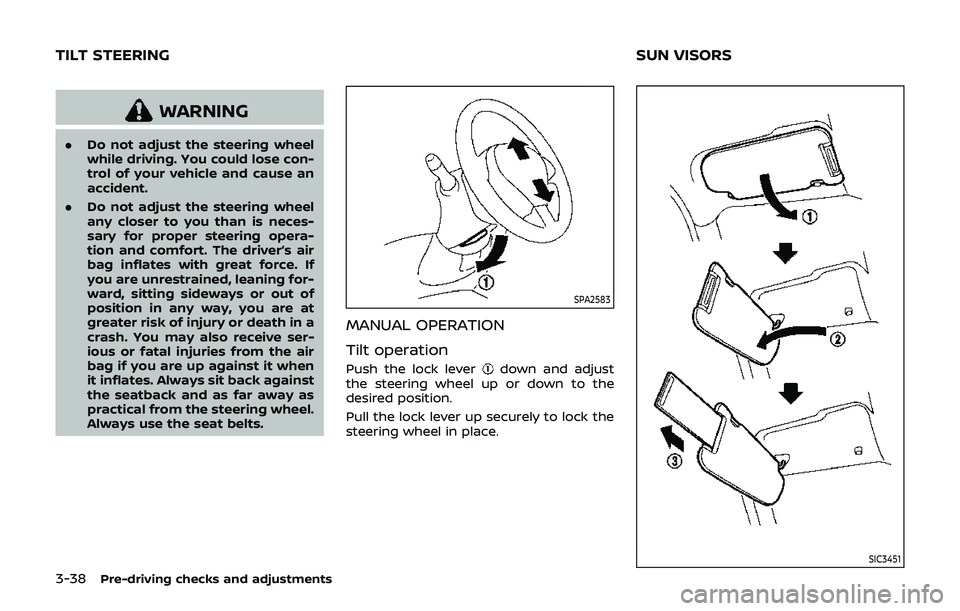
MANUAL OPERATION
Tilt operation
Push the lock leverdown and adjust
the steering wheel up or down to the
desired position.
Pull the lock lever up securely to lock the
steering wheel in place.
SIC3451
TILT STEERING SUN VISORS
Page 168 of 460

Audio system ........................................................................\
........ 4-37Audio operation precautions .................................... 4-37
FM-AM radio with Compact Disc
(CD) player ........................................................................\
........ 4-49
FM-AM-SAT radio with Compact Disc
(CD) player ........................................................................\
........ 4-58
DVD (Digital Versatile Disc) player operation
(models with navigation system) ........................... 4-61
USB (Universal Serial Bus) connection port
(models with navigation system) ........................... 4-65
Bluetooth® streaming audio (models with
navigation system) ............................................................ 4-69
iPod® player operation (models with
navigation system) ............................................................ 4-74
Auxiliary input jacks (models with
navigation system) ............................................................ 4-76
CD/DVD/USB memory care and cleaning ...... 4-77
Steering-wheel-mounted controls
for audio ........................................................................\
............. 4-79
Antenna ........................................................................\
.............. 4-80
Car phone or CB radio .......................................................... 4-81
Bluetooth® hands-free phone system
(models with navigation system) ................................. 4-82 Regulatory information .................................................. 4-83
Voice commands ................................................................ 4-83
Control buttons .................................................................... 4-84 Connecting procedure ................................................. 4-84
Phone selection ................................................................. 4-85
Quick Dial ........................................................................\
........ 4-85
Making a call ........................................................................\
4-88
Receiving a call ................................................................... 4-88
During a call ........................................................................\
.. 4-89
Phone setting ...................................................................... 4-90
Troubleshooting guide ................................................ 4-91
Bluetooth® hands-free phone system (models
without navigation system) ............................................. 4-92 Regulatory information ............................................... 4-93
Using the system .............................................................. 4-94
Control buttons ................................................................. 4-96
Getting started ................................................................... 4-96
List of voice commands .............................................. 4-98
Speaker Adaptation (SA) mode ......................... 4-102
Troubleshooting guide ............................................ 4-104
NISSAN Voice Recognition System
(models with navigation system) ............................. 4-105 NISSAN voice recognition
Standard Mode ............................................................... 4-105
Using the system .......................................................... 4-108
NISSAN voice recognition Alternate
Command Mode ........................................................... 4-116
Using the system .......................................................... 4-125
Troubleshooting guide ............................................ 4-130
Page 173 of 460

SAA2143
MENU OPTIONS
The start menu can be displayed using
the menu control switch on the steering-
wheel-mounted controls.
1. While the MAP or STATUS screen isdisplayed, push and hold the menu
control switch until the “Menu Op-
tions” screen appears.
2. Highlight the preferred item by tilting the menu control switch up or down,
and then push the menu control
switch to select it.
SAA2476
Available items
Destination/Route:
These items are for the navigation sys-
tem. See the separate Navigation System
Owner’s Manual for details.
Info:
Displays the information screen. It is the
same screen that appears when you push
the INFO button.
Settings:
Displays the settings screen. It is the same
screen that appears when you push the
SETTING button.
SAA2477
HOW TO SELECT MENUS ON THE
SCREEN
Vehicle functions are viewed on the dis-
play screen in menus. To select each key
item, highlight the preferred item using
the multi-function controller and push
the ENTER button.
Whenever a menu selection is made or
menu item is highlighted, different areas
on the screen provide you with important
information. See the following for details.
1. Header:
Shows the path used to get to the
current screen. (i.e. push SETTING
button > choose “Comfort” menu
item.)
Center display, heater, air conditioner, audio, phone and voice recognition systems4-7
Page 191 of 460
SAA1896
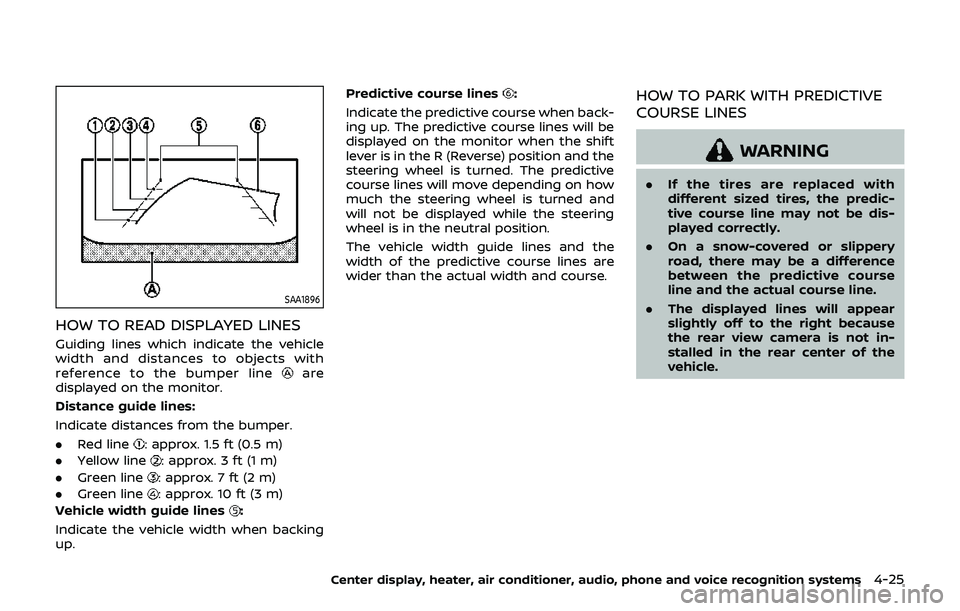
HOW TO READ DISPLAYED LINES
Guiding lines which indicate the vehicle
width and distances to objects with
reference to the bumper line
are
displayed on the monitor.
Distance guide lines:
Indicate distances from the bumper.
. Red line
: approx. 1.5 ft (0.5 m)
. Yellow line
: approx. 3 ft (1 m)
. Green line
: approx. 7 ft (2 m)
. Green line
: approx. 10 ft (3 m)
Vehicle width guide lines
:
Indicate the vehicle width when backing
up. Predictive course lines
:
Indicate the predictive course when back-
ing up. The predictive course lines will be
displayed on the monitor when the shift
lever is in the R (Reverse) position and the
steering wheel is turned. The predictive
course lines will move depending on how
much the steering wheel is turned and
will not be displayed while the steering
wheel is in the neutral position.
The vehicle width guide lines and the
width of the predictive course lines are
wider than the actual width and course.HOW TO PARK WITH PREDICTIVE
COURSE LINES
WARNING
. If the tires are replaced with
different sized tires, the predic-
tive course line may not be dis-
played correctly.
. On a snow-covered or slippery
road, there may be a difference
between the predictive course
line and the actual course line.
. The displayed lines will appear
slightly off to the right because
the rear view camera is not in-
stalled in the rear center of the
vehicle.
Center display, heater, air conditioner, audio, phone and voice recognition systems4-25
Page 192 of 460
4-26Center display, heater, air conditioner, audio, phone and voice recognition systems
SAA1897
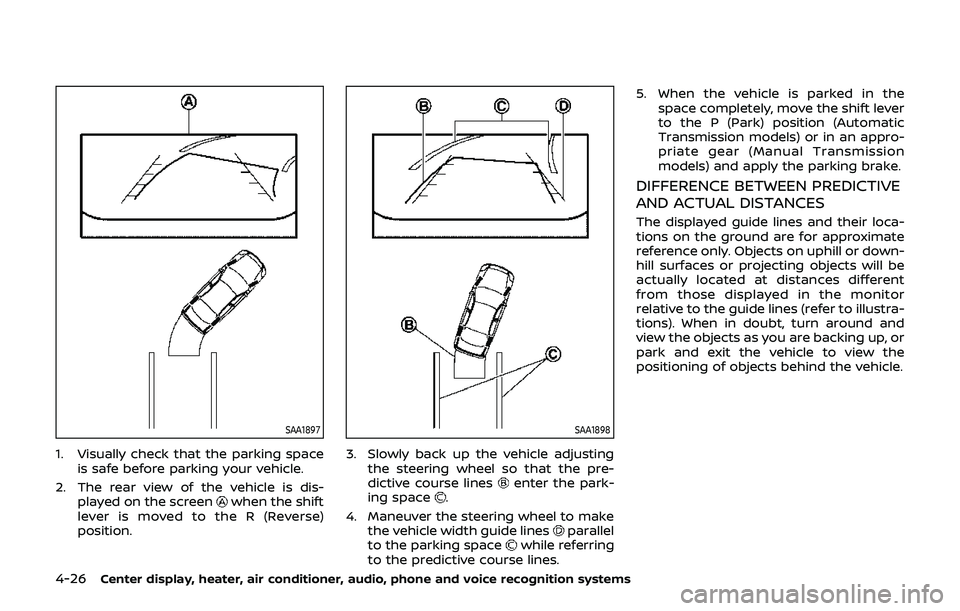
1. Visually check that the parking spaceis safe before parking your vehicle.
2. The rear view of the vehicle is dis- played on the screen
when the shift
lever is moved to the R (Reverse)
position.
SAA1898
3. Slowly back up the vehicle adjusting the steering wheel so that the pre-
dictive course lines
enter the park-
ing space.
4. Maneuver the steering wheel to make the vehicle width guide lines
parallel
to the parking spacewhile referring
to the predictive course lines. 5. When the vehicle is parked in the
space completely, move the shift lever
to the P (Park) position (Automatic
Transmission models) or in an appro-
priate gear (Manual Transmission
models) and apply the parking brake.
DIFFERENCE BETWEEN PREDICTIVE
AND ACTUAL DISTANCES
The displayed guide lines and their loca-
tions on the ground are for approximate
reference only. Objects on uphill or down-
hill surfaces or projecting objects will be
actually located at distances different
from those displayed in the monitor
relative to the guide lines (refer to illustra-
tions). When in doubt, turn around and
view the objects as you are backing up, or
park and exit the vehicle to view the
positioning of objects behind the vehicle.
Page 245 of 460
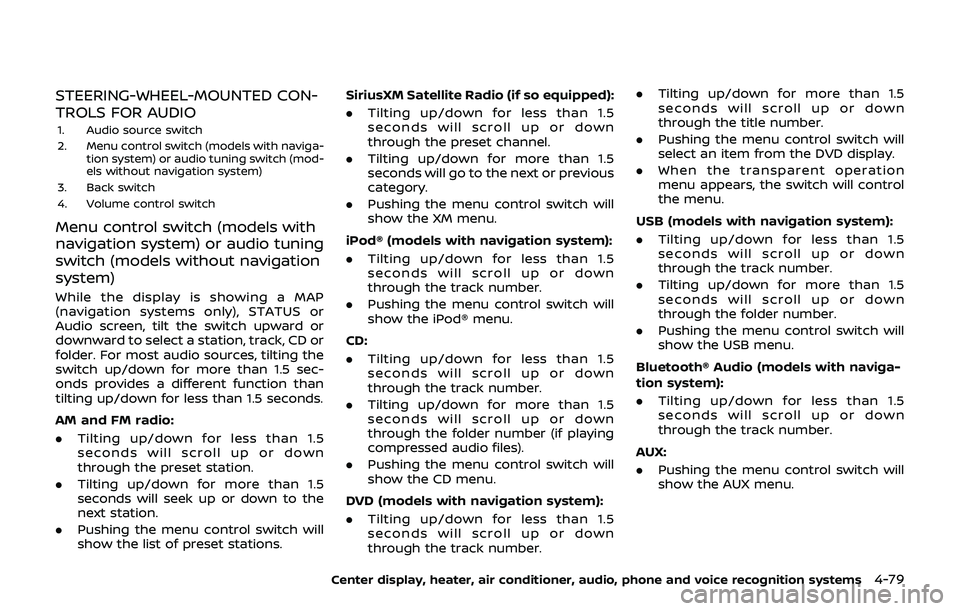
STEERING-WHEEL-MOUNTED CON-
TROLS FOR AUDIO
1. Audio source switch
2. Menu control switch (models with naviga-tion system) or audio tuning switch (mod-
els without navigation system)
3. Back switch
4. Volume control switch
Menu control switch (models with
navigation system) or audio tuning
switch (models without navigation
system)
While the display is showing a MAP
(navigation systems only), STATUS or
Audio screen, tilt the switch upward or
downward to select a station, track, CD or
folder. For most audio sources, tilting the
switch up/down for more than 1.5 sec-
onds provides a different function than
tilting up/down for less than 1.5 seconds.
AM and FM radio:
. Tilting up/down for less than 1.5
seconds will scroll up or down
through the preset station.
. Tilting up/down for more than 1.5
seconds will seek up or down to the
next station.
. Pushing the menu control switch will
show the list of preset stations. SiriusXM Satellite Radio (if so equipped):
.
Tilting up/down for less than 1.5
seconds will scroll up or down
through the preset channel.
. Tilting up/down for more than 1.5
seconds will go to the next or previous
category.
. Pushing the menu control switch will
show the XM menu.
iPod® (models with navigation system):
. Tilting up/down for less than 1.5
seconds will scroll up or down
through the track number.
. Pushing the menu control switch will
show the iPod® menu.
CD:
. Tilting up/down for less than 1.5
seconds will scroll up or down
through the track number.
. Tilting up/down for more than 1.5
seconds will scroll up or down
through the folder number (if playing
compressed audio files).
. Pushing the menu control switch will
show the CD menu.
DVD (models with navigation system):
. Tilting up/down for less than 1.5
seconds will scroll up or down
through the track number. .
Tilting up/down for more than 1.5
seconds will scroll up or down
through the title number.
. Pushing the menu control switch will
select an item from the DVD display.
. When the transparent operation
menu appears, the switch will control
the menu.
USB (models with navigation system):
. Tilting up/down for less than 1.5
seconds will scroll up or down
through the track number.
. Tilting up/down for more than 1.5
seconds will scroll up or down
through the folder number.
. Pushing the menu control switch will
show the USB menu.
Bluetooth® Audio (models with naviga-
tion system):
. Tilting up/down for less than 1.5
seconds will scroll up or down
through the track number.
AUX:
. Pushing the menu control switch will
show the AUX menu.
Center display, heater, air conditioner, audio, phone and voice recognition systems4-79
Page 254 of 460
4-88Center display, heater, air conditioner, audio, phone and voice recognition systems
JVH0479X
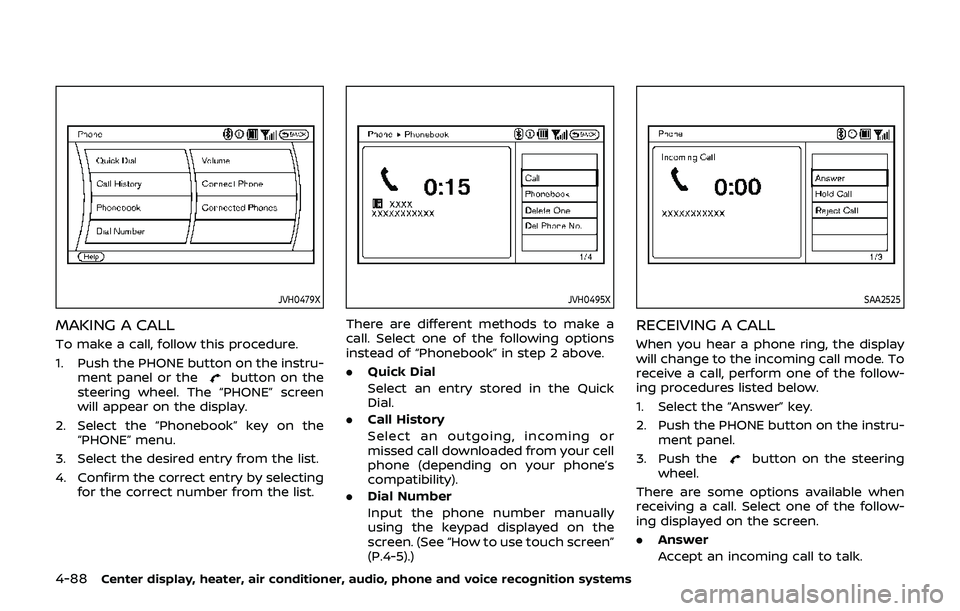
MAKING A CALL
To make a call, follow this procedure.
1. Push the PHONE button on the instru-ment panel or the
button on the
steering wheel. The “PHONE” screen
will appear on the display.
2. Select the “Phonebook” key on the “PHONE” menu.
3. Select the desired entry from the list.
4. Confirm the correct entry by selecting for the correct number from the list.
JVH0495X
There are different methods to make a
call. Select one of the following options
instead of “Phonebook” in step 2 above.
.Quick Dial
Select an entry stored in the Quick
Dial.
. Call History
Select an outgoing, incoming or
missed call downloaded from your cell
phone (depending on your phone’s
compatibility).
. Dial Number
Input the phone number manually
using the keypad displayed on the
screen. (See “How to use touch screen”
(P.4-5).)
SAA2525
RECEIVING A CALL
When you hear a phone ring, the display
will change to the incoming call mode. To
receive a call, perform one of the follow-
ing procedures listed below.
1. Select the “Answer” key.
2. Push the PHONE button on the instru-
ment panel.
3. Push the
button on the steering
wheel.
There are some options available when
receiving a call. Select one of the follow-
ing displayed on the screen.
. Answer
Accept an incoming call to talk.
Page 255 of 460
.Hold Call
Put an incoming call on hold.
. Reject Call
Reject an incoming call.
To finish the call, perform one of the
following procedures listed below.
1. Select the “Hang up” key.
2. Push the PHONE button on the instru- ment panel.
3. Push the
button on the steering
wheel.
SAA3587
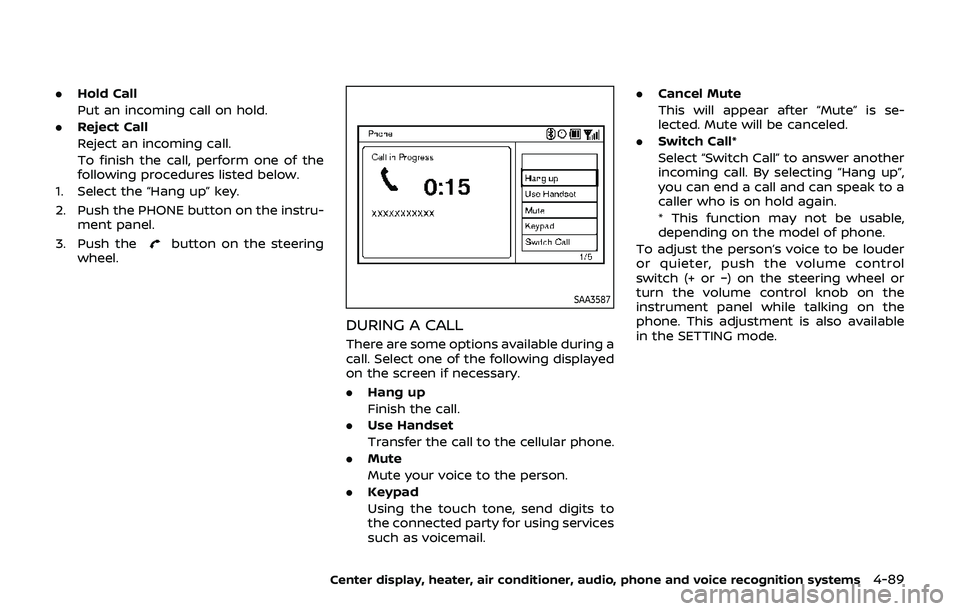
DURING A CALL
There are some options available during a
call. Select one of the following displayed
on the screen if necessary.
. Hang up
Finish the call.
. Use Handset
Transfer the call to the cellular phone.
. Mute
Mute your voice to the person.
. Keypad
Using the touch tone, send digits to
the connected party for using services
such as voicemail. .
Cancel Mute
This will appear after “Mute” is se-
lected. Mute will be canceled.
. Switch Call*
Select “Switch Call” to answer another
incoming call. By selecting “Hang up”,
you can end a call and can speak to a
caller who is on hold again.
* This function may not be usable,
depending on the model of phone.
To adjust the person’s voice to be louder
or quieter, push the volume control
switch (+ or −) on the steering wheel or
turn the volume control knob on the
instrument panel while talking on the
phone. This adjustment is also available
in the SETTING mode.
Center display, heater, air conditioner, audio, phone and voice recognition systems4-89
Page 260 of 460
4-94Center display, heater, air conditioner, audio, phone and voice recognition systems
IC Regulatory information
.Operation is subject to the following
two conditions: (1) this device may not
cause interference, and (2) this device
must accept any interference, includ-
ing interference that may cause un-
desired operation of the device.
. This Class B digital apparatus meets
all requirements of the Canadian In-
terference-Causing Equipment Regu-
lations.
Bluetooth® trademark
Bluetooth® is a trademark
owned by Bluetooth SIG,
Inc., and licensed to Visteon
Corporation.
USING THE SYSTEM
The NISSAN Voice Recognition system
allows hands-free operation of the Blue-
tooth® Hands-Free Phone System.
If the vehicle is in motion, some com-
mands may not be available so full
attention may be given to vehicle opera-
tion.
Initialization
When the ignition switch is pushed to the
ON position, NISSAN Voice Recognition is
initialized, which may take up to one
minute. If the
button is pushed before
the initialization completes, the system
will accept any command.
Operating tips
To get the best performance out of the
NISSAN Voice Recognition system, ob-
serve the following:
. Keep the interior of the vehicle as
quiet as possible. Close the windows
to eliminate surrounding noises (traf-
fic noises, vibration sounds, etc.),
which may prevent the system from
recognizing voice commands cor-
rectly.
. Wait until the tone sounds before
speaking a command. Otherwise, the
command will not be received prop-
erly.
. Start speaking a command within 5
seconds after the tone sounds.
. Speak in a natural voice without
pausing between words.
Giving voice command
To operate NISSAN Voice Recognition,
push and release thebutton located
on the steering wheel. After the tone
sounds, speak a command.
The command given is picked up by the
microphone, and voice feedback is given
when the command is accepted.
. If you need to hear the available
commands for the current menu
again, say “Help” and the system will
repeat them.
. If a command is not recognized, the
system announces, “Command not
recognized. Please say again.” Repeat
the command in a clear voice.
. If you want to go back to the previous
command, you can say “Go back” or
“Correction” anytime the system is
waiting for a response.
. You can cancel a command when the
system is waiting for a response by
saying, “Cancel” or “Quit.” The system
announces “Cancel” and ends the VR
session. You can also push and hold
the
button for 5 seconds on the
steering wheel at any time to cancel
the VR session. Whenever the VR
session is cancelled, a double beep is
played to indicate you have exited the
system.