CD player NISSAN 370Z COUPE 2010 User Guide
[x] Cancel search | Manufacturer: NISSAN, Model Year: 2010, Model line: 370Z COUPE, Model: NISSAN 370Z COUPE 2010Pages: 409, PDF Size: 3.56 MB
Page 190 of 409
Black plate (190,1)
Model "Z34-D" EDITED: 2009/ 9/ 10
After loading the disc, the number of tracks on
the disc will appear on the display.
If the radio is already operating, it will auto-
matically turn off and the CD will play.
If the system has been turned off while the CD
was playing, pushing the PWR button will start
the CD.
MP3 or WMA CDs are not supported with this
CD player. If an MP3 or WMA CD is inserted
into the slot, the counter on the audio display
automatically advances without sound. However
this is a specification of the CD mechanism and
not a malfunction.
Do not use 3.1 in (8 cm) discs.
CD PLAY:
When the CD button is pushed with the system
off and the CD loaded, the system will turn on
and the CD will start to play.
When the CD button is pushed with the CD
loaded and the radio playing, the radio will
automatically be turned off and the CD will start
to play.FF (Fast Forward) , REW (Rewind):
When the
(fast forward) or
(rewind) of
the TUNE button is pushed while the CD is being played, the CD will play while fast
forwarding or rewinding.
When the button is released, the CD will return
to normal play speed.
APS (Automatic Program Search)
FF, APS REW:
When the
(APS FF) of the SEEK button is
pushed while the CD is being played, the next
track or the current track on the CD will start to
play from its beginning. Push several times to
skip through tracks. The CD will advance the
number of times the button is pushed. (When
the last track on the CD is skipped through, the
first track will be played.)
When the(APS REW) button is pushed,
the track being played returns to its beginning.
Push several times to skip back through tracks.
The CD will go back the number of times the
button is pushed.REPEAT (RPT)/RANDOM
(RDM) play:
When the RPT or RDM button is pushed while a
CD is being played, the play pattern can be
changed as follows: RPT button:
1 Disc Repeat (Normal play)
↔1 Track Repeat
RDM button:
1 Disc Repeat (Normal play) ↔1 Disc Random
The display shows the following symbols:
(No mark): 1 Disc Repeat 1: 1 Track Repeat
RDM: 1 Disc Random
CD EJECT:
When the CD EJECT button is pushed with the
CD loaded, the CD will be ejected.
When this button is pushed while the CD is
being played, the CD will come out and the
system will turn off.
If the CD comes out and is not removed, it
will be pulled back into the slot to protect
it.SCAN tuning:
When the SCAN tuning button is pushed while
the CD is being played, the beginning of all the
tracks of the CDs will be played for 10 seconds
in sequence.
4-38
Center display, heater, air conditioner, audio, phone and voice recognition systems
Page 191 of 409
Black plate (191,1)
Model "Z34-D" EDITED: 2009/ 9/ 10
Pushing the button again during this 10 second
period will stop SCAN tuning.
If the SCAN tuning button is not pushed within
10 seconds, SCAN tuning continues to move to
the next CD track.AUX (Auxiliary) inputAUX IN jack:
The AUX IN jack is located on the audio unit.
The AUX IN audio input jack accepts any
standard analog audio input such as from a
portable cassette tape/CD player, MP3 player or
laptop computer.
AUX (Auxiliary) button:
Push the AUX button to play a compatible
device when it is plugged into the AUX IN jack.
When the AUX button is pushed with no device
plugged into the jack, the audio system does not
change to the AUX mode (the AUX button is
invalid) .
Center display, heater, air conditioner, audio, phone and voice recognition systems
4-39
Page 196 of 409
Black plate (196,1)
Model "Z34-D" EDITED: 2009/ 9/ 10
played.) When the
(APS REW) button is
pushed, the program being played returns to its
beginning. Push several times to skip back
through programs. The CD will go back the
number of times the button is pushed.
CD PLAY selection:
To change to another CD already loaded into the
player, push the CD play select buttons
*1
to
*6.
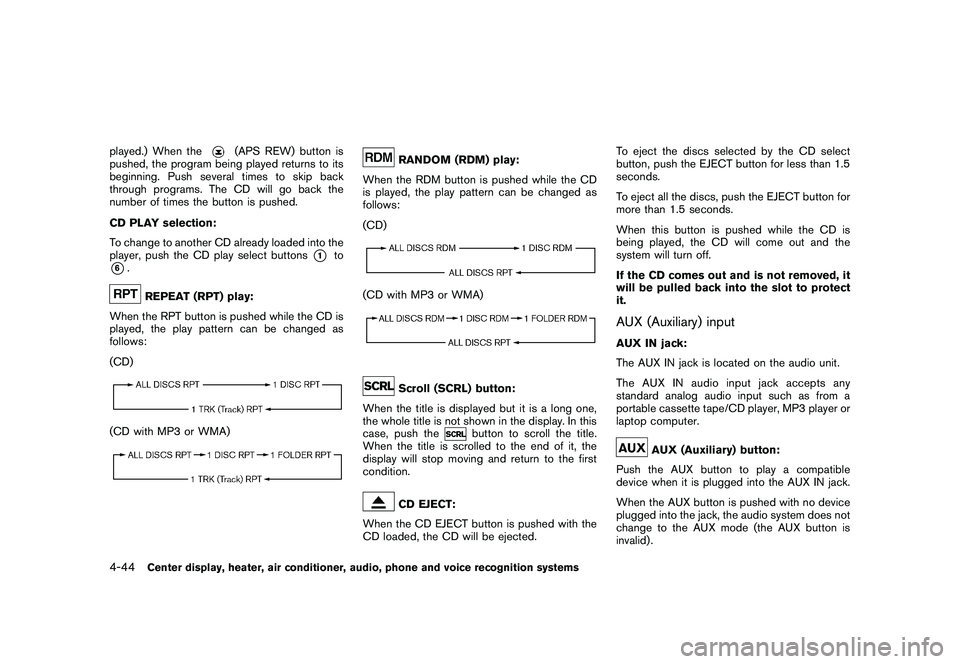
REPEAT (RPT) play:
When the RPT button is pushed while the CD is
played, the play pattern can be changed as
follows:
(CD)
(CD with MP3 or WMA)
RANDOM (RDM) play:
When the RDM button is pushed while the CD
is played, the play pattern can be changed as
follows:
(CD)
(CD with MP3 or WMA)
Scroll (SCRL) button:
When the title is displayed but it is a long one,
the whole title is not shown in the display. In this
case, push the
button to scroll the title.
When the title is scrolled to the end of it, the
display will stop moving and return to the first
condition.
CD EJECT:
When the CD EJECT button is pushed with the
CD loaded, the CD will be ejected. To eject the discs selected by the CD select
button, push the EJECT button for less than 1.5
seconds.
To eject all the discs, push the EJECT button for
more than 1.5 seconds.
When this button is pushed while the CD is
being played, the CD will come out and the
system will turn off.
If the CD comes out and is not removed, it
will be pulled back into the slot to protect
it.
AUX (Auxiliary) inputAUX IN jack:
The AUX IN jack is located on the audio unit.
The AUX IN audio input jack accepts any
standard analog audio input such as from a
portable cassette tape/CD player, MP3 player or
laptop computer.
AUX (Auxiliary) button:
Push the AUX button to play a compatible
device when it is plugged into the AUX IN jack.
When the AUX button is pushed with no device
plugged into the jack, the audio system does not
change to the AUX mode (the AUX button is
invalid) .
4-44
Center display, heater, air conditioner, audio, phone and voice recognition systems
Page 197 of 409
Black plate (197,1)
Model "Z34-D" EDITED: 2009/ 9/ 10
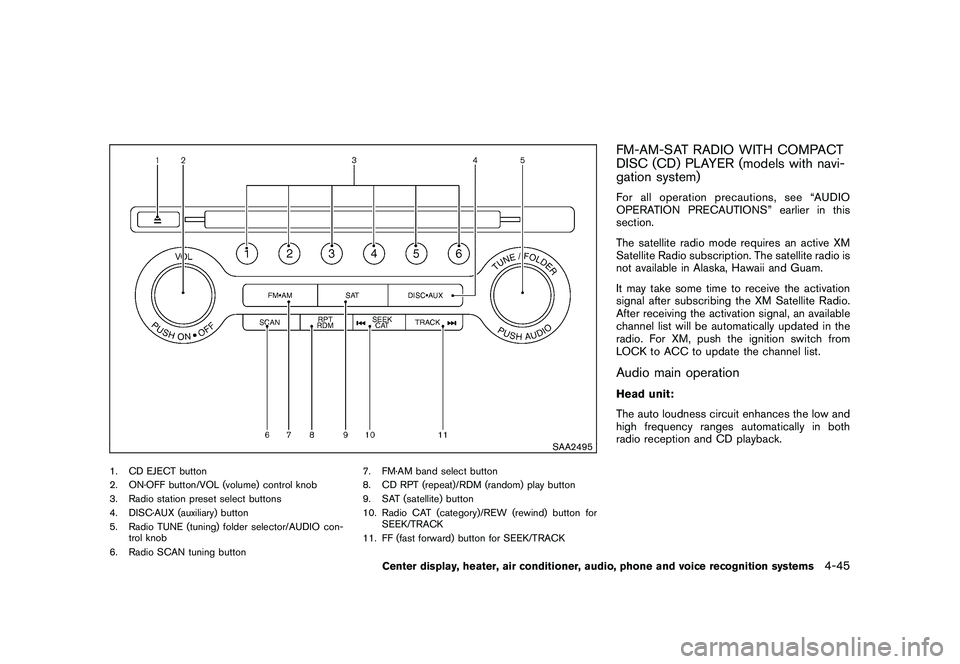
SAA2495
1. CD EJECT button
2. ON·OFF button/VOL (volume) control knob
3. Radio station preset select buttons
4. DISC·AUX (auxiliary) button
5. Radio TUNE (tuning) folder selector/AUDIO con-trol knob
6. Radio SCAN tuning button 7. FM·AM band select button
8. CD RPT (repeat)/RDM (random) play button
9. SAT (satellite) button
10. Radio CAT (category)/REW (rewind) button for
SEEK/TRACK
11. FF (fast forward) button for SEEK/TRACK
FM-AM-SAT RADIO WITH COMPACT
DISC (CD) PLAYER (models with navi-
gation system)For all operation precautions, see “AUDIO
OPERATION PRECAUTIONS” earlier in this
section.
The satellite radio mode requires an active XM
Satellite Radio subscription. The satellite radio is
not available in Alaska, Hawaii and Guam.
It may take some time to receive the activation
signal after subscribing the XM Satellite Radio.
After receiving the activation signal, an available
channel list will be automatically updated in the
radio. For XM, push the ignition switch from
LOCK to ACC to update the channel list.Audio main operationHead unit:
The auto loudness circuit enhances the low and
high frequency ranges automatically in both
radio reception and CD playback.
Center display, heater, air conditioner, audio, phone and voice recognition systems
4-45
Page 200 of 409
Black plate (200,1)
Model "Z34-D" EDITED: 2009/ 9/ 10
.Direct Tune
Inputs the channel number by using a
keypad.Compact Disc (CD) player operationPush the ignition switch to the ACC or ON
position and insert the Compact Disc (CD) into
the slot with the label side facing up. The CD will
be guided automatically into the slot and start
playing.
After loading the CD, the number of tracks on
the CD and the play time will appear on the
display.
If the radio is already operating, it will auto-
matically turn off and the CD will play.
If the system has been turned off while the CD
was playing, pushing the ON·OFF button will
start the CD.
Do not use 3.1 in (8 cm) discs.
PLAY:
When the DISC·AUX (CD play) button is
pushed with the system off and the CD loaded,
the system will turn on and the CD will start to
play.
When the DISC·AUX button is pushed with the
CD loaded and the radio playing, the radio will
automatically be turned off and the CD will start to play.
Menu:
When the “Menu” key on the display is selected
while the CD is being played, the menu screen
will be displayed. The following menu options
are available.
.
Folder List (for CD with compressed audio
files)
Displays the folder list.
. Track List
Displays the track list.
. Play Mode
Select a play mode from the following items.
— Normal
— 1 Folder Repeat (for CD with compressed audio files)
— 1 Track Repeat
— 1 Disc Random
— 1 Folder Random (for CD with com- pressed audio files)
. Record to Music Box (for CD)
Select to choose specific songs on the CD
to record to the Music Box. .
Title Text Priority (for CD)
Set the priority to CDDB (Compact Disc
Data Base) to acquire track information from
the Gracenote Database, or set the priority
to CD-TEXT to acquire the information from
CDs.
. Automatic Recording (for CD)
When this item is turned to ON, the Music
Box hard drive automatically starts recording
when a CD is inserted.
. Recording Quality (for CD)
The larger number (132) will increase the
recorded sound quality while taking up more
space on the Music Box leaving less room
for more songs.
For the details of Music Box, see “MUSIC BOX
HARD-DISK DRIVE (models with navigation
system)” later in this section.
Next/Previous Track and Fast
Forward/Rewind:
When the(fast forward) or
(rewind)
button is pushed for more than 1.5 seconds
while the CD is being played, the CD will play
while fast forwarding or rewinding. When the
button is released, the CD will return to normal
play speed.
4-48
Center display, heater, air conditioner, audio, phone and voice recognition systems
Page 201 of 409
Black plate (201,1)
Model "Z34-D" EDITED: 2009/ 9/ 10
When the
or
button is pushed for less
than 1.5 seconds while the CD is being played,
the next track or the beginning of the current
track on the CD will be played.
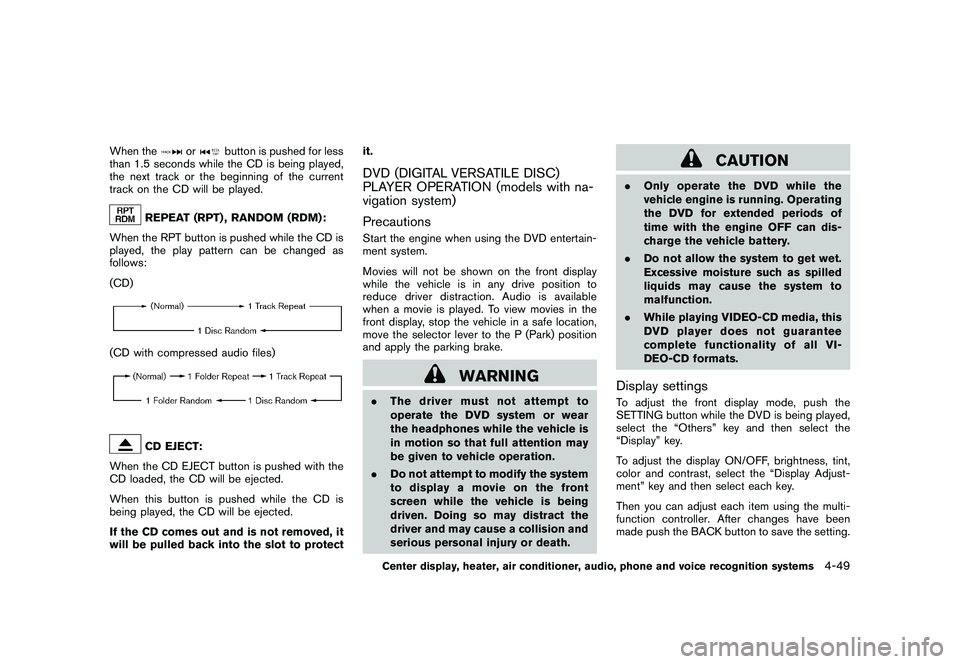
REPEAT (RPT) , RANDOM (RDM):
When the RPT button is pushed while the CD is
played, the play pattern can be changed as
follows:
(CD)
(CD with compressed audio files)
CD EJECT:
When the CD EJECT button is pushed with the
CD loaded, the CD will be ejected.
When this button is pushed while the CD is
being played, the CD will be ejected.
If the CD comes out and is not removed, it
will be pulled back into the slot to protect it.
DVD (DIGITAL VERSATILE DISC)
PLAYER OPERATION (models with na-
vigation system)
PrecautionsStart the engine when using the DVD entertain-
ment system.
Movies will not be shown on the front display
while the vehicle is in any drive position to
reduce driver distraction. Audio is available
when a movie is played. To view movies in the
front display, stop the vehicle in a safe location,
move the selector lever to the P (Park) position
and apply the parking brake.
WARNING
.
The driver must not attempt to
operate the DVD system or wear
the headphones while the vehicle is
in motion so that full attention may
be given to vehicle operation.
. Do not attempt to modify the system
to display a movie on the front
screen while the vehicle is being
driven. Doing so may distract the
driver and may cause a collision and
serious personal injury or death.
CAUTION
.Only operate the DVD while the
vehicle engine is running. Operating
the DVD for extended periods of
time with the engine OFF can dis-
charge the vehicle battery.
. Do not allow the system to get wet.
Excessive moisture such as spilled
liquids may cause the system to
malfunction.
. While playing VIDEO-CD media, this
DVD player does not guarantee
complete functionality of all VI-
DEO-CD formats.Display settingsTo adjust the front display mode, push the
SETTING button while the DVD is being played,
select the “Others” key and then select the
“Display” key.
To adjust the display ON/OFF, brightness, tint,
color and contrast, select the “Display Adjust-
ment” key and then select each key.
Then you can adjust each item using the multi-
function controller. After changes have been
made push the BACK button to save the setting.
Center display, heater, air conditioner, audio, phone and voice recognition systems
4-49
Page 213 of 409
Black plate (213,1)
Model "Z34-D" EDITED: 2009/ 9/ 10
(models with navigation system)” later in this
section.
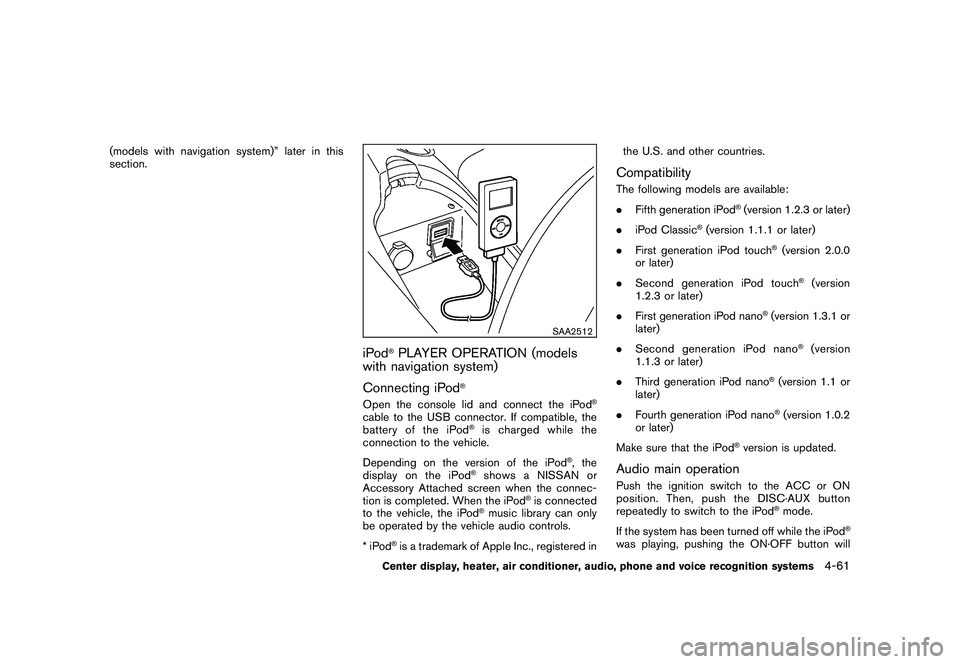
SAA2512
iPod
®PLAYER OPERATION (models
with navigation system)
Connecting iPod
®
Open the console lid and connect the iPod
®
cable to the USB connector. If compatible, the
battery of the iPod
®is charged while the
connection to the vehicle.
Depending on the version of the iPod
®, the
display on the iPod
®shows a NISSAN or
Accessory Attached screen when the connec-
tion is completed. When the iPod
®is connected
to the vehicle, the iPod
®music library can only
be operated by the vehicle audio controls.
*iPod
®is a trademark of Apple Inc., registered in the U.S. and other countries.
CompatibilityThe following models are available:
.
Fifth generation iPod
®(version 1.2.3 or later)
. iPod Classic
®(version 1.1.1 or later)
. First generation iPod touch
®(version 2.0.0
or later)
. Second generation iPod touch
®(version
1.2.3 or later)
. First generation iPod nano
®(version 1.3.1 or
later)
. Second generation iPod nano
®(version
1.1.3 or later)
. Third generation iPod nano
®(version 1.1 or
later)
. Fourth generation iPod nano®(version 1.0.2
or later)
Make sure that the iPod
®version is updated.
Audio main operationPush the ignition switch to the ACC or ON
position. Then, push the DISC·AUX button
repeatedly to switch to the iPod
®mode.
If the system has been turned off while the iPod
®
was playing, pushing the ON·OFF button will
Center display, heater, air conditioner, audio, phone and voice recognition systems
4-61
Page 215 of 409
Black plate (215,1)
Model "Z34-D" EDITED: 2009/ 9/ 10
MUSIC BOX HARD-DISK DRIVE (mod-
els with navigation system)The “Music Box” hard-disk drive audio system
can store songs from CDs being played. The
system has a 9.3 gigabyte (GB) storage
capacity and can record up to 200 hours
(approximately 2,900 songs) .
The following CDs can be recorded in the
“Music Box” hard-disk drive audio system.
.CDs that contain uncompressed audio files
. Hybrid Compact Disc Digital Audio (Hybrid
CD-DA) specification in Super Audio CDs
. Compact Disc Digital Audio (CD-DA) spe-
cification in CD-Extras
. First session of multisession disc
Extreme temperature conditions [below
48 F( 20 8C) and above 158 8F (70 8C)] could
affect the performance of the hard-disk.
NOTE:
If the hard-disk needs to be replaced due
to a malfunction, all stored music data will
be erased.
SAA2513
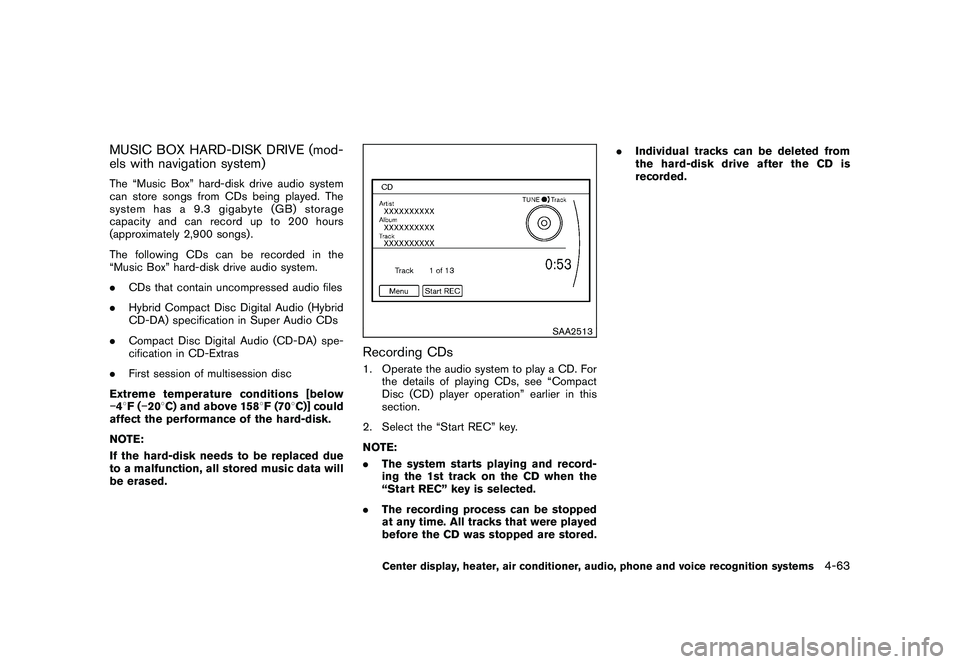
Recording CDs1. Operate the audio system to play a CD. For the details of playing CDs, see “Compact
Disc (CD) player operation” earlier in this
section.
2. Select the “Start REC” key.
NOTE:
. The system starts playing and record-
ing the 1st track on the CD when the
“Start REC” key is selected.
. The recording process can be stopped
at any time. All tracks that were played
before the CD was stopped are stored. .
Individual tracks can be deleted from
the hard-disk drive after the CD is
recorded.
Center display, heater, air conditioner, audio, phone and voice recognition systems
4-63
Page 221 of 409
Black plate (221,1)
Model "Z34-D" EDITED: 2009/ 9/ 10
marks of Gracenote. The Gracenote logo and
logotype, and the “Powered by Gracenote” logo
are trademarks of Gracenote.
SAA2282
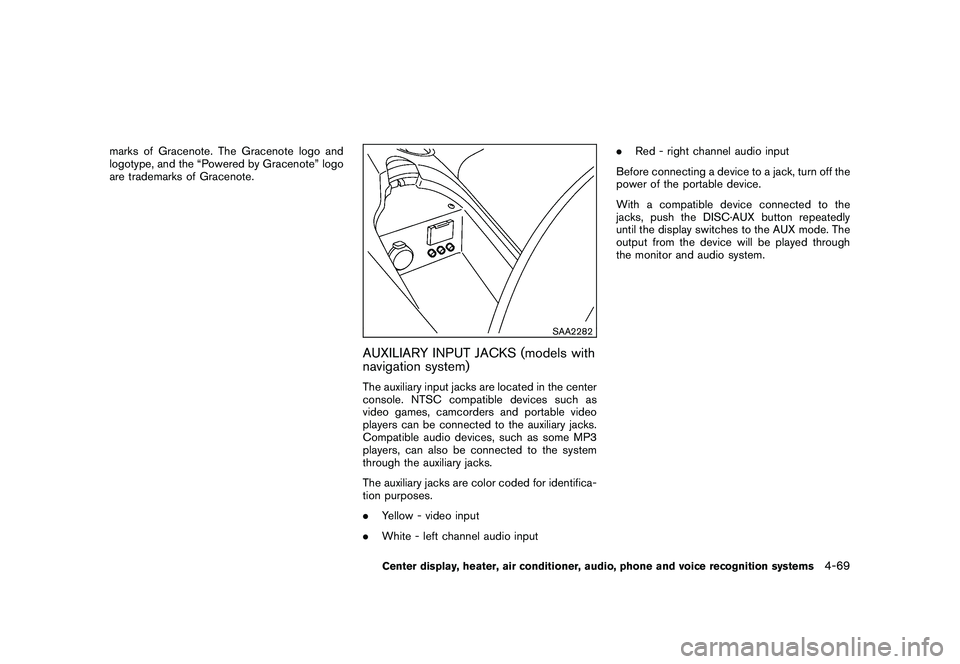
AUXILIARY INPUT JACKS (models with
navigation system)The auxiliary input jacks are located in the center
console. NTSC compatible devices such as
video games, camcorders and portable video
players can be connected to the auxiliary jacks.
Compatible audio devices, such as some MP3
players, can also be connected to the system
through the auxiliary jacks.
The auxiliary jacks are color coded for identifica-
tion purposes.
.Yellow - video input
. White - left channel audio input .
Red - right channel audio input
Before connecting a device to a jack, turn off the
power of the portable device.
With a compatible device connected to the
jacks, push the DISC·AUX button repeatedly
until the display switches to the AUX mode. The
output from the device will be played through
the monitor and audio system.
Center display, heater, air conditioner, audio, phone and voice recognition systems
4-69
Page 266 of 409
Black plate (266,1)
Model "Z34-D" EDITED: 2009/ 9/ 10
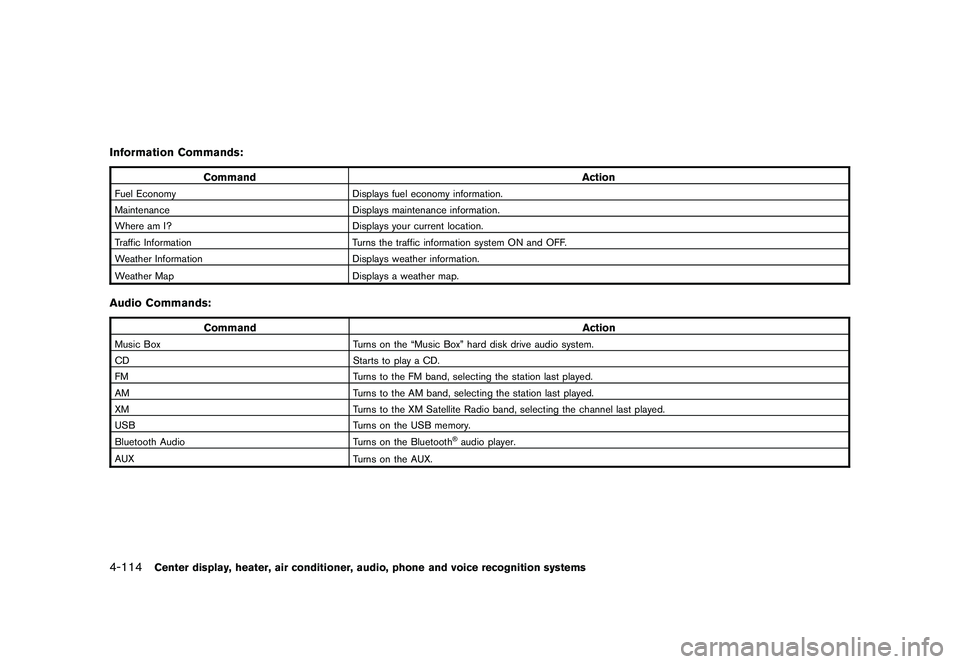
Information Commands:
CommandAction
Fuel EconomyDisplays fuel economy information.
Maintenance Displays maintenance information.
Where am I? Displays your current location.
Traffic Information Turns the traffic information system ON and OFF.
Weather Information Displays weather information.
Weather Map Displays a weather map.Audio Commands:
Command Action
Music BoxTurns on the “Music Box” hard disk drive audio system.
CD Starts to play a CD.
FM Turns to the FM band, selecting the station last played.
AM Turns to the AM band, selecting the station last played.
XM Turns to the XM Satellite Radio band, selecting the channel last played.
USB Turns on the USB memory.
Bluetooth Audio Turns on the Bluetooth
®audio player.
AUX Turns on the AUX.
4-114
Center display, heater, air conditioner, audio, phone and voice recognition systems