navigation NISSAN 370Z COUPE 2010 User Guide
[x] Cancel search | Manufacturer: NISSAN, Model Year: 2010, Model line: 370Z COUPE, Model: NISSAN 370Z COUPE 2010Pages: 409, PDF Size: 3.56 MB
Page 155 of 409
Black plate (155,1)
Model "Z34-D" EDITED: 2009/ 9/ 10
SAA2274
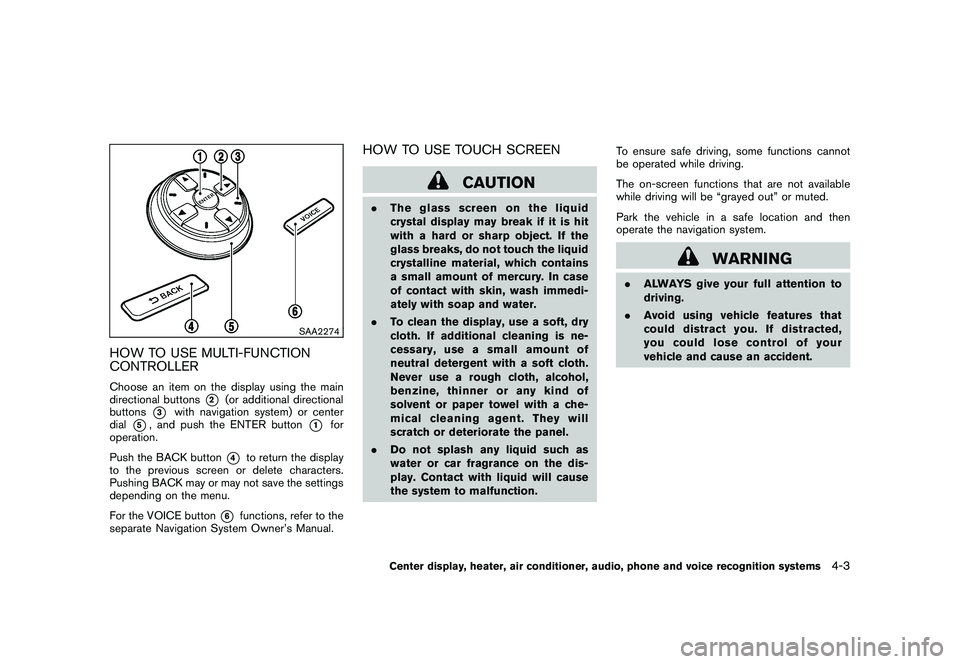
HOW TO USE MULTI-FUNCTION
CONTROLLERChoose an item on the display using the main
directional buttons
*2
(or additional directional
buttons
*3
with navigation system) or center
dial
*5, and push the ENTER button
*1
for
operation.
Push the BACK button
*4
to return the display
to the previous screen or delete characters.
Pushing BACK may or may not save the settings
depending on the menu.
For the VOICE button
*6
functions, refer to the
separate Navigation System Owner’s Manual.
HOW TO USE TOUCH SCREEN
CAUTION
. The glass screen on the liquid
crystal display may break if it is hit
with a hard or sharp object. If the
glass breaks, do not touch the liquid
crystalline material, which contains
a small amount of mercury. In case
of contact with skin, wash immedi-
ately with soap and water.
. To clean the display, use a soft, dry
cloth. If additional cleaning is ne-
cessary, use a small amount of
neutral detergent with a soft cloth.
Never use a rough cloth, alcohol,
benzine, thinner or any kind of
solvent or paper towel with a che-
mical cleaning agent. They will
scratch or deteriorate the panel.
. Do not splash any liquid such as
water or car fragrance on the dis-
play. Contact with liquid will cause
the system to malfunction. To ensure safe driving, some functions cannot
be operated while driving.
The on-screen functions that are not available
while driving will be “grayed out” or muted.
Park the vehicle in a safe location and then
operate the navigation system.
WARNING
.
ALWAYS give your full attention to
driving.
. Avoid using vehicle features that
coulddistractyou.Ifdistracted,
you could lose control of your
vehicle and cause an accident.
Center display, heater, air conditioner, audio, phone and voice recognition systems
4-3
Page 157 of 409
Black plate (157,1)
Model "Z34-D" EDITED: 2009/ 9/ 10
.Space:
Inserts a space.
. Delete:
Deletes the last character that has been
input with one touch. Push and hold the
button to delete all of the characters.
. OK:
Completes character inputs.Touch screen maintenanceIf you clean the display screen, use a dry, soft
cloth. If additional cleaning is necessary, use a
small amount of neutral detergent with a soft
cloth. Never spray the screen with water or
detergent. Dampen the cloth first, and then wipe
the screen.
SAA2143
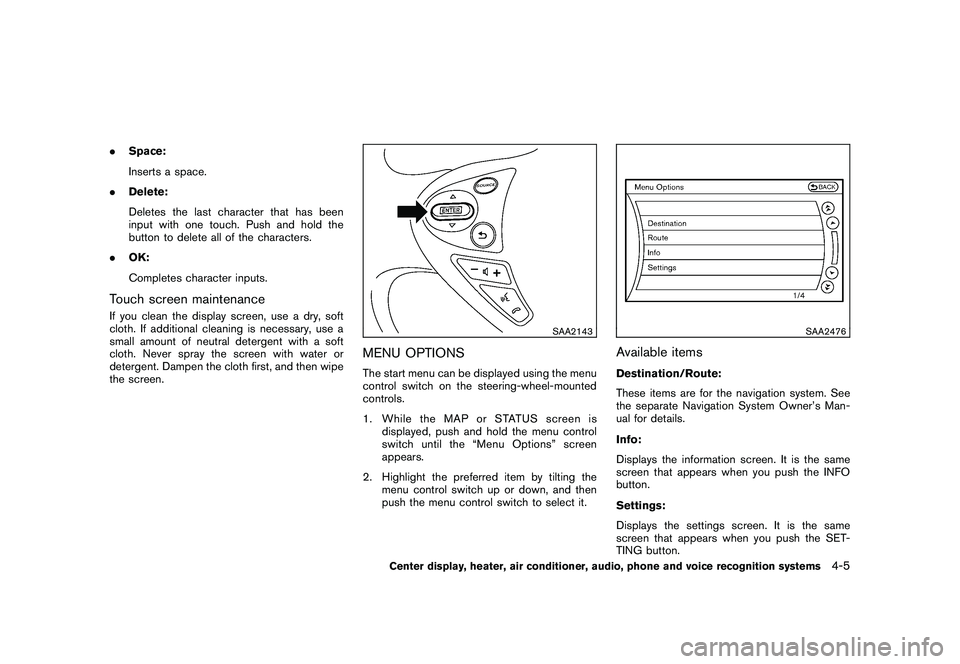
MENU OPTIONSThe start menu can be displayed using the menu
control switch on the steering-wheel-mounted
controls.
1. While the MAP or STATUS screen is
displayed, push and hold the menu control
switch until the “Menu Options” screen
appears.
2. Highlight the preferred item by tilting the menu control switch up or down, and then
push the menu control switch to select it.
SAA2476
Available itemsDestination/Route:
These items are for the navigation system. See
the separate Navigation System Owner’s Man-
ual for details.
Info:
Displays the information screen. It is the same
screen that appears when you push the INFO
button.
Settings:
Displays the settings screen. It is the same
screen that appears when you push the SET-
TING button.
Center display, heater, air conditioner, audio, phone and voice recognition systems
4-5
Page 158 of 409
Black plate (158,1)
Model "Z34-D" EDITED: 2009/ 9/ 10
SAA2477
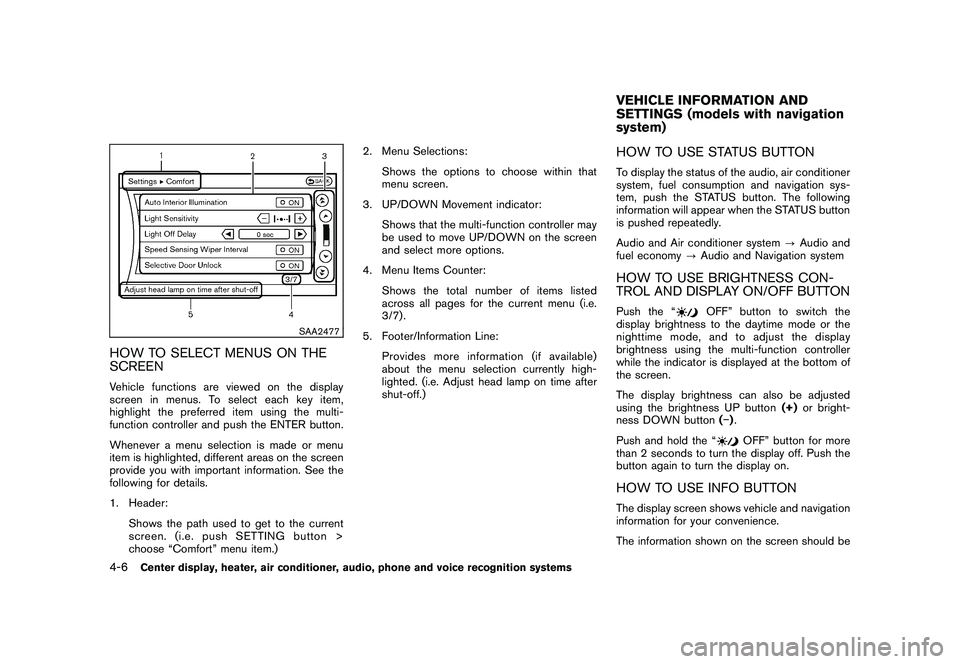
HOW TO SELECT MENUS ON THE
SCREENVehicle functions are viewed on the display
screen in menus. To select each key item,
highlight the preferred item using the multi-
function controller and push the ENTER button.
Whenever a menu selection is made or menu
item is highlighted, different areas on the screen
provide you with important information. See the
following for details.
1. Header:Shows the path used to get to the current
screen. (i.e. push SETTING button >
choose “Comfort” menu item.) 2. Menu Selections:
Shows the options to choose within that
menu screen.
3. UP/DOWN Movement indicator:
Shows that the multi-function controller may
be used to move UP/DOWN on the screen
and select more options.
4. Menu Items Counter:
Shows the total number of items listed
across all pages for the current menu (i.e.
3/7) .
5. Footer/Information Line: Provides more information (if available)
about the menu selection currently high-
lighted. (i.e. Adjust head lamp on time after
shut-off.)
HOW TO USE STATUS BUTTONTo display the status of the audio, air conditioner
system, fuel consumption and navigation sys-
tem, push the STATUS button. The following
information will appear when the STATUS button
is pushed repeatedly.
Audio and Air conditioner system ?Audio and
fuel economy ?Audio and Navigation systemHOW TO USE BRIGHTNESS CON-
TROL AND DISPLAY ON/OFF BUTTONPush the “
OFF” button to switch the
display brightness to the daytime mode or the
nighttime mode, and to adjust the display
brightness using the multi-function controller
while the indicator is displayed at the bottom of
the screen.
The display brightness can also be adjusted
using the brightness UP button (+)or bright-
ness DOWN button () .
Push and hold the “
OFF” button for more
than 2 seconds to turn the display off. Push the
button again to turn the display on.
HOW TO USE INFO BUTTONThe display screen shows vehicle and navigation
information for your convenience.
The information shown on the screen should beVEHICLE INFORMATION AND
SETTINGS (models with navigation
system)
4-6
Center display, heater, air conditioner, audio, phone and voice recognition systems
Page 159 of 409
Black plate (159,1)
Model "Z34-D" EDITED: 2009/ 9/ 10
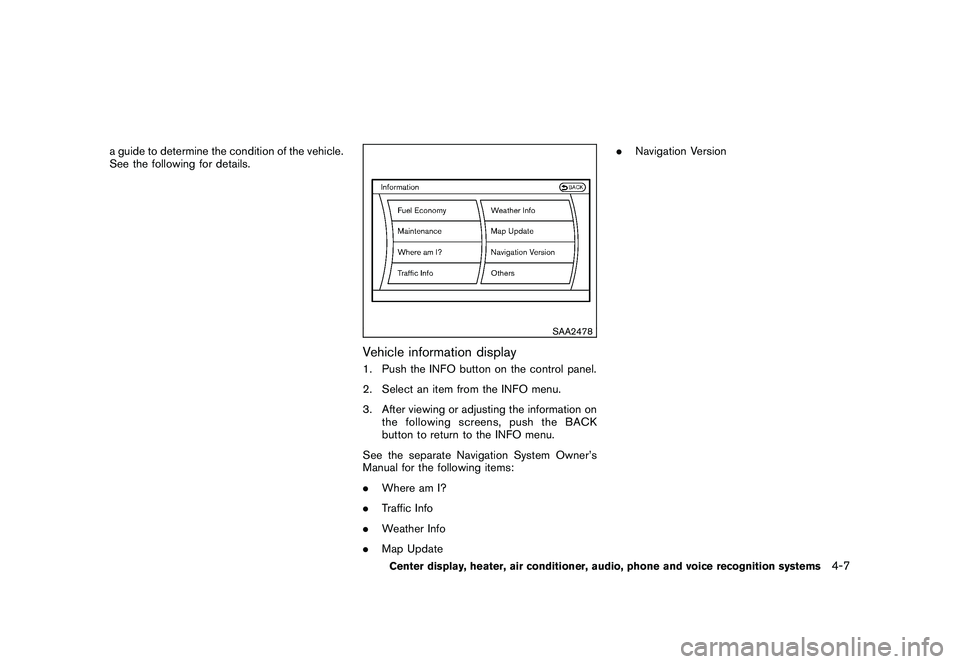
a guide to determine the condition of the vehicle.
See the following for details.
SAA2478
Vehicle information display1. Push the INFO button on the control panel.
2. Select an item from the INFO menu.
3. After viewing or adjusting the information onthe following screens, push the BACK
button to return to the INFO menu.
See the separate Navigation System Owner’s
Manual for the following items:
. Where am I?
. Traffic Info
. Weather Info
. Map Update .
Navigation Version
Center display, heater, air conditioner, audio, phone and voice recognition systems
4-7
Page 162 of 409
Black plate (162,1)
Model "Z34-D" EDITED: 2009/ 9/ 10
SAA2483
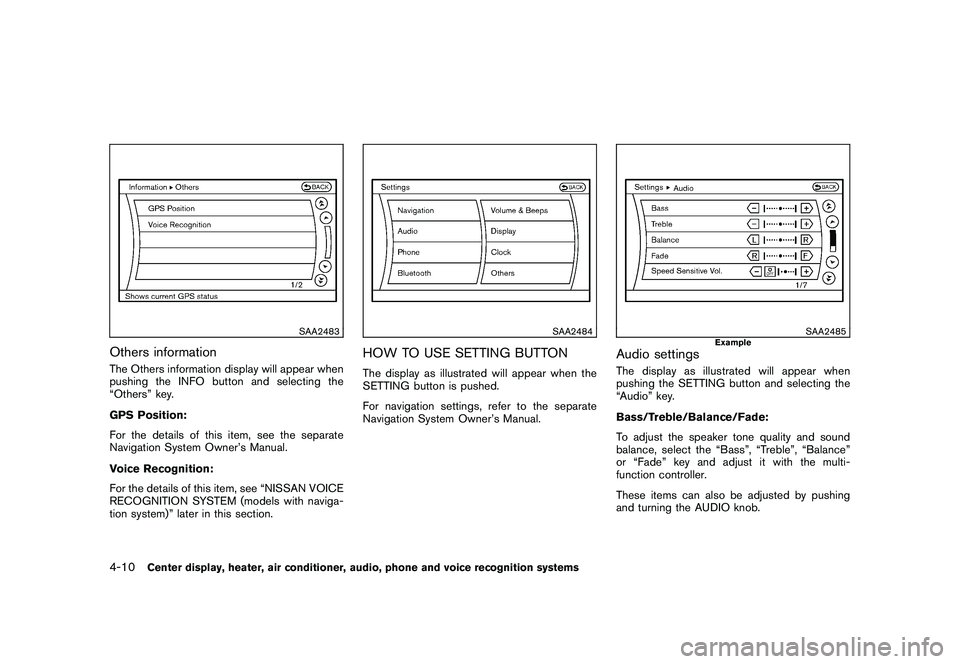
Others informationThe Others information display will appear when
pushing the INFO button and selecting the
“Others” key.
GPS Position:
For the details of this item, see the separate
Navigation System Owner’s Manual.
Voice Recognition:
For the details of this item, see “NISSAN VOICE
RECOGNITION SYSTEM (models with naviga-
tion system)” later in this section.
SAA2484
HOW TO USE SETTING BUTTONThe display as illustrated will appear when the
SETTING button is pushed.
For navigation settings, refer to the separate
Navigation System Owner’s Manual.
SAA2485
Example
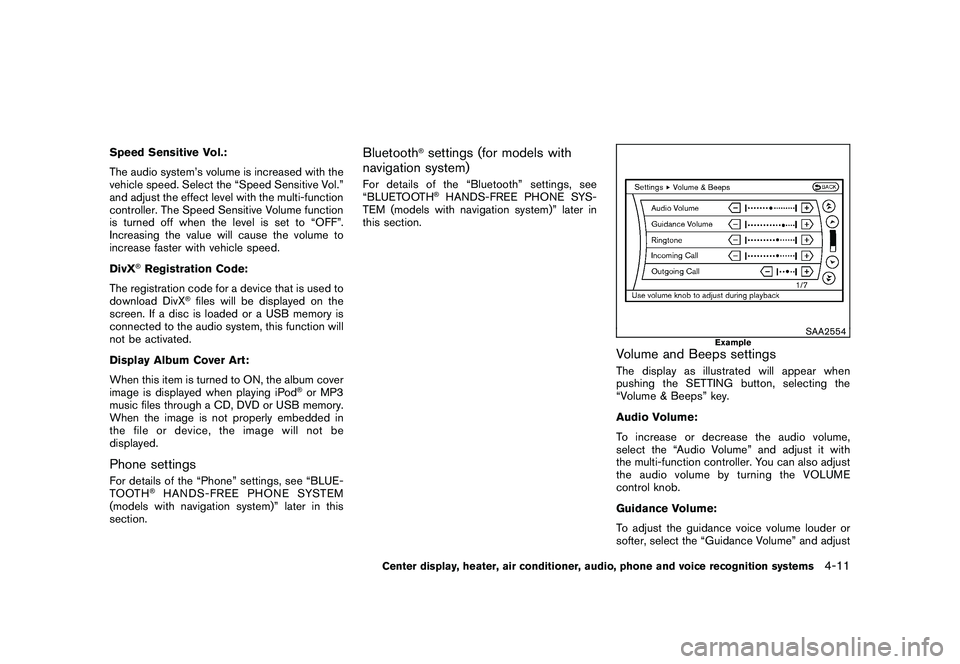
Audio settingsThe display as illustrated will appear when
pushing the SETTING button and selecting the
“Audio” key.
Bass/Treble/Balance/Fade:
To adjust the speaker tone quality and sound
balance, select the “Bass”, “Treble”, “Balance”
or “Fade” key and adjust it with the multi-
function controller.
These items can also be adjusted by pushing
and turning the AUDIO knob.
4-10
Center display, heater, air conditioner, audio, phone and voice recognition systems
Page 163 of 409
Black plate (163,1)
Model "Z34-D" EDITED: 2009/ 9/ 10
Speed Sensitive Vol.:
The audio system’s volume is increased with the
vehicle speed. Select the “Speed Sensitive Vol.”
and adjust the effect level with the multi-function
controller. The Speed Sensitive Volume function
is turned off when the level is set to “OFF”.
Increasing the value will cause the volume to
increase faster with vehicle speed.
DivX
®Registration Code:
The registration code for a device that is used to
download DivX
®files will be displayed on the
screen. If a disc is loaded or a USB memory is
connected to the audio system, this function will
not be activated.
Display Album Cover Art:
When this item is turned to ON, the album cover
image is displayed when playing iPod
®or MP3
music files through a CD, DVD or USB memory.
When the image is not properly embedded in
the file or device, the image will not be
displayed.
Phone settingsFor details of the “Phone” settings, see “BLUE-
TOOTH
®HANDS-FREE PHONE SYSTEM
(models with navigation system)” later in this
section.
Bluetooth
®settings (for models with
navigation system)
For details of the “Bluetooth” settings, see
“BLUETOOTH
®HANDS-FREE PHONE SYS-
TEM (models with navigation system)” later in
this section.
SAA2554
Example
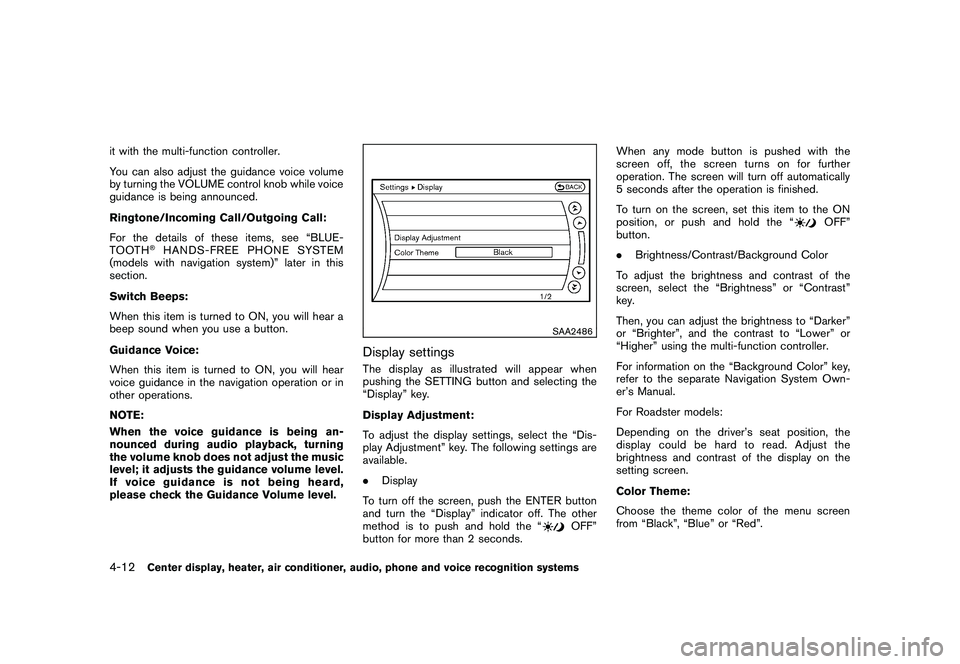
Volume and Beeps settingsThe display as illustrated will appear when
pushing the SETTING button, selecting the
“Volume & Beeps” key.
Audio Volume:
To increase or decrease the audio volume,
select the “Audio Volume” and adjust it with
the multi-function controller. You can also adjust
the audio volume by turning the VOLUME
control knob.
Guidance Volume:
To adjust the guidance voice volume louder or
softer, select the “Guidance Volume” and adjust
Center display, heater, air conditioner, audio, phone and voice recognition systems
4-11
Page 164 of 409
Black plate (164,1)
Model "Z34-D" EDITED: 2009/ 9/ 10
it with the multi-function controller.
You can also adjust the guidance voice volume
by turning the VOLUME control knob while voice
guidance is being announced.
Ringtone/Incoming Call/Outgoing Call:
For the details of these items, see “BLUE-
TOOTH
®HANDS-FREE PHONE SYSTEM
(models with navigation system)” later in this
section.
Switch Beeps:
When this item is turned to ON, you will hear a
beep sound when you use a button.
Guidance Voice:
When this item is turned to ON, you will hear
voice guidance in the navigation operation or in
other operations.
NOTE:
When the voice guidance is being an-
nounced during audio playback, turning
the volume knob does not adjust the music
level; it adjusts the guidance volume level.
If voice guidance is not being heard,
please check the Guidance Volume level.
SAA2486
Display settingsThe display as illustrated will appear when
pushing the SETTING button and selecting the
“Display” key.
Display Adjustment:
To adjust the display settings, select the “Dis-
play Adjustment” key. The following settings are
available.
. Display
To turn off the screen, push the ENTER button
and turn the “Display” indicator off. The other
method is to push and hold the “
OFF”
button for more than 2 seconds. When any mode button is pushed with the
screen off, the screen turns on for further
operation. The screen will turn off automatically
5 seconds after the operation is finished.
To turn on the screen, set this item to the ON
position, or push and hold the “
OFF”
button.
. Brightness/Contrast/Background Color
To adjust the brightness and contrast of the
screen, select the “Brightness” or “Contrast”
key.
Then, you can adjust the brightness to “Darker”
or “Brighter”, and the contrast to “Lower” or
“Higher” using the multi-function controller.
For information on the “Background Color” key,
refer to the separate Navigation System Own-
er’s Manual.
For Roadster models:
Depending on the driver’s seat position, the
display could be hard to read. Adjust the
brightness and contrast of the display on the
setting screen.
Color Theme:
Choose the theme color of the menu screen
from “Black”, “Blue” or “Red”.
4-12
Center display, heater, air conditioner, audio, phone and voice recognition systems
Page 167 of 409
Black plate (167,1)
Model "Z34-D" EDITED: 2009/ 9/ 10
SAA2490
Language & Units settingsThe Language & Units settings display will
appear when pushing the SETTING button,
selecting the “Others” key, and then selecting
the “Language & Units” key.
Select Language:
Select the “Select Language” key. Choose
“English”, “Franc¸ais” or “Espan˜
ol” for your
favorite display appearance.
If you select the “Franc¸ ais” key, the French
language will be displayed, so please use the
French Owner’s Manual. To obtain a French
Owner’s Manual, see “OWNER’S MANUAL/
SERVICE MANUAL ORDER INFORMATION” in the “9. Technical and consumer information”
section.
Select Units:
Select the “Select Units” key. Choose “US”
(Mile,
8F, MPG) or “Metric” (km, 8C, L/100 km)
for your favorite display appearance.
Voice Recognition settingsFor details about the “Voice Recognition”
settings, see “NISSAN VOICE RECOGNITION
SYSTEM (models with navigation system)” later
in this section.
SAA2491
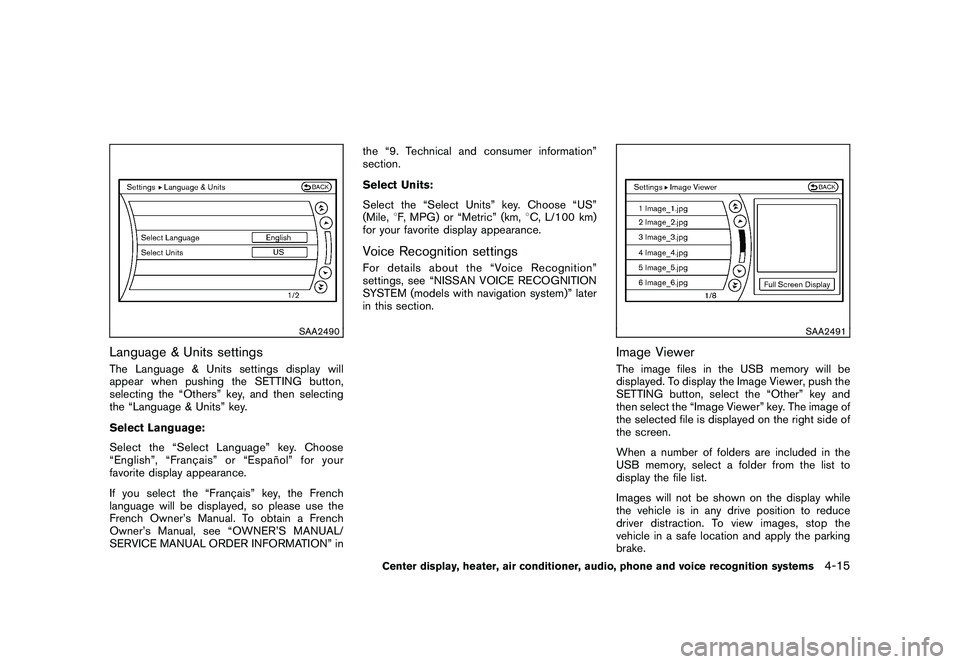
Image ViewerThe image files in the USB memory will be
displayed. To display the Image Viewer, push the
SETTING button, select the “Other” key and
then select the “Image Viewer” key. The image of
the selected file is displayed on the right side of
the screen.
When a number of folders are included in the
USB memory, select a folder from the list to
display the file list.
Images will not be shown on the display while
the vehicle is in any drive position to reduce
driver distraction. To view images, stop the
vehicle in a safe location and apply the parking
brake.
Center display, heater, air conditioner, audio, phone and voice recognition systems
4-15
Page 170 of 409
Black plate (170,1)
Model "Z34-D" EDITED: 2009/ 9/ 10
SAA2493
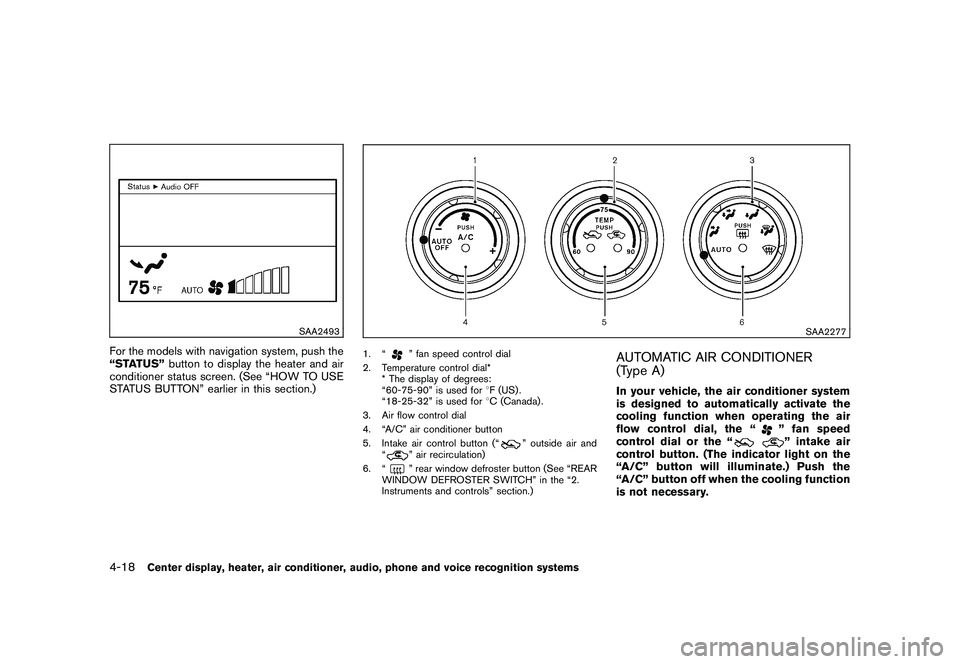
For the models with navigation system, push the
“STATUS”button to display the heater and air
conditioner status screen. (See “HOW TO USE
STATUS BUTTON” earlier in this section.)
SAA2277
1. “
” fan speed control dial
2. Temperature control dial* * The display of degrees:
“60-75-90” is used for 8F (US) .
“18-25-32” is used for 8C (Canada) .
3. Air flow control dial
4. “A/C” air conditioner button
5. Intake air control button (“
” outside air and
“
” air recirculation)
6. “” rear window defroster button (See “REAR
WINDOW DEFROSTER SWITCH” in the “2.
Instruments and controls” section.)
AUTOMATIC AIR CONDITIONER
(Type A)In your vehicle, the air conditioner system
is designed to automatically activate the
cooling function when operating the air
flow control dial, the “
” fan speed
control dial or the “” intake air
control button. (The indicator light on the
“A/C” button will illuminate.) Push the
“A/C” button off when the cooling function
is not necessary.
4-18
Center display, heater, air conditioner, audio, phone and voice recognition systems
Page 179 of 409
Black plate (179,1)
Model "Z34-D" EDITED: 2009/ 9/ 10
LHA0484
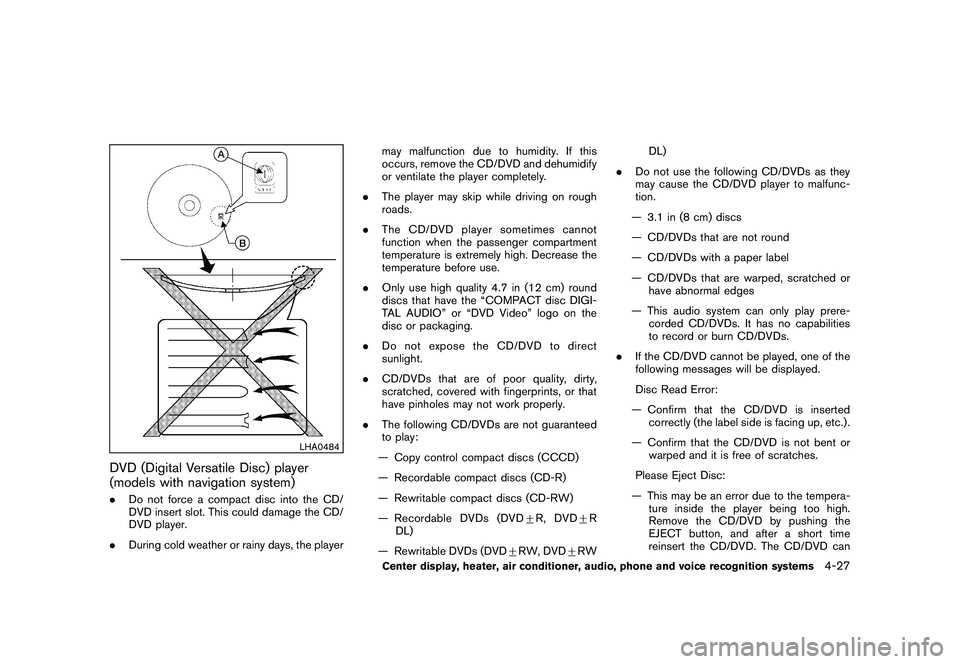
DVD (Digital Versatile Disc) player
(models with navigation system).Do not force a compact disc into the CD/
DVD insert slot. This could damage the CD/
DVD player.
. During cold weather or rainy days, the player may malfunction due to humidity. If this
occurs, remove the CD/DVD and dehumidify
or ventilate the player completely.
. The player may skip while driving on rough
roads.
. The CD/DVD player sometimes cannot
function when the passenger compartment
temperature is extremely high. Decrease the
temperature before use.
. Only use high quality 4.7 in (12 cm) round
discs that have the “COMPACT disc DIGI-
TAL AUDIO” or “DVD Video” logo on the
disc or packaging.
. Do not expose the CD/DVD to direct
sunlight.
. CD/DVDs that are of poor quality, dirty,
scratched, covered with fingerprints, or that
have pinholes may not work properly.
. The following CD/DVDs are not guaranteed
to play:
— Copy control compact discs (CCCD)
— Recordable compact discs (CD-R)
— Rewritable compact discs (CD-RW)
— Recordable DVDs (DVD +R, DVD +R
DL)
— Rewritable DVDs (DVD +RW, DVD +RW DL)
. Do not use the following CD/DVDs as they
may cause the CD/DVD player to malfunc-
tion.
— 3.1 in (8 cm) discs
— CD/DVDs that are not round
— CD/DVDs with a paper label
— CD/DVDs that are warped, scratched or have abnormal edges
— This audio system can only play prere- corded CD/DVDs. It has no capabilities
to record or burn CD/DVDs.
. If the CD/DVD cannot be played, one of the
following messages will be displayed.
Disc Read Error:
— Confirm that the CD/DVD is inserted correctly (the label side is facing up, etc.) .
— Confirm that the CD/DVD is not bent or warped and it is free of scratches.
Please Eject Disc:
— This may be an error due to the tempera- ture inside the player being too high.
Remove the CD/DVD by pushing the
EJECT button, and after a short time
reinsert the CD/DVD. The CD/DVD can
Center display, heater, air conditioner, audio, phone and voice recognition systems
4-27