navigation system NISSAN 370Z COUPE 2010 Owner's Manual
[x] Cancel search | Manufacturer: NISSAN, Model Year: 2010, Model line: 370Z COUPE, Model: NISSAN 370Z COUPE 2010Pages: 409, PDF Size: 3.56 MB
Page 180 of 409
Black plate (180,1)
Model "Z34-D" EDITED: 2009/ 9/ 10
be played when the temperature of the
player returns to normal. If the error
persists, consult your local dealership.
Unplayable File:
— The file may be copy protected.
— The file is not MP3, WMA, AAC, M4A or DivX
®type.
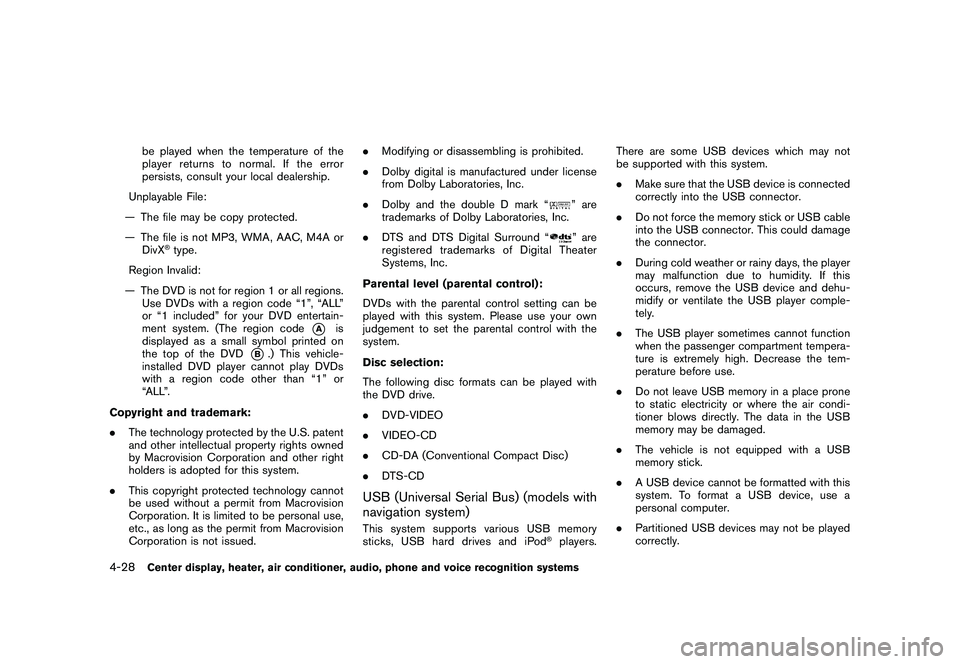
Region Invalid:
— The DVD is not for region 1 or all regions. Use DVDs with a region code “1”, “ALL”
or “1 included” for your DVD entertain-
ment system. (The region code
*A
is
displayed as a small symbol printed on
the top of the DVD
*B.) This vehicle-
installed DVD player cannot play DVDs
with a region code other than “1” or
“ALL”.
Copyright and trademark:
. The technology protected by the U.S. patent
and other intellectual property rights owned
by Macrovision Corporation and other right
holders is adopted for this system.
. This copyright protected technology cannot
be used without a permit from Macrovision
Corporation. It is limited to be personal use,
etc., as long as the permit from Macrovision
Corporation is not issued. .
Modifying or disassembling is prohibited.
. Dolby digital is manufactured under license
from Dolby Laboratories, Inc.
. Dolby and the double D mark “
” are
trademarks of Dolby Laboratories, Inc.
. DTS and DTS Digital Surround “” are
registered trademarks of Digital Theater
Systems, Inc.
Parental level (parental control):
DVDs with the parental control setting can be
played with this system. Please use your own
judgement to set the parental control with the
system.
Disc selection:
The following disc formats can be played with
the DVD drive.
. DVD-VIDEO
. VIDEO-CD
. CD-DA (Conventional Compact Disc)
. DTS-CD
USB (Universal Serial Bus) (models with
navigation system)This system supports various USB memory
sticks, USB hard drives and iPod
®players. There are some USB devices which may not
be supported with this system.
.
Make sure that the USB device is connected
correctly into the USB connector.
. Do not force the memory stick or USB cable
into the USB connector. This could damage
the connector.
. During cold weather or rainy days, the player
may malfunction due to humidity. If this
occurs, remove the USB device and dehu-
midify or ventilate the USB player comple-
tely.
. The USB player sometimes cannot function
when the passenger compartment tempera-
ture is extremely high. Decrease the tem-
perature before use.
. Do not leave USB memory in a place prone
to static electricity or where the air condi-
tioner blows directly. The data in the USB
memory may be damaged.
. The vehicle is not equipped with a USB
memory stick.
. A USB device cannot be formatted with this
system. To format a USB device, use a
personal computer.
. Partitioned USB devices may not be played
correctly.
4-28
Center display, heater, air conditioner, audio, phone and voice recognition systems
Page 183 of 409
Black plate (183,1)
Model "Z34-D" EDITED: 2009/ 9/ 10
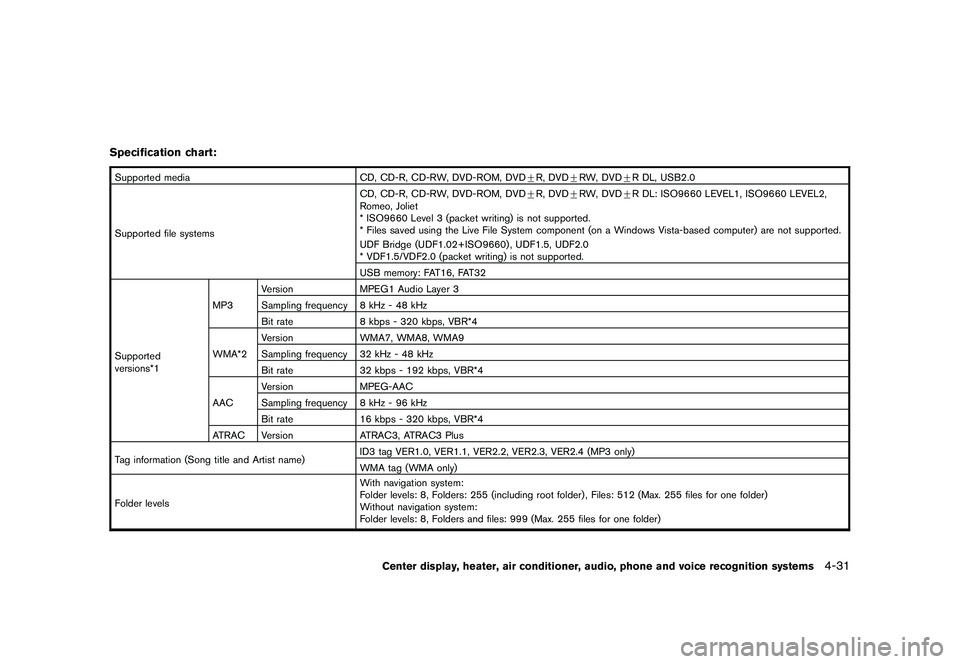
Specification chart:Supported mediaCD, CD-R, CD-RW, DVD-ROM, DVD+R, DVD +RW, DVD +R DL, USB2.0
Supported file systems CD, CD-R, CD-RW, DVD-ROM, DVD
+R, DVD +RW, DVD +R DL: ISO9660 LEVEL1, ISO9660 LEVEL2,
Romeo, Joliet
* ISO9660 Level 3 (packet writing) is not supported.
* Files saved using the Live File System component (on a Windows Vista-based computer) are not supported.
UDF Bridge (UDF1.02+ISO9660) , UDF1.5, UDF2.0
* VDF1.5/VDF2.0 (packet writing) is not supported.
USB memory: FAT16, FAT32
Supported
versions*1 MP3
Version
MPEG1 Audio Layer 3
Sampling frequency 8 kHz - 48 kHz
Bit rate 8 kbps - 320 kbps, VBR*4
WMA*2 Version
WMA7, WMA8, WMA9
Sampling frequency 32 kHz - 48 kHz
Bit rate 32 kbps - 192 kbps, VBR*4
AAC Version
MPEG-AAC
Sampling frequency 8 kHz - 96 kHz
Bit rate 16 kbps - 320 kbps, VBR*4
ATRAC Version ATRAC3, ATRAC3 Plus
Tag information (Song title and Artist name) ID3 tag VER1.0, VER1.1, VER2.2, VER2.3, VER2.4 (MP3 only)
WMA tag (WMA only)
Folder levels With navigation system:
Folder levels: 8, Folders: 255 (including root folder) , Files: 512 (Max. 255 files for one folder)
Without navigation system:
Folder levels: 8, Folders and files: 999 (Max. 255 files for one folder)
Center display, heater, air conditioner, audio, phone and voice recognition systems
4-31
Page 184 of 409
Black plate (184,1)
Model "Z34-D" EDITED: 2009/ 9/ 10
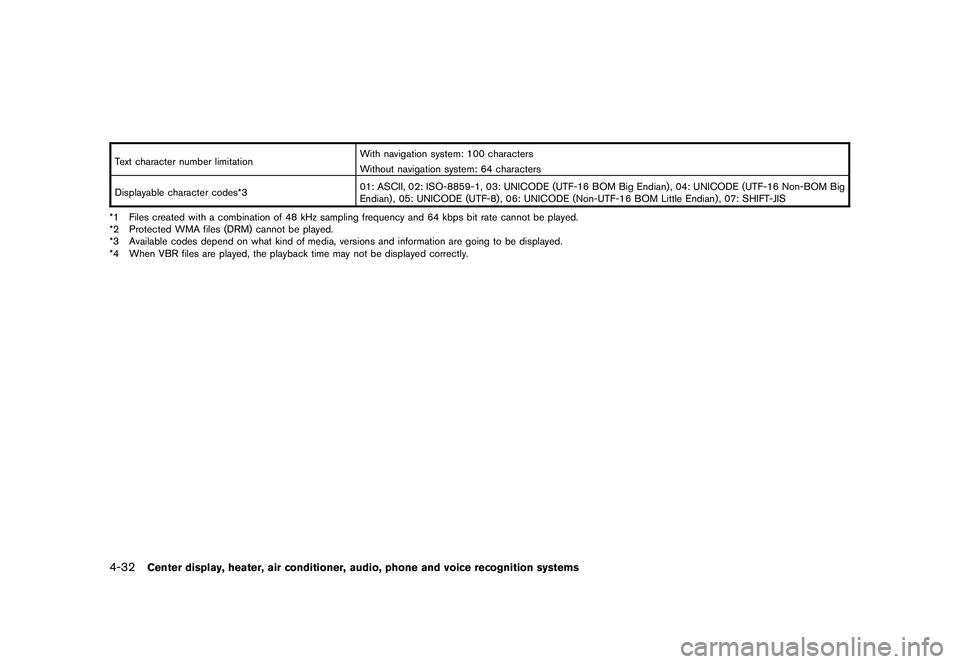
Text character number limitationWith navigation system: 100 characters
Without navigation system: 64 characters
Displayable character codes*3 01: ASCII, 02: ISO-8859-1, 03: UNICODE (UTF-16 BOM Big Endian) , 04: UNICODE (UTF-16 Non-BOM Big
Endian) , 05: UNICODE (UTF-8) , 06: UNICODE (Non-UTF-16 BOM Little Endian) , 07: SHIFT-JIS
*1 Files created with a combination of 48 kHz sampling frequency and 64 kbps bit rate cannot be played.
*2 Protected WMA files (DRM) cannot be played.
*3 Available codes depend on what kind of media, versions and information are going to be displayed.
*4 When VBR files are played, the playback time may not be displayed correctly.4-32
Center display, heater, air conditioner, audio, phone and voice recognition systems
Page 186 of 409
Black plate (186,1)
Model "Z34-D" EDITED: 2009/ 9/ 10
Compressed Video Files (models with
navigation system)Explanation of terms:
.DivX
®- DivX
®refers to the DivX
®codec
owned by DivX, Inc. used for a lossy
compression of video based on MPEG-4.
. AVI - AVI stands for Audio Video Interleave.
It is a standard file format originated by
Microsoft Corporation. A “.divx” encoded file
can be saved into the “.avi” file format for
playback on this system if it meets the
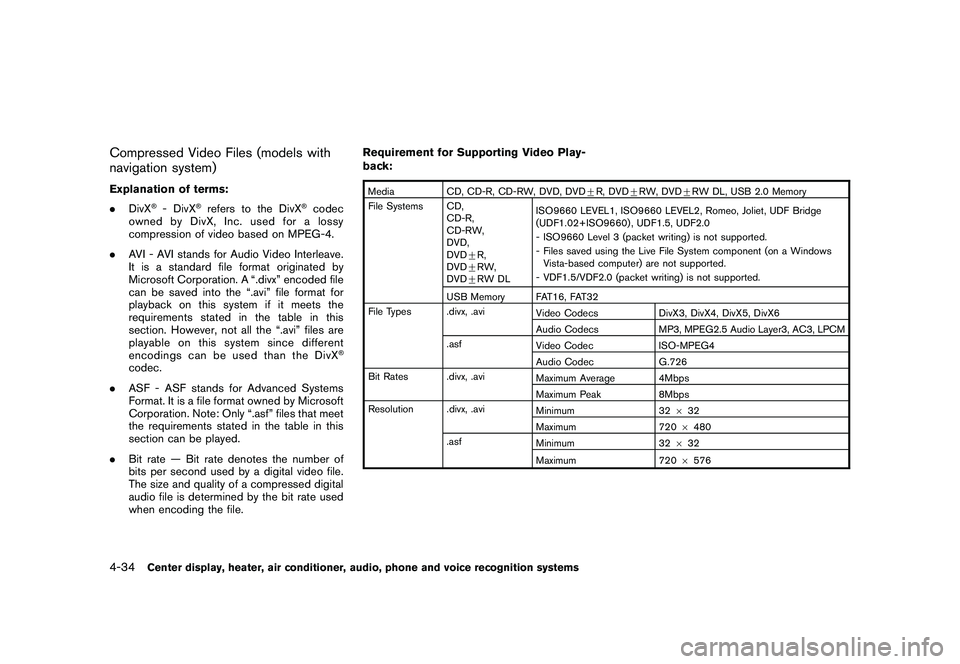
requirements stated in the table in this
section. However, not all the “.avi” files are
playable on this system since different
encodings can be used than the DivX
®
codec.
. ASF - ASF stands for Advanced Systems
Format. It is a file format owned by Microsoft
Corporation. Note: Only “.asf” files that meet
the requirements stated in the table in this
section can be played.
. Bit rate — Bit rate denotes the number of
bits per second used by a digital video file.
The size and quality of a compressed digital
audio file is determined by the bit rate used
when encoding the file. Requirement for Supporting Video Play-
back:
Media
CD, CD-R, CD-RW, DVD, DVD+ R, DVD+RW, DVD +RW DL, USB 2.0 Memory
File Systems CD, CD-R,
CD-RW,
DVD,
DVD+R,
DVD +RW,
DVD +RW DL ISO9660 LEVEL1, ISO9660 LEVEL2, Romeo, Joliet, UDF Bridge
(UDF1.02+ISO9660) , UDF1.5, UDF2.0
- ISO9660 Level 3 (packet writing) is not supported.
- Files saved using the Live File System component (on a Windows
Vista-based computer) are not supported.
- VDF1.5/VDF2.0 (packet writing) is not supported.
USB Memory FAT16, FAT32
File Types .divx, .avi Video CodecsDivX3, DivX4, DivX5, DivX6
Audio Codecs MP3, MPEG2.5 Audio Layer3, AC3, LPCM
.asf Video Codec ISO-MPEG4
Audio Codec G.726
Bit Rates .divx, .avi Maximum Average 4Mbps
Maximum Peak8Mbps
Resolution .divx, .avi Minimum32632
Maximum 7206480
.asf Minimum 32632
Maximum 7206576
4-34
Center display, heater, air conditioner, audio, phone and voice recognition systems
Page 187 of 409
Black plate (187,1)
Model "Z34-D" EDITED: 2009/ 9/ 10
Bluetooth
®Audio player (models with
navigation system)
. Some Bluetooth
®audio devices may not be
recognized by the in-vehicle audio system.
. It is necessary to set up the wireless
connection between a compatible Blue-
tooth
®audio device and the in-vehicle
Bluetooth®module before using the Blue-
tooth
®audio player.
. Operating procedure of the Bluetooth
®
audio player will vary depending on the
device. Make sure it is understood how to
operate an audio device before using it with
this system.
. The Bluetooth
®audio player may be stopped
under the following conditions:
— Receiving a hands-free call.
— Checking the connection to the hands- free phone.
. Do not place a Bluetooth
®audio device in an
area surrounded by metal or far away from
the in-vehicle Bluetooth®module to prevent
tone quality degradation and wireless con-
nection disruption.
. While an audio device is connected through
a Bluetooth
®wireless connection, the bat-
tery power of the device may discharge quicker than usual.
. This system supports the Bluetooth
®Audio
Distribution Profile (A2DP, AVRCP) .
. BLUETOOTH
®is a trademark owned by
Bluetooth SIG, Inc. and licensed to Clarion
Co., Ltd.
Music Box hard driveRecording:
. Note that data that is lost and not stored to
the hard disk drive due to system damage,
improper operation or malfunction is not
under warranty.
. Vehicle owners are not permitted to record
music without permission of the owner of
the copyright except for personal use.
. Check if the music is appropriately recorded
to the hard disk drive after recording when
the compact disc cannot be rerecorded.
. Some music cannot be recorded depending
on the disc condition due to high-speed
recording.
. Jumping sounds may be recorded when a
compact disc is recorded while driving on
rough roads and excessive vibration occurs. .
A mark indicating jumping sounds is dis-
played if jumping sounds are recorded.
. No sounds may be recorded if jumping
sounds occurs or the disc is in poor
condition.
. Tracks that include Serial Copy Manage-
ment System (SCMS) are not recorded.
. If a compact disc is scratched or dirty, it may
not be recorded, jumping sounds may occur
or it may take a long time to record.
Automatic title download:
. The title information that is automatically
downloaded may differ from the actual title.
. When newly released compact discs are
recorded, their title information may not be
downloaded.
. The title information in the hard disk can be
updated. (See “Playing recorded songs”
later in this section.)
Center display, heater, air conditioner, audio, phone and voice recognition systems
4-35
Page 193 of 409
Black plate (193,1)
Model "Z34-D" EDITED: 2009/ 9/ 10
FM-AM-SAT RADIO WITH COMPACT
DISC (CD) CHANGER (models without
navigation system)For all operation precautions, see “AUDIO
OPERATION PRECAUTIONS” earlier in this
section.
The satellite radio mode requires an active XM
Satellite Radio subscription. The satellite radio is
not available in Alaska, Hawaii and Guam.
It may take some time to receive the activation
signal after subscribing to the XM Satellite
Radio. After receiving the activation signal, an
available channel list will be automatically
updated in the radio. For XM, push the ignition
switch from LOCK to ACC to update the
channel list.Audio main operationHead unit:
The auto loudness circuit enhances the low and
high frequency ranges automatically in both
radio reception and CD playback.
ON·OFF/Volume control:
Push the ignition switch to the ACC or ON
position, and then push the ON·OFF button
while the system is off to call up the mode (radio,
CD or AUX) which was playing immediately
before the system was turned off. While thesystem is on, pushing the ON·OFF button turns
the system off.
Turn the VOL control knob to adjust the volume.
MUTE button:
Push the
button to mute the audio sound.
Push thebutton again to release the mute.
Adjusting tone quality and speaker bal-
ance:
To adjust Bass, Treble, Balance and Fade, push
the Audio button. When the display shows the
setting you want to change (Bass, Treble,
Balance and Fade) , push the SEEK or TUNE
button to set the desired setting.
These items can also be adjusted by pushing
the AUDIO button.
. Speed Sensitive Vol.
Sound volume is increased according to the
vehicle speed. Choose the effect level from
“HIGH”, “MID”, “LOW” or “OFF”.
. Beep tuning
When this item is turned to ON, you will hear
a beep sound when you use a button.
FM-AM-SAT radio operation
radio (FM/AM) band select:
Pushing the radio band select button will
change the band as follows:
AM ?FM1 ?FM2 ?AMradio (SAT) band select:
Pushing the radio band select button will
change the band as follows:
XM1 ?XM2 ?XM3 ?XM1
When the radio band select button is pushed
while the ignition switch is in the ACC or ON
position, the radio will come on at the channel
last played.
The last channel played will also come on when
the ON·OFF button is pushed to ON.
The satellite radio mode requires an active XM
Satellite Radio subscription. The satellite radio is
not available in Alaska, Hawaii and Guam.
If another audio source is playing when the radio
band select button is turned to ON, the audio
source will automatically be turned off and the
last radio channel played will come on.
When the stereo broadcast signal is weak, the
radio will automatically change from stereo to
Center display, heater, air conditioner, audio, phone and voice recognition systems
4-41
Page 198 of 409
Black plate (198,1)
Model "Z34-D" EDITED: 2009/ 9/ 10
ON·OFF/Volume control:
Push the ignition switch to the ACC or ON
position, and then push the ON·OFF button
while the system is off to turn on the last audio
source (i.e. FM or CD) , which was playing
immediately before the system was turned off.
While the system is on, pushing the ON·OFF
button turns the system off.
Turn the VOL control knob to adjust the volume.
Adjusting tone quality and speaker bal-
ance:
To adjust Bass, Treble, Balance and Fade, push
the Audio control knob. When the display shows
the setting you want to change (Bass, Treble,
Balance and Fade) , rotate the Audio control
knob to set the desired setting. For the other
setting methods, see “HOW TO USE SETTING
BUTTON” earlier in this section.
This vehicle has some sound effect functions as
follows:
.Speed Sensitive Vol.
For more details, see “VEHICLE INFORMATION
AND SETTINGS (models with navigation sys-
tem)” earlier in this section. Switching the display:
Pushing the DISC·AUX button will switch the
displays as follows:
iPod
®/USB
?CD/DVD ?Music Box ?
Bluetooth
®Audio ?AUX ?iPod
®/USB
FM-AM-SAT radio operation
radio (FM/AM) band select:
Pushing the radio band select button will
change the band as follows:
AM ?FM1 ?FM2 ?AMradio (SAT) band select:
Pushing the radio band select button will
change the band as follows:
XM1 ?XM2 ?XM3 ?XM1
When the radio band select button is pushed
while the ignition switch is in the ACC or ON
position, the radio will come on at the channel
last played.
The last channel played will also come on when
the ON·OFF button is pushed to ON.
The satellite radio is not available in Alaska,
Hawaii and Guam. If another audio source is playing when the radio
band select button is turned to ON, the audio
source will automatically be turned off and the
last radio channel played will come on.
When the stereo broadcast signal is weak, the
radio will automatically change from stereo to
monaural reception.
TUNE (Tuning):
.
For AM and FM radio
Turn the radio TUNE knob for manual tuning.
. For XM Satellite Radio
Turn the radio TUNE knob to seek channels
from all of the categories when any category
is not selected.
SEEK tuning/CATEGORY
(CAT):
. For AM and FM radio
Push the SEEK button
or
to tune
from low to high or high to low frequencies
and to stop at the next broadcasting station.
. For XM Satellite Radio
Push the SEEK button
or
to tune
to the first channel of the next or previous
category.
4-46
Center display, heater, air conditioner, audio, phone and voice recognition systems
Page 200 of 409
Black plate (200,1)
Model "Z34-D" EDITED: 2009/ 9/ 10
.Direct Tune
Inputs the channel number by using a
keypad.Compact Disc (CD) player operationPush the ignition switch to the ACC or ON
position and insert the Compact Disc (CD) into
the slot with the label side facing up. The CD will
be guided automatically into the slot and start
playing.
After loading the CD, the number of tracks on
the CD and the play time will appear on the
display.
If the radio is already operating, it will auto-
matically turn off and the CD will play.
If the system has been turned off while the CD
was playing, pushing the ON·OFF button will
start the CD.
Do not use 3.1 in (8 cm) discs.
PLAY:
When the DISC·AUX (CD play) button is
pushed with the system off and the CD loaded,
the system will turn on and the CD will start to
play.
When the DISC·AUX button is pushed with the
CD loaded and the radio playing, the radio will
automatically be turned off and the CD will start to play.
Menu:
When the “Menu” key on the display is selected
while the CD is being played, the menu screen
will be displayed. The following menu options
are available.
.
Folder List (for CD with compressed audio
files)
Displays the folder list.
. Track List
Displays the track list.
. Play Mode
Select a play mode from the following items.
— Normal
— 1 Folder Repeat (for CD with compressed audio files)
— 1 Track Repeat
— 1 Disc Random
— 1 Folder Random (for CD with com- pressed audio files)
. Record to Music Box (for CD)
Select to choose specific songs on the CD
to record to the Music Box. .
Title Text Priority (for CD)
Set the priority to CDDB (Compact Disc
Data Base) to acquire track information from
the Gracenote Database, or set the priority
to CD-TEXT to acquire the information from
CDs.
. Automatic Recording (for CD)
When this item is turned to ON, the Music
Box hard drive automatically starts recording
when a CD is inserted.
. Recording Quality (for CD)
The larger number (132) will increase the
recorded sound quality while taking up more
space on the Music Box leaving less room
for more songs.
For the details of Music Box, see “MUSIC BOX
HARD-DISK DRIVE (models with navigation
system)” later in this section.
Next/Previous Track and Fast
Forward/Rewind:
When the(fast forward) or
(rewind)
button is pushed for more than 1.5 seconds
while the CD is being played, the CD will play
while fast forwarding or rewinding. When the
button is released, the CD will return to normal
play speed.
4-48
Center display, heater, air conditioner, audio, phone and voice recognition systems
Page 204 of 409
Black plate (204,1)
Model "Z34-D" EDITED: 2009/ 9/ 10
be changed to the one specified.
Display:
To adjust the image quality of the screen, select
the preferred adjustment items.
Audio:
Select the preferred language for audio.
Subtitle (DVD-VIDEO, DVD-VR):
Select the preferred language for subtitles.
Display Mode (DVD-VIDEO, VIDEO-CD,
DVD-VR):
Select from the “Full”, “Wide”, “Normal” or
“Cinema” modes.
Title List (DVD-VR):
Select the preferred title from the list.
Play Mode:
Select the preferred play mode.
PG/PL Mode (DVD-VR):
Select the “PG” or “PL” mode.
SAA2499
USB MEMORY OPERATION (models
with navigation system)
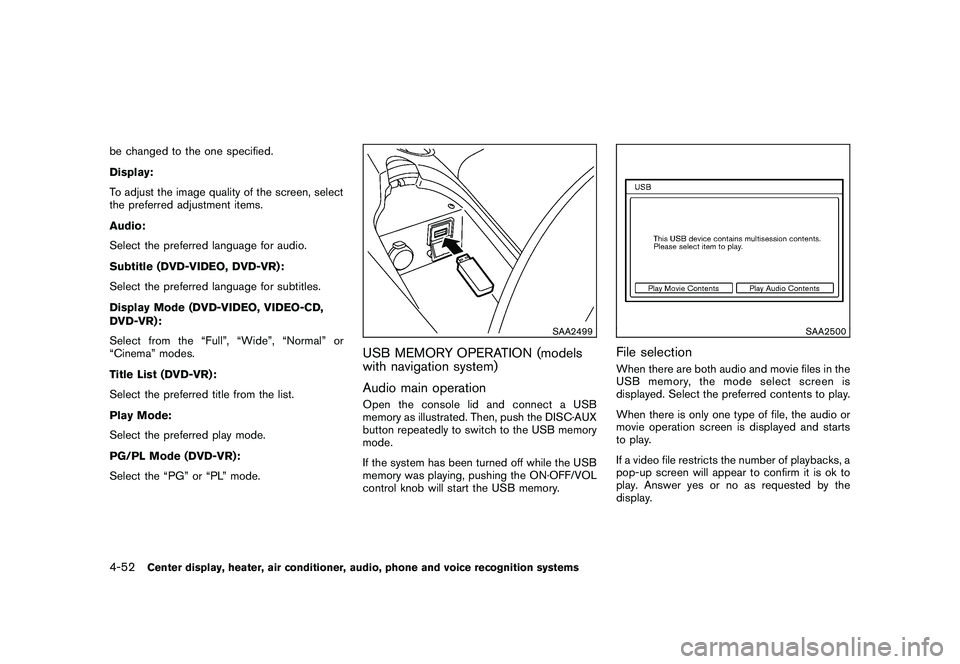
Audio main operationOpen the console lid and connect a USB
memory as illustrated. Then, push the DISC·AUX
button repeatedly to switch to the USB memory
mode.
If the system has been turned off while the USB
memory was playing, pushing the ON·OFF/VOL
control knob will start the USB memory.
SAA2500
File selectionWhen there are both audio and movie files in the
USB memory, the mode select screen is
displayed. Select the preferred contents to play.
When there is only one type of file, the audio or
movie operation screen is displayed and starts
to play.
If a video file restricts the number of playbacks, a
pop-up screen will appear to confirm it is ok to
play. Answer yes or no as requested by the
display.
4-52
Center display, heater, air conditioner, audio, phone and voice recognition systems
Page 208 of 409
Black plate (208,1)
Model "Z34-D" EDITED: 2009/ 9/ 10
.10 Key Search
Select the “10 Key Search” key to open the
number entry screen.
Input the number to be searched and select
the “OK” key.
The specified folder/file will be played.
. Display
To adjust the image quality of the screen,
select the preferred adjustment items.
. DRC
DRC (Dynamic Range Compression) auto-
matically adjusts the soundtrack volume
level to maintain a more even sound to the
speakers.
. Audio
Select the preferred language for audio.
. Subtitle
Select the preferred language for subtitle.
. Display Mode
Select the “Normal”, “Wide”, “Cinema” or
“Full” mode.
BLUETOOTH
®STREAMING AUDIO
(models with navigation system)
Your NISSAN is equipped with Bluetooth
®
Streaming Audio. If you have a compatible
Bluetooth
®device with streaming audio (A2DP
profile) , you can set up the wireless connection
between your Bluetooth
®device and the in-
vehicle audio system. This connection allows
you to listen to the audio from the Bluetooth
®
device using your vehicle speakers. It also may
allow basic control of the device for playing and
skipping audio files using the AVRCP Blue-
tooth
®profile. All Bluetooth
®Devices do not
have the same level of controls for AVRCP.
Please consult the manual for your Bluetooth
®
Device for more details.
Once your Bluetooth
®device is connected to
the in-vehicle audio system, it will automatically
reconnect whenever the device is present in the
vehicle and you select Bluetooth
®Audio from
your audio system. You do not need to manually
reconnect for each usage.
Regulatory informationFCC Regulatory information:
— CAUTION: To maintain compliance with FCC’s RF exposure guidelines, use only
the supplied antenna. Unauthorized antenna,
modification, or attachments could damage
the transmitter and may violate FCC regula-
tions.
— Operation is subject to the following two conditions:
1) This device may not cause interference and
2) This device must accept any interfer- ence, including interference that may
cause undesired operation of the device
IC Regulatory information:
— Operation is subject to the following two conditions:
1) This device may not cause interference, and
2) This device must accept any interfer- ence, including interference that may
cause undesired operation of the device.
— This Class B digital apparatus meets all requirements of the Canadian Interference-
Causing Equipment Regulations.
4-56
Center display, heater, air conditioner, audio, phone and voice recognition systems