change time NISSAN 370Z COUPE 2010 Owners Manual
[x] Cancel search | Manufacturer: NISSAN, Model Year: 2010, Model line: 370Z COUPE, Model: NISSAN 370Z COUPE 2010Pages: 409, PDF Size: 3.56 MB
Page 2 of 409
Black plate (2,1)
Model "Z34-D" EDITED: 2009/ 9/ 10
Welcome to the growing family of new NISSAN
owners. This vehicle is delivered to you with
confidence. It was produced using the latest
techniques and strict quality control.
This manual was prepared to help you under-
stand the operation and maintenance of your
vehicle so that you may enjoy many miles of
driving pleasure. Please read through this
manual before operating your vehicle.
A separate Warranty Information Booklet
explains details about the warranties cov-
ering your vehicle. The NISSAN Service
and Maintenance Guide explains details
about maintaining and servicing your ve-
hicle. Additionally, a separate Customer
Care/Lemon Law Booklet (U.S. only) will
explain how to resolve any concerns you
may have with your vehicle, as well as
clarify your rights under your state’s lemon
law.
Your NISSAN dealer knows your vehicle best.
When you require any service or have any
questions, we will be glad to assist you with the
extensive resources available to us.READ FIRST — THEN DRIVE SAFELYBefore driving your vehicle, read your Owner’s
Manual carefully. This will ensure familiarity with
controls and maintenance requirements, assist-
ing you in the safe operation of your vehicle.
WARNING
IMPORTANT SAFETY INFORMA-TION REMINDERS FOR SAFETY!Follow these important driving rules to
help ensure a safe and comfortable trip
for you and your passengers!
. NEVER drive under the influence of
alcohol or drugs.
. ALWAYS observe posted speed lim-
its and never drive too fast for
conditions.
. ALWAYS give your full attention to
driving and avoid using vehicle
features or taking other actions that
could distract you.
. ALWAYS use your seat belts and
appropriate child restraint systems.
. ALWAYS provide information about
the proper use of vehicle safety
features to all occupants of the
vehicle.
. ALWAYS review this Owner’s Man-
ual for important safety information.
MODIFICATION OF YOUR VEHICLEThis vehicle should not be modified.
Modification could affect its performance,
safety or durability, and may even violate
governmental regulations. In addition,
damage or performance problems result-
ing from modification will not be covered
under the NISSAN warranties.WHEN READING THE MANUALThis manual includes information for all
options available on this model. Therefore,
you may find some information that does
not apply to your vehicle.
All information, specifications and illustrations in
this manual are those in effect at the time of
printing. NISSAN reserves the right to change
specifications or design at any time without
notice.
Foreword
Page 82 of 409
Black plate (80,1)
Model "Z34-D" EDITED: 2009/ 9/ 10
SIC3978
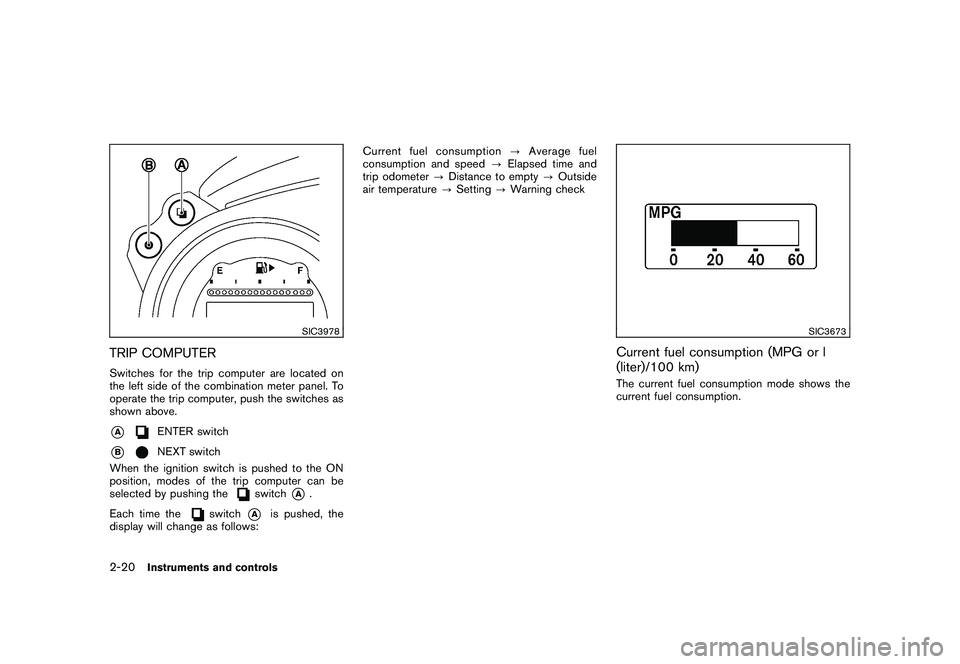
TRIP COMPUTERSwitches for the trip computer are located on
the left side of the combination meter panel. To
operate the trip computer, push the switches as
shown above.*A
ENTER switch
*B
NEXT switch
When the ignition switch is pushed to the ON
position, modes of the trip computer can be
selected by pushing the
switch
*A
.
Each time the
switch
*A
is pushed, the
display will change as follows: Current fuel consumption
?Average fuel
consumption and speed ?Elapsed time and
trip odometer ?Distance to empty ?Outside
air temperature ?Setting ?Warning check
SIC3673
Current fuel consumption (MPG or l
(liter)/100 km)The current fuel consumption mode shows the
current fuel consumption.
2-20
Instruments and controls
Page 88 of 409
Black plate (86,1)
Model "Z34-D" EDITED: 2009/ 9/ 10
on for about 30 seconds. The vehicle
security system is now pre-armed. After
about 30 seconds the vehicle security
system automatically shifts into the armed
phase. The security light begins to flash
once every approximately 3 seconds. If,
during this 30-second pre-arm time period,
the door is unlocked, or the ignition switch is
pushed to ACC or ON, the system will not
arm.
Even when the driver and/or passengers
are in the vehicle, the system will activate
with all doors, hood and rear hatch locked
withtheignitionswitchintheLOCK
position. When pushing the ignition switch
to the ACC or ON position, the system will
be released.
Vehicle security system activationThe vehicle security system will give the follow-
ing alarm:
. The headlights blink and the horn sounds
intermittently.
. The alarm automatica lly turns off after
approximately 1 minute. However, the alarm
reactivates if the vehicle is tampered with
again.
The alarm is activated by:
. Unlocking the door or opening the rear hatch without using the button on the
Intelligent Key, the door handle request
switch or the mechanical key. (Even if the
door is opened by releasing the door inside
lock knob, the alarm will activate.)
. Opening the hood.
How to stop an activated alarmThe alarm will stop by unlocking a door by
pushing the unlock button on the Intelligent Key,
the door handle request switch or using the
mechanical key. The alarm will not stop if the
ignition switch is pushed to the ACC or ON
position.
If the system does not operate as de-
scribed above, have it checked by a
NISSAN dealer.NISSAN VEHICLE IMMOBILIZER SYS-
TEMThe NISSAN Vehicle Immobilizer System will not
allow the engine to start without the use of the
registered Intelligent Key. Never leave these
keys in the vehicle.
Statement related to section 15 of FCC
rules for NISSAN Vehicle Immobilizer
System (CONT ASSY - CARD SLOT)
This device complies with part 15 of the
FCC Rules and RSS-210 of Industry Cana- da. Operation is subject to the following
two conditions;
(1) This device may not cause harmful
interference, and (2) this device must
accept any interference received, including
interference that may cause undesired
operation of the device.
CHANGES OR MODIFICATIONS NOT EX-
PRESSLY APPROVED BY THE PARTY
RESPONSIBLE FOR COMPLIANCE COULD
VOID THE USER’S AUTHORITY TO OPER-
ATE THE EQUIPMENT.
2-26
Instruments and controls
Page 168 of 409
Black plate (168,1)
Model "Z34-D" EDITED: 2009/ 9/ 10
SAA2492
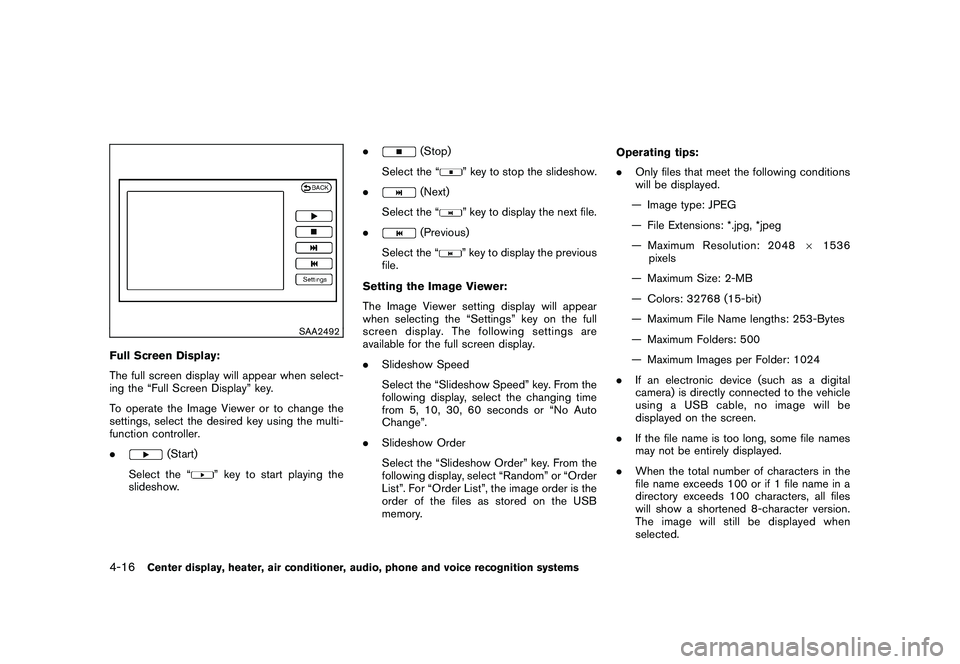
Full Screen Display:
The full screen display will appear when select-
ing the “Full Screen Display” key.
To operate the Image Viewer or to change the
settings, select the desired key using the multi-
function controller.
.
(Start)
Select the “
” key to start playing the
slideshow. .
(Stop)
Select the “
” key to stop the slideshow.
.
(Next)
Select the “
” key to display the next file.
.
(Previous)
Select the “
” key to display the previous
file.
Setting the Image Viewer:
The Image Viewer setting display will appear
when selecting the “Settings” key on the full
screen display. The following settings are
available for the full screen display.
. Slideshow Speed
Select the “Slideshow Speed” key. From the
following display, select the changing time
from 5, 10, 30, 60 seconds or “No Auto
Change”.
. Slideshow Order
Select the “Slideshow Order” key. From the
following display, select “Random” or “Order
List”. For “Order List”, the image order is the
order of the files as stored on the USB
memory. Operating tips:
.
Only files that meet the following conditions
will be displayed.
— Image type: JPEG
— File Extensions: *.jpg, *jpeg
— Maximum Resolution: 2048 61536
pixels
— Maximum Size: 2-MB
— Colors: 32768 (15-bit)
— Maximum File Name lengths: 253-Bytes
— Maximum Folders: 500
— Maximum Images per Folder: 1024
. If an electronic device (such as a digital
camera) is directly connected to the vehicle
using a USB cable, no image will be
displayed on the screen.
. If the file name is too long, some file names
may not be entirely displayed.
. When the total number of characters in the
file name exceeds 100 or if 1 file name in a
directory exceeds 100 characters, all files
will show a shortened 8-character version.
The image will still be displayed when
selected.
4-16
Center display, heater, air conditioner, audio, phone and voice recognition systems
Page 178 of 409
Black plate (178,1)
Model "Z34-D" EDITED: 2009/ 9/ 10
SAA0480
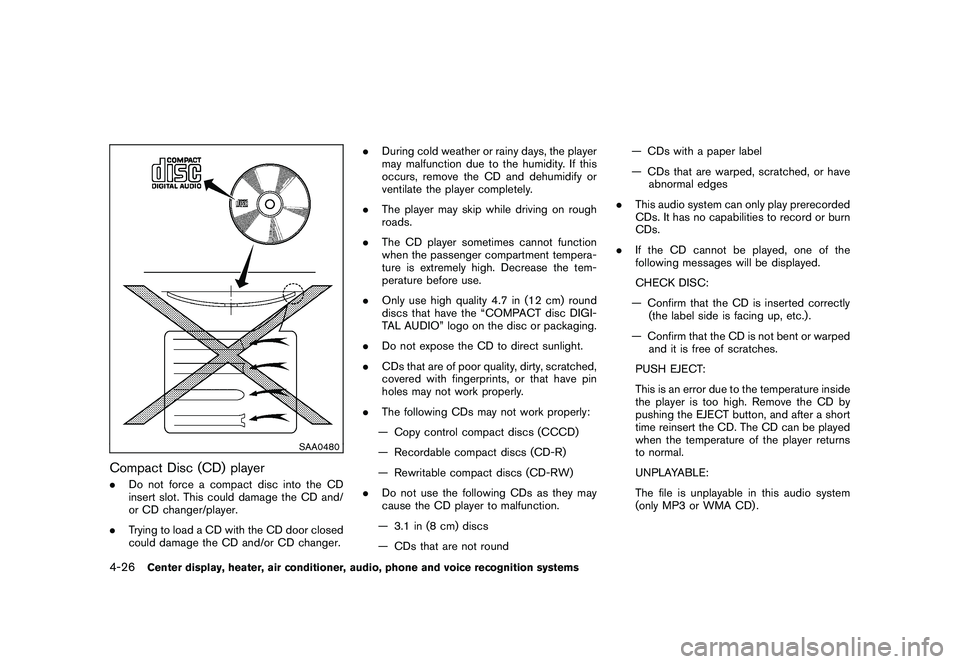
Compact Disc (CD) player.Do not force a compact disc into the CD
insert slot. This could damage the CD and/
or CD changer/player.
. Trying to load a CD with the CD door closed
could damage the CD and/or CD changer. .
During cold weather or rainy days, the player
may malfunction due to the humidity. If this
occurs, remove the CD and dehumidify or
ventilate the player completely.
. The player may skip while driving on rough
roads.
. The CD player sometimes cannot function
when the passenger compartment tempera-
ture is extremely high. Decrease the tem-
perature before use.
. Only use high quality 4.7 in (12 cm) round
discs that have the “COMPACT disc DIGI-
TAL AUDIO” logo on the disc or packaging.
. Do not expose the CD to direct sunlight.
. CDs that are of poor quality, dirty, scratched,
covered with fingerprints, or that have pin
holes may not work properly.
. The following CDs may not work properly:
— Copy control compact discs (CCCD)
— Recordable compact discs (CD-R)
— Rewritable compact discs (CD-RW)
. Do not use the following CDs as they may
cause the CD player to malfunction.
— 3.1 in (8 cm) discs
— CDs that are not round — CDs with a paper label
— CDs that are warped, scratched, or have
abnormal edges
. This audio system can only play prerecorded
CDs. It has no capabilities to record or burn
CDs.
. If the CD cannot be played, one of the
following messages will be displayed.
CHECK DISC:
— Confirm that the CD is inserted correctly (the label side is facing up, etc.) .
— Confirm that the CD is not bent or warped and it is free of scratches.
PUSH EJECT:
This is an error due to the temperature inside
the player is too high. Remove the CD by
pushing the EJECT button, and after a short
time reinsert the CD. The CD can be played
when the temperature of the player returns
to normal.
UNPLAYABLE:
The file is unplayable in this audio system
(only MP3 or WMA CD) .4-26
Center display, heater, air conditioner, audio, phone and voice recognition systems
Page 181 of 409
Black plate (181,1)
Model "Z34-D" EDITED: 2009/ 9/ 10
.Some characters used in other languages
(Chinese, Japanese, etc.) are not displayed
properly on the vehicle center screen. Using
English language characters with a USB
device is recommended.
. Do not connect a USB device if a connector
or cable is wet. Allow the cable and/or
connectors to dry completely before con-
necting the USB device. If the connector is
exposed to fluids other than water, evapora-
tive residue may cause a short between the
connector pins.
. Large video podcast files cause slow
responses in an iPod
®. The vehicle center
display may momentarily black out, but it will
soon recover.
. If an iPod
®automatically selects large video
podcast files while in the shuffle mode, the
vehicle center display may momentarily
black out, but it will soon recover.
. Audiobooks may not play in the same order
as they appear on an iPod
®.
. An iPod
®nano (1st Generation) may remain
in fast forward or rewind mode if it is
connected during a seek operation. In this
case, please manually reset the iPod
®.
. An iPod
®nano (2nd Generation) will con-
tinue to fast forward or rewind if it is
disconnected during a seek operation. .
An incorrect song title may appear when the
Play Mode is changed while using the iPod
®
nano (2nd Generation)
iPod®is a trademark of Apple Inc., registered in
the U.S. and other countries.
Compressed Audio Files (MP3/WMA/
AAC/ATRAC3)Explanation of terms:
. MP3 — MP3 is short for Moving Pictures
Experts Group Audio Layer 3. MP3 is the
most well known compressed digital audio
file format. This format allows for near “CD
quality” sound, but at a fraction of the size of
normal audio files. MP3 conversion of an
audio track can reduce the file size by
approximately a 10:1 ratio (Sampling: 44.1
kHz, Bit rate: 128 kbps) with virtually no
perceptible loss in quality. The compression
reduces certain parts of sound that seem
inaudible to most people.
. WMA — Windows Media Audio (WMA) is a
compressed audio format created by Micro-
soft as an alternative to MP3. The WMA
codec offers greater file compression than
the MP3 codec, enabling storage of more
digital audio tracks in the same amount of
space when compared to MP3s at the same
level of quality. .
AAC/M4A — Advanced Audio Coding
(AAC) is a lossy audio compression format.
Audio files that have been encoded with
AAC are generally smaller in size and deliver
a higher quality of sound than MP3.
. ATRAC3, ATRAC3 Plus - Adaptive Trans-
form Acoustic Coding (ATRAC) is a lossy
audio compression format developed by
Sony.
. Bit rate — Bit rate denotes the number of
bits per second used by a digital music file.
The size and quality of a compressed digital
audio file is determined by the bit rate used
when encoding the file.
. Sampling frequency — Sampling frequency
is the rate at which the samples of a signal
are converted from analog to digital (A/D
conversion) per second.
. Multisession — Multisession is one of the
methods for writing data to media. Writing
data once to the media is called a single
session, and writing more than once is
called a multisession.
. ID3/WMA Tag — The ID3/WMA tag is the
part of the encoded MP3 or WMA file that
contains information about the digital music
file such as song title, artist, album title,
encoding bit rate, track time duration, etc.
ID3 tag information is displayed on the
Center display, heater, air conditioner, audio, phone and voice recognition systems
4-29
Page 190 of 409
Black plate (190,1)
Model "Z34-D" EDITED: 2009/ 9/ 10
After loading the disc, the number of tracks on
the disc will appear on the display.
If the radio is already operating, it will auto-
matically turn off and the CD will play.
If the system has been turned off while the CD
was playing, pushing the PWR button will start
the CD.
MP3 or WMA CDs are not supported with this
CD player. If an MP3 or WMA CD is inserted
into the slot, the counter on the audio display
automatically advances without sound. However
this is a specification of the CD mechanism and
not a malfunction.
Do not use 3.1 in (8 cm) discs.
CD PLAY:
When the CD button is pushed with the system
off and the CD loaded, the system will turn on
and the CD will start to play.
When the CD button is pushed with the CD
loaded and the radio playing, the radio will
automatically be turned off and the CD will start
to play.FF (Fast Forward) , REW (Rewind):
When the
(fast forward) or
(rewind) of
the TUNE button is pushed while the CD is being played, the CD will play while fast
forwarding or rewinding.
When the button is released, the CD will return
to normal play speed.
APS (Automatic Program Search)
FF, APS REW:
When the
(APS FF) of the SEEK button is
pushed while the CD is being played, the next
track or the current track on the CD will start to
play from its beginning. Push several times to
skip through tracks. The CD will advance the
number of times the button is pushed. (When
the last track on the CD is skipped through, the
first track will be played.)
When the(APS REW) button is pushed,
the track being played returns to its beginning.
Push several times to skip back through tracks.
The CD will go back the number of times the
button is pushed.REPEAT (RPT)/RANDOM
(RDM) play:
When the RPT or RDM button is pushed while a
CD is being played, the play pattern can be
changed as follows: RPT button:
1 Disc Repeat (Normal play)
↔1 Track Repeat
RDM button:
1 Disc Repeat (Normal play) ↔1 Disc Random
The display shows the following symbols:
(No mark): 1 Disc Repeat 1: 1 Track Repeat
RDM: 1 Disc Random
CD EJECT:
When the CD EJECT button is pushed with the
CD loaded, the CD will be ejected.
When this button is pushed while the CD is
being played, the CD will come out and the
system will turn off.
If the CD comes out and is not removed, it
will be pulled back into the slot to protect
it.SCAN tuning:
When the SCAN tuning button is pushed while
the CD is being played, the beginning of all the
tracks of the CDs will be played for 10 seconds
in sequence.
4-38
Center display, heater, air conditioner, audio, phone and voice recognition systems
Page 193 of 409
Black plate (193,1)
Model "Z34-D" EDITED: 2009/ 9/ 10
FM-AM-SAT RADIO WITH COMPACT
DISC (CD) CHANGER (models without
navigation system)For all operation precautions, see “AUDIO
OPERATION PRECAUTIONS” earlier in this
section.
The satellite radio mode requires an active XM
Satellite Radio subscription. The satellite radio is
not available in Alaska, Hawaii and Guam.
It may take some time to receive the activation
signal after subscribing to the XM Satellite
Radio. After receiving the activation signal, an
available channel list will be automatically
updated in the radio. For XM, push the ignition
switch from LOCK to ACC to update the
channel list.Audio main operationHead unit:
The auto loudness circuit enhances the low and
high frequency ranges automatically in both
radio reception and CD playback.
ON·OFF/Volume control:
Push the ignition switch to the ACC or ON
position, and then push the ON·OFF button
while the system is off to call up the mode (radio,
CD or AUX) which was playing immediately
before the system was turned off. While thesystem is on, pushing the ON·OFF button turns
the system off.
Turn the VOL control knob to adjust the volume.
MUTE button:
Push the
button to mute the audio sound.
Push thebutton again to release the mute.
Adjusting tone quality and speaker bal-
ance:
To adjust Bass, Treble, Balance and Fade, push
the Audio button. When the display shows the
setting you want to change (Bass, Treble,
Balance and Fade) , push the SEEK or TUNE
button to set the desired setting.
These items can also be adjusted by pushing
the AUDIO button.
. Speed Sensitive Vol.
Sound volume is increased according to the
vehicle speed. Choose the effect level from
“HIGH”, “MID”, “LOW” or “OFF”.
. Beep tuning
When this item is turned to ON, you will hear
a beep sound when you use a button.
FM-AM-SAT radio operation
radio (FM/AM) band select:
Pushing the radio band select button will
change the band as follows:
AM ?FM1 ?FM2 ?AMradio (SAT) band select:
Pushing the radio band select button will
change the band as follows:
XM1 ?XM2 ?XM3 ?XM1
When the radio band select button is pushed
while the ignition switch is in the ACC or ON
position, the radio will come on at the channel
last played.
The last channel played will also come on when
the ON·OFF button is pushed to ON.
The satellite radio mode requires an active XM
Satellite Radio subscription. The satellite radio is
not available in Alaska, Hawaii and Guam.
If another audio source is playing when the radio
band select button is turned to ON, the audio
source will automatically be turned off and the
last radio channel played will come on.
When the stereo broadcast signal is weak, the
radio will automatically change from stereo to
Center display, heater, air conditioner, audio, phone and voice recognition systems
4-41
Page 195 of 409
Black plate (195,1)
Model "Z34-D" EDITED: 2009/ 9/ 10
and start playing.
After loading the CD, the number of tracks on
the CD and the play time will appear on the
display.
If the radio is already operating, it will auto-
matically turn off and the CD will play.
If the system has been turned off while the CD
was playing, pushing the ON·OFF button will
start the CD.
CD LOAD:
To insert a CD in the CD changer, push the
LOAD button for less than 1.5 seconds. Select
the loading position by pushing the CD insert
select button
*1
to*6, then insert the CD.
To insert 6 CDs to the CD changer in
succession, push the LOAD button for more
than 1.5 seconds.
The inserted slot numbers will illuminate on the
display.
PLAY:
When the DISC (CD play) button is pushed with
the system off and the CD loaded, the system
will turn on and the CD will start to play.
When the DISC button is pushed with the CD
loaded and the radio playing, the radio will automatically be turned off and the CD will start
to play.
When the DISC button is pushed while a CD is
loaded and a medium is played using the
auxiliary input jacks, you can toggle back and
forth between CD and medium.
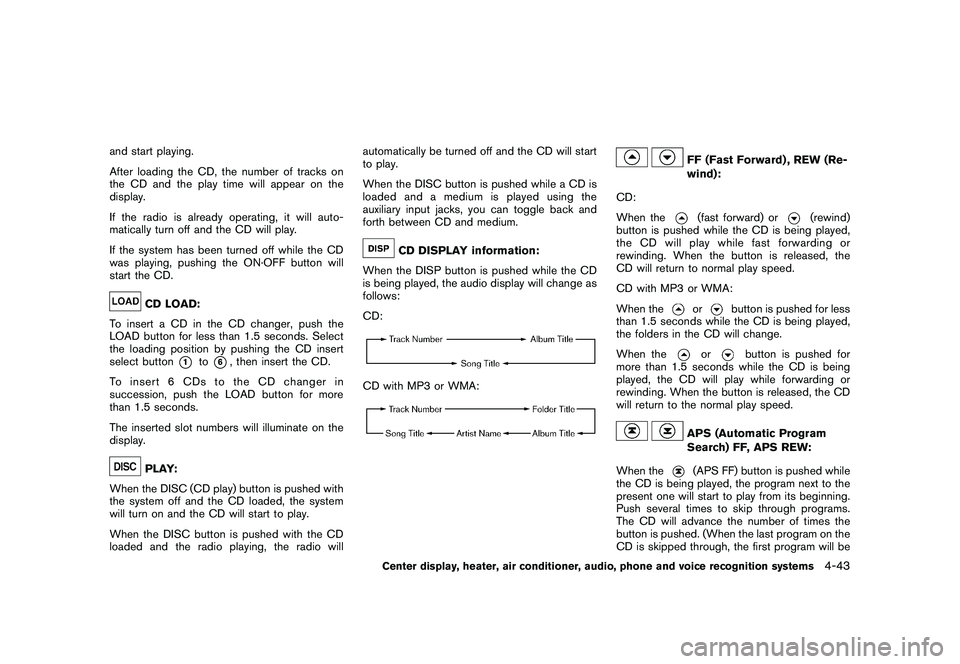
CD DISPLAY information:
When the DISP button is pushed while the CD
is being played, the audio display will change as
follows:
CD:
CD with MP3 or WMA:
FF (Fast Forward) , REW (Re-
wind):
CD:
When the(fast forward) or
(rewind)
button is pushed while the CD is being played,
the CD will play while fast forwarding or
rewinding. When the button is released, the
CD will return to normal play speed.
CD with MP3 or WMA:
When the
or
button is pushed for less
than 1.5 seconds while the CD is being played,
the folders in the CD will change.
When the
or
button is pushed for
more than 1.5 seconds while the CD is being
played, the CD will play while forwarding or
rewinding. When the button is released, the CD
will return to the normal play speed.
APS (Automatic Program
Search) FF, APS REW:
When the(APS FF) button is pushed while
the CD is being played, the program next to the
present one will start to play from its beginning.
Push several times to skip through programs.
The CD will advance the number of times the
button is pushed. (When the last program on the
CD is skipped through, the first program will be
Center display, heater, air conditioner, audio, phone and voice recognition systems
4-43
Page 196 of 409
Black plate (196,1)
Model "Z34-D" EDITED: 2009/ 9/ 10
played.) When the
(APS REW) button is
pushed, the program being played returns to its
beginning. Push several times to skip back
through programs. The CD will go back the
number of times the button is pushed.
CD PLAY selection:
To change to another CD already loaded into the
player, push the CD play select buttons
*1
to
*6.
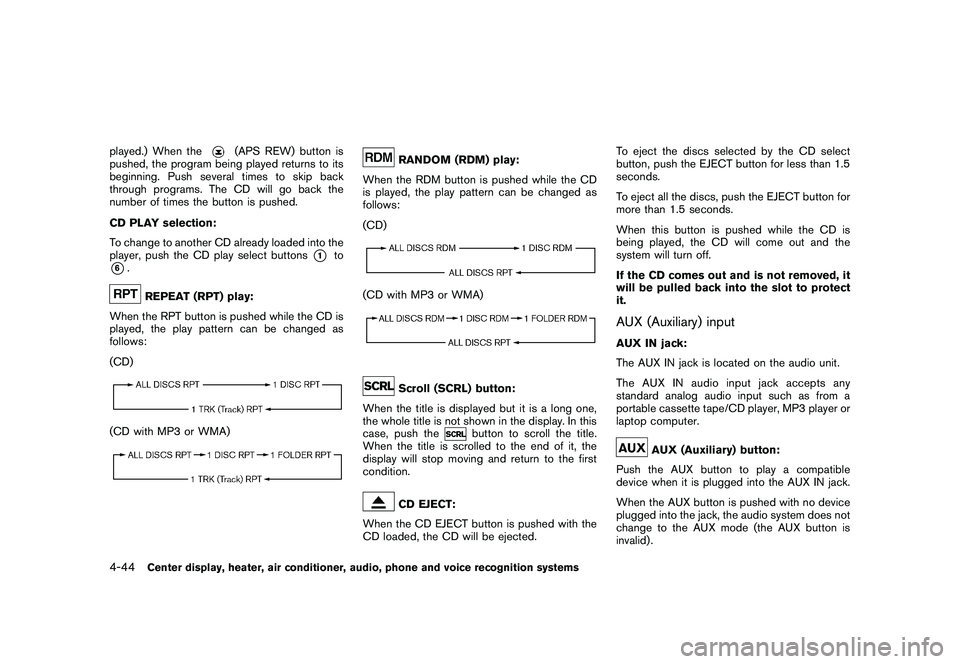
REPEAT (RPT) play:
When the RPT button is pushed while the CD is
played, the play pattern can be changed as
follows:
(CD)
(CD with MP3 or WMA)
RANDOM (RDM) play:
When the RDM button is pushed while the CD
is played, the play pattern can be changed as
follows:
(CD)
(CD with MP3 or WMA)
Scroll (SCRL) button:
When the title is displayed but it is a long one,
the whole title is not shown in the display. In this
case, push the
button to scroll the title.
When the title is scrolled to the end of it, the
display will stop moving and return to the first
condition.
CD EJECT:
When the CD EJECT button is pushed with the
CD loaded, the CD will be ejected. To eject the discs selected by the CD select
button, push the EJECT button for less than 1.5
seconds.
To eject all the discs, push the EJECT button for
more than 1.5 seconds.
When this button is pushed while the CD is
being played, the CD will come out and the
system will turn off.
If the CD comes out and is not removed, it
will be pulled back into the slot to protect
it.
AUX (Auxiliary) inputAUX IN jack:
The AUX IN jack is located on the audio unit.
The AUX IN audio input jack accepts any
standard analog audio input such as from a
portable cassette tape/CD player, MP3 player or
laptop computer.
AUX (Auxiliary) button:
Push the AUX button to play a compatible
device when it is plugged into the AUX IN jack.
When the AUX button is pushed with no device
plugged into the jack, the audio system does not
change to the AUX mode (the AUX button is
invalid) .
4-44
Center display, heater, air conditioner, audio, phone and voice recognition systems