language NISSAN 370Z COUPE 2010 Owners Manual
[x] Cancel search | Manufacturer: NISSAN, Model Year: 2010, Model line: 370Z COUPE, Model: NISSAN 370Z COUPE 2010Pages: 409, PDF Size: 3.56 MB
Page 86 of 409
Black plate (84,1)
Model "Z34-D" EDITED: 2009/ 9/ 10
.LANGUAGE
Select this submenu to choose English or
French for display.
. UNIT
Select this submenu to choose the unit from
US or METRIC.
. EFFECTS
Select this menu to set the dial effects
described below to on or off.
— The indicator needles sweep in the meters when the engine is started.
To return to the top page of the setting mode,
select “BACK”.
SIC3993
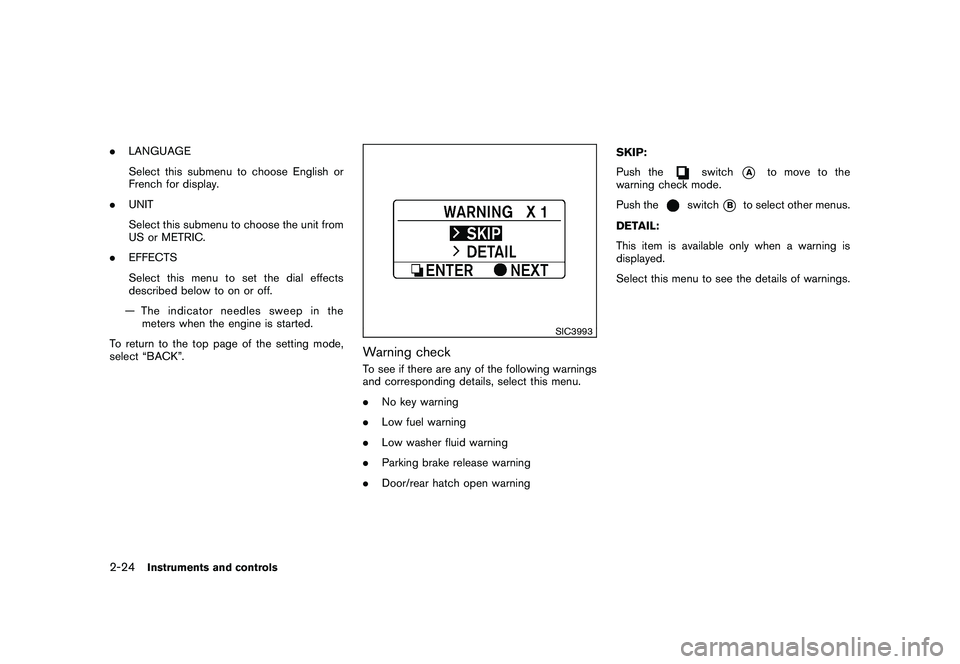
Warning checkTo see if there are any of the following warnings
and corresponding details, select this menu.
. No key warning
. Low fuel warning
. Low washer fluid warning
. Parking brake release warning
. Door/rear hatch open warning SKIP:
Push the
switch
*A
to move to the
warning check mode.
Push the
switch
*B
to select other menus.
DETAIL:
This item is available only when a warning is
displayed.
Select this menu to see the details of warnings.
2-24
Instruments and controls
Page 165 of 409
Black plate (165,1)
Model "Z34-D" EDITED: 2009/ 9/ 10
SAA2487
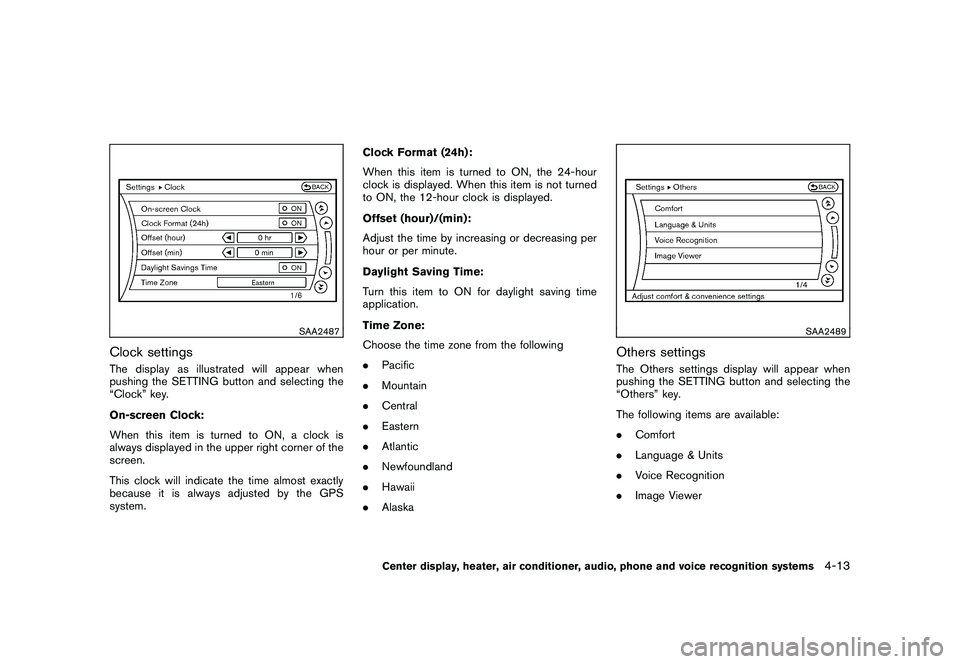
Clock settingsThe display as illustrated will appear when
pushing the SETTING button and selecting the
“Clock” key.
On-screen Clock:
When this item is turned to ON, a clock is
always displayed in the upper right corner of the
screen.
This clock will indicate the time almost exactly
because it is always adjusted by the GPS
system.Clock Format (24h):
When this item is turned to ON, the 24-hour
clock is displayed. When this item is not turned
to ON, the 12-hour clock is displayed.
Offset (hour)/(min):
Adjust the time by increasing or decreasing per
hour or per minute.
Daylight Saving Time:
Turn this item to ON for daylight saving time
application.
Time Zone:
Choose the time zone from the following
.
Pacific
. Mountain
. Central
. Eastern
. Atlantic
. Newfoundland
. Hawaii
. Alaska
SAA2489
Others settingsThe Others settings display will appear when
pushing the SETTING button and selecting the
“Others” key.
The following items are available:
.Comfort
. Language & Units
. Voice Recognition
. Image Viewer
Center display, heater, air conditioner, audio, phone and voice recognition systems
4-13
Page 167 of 409
Black plate (167,1)
Model "Z34-D" EDITED: 2009/ 9/ 10
SAA2490
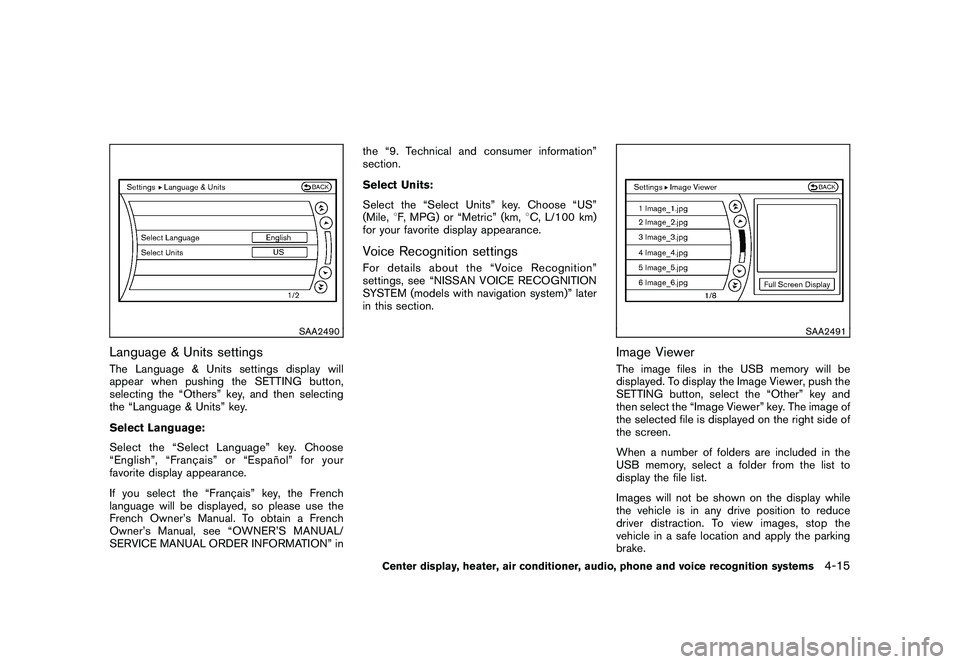
Language & Units settingsThe Language & Units settings display will
appear when pushing the SETTING button,
selecting the “Others” key, and then selecting
the “Language & Units” key.
Select Language:
Select the “Select Language” key. Choose
“English”, “Franc¸ais” or “Espan˜
ol” for your
favorite display appearance.
If you select the “Franc¸ ais” key, the French
language will be displayed, so please use the
French Owner’s Manual. To obtain a French
Owner’s Manual, see “OWNER’S MANUAL/
SERVICE MANUAL ORDER INFORMATION” in the “9. Technical and consumer information”
section.
Select Units:
Select the “Select Units” key. Choose “US”
(Mile,
8F, MPG) or “Metric” (km, 8C, L/100 km)
for your favorite display appearance.
Voice Recognition settingsFor details about the “Voice Recognition”
settings, see “NISSAN VOICE RECOGNITION
SYSTEM (models with navigation system)” later
in this section.
SAA2491
Image ViewerThe image files in the USB memory will be
displayed. To display the Image Viewer, push the
SETTING button, select the “Other” key and
then select the “Image Viewer” key. The image of
the selected file is displayed on the right side of
the screen.
When a number of folders are included in the
USB memory, select a folder from the list to
display the file list.
Images will not be shown on the display while
the vehicle is in any drive position to reduce
driver distraction. To view images, stop the
vehicle in a safe location and apply the parking
brake.
Center display, heater, air conditioner, audio, phone and voice recognition systems
4-15
Page 181 of 409
Black plate (181,1)
Model "Z34-D" EDITED: 2009/ 9/ 10
.Some characters used in other languages
(Chinese, Japanese, etc.) are not displayed
properly on the vehicle center screen. Using
English language characters with a USB
device is recommended.
. Do not connect a USB device if a connector
or cable is wet. Allow the cable and/or
connectors to dry completely before con-
necting the USB device. If the connector is
exposed to fluids other than water, evapora-
tive residue may cause a short between the
connector pins.
. Large video podcast files cause slow
responses in an iPod
®. The vehicle center
display may momentarily black out, but it will
soon recover.
. If an iPod
®automatically selects large video
podcast files while in the shuffle mode, the
vehicle center display may momentarily
black out, but it will soon recover.
. Audiobooks may not play in the same order
as they appear on an iPod
®.
. An iPod
®nano (1st Generation) may remain
in fast forward or rewind mode if it is
connected during a seek operation. In this
case, please manually reset the iPod
®.
. An iPod
®nano (2nd Generation) will con-
tinue to fast forward or rewind if it is
disconnected during a seek operation. .
An incorrect song title may appear when the
Play Mode is changed while using the iPod
®
nano (2nd Generation)
iPod®is a trademark of Apple Inc., registered in
the U.S. and other countries.
Compressed Audio Files (MP3/WMA/
AAC/ATRAC3)Explanation of terms:
. MP3 — MP3 is short for Moving Pictures
Experts Group Audio Layer 3. MP3 is the
most well known compressed digital audio
file format. This format allows for near “CD
quality” sound, but at a fraction of the size of
normal audio files. MP3 conversion of an
audio track can reduce the file size by
approximately a 10:1 ratio (Sampling: 44.1
kHz, Bit rate: 128 kbps) with virtually no
perceptible loss in quality. The compression
reduces certain parts of sound that seem
inaudible to most people.
. WMA — Windows Media Audio (WMA) is a
compressed audio format created by Micro-
soft as an alternative to MP3. The WMA
codec offers greater file compression than
the MP3 codec, enabling storage of more
digital audio tracks in the same amount of
space when compared to MP3s at the same
level of quality. .
AAC/M4A — Advanced Audio Coding
(AAC) is a lossy audio compression format.
Audio files that have been encoded with
AAC are generally smaller in size and deliver
a higher quality of sound than MP3.
. ATRAC3, ATRAC3 Plus - Adaptive Trans-
form Acoustic Coding (ATRAC) is a lossy
audio compression format developed by
Sony.
. Bit rate — Bit rate denotes the number of
bits per second used by a digital music file.
The size and quality of a compressed digital
audio file is determined by the bit rate used
when encoding the file.
. Sampling frequency — Sampling frequency
is the rate at which the samples of a signal
are converted from analog to digital (A/D
conversion) per second.
. Multisession — Multisession is one of the
methods for writing data to media. Writing
data once to the media is called a single
session, and writing more than once is
called a multisession.
. ID3/WMA Tag — The ID3/WMA tag is the
part of the encoded MP3 or WMA file that
contains information about the digital music
file such as song title, artist, album title,
encoding bit rate, track time duration, etc.
ID3 tag information is displayed on the
Center display, heater, air conditioner, audio, phone and voice recognition systems
4-29
Page 203 of 409
Black plate (203,1)
Model "Z34-D" EDITED: 2009/ 9/ 10
SAA2498
Example
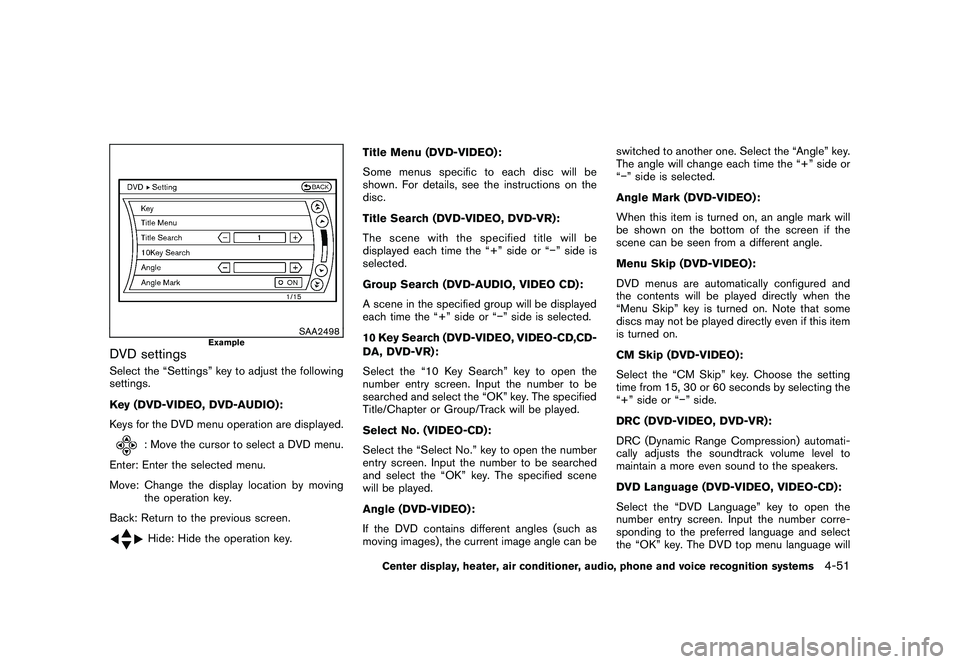
DVD settingsSelect the “Settings” key to adjust the following
settings.
Key (DVD-VIDEO, DVD-AUDIO):
Keys for the DVD menu operation are displayed.
: Move the cursor to select a DVD menu.
Enter: Enter the selected menu.
Move: Change the display location by moving the operation key.
Back: Return to the previous screen.Hide: Hide the operation key. Title Menu (DVD-VIDEO) :
Some menus specific to each disc will be
shown. For details, see the instructions on the
disc.
Title Search (DVD-VIDEO, DVD-VR):
The scene with the specified title will be
displayed each time the “+” side or “” side is
selected.
Group Search (DVD-AUDIO, VIDEO CD):
A scene in the specified group will be displayed
each time the “+” side or “” side is selected.
10 Key Search (DVD-VIDEO, VIDEO-CD,CD-
DA, DVD-VR):
Select the “10 Key Search” key to open the
number entry screen. Input the number to be
searched and select the “OK” key. The specified
Title/Chapter or Group/Track will be played.
Select No. (VIDEO-CD):
Select the “Select No.” key to open the number
entry screen. Input the number to be searched
and select the “OK” key. The specified scene
will be played.
Angle (DVD-VIDEO):
If the DVD contains different angles (such as
moving images) , the current image angle can be switched to another one. Select the “Angle” key.
The angle will change each time the “+” side or
“
” side is selected.
Angle Mark (DVD-VIDEO):
When this item is turned on, an angle mark will
be shown on the bottom of the screen if the
scene can be seen from a different angle.
Menu Skip (DVD-VIDEO):
DVD menus are automatically configured and
the contents will be played directly when the
“Menu Skip” key is turned on. Note that some
discs may not be played directly even if this item
is turned on.
CM Skip (DVD-VIDEO):
Select the “CM Skip” key. Choose the setting
time from 15, 30 or 60 seconds by selecting the
“+” side or “ ” side.
DRC (DVD-VIDEO, DVD-VR):
DRC (Dynamic Range Compression) automati-
cally adjusts the soundtrack volume level to
maintain a more even sound to the speakers.
DVD Language (DVD-VIDEO, VIDEO-CD):
Select the “DVD Language” key to open the
number entry screen. Input the number corre-
sponding to the preferred language and select
the “OK” key. The DVD top menu language will
Center display, heater, air conditioner, audio, phone and voice recognition systems
4-51
Page 204 of 409
Black plate (204,1)
Model "Z34-D" EDITED: 2009/ 9/ 10
be changed to the one specified.
Display:
To adjust the image quality of the screen, select
the preferred adjustment items.
Audio:
Select the preferred language for audio.
Subtitle (DVD-VIDEO, DVD-VR):
Select the preferred language for subtitles.
Display Mode (DVD-VIDEO, VIDEO-CD,
DVD-VR):
Select from the “Full”, “Wide”, “Normal” or
“Cinema” modes.
Title List (DVD-VR):
Select the preferred title from the list.
Play Mode:
Select the preferred play mode.
PG/PL Mode (DVD-VR):
Select the “PG” or “PL” mode.
SAA2499
USB MEMORY OPERATION (models
with navigation system)
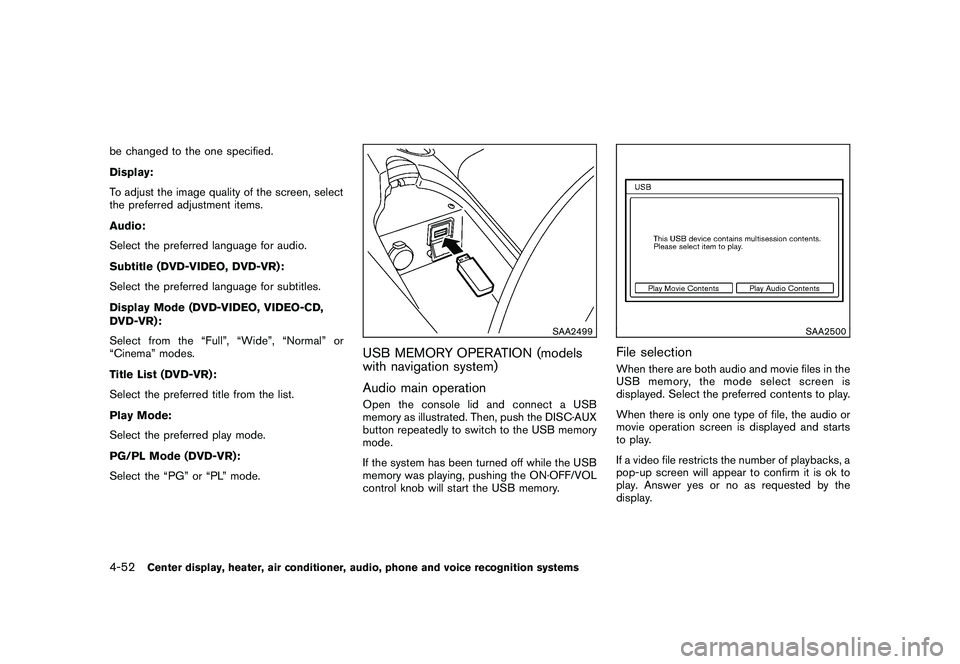
Audio main operationOpen the console lid and connect a USB
memory as illustrated. Then, push the DISC·AUX
button repeatedly to switch to the USB memory
mode.
If the system has been turned off while the USB
memory was playing, pushing the ON·OFF/VOL
control knob will start the USB memory.
SAA2500
File selectionWhen there are both audio and movie files in the
USB memory, the mode select screen is
displayed. Select the preferred contents to play.
When there is only one type of file, the audio or
movie operation screen is displayed and starts
to play.
If a video file restricts the number of playbacks, a
pop-up screen will appear to confirm it is ok to
play. Answer yes or no as requested by the
display.
4-52
Center display, heater, air conditioner, audio, phone and voice recognition systems
Page 208 of 409
Black plate (208,1)
Model "Z34-D" EDITED: 2009/ 9/ 10
.10 Key Search
Select the “10 Key Search” key to open the
number entry screen.
Input the number to be searched and select
the “OK” key.
The specified folder/file will be played.
. Display
To adjust the image quality of the screen,
select the preferred adjustment items.
. DRC
DRC (Dynamic Range Compression) auto-
matically adjusts the soundtrack volume
level to maintain a more even sound to the
speakers.
. Audio
Select the preferred language for audio.
. Subtitle
Select the preferred language for subtitle.
. Display Mode
Select the “Normal”, “Wide”, “Cinema” or
“Full” mode.
BLUETOOTH
®STREAMING AUDIO
(models with navigation system)
Your NISSAN is equipped with Bluetooth
®
Streaming Audio. If you have a compatible
Bluetooth
®device with streaming audio (A2DP
profile) , you can set up the wireless connection
between your Bluetooth
®device and the in-
vehicle audio system. This connection allows
you to listen to the audio from the Bluetooth
®
device using your vehicle speakers. It also may
allow basic control of the device for playing and
skipping audio files using the AVRCP Blue-
tooth
®profile. All Bluetooth
®Devices do not
have the same level of controls for AVRCP.
Please consult the manual for your Bluetooth
®
Device for more details.
Once your Bluetooth
®device is connected to
the in-vehicle audio system, it will automatically
reconnect whenever the device is present in the
vehicle and you select Bluetooth
®Audio from
your audio system. You do not need to manually
reconnect for each usage.
Regulatory informationFCC Regulatory information:
— CAUTION: To maintain compliance with FCC’s RF exposure guidelines, use only
the supplied antenna. Unauthorized antenna,
modification, or attachments could damage
the transmitter and may violate FCC regula-
tions.
— Operation is subject to the following two conditions:
1) This device may not cause interference and
2) This device must accept any interfer- ence, including interference that may
cause undesired operation of the device
IC Regulatory information:
— Operation is subject to the following two conditions:
1) This device may not cause interference, and
2) This device must accept any interfer- ence, including interference that may
cause undesired operation of the device.
— This Class B digital apparatus meets all requirements of the Canadian Interference-
Causing Equipment Regulations.
4-56
Center display, heater, air conditioner, audio, phone and voice recognition systems
Page 241 of 409
Black plate (241,1)
Model "Z34-D" EDITED: 2009/ 9/ 10
SAA2557
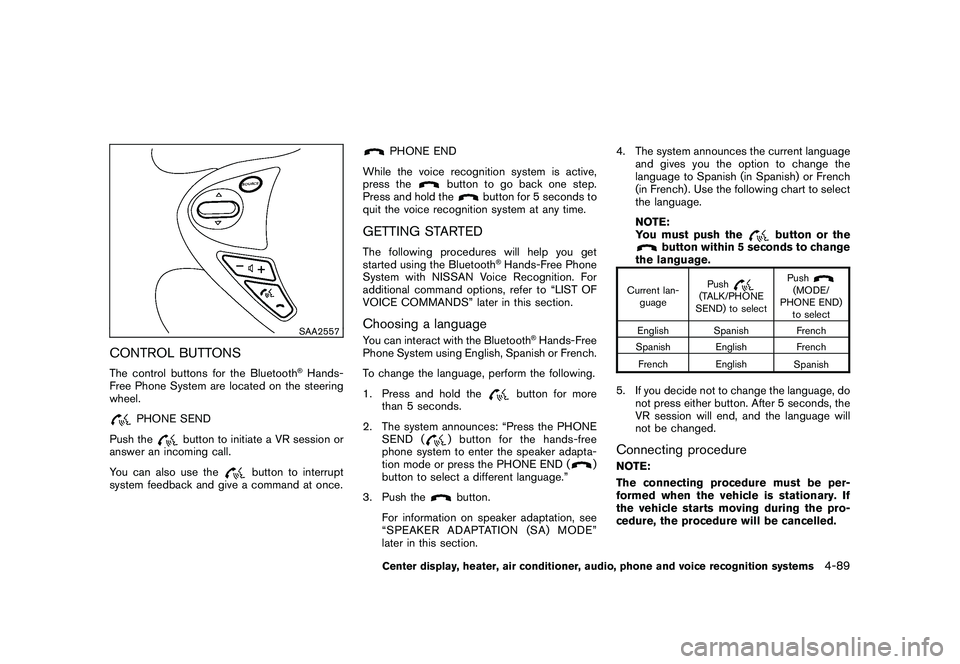
CONTROL BUTTONSThe control buttons for the Bluetooth
®Hands-
Free Phone System are located on the steering
wheel.
PHONE SEND
Push the
button to initiate a VR session or
answer an incoming call.
You can also use the
button to interrupt
system feedback and give a command at once.
PHONE END
While the voice recognition system is active,
press the
button to go back one step.
Press and hold the
button for 5 seconds to
quit the voice recognition system at any time.
GETTING STARTEDThe following procedures will help you get
started using the Bluetooth
®Hands-Free Phone
System with NISSAN Voice Recognition. For
additional command options, refer to “LIST OF
VOICE COMMANDS” later in this section.
Choosing a languageYou can interact with the Bluetooth
®Hands-Free
Phone System using English, Spanish or French.
To change the language, perform the following.
1. Press and hold the
button for more
than 5 seconds.
2. The system announces: “Press the PHONE SEND (
) button for the hands-free
phone system to enter the speaker adapta-
tion mode or press the PHONE END (
)
button to select a different language.”
3. Push the
button.
For information on speaker adaptation, see
“SPEAKER ADAPTATION (SA) MODE”
later in this section. 4. The system announces the current language
and gives you the option to change the
language to Spanish (in Spanish) or French
(in French) . Use the following chart to select
the language.
NOTE:
You must push the
button or the
button within 5 seconds to change
the language.
Current lan-
guage Push
(TALK/PHONE
SEND) to select Push
(MODE/
PHONE END) to select
English Spanish French
Spanish English French
French English Spanish
5. If you decide not to change the language, do
not press either button. After 5 seconds, the
VR session will end, and the language will
not be changed.Connecting procedureNOTE:
The connecting procedure must be per-
formed when the vehicle is stationary. If
the vehicle starts moving during the pro-
cedure, the procedure will be cancelled.
Center display, heater, air conditioner, audio, phone and voice recognition systems
4-89
Page 246 of 409
Black plate (246,1)
Model "Z34-D" EDITED: 2009/ 9/ 10
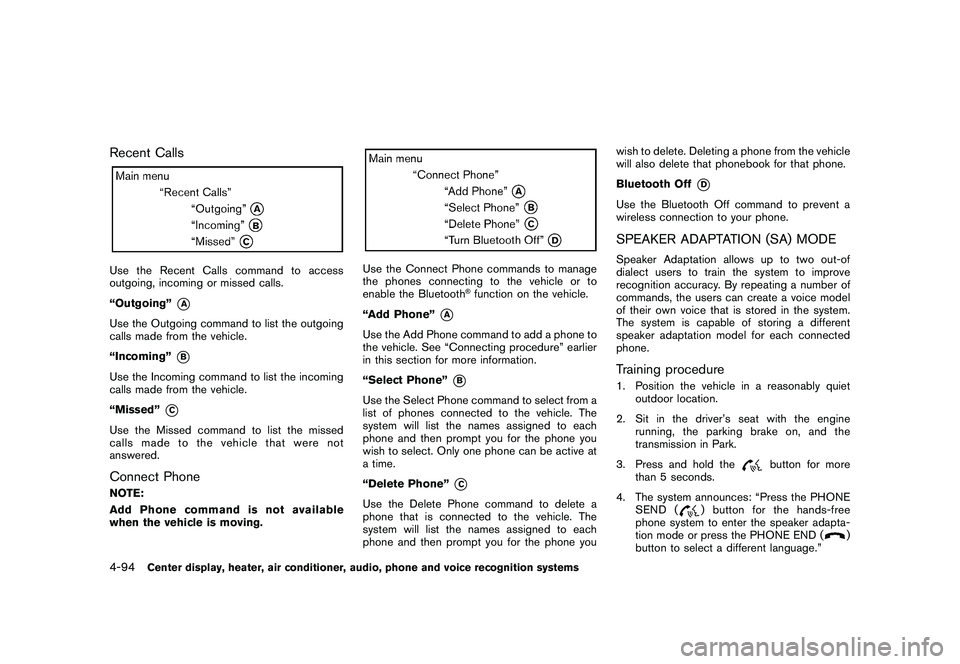
Recent CallsUse the Recent Calls command to access
outgoing, incoming or missed calls.
“Outgoing”
*A
Use the Outgoing command to list the outgoing
calls made from the vehicle.
“Incoming”
*B
Use the Incoming command to list the incoming
calls made from the vehicle.
“Missed”
*C
Use the Missed command to list the missed
calls made to the vehicle that were not
answered.Connect PhoneNOTE:
Add Phone command is not available
when the vehicle is moving.
Use the Connect Phone commands to manage
the phones connecting to the vehicle or to
enable the Bluetooth
®function on the vehicle.
“Add Phone”
*A
Use the Add Phone command to add a phone to
the vehicle. See “Connecting procedure” earlier
in this section for more information.
“Select Phone”
*B
Use the Select Phone command to select from a
list of phones connected to the vehicle. The
system will list the names assigned to each
phone and then prompt you for the phone you
wish to select. Only one phone can be active at
a time.
“Delete Phone”
*C
Use the Delete Phone command to delete a
phone that is connected to the vehicle. The
system will list the names assigned to each
phone and then prompt you for the phone you wish to delete. Deleting a phone from the vehicle
will also delete that phonebook for that phone.
Bluetooth Off
*D
Use the Bluetooth Off command to prevent a
wireless connection to your phone.SPEAKER ADAPTATION (SA) MODESpeaker Adaptation allows up to two out-of
dialect users to train the system to improve
recognition accuracy. By repeating a number of
commands, the users can create a voice model
of their own voice that is stored in the system.
The system is capable of storing a different
speaker adaptation model for each connected
phone.Training procedure1. Position the vehicle in a reasonably quiet
outdoor location.
2. Sit in the driver’s seat with the engine running, the parking brake on, and the
transmission in Park.
3. Press and hold the
button for more
than 5 seconds.
4. The system announces: “Press the PHONE SEND (
) button for the hands-free
phone system to enter the speaker adapta-
tion mode or press the PHONE END (
)
button to select a different language.”
4-94
Center display, heater, air conditioner, audio, phone and voice recognition systems
Page 247 of 409
Black plate (247,1)
Model "Z34-D" EDITED: 2009/ 9/ 10
5. Press the
button.
For information on selecting a different
language, see “Choosing a language” earlier
in this section.
6. If the connected phone is already in use, the system will prompt you to overwrite. Follow
the instructions provided by the system.
7. When preparation is complete and you are ready to begin, press the
button.
8. The SA mode will be explained. Follow the instructions provided by the system.
9. When training is finished, the system will tell you an adequate number of phrases have
been recorded.
10. The system will announce that speaker adaptation has been completed and the
system is ready.
The SA mode will stop if:
. The
button is pressed for more than 5
seconds in SA mode.
. The vehicle is driven during SA mode.
. The ignition switch is turned to the OFF or
LOCK position.
Training phrasesDuring the SA mode, the system instructs you to
say the following phrases.
(The system will prompt you for each phrase.)
.phonebook transfer entry
. dial 30429
. delete call back number
. Incoming
. Transfer entry
. 8 pause 9 3 2 pause 7
. delete all entries
. call 7 2409
. phonebook delete entry
. next entry
. dial star 2170
. yes
. no
. select
. Missed
. dial 85692
. Bluetooth on .
Outgoing
. call 3 1902
. 9 7 pause pause 3 0 8
. cancel
. call back number
. call star 2095
. delete phone
. dial 83051
. Record Name
. 4 3 pause 2 9 pause 0
. delete redial number
. phonebook list names
. call 8 0541
. correction
. connect phone
. dial 74018
. previous entry
. delete
. dial 97266
. call 7 6301
Center display, heater, air conditioner, audio, phone and voice recognition systems
4-95