USB NISSAN 370Z COUPE 2011 User Guide
[x] Cancel search | Manufacturer: NISSAN, Model Year: 2011, Model line: 370Z COUPE, Model: NISSAN 370Z COUPE 2011Pages: 419, PDF Size: 3.61 MB
Page 193 of 419
Black plate (189,1)
Model "Z34-D" EDITED: 2010/ 7/ 27
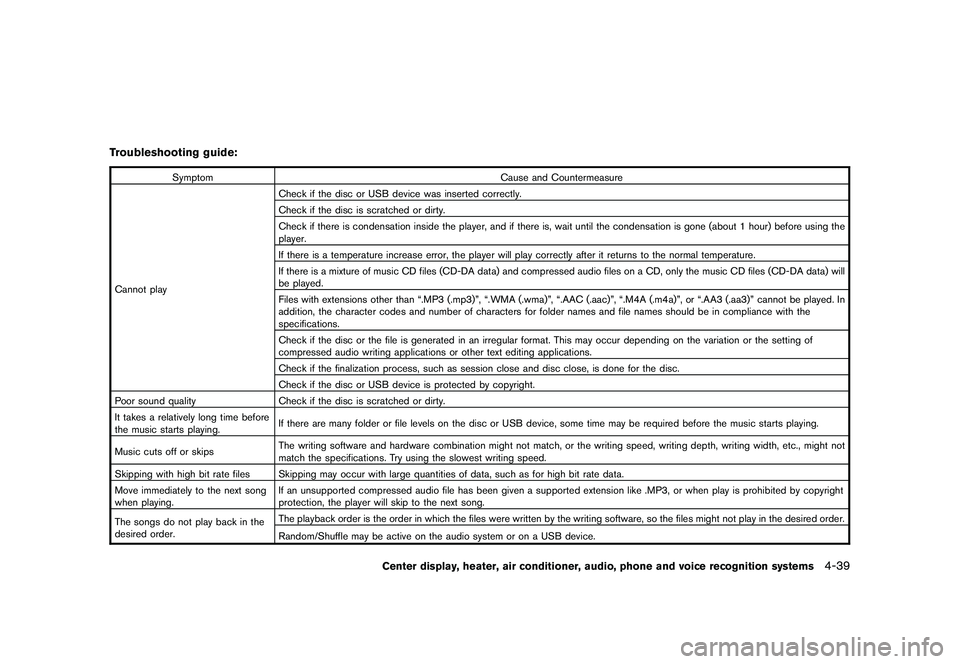
Troubleshooting guide:
SymptomCause and Countermeasure
Cannot play Check if the disc or USB device was inserted correctly.
Check if the disc is scratched or dirty.
Check if there is condensation inside the player, and if there is, wait until the condensation is gone (about 1 hour) before using the
player.
If there is a temperature increase error, the player will play correctly after it returns to the normal temperature.
If there is a mixture of music CD files (CD-DA data) and compressed audio files on a CD, only the music CD files (CD-DA data) will
be played.
Files with extensions other than “.MP3 (.mp3)”, “.WMA (.wma)”, “.AAC (.aac)”, “.M4A (.m4a)”, or “.AA3 (.aa3)” cannot be played. In
addition, the character codes and number of characters for folder names and file names should be in compliance with the
specifications.
Check if the disc or the file is generated in an irregular format. This may occur depending on the variation or the setting of
compressed audio writing applications or other text editing applications.
Check if the finalization process, such as session close and disc close, is done for the disc.
Check if the disc or USB device is protected by copyright.
Poor sound quality Check if the disc is scratched or dirty.
It takes a relatively long time before
the music starts playing. If there are many folder or file levels on the disc or USB device, some time may be required before the music starts playing.
Music cuts off or skips The writing software and hardware combination might not match, or the writing speed, writing depth, writing width, etc., might not
match the specifications. Try using the slowest writing speed.
Skipping with high bit rate files Skipping may occur with large quantities of data, such as for high bit rate data.
Move immediately to the next song
when playing. If an unsupported compressed audio file has been given a supported extension like .MP3, or when play is prohibited by copyright
protection, the player will skip to the next song.
The songs do not play back in the
desired order. The playback order is the order in which the files were written by the writing software, so the files might not play in the desired order.
Random/Shuffle may be active on the audio system or on a USB device.
Center display, heater, air conditioner, audio, phone and voice recognition systems
4-39
Page 194 of 419
Black plate (190,1)
Model "Z34-D" EDITED: 2010/ 7/ 27
Compressed Video Files (models with
navigation system)Explanation of terms:
.DivX
®- DivX
®refers to the DivX
®codec
owned by DivX, Inc. used for a lossy
compression of video based on MPEG-4.
. AVI - AVI stands for Audio Video Interleave.
It is a standard file format originated by
Microsoft Corporation. A “.divx” encoded file
can be saved into the “.avi” file format for
playback on this system if it meets the
requirements stated in the table in this
section. However, not all the “.avi” files are
playable on this system since different
encodings can be used than the DivX
®
codec.
. ASF - ASF stands for Advanced Systems
Format. It is a file format owned by Microsoft
Corporation. Note: Only “.asf” files that meet
the requirements stated in the table in this
section can be played.
. Bit rate — Bit rate denotes the number of
bits per second used by a digital video file.
The size and quality of a compressed digital
audio file is determined by the bit rate used
when encoding the file. Requirement for Supporting Video Play-
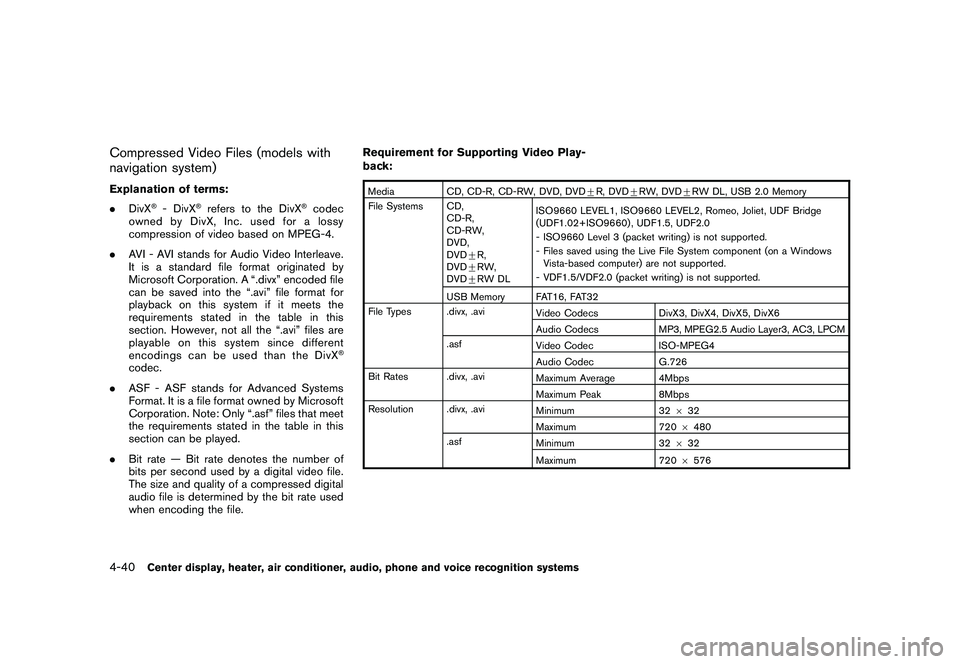
back:
Media
CD, CD-R, CD-RW, DVD, DVD+ R, DVD+RW, DVD +RW DL, USB 2.0 Memory
File Systems CD, CD-R,
CD-RW,
DVD,
DVD+R,
DVD +RW,
DVD +RW DL ISO9660 LEVEL1, ISO9660 LEVEL2, Romeo, Joliet, UDF Bridge
(UDF1.02+ISO9660) , UDF1.5, UDF2.0
- ISO9660 Level 3 (packet writing) is not supported.
- Files saved using the Live File System component (on a Windows
Vista-based computer) are not supported.
- VDF1.5/VDF2.0 (packet writing) is not supported.
USB Memory FAT16, FAT32
File Types .divx, .avi Video CodecsDivX3, DivX4, DivX5, DivX6
Audio Codecs MP3, MPEG2.5 Audio Layer3, AC3, LPCM
.asf Video Codec ISO-MPEG4
Audio Codec G.726
Bit Rates .divx, .avi Maximum Average 4Mbps
Maximum Peak8Mbps
Resolution .divx, .avi Minimum32632
Maximum 7206480
.asf Minimum 32632
Maximum 7206576
4-40
Center display, heater, air conditioner, audio, phone and voice recognition systems
Page 206 of 419
Black plate (202,1)
Model "Z34-D" EDITED: 2010/ 7/ 27
ON·OFF/Volume control:
Push the ignition switch to the ACC or ON
position, and then push the ON·OFF button
while the system is off to turn on the last audio
source (i.e. FM or CD) , which was playing
immediately before the system was turned off.
While the system is on, pushing the ON·OFF
button turns the system off.
Turn the VOL control knob to adjust the volume.
Adjusting tone quality and speaker bal-
ance:
To adjust Bass, Treble, Balance and Fade, push
the Audio control knob. When the display shows
the setting you want to change (Bass, Treble,
Balance and Fade) , rotate the Audio control
knob to set the desired setting. For the other
setting methods, see “HOW TO USE SETTING
BUTTON” earlier in this section.
This vehicle has some sound effect functions as
follows:
.Speed Sensitive Vol.
For more details, see “HOW TO USE SETTING
BUTTON” earlier in this section. Switching the display:
Pushing the DISC·AUX button will switch the
displays as follows:
iPod
®/USB
?CD/DVD ?Music Box
®?
Bluetooth
®Audio ?AUX ?iPod
®/USB
FM-AM-SAT radio operation
radio (FM/AM) band select:
Pushing the radio band select button will
change the band as follows:
AM ?FM1 ?FM2 ?AMradio (SAT) band select:
Pushing the radio band select button will
change the band as follows:
XM1 ?XM2 ?XM3 ?XM1
When the radio band select button is pushed
while the ignition switch is in the ACC or ON
position, the radio will come on at the channel
last played.
The last channel played will also come on when
the ON·OFF button is pushed to ON.
The satellite radio is not available in Alaska,
Hawaii and Guam. If another audio source is playing when the radio
band select button is turned to ON, the audio
source will automatically be turned off and the
last radio channel played will come on.
When the stereo broadcast signal is weak, the
radio will automatically change from stereo to
monaural reception.
TUNE (Tuning):
.
For AM and FM radio
Turn the radio TUNE knob for manual tuning.
. For XM Satellite Radio
Turn the radio TUNE knob to seek channels
from all of the categories when any category
is not selected.
SEEK tuning/CATEGORY
(CAT):
. For AM and FM radio
Push the SEEK button
or
to tune
from low to high or high to low frequencies
and to stop at the next broadcasting station.
. For XM Satellite Radio
Push the SEEK button
or
to tune
to the first channel of the next or previous
category.
4-52
Center display, heater, air conditioner, audio, phone and voice recognition systems
Page 212 of 419
Black plate (208,1)
Model "Z34-D" EDITED: 2010/ 7/ 27
be changed to the one specified.
Display:
To adjust the image quality of the screen, select
the preferred adjustment items.
Audio:
Select the preferred language for audio.
Subtitle (DVD-VIDEO, DVD-VR):
Select the preferred language for subtitles.
Display Mode (DVD-VIDEO, VIDEO-CD,
DVD-VR):
Select from the “Full”, “Wide”, “Normal” or
“Cinema” modes.
Title List (DVD-VR):
Select the preferred title from the list.
Play Mode:
Select the preferred play mode.
PG/PL Mode (DVD-VR):
Select the “PG” or “PL” mode.
SAA2499
USB MEMORY OPERATION (models
with navigation system)
Audio main operationOpen the console lid and connect a USB
memory as illustrated. Then, push the DISC·AUX
button repeatedly to switch to the USB memory
mode.
If the system has been turned off while the USB
memory was playing, pushing the ON·OFF/VOL
control knob will start the USB memory.
SAA2500
File selectionWhen there are both audio and movie files in the
USB memory, the mode select screen is
displayed. Select the preferred contents to play.
When there is only one type of file, the audio or
movie operation screen is displayed and starts
to play.
If a video file restricts the number of playbacks, a
pop-up screen will appear to confirm it is ok to
play. Answer yes or no as requested by the
display.
4-58
Center display, heater, air conditioner, audio, phone and voice recognition systems
Page 213 of 419
Black plate (209,1)
Model "Z34-D" EDITED: 2010/ 7/ 27
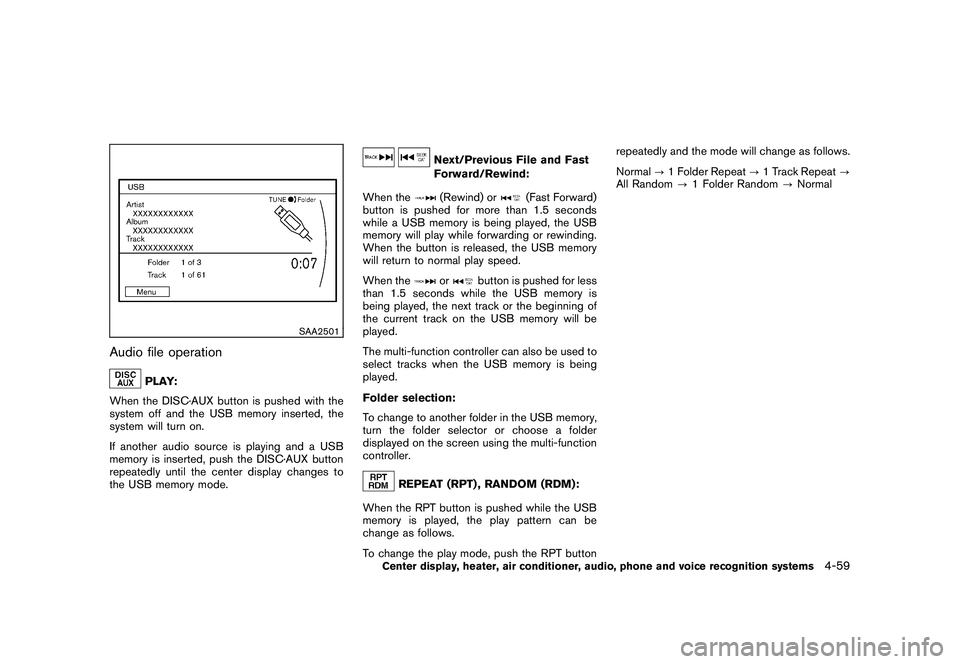
SAA2501
Audio file operation
PLAY:
When the DISC·AUX button is pushed with the
system off and the USB memory inserted, the
system will turn on.
If another audio source is playing and a USB
memory is inserted, push the DISC·AUX button
repeatedly until the center display changes to
the USB memory mode.
Next/Previous File and Fast
Forward/Rewind:
When the(Rewind) or
(Fast Forward)
button is pushed for more than 1.5 seconds
while a USB memory is being played, the USB
memory will play while forwarding or rewinding.
When the button is released, the USB memory
will return to normal play speed.
When the
or
button is pushed for less
than 1.5 seconds while the USB memory is
being played, the next track or the beginning of
the current track on the USB memory will be
played.
The multi-function controller can also be used to
select tracks when the USB memory is being
played.
Folder selection:
To change to another folder in the USB memory,
turn the folder selector or choose a folder
displayed on the screen using the multi-function
controller.
REPEAT (RPT) , RANDOM (RDM):
When the RPT button is pushed while the USB
memory is played, the play pattern can be
change as follows.
To change the play mode, push the RPT button repeatedly and the mode will change as follows.
Normal
?1 Folder Repeat ?1 Track Repeat ?
All Random ?1 Folder Random ?Normal
Center display, heater, air conditioner, audio, phone and voice recognition systems
4-59
Page 214 of 419
Black plate (210,1)
Model "Z34-D" EDITED: 2010/ 7/ 27
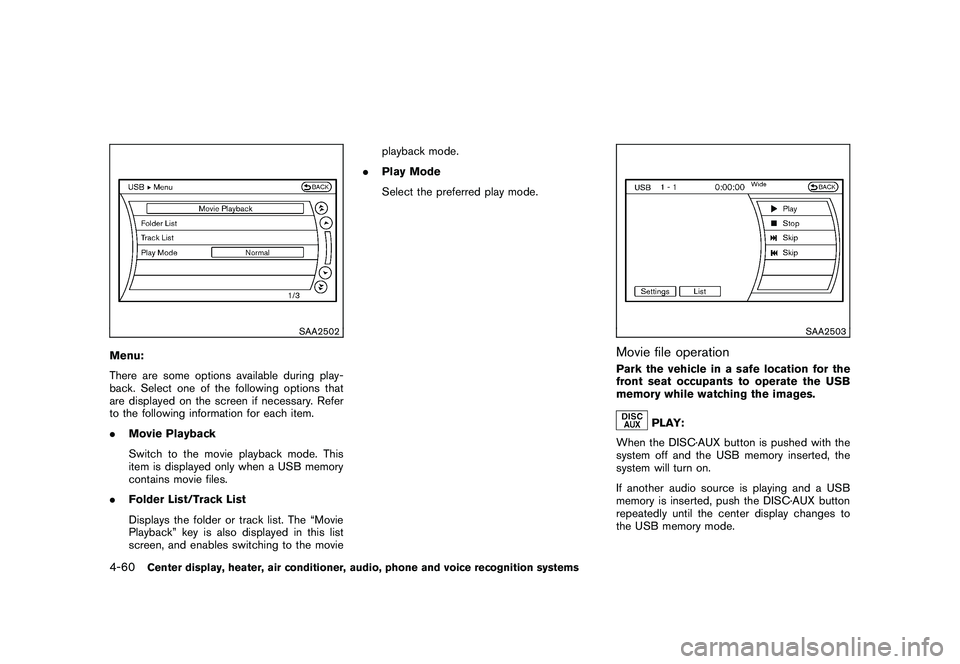
SAA2502
Menu:
There are some options available during play-
back. Select one of the following options that
are displayed on the screen if necessary. Refer
to the following information for each item.
.Movie Playback
Switch to the movie playback mode. This
item is displayed only when a USB memory
contains movie files.
. Folder List/Track List
Displays the folder or track list. The “Movie
Playback” key is also displayed in this list
screen, and enables switching to the movie playback mode.
. Play Mode
Select the preferred play mode.
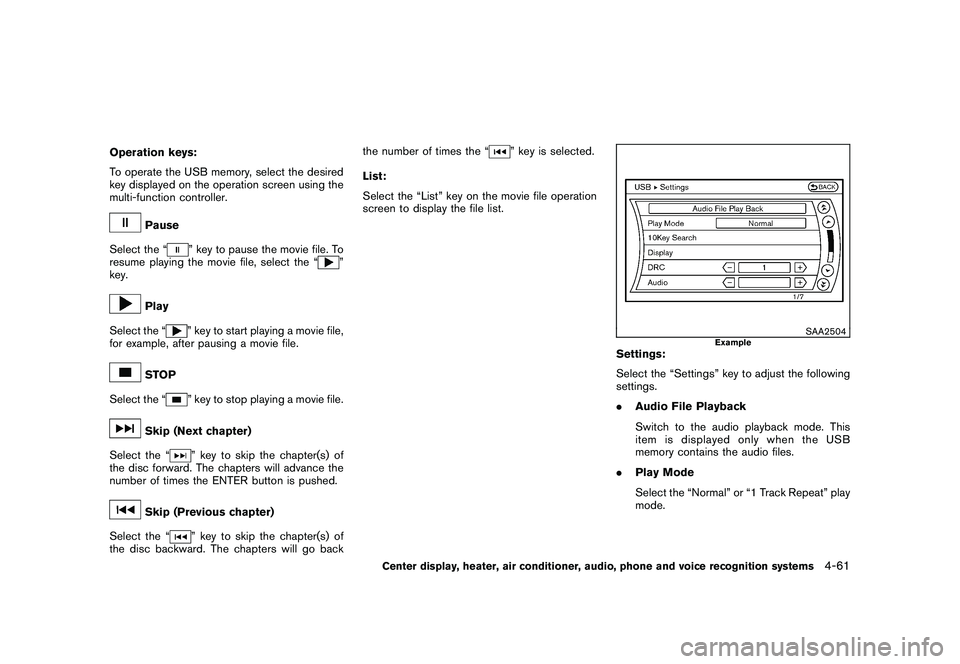
SAA2503
Movie file operationPark the vehicle in a safe location for the
front seat occupants to operate the USB
memory while watching the images.
PLAY:
When the DISC·AUX button is pushed with the
system off and the USB memory inserted, the
system will turn on.
If another audio source is playing and a USB
memory is inserted, push the DISC·AUX button
repeatedly until the center display changes to
the USB memory mode.
4-60
Center display, heater, air conditioner, audio, phone and voice recognition systems
Page 215 of 419
Black plate (211,1)
Model "Z34-D" EDITED: 2010/ 7/ 27
Operation keys:
To operate the USB memory, select the desired
key displayed on the operation screen using the
multi-function controller.
Pause
Select the “
” key to pause the movie file. To
resume playing the movie file, select the “
”
key.
Play
Select the “
” key to start playing a movie file,
for example, after pausing a movie file.
STOP
Select the “
” key to stop playing a movie file.
Skip (Next chapter)
Select the “
” key to skip the chapter(s) of
the disc forward. The chapters will advance the
number of times the ENTER button is pushed.
Skip (Previous chapter)
Select the “
” key to skip the chapter(s) of
the disc backward. The chapters will go back the number of times the “
” key is selected.
List:
Select the “List” key on the movie file operation
screen to display the file list.
SAA2504
Example
Settings:
Select the “Settings” key to adjust the following
settings.
. Audio File Playback
Switch to the audio playback mode. This
item is displayed only when the USB
memory contains the audio files.
. Play Mode
Select the “Normal” or “1 Track Repeat” play
mode.
Center display, heater, air conditioner, audio, phone and voice recognition systems
4-61
Page 221 of 419
Black plate (217,1)
Model "Z34-D" EDITED: 2010/ 7/ 27
(models with navigation system)” later in this
section.
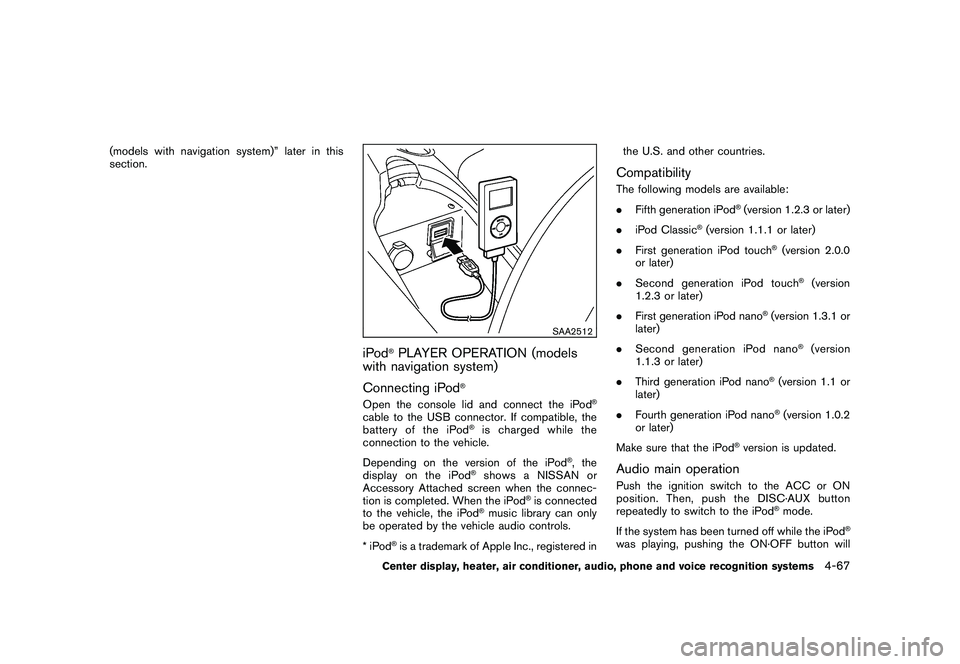
SAA2512
iPod
®PLAYER OPERATION (models
with navigation system)
Connecting iPod
®
Open the console lid and connect the iPod
®
cable to the USB connector. If compatible, the
battery of the iPod
®is charged while the
connection to the vehicle.
Depending on the version of the iPod
®, the
display on the iPod
®shows a NISSAN or
Accessory Attached screen when the connec-
tion is completed. When the iPod
®is connected
to the vehicle, the iPod
®music library can only
be operated by the vehicle audio controls.
*iPod
®is a trademark of Apple Inc., registered in the U.S. and other countries.
CompatibilityThe following models are available:
.
Fifth generation iPod
®(version 1.2.3 or later)
. iPod Classic
®(version 1.1.1 or later)
. First generation iPod touch
®(version 2.0.0
or later)
. Second generation iPod touch
®(version
1.2.3 or later)
. First generation iPod nano
®(version 1.3.1 or
later)
. Second generation iPod nano
®(version
1.1.3 or later)
. Third generation iPod nano
®(version 1.1 or
later)
. Fourth generation iPod nano®(version 1.0.2
or later)
Make sure that the iPod
®version is updated.
Audio main operationPush the ignition switch to the ACC or ON
position. Then, push the DISC·AUX button
repeatedly to switch to the iPod
®mode.
If the system has been turned off while the iPod
®
was playing, pushing the ON·OFF button will
Center display, heater, air conditioner, audio, phone and voice recognition systems
4-67
Page 225 of 419
Black plate (221,1)
Model "Z34-D" EDITED: 2010/ 7/ 27
with navigation system)” later in this sec-
tion.)
Stopping playback:
The system stops playing when:
a. another mode (radio, CD, DVD, USB memory, iPod or AUX) is selected.
b. the audio system is turned off.
c. the ignition switch is pushed to the LOCK position.
Next/Previous Track and Fast
Forward/Rewind:
When the(fast forward) or
(rewind)
button is pushed for more than 1.5 seconds
while a track is being played, the track will play
while fast forwarding or rewinding. When the
button is released, the track will return to the
normal play speed.
When the
or
button is pushed for less
than 1.5 seconds while a track is being played,
the next track or the beginning of the current
track will be played.
The multi-function controller can also be used to
select tracks when a track is being played. Play mode selection:
The TUNE/FOLDER knob will skip from album to
album unless it is playing “All Songs” from the
Music Library menu. When playing “All Songs”,
the knob will change the track instead of the
album. The upper right corner of the main screen
will indicate if the TUNE knob is changing by
track or album.
REPEAT (RPT) , RANDOM (RDM):
When the RPT·RDM button is pushed while a
track is being played, the play pattern can be
changed as follows:
(Normal) ?1 Album Repeat ?1 Track Repeat
? 1 Album Random ?All Random ?(Normal)
Tag Track:
Select “Tag Track” key on the screen when a
track is being played. A menu will show the 5
available playlists. Select one of the playlists to
add the current song to that playlist. If a playlist
is not selectable (text is grayed out) , it means
the song already exists in that playlist.
SAA2516
Example
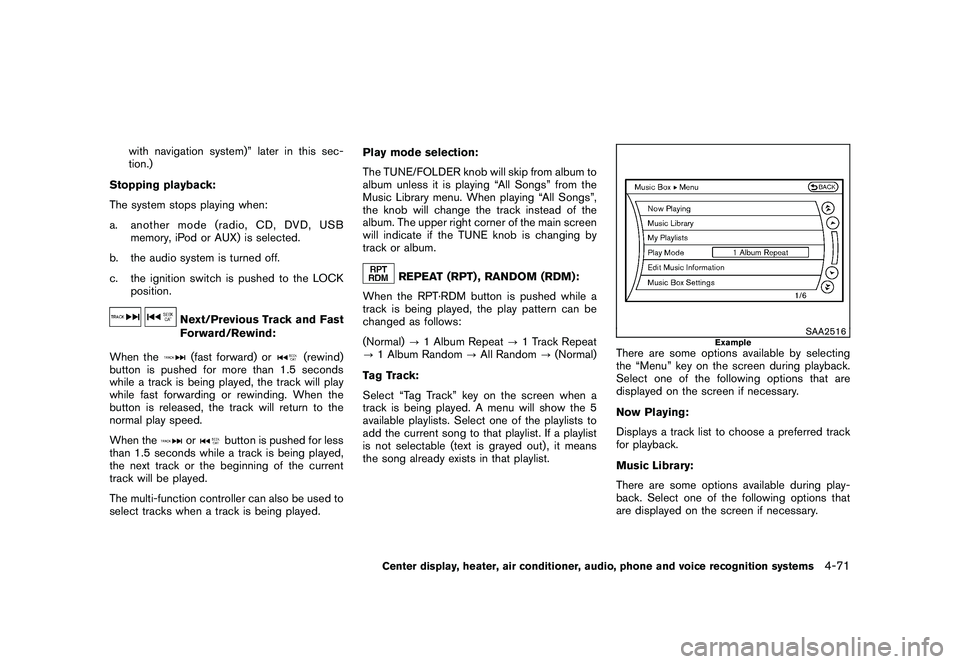
There are some options available by selecting
the “Menu” key on the screen during playback.
Select one of the following options that are
displayed on the screen if necessary.
Now Playing:
Displays a track list to choose a preferred track
for playback.
Music Library:
There are some options available during play-
back. Select one of the following options that
are displayed on the screen if necessary.
Center display, heater, air conditioner, audio, phone and voice recognition systems
4-71
Page 226 of 419
Black plate (222,1)
Model "Z34-D" EDITED: 2010/ 7/ 27
.Artists
Play tracks by an artist whose music is
currently being played. The artists are sorted
in alphabetical order.
. Albums
Play tracks in each album. The albums are
sorted in alphabetical order.
. All Songs
Play tracks from all recorded tracks. The
tracks are sorted in alphabetical order.
. Genres
Play tracks by a selected genre.
My Playlists:
Displays the Playlist and edits the Playlist if
necessary.
Select the “Edit” key.
The following items are available
. Add Current Songs
Add a current track to the Playlist.
. Add Songs by Album
Displays a list of albums in alphabetical
order. Selecting an album displays all of the
tracks in the album. Select tracks from the list to add to the Playlist.
. Add Songs by Artist
Displays a list of artists in alphabetical order.
Selecting an artist displays all of the tracks
by the artist. Select tracks from the list to
add to the Playlist.
. Edit Songs Order
Reorder the tracks in the Playlist by select-
ing a track and specifying the order.
. Edit Name
Edit the name of the Playlist using the
keypad displayed on the screen. (See
“HOW TO USE MULTI-FUNCTION CON-
TROLLER” earlier in this section.)
. Delete Songs
Delete tracks in the Playlist by selecting from
the displayed song list.
Play Mode:
Choose the preferred play mode from the
following items.
. Normal
. 1 Album Repeat
. 1 Track Repeat
. 1 Playlist Random .
1 Artist Random
. 1 Album Random
. 1 All Track Random
. 1 All Random
Edit Music Information:
Displays the following information about the
Music Box
®hard drive to edit if necessary.
. Edit Information of Current Song
Edit the “Track”, “Artist” and “Genre” in-
formation of the current track using the
keypad displayed on the screen. (See
“HOW TO USE TOUCH SCREEN” earlier
in this section.)
Edit the “Mode” information by selecting
from the list.
. Edit Information by Album
Edit the displayed name and of a selected
album and the track information in the album.
. Update Gracenote from USB Device
Update the in-vehicle Gracenote Database
using a USB memory. Search the title from a
information acquired on the Internet. Visit
www.nissanusa.com/gracenote/ for details.
4-72
Center display, heater, air conditioner, audio, phone and voice recognition systems