key NISSAN 370Z COUPE 2011 Repair Manual
[x] Cancel search | Manufacturer: NISSAN, Model Year: 2011, Model line: 370Z COUPE, Model: NISSAN 370Z COUPE 2011Pages: 419, PDF Size: 3.61 MB
Page 218 of 419
Black plate (214,1)
Model "Z34-D" EDITED: 2010/ 7/ 27
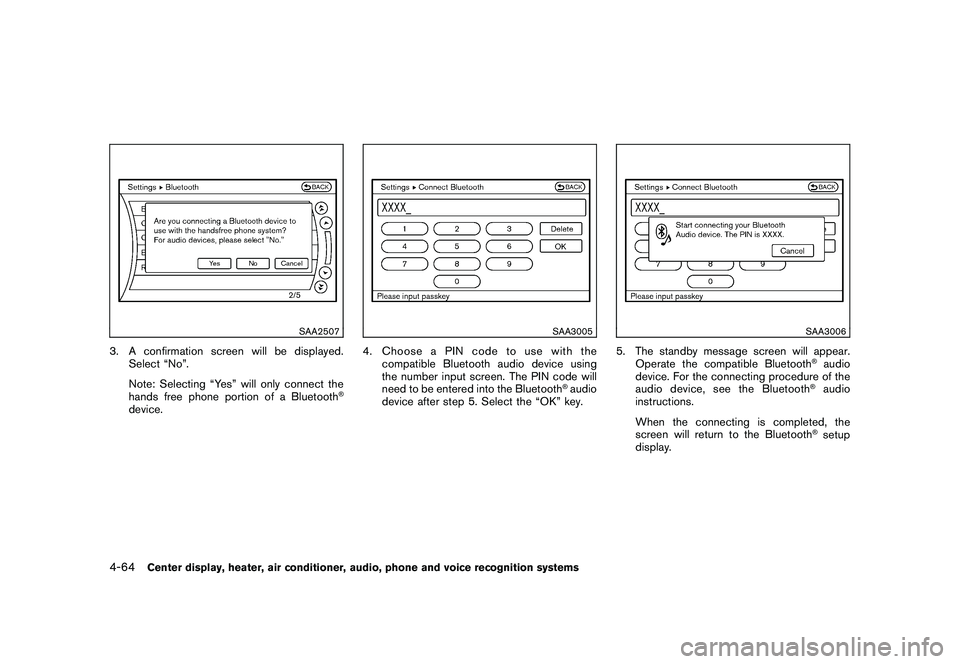
SAA2507
3. A confirmation screen will be displayed.Select “No”.
Note: Selecting “Yes” will only connect the
hands free phone portion of a Bluetooth
®
device.
SAA3005
4. Choose a PIN code to use with thecompatible Bluetooth audio device using
the number input screen. The PIN code will
need to be entered into the Bluetooth
®audio
device after step 5. Select the “OK” key.
SAA3006
5. The standby message screen will appear. Operate the compatible Bluetooth
®audio
device. For the connecting procedure of the
audio device, see the Bluetooth®audio
instructions.
When the connecting is completed, the
screen will return to the Bluetooth®setup
display.
4-64
Center display, heater, air conditioner, audio, phone and voice recognition systems
Page 219 of 419
Black plate (215,1)
Model "Z34-D" EDITED: 2010/ 7/ 27
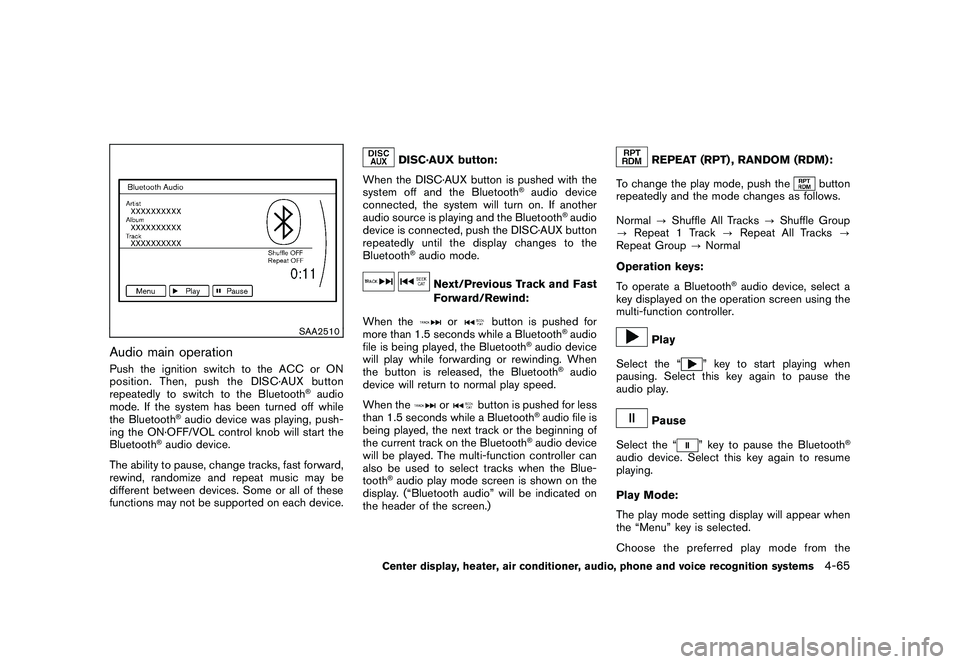
SAA2510
Audio main operationPush the ignition switch to the ACC or ON
position. Then, push the DISC·AUX button
repeatedly to switch to the Bluetooth
®audio
mode. If the system has been turned off while
the Bluetooth
®audio device was playing, push-
ing the ON·OFF/VOL control knob will start the
Bluetooth
®audio device.
The ability to pause, change tracks, fast forward,
rewind, randomize and repeat music may be
different between devices. Some or all of these
functions may not be supported on each device.
DISC·AUX button:
When the DISC·AUX button is pushed with the
system off and the Bluetooth
®audio device
connected, the system will turn on. If another
audio source is playing and the Bluetooth
®audio
device is connected, push the DISC·AUX button
repeatedly until the display changes to the
Bluetooth
®audio mode.
Next/Previous Track and Fast
Forward/Rewind:
When the
or
button is pushed for
more than 1.5 seconds while a Bluetooth
®audio
file is being played, the Bluetooth
®audio device
will play while forwarding or rewinding. When
the button is released, the Bluetooth
®audio
device will return to normal play speed.
When the
or
button is pushed for less
than 1.5 seconds while a Bluetooth
®audio file is
being played, the next track or the beginning of
the current track on the Bluetooth
®audio device
will be played. The multi-function controller can
also be used to select tracks when the Blue-
tooth
®audio play mode screen is shown on the
display. (“Bluetooth audio” will be indicated on
the header of the screen.)
REPEAT (RPT) , RANDOM (RDM):
To change the play mode, push the
button
repeatedly and the mode changes as follows.
Normal ?Shuffle All Tracks ?Shuffle Group
? Repeat 1 Track ?Repeat All Tracks ?
Repeat Group ?Normal
Operation keys:
To operate a Bluetooth
®audio device, select a
key displayed on the operation screen using the
multi-function controller.
Play
Select the “
” key to start playing when
pausing. Select this key again to pause the
audio play.
Pause
Select the “
” key to pause the Bluetooth
®
audio device. Select this key again to resume
playing.
Play Mode:
The play mode setting display will appear when
the “Menu” key is selected.
Choose the preferred play mode from the
Center display, heater, air conditioner, audio, phone and voice recognition systems
4-65
Page 220 of 419
Black plate (216,1)
Model "Z34-D" EDITED: 2010/ 7/ 27
following items.
.Shuffle
Choose “Shuffle OFF”, “Shuffle All Tracks”
and “Shuffle Group”.
. Repeat
Choose from “Repeat OFF”, “Repeat 1
Track”, “Repeat All Tracks” and “Repeat
Group”.
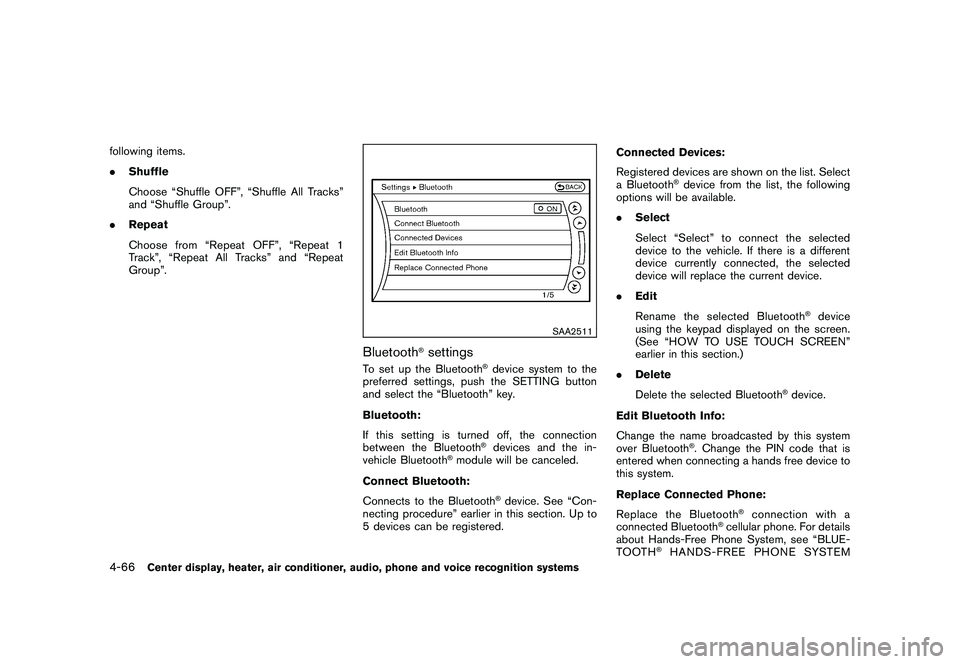
SAA2511
Bluetooth
®settings
To set up the Bluetooth
®device system to the
preferred settings, push the SETTING button
and select the “Bluetooth” key.
Bluetooth:
If this setting is turned off, the connection
between the Bluetooth®devices and the in-
vehicle Bluetooth
®module will be canceled.
Connect Bluetooth:
Connects to the Bluetooth
®device. See “Con-
necting procedure” earlier in this section. Up to
5 devices can be registered. Connected Devices:
Registered devices are shown on the list. Select
a Bluetooth
®device from the list, the following
options will be available.
. Select
Select “Select” to connect the selected
device to the vehicle. If there is a different
device currently connected, the selected
device will replace the current device.
. Edit
Rename the selected Bluetooth
®device
using the keypad displayed on the screen.
(See “HOW TO USE TOUCH SCREEN”
earlier in this section.)
. Delete
Delete the selected Bluetooth
®device.
Edit Bluetooth Info:
Change the name broadcasted by this system
over Bluetooth
®. Change the PIN code that is
entered when connecting a hands free device to
this system.
Replace Connected Phone:
Replace the Bluetooth
®connection with a
connected Bluetooth
®cellular phone. For details
about Hands-Free Phone System, see “BLUE-
TOOTH
®HANDS-FREE PHONE SYSTEM
4-66
Center display, heater, air conditioner, audio, phone and voice recognition systems
Page 223 of 419
Black plate (219,1)
Model "Z34-D" EDITED: 2010/ 7/ 27
Music Box
®(models with navigation
system)
The Music Box
®can store songs from CDs
being played. 40.0 GB (9.3 GB for music
storage capacity) (with navigation system) .
The following CDs can be recorded in the Music
Box
®audio system.
. CDs that contain uncompressed audio files
. Hybrid Compact Disc Digital Audio (Hybrid
CD-DA) specification in Super Audio CDs
. Compact Disc Digital Audio (CD-DA) spe-
cification in CD-Extras
. First session of multisession disc
Extreme temperature conditions [below
48 F( 20 8C) and above 158 8F (70 8C)] could
affect the performance of the hard drive.
NOTE:
If the hard drive needs to be replaced due
to a malfunction, all stored music data will
be erased.
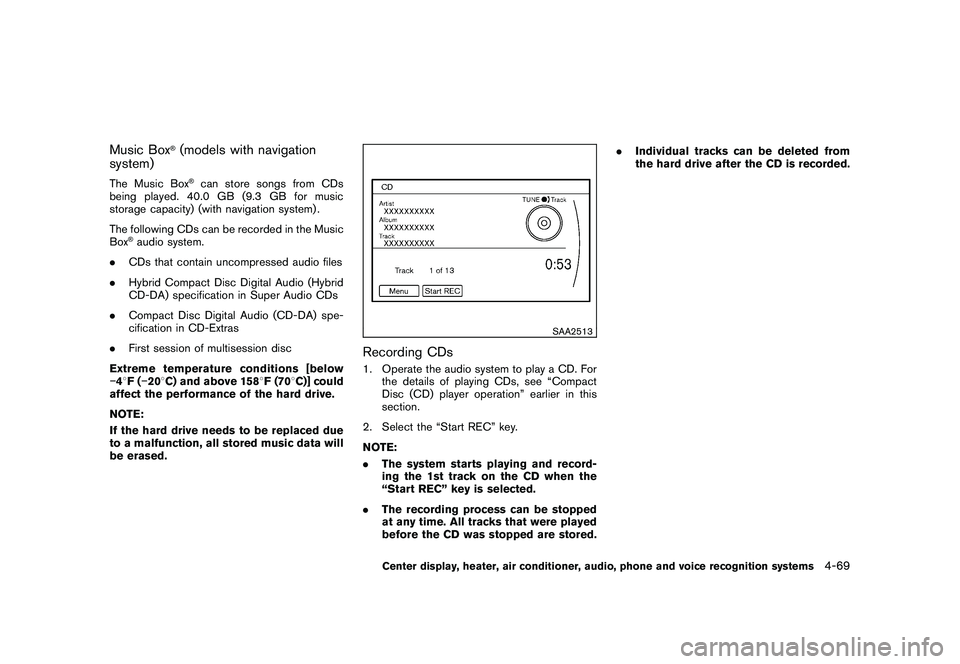
SAA2513
Recording CDs1. Operate the audio system to play a CD. For the details of playing CDs, see “Compact
Disc (CD) player operation” earlier in this
section.
2. Select the “Start REC” key.
NOTE:
. The system starts playing and record-
ing the 1st track on the CD when the
“Start REC” key is selected.
. The recording process can be stopped
at any time. All tracks that were played
before the CD was stopped are stored. .
Individual tracks can be deleted from
the hard drive after the CD is recorded.
Center display, heater, air conditioner, audio, phone and voice recognition systems
4-69
Page 224 of 419
Black plate (220,1)
Model "Z34-D" EDITED: 2010/ 7/ 27
SAA2514
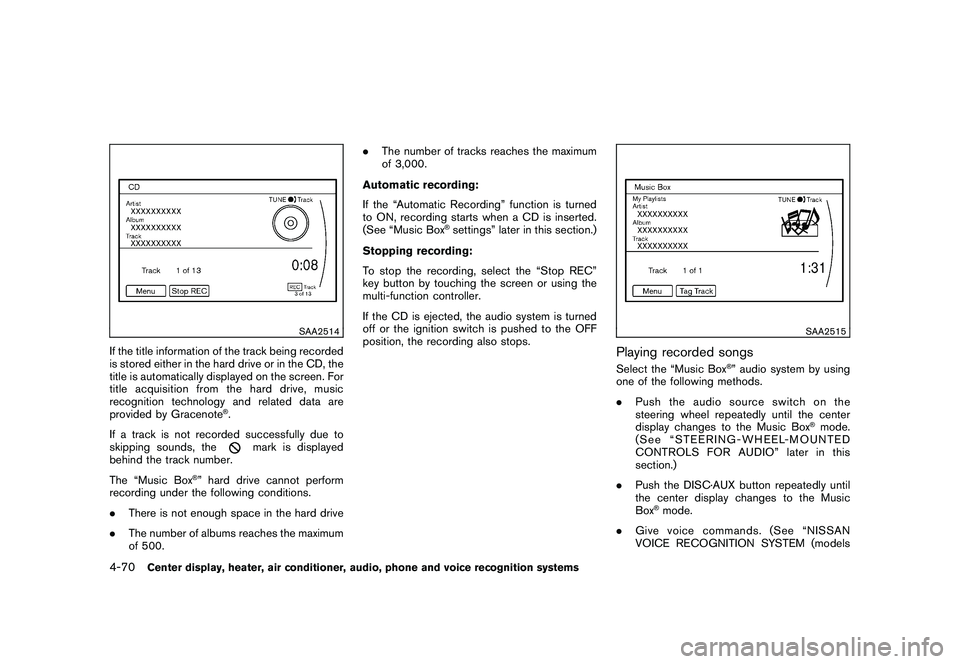
If the title information of the track being recorded
is stored either in the hard drive or in the CD, the
title is automatically displayed on the screen. For
title acquisition from the hard drive, music
recognition technology and related data are
provided by Gracenote
®.
If a track is not recorded successfully due to
skipping sounds, the
mark is displayed
behind the track number.
The “Music Box
®” hard drive cannot perform
recording under the following conditions.
. There is not enough space in the hard drive
. The number of albums reaches the maximum
of 500. .
The number of tracks reaches the maximum
of 3,000.
Automatic recording:
If the “Automatic Recording” function is turned
to ON, recording starts when a CD is inserted.
(See “Music Box
®settings” later in this section.)
Stopping recording:
To stop the recording, select the “Stop REC”
key button by touching the screen or using the
multi-function controller.
If the CD is ejected, the audio system is turned
off or the ignition switch is pushed to the OFF
position, the recording also stops.
SAA2515
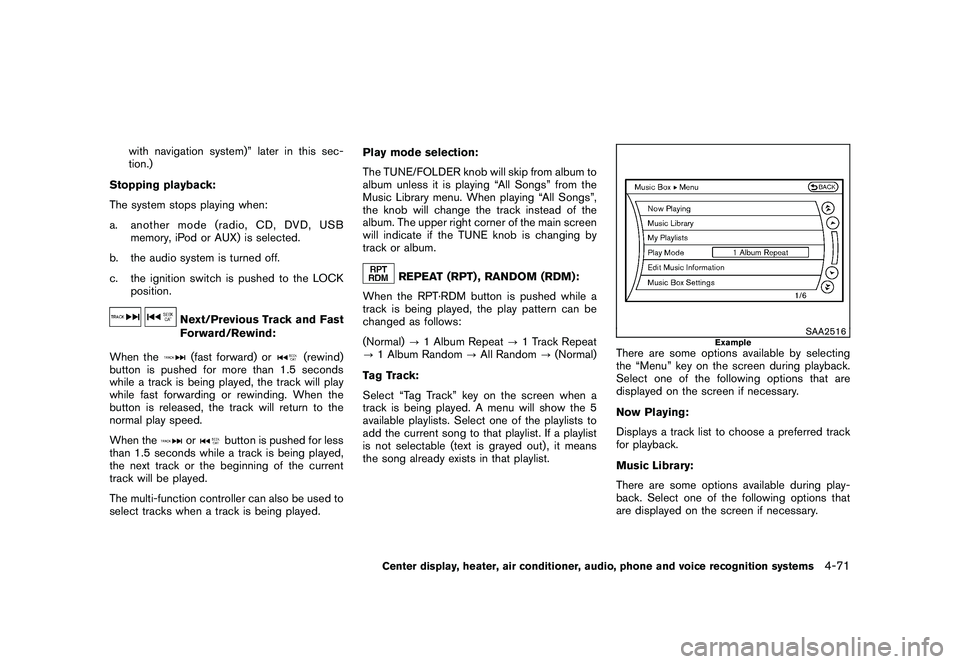
Playing recorded songsSelect the “Music Box
®” audio system by using
one of the following methods.
. Push the audio source switch on the
steering wheel repeatedly until the center
display changes to the Music Box
®mode.
(See “STEERING-WHEEL-MOUNTED
CONTROLS FOR AUDIO” later in this
section.)
. Push the DISC·AUX button repeatedly until
the center display changes to the Music
Box
®mode.
. Give voice commands. (See “NISSAN
VOICE RECOGNITION SYSTEM (models
4-70
Center display, heater, air conditioner, audio, phone and voice recognition systems
Page 225 of 419
Black plate (221,1)
Model "Z34-D" EDITED: 2010/ 7/ 27
with navigation system)” later in this sec-
tion.)
Stopping playback:
The system stops playing when:
a. another mode (radio, CD, DVD, USB memory, iPod or AUX) is selected.
b. the audio system is turned off.
c. the ignition switch is pushed to the LOCK position.
Next/Previous Track and Fast
Forward/Rewind:
When the(fast forward) or
(rewind)
button is pushed for more than 1.5 seconds
while a track is being played, the track will play
while fast forwarding or rewinding. When the
button is released, the track will return to the
normal play speed.
When the
or
button is pushed for less
than 1.5 seconds while a track is being played,
the next track or the beginning of the current
track will be played.
The multi-function controller can also be used to
select tracks when a track is being played. Play mode selection:
The TUNE/FOLDER knob will skip from album to
album unless it is playing “All Songs” from the
Music Library menu. When playing “All Songs”,
the knob will change the track instead of the
album. The upper right corner of the main screen
will indicate if the TUNE knob is changing by
track or album.
REPEAT (RPT) , RANDOM (RDM):
When the RPT·RDM button is pushed while a
track is being played, the play pattern can be
changed as follows:
(Normal) ?1 Album Repeat ?1 Track Repeat
? 1 Album Random ?All Random ?(Normal)
Tag Track:
Select “Tag Track” key on the screen when a
track is being played. A menu will show the 5
available playlists. Select one of the playlists to
add the current song to that playlist. If a playlist
is not selectable (text is grayed out) , it means
the song already exists in that playlist.
SAA2516
Example
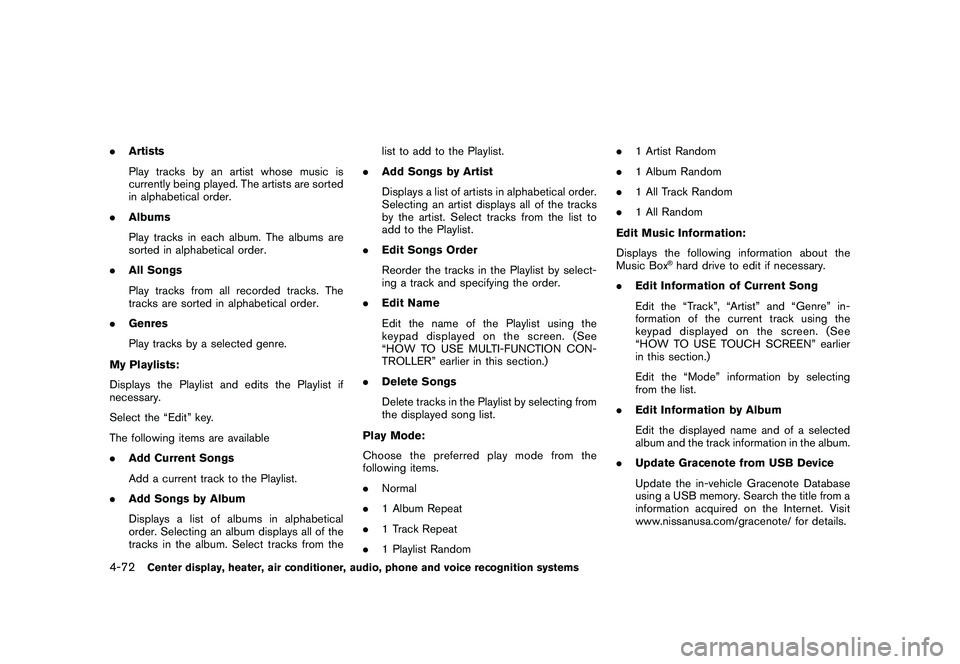
There are some options available by selecting
the “Menu” key on the screen during playback.
Select one of the following options that are
displayed on the screen if necessary.
Now Playing:
Displays a track list to choose a preferred track
for playback.
Music Library:
There are some options available during play-
back. Select one of the following options that
are displayed on the screen if necessary.
Center display, heater, air conditioner, audio, phone and voice recognition systems
4-71
Page 226 of 419
Black plate (222,1)
Model "Z34-D" EDITED: 2010/ 7/ 27
.Artists
Play tracks by an artist whose music is
currently being played. The artists are sorted
in alphabetical order.
. Albums
Play tracks in each album. The albums are
sorted in alphabetical order.
. All Songs
Play tracks from all recorded tracks. The
tracks are sorted in alphabetical order.
. Genres
Play tracks by a selected genre.
My Playlists:
Displays the Playlist and edits the Playlist if
necessary.
Select the “Edit” key.
The following items are available
. Add Current Songs
Add a current track to the Playlist.
. Add Songs by Album
Displays a list of albums in alphabetical
order. Selecting an album displays all of the
tracks in the album. Select tracks from the list to add to the Playlist.
. Add Songs by Artist
Displays a list of artists in alphabetical order.
Selecting an artist displays all of the tracks
by the artist. Select tracks from the list to
add to the Playlist.
. Edit Songs Order
Reorder the tracks in the Playlist by select-
ing a track and specifying the order.
. Edit Name
Edit the name of the Playlist using the
keypad displayed on the screen. (See
“HOW TO USE MULTI-FUNCTION CON-
TROLLER” earlier in this section.)
. Delete Songs
Delete tracks in the Playlist by selecting from
the displayed song list.
Play Mode:
Choose the preferred play mode from the
following items.
. Normal
. 1 Album Repeat
. 1 Track Repeat
. 1 Playlist Random .
1 Artist Random
. 1 Album Random
. 1 All Track Random
. 1 All Random
Edit Music Information:
Displays the following information about the
Music Box
®hard drive to edit if necessary.
. Edit Information of Current Song
Edit the “Track”, “Artist” and “Genre” in-
formation of the current track using the
keypad displayed on the screen. (See
“HOW TO USE TOUCH SCREEN” earlier
in this section.)
Edit the “Mode” information by selecting
from the list.
. Edit Information by Album
Edit the displayed name and of a selected
album and the track information in the album.
. Update Gracenote from USB Device
Update the in-vehicle Gracenote Database
using a USB memory. Search the title from a
information acquired on the Internet. Visit
www.nissanusa.com/gracenote/ for details.
4-72
Center display, heater, air conditioner, audio, phone and voice recognition systems
Page 227 of 419
Black plate (223,1)
Model "Z34-D" EDITED: 2010/ 7/ 27
.Transfer Missing Titles to USB
Transfer the information of an album re-
corded without titles to a USB memory. Visit
www.nissanusa.com/gracenote/ for details.
. Update Gracenote from HDD
Search the title using the database in the
hard drive.
SAA2517
Music Box
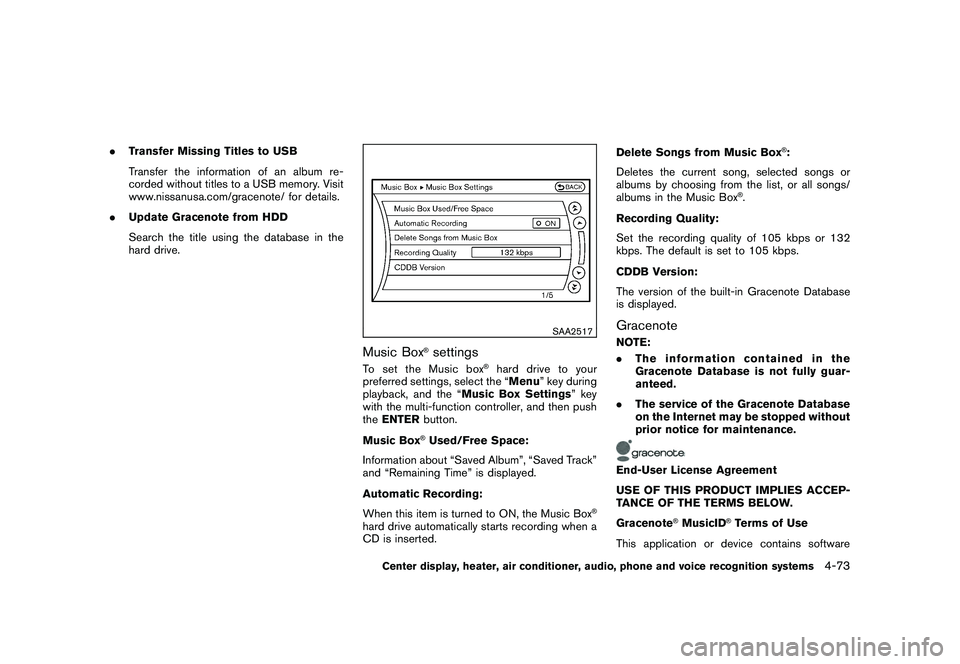
®settings
To s e t t h e M u s i c b o x
®hard drive to your
preferred settings, select the “Menu ” key during
playback, and the “Music Box Settings ” key
with the multi-function controller, and then push
the ENTER button.
Music Box
®Used/Free Space:
Information about “Saved Album”, “Saved Track”
and “Remaining Time” is displayed.
Automatic Recording:
When this item is turned to ON, the Music Box
®
hard drive automatically starts recording when a
CD is inserted. Delete Songs from Music Box
®:
Deletes the current song, selected songs or
albums by choosing from the list, or all songs/
albums in the Music Box
®.
Recording Quality:
Set the recording quality of 105 kbps or 132
kbps. The default is set to 105 kbps.
CDDB Version:
The version of the built-in Gracenote Database
is displayed.
GracenoteNOTE:
. The information contained in the
Gracenote Database is not fully guar-
anteed.
. The service of the Gracenote Database
on the Internet may be stopped without
prior notice for maintenance.End-User License Agreement
USE OF THIS PRODUCT IMPLIES ACCEP-
TANCE OF THE TERMS BELOW.
Gracenote
®MusicID
®Terms of Use
This application or device contains software
Center display, heater, air conditioner, audio, phone and voice recognition systems
4-73
Page 230 of 419
Black plate (226,1)
Model "Z34-D" EDITED: 2010/ 7/ 27
SAA2496
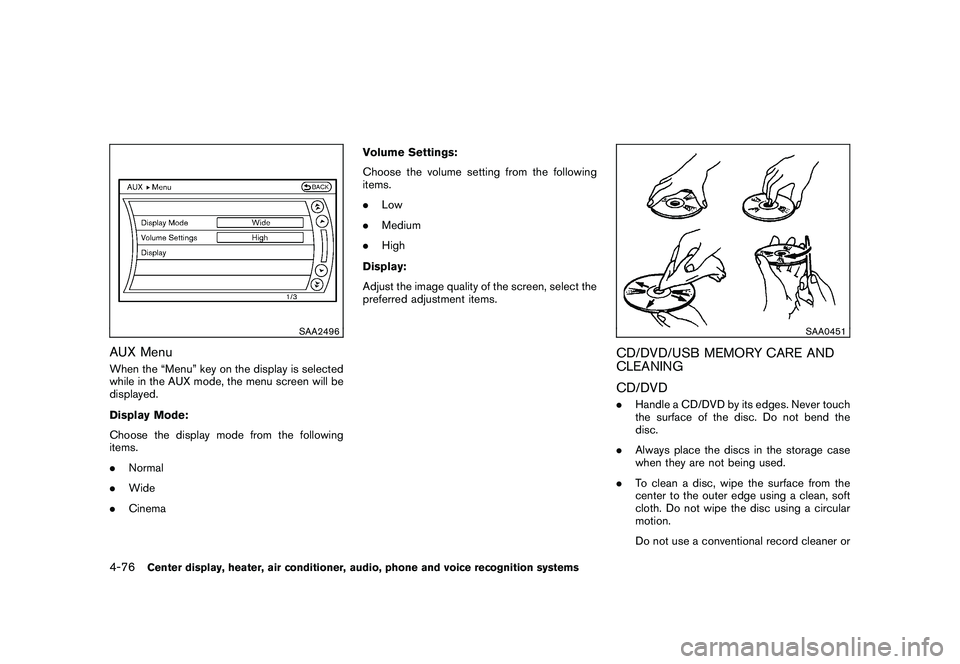
AUX MenuWhen the “Menu” key on the display is selected
while in the AUX mode, the menu screen will be
displayed.
Display Mode:
Choose the display mode from the following
items.
.Normal
. Wide
. Cinema Volume Settings:
Choose the volume setting from the following
items.
.
Low
. Medium
. High
Display:
Adjust the image quality of the screen, select the
preferred adjustment items.
SAA0451
CD/DVD/USB MEMORY CARE AND
CLEANING
CD/DVD. Handle a CD/DVD by its edges. Never touch
the surface of the disc. Do not bend the
disc.
. Always place the discs in the storage case
when they are not being used.
. To clean a disc, wipe the surface from the
center to the outer edge using a clean, soft
cloth. Do not wipe the disc using a circular
motion.
Do not use a conventional record cleaner or
4-76
Center display, heater, air conditioner, audio, phone and voice recognition systems
Page 237 of 419
Black plate (233,1)
Model "Z34-D" EDITED: 2010/ 7/ 27
SAA2519
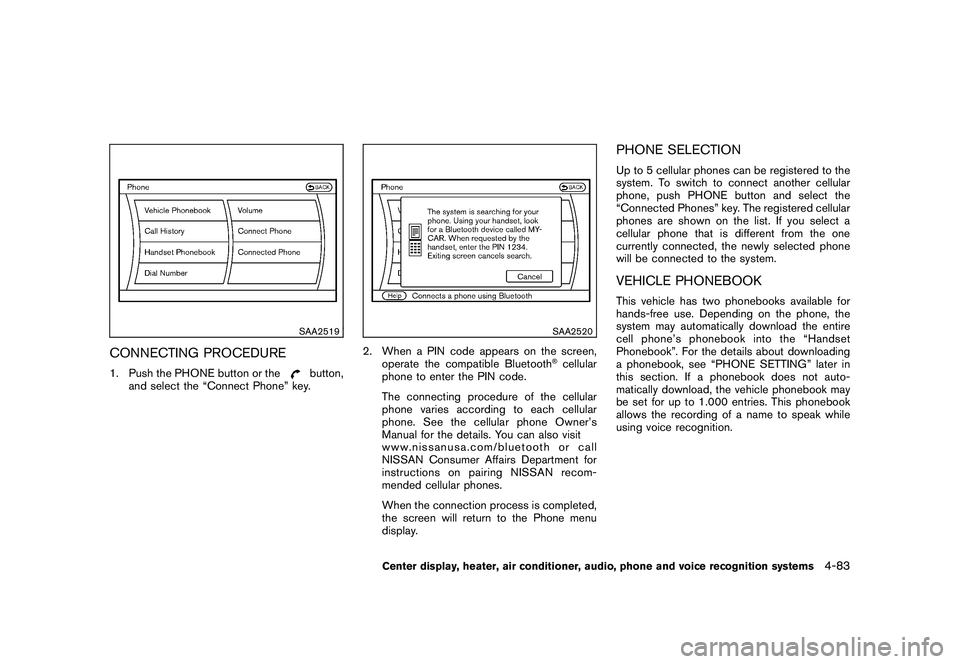
CONNECTING PROCEDURE1. Push the PHONE button or the
button,
and select the “Connect Phone” key.
SAA2520
2. When a PIN code appears on the screen, operate the compatible Bluetooth
®cellular
phone to enter the PIN code.
The connecting procedure of the cellular
phone varies according to each cellular
phone. See the cellular phone Owner’s
Manual for the details. You can also visit
www.nissanusa.com/bluetooth or call
NISSAN Consumer Affairs Department for
instructions on pairing NISSAN recom-
mended cellular phones.
When the connection process is completed,
the screen will return to the Phone menu
display.
PHONE SELECTIONUp to 5 cellular phones can be registered to the
system. To switch to connect another cellular
phone, push PHONE button and select the
“Connected Phones” key. The registered cellular
phones are shown on the list. If you select a
cellular phone that is different from the one
currently connected, the newly selected phone
will be connected to the system.VEHICLE PHONEBOOKThis vehicle has two phonebooks available for
hands-free use. Depending on the phone, the
system may automatically download the entire
cell phone’s phonebook into the “Handset
Phonebook”. For the details about downloading
a phonebook, see “PHONE SETTING” later in
this section. If a phonebook does not auto-
matically download, the vehicle phonebook may
be set for up to 1.000 entries. This phonebook
allows the recording of a name to speak while
using voice recognition.
Center display, heater, air conditioner, audio, phone and voice recognition systems
4-83