light NISSAN 370Z COUPE 2011 Manual PDF
[x] Cancel search | Manufacturer: NISSAN, Model Year: 2011, Model line: 370Z COUPE, Model: NISSAN 370Z COUPE 2011Pages: 419, PDF Size: 3.61 MB
Page 151 of 419
Black plate (147,1)
Model "Z34-D" EDITED: 2010/ 7/ 27
SPA2447
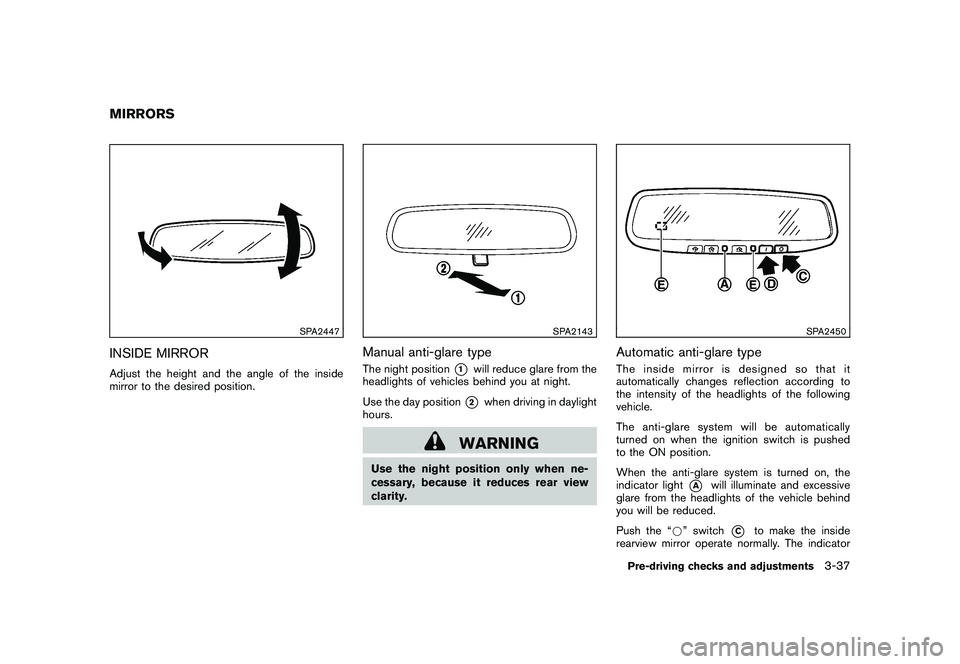
INSIDE MIRRORAdjust the height and the angle of the inside
mirror to the desired position.
SPA2143
Manual anti-glare typeThe night position
*1
will reduce glare from the
headlights of vehicles behind you at night.
Use the day position*2
when driving in daylight
hours.
WARNING
Use the night position only when ne-
cessary, because it reduces rear view
clarity.
SPA2450
Automatic anti-glare typeThe inside mirror is designed so that it
automatically changes reflection according to
the intensity of the headlights of the following
vehicle.
The anti-glare system will be automatically
turned on when the ignition switch is pushed
to the ON position.
When the anti-glare system is turned on, the
indicator light
*A
will illuminate and excessive
glare from the headlights of the vehicle behind
you will be reduced.
Push the “* ” switch
*C
to make the inside
rearview mirror operate normally. The indicator
MIRRORS
Pre-driving checks and adjustments
3-37
Page 152 of 419
Black plate (148,1)
Model "Z34-D" EDITED: 2010/ 7/ 27
light will turn off. Push the “I” switch
*D
to turn
the system on.
Do not allow any object to cover the
sensors
*E
or apply glass cleaner on
them. Doing so will reduce the sensitivity
of the sensor, resulting in improper opera-
tion.
For the HomeLink®Universal Transceiver opera-
tion, see “HomeLink®UNIVERSAL TRANSCEI-
VER” in the “2. Instruments and controls”
section.
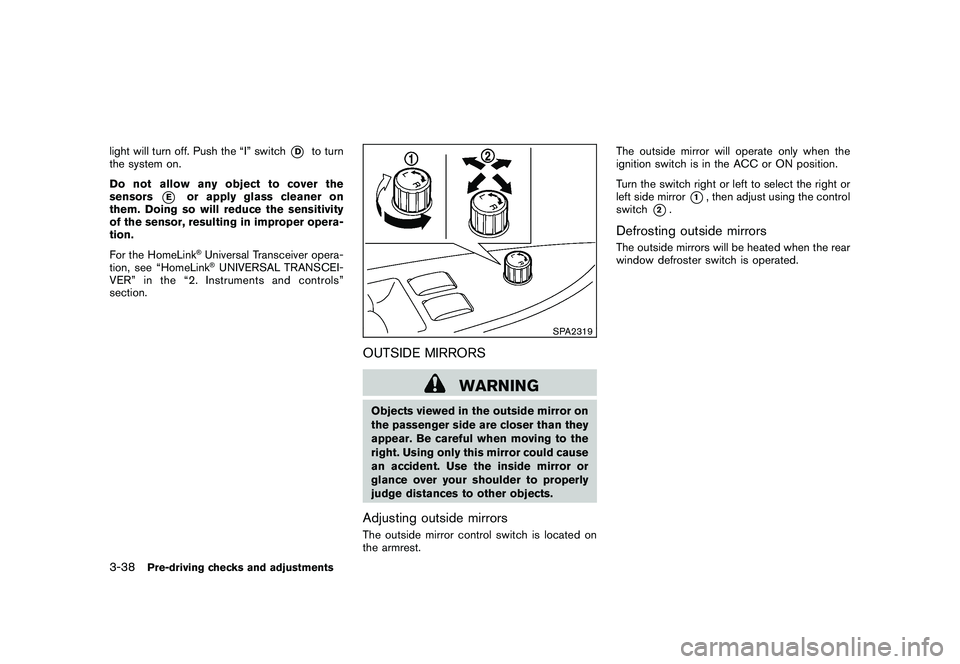
SPA2319
OUTSIDE MIRRORS
WARNING
Objects viewed in the outside mirror on
the passenger side are closer than they
appear. Be careful when moving to the
right. Using only this mirror could cause
an accident. Use the inside mirror or
glance over your shoulder to properly
judge distances to other objects.Adjusting outside mirrorsThe outside mirror control switch is located on
the armrest. The outside mirror will operate only when the
ignition switch is in the ACC or ON position.
Turn the switch right or left to select the right or
left side mirror
*1, then adjust using the control
switch
*2.
Defrosting outside mirrorsThe outside mirrors will be heated when the rear
window defroster switch is operated.
3-38
Pre-driving checks and adjustments
Page 159 of 419
Black plate (155,1)
Model "Z34-D" EDITED: 2010/ 7/ 27
.Space:
Inserts a space.
. Delete:
Deletes the last character that has been
input with one touch. Push and hold the
button to delete all of the characters.
. OK:
Completes character inputs.Touch screen maintenanceIf you clean the display screen, use a dry, soft
cloth. If additional cleaning is necessary, use a
small amount of neutral detergent with a soft
cloth. Never spray the screen with water or
detergent. Dampen the cloth first, and then wipe
the screen.
SAA2143
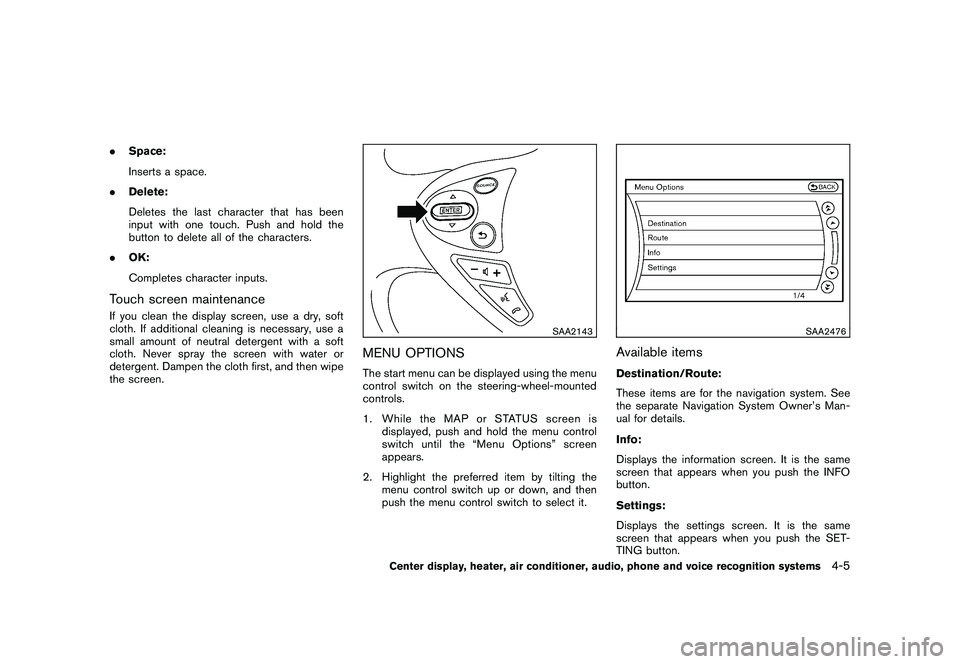
MENU OPTIONSThe start menu can be displayed using the menu
control switch on the steering-wheel-mounted
controls.
1. While the MAP or STATUS screen is
displayed, push and hold the menu control
switch until the “Menu Options” screen
appears.
2. Highlight the preferred item by tilting the menu control switch up or down, and then
push the menu control switch to select it.
SAA2476
Available itemsDestination/Route:
These items are for the navigation system. See
the separate Navigation System Owner’s Man-
ual for details.
Info:
Displays the information screen. It is the same
screen that appears when you push the INFO
button.
Settings:
Displays the settings screen. It is the same
screen that appears when you push the SET-
TING button.
Center display, heater, air conditioner, audio, phone and voice recognition systems
4-5
Page 160 of 419
Black plate (156,1)
Model "Z34-D" EDITED: 2010/ 7/ 27
SAA2477
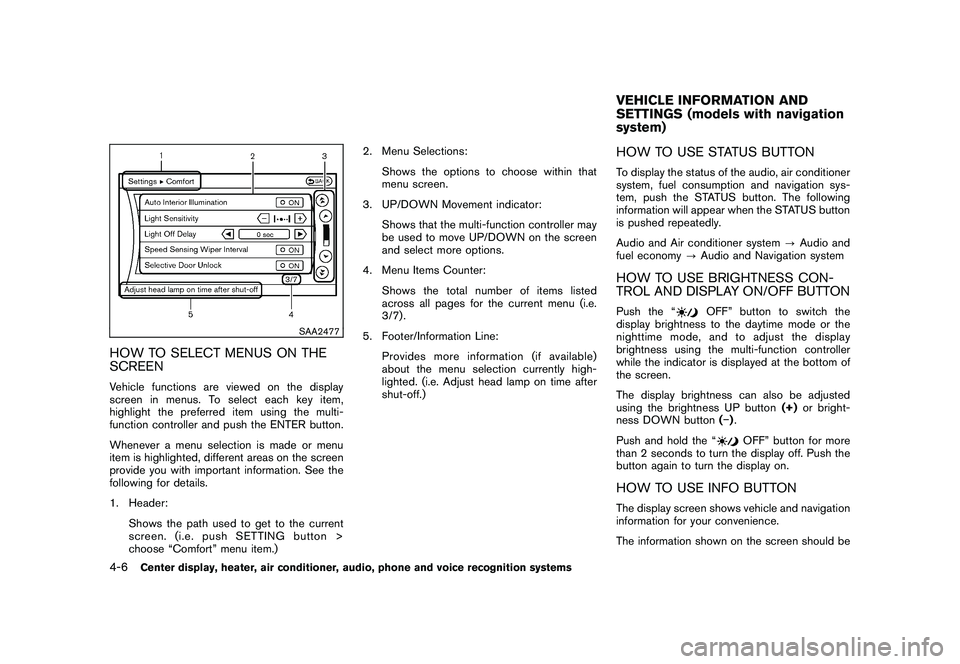
HOW TO SELECT MENUS ON THE
SCREENVehicle functions are viewed on the display
screen in menus. To select each key item,
highlight the preferred item using the multi-
function controller and push the ENTER button.
Whenever a menu selection is made or menu
item is highlighted, different areas on the screen
provide you with important information. See the
following for details.
1. Header:Shows the path used to get to the current
screen. (i.e. push SETTING button >
choose “Comfort” menu item.) 2. Menu Selections:
Shows the options to choose within that
menu screen.
3. UP/DOWN Movement indicator:
Shows that the multi-function controller may
be used to move UP/DOWN on the screen
and select more options.
4. Menu Items Counter:
Shows the total number of items listed
across all pages for the current menu (i.e.
3/7) .
5. Footer/Information Line: Provides more information (if available)
about the menu selection currently high-
lighted. (i.e. Adjust head lamp on time after
shut-off.)
HOW TO USE STATUS BUTTONTo display the status of the audio, air conditioner
system, fuel consumption and navigation sys-
tem, push the STATUS button. The following
information will appear when the STATUS button
is pushed repeatedly.
Audio and Air conditioner system ?Audio and
fuel economy ?Audio and Navigation systemHOW TO USE BRIGHTNESS CON-
TROL AND DISPLAY ON/OFF BUTTONPush the “
OFF” button to switch the
display brightness to the daytime mode or the
nighttime mode, and to adjust the display
brightness using the multi-function controller
while the indicator is displayed at the bottom of
the screen.
The display brightness can also be adjusted
using the brightness UP button (+)or bright-
ness DOWN button () .
Push and hold the “
OFF” button for more
than 2 seconds to turn the display off. Push the
button again to turn the display on.
HOW TO USE INFO BUTTONThe display screen shows vehicle and navigation
information for your convenience.
The information shown on the screen should beVEHICLE INFORMATION AND
SETTINGS (models with navigation
system)
4-6
Center display, heater, air conditioner, audio, phone and voice recognition systems
Page 167 of 419
Black plate (163,1)
Model "Z34-D" EDITED: 2010/ 7/ 27
SAA2487
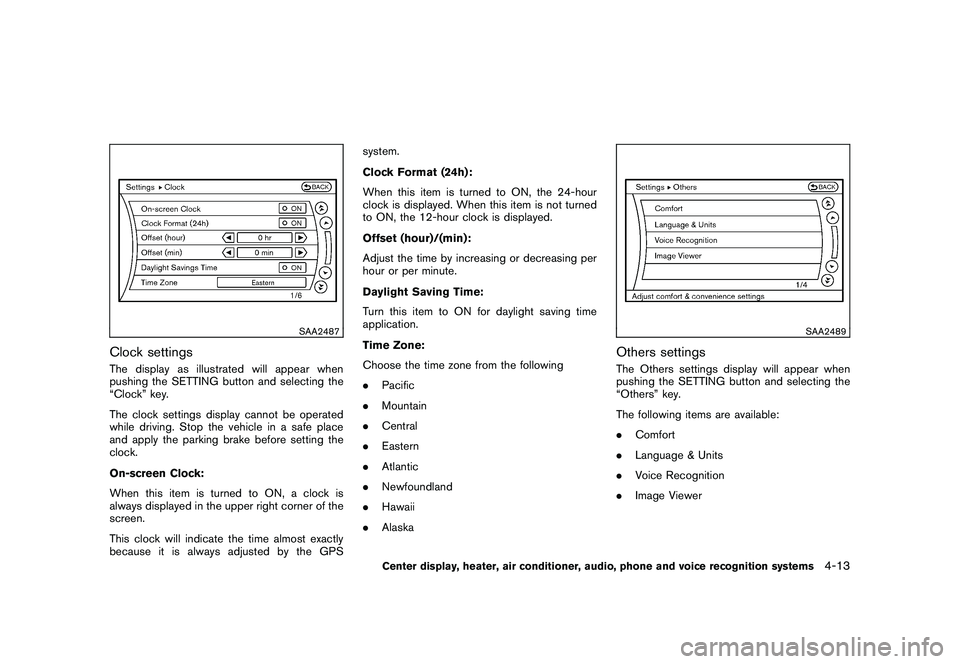
Clock settingsThe display as illustrated will appear when
pushing the SETTING button and selecting the
“Clock” key.
The clock settings display cannot be operated
while driving. Stop the vehicle in a safe place
and apply the parking brake before setting the
clock.
On-screen Clock:
When this item is turned to ON, a clock is
always displayed in the upper right corner of the
screen.
This clock will indicate the time almost exactly
because it is always adjusted by the GPSsystem.
Clock Format (24h):
When this item is turned to ON, the 24-hour
clock is displayed. When this item is not turned
to ON, the 12-hour clock is displayed.
Offset (hour)/(min):
Adjust the time by increasing or decreasing per
hour or per minute.
Daylight Saving Time:
Turn this item to ON for daylight saving time
application.
Time Zone:
Choose the time zone from the following
.
Pacific
. Mountain
. Central
. Eastern
. Atlantic
. Newfoundland
. Hawaii
. Alaska
SAA2489
Others settingsThe Others settings display will appear when
pushing the SETTING button and selecting the
“Others” key.
The following items are available:
.Comfort
. Language & Units
. Voice Recognition
. Image Viewer
Center display, heater, air conditioner, audio, phone and voice recognition systems
4-13
Page 168 of 419
Black plate (164,1)
Model "Z34-D" EDITED: 2010/ 7/ 27
SAA2488
Example
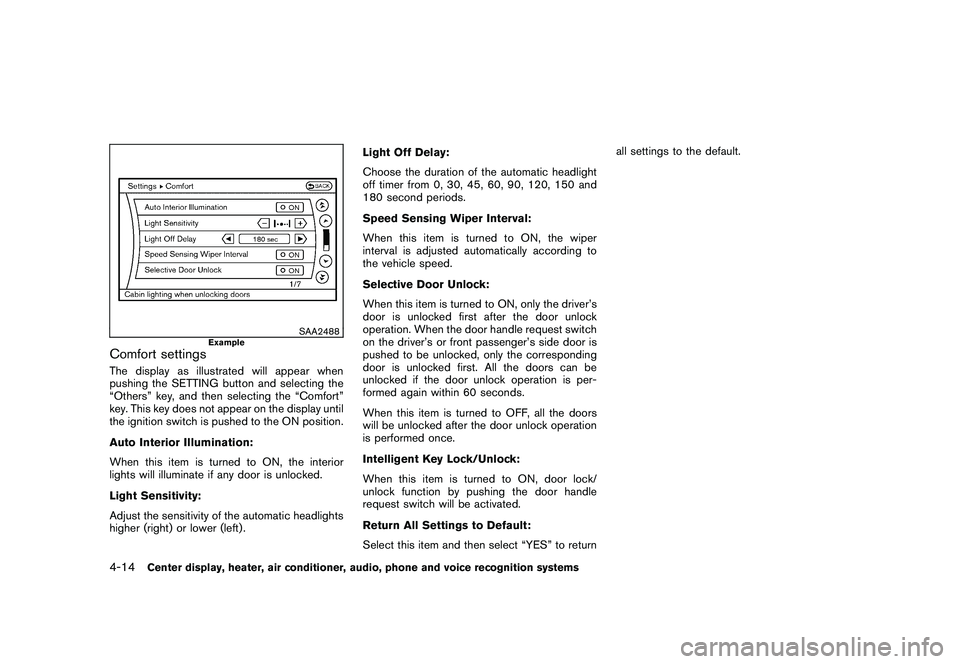
Comfort settingsThe display as illustrated will appear when
pushing the SETTING button and selecting the
“Others” key, and then selecting the “Comfort”
key. This key does not appear on the display until
the ignition switch is pushed to the ON position.
Auto Interior Illumination:
When this item is turned to ON, the interior
lights will illuminate if any door is unlocked.
Light Sensitivity:
Adjust the sensitivity of the automatic headlights
higher (right) or lower (left) .Light Off Delay:
Choose the duration of the automatic headlight
off timer from 0, 30, 45, 60, 90, 120, 150 and
180 second periods.
Speed Sensing Wiper Interval:
When this item is turned to ON, the wiper
interval is adjusted automatically according to
the vehicle speed.
Selective Door Unlock:
When this item is turned to ON, only the driver’s
door is unlocked first after the door unlock
operation. When the door handle request switch
on the driver’s or front passenger’s side door is
pushed to be unlocked, only the corresponding
door is unlocked first. All the doors can be
unlocked if the door unlock operation is per-
formed again within 60 seconds.
When this item is turned to OFF, all the doors
will be unlocked after the door unlock operation
is performed once.
Intelligent Key Lock/Unlock:
When this item is turned to ON, door lock/
unlock function by pushing the door handle
request switch will be activated.
Return All Settings to Default:
Select this item and then select “YES” to returnall settings to the default.4-14
Center display, heater, air conditioner, audio, phone and voice recognition systems
Page 172 of 419
Black plate (168,1)
Model "Z34-D" EDITED: 2010/ 7/ 27
SAA1896
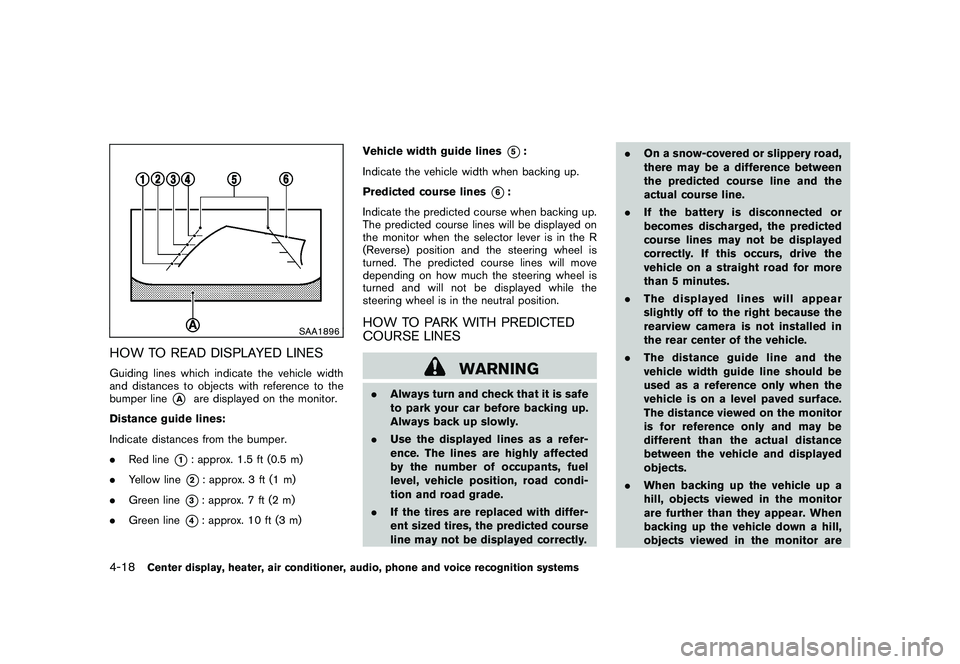
HOW TO READ DISPLAYED LINESGuiding lines which indicate the vehicle width
and distances to objects with reference to the
bumper line
*A
are displayed on the monitor.
Distance guide lines:
Indicate distances from the bumper.
. Red line
*1: approx. 1.5 ft (0.5 m)
. Yellow line*2: approx. 3 ft (1 m)
. Green line
*3: approx. 7 ft (2 m)
. Green line
*4: approx. 10 ft (3 m) Vehicle width guide lines
*5:
Indicate the vehicle width when backing up.
Predicted course lines
*6:
Indicate the predicted course when backing up.
The predicted course lines will be displayed on
the monitor when the selector lever is in the R
(Reverse) position and the steering wheel is
turned. The predicted course lines will move
depending on how much the steering wheel is
turned and will not be displayed while the
steering wheel is in the neutral position.
HOW TO PARK WITH PREDICTED
COURSE LINES
WARNING
. Always turn and check that it is safe
to park your car before backing up.
Always back up slowly.
. Use the displayed lines as a refer-
ence. The lines are highly affected
by the number of occupants, fuel
level, vehicle position, road condi-
tion and road grade.
. If the tires are replaced with differ-
ent sized tires, the predicted course
line may not be displayed correctly. .
On a snow-covered or slippery road,
there may be a difference between
the predicted course line and the
actual course line.
. If the battery is disconnected or
becomes discharged, the predicted
course lines may not be displayed
correctly. If this occurs, drive the
vehicle on a straight road for more
than 5 minutes.
. The displayed lines will appear
slightly off to the right because the
rearview camera is not installed in
the rear center of the vehicle.
. The distance guide line and the
vehicle width guide line should be
used as a reference only when the
vehicle is on a level paved surface.
The distance viewed on the monitor
is for reference only and may be
different than the actual distance
between the vehicle and displayed
objects.
. When backing up the vehicle up a
hill, objects viewed in the monitor
are further than they appear. When
backing up the vehicle down a hill,
objects viewed in the monitor are
4-18
Center display, heater, air conditioner, audio, phone and voice recognition systems
Page 176 of 419
Black plate (172,1)
Model "Z34-D" EDITED: 2010/ 7/ 27
SAA1924
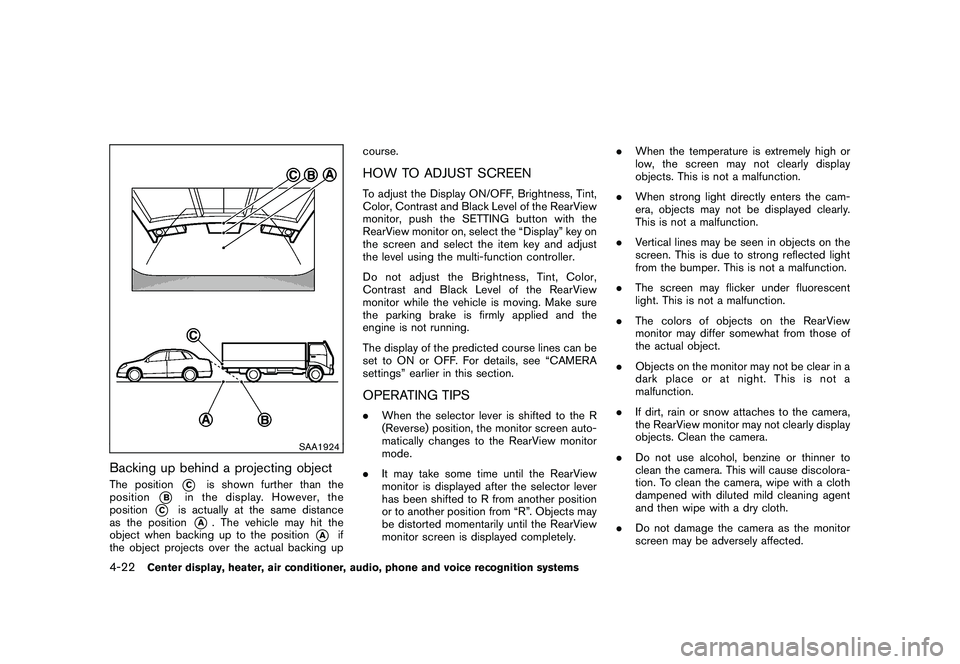
Backing up behind a projecting objectThe position
*C
is shown further than the
position
*B
in the display. However, the
position
*C
is actually at the same distance
as the position
*A
. The vehicle may hit the
object when backing up to the position
*A
if
the object projects over the actual backing up course.
HOW TO ADJUST SCREENTo adjust the Display ON/OFF, Brightness, Tint,
Color, Contrast and Black Level of the RearView
monitor, push the SETTING button with the
RearView monitor on, select the “Display” key on
the screen and select the item key and adjust
the level using the multi-function controller.
Do not adjust the Brightness, Tint, Color,
Contrast and Black Level of the RearView
monitor while the vehicle is moving. Make sure
the parking brake is firmly applied and the
engine is not running.
The display of the predicted course lines can be
set to ON or OFF. For details, see “CAMERA
settings” earlier in this section.OPERATING TIPS.
When the selector lever is shifted to the R
(Reverse) position, the monitor screen auto-
matically changes to the RearView monitor
mode.
. It may take some time until the RearView
monitor is displayed after the selector lever
has been shifted to R from another position
or to another position from “R”. Objects may
be distorted momentarily until the RearView
monitor screen is displayed completely. .
When the temperature is extremely high or
low, the screen may not clearly display
objects. This is not a malfunction.
. When strong light directly enters the cam-
era, objects may not be displayed clearly.
This is not a malfunction.
. Vertical lines may be seen in objects on the
screen. This is due to strong reflected light
from the bumper. This is not a malfunction.
. The screen may flicker under fluorescent
light. This is not a malfunction.
. The colors of objects on the RearView
monitor may differ somewhat from those of
the actual object.
. Objects on the monitor may not be clear in a
dark place or at night. This is not a
malfunction.
. If dirt, rain or snow attaches to the camera,
the RearView monitor may not clearly display
objects. Clean the camera.
. Do not use alcohol, benzine or thinner to
clean the camera. This will cause discolora-
tion. To clean the camera, wipe with a cloth
dampened with diluted mild cleaning agent
and then wipe with a dry cloth.
. Do not damage the camera as the monitor
screen may be adversely affected.
4-22
Center display, heater, air conditioner, audio, phone and voice recognition systems
Page 179 of 419
Black plate (175,1)
Model "Z34-D" EDITED: 2010/ 7/ 27
SAA2277
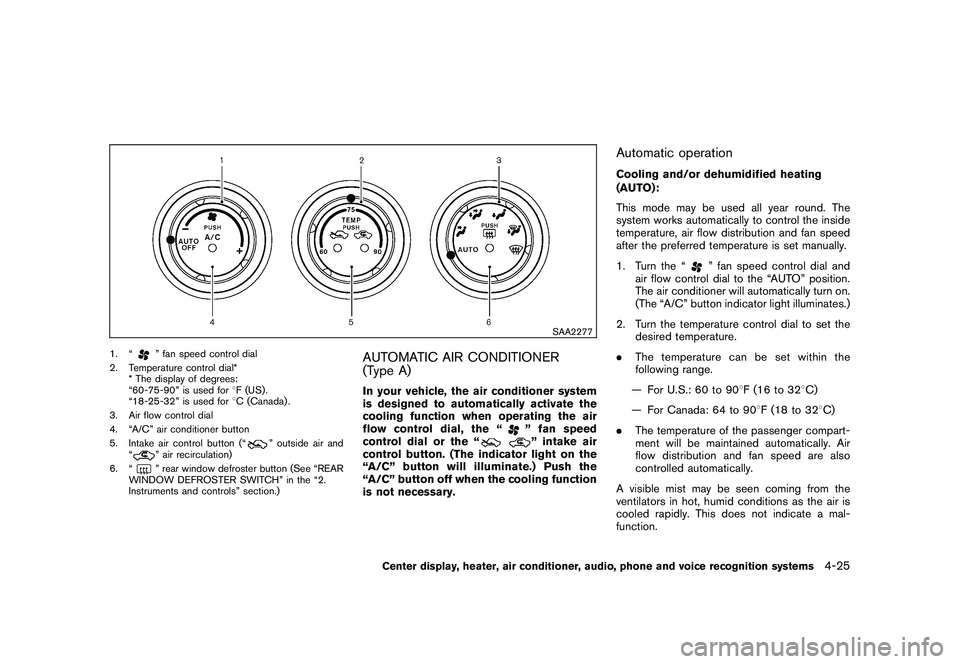
1. “
” fan speed control dial
2. Temperature control dial* * The display of degrees:
“60-75-90” is used for 8F (US) .
“18-25-32” is used for 8C (Canada) .
3. Air flow control dial
4. “A/C” air conditioner button
5. Intake air control button (“
” outside air and
“
” air recirculation)
6. “” rear window defroster button (See “REAR
WINDOW DEFROSTER SWITCH” in the “2.
Instruments and controls” section.)
AUTOMATIC AIR CONDITIONER
(Type A)In your vehicle, the air conditioner system
is designed to automatically activate the
cooling function when operating the air
flow control dial, the “
” fan speed
control dial or the “” intake air
control button. (The indicator light on the
“A/C” button will illuminate.) Push the
“A/C” button off when the cooling function
is not necessary.
Automatic operationCooling and/or dehumidified heating
(AUTO):
This mode may be used all year round. The
system works automatically to control the inside
temperature, air flow distribution and fan speed
after the preferred temperature is set manually.
1. Turn the “
” fan speed control dial and
air flow control dial to the “AUTO” position.
The air conditioner will automatically turn on.
(The “A/C” button indicator light illuminates.)
2. Turn the temperature control dial to set the desired temperature.
. The temperature can be set within the
following range.
— For U.S.: 60 to 90 8F (16 to 32 8C)
— For Canada: 64 to 90 8F (18 to 32 8C)
. The temperature of the passenger compart-
ment will be maintained automatically. Air
flow distribution and fan speed are also
controlled automatically.
A visible mist may be seen coming from the
ventilators in hot, humid conditions as the air is
cooled rapidly. This does not indicate a mal-
function.
Center display, heater, air conditioner, audio, phone and voice recognition systems
4-25
Page 180 of 419
Black plate (176,1)
Model "Z34-D" EDITED: 2010/ 7/ 27
Heating (A/C OFF):
The air conditioner does not activate. When you
need to heat only, use this mode.
1. Turn the “
” fan speed control dial and
air flow control dial to the “AUTO” position.
(The air conditioner will turn on.)
2. Push the “A/C” button to turn off the air conditioner. (The “A/C” button indicator light
will turn off.)
3. Turn the temperature control dial to set the desired temperature.
.The temperature of the passenger com-
partment will be maintained automati-
cally. Air flow distribution and fan speed
are also controlled automatically.
. Do not set the temperature lower than
the outside air temperature. Otherwise
the system may not work properly.
. Not recommended if windows fog up.
Dehumidified defrosting or defogging:
1. Turn the “” fan speed control dial to the
desired position.
2. Turn the air flow control dial to the “
”
position.
3. Turn the temperature control dial to set the desired temperature. .
To quickly remove ice from the outside
of the windows, turn the “
” fan
speed control dial to the maximum
position.
. As soon as possible after the windshield
is clean, turn the air flow control dial to
the “AUTO” position to return to the auto
mode.
. When the air flow control dial is turned
to the “
”or“
” position, the air
conditioner will automatically be turned
on at outside temperatures above 23 8F
( 58C) to defog the windshield, and the
air recirculation mode will automatically
be turned off.
Outside air is drawn into the passenger
compartment to improve the defogging
performance.
Manual operationFan speed control:
Turn the “
” fan speed control dial clockwise
(+) or counterclockwise ( ) to manually control
the fan speed.
Turn the dial to the “AUTO” position to return to
automatic control of the fan speed. Air recirculation:
Push the “
” intake air control button to
recirculate interior air inside the vehicle. The
indicator light on the “
” side will come on.
The air recirculation mode cannot be activated
when the air conditioner is in the front defrosting
mode “
”.
Outside air circulation:
Push the “
” intake air control button to
draw outside air into the passenger compart-
ment. The indicator light on the “
” side will
come on.
Automatic intake air control:
In the AUTO mode, the intake air will be
controlled automatically. To manually control
the intake air, push the “” intake air
control button. To return to the automatic control
mode, push the “
” intake air control
button for approximately 2 seconds. The indi-
cator lights (both air recirculation and outside air
circulation sides) will flash twice, and then the
intake air will be controlled automatically.
4-26
Center display, heater, air conditioner, audio, phone and voice recognition systems