ad blue NISSAN 370Z COUPE 2012 Owners Manual
[x] Cancel search | Manufacturer: NISSAN, Model Year: 2012, Model line: 370Z COUPE, Model: NISSAN 370Z COUPE 2012Pages: 427, PDF Size: 3.25 MB
Page 4 of 427
CALIFORNIA PERCHLORATE ADVI-
SORY
Some vehicle parts, such as lithium bat-
teries, may contain perchlorate material.
The following advisory is provided: “Per-
chlorate Material - special handling may
apply, See www.dtsc.ca.gov/
hazardouswaste/perchlorate.”
Bluetooth®is a trademark owned
by Bluetooth SIG, Inc. and li-
censed to Visteon Corporation
and Clarion Co., Ltd.
Gracenote®is a registered tra-
demark of Gracenote, Inc. The
Gracenote logo and logo type,
and the “Powered by Gracenote”
logo are trademarks of Grace-
note.
XM Radio®requires a subscrip-
tion, sold separately. It is not
available in Alaska, Hawaii or
Guam. For more information, visit
www.xmradio.com.
*C2011 NISSAN MOTOR CO., LTD.
All rights reserved. No part of this Owner’s
Manual may be reproduced or stored in a
retrieval system, or transmitted in any form, or
by any means, electronic, mechanical, photo-
copying, recording or otherwise, without the
prior written permission of Nissan Motor Co.,
Ltd.
Page 19 of 427
SSI0653
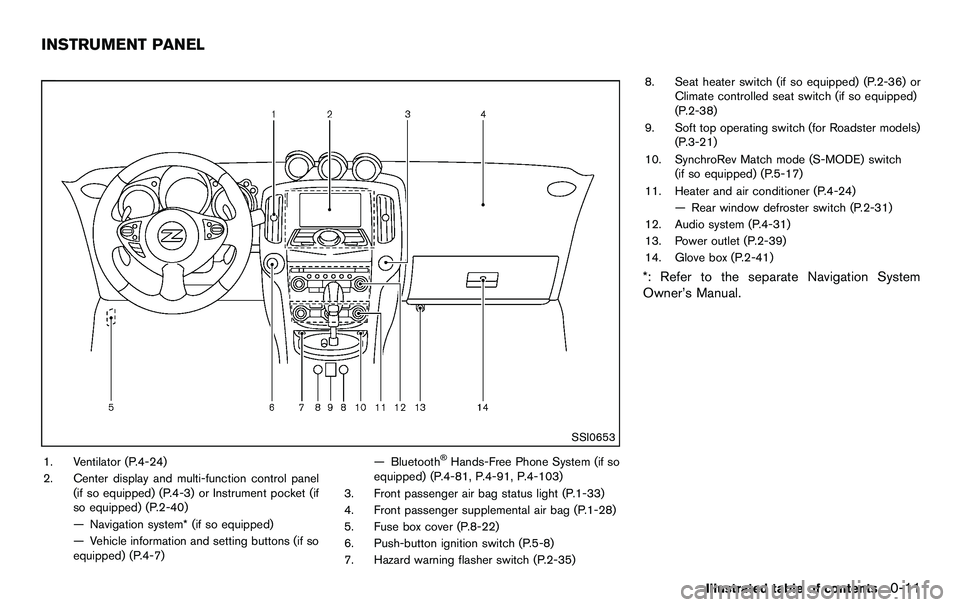
1. Ventilator (P.4-24)
2. Center display and multi-function control panel(if so equipped) (P.4-3) or Instrument pocket (if
so equipped) (P.2-40)
— Navigation system* (if so equipped)
— Vehicle information and setting buttons (if so
equipped) (P.4-7) — Bluetooth®Hands-Free Phone System (if so
equipped) (P.4-81, P.4-91, P.4-103)
3. Front passenger air bag status light (P.1-33)
4. Front passenger supplemental air bag (P.1-28)
5. Fuse box cover (P.8-22)
6. Push-button ignition switch (P.5-8)
7. Hazard warning flasher switch (P.2-35) 8. Seat heater switch (if so equipped) (P.2-36) or
Climate controlled seat switch (if so equipped)
(P.2-38)
9. Soft top operating switch (for Roadster models) (P.3-21)
10. SynchroRev Match mode (S-MODE) switch (if so equipped) (P.5-17)
11. Heater and air conditioner (P.4-24) — Rear window defroster switch (P.2-31)
12. Audio system (P.4-31)
13. Power outlet (P.2-39)
14. Glove box (P.2-41)
*: Refer to the separate Navigation System
Owner’s Manual.
Illustrated table of contents0-11
INSTRUMENT PANEL
Page 68 of 427
2-4Instruments and controls
SSI0653
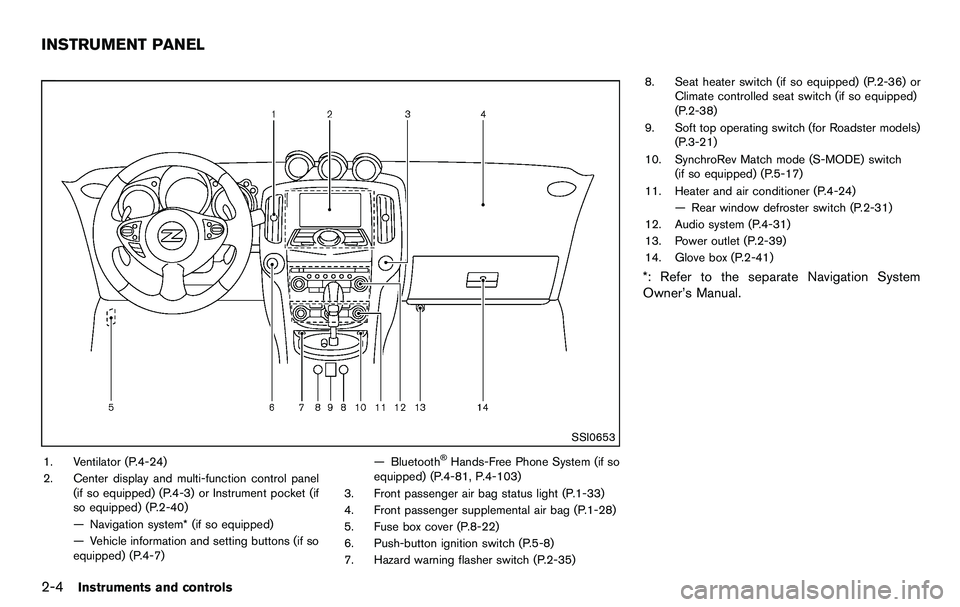
1. Ventilator (P.4-24)
2. Center display and multi-function control panel(if so equipped) (P.4-3) or Instrument pocket (if
so equipped) (P.2-40)
— Navigation system* (if so equipped)
— Vehicle information and setting buttons (if so
equipped) (P.4-7) — Bluetooth®Hands-Free Phone System (if so
equipped) (P.4-81, P.4-103)
3. Front passenger air bag status light (P.1-33)
4. Front passenger supplemental air bag (P.1-28)
5. Fuse box cover (P.8-22)
6. Push-button ignition switch (P.5-8)
7. Hazard warning flasher switch (P.2-35) 8. Seat heater switch (if so equipped) (P.2-36) or
Climate controlled seat switch (if so equipped)
(P.2-38)
9. Soft top operating switch (for Roadster models) (P.3-21)
10. SynchroRev Match mode (S-MODE) switch (if so equipped) (P.5-17)
11. Heater and air conditioner (P.4-24) — Rear window defroster switch (P.2-31)
12. Audio system (P.4-31)
13. Power outlet (P.2-39)
14. Glove box (P.2-41)
*: Refer to the separate Navigation System
Owner’s Manual.
INSTRUMENT PANEL
Page 157 of 427

4 Center display, heater, air conditioner, audio,phone and voice recognition systems
Safety note ........................................................................\
.......... 4-3
Center multi-function control panel (models with
navigation system) .................................................................... 4-3
How to use multi-function controller .............................. 4-4
How to use touch screen ................................................. 4-4
Menu options ........................................................................\
4-6
How to select menus on the screen .............................. 4-7
Vehicle information and settings (models with
navigation system) .................................................................... 4-7 How to use STATUS button ............................................. 4-7
How to use brightness control and display
ON/OFF button ................................................................... 4-7
How to use INFO button .................................................. 4-8
How to use SETTING button ....................................... 4-11
RearView monitor (models with navigation system) ..... 4-18 How to read displayed lines .......................................... 4-18
How to park with predicted course lines ................... 4-19
Difference between predicted and
actual distances ................................................................ 4-20
How to adjust screen ...................................................... 4-23
Operating tips ................................................................... 4-23
Ventilators ........................................................................\
......... 4-24 Center ventilators ............................................................. 4-24
Side ventilators ................................................................. 4-24 Heater and air conditioner .................................................. 4-24
Automatic air conditioner (Type A) ............................ 4-25
Automatic air conditioner (Type B) ........................... 4-28
Operating tips ................................................................. 4-30
In-cabin microfilter ......................................................... 4-30
Servicing air conditioner .............................................. 4-30
Audio system ........................................................................\
.. 4-31 Audio operation precautions ....................................... 4-31
FM-AM radio with Compact Disc (CD) player ....... 4-43
FM-AM-SAT radio with Compact Disc (CD)
changer (models without navigation system) ......... 4-47
FM-AM-SAT radio with Compact Disc (CD) player
(models with navigation system) ................................ 4-52
DVD (Digital Versatile Disc) player operation
(models with navigation system) ................................ 4-56
USB memory operation (models with
navigation system) ......................................................... 4-59
Bluetooth
®streaming audio (models with
navigation system) ......................................................... 4-63
iPod
®player operation (models with
navigation system) ......................................................... 4-68
Music Box
®(if so equipped) ...................................... 4-69
Auxiliary input jacks (models with
navigation system) ......................................................... 4-75
CD/DVD/USB memory care and cleaning .............. 4-76
Page 158 of 427

Steering-wheel-mounted controls for audio .............. 4-77
Antenna ........................................................................\
....... 4-79
Car phone or CB radio ........................................................ 4-80
Bluetooth
®hands-free phone system (models with
navigation system) ................................................................. 4-81
Regulatory information .................................................... 4-82
Voice commands .............................................................. 4-82
Control buttons ................................................................. 4-83
Connecting procedure .................................................... 4-83
Phone selection ................................................................ 4-84
Vehicle phonebook .......................................................... 4-84
Making a call ..................................................................... 4-86
Receiving a call ................................................................. 4-87
During a call ...................................................................... 4-88
Phone setting .................................................................... 4-89
Troubleshooting guide ..................................................... 4-90 Bluetooth
®hands-free phone system (models without
navigation system) (if so equipped) ................................. 4-91
Regulatory information .................................................. 4-92
Using the system ........................................................... 4-93
Control buttons ............................................................... 4-95
Getting started ............................................................... 4-95
List of voice commands ............................................... 4-97
Speaker Adaptation (SA) mode .............................. 4-100
Troubleshooting guide ............................................... 4-102
NISSAN Voice Recognition System (models with
navigation system) ............................................................. 4-103
NISSAN voice recognition Standard Mode ......... 4-103
Using the system ........................................................ 4-106
NISSAN voice recognition Alternate
Command Mode ......................................................... 4-114
Using the system ........................................................ 4-123
Troubleshooting guide ............................................... 4-128
Page 159 of 427
WARNING
.Do not disassemble or modify this
system. If you do, it may result in
accidents, fire, or electric shock.
. Do not use this system if you notice
any abnormality, such as a frozen
screen or lack of sound. Continued
use of the system may result in
accident, fire or electric shock.
. In case you notice any foreign
object in the system hardware, spill
liquid on it, or notice smoke or smell
coming from it, stop using the
system immediately and contact
your nearest NISSAN dealer. Ignor-
ing such conditions may lead to
accidents, fire, or electric shock.
. Park the vehicle in a safe location
and apply the parking brake to view
the images on the front center dis-
play screen.
Do not attempt to operate the system in
extreme temperature conditions [below
− 48F( −208 C) and above 1588 F (708C)].
Operating this system under these condi-
tions may result in system malfunctions.
SAA2273
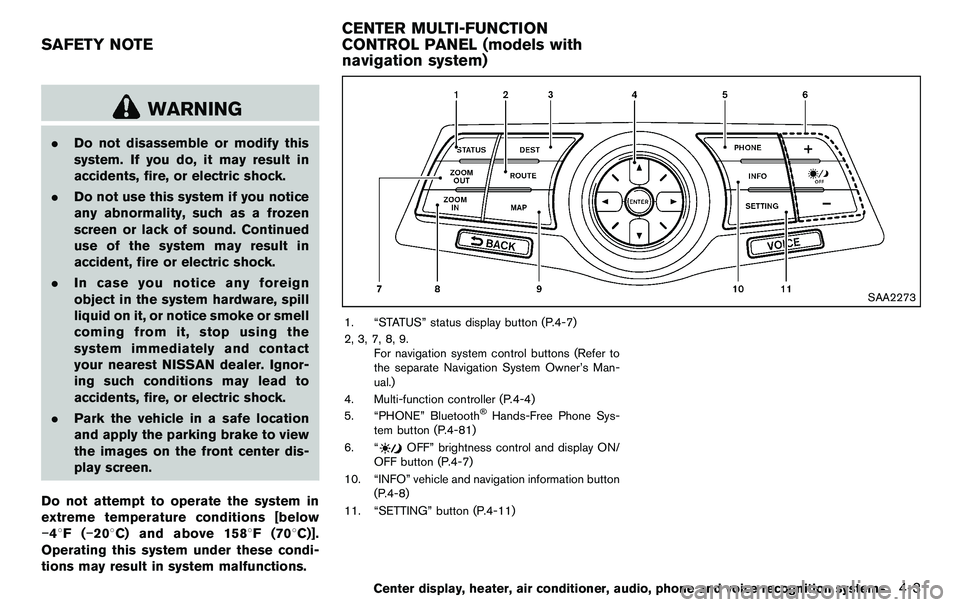
1. “STATUS” status display button (P.4-7)
2, 3, 7, 8, 9. For navigation system control buttons (Refer to
the separate Navigation System Owner’s Man-
ual.)
4. Multi-function controller (P.4-4)
5. “PHONE” Bluetooth
®Hands-Free Phone Sys-
tem button (P.4-81)
6. “
OFF” brightness control and display ON/
OFF button (P.4-7)
10. “INFO” vehicle and navigation information button (P.4-8)
11. “SETTING” button (P.4-11)
Center display, heater, air conditioner, audio, phone and voice recognition systems4-3
SAFETY NOTE CENTER MULTI-FUNCTION
CONTROL PANEL (models with
navigation system)
Page 167 of 427
SAA2484
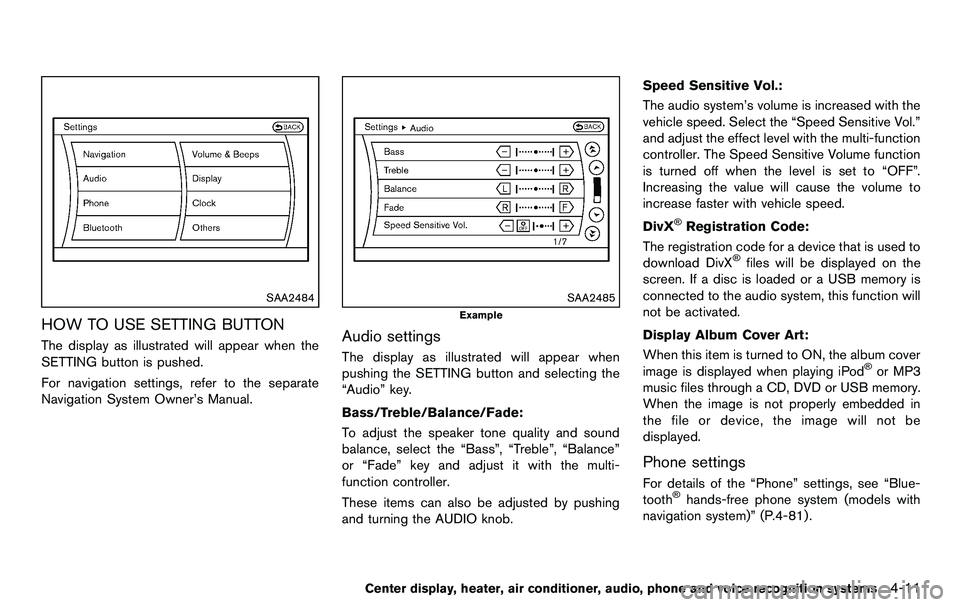
HOW TO USE SETTING BUTTON
The display as illustrated will appear when the
SETTING button is pushed.
For navigation settings, refer to the separate
Navigation System Owner’s Manual.
SAA2485
Example
Audio settings
The display as illustrated will appear when
pushing the SETTING button and selecting the
“Audio” key.
Bass/Treble/Balance/Fade:
To adjust the speaker tone quality and sound
balance, select the “Bass”, “Treble”, “Balance”
or “Fade” key and adjust it with the multi-
function controller.
These items can also be adjusted by pushing
and turning the AUDIO knob.Speed Sensitive Vol.:
The audio system’s volume is increased with the
vehicle speed. Select the “Speed Sensitive Vol.”
and adjust the effect level with the multi-function
controller. The Speed Sensitive Volume function
is turned off when the level is set to “OFF”.
Increasing the value will cause the volume to
increase faster with vehicle speed.
DivX
®Registration Code:
The registration code for a device that is used to
download DivX
®files will be displayed on the
screen. If a disc is loaded or a USB memory is
connected to the audio system, this function will
not be activated.
Display Album Cover Art:
When this item is turned to ON, the album cover
image is displayed when playing iPod
®or MP3
music files through a CD, DVD or USB memory.
When the image is not properly embedded in
the file or device, the image will not be
displayed.
Phone settings
For details of the “Phone” settings, see “Blue-
tooth®hands-free phone system (models with
navigation system)” (P.4-81) .
Center display, heater, air conditioner, audio, phone and voice recognition systems4-11
Page 168 of 427
4-12Center display, heater, air conditioner, audio, phone and voice recognition systems
Bluetooth®settings
For details of the “Bluetooth” settings, see
“Bluetooth®hands-free phone system (models
with navigation system)” (P.4-81) or “Bluetooth®
streaming audio (models with navigation sys-
tem)” (P.4-63).
SAA2554
Example
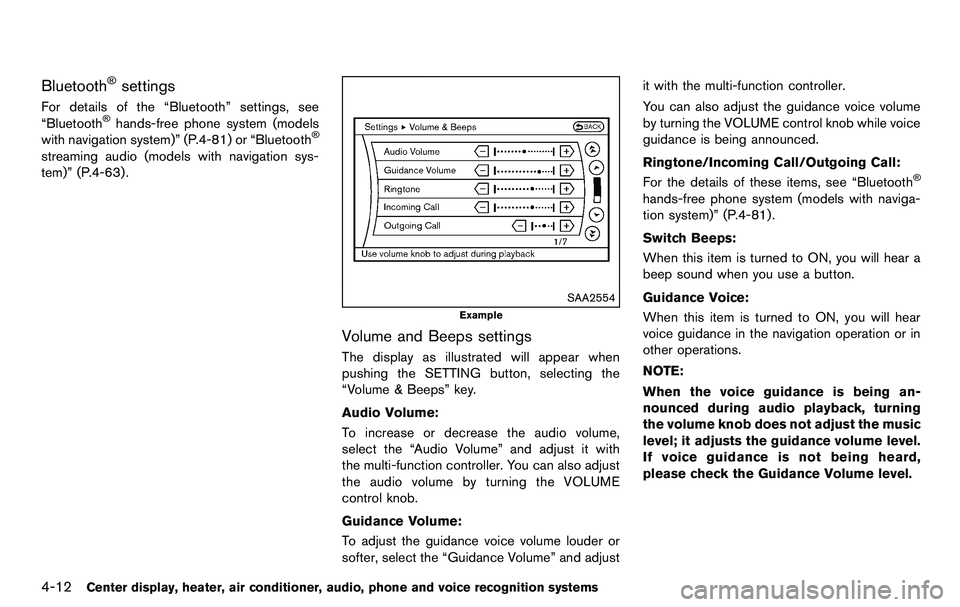
Volume and Beeps settings
The display as illustrated will appear when
pushing the SETTING button, selecting the
“Volume & Beeps” key.
Audio Volume:
To increase or decrease the audio volume,
select the “Audio Volume” and adjust it with
the multi-function controller. You can also adjust
the audio volume by turning the VOLUME
control knob.
Guidance Volume:
To adjust the guidance voice volume louder or
softer, select the “Guidance Volume” and adjust it with the multi-function controller.
You can also adjust the guidance voice volume
by turning the VOLUME control knob while voice
guidance is being announced.
Ringtone/Incoming Call/Outgoing Call:
For the details of these items, see “Bluetooth
®
hands-free phone system (models with naviga-
tion system)” (P.4-81).
Switch Beeps:
When this item is turned to ON, you will hear a
beep sound when you use a button.
Guidance Voice:
When this item is turned to ON, you will hear
voice guidance in the navigation operation or in
other operations.
NOTE:
When the voice guidance is being an-
nounced during audio playback, turning
the volume knob does not adjust the music
level; it adjusts the guidance volume level.
If voice guidance is not being heard,
please check the Guidance Volume level.
Page 169 of 427
SAA2486
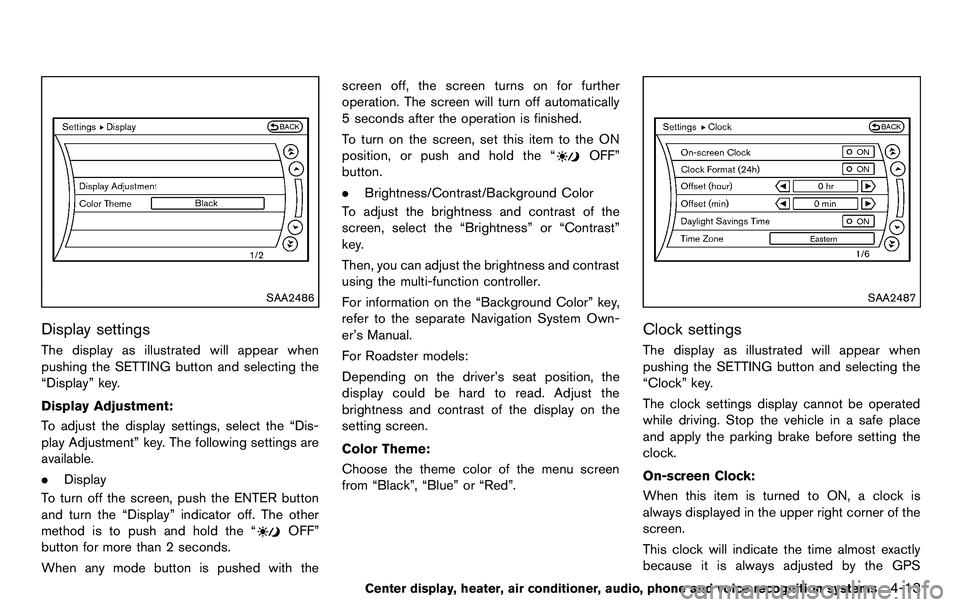
Display settings
The display as illustrated will appear when
pushing the SETTING button and selecting the
“Display” key.
Display Adjustment:
To adjust the display settings, select the “Dis-
play Adjustment” key. The following settings are
available.
.Display
To turn off the screen, push the ENTER button
and turn the “Display” indicator off. The other
method is to push and hold the “
OFF”
button for more than 2 seconds.
When any mode button is pushed with the screen off, the screen turns on for further
operation. The screen will turn off automatically
5 seconds after the operation is finished.
To turn on the screen, set this item to the ON
position, or push and hold the “
OFF”
button.
. Brightness/Contrast/Background Color
To adjust the brightness and contrast of the
screen, select the “Brightness” or “Contrast”
key.
Then, you can adjust the brightness and contrast
using the multi-function controller.
For information on the “Background Color” key,
refer to the separate Navigation System Own-
er’s Manual.
For Roadster models:
Depending on the driver’s seat position, the
display could be hard to read. Adjust the
brightness and contrast of the display on the
setting screen.
Color Theme:
Choose the theme color of the menu screen
from “Black”, “Blue” or “Red”.
SAA2487
Clock settings
The display as illustrated will appear when
pushing the SETTING button and selecting the
“Clock” key.
The clock settings display cannot be operated
while driving. Stop the vehicle in a safe place
and apply the parking brake before setting the
clock.
On-screen Clock:
When this item is turned to ON, a clock is
always displayed in the upper right corner of the
screen.
This clock will indicate the time almost exactly
because it is always adjusted by the GPS
Center display, heater, air conditioner, audio, phone and voice recognition systems4-13
Page 197 of 427
Compressed Video Files (models with
navigation system)
Explanation of terms:
.DivX®- DivX®refers to the DivX®codec
owned by DivX, Inc. used for a lossy
compression of video based on MPEG-4.
. AVI - AVI stands for Audio Video Interleave.
It is a standard file format originated by
Microsoft Corporation. A “.divx” encoded file
can be saved into the “.avi” file format for
playback on this system if it meets the
requirements stated in the table in this
section. However, not all the “.avi” files are
playable on this system since different
encodings can be used than the DivX
®
codec.
. ASF - ASF stands for Advanced Systems
Format. It is a file format owned by Microsoft
Corporation. Note: Only “.asf” files that meet
the requirements stated in the table in this
section can be played.
. Bit rate — Bit rate denotes the number of
bits per second used by a digital video file.
The size and quality of a compressed digital
audio file is determined by the bit rate used
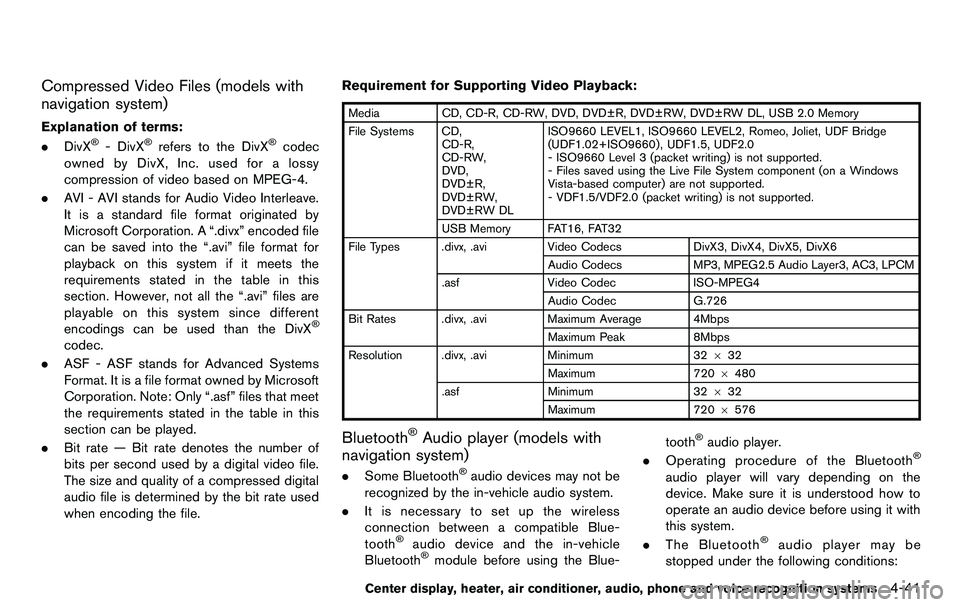
when encoding the file. Requirement for Supporting Video Playback:
Media
CD, CD-R, CD-RW, DVD, DVD±R, DVD±RW, DVD±RW DL, USB 2.0 Memory
File Systems CD, CD-R,
CD-RW,
DVD,
DVD±R,
DVD±RW,
DVD±RW DL ISO9660 LEVEL1, ISO9660 LEVEL2, Romeo, Joliet, UDF Bridge
(UDF1.02+ISO9660) , UDF1.5, UDF2.0
- ISO9660 Level 3 (packet writing) is not supported.
- Files saved using the Live File System component (on a Windows
Vista-based computer) are not supported.
- VDF1.5/VDF2.0 (packet writing) is not supported.
USB Memory FAT16, FAT32
File Types .divx, .avi Video CodecsDivX3, DivX4, DivX5, DivX6
Audio Codecs MP3, MPEG2.5 Audio Layer3, AC3, LPCM
.asf Video Codec ISO-MPEG4
Audio Codec G.726
Bit Rates .divx, .avi Maximum Average 4Mbps
Maximum Peak 8Mbps
Resolution .divx, .avi Minimum32632
Maximum 7206480
.asf Minimum 32632
Maximum 720 6576
Bluetooth®Audio player (models with
navigation system)
. Some Bluetooth®audio devices may not be
recognized by the in-vehicle audio system.
. It is necessary to set up the wireless
connection between a compatible Blue-
tooth
®audio device and the in-vehicle
Bluetooth®module before using the Blue- tooth
®audio player.
. Operating procedure of the Bluetooth®
audio player will vary depending on the
device. Make sure it is understood how to
operate an audio device before using it with
this system.
. The Bluetooth
®audio player may be
stopped under the following conditions:
Center display, heater, air conditioner, audio, phone and voice recognition systems4-41