warning NISSAN 370Z COUPE 2019 Owners Manual
[x] Cancel search | Manufacturer: NISSAN, Model Year: 2019, Model line: 370Z COUPE, Model: NISSAN 370Z COUPE 2019Pages: 460, PDF Size: 3.06 MB
Page 172 of 460
HOW TO USE TOUCH SCREEN
CAUTION
.The glass screen on the liquid
crystal display may break if it is
hit with a hard or sharp object. If
the glass screen breaks, do not
touch it. Doing so could result in
an injury.
. To clean the display, use a soft,
dry cloth. If additional cleaning is
necessary, use a small amount of
neutral detergent with a soft
cloth. Never use a rough cloth,
alcohol, benzine, thinner or any
kind of solvent or paper towel
with a chemical cleaning agent.
They will scratch or deteriorate
the panel.
. Do not splash any liquid such as
water or car fragrance on the
display. Contact with liquid will
cause the system to malfunction.
To ensure safe driving, some functions
cannot be operated while driving.
The on-screen functions that are not
available while driving will be “grayed
out” or muted. Park the vehicle in a safe location and
then operate the navigation system.
WARNING
.
ALWAYS give your full attention to
driving.
. Avoid using vehicle features that
could distract you. If distracted,
you could lose control of your
vehicle and cause an accident.
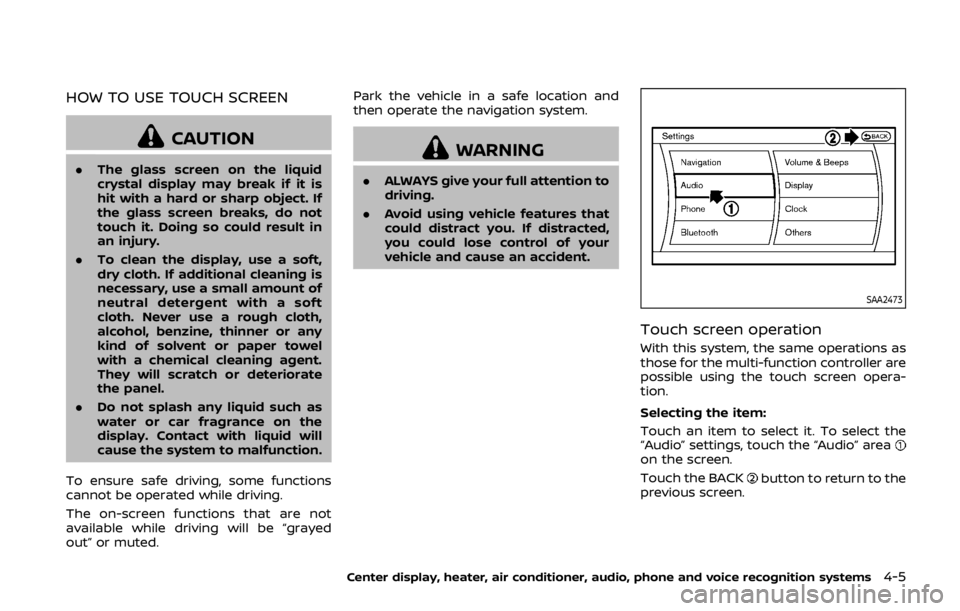
SAA2473
Touch screen operation
With this system, the same operations as
those for the multi-function controller are
possible using the touch screen opera-
tion.
Selecting the item:
Touch an item to select it. To select the
“Audio” settings, touch the “Audio” area
on the screen.
Touch the BACK
button to return to the
previous screen.
Center display, heater, air conditioner, audio, phone and voice recognition systems4-5
Page 184 of 460

.(Previous)
Select the “
” key to display the
previous file.
Setting the Image Viewer:
The Image Viewer setting display will
appear when selecting the “Settings” key
on the full screen display. The following
settings are available for the full screen
display.
. Slideshow Speed
Select the “Slideshow Speed” key.
From the following display, select the
changing time from 5, 10, 30, 60
seconds or “No Auto Change”.
. Slideshow Order
Select the “Slideshow Order” key. From
the following display, select “Random”
or “Order List”. For “Order List”, the
image order is the order of the files as
stored on the USB memory.
Operating tips:
. Only files that meet the following
conditions will be displayed.
— Image type: JPEG
— File Extensions: *.jpg, *jpeg
— Maximum Resolution: 2048 × 1536
pixels
— Maximum Size: 2-MB — Colors: 32768 (15-bit)
— Maximum File Name lengths: 253-
Bytes
— Maximum Folders: 500
— Maximum Images per Folder: 1024
. If an electronic device (such as a
digital camera) is directly connected
to the vehicle using a USB cable, no
image will be displayed on the screen.
. If the file name is too long, some file
names may not be entirely displayed.
. When the total number of characters
in the file name exceeds 100 or if 1 file
name in a directory exceeds 100
characters, all files will show a shor-
tened 8-character version. The image
will still be displayed when selected.WARNING
Failure to follow the warnings and
instructions for proper use of the
RearView Monitor system could re-
sult in serious injury or death.
.The RearView Monitor is a conve-
nience but it is not a substitute
for proper backing. Always turn
and look out the windows, and
check mirrors to be sure that it is
safe to move before operating
the vehicle. Always back up
slowly.
. The system is designed as an aid
to the driver in showing large
stationary objects directly behind
the vehicle, to help avoid dama-
ging the vehicle.
. The distance guide line and the
vehicle width line should be used
as a reference only when the
vehicle is on a level paved sur-
face. The distance viewed on the
monitor is for reference only and
may be different than the actual
distance between the vehicle and
displayed objects.
Center display, heater, air conditioner, audio, phone and voice recognition systems4-17
REARVIEW MONITOR (mirror display type)
Page 188 of 460

SAA3341
DISPLAY SETTINGS (Type A) (if so
equipped)
Turning RearView Monitor on/off
To deactivate the RearView Monitor,
push theswitch. The indicator lightwill illuminate in orange.
To activate the RearView Monitor
again,
push theswitch. The indicator lightwill illuminate in green.
The RearView Monitor will also turn on
under the following conditions:
. When the shift lever is out of the R
(Reverse) position and then returned
to the R (Reverse) position. .
When the ignition switch is placed in
the OFF position and then placed back
in the ON position.
Language select mode
To change the language of the warning
text displayed on the mirror display, push
and hold the
switchfor approxi-
mately 6 to 11 seconds when the shift
lever is in the R (Reverse) position. When
the language select screen is displayed,
push the
switchrepeatedly until
the preferred language is displayed.
If the switch is not pushed for approxi-
mately 5 seconds, the language select
mode will automatically return to the
normal mode.
JVH1810X
DISPLAY SETTINGS (Type B) (if so
equipped)
Turning RearView Monitor on/off
To deactivate the RearView Monitor,
push the *switch. The indicator lightwill illuminate in orange.
To activate the RearView Monitor
, push
the I switch. The indicator lightwill
illuminate in green.
The RearView Monitor will also turn on
under the following conditions:
. When the shift lever is out of the R
(Reverse) position and then returned
to the R (Reverse) position.
Center display, heater, air conditioner, audio, phone and voice recognition systems4-21
Page 189 of 460
4-22Center display, heater, air conditioner, audio, phone and voice recognition systems
.When the ignition switch is placed in
the OFF position and then placed back
in the ON position.
Language select mode
To change the language of the warning
text displayed on the mirror display, push
and hold the *switch
for approxi-
mately 6 to 11 seconds when the shift
lever is in the R (Reverse) position. When
the language select screen is displayed,
push the *switch
repeatedly until the
preferred language is displayed.
If the switch is not pushed for approxi-
mately 5 seconds, the language select
mode will automatically return to the
normal mode.
REARVIEW MONITOR SYSTEM LIM-
ITATIONS
WARNING
Listed below are the system limita-
tions for RearView Monitor. Failure to
operate the vehicle in accordance
with these system limitations could
result in serious injury or death.
. The system cannot completely
eliminate blind spots and may
not show every object. .
Underneath the bumper and the
corner areas of the bumper can-
not be viewed on the RearView
Monitor because of its monitoring
range limitation. The system will
not show small objects below the
bumper, and may not show ob-
jects close to the bumper or on
the ground.
. Objects viewed in the RearView
Monitor differ from actual dis-
tance because a wide-angle lens
is used.
. Objects in the RearView Monitor
will appear visually opposite
compared to when viewed in the
rear view and outside mirrors.
. Use the displayed lines as a re-
ference. The lines are highly af-
fected by the number of
occupants, fuel level, vehicle po-
sition, road conditions and road
grade.
. Make sure that the trunk lid or
rear hatch is securely closed
when backing up.
. Do not put anything on the rear
view camera. The rear view cam-
era is installed above the license
plate. .
When washing the vehicle with
high-pressure water, be sure not
to spray it around the camera.
Otherwise, water may enter the
camera unit causing water con-
densation on the lens, a malfunc-
tion, fire or an electric shock.
. Do not strike the camera. It is a
precision instrument. Otherwise,
it may malfunction or cause da-
mage resulting in a fire or an
electric shock.
The following are operating limitations
and do not represent a system malfunc-
tion:
. When the temperature is extremely
high or low, the screen may not clearly
display objects.
. When strong light is directly coming
on the camera, objects may not be
displayed clearly.
. Vertical lines may be seen in objects
on the screen. This is due to strong
reflected light from the bumper.
. The screen may flicker under fluores-
cent light.
. The colors of objects on the RearView
Monitor may differ somewhat from
the actual color of objects.
Page 191 of 460
4-24Center display, heater, air conditioner, audio, phone and voice recognition systems
WARNING
Failure to follow the warnings and
instructions for proper use of the
RearView Monitor system could re-
sult in serious injury or death.
.The RearView Monitor is a conve-
nience but it is not a substitute
for proper backing. Always turn
and look out the windows, and
check mirrors to be sure that it is
safe to move before operating
the vehicle. Always back up
slowly.
. The system is designed as an aid
to the driver in showing large
stationary objects directly behind
the vehicle, to help avoid dama-
ging the vehicle.
. The distance guide line and the
vehicle width line should be used
as a reference only when the
vehicle is on a level paved sur-
face. The distance viewed on the
monitor is for reference only and
may be different than the actual
distance between the vehicle and
displayed objects.
CAUTION
Do not scratch the camera lens when
cleaning dirt or snow from the front
of the camera.
The RearView Monitor system automati-
cally shows a rear view of the vehicle
when the shift lever is placed in the R
(Reverse) position.
The radio can still be heard while the
RearView Monitor is active.
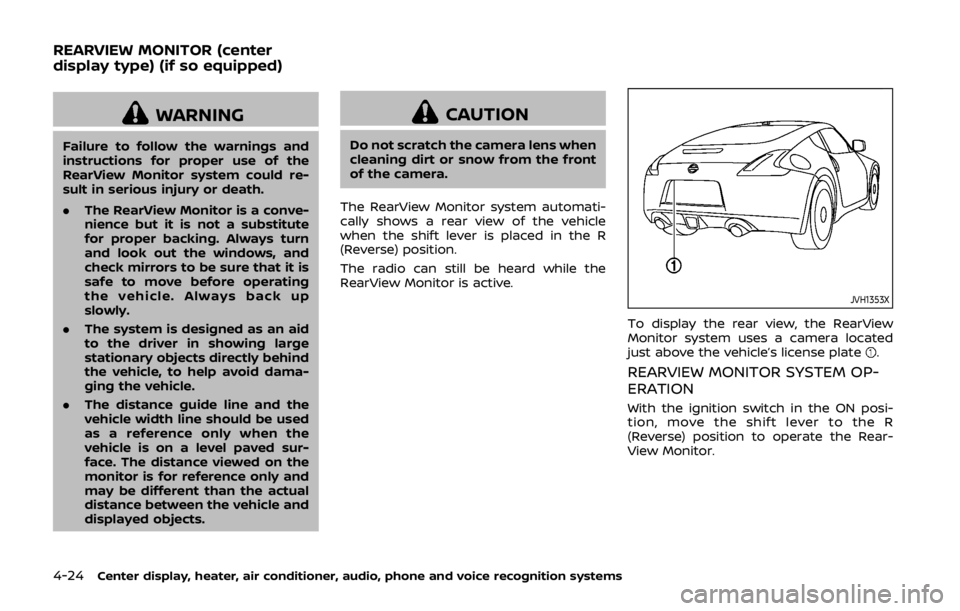
JVH1353X
To display the rear view, the RearView
Monitor system uses a camera located
just above the vehicle’s license plate
.
REARVIEW MONITOR SYSTEM OP-
ERATION
With the ignition switch in the ON posi-
tion, move the shift lever to the R
(Reverse) position to operate the Rear-
View Monitor.
REARVIEW MONITOR (center
display type) (if so equipped)
Page 192 of 460
SAA1896
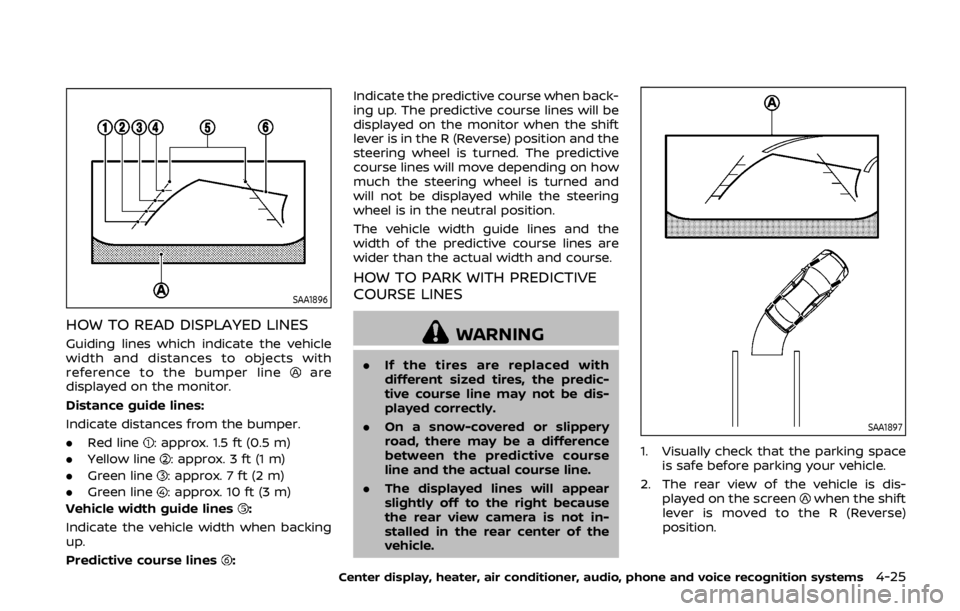
HOW TO READ DISPLAYED LINES
Guiding lines which indicate the vehicle
width and distances to objects with
reference to the bumper line
are
displayed on the monitor.
Distance guide lines:
Indicate distances from the bumper.
. Red line
: approx. 1.5 ft (0.5 m)
. Yellow line
: approx. 3 ft (1 m)
. Green line
: approx. 7 ft (2 m)
. Green line
: approx. 10 ft (3 m)
Vehicle width guide lines
:
Indicate the vehicle width when backing
up.
Predictive course lines
: Indicate the predictive course when back-
ing up. The predictive course lines will be
displayed on the monitor when the shift
lever is in the R (Reverse) position and the
steering wheel is turned. The predictive
course lines will move depending on how
much the steering wheel is turned and
will not be displayed while the steering
wheel is in the neutral position.
The vehicle width guide lines and the
width of the predictive course lines are
wider than the actual width and course.
HOW TO PARK WITH PREDICTIVE
COURSE LINES
WARNING
.
If the tires are replaced with
different sized tires, the predic-
tive course line may not be dis-
played correctly.
. On a snow-covered or slippery
road, there may be a difference
between the predictive course
line and the actual course line.
. The displayed lines will appear
slightly off to the right because
the rear view camera is not in-
stalled in the rear center of the
vehicle.
SAA1897
1. Visually check that the parking space
is safe before parking your vehicle.
2. The rear view of the vehicle is dis- played on the screen
when the shift
lever is moved to the R (Reverse)
position.
Center display, heater, air conditioner, audio, phone and voice recognition systems4-25
Page 195 of 460

4-28Center display, heater, air conditioner, audio, phone and voice recognition systems
positionif the object projects over the
actual backing up course.
ADJUSTING THE SCREEN
To adjust the Display ON/OFF, Brightness,
Tint, Color, Contrast and Black Level of
the RearView Monitor, push the SETTING
button with the RearView Monitor on,
select the “Display” key on the screen
and select the item key and adjust the
level using the multifunction controller.
Do not adjust the Brightness, Tint, Color,
Contrast and Black Level of the RearView
Monitor while the vehicle is moving. Make
sure the parking brake is firmly applied.
NOTE:
Do not adjust any of the display settings
of the RearView Monitor while the
vehicle is moving. Make sure the park-
ing brake is firmly applied.
SAA2404
PREDICTIVE COURSE LINE SET-
TINGS
To toggle on and off the predictive course
lines:
1. Push the SETTING button.
2. Select “Others” key and push the ENTER button.
3. Select “Camera” key and push the ENTER button.
Predictive Course Lines:
When this item is turned on, the predictive
course lines will be displayed on the
monitor when the shift lever is in the R
(Reverse) position.
REARVIEW MONITOR SYSTEM LIM-
ITATIONS
WARNING
Listed below are the system limita-
tions for RearView Monitor. Failure to
operate the vehicle in accordance
with these system limitations could
result in serious injury or death.
. The system cannot completely
eliminate blind spots and may
not show every object.
. Underneath the bumper and the
corner areas of the bumper can-
not be viewed on the RearView
Monitor because of its monitoring
range limitation. The system will
not show small objects below the
bumper, and may not show ob-
jects close to the bumper or on
the ground.
. Objects viewed in the RearView
Monitor differ from actual dis-
tance because a wide-angle lens
is used.
. Objects in the RearView Monitor
will appear visually opposite
compared to when viewed in the
rear view and outside mirrors.
Page 198 of 460
WARNING
.The air conditioner cooling func-
tion operates only when the en-
gine is running.
. Do not leave children or adults
who would normally require the
support of others alone in your
vehicle. Pets should not be left
alone either. On hot, sunny days,
temperatures in a closed vehicle
could quickly become high en-
ough to cause severe or possibly
fatal injuries to people or animals.
. Do not use the recirculation mode
for long periods as it may cause
the interior air to become stale
and the windows to fog up.
Start the engine and operate the heater
and air conditioner system.
NOTE:
. Odors from inside and outside the
vehicle can build up in the air condi-
tioner unit. Odor can enter the pas-
senger compartment through the
vents.
. When parking, set the heater and air
conditioner controls to turn off air
recirculation to allow fresh air into the passenger compartment. This
should help reduce odors inside the
vehicle.
SAA2493
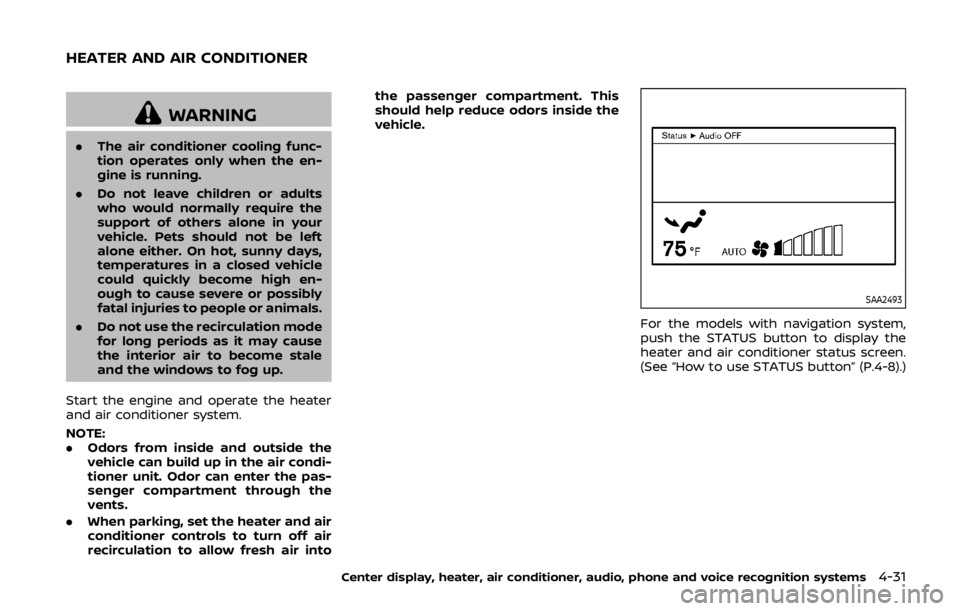
For the models with navigation system,
push the STATUS button to display the
heater and air conditioner status screen.
(See “How to use STATUS button” (P.4-8).)
Center display, heater, air conditioner, audio, phone and voice recognition systems4-31
HEATER AND AIR CONDITIONER
Page 203 of 460
4-36Center display, heater, air conditioner, audio, phone and voice recognition systems
OPERATING TIPS
When the engine coolant temperature
and outside air temperature are low, the
air flow from the foot outlets may not
operate. This is not a malfunction. After
the coolant temperature warms up, air
will flow normally from the foot outlets.
The sensors
andon the instrument
panel helps maintain a constant tem-
perature. Do not put anything on or
around this sensor.
IN-CABIN MICROFILTER
The air conditioning system is equipped
with an in-cabin microfilter which collects
dirt, pollen, dust, etc. To make sure the air
conditioner heats, defogs, and ventilates
efficiently, replace the filter in accordance
with the specified maintenance intervals
listed in the “9. Maintenance and sche-
dules” section. It is recommended to see a
NISSAN dealer to replace the filter.
The filter should be replaced if air flow
is extremely decreased or when win-
dows fog up easily when operating
heater or air conditioning system.
SERVICING AIR CONDITIONER
The air conditioning system in your
NISSAN is charged with a refrigerant
designed with the environment in mind.
This refrigerant will not harm the
earth’s ozone layer. However, special
charging equipment and lubricant are
required when servicing your NISSAN air
conditioner. Using improper refrigerants
or lubricants will cause severe damage to
your air conditioning system. (See “Capa-
cities and recommended fluids/lubri-
cants” (P.10-2) for air conditioning
system refrigerant and lubricant recom-
mendations.)
Your NISSAN dealer will be able to service
your environmentally friendly air condi-
tioning system.
WARNING
The system contains refrigerant un-
der high pressure. To avoid personal
injury, any air conditioner service
should be done only by an experi-
enced technician with the proper
equipment.
AUDIO OPERATION PRECAUTIONS
Radio
Push the ignition switch to the ACC or ON
position and push the radio band select
button to turn on the radio. If you listen to
the radio with the engine not running, the
ignition switch should be pushed to the
ACC position.
Radio reception is affected by station
signal strength, distance from radio
transmitter, buildings, bridges, mountains
and other external influences. Intermit-
tent changes in reception quality nor-
mally are caused by these external
influences.
Using a cellular phone in or near the
vehicle may influence radio reception
quality.
Radio reception:
Your NISSAN radio system is equipped
with state-of-the-art electronic circuits to
enhance radio reception. These circuits
are designed to extend reception range,
and to enhance the quality of that recep-
tion.
However there are some general charac-
teristics of both FM and AM radio signals
that can affect radio reception quality in a
moving vehicle, even when the finest
equipment is used. These characteristics
AUDIO SYSTEM
Page 207 of 460

4-40Center display, heater, air conditioner, audio, phone and voice recognition systems
— 3.1 in (8 cm) discs
— CD/DVDs that are not round
— CD/DVDs with a paper label
— CD/DVDs that are warped,scratched or have abnormal edges
— This audio system can only play prerecorded CD/DVDs. It has no
capabilities to record or burn CD/
DVDs.
. If the CD/DVD cannot be played, one
of the following messages will be
displayed.
Disc Read Error:
— Confirm that the CD/DVD is in-
serted correctly (the label side is
facing up, etc.).
— Confirm that the CD/DVD is not bent or warped and it is free of
scratches.
Please Eject Disc:
— This may be an error due to the temperature inside the player being
too high. Remove the CD/DVD by
pushing the EJECT button, and
after a short time reinsert the CD/
DVD. The CD/DVD can be played
when the temperature of the player
returns to normal. If the error
persists, consult your local dealer.
Unplayable File: — The file may be copy protected.
— The file is not MP3, WMA, AAC, M4A
or DivX® type.
Region Invalid:
— The DVD is not for region 1 or all regions. Use DVDs with a region
code “1”, “ALL” or “1 included” for
your DVD entertainment system.
(The region code
is displayed as
a small symbol printed on the top
of the DVD
.) This vehicle-installed
DVD player cannot play DVDs with a
region code other than “1” or “ALL”.
Copyright and trademark:
. The technology protected by the U.S.
patent and other intellectual property
rights owned by Macrovision Corpora-
tion and other right holders is
adopted for this system.
. This copyright protected technology
cannot be used without a permit from
Macrovision Corporation. It is limited
to be personal use, etc., as long as the
permit from Macrovision Corporation
is not issued.
. Modifying or disassembling is prohib-
ited.
. Dolby digital is manufactured under
license from Dolby Laboratories, Inc.
. Dolby and the double D mark “
” are
trademarks of Dolby Laboratories, Inc. .
DTS and DTS 2.0 “
” are registered
trademarks of DTS, Inc.
Parental level (parental control):
DVDs with the parental control setting
can be played with this system. Please
use your own judgement to set the
parental control with the system.
Disc selection:
The following disc formats can be played
with the DVD drive.
. DVD-VIDEO
. VIDEO-CD
. CD-DA (Conventional Compact Disc)
. DTS-CD
USB (Universal Serial Bus) connec-
tion port
WARNING
Do not connect, disconnect or oper-
ate the USB device while driving.
Doing so can be a distraction. If
distracted you could lose control of
your vehicle and cause an accident
or serious injury.