light NISSAN 370Z COUPE 2019 Manual Online
[x] Cancel search | Manufacturer: NISSAN, Model Year: 2019, Model line: 370Z COUPE, Model: NISSAN 370Z COUPE 2019Pages: 460, PDF Size: 3.06 MB
Page 189 of 460
4-22Center display, heater, air conditioner, audio, phone and voice recognition systems
.When the ignition switch is placed in
the OFF position and then placed back
in the ON position.
Language select mode
To change the language of the warning
text displayed on the mirror display, push
and hold the *switch
for approxi-
mately 6 to 11 seconds when the shift
lever is in the R (Reverse) position. When
the language select screen is displayed,
push the *switch
repeatedly until the
preferred language is displayed.
If the switch is not pushed for approxi-
mately 5 seconds, the language select
mode will automatically return to the
normal mode.
REARVIEW MONITOR SYSTEM LIM-
ITATIONS
WARNING
Listed below are the system limita-
tions for RearView Monitor. Failure to
operate the vehicle in accordance
with these system limitations could
result in serious injury or death.
. The system cannot completely
eliminate blind spots and may
not show every object. .
Underneath the bumper and the
corner areas of the bumper can-
not be viewed on the RearView
Monitor because of its monitoring
range limitation. The system will
not show small objects below the
bumper, and may not show ob-
jects close to the bumper or on
the ground.
. Objects viewed in the RearView
Monitor differ from actual dis-
tance because a wide-angle lens
is used.
. Objects in the RearView Monitor
will appear visually opposite
compared to when viewed in the
rear view and outside mirrors.
. Use the displayed lines as a re-
ference. The lines are highly af-
fected by the number of
occupants, fuel level, vehicle po-
sition, road conditions and road
grade.
. Make sure that the trunk lid or
rear hatch is securely closed
when backing up.
. Do not put anything on the rear
view camera. The rear view cam-
era is installed above the license
plate. .
When washing the vehicle with
high-pressure water, be sure not
to spray it around the camera.
Otherwise, water may enter the
camera unit causing water con-
densation on the lens, a malfunc-
tion, fire or an electric shock.
. Do not strike the camera. It is a
precision instrument. Otherwise,
it may malfunction or cause da-
mage resulting in a fire or an
electric shock.
The following are operating limitations
and do not represent a system malfunc-
tion:
. When the temperature is extremely
high or low, the screen may not clearly
display objects.
. When strong light is directly coming
on the camera, objects may not be
displayed clearly.
. Vertical lines may be seen in objects
on the screen. This is due to strong
reflected light from the bumper.
. The screen may flicker under fluores-
cent light.
. The colors of objects on the RearView
Monitor may differ somewhat from
the actual color of objects.
Page 192 of 460
SAA1896
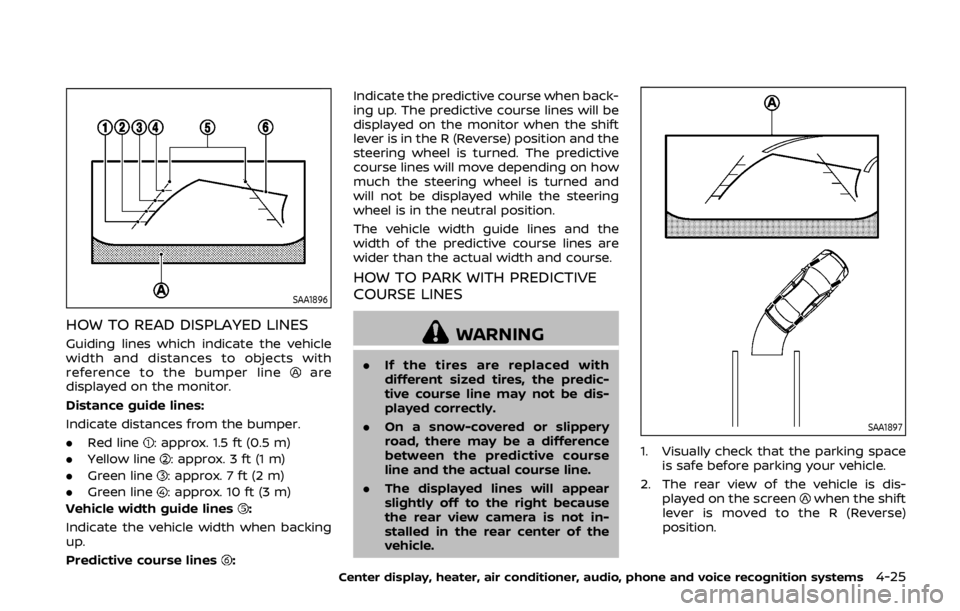
HOW TO READ DISPLAYED LINES
Guiding lines which indicate the vehicle
width and distances to objects with
reference to the bumper line
are
displayed on the monitor.
Distance guide lines:
Indicate distances from the bumper.
. Red line
: approx. 1.5 ft (0.5 m)
. Yellow line
: approx. 3 ft (1 m)
. Green line
: approx. 7 ft (2 m)
. Green line
: approx. 10 ft (3 m)
Vehicle width guide lines
:
Indicate the vehicle width when backing
up.
Predictive course lines
: Indicate the predictive course when back-
ing up. The predictive course lines will be
displayed on the monitor when the shift
lever is in the R (Reverse) position and the
steering wheel is turned. The predictive
course lines will move depending on how
much the steering wheel is turned and
will not be displayed while the steering
wheel is in the neutral position.
The vehicle width guide lines and the
width of the predictive course lines are
wider than the actual width and course.
HOW TO PARK WITH PREDICTIVE
COURSE LINES
WARNING
.
If the tires are replaced with
different sized tires, the predic-
tive course line may not be dis-
played correctly.
. On a snow-covered or slippery
road, there may be a difference
between the predictive course
line and the actual course line.
. The displayed lines will appear
slightly off to the right because
the rear view camera is not in-
stalled in the rear center of the
vehicle.
SAA1897
1. Visually check that the parking space
is safe before parking your vehicle.
2. The rear view of the vehicle is dis- played on the screen
when the shift
lever is moved to the R (Reverse)
position.
Center display, heater, air conditioner, audio, phone and voice recognition systems4-25
Page 196 of 460
.Use the displayed lines as a re-
ference. The lines are highly af-
fected by the number of
occupants, fuel level, vehicle po-
sition, road conditions and road
grade.
. Make sure that the trunk lid or
rear hatch is securely closed
when backing up.
. Do not put anything on the rear
view camera. The rear view cam-
era is installed above the license
plate.
. When washing the vehicle with
high-pressure water, be sure not
to spray it around the camera.
Otherwise, water may enter the
camera unit causing water con-
densation on the lens, a malfunc-
tion, fire or an electric shock.
. Do not strike the camera. It is a
precision instrument. Otherwise,
it may malfunction or cause da-
mage resulting in a fire or an
electric shock.
The following are operating limitations
and do not represent a system malfunc-
tion:
. When the temperature is extremely
high or low, the screen may not clearly display objects.
. When strong light is directly coming
on the camera, objects may not be
displayed clearly.
. Vertical lines may be seen in objects
on the screen. This is due to strong
reflected light from the bumper.
. The screen may flicker under fluores-
cent light.
. The colors of objects on the RearView
Monitor may differ somewhat from
the actual color of objects.
. Objects on the monitor may not be
clear in a dark environment.
. If dirt, rain or snow accumulates on
the camera, the RearView Monitor
may not display objects clearly. Clean
the camera.
. Do not use wax on the camera win-
dow. Wipe off any wax with a clean
cloth dampened with mild detergent
diluted with water.
JVH1353X
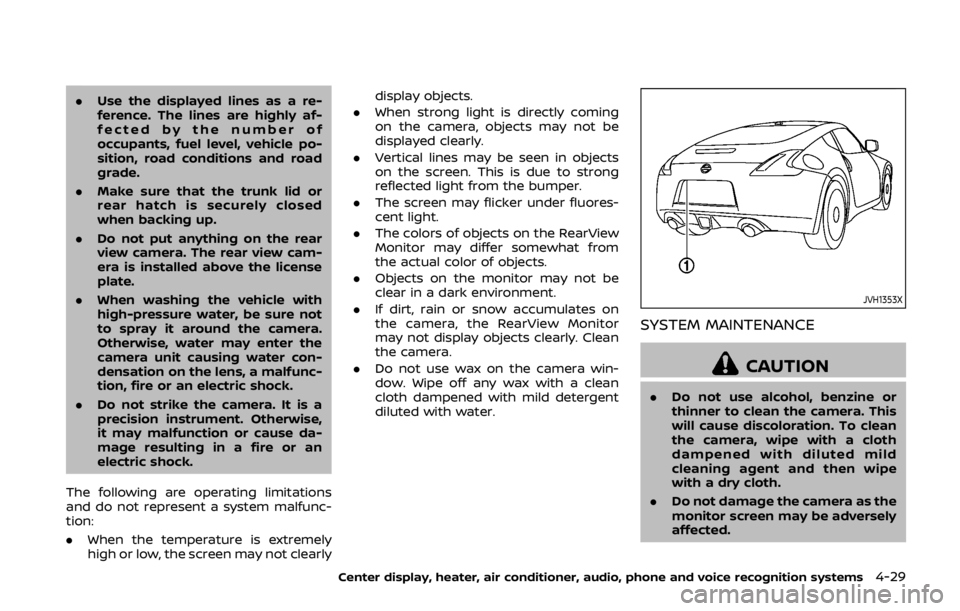
SYSTEM MAINTENANCE
CAUTION
.Do not use alcohol, benzine or
thinner to clean the camera. This
will cause discoloration. To clean
the camera, wipe with a cloth
dampened with diluted mild
cleaning agent and then wipe
with a dry cloth.
. Do not damage the camera as the
monitor screen may be adversely
affected.
Center display, heater, air conditioner, audio, phone and voice recognition systems4-29
Page 200 of 460

defog the windshield, and the air
recirculation mode will automati-
cally be turned off.
Outside air is drawn into the pas-
senger compartment to improve
the defogging performance.
Manual operation
Fan speed control:
Turn the “
” fan speed control dial
clockwise (+) or counterclockwise (−) to
manually control the fan speed.
Turn the dial to the “AUTO” position to
return to automatic control of the fan
speed.
Temperature control:
Turn the temperature control dial to set
the desired temperature.
. The temperature can be set within the
following range.
— For U.S.: 60 to 90°F (16 to 32°C)
— For Canada: 64 to 90°F (18 to 32°C)
Air intake control:
. Push the “
” air intake control
button to recirculate interior air inside
the vehicle. The indicator light on the
“
” side will illuminate.
The air recirculation mode cannot be
activated when the air conditioner is
in the front defrosting mode “
”. .
Push the “
” air intake control
button to draw outside air into the
passenger compartment. The indica-
tor light on the “
” side will illumi-
nate.
. To switch to the automatic control
mode, push the “
” air intake
control button for approximately 2
seconds. The indicator lights (both air
recirculation and outside air circula-
tion sides) will flash twice, and then
the air intake will be controlled auto-
matically.
Air flow control:
Turning the air flow control dial selects
the air outlet to:
: Air flows from center and side venti- lators.
: Air flows from center and side venti-lators and foot outlets.
: Air flows mainly from foot outlets.
: Air flows from defroster and footoutlets.
: Air flows mainly from defroster out-lets.
To turn the system off
Turn the “” fan speed control dial to
the “OFF” position.
Center display, heater, air conditioner, audio, phone and voice recognition systems4-33
Page 201 of 460

4-34Center display, heater, air conditioner, audio, phone and voice recognition systems
SAA2876
1. “A/C” air conditioner ON/OFF button/“” fan speed control dial
2. “” front defroster button
3. “” intake air control button
4. “AUTO” automatic air conditioner ON button/Temperature control dial
5. “
” rear window defroster button (See
“Rear window defroster switch” (P.2-33).)
6. “MODE” manual air flow control button
7. “OFF” button
AUTOMATIC AIR CONDITIONER
(Type B) (if so equipped)
Automatic operation
Cooling and/or dehumidified heating
(AUTO):
This mode may be used all year round.
The system works automatically to con-
trol the inside temperature, air flow dis-
tribution and fan speed after the
preferred temperature is set manually.
1. Push the “AUTO” button on. (The indicator on the button will illuminate
and AUTO will be displayed.) 2. Turn the temperature control dial to
set the desired temperature.
. The temperature of the passenger
compartment will be maintained
automatically. Air flow distribution
and fan speed will also be controlled
automatically.
A visible mist may be seen coming from
the ventilators in hot, humid conditions as
the air is cooled rapidly. This does not
indicate a malfunction.
Dehumidified defrosting or defogging:
1. Push the “
” front defroster button.
(The indicator light on the button will
come on.)
2. Turn the temperature control dial to set the desired temperature.
. To quickly remove ice from the out-
side of the windows, turn the “
” fan
speed control dial and set it to the
maximum position.
. As soon as possible after the wind-
shield is clean, push the “AUTO” button
to return to the auto mode.
. When the “
” front defroster button
is pushed, the air conditioner will
automatically be turned on at outside
temperatures above 23°F (−5°C) to
defog the windshield, and the air
recirculate mode will automatically
be turned off.
Page 202 of 460

Outside air is drawn into the passen-
ger compartment to improve the
defogging performance.
Manual operation
Fan speed control:
Turn the “
” fan speed control dial to
manually control the fan speed.
Push the “AUTO” button to return to
automatic control of the fan speed.
Temperature control:
Turn the temperature control dial to set
the desired temperature.
. The temperature can be set within the
following range.
— For U.S.: 60 to 90°F (16 to 32°C)
— For Canada: 64 to 90°F (18 to 32°C)
Air intake control:
. Push the “
” air intake control
button to recirculate interior air inside
the vehicle. The indicator light “
”
will come on.
The air recirculation mode cannot be
activated when the air conditioner is
in the front defrosting mode “
”.
. Push the “
” air intake control
button to switch to the outside air
intake mode. The indicator light “
”
will turn off. .
To switch to the automatic control
mode, push the “
” air intake control
button for approximately 2 seconds.
The indicator light will flash, and then
the air intake will be controlled auto-
matically.
Air flow control:
Pushing the “MODE” manual air flow
control button selects the air outlet to:
: Air flows from center and side venti- lators.
: Air flows from center and side venti-lators and foot outlets.
: Air flows mainly from foot outlets.
: Air flows from defroster and footoutlets.
To turn the system off
Push the “OFF” button.
SAA2324
SAA2315
Center display, heater, air conditioner, audio, phone and voice recognition systems4-35
Page 204 of 460

are completely normal in a given recep-
tion area, and do not indicate any mal-
function in your NISSAN radio system.
Reception conditions will constantly
change because of vehicle movement.
Buildings, terrain, signal distance and
interference from other vehicles can work
against ideal reception. Described below
are some of the factors that can affect
your radio reception.
Some cellular phones or other devices
may cause interference or a buzzing
noise to come from the audio system
speakers. Storing the device in a different
location may reduce or eliminate the
noise.
SAA0306
FM radio reception:
Range: FM range is normally limited to 25
to 30 miles (40 to 48 km), with monaural
(single channel) FM having slightly more
range than stereo FM. External influences
may sometimes interfere with FM station
reception even if the FM station is within
25 miles (40 km). The strength of the FM
signal is directly related to the distance
between the transmitter and receiver. FM
signals follow a line-of-sight path, exhibit-
ing many of the same characteristics as
light. For example they will reflect off
objects.
Fade and drift: As your vehicle moves
away from a station transmitter, thesignals will tend to fade and/or drift.
Static and flutter: During signal interfer-
ence from buildings, large hills or due to
antenna position, usually in conjunction
with increased distance from the station
transmitter, static or flutter can be heard.
This can be reduced by lowering the
treble setting to reduce the treble re-
sponse.
Multipath reception: Because of the re-
flective characteristics of FM signals, di-
rect and reflected signals reach the
receiver at the same time. The signals
may cancel each other, resulting in mo-
mentary flutter or loss of sound.
AM radio reception:
AM signals, because of their low fre-
quency, can bend around objects and
skip along the ground. In addition, the
signals can be bounced off the iono-
sphere and bent back to earth. Because
of these characteristics. AM signals are
also subject to interference as they travel
from transmitter to receiver.
Fading: Occurs while the vehicle is pas-
sing through freeway underpasses or in
areas with many tall buildings. It can also
occur for several seconds during iono-
spheric turbulence even in areas where
no obstacles exist.
Static: Caused by thunderstorms, electri-
Center display, heater, air conditioner, audio, phone and voice recognition systems4-37
Page 205 of 460

4-38Center display, heater, air conditioner, audio, phone and voice recognition systems
cal power lines, electric signs and even
traffic lights.
Satellite radio reception (if so
equipped):
When the satellite radio is used for the
first time or the battery has been re-
placed, the satellite radio may not work
properly. This is not a malfunction. Wait
more than 10 minutes with the satellite
radio ON and the vehicle outside of any
metal or large building for the satellite
radio to receive all of the necessary data.
The satellite radio mode requires an
active SiriusXM Satellite Radio subscrip-
tion. The satellite radio is not available in
Alaska, Hawaii and Guam.
The satellite radio performance may be
affected if cargo carried on the roof
blocks the satellite radio signal.
If possible, do not put cargo near the
satellite antenna.
A build up of ice on the satellite radio
antenna can affect satellite radio perfor-
mance. Remove the ice to restore satellite
radio reception.
SAA0480
Compact Disc (CD) player
.Do not force a compact disc into the
CD insert slot. This could damage the
CD and/or CD changer/player.
. Trying to load a CD with the CD door
closed could damage the CD and/or
CD changer. .
During cold weather or rainy days, the
player may malfunction due to the
humidity. If this occurs, remove the CD
and dehumidify or ventilate the player
completely.
. The player may skip while driving on
rough roads.
. The CD player sometimes cannot
function when the passenger com-
partment temperature is extremely
high. Decrease the temperature be-
fore use.
. Only use high quality 4.7 in (12 cm)
round discs that have the “COMPACT
disc DIGITAL AUDIO” logo on the disc
or packaging.
. Do not expose the CD to direct sun-
light.
. CDs that are of poor quality, dirty,
scratched, covered with fingerprints,
or that have pin holes may not work
properly.
. The following CDs may not work
properly:
— Copy control compact discs (CCCD)
— Recordable compact discs (CD-R)
— Rewritable compact discs (CD-RW)
. Do not use the following CDs as they
may cause the CD player to malfunc-
tion.
Page 206 of 460

— 3.1 in (8 cm) discs
— CDs that are not round
— CDs with a paper label
— CDs that are warped, scratched, orhave abnormal edges
. This audio system can only play pre-
recorded CDs. It has no capabilities to
record or burn CDs.
. If the CD cannot be played, one of the
following messages will be displayed.
CHECK DISC:
— Confirm that the CD is inserted
correctly (the label side is facing
up, etc.).
— Confirm that the CD is not bent or warped and it is free of scratches.
PUSH EJECT:
This is an error due to the tempera-
ture inside the player is too high.
Remove the CD by pushing the EJECT
button, and after a short time reinsert
the CD. The CD can be played when
the temperature of the player returns
to normal.
UNPLAYABLE:
The file is unplayable in this audio
system (only MP3 or WMA CD).
LHA0484
DVD (Digital Versatile Disc) player
(models with navigation system)
. Do not force a compact disc into the
CD/DVD insert slot. This could damage
the CD/DVD player.
. During cold weather or rainy days, the
player may malfunction due to hu-
midity. If this occurs, remove the CD/ DVD and dehumidify or ventilate the
player completely.
. The player may skip while driving on
rough roads.
. The CD/DVD player sometimes cannot
function when the passenger com-
partment temperature is extremely
high. Decrease the temperature be-
fore use.
. Only use high quality 4.7 in (12 cm)
round discs that have the “COMPACT
disc DIGITAL AUDIO” or “DVD Video”
logo on the disc or packaging.
. Do not expose the CD/DVD to direct
sunlight.
. CD/DVDs that are of poor quality,
dirty, scratched, covered with finger-
prints, or that have pinholes may not
work properly.
. The following CD/DVDs are not guar-
anteed to play:
— Copy control compact discs (CCCD)
— Recordable compact discs (CD-R)
— Rewritable compact discs (CD-RW)
— Recordable DVDs (DVD±R, DVD±R
DL)
— Rewritable DVDs (DVD±RW, DVD±RW DL)
. Do not use the following CD/DVDs as
they may cause the CD/DVD player to
malfunction.
Center display, heater, air conditioner, audio, phone and voice recognition systems4-39
Page 208 of 460

CAUTION
.Do not force the USB device into
the USB connection port. Insert-
ing the USB device tilted or up-
side-down into the port may da-
mage the port. Make sure that
the USB device is connected cor-
rectly into the USB connection
port.
. Do not grab the USB connection
port cover (if so equipped) when
pulling the USB device out of the
port. This could damage the port
and the cover.
. Do not leave the USB cable in a
place where it can be pulled
unintentionally. Pulling the cable
may damage the port.
The vehicle is not equipped with a USB
device. USB devices should be purchased
separately as necessary.
This system cannot be used to format
USB devices. To format a USB device, use
a personal computer.
In some states/area, the USB device for
the front seats plays only sound without
images for regulatory reasons, even when
the vehicle is parked. This system supports various USB mem-
ory devices, USB hard drives and iPod®
players. Some USB devices may not be
supported by this system.
.
Partitioned USB devices may not be
played correctly.
. Some characters used in other lan-
guages (Chinese, Japanese, etc.) may
not appear properly in the display.
Using English language characters
with a USB device is recommended.
General notes for USB use:
Refer to your device manufacturer’s own-
er information regarding the proper use
and care of the device.
Notes for iPod® use:
“Made for iPod®”, “Made for iPhone®”, and
“Made for iPad®” mean that an electronic
accessory has been designed to connect
specifically to iPod®, iPhone®, or iPad®,
respectively, and has been certified by the
developer to meet Apple performance
standards.
Apple is not responsible for the operation
of this device or its compliance with
safety and regulatory standards.
Please note that the use of this accessory
with iPod®, iPhone®, or iPad® may affect
wireless performance.
iPad®, iPhone®, iPod®, iPod classic®, iPod
nano®, iPod shuffle®, and iPod touch® are trademarks of Apple Inc., registered in the
U.S. and other countries. Lightning is a
trademark of Apple Inc.
.
Improperly plugging in the iPod® may
cause a checkmark to be displayed on
and off (flickering). Always make sure
that the iPod® is connected properly.
. An iPod nano® (1st Generation) may
remain in fast forward or rewind mode
if it is connected during a seek opera-
tion. In this case, please manually
reset the iPod®.
. An iPod nano® (2nd Generation) will
continue to fast-forward or rewind if it
is disconnected during a seek opera-
tion.
. An incorrect song title may appear
when the Play Mode is changed while
using an iPod nano® (2nd Generation)
. Audiobooks may not play in the same
order as they appear on an iPod®.
. Large video files cause slow responses
in an iPod®. The vehicle center display
may momentarily black out, but will
soon recover.
. If an iPod® automatically selects large
video files while in the shuffle mode,
the vehicle center display may mo-
mentarily black out, but will soon
recover.
Center display, heater, air conditioner, audio, phone and voice recognition systems4-41