change time NISSAN 370Z ROADSTER 2011 User Guide
[x] Cancel search | Manufacturer: NISSAN, Model Year: 2011, Model line: 370Z ROADSTER, Model: NISSAN 370Z ROADSTER 2011Pages: 419, PDF Size: 3.61 MB
Page 201 of 419
Black plate (197,1)
Model "Z34-D" EDITED: 2010/ 7/ 27
FM-AM-SAT RADIO WITH COMPACT
DISC (CD) CHANGER (models without
navigation system)For all operation precautions, see “AUDIO
OPERATION PRECAUTIONS” earlier in this
section.
The satellite radio mode requires an active XM
Satellite Radio subscription. The satellite radio is
not available in Alaska, Hawaii and Guam.
It may take some time to receive the activation
signal after subscribing to the XM Satellite
Radio. After receiving the activation signal, an
available channel list will be automatically
updated in the radio. For XM, push the ignition
switch from LOCK to ACC to update the
channel list.Audio main operationHead unit:
The auto loudness circuit enhances the low and
high frequency ranges automatically in both
radio reception and CD playback.
ON·OFF/Volume control:
Push the ignition switch to the ACC or ON
position, and then push the ON·OFF button
while the system is off to call up the mode (radio,
CD or AUX) which was playing immediately
before the system was turned off. While thesystem is on, pushing the ON·OFF button turns
the system off.
Turn the VOL control knob to adjust the volume.
MUTE button:
Push the
button to mute the audio sound.
Push thebutton again to release the mute.
Adjusting tone quality and speaker bal-
ance:
To adjust Bass, Treble, Balance and Fade, push
the Audio button. When the display shows the
setting you want to change (Bass, Treble,
Balance and Fade) , push the SEEK or TUNE
button to set the desired setting.
These items can also be adjusted by pushing
the AUDIO button.
. Speed Sensitive Vol.
Sound volume is increased according to the
vehicle speed. Choose the effect level from
“HIGH”, “MID”, “LOW” or “OFF”.
. Beep tuning
When this item is turned to ON, you will hear
a beep sound when you use a button.
FM-AM-SAT radio operation
radio (FM/AM) band select:
Pushing the radio band select button will
change the band as follows:
AM ?FM1 ?FM2 ?AMradio (SAT) band select:
Pushing the radio band select button will
change the band as follows:
XM1 ?XM2 ?XM3 ?XM1
When the radio band select button is pushed
while the ignition switch is in the ACC or ON
position, the radio will come on at the channel
last played.
The last channel played will also come on when
the ON·OFF button is pushed to ON.
The satellite radio mode requires an active XM
Satellite Radio subscription. The satellite radio is
not available in Alaska, Hawaii and Guam.
If another audio source is playing when the radio
band select button is turned to ON, the audio
source will automatically be turned off and the
last radio channel played will come on.
When the stereo broadcast signal is weak, the
radio will automatically change from stereo to
Center display, heater, air conditioner, audio, phone and voice recognition systems
4-47
Page 203 of 419
Black plate (199,1)
Model "Z34-D" EDITED: 2010/ 7/ 27
and start playing.
After loading the CD, the number of tracks on
the CD and the play time will appear on the
display.
If the radio is already operating, it will auto-
matically turn off and the CD will play.
If the system has been turned off while the CD
was playing, pushing the ON·OFF button will
start the CD.
CD LOAD:
To insert a CD in the CD changer, push the
LOAD button for less than 1.5 seconds. Select
the loading position by pushing the CD insert
select button
*1
to*6, then insert the CD.
To insert 6 CDs to the CD changer in
succession, push the LOAD button for more
than 1.5 seconds.
The inserted slot numbers will illuminate on the
display.
PLAY:
When the DISC (CD play) button is pushed with
the system off and the CD loaded, the system
will turn on and the CD will start to play.
When the DISC button is pushed with the CD
loaded and the radio playing, the radio will automatically be turned off and the CD will start
to play.
When the DISC button is pushed while a CD is
loaded and a medium is played using the
auxiliary input jacks, you can toggle back and
forth between CD and medium.
CD DISPLAY information:
When the DISP button is pushed while the CD
is being played, the audio display will change as
follows:
CD:
CD with MP3 or WMA:
FF (Fast Forward) , REW (Re-
wind):
CD:
When the(fast forward) or
(rewind)
button is pushed while the CD is being played,
the CD will play while fast forwarding or
rewinding. When the button is released, the
CD will return to normal play speed.
CD with MP3 or WMA:
When the
or
button is pushed for less
than 1.5 seconds while the CD is being played,
the folders in the CD will change.
When the
or
button is pushed for
more than 1.5 seconds while the CD is being
played, the CD will play while forwarding or
rewinding. When the button is released, the CD
will return to the normal play speed.
APS (Automatic Program
Search) FF, APS REW:
When the(APS FF) button is pushed while
the CD is being played, the program next to the
present one will start to play from its beginning.
Push several times to skip through programs.
The CD will advance the number of times the
button is pushed. (When the last program on the
CD is skipped through, the first program will be
Center display, heater, air conditioner, audio, phone and voice recognition systems
4-49
Page 204 of 419
Black plate (200,1)
Model "Z34-D" EDITED: 2010/ 7/ 27
played.) When the
(APS REW) button is
pushed, the program being played returns to its
beginning. Push several times to skip back
through programs. The CD will go back the
number of times the button is pushed.
CD PLAY selection:
To change to another CD already loaded into the
player, push the CD play select buttons
*1
to
*6.
REPEAT (RPT) play:
When the RPT button is pushed while the CD is
played, the play pattern can be changed as
follows:
(CD)
(CD with MP3 or WMA)
RANDOM (RDM) play:
When the RDM button is pushed while the CD
is played, the play pattern can be changed as
follows:
(CD)
(CD with MP3 or WMA)
Scroll (SCRL) button:
When the title is displayed but it is a long one,
the whole title is not shown in the display. In this
case, push the
button to scroll the title.
When the title is scrolled to the end of it, the
display will stop moving and return to the first
condition.
CD EJECT:
When the CD EJECT button is pushed with the
CD loaded, the CD will be ejected. To eject the discs selected by the CD select
button, push the EJECT button for less than 1.5
seconds.
To eject all the discs, push the EJECT button for
more than 1.5 seconds.
When this button is pushed while the CD is
being played, the CD will come out and the
system will turn off.
If the CD comes out and is not removed, it
will be pulled back into the slot to protect
it.
AUX (Auxiliary) inputAUX IN jack:
The AUX IN jack is located on the audio unit.
The AUX IN audio input jack accepts any
standard analog audio input such as from a
portable cassette tape/CD player, MP3 player or
laptop computer.
AUX (Auxiliary) button:
Push the AUX button to play a compatible
device when it is plugged into the AUX IN jack.
When the AUX button is pushed with no device
plugged into the jack, the audio system does not
change to the AUX mode (the AUX button is
invalid) .
4-50
Center display, heater, air conditioner, audio, phone and voice recognition systems
Page 209 of 419
Black plate (205,1)
Model "Z34-D" EDITED: 2010/ 7/ 27
When the
or
button is pushed for less
than 1.5 seconds while the CD is being played,
the next track or the beginning of the current
track on the CD will be played.
REPEAT (RPT) , RANDOM (RDM):
When the RPT button is pushed while the CD is
played, the play pattern can be changed as
follows:
(CD)
(CD with compressed audio files)
CD EJECT:
When the CD EJECT button is pushed with the
CD loaded, the CD will be ejected.
When this button is pushed while the CD is
being played, the CD will be ejected.
If the CD comes out and is not removed, it
will be pulled back into the slot to protect it.
DVD (DIGITAL VERSATILE DISC)
PLAYER OPERATION (models with na-
vigation system)
PrecautionsStart the engine when using the DVD entertain-
ment system.
Movies will not be shown on the front display
while the vehicle is in any drive position to
reduce driver distraction. Audio is available
when a movie is played. To view movies in the
front display, stop the vehicle in a safe location,
move the selector lever to the P (Park) position
and apply the parking brake.
WARNING
.
The driver must not attempt to
operate the DVD system or wear
the headphones while the vehicle is
in motion so that full attention may
be given to vehicle operation.
. Do not attempt to modify the system
to display a movie on the front
screen while the vehicle is being
driven. Doing so may distract the
driver and may cause a collision and
serious personal injury or death.
CAUTION
.Only operate the DVD while the
vehicle engine is running. Operating
the DVD for extended periods of
time with the engine OFF can dis-
charge the vehicle battery.
. Do not allow the system to get wet.
Excessive moisture such as spilled
liquids may cause the system to
malfunction.
. While playing VIDEO-CD media, this
DVD player does not guarantee
complete functionality of all VI-
DEO-CD formats.Display settingsTo adjust the front display mode, push the
SETTING button while the DVD is being played,
select the “Others” key and then select the
“Display” key.
To adjust the display ON/OFF, brightness, tint,
color and contrast, select the “Display Adjust-
ment” key and then select each key.
Then you can adjust each item using the multi-
function controller. After changes have been
made push the BACK button to save the setting.
Center display, heater, air conditioner, audio, phone and voice recognition systems
4-55
Page 211 of 419
Black plate (207,1)
Model "Z34-D" EDITED: 2010/ 7/ 27
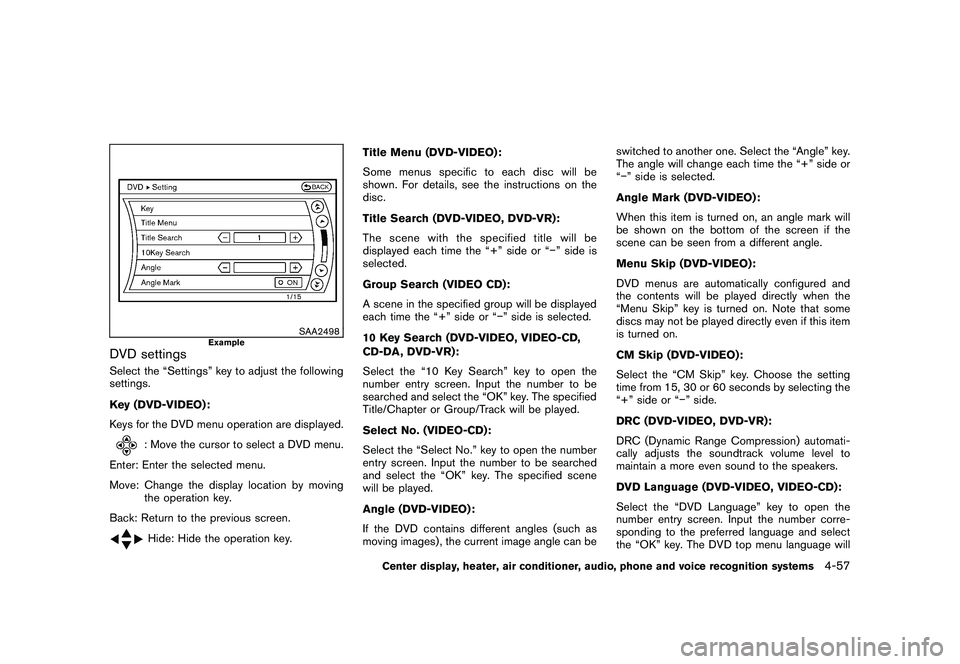
SAA2498
Example
DVD settingsSelect the “Settings” key to adjust the following
settings.
Key (DVD-VIDEO) :
Keys for the DVD menu operation are displayed.
: Move the cursor to select a DVD menu.
Enter: Enter the selected menu.
Move: Change the display location by moving the operation key.
Back: Return to the previous screen.Hide: Hide the operation key. Title Menu (DVD-VIDEO) :
Some menus specific to each disc will be
shown. For details, see the instructions on the
disc.
Title Search (DVD-VIDEO, DVD-VR):
The scene with the specified title will be
displayed each time the “+” side or “” side is
selected.
Group Search (VIDEO CD):
A scene in the specified group will be displayed
each time the “+” side or “” side is selected.
10 Key Search (DVD-VIDEO, VIDEO-CD,
CD-DA, DVD-VR):
Select the “10 Key Search” key to open the
number entry screen. Input the number to be
searched and select the “OK” key. The specified
Title/Chapter or Group/Track will be played.
Select No. (VIDEO-CD):
Select the “Select No.” key to open the number
entry screen. Input the number to be searched
and select the “OK” key. The specified scene
will be played.
Angle (DVD-VIDEO):
If the DVD contains different angles (such as
moving images) , the current image angle can be switched to another one. Select the “Angle” key.
The angle will change each time the “+” side or
“
” side is selected.
Angle Mark (DVD-VIDEO):
When this item is turned on, an angle mark will
be shown on the bottom of the screen if the
scene can be seen from a different angle.
Menu Skip (DVD-VIDEO):
DVD menus are automatically configured and
the contents will be played directly when the
“Menu Skip” key is turned on. Note that some
discs may not be played directly even if this item
is turned on.
CM Skip (DVD-VIDEO):
Select the “CM Skip” key. Choose the setting
time from 15, 30 or 60 seconds by selecting the
“+” side or “ ” side.
DRC (DVD-VIDEO, DVD-VR):
DRC (Dynamic Range Compression) automati-
cally adjusts the soundtrack volume level to
maintain a more even sound to the speakers.
DVD Language (DVD-VIDEO, VIDEO-CD):
Select the “DVD Language” key to open the
number entry screen. Input the number corre-
sponding to the preferred language and select
the “OK” key. The DVD top menu language will
Center display, heater, air conditioner, audio, phone and voice recognition systems
4-57
Page 228 of 419
Black plate (224,1)
Model "Z34-D" EDITED: 2010/ 7/ 27
from Gracenote, Inc. of Emeryville, California
(“Gracenote”) . The software from Gracenote
(the “Gracenote Software”) enables this appli-
cation to perform disc and/or file identification
and obtain music-related information, including
name, artist, track, and title information (“Grace-
note Data”) from online servers or embedded
databases (collectively, “Gracenote Servers”)
and to perform other functions. You may use
Gracenote Data only by means of the intended
End-User functions of this application or device.
You agree that you will use Gracenote Data, the
Gracenote Software, and Gracenote Servers for
your own personal non-commercial use only.
You agree not to assign, copy, transfer or
transmit the Gracenote Software or any Grace-
note Data to any third party. YOU AGREE NOT
TO USE OR EXPLOIT GRACENOTE DATA,
THE GRACENOTE SOFTWARE, OR GRACE-
NOTE SERVERS, EXCEPT AS EXPRESSLY
PERMITTED HEREIN.
You agree that your non-exclusive license to use
the Gracenote Data, the Gracenote Software,
and Gracenote Servers will terminate if you
violate these restrictions. If your license termi-
nates, you agree to cease any and all use of the
Gracenote Data, the Gracenote Software, and
Gracenote Servers. Gracenote reserves all
rights in Gracenote Data, the Gracenote Soft-
ware, and the Gracenote Servers, including all
ownership rights. Under no circumstances will
Gracenote become liable for any payment to youfor any information that you provide.
You agree that Gracenote, Inc. may enforce its
rights under this Agreement against you directly
in its own name.
The Gracenote service uses a unique identifier
to track queries for statistical purposes. The
purpose of a randomly assigned numeric identi-
fier is to allow the Gracenote service to count
queries without knowing anything about who
you are. For more information, see the web page
for the Gracenote Privacy Policy for the Grace-
note service.
The Gracenote Software and each item of
Gracenote Data are licensed to you “AS IS.”
Gracenote makes no representations or warran-
ties, express or implied, regarding the accuracy
of any Gracenote Data from in the Gracenote
Servers. Gracenote reserves the right to delete
data from the Gracenote Servers or to change
data categories for any cause that Gracenote
deems sufficient. No warranty is made that the
Gracenote Software or Gracenote Servers are
error-free or that functioning of Gracenote
Software or Gracenote Servers will be unin-
terrupted. Gracenote is not obligated to provide
you with new enhanced or additional data types
or categories that Gracenote may provide in the
future and is free to discontinue its services at
any time.
GRACENOTE DISCLAIMS ALL WARRANTIES
EXPRESS OR IMPLIED, INCLUDING, BUT
NOT LIMITED TO, IMPLIED WARRANTIES OF
MERCHANTABILITY, FITNESS FOR A PARTI-
CULAR PURPOSE, TITLE, AND NON-INFRIN-
GEMENT. GRACENOTE DOES NOT
WARRANT THE RESULTS THAT WILL BE
OBTAINED BY YOUR USE OF THE GRACE-
NOTE SOFTWARE OR ANY GRACENOTE
SERVER. IN NO CASE WILL GRACENOTE
BE LIABLE FOR ANY CONSEQUENTIAL OR
INCIDENTAL DAMAGES OR FOR ANY LOST
PROFITS OR LOST REVENUES.
Copyright:
Music recognition technology and related data
are provided by Gracenote
®. Gracenote is the
industry standard in music recognition technol-
ogy and related content delivery. For more
information, please visit www.gracenote.com.
CD and music-related data from Gracenote,
Inc., copyright
*C
2000-2009 Gracenote.
Gracenote Software, copyright
*C2000-2009
Gracenote. This product and service may
practice one or more of the following U.S.
Patents: #5,987,525; #6,061,680;
#6,154,773, #6,161,132, #6,230,192,
#6,230,207, #6,240,459, #6,330,593, and
other patents issued or pending. Some services
supplied under license from Open Globe, Inc.
for U.S. Patent: #6,304,523.
Gracenote and CDDB are registered trade-
4-74
Center display, heater, air conditioner, audio, phone and voice recognition systems
Page 249 of 419
Black plate (245,1)
Model "Z34-D" EDITED: 2010/ 7/ 27
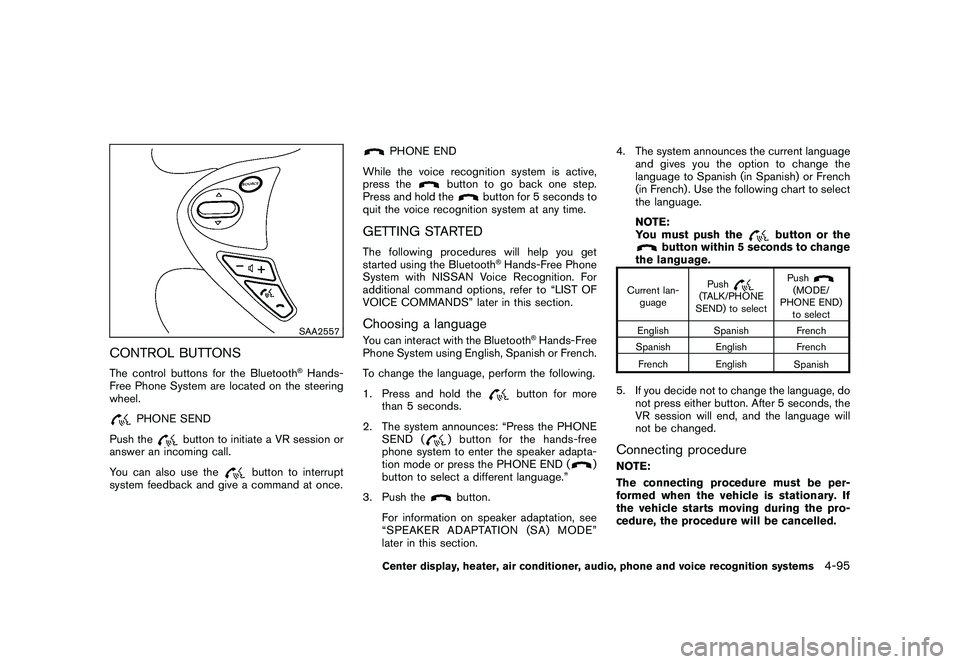
SAA2557
CONTROL BUTTONSThe control buttons for the Bluetooth
®Hands-
Free Phone System are located on the steering
wheel.
PHONE SEND
Push the
button to initiate a VR session or
answer an incoming call.
You can also use the
button to interrupt
system feedback and give a command at once.
PHONE END
While the voice recognition system is active,
press the
button to go back one step.
Press and hold the
button for 5 seconds to
quit the voice recognition system at any time.
GETTING STARTEDThe following procedures will help you get
started using the Bluetooth
®Hands-Free Phone
System with NISSAN Voice Recognition. For
additional command options, refer to “LIST OF
VOICE COMMANDS” later in this section.
Choosing a languageYou can interact with the Bluetooth
®Hands-Free
Phone System using English, Spanish or French.
To change the language, perform the following.
1. Press and hold the
button for more
than 5 seconds.
2. The system announces: “Press the PHONE SEND (
) button for the hands-free
phone system to enter the speaker adapta-
tion mode or press the PHONE END (
)
button to select a different language.”
3. Push the
button.
For information on speaker adaptation, see
“SPEAKER ADAPTATION (SA) MODE”
later in this section. 4. The system announces the current language
and gives you the option to change the
language to Spanish (in Spanish) or French
(in French) . Use the following chart to select
the language.
NOTE:
You must push the
button or the
button within 5 seconds to change
the language.
Current lan-
guage Push
(TALK/PHONE
SEND) to select Push
(MODE/
PHONE END) to select
English Spanish French
Spanish English French
French English Spanish
5. If you decide not to change the language, do
not press either button. After 5 seconds, the
VR session will end, and the language will
not be changed.Connecting procedureNOTE:
The connecting procedure must be per-
formed when the vehicle is stationary. If
the vehicle starts moving during the pro-
cedure, the procedure will be cancelled.
Center display, heater, air conditioner, audio, phone and voice recognition systems
4-95
Page 284 of 419
Black plate (280,1)
Model "Z34-D" EDITED: 2010/ 7/ 27
WARNING
.Do not leave children or adults who
would normally require the support
of others alone in your vehicle. Pets
should not be left alone either. They
could accidentally injure themselves
or others through inadvertent op-
eration of the vehicle. Also, on hot,
sunny days, temperatures in a
closed vehicle could quickly become
high enough to cause severe or
possibly fatal injuries to people or
animals.
. Properly secure all cargo to help
prevent it from sliding or shifting.
Do not place cargo higher than the
seatbacks. In a sudden stop or
collision, unsecured cargo could
cause personal injury (Coupe mod-
els) .
. Closely supervise children when
they are around cars to prevent
them from playing and becoming
locked in the trunk where they could
be seriously injured. Keep the car
locked with the trunk closed when
not in use, and prevent children’s access to car keys (Roadster mod-
els) .
If the engine oil temperature is high, the
engine protection mode, which helps re-
duce the chance of engine damage, could
activate and automatically decrease en-
gine power. Driving while the engine oil
temperature is high may result in engine
damage.
EXHAUST GAS (carbon monoxide)
WARNING
. Do not breathe exhaust gases; they
contain colorless and odorless car-
bon monoxide. Carbon monoxide is
dangerous. It can cause uncon-
sciousness or death.
. If you suspect that exhaust fumes
are entering the vehicle, drive with
all windows fully open, and have the
vehicle inspected immediately.
. Do not run the engine in closed
spaces such as a garage.
. Do not park the vehicle with the
engine running for any extended
length of time. .
Keep the rear hatch/trunk lid closed
while driving, otherwise exhaust
gases could be drawn into the
passenger compartment. If you
must drive with the rear hatch/trunk
lid open, follow these precautions:
1) Open all the windows.
2) Set the
air recirculation to
off and the fan control to high to
circulate the air.
. The exhaust system and body
should be inspected by a qualified
mechanic whenever:
— The vehicle is raised for service.
— You suspect that exhaust fumes
are entering into the passenger
compartment.
— You notice a change in the sound of the exhaust system.
— You have had an accident invol- ving damage to the exhaust
system, underbody, or rear of
the vehicle.
THREE-WAY CATALYSTThe three-way catalyst is an emission control
device installed in the exhaust system. Exhaust
gases in the three-way catalyst are burned at
PRECAUTIONS WHEN STARTING
AND DRIVING5-2
Starting and driving
Page 287 of 419
Black plate (283,1)
Model "Z34-D" EDITED: 2010/ 7/ 27
the tire (for models equipped with
the emergency tire puncture repair
kit) .
. NISSAN recommends using only
NISSAN Genuine Emergency Tire
Sealant provided with your vehicle.
Other tire sealants may damage the
valve stem seal which can cause the
tire to lose air pressure (for models
equipped with the emergency tire
puncture repair kit) .
CAUTION
.The TPMS may not function properly
when the wheels are equipped with
tire chains or the wheels are buried
in snow.
. Do not place metalized film or any
metal parts (antenna, etc.) on the
windows. This may cause poor re-
ception of the signals from the tire
pressure sensors, and the TPMS will
not function properly.
Some devices and transmitters may temporarily
interfere with the operation of the TPMS and
cause the low tire pressure warning light to
illuminate. Some examples are: — Facilities or electric devices using similar
radio frequencies are near the vehicle.
— If a transmitter set to similar frequencies is being used in or near the vehicle.
— If a computer (or similar equipment) or a DC/ AC converter is being used in or near the
vehicle.
FCC Notice:
For USA:
This device complies with Part 15 of the
FCC Rules. Operation is subject to the
following two conditions:
(1) This device may not cause harmful
interference, and (2) this device must
accept any interference received, including
interference that may cause undesired
operation.
Note: Changes or modifications not ex-
pressly approved by the party responsible
for compliance could void the user’s
authority to operate the equipment.
For Canada:
This device complies with RSS-210 of
Industry Canada. Operation is subject to
the following two conditions:
(1) this device may not cause interference, and (2) this device must accept any inter-
ference, including interference that may
cause undesired operation of the device.
AVOIDING COLLISION AND ROLL-
OVER
WARNING
Failure to operate this vehicle in a safe
and prudent manner may result in loss
of control or an accident.
Be alert and drive defensively at all times. Obey
all traffic regulations. Avoid excessive speed,
high speed cornering, or sudden steering
maneuvers, because these driving practices
could cause you to lose control of your vehicle.
As with any vehicle, a loss of control could
result in a collision with other vehicles or
objects, or cause the vehicle to rollover,
particularly if the loss of control causes the
vehicle to slide sideways. Be attentive at all
times, and avoid driving when tired. Never drive
when under the influence of alcohol or drugs
(including prescription or over-the-counter
drugs which may cause drowsiness) . Always
wear your seat belt as outlined in the “SEAT
BELTS” in the “1. Safety — Seats, seat belts and
supplemental restraint system” section of this
manual, and also instruct your passengers to do
so.
Starting and driving
5-5
Page 289 of 419
Black plate (285,1)
Model "Z34-D" EDITED: 2010/ 7/ 27
6. Turn on the hazard warning flashers andeither contact a roadside emergency service
to change the tire or see “CHANGING A
FLAT TIRE (for models with spare tire)” in
the “6. In case of emergency” section of this
Owner’s Manual.DRINKING ALCOHOL/DRUGS AND
DRIVING
WARNING
Never drive under the influence of
alcohol or drugs. Alcohol in the blood-
stream reduces coordination, delays
reaction time and impairs judgement.
Driving after drinking alcohol increases
the likelihood of being involved in an
accident injuring yourself and others.
Additionally, if you are injured in an
accident, alcohol can increase the se-
verity of the injury.
NISSAN is committed to safe driving. However,
you must choose not to drive under the influence
of alcohol. Every year thousands of people are
injured or killed in alcohol-related accidents.
Although the local laws vary on what is
considered to be legally intoxicated, the fact is
that alcohol affects all people differently and
most people underestimate the effects of alcohol.
Remember, drinking and driving don’t mix! And
that is true for drugs, too (over-the-counter,
prescription, and illegal drugs) . Don’t drive if
your ability to operate your vehicle is impaired by
alcohol, drugs, or some other physical condition.
WARNING
Do not operate the push-button ignition
switch while driving the vehicle except
in an emergency. (The engine will stop
when the ignition switch is pushed 3
consecutive times or the ignition switch
is pushed and held for more than 2
seconds.) If the engine stops while the
vehicle is being driven, this could lead
to a crash and serious injury.
Before operating the push-button ignition
switch, be sure to move the selector lever to
the P (Park) position (for automatic transmission
model) or the shift lever to the N (Neutral)
position (for manual transmission model) .PUSH-BUTTON IGNITION SWITCH
Starting and driving
5-7