radio NISSAN 370Z ROADSTER 2011 Owner's Manual
[x] Cancel search | Manufacturer: NISSAN, Model Year: 2011, Model line: 370Z ROADSTER, Model: NISSAN 370Z ROADSTER 2011Pages: 419, PDF Size: 3.61 MB
Page 225 of 419
Black plate (221,1)
Model "Z34-D" EDITED: 2010/ 7/ 27
with navigation system)” later in this sec-
tion.)
Stopping playback:
The system stops playing when:
a. another mode (radio, CD, DVD, USB memory, iPod or AUX) is selected.
b. the audio system is turned off.
c. the ignition switch is pushed to the LOCK position.
Next/Previous Track and Fast
Forward/Rewind:
When the(fast forward) or
(rewind)
button is pushed for more than 1.5 seconds
while a track is being played, the track will play
while fast forwarding or rewinding. When the
button is released, the track will return to the
normal play speed.
When the
or
button is pushed for less
than 1.5 seconds while a track is being played,
the next track or the beginning of the current
track will be played.
The multi-function controller can also be used to
select tracks when a track is being played. Play mode selection:
The TUNE/FOLDER knob will skip from album to
album unless it is playing “All Songs” from the
Music Library menu. When playing “All Songs”,
the knob will change the track instead of the
album. The upper right corner of the main screen
will indicate if the TUNE knob is changing by
track or album.
REPEAT (RPT) , RANDOM (RDM):
When the RPT·RDM button is pushed while a
track is being played, the play pattern can be
changed as follows:
(Normal) ?1 Album Repeat ?1 Track Repeat
? 1 Album Random ?All Random ?(Normal)
Tag Track:
Select “Tag Track” key on the screen when a
track is being played. A menu will show the 5
available playlists. Select one of the playlists to
add the current song to that playlist. If a playlist
is not selectable (text is grayed out) , it means
the song already exists in that playlist.
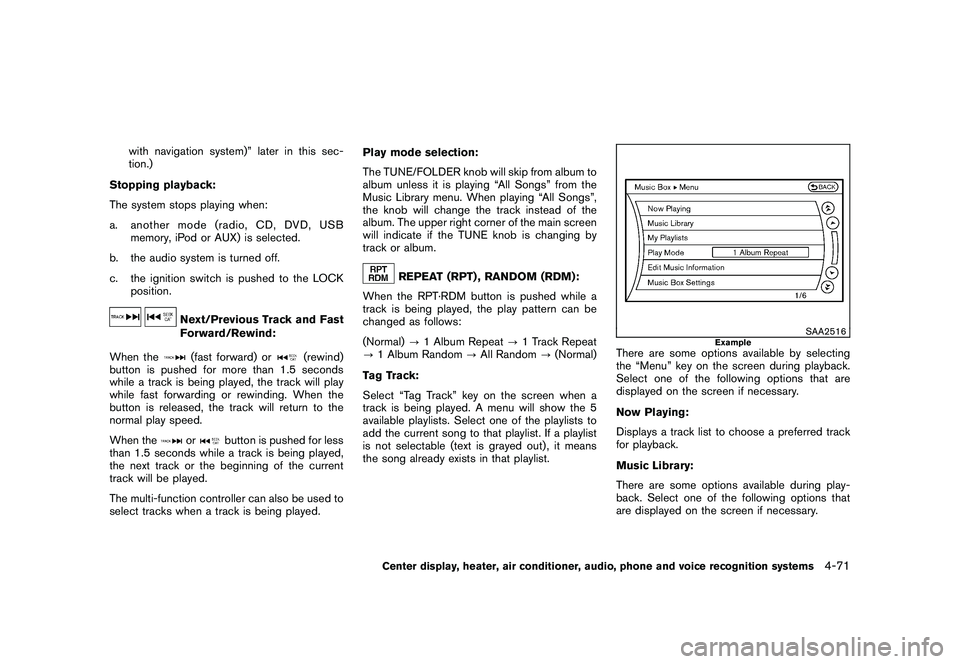
SAA2516
Example
There are some options available by selecting
the “Menu” key on the screen during playback.
Select one of the following options that are
displayed on the screen if necessary.
Now Playing:
Displays a track list to choose a preferred track
for playback.
Music Library:
There are some options available during play-
back. Select one of the following options that
are displayed on the screen if necessary.
Center display, heater, air conditioner, audio, phone and voice recognition systems
4-71
Page 231 of 419
Black plate (227,1)
Model "Z34-D" EDITED: 2010/ 7/ 27
alcohol intended for industrial use.
. A new disc may be rough on the inner and
outer edges. Remove the rough edges by
rubbing the inner and outer edges with the
side of a pen or pencil as illustrated.
USB memory.Never touch the terminal portion of the USB
memory.
. Do not place heavy objects on the USB
memory.
. Do not store the USB memory in highly
humid locations.
. Do not expose the USB memory to direct
sunlight.
. Do not spill any liquids on the USB memory.
Refer to the USB memory Owner’s Manual for
the details.
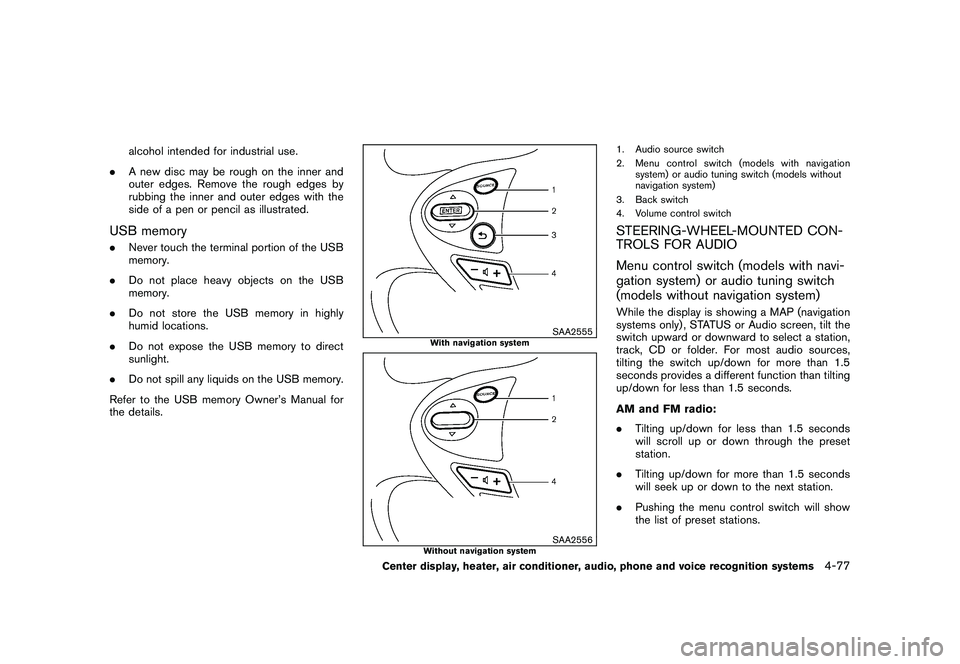
SAA2555
With navigation system
SAA2556
Without navigation system
1. Audio source switch
2. Menu control switch (models with navigation system) or audio tuning switch (models without
navigation system)
3. Back switch
4. Volume control switchSTEERING-WHEEL-MOUNTED CON-
TROLS FOR AUDIO
Menu control switch (models with navi-
gation system) or audio tuning switch
(models without navigation system)While the display is showing a MAP (navigation
systems only) , STATUS or Audio screen, tilt the
switch upward or downward to select a station,
track, CD or folder. For most audio sources,
tilting the switch up/down for more than 1.5
seconds provides a different function than tilting
up/down for less than 1.5 seconds.
AM and FM radio:
. Tilting up/down for less than 1.5 seconds
will scroll up or down through the preset
station.
. Tilting up/down for more than 1.5 seconds
will seek up or down to the next station.
. Pushing the menu control switch will show
the list of preset stations.
Center display, heater, air conditioner, audio, phone and voice recognition systems
4-77
Page 232 of 419
Black plate (228,1)
Model "Z34-D" EDITED: 2010/ 7/ 27
XM Satellite Radio (if so equipped):
.Tilting up/down for less than 1.5 seconds
will scroll up or down through the preset
channel.
. Tilting up/down for more than 1.5 seconds
will go to the next or previous category.
. Pushing the menu control switch will show
the XM Menu.
iPod
®(models with navigation system) :
. Tilting up/down for less than 1.5 seconds
will scroll up or down through the track
number.
. Tilting up/down for more than 1.5 seconds
will skip to the next or previous index.
. Pushing the menu control switch will show
the iPod Menu.
CD:
. Tilting up/down for less than 1.5 seconds
will scroll up or down through the track
number.
. Tilting up/down for more than 1.5 seconds
will scroll up or down through the folder
number (if playing compressed audio files) .
. Pushing the menu control switch will show
the CD Menu. DVD (models with navigation system):
.
Tilting up/down for less than 1.5 seconds
will scroll up or down through the track
number.
. Tilting up/down for more than 1.5 seconds
will scroll up or down through the title
number.
. Pushing the menu control switch will select
an item from the DVD display.
. When the transparent operation menu ap-
pears, the switch will control the menu.
USB (models with navigation system):
. Tilting up/down for less than 1.5 seconds
will scroll up or down through the track
number.
. Tilting up/down for more than 1.5 seconds
will scroll up or down through the folder
number
. Pushing the menu control switch will show
the USB Menu.
Music Box
®(models with navigation sys-
tem):
. Tilting up/down for less than 1.5 seconds
will scroll up or down through the track
number.
. Tilting up/down for more than 1.5 seconds will scroll up or down through the album
(folder) number (if playing compressed
audio files) .
. Pushing the menu control switch will show
the Music Box
®Menu.
Bluetooth
®Audio (models with navigation
system):
. Tilting up/down for less than 1.5 seconds
will scroll up or down through the track
number.
AUX:
. Pushing the menu control switch will show
the AUX Menu.
BACK switch (models with navi-
gation system)
Push this switch to go back to the previous
screen or cancel the selection if it is not
completed.Volume control switchesPush the upper (+) or lower ( ) side switch to
increase or decrease the volume.Audio source switchPush the audio source switch to change the
mode as follows.
4-78
Center display, heater, air conditioner, audio, phone and voice recognition systems
Page 234 of 419
Black plate (230,1)
Model "Z34-D" EDITED: 2010/ 7/ 27
When installing a car phone or a CB radio in
your NISSAN, be sure to observe the following
cautions, otherwise the new equipment may
adversely affect the electronic control modules
and electronic control system harness.
WARNING
.A cellular telephone should not be
used while driving so full attention
may be given to vehicle operation.
Some jurisdictions prohibit the use
of cellular telephones while driving.
. If you must make a call while your
vehicle is in motion, the hands-free
cellular phone operational mode (if
so equipped) is highly recom-
mended. Exercise extreme caution
at all times so full attention may be
given to vehicle operation.
. If a conversation in a moving vehicle
requires you to take notes, pull off
the road to a safe location and stop
your vehicle before doing so.
CAUTION
.Keep the antenna as far away as
possible from the electronic control
modules.
. Keep the antenna wire more than 8
in (20 cm) away from the electronic
control system harness. Do not
route the antenna wire next to any
harness.
. Adjust the antenna standing-wave
ratio as recommended by the man-
ufacturer.
. Connect the ground wire from the
CB radio chassis to the body.
. For details, consult a NISSAN deal-
er.
WARNING
.Use a phone after stopping your
vehicle in a safe location. If you
have to use a phone while driving,
exercise extreme caution at all
times so full attention may be given
to vehicle operation.
. If you find yourself unable to devote
full attention to vehicle operation
while talking on the phone, pull off
the road to a safe location and stop
your vehicle before doing so.
CAUTION
To avoid draining the vehicle battery,
use a phone after starting the engine.
Your NISSAN is equipped with Bluetooth
®
Hands-Free Phone System. If you are an owner
of a compatible Bluetooth
®enabled cellular
phone, you can set up the wireless connection
between your cellular phone and the in-vehicle
phone module. With Bluetooth®wireless tech-
nology, you can make or receive a telephone call
with your cellular phone in your pocket.
Once a cellular phone is connected to the in-
vehicle phone module, no phone connecting
CAR PHONE OR CB RADIO BLUETOOTH
®HANDS-FREE PHONE
SYSTEM (models with navigation
system)
4-80
Center display, heater, air conditioner, audio, phone and voice recognition systems
Page 235 of 419
Black plate (231,1)
Model "Z34-D" EDITED: 2010/ 7/ 27
procedure is required anymore. Your phone is
automatically connected with the in-vehicle
phonemodulewhentheignitionswitchis
pushed to the ON position with the registered
cellular phone turned on and carried in the
vehicle.
You can register up to 5 different Bluetooth
®
cellular phones in the in-vehicle phone module.
However, you can talk on only one cellular phone
at a time.
The NISSAN Voice Recognition system sup-
ports the phone commands, so dialing a phone
number using your voice is possible. For more
details, see “NISSAN VOICE RECOGNITION
SYSTEM (models with navigation system)” later
in this section; page 4-104.
Before using the Bluetooth
®Hands-Free Phone
System, refer to the following notes.
. Set up the wireless connection between a
compatible cellular phone and the in-vehicle
phone module before using the Bluetooth
®
Hands-Free Phone System.
. Some Bluetooth
®enabled cellular phones
may not be recognized by the in-vehicle
phone module. Please visit
www.nissanusa.com/bluetooth for a recom-
mended phone list.
. You will not be able to use a hands-free
phone under the following conditions: — Your vehicle is outside of the telephone
service area.
— Your vehicle is in an area where it is difficult to receive radio waves; such as in
a tunnel, in an underground parking
garage, behind a tall building or in a
mountainous area.
— Your cellular phone is locked in order not to be dialed.
. When the radio wave condition is not ideal
or ambient sound is too loud, it may be
difficult to hear the other person’s voice
during a call.
. Immediatelyaftertheignitionswitchis
pushed to the ON position, it may be
impossible to receive a call for a short
period of time.
. Do not place the cellular phone in an area
surrounded by metal or far away from the in-
vehicle phone module to prevent tone quality
degradation and wireless connection dis-
ruption.
. While a cellular phone is connected through
the Bluetooth
®wireless connection, the
battery power of the cellular phone may
discharge quicker than usual.
. If the Bluetooth®Hands-Free Phone System
seems to be malfunctioning, please visit www.nissanusa.com/bluetooth for trouble-
shooting help.
. Some cellular phones or other devices may
cause interference or a buzzing noise to
come from the audio system speakers.
Storing the device in a different location
may reduce or eliminate the noise.
. Refer to the cellular phone Owner’s Manual
regarding the telephone pairing procedure
specific to your phone, battery charging,
cellular phone antenna, etc.
. The antenna display on the monitor will not
coincide with the antenna display of some
cellular phones.
. Keep the interior of the vehicle as quiet as
possible to hear the caller’s voice clearly as
well as to minimize its echoes.
. If reception between callers is unclear,
adjusting the incoming or outgoing call
volume may improve the clarity.
REGULATORY INFORMATION
FCC Regulatory information— CAUTION: To maintain compliance with
FCC’s RF exposure guidelines, use only
the supplied antenna. Unauthorized antenna,
modification, or attachments could damage
the transmitter and may violate FCC regula-
tions.
Center display, heater, air conditioner, audio, phone and voice recognition systems
4-81
Page 246 of 419
Black plate (242,1)
Model "Z34-D" EDITED: 2010/ 7/ 27
Hands-Free Phone System.
. Some Bluetooth
®enabled cellular phones
may not be recognized by the in-vehicle
phone module. Please visit www.nissanusa.
com/bluetooth for a recommended phone
list and connecting.
. You will not be able to use a hands-free
phone under the following conditions:
— Your vehicle is outside of the telephone service area.
— Your vehicle is in an area where it is difficult to receive radio waves; such as in
a tunnel, in an underground parking
garage, near a tall building or in a
mountainous area.
— Your cellular phone is locked to prevent it from being dialed.
. When the radio wave condition is not ideal
or ambient sound is too loud, it may be
difficult to hear the other person’s voice
during a call.
. Immediatelyaftertheignitionswitchis
pushed to the ON position, it may be
impossible to receive a call for a short
period of time.
. Do not place the cellular phone in an area
surrounded by metal or far away from the in- vehicle phone module to prevent tone quality
degradation and wireless connection dis-
ruption.
. While a cellular phone is connected through
the Bluetooth
®wireless connection, the
battery power of the cellular phone may
discharge quicker than usual. The Blue-
tooth
®Hands-Free Phone System cannot
charge cellular phones.
. If the Bluetooth
®Hands-Free Phone System
seems to be malfunctioning, see “Trouble-
shooting guide” later in this section. You can
also visit www.nissanusa.com/bluetooth for
troubleshooting help.
. Some cellular phones or other devices may
cause interference or a buzzing noise to
come from the audio system speakers.
Storing the device in a different location
may reduce or eliminate the noise.
. Refer to the cellular phone Owner’s Manual
regarding battery charging, cellular phone
antenna, etc.
. This wireless hands free car kit is based on
Bluetooth
®technology,
— Frequency: 2402 MHz - 2480 MHz
— Output Power: 4.14 dBm E.I.R.P
— Modulation: FHSS GFSK 8DPSK, p/ 4DQPSK
— Number of Channel: 79
— This wireless equipment can’t be used for any services related to safety because
there is the possibility of radio interfer-
ence.
REGULATORY INFORMATION
FCC Regulatory information— CAUTION: To maintain compliance with FCC’s RF exposure guidelines, use only
the supplied antenna. Unauthorized antenna,
modification, or attachments could damage
the transmitter and may violate FCC regula-
tions.
— Operation is subject to the following two conditions:
1) this device may not cause interference and
2) this device must accept any interference, including interference that may cause un-
desired operation of the deviceIC Regulatory information— Operation is subject to the following twoconditions: (1) this device may not cause
interference, and (2) this device must accept
any interference, including interference that
may cause undesired operation of the
device.
4-92
Center display, heater, air conditioner, audio, phone and voice recognition systems
Page 247 of 419
Black plate (243,1)
Model "Z34-D" EDITED: 2010/ 7/ 27
— This Class B digital apparatus meets allrequirements of the Canadian Interference-
Causing Equipment Regulations.
Bluetooth trademark:
Bluetooth
®is a trademark owned
by Bluetooth SIG, Inc., U.S.A.
and licensed to Visteon Corpora-
tion.
USING THE SYSTEMThe NISSAN Voice Recognition system allows
hands-free operation of the Bluetooth
®Hands-
Free Phone System.
If the vehicle is in motion, some commands may
not be available so full attention may be given to
vehicle operation.
InitializationWhen the ignition switch is pushed to the ON
position, NISSAN Voice Recognition is initia-
lized, which may take up to one minute. If the
button is pushed before the initialization
completes, the system will accept any com-
mand.
Operating tipsTo get the best performance out of the NISSAN
Voice Recognition system, observe the follow-
ing: .
Keep the interior of the vehicle as quiet as
possible. Close the windows to eliminate
surrounding noises (traffic noises, vibration
sounds, etc.) , which may prevent the system
from recognizing voice commands correctly.
. Wait until the tone sounds before speaking a
command. Otherwise, the command will not
be received properly.
. Start speaking a command within 5 seconds
after the tone sounds.
. Speak in a natural voice without pausing
between words.
Giving voice commandTo operate NISSAN Voice Recognition, push
and release the
button located on the
steering wheel. After the tone sounds, speak a
command.
Thecommandgivenispickedupbythe
microphone, and voice feedback is given when
the command is accepted.
. If you need to hear the available commands
for the current menu again, say “Help” and
the system will repeat them.
. If a command is not recognized, the system
announces, “Command not recognized.
Please say again.” Repeat the command in
a clear voice. .
If you want to go back to the previous
command, you can say “Go back” or
“Correction” anytime the system is waiting
for a response.
. You can cancel a command when the
system is waiting for a response by saying,
“Cancel” or “Quit.” The system announces
“Cancel” and ends the VR session. You can
also push and hold the
button for 5
seconds on the steering wheel at any time to
cancel the VR session. Whenever the VR
session is cancelled, a double beep is
played to indicate you have exited the
system.
. If you want to adjust the volume of the voice
feedback, push the volume control switch (+
or) on the steering wheel while being
provided with feedback. You can also use
the radio volume control knob.
. In most cases you can interrupt the voice
feedback to speak the next command by
pressing the
button on the steering
wheel.
. To use the system faster, you may speak the
second level commands with the main menu
command on the main menu. For example,
press the
button and after the tone say,
“Call Redial.” Note: The combined com-
mand of Call and (a Name) cannot be used.
Center display, heater, air conditioner, audio, phone and voice recognition systems
4-93
Page 274 of 419
Black plate (270,1)
Model "Z34-D" EDITED: 2010/ 7/ 27
Information Commands:
CommandAction
Fuel EconomyDisplays fuel economy information.
Maintenance Displays maintenance information.
Where am I? Displays your current location.
Traffic Information Turns the traffic information system ON and OFF.
Weather Information Displays weather information.
Weather Map Displays a weather map.Audio Commands:
Command Action
Music Box
®
Turns on the “Music Box
®” hard drive audio system.
CD Starts to play a CD.
FM Turns to the FM band, selecting the station last played.
AM Turns to the AM band, selecting the station last played.
XM Turns to the XM Satellite Radio band, selecting the channel last played.
USB Turns on the USB memory.
Bluetooth Audio Turns on the Bluetooth®audio player.
AUX Turns on the AUX.
4-120
Center display, heater, air conditioner, audio, phone and voice recognition systems
Page 287 of 419
Black plate (283,1)
Model "Z34-D" EDITED: 2010/ 7/ 27
the tire (for models equipped with
the emergency tire puncture repair
kit) .
. NISSAN recommends using only
NISSAN Genuine Emergency Tire
Sealant provided with your vehicle.
Other tire sealants may damage the
valve stem seal which can cause the
tire to lose air pressure (for models
equipped with the emergency tire
puncture repair kit) .
CAUTION
.The TPMS may not function properly
when the wheels are equipped with
tire chains or the wheels are buried
in snow.
. Do not place metalized film or any
metal parts (antenna, etc.) on the
windows. This may cause poor re-
ception of the signals from the tire
pressure sensors, and the TPMS will
not function properly.
Some devices and transmitters may temporarily
interfere with the operation of the TPMS and
cause the low tire pressure warning light to
illuminate. Some examples are: — Facilities or electric devices using similar
radio frequencies are near the vehicle.
— If a transmitter set to similar frequencies is being used in or near the vehicle.
— If a computer (or similar equipment) or a DC/ AC converter is being used in or near the
vehicle.
FCC Notice:
For USA:
This device complies with Part 15 of the
FCC Rules. Operation is subject to the
following two conditions:
(1) This device may not cause harmful
interference, and (2) this device must
accept any interference received, including
interference that may cause undesired
operation.
Note: Changes or modifications not ex-
pressly approved by the party responsible
for compliance could void the user’s
authority to operate the equipment.
For Canada:
This device complies with RSS-210 of
Industry Canada. Operation is subject to
the following two conditions:
(1) this device may not cause interference, and (2) this device must accept any inter-
ference, including interference that may
cause undesired operation of the device.
AVOIDING COLLISION AND ROLL-
OVER
WARNING
Failure to operate this vehicle in a safe
and prudent manner may result in loss
of control or an accident.
Be alert and drive defensively at all times. Obey
all traffic regulations. Avoid excessive speed,
high speed cornering, or sudden steering
maneuvers, because these driving practices
could cause you to lose control of your vehicle.
As with any vehicle, a loss of control could
result in a collision with other vehicles or
objects, or cause the vehicle to rollover,
particularly if the loss of control causes the
vehicle to slide sideways. Be attentive at all
times, and avoid driving when tired. Never drive
when under the influence of alcohol or drugs
(including prescription or over-the-counter
drugs which may cause drowsiness) . Always
wear your seat belt as outlined in the “SEAT
BELTS” in the “1. Safety — Seats, seat belts and
supplemental restraint system” section of this
manual, and also instruct your passengers to do
so.
Starting and driving
5-5
Page 290 of 419
Black plate (286,1)
Model "Z34-D" EDITED: 2010/ 7/ 27
SSD0825
OPERATING RANGE FOR ENGINE
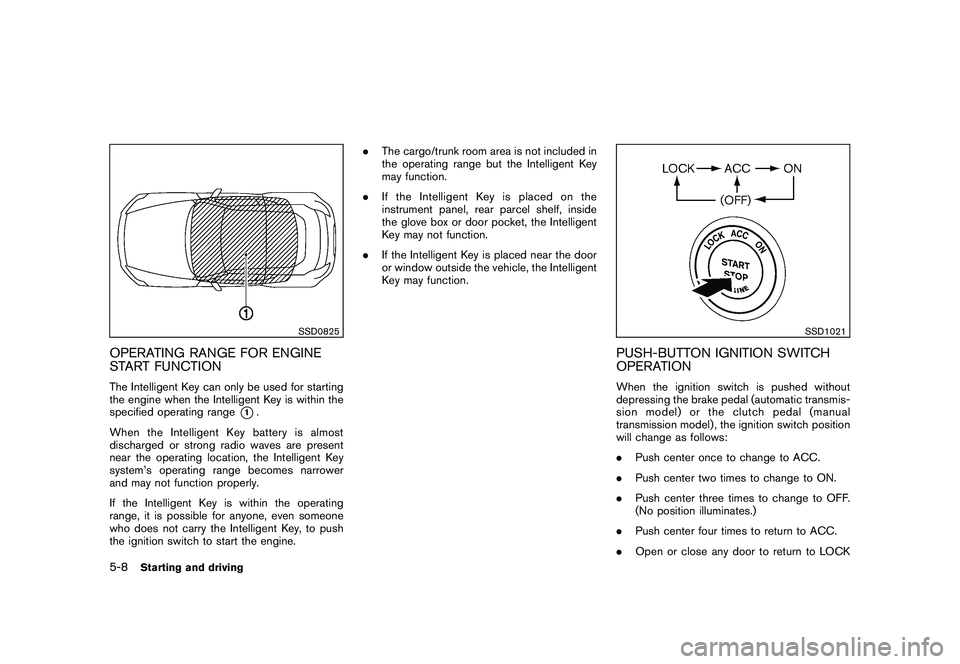
START FUNCTIONThe Intelligent Key can only be used for starting
the engine when the Intelligent Key is within the
specified operating range
*1.
When the Intelligent Key battery is almost
discharged or strong radio waves are present
near the operating location, the Intelligent Key
system’s operating range becomes narrower
and may not function properly.
If the Intelligent Key is within the operating
range, it is possible for anyone, even someone
who does not carry the Intelligent Key, to push
the ignition switch to start the engine. .
The cargo/trunk room area is not included in
the operating range but the Intelligent Key
may function.
. If the Intelligent Key is placed on the
instrument panel, rear parcel shelf, inside
the glove box or door pocket, the Intelligent
Key may not function.
. If the Intelligent Key is placed near the door
or window outside the vehicle, the Intelligent
Key may function.
SSD1021
PUSH-BUTTON IGNITION SWITCH
OPERATIONWhen the ignition switch is pushed without
depressing the brake pedal (automatic transmis-
sion model) or the clutch pedal (manual
transmission model) , the ignition switch position
will change as follows:
.Push center once to change to ACC.
. Push center two times to change to ON.
. Push center three times to change to OFF.
(No position illuminates.)
. Push center four times to return to ACC.
. Open or close any door to return to LOCK
5-8
Starting and driving