key NISSAN 370Z ROADSTER 2017 Z34 Quick Reference Guide
[x] Cancel search | Manufacturer: NISSAN, Model Year: 2017, Model line: 370Z ROADSTER, Model: NISSAN 370Z ROADSTER 2017 Z34Pages: 28, PDF Size: 1.59 MB
Page 23 of 28
21
BLUETOOTH® STREAMING AUDIO WITH NAVIGATION1,2
(if so equipped)
If you have a compatible Bluetooth®,2 device with streaming audio (A2DP
and AVRCP profiles), you can set up the wireless connection between your
Bluetooth®
,2 device and your vehicle’s audio system. This connection allows you
to listen to audio from the Bluetooth®,2 device using your vehicle’s speakers.
A cellular telephone should not be used while driving so full attention may be
given to vehicle operation.1
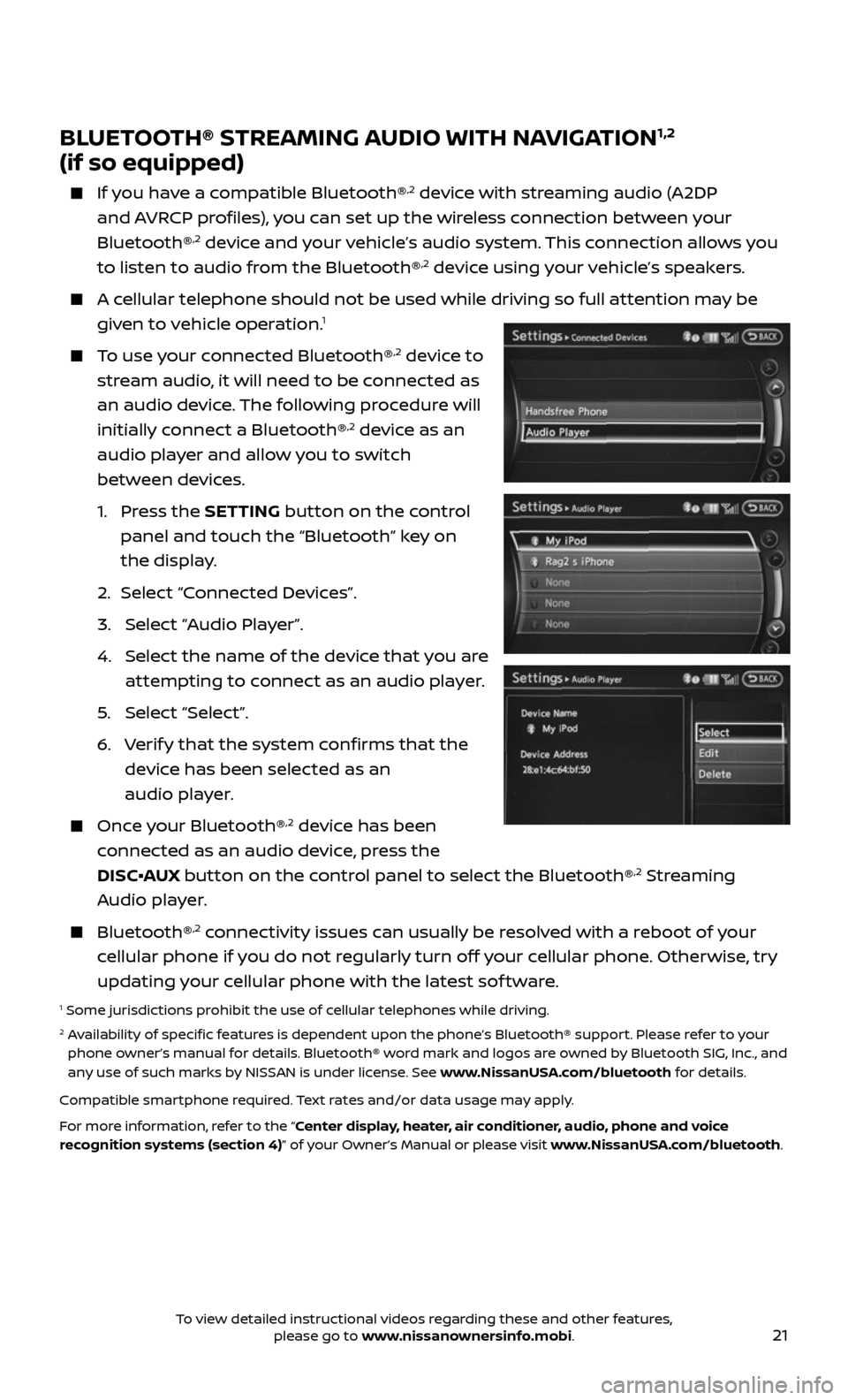
To use your connected Bluetooth®,2 device to
stream audio, it will need to be connected as
an audio device. The following procedure will
initially connect a Bluetooth®
,2 device as an
audio player and allow you to switch
between devices.
1. Press the SETTING button on the control
panel and touch the “Bluetooth” key on
the display.
2. Selec t “Connected Devices”.
3. Selec t “Audio Player”.
4. Selec t the name of the device that you are
attempting to connect as an audio player.
5. Select “Select”.
6. Verify that the system confirms that the
device has been selected as an
audio player.
Once your Bluetooth®,2 device has been
connected as an audio device, press the
DISC•AUX button on the control panel to select the Bluetooth®
,2 Streaming
Audio player.
Bluetooth®,2 connectivity issues can usually be resolved with a reboot of your
cellular phone if you do not regularly turn off your cellular phone. Otherwise, try
updating your cellular phone with the latest sof tware.
1 Some jurisdictions prohibit the use of cellular telephones while driving.2 Availability of specific features is dependent upon the phone’s Bluetooth® support. Please refer to your phone owner’s manual for details. Bluetooth® word mark and logos are owned by Bluetooth SIG, Inc., and
any use of such marks by NISSAN is under license. See www.NissanUSA.com/bluetooth for details.
Compatible smartphone required. Text rates and/or data usage may apply.
For more information, refer to the “Center display, heater, air conditioner, audio, phone and voice
recognition systems (section 4)” of your Owner’s Manual or please visit www.NissanUSA.com/bluetooth.
To view detailed instructional videos regarding these and other features, please go to www.nissanownersinfo.mobi.
Page 24 of 28
22
1
23
4567
891011
1213
NAVIGATION SYSTEM (if so equipped)
Your Navigation System can calculate a route from your current location to a
preferred destination. The real-time map display and turn-by-turn voice guidance
will lead you along the route.
The Navigation System will continually update your vehicle’s position.
If you have deviated from the original route, it will recalculate the route from
your current location.
To help promote safe driving, some functions cannot be operated or have
limited operation when the vehicle speed is above 5 mph (8 km/h). The
on-screen text and keys for these restricted functions will be grayed-out or
muted and cannot be selected while driving. These functions will become
available again when the vehicle speed is reduced to 5 mph (8 km/h). Voice
commands may be available for some of the restricted functions. For more
information, refer to the “Center display, heater, air conditioner, audio, phone
and voice recognition systems (section 4)” of your Owner’s Manual.
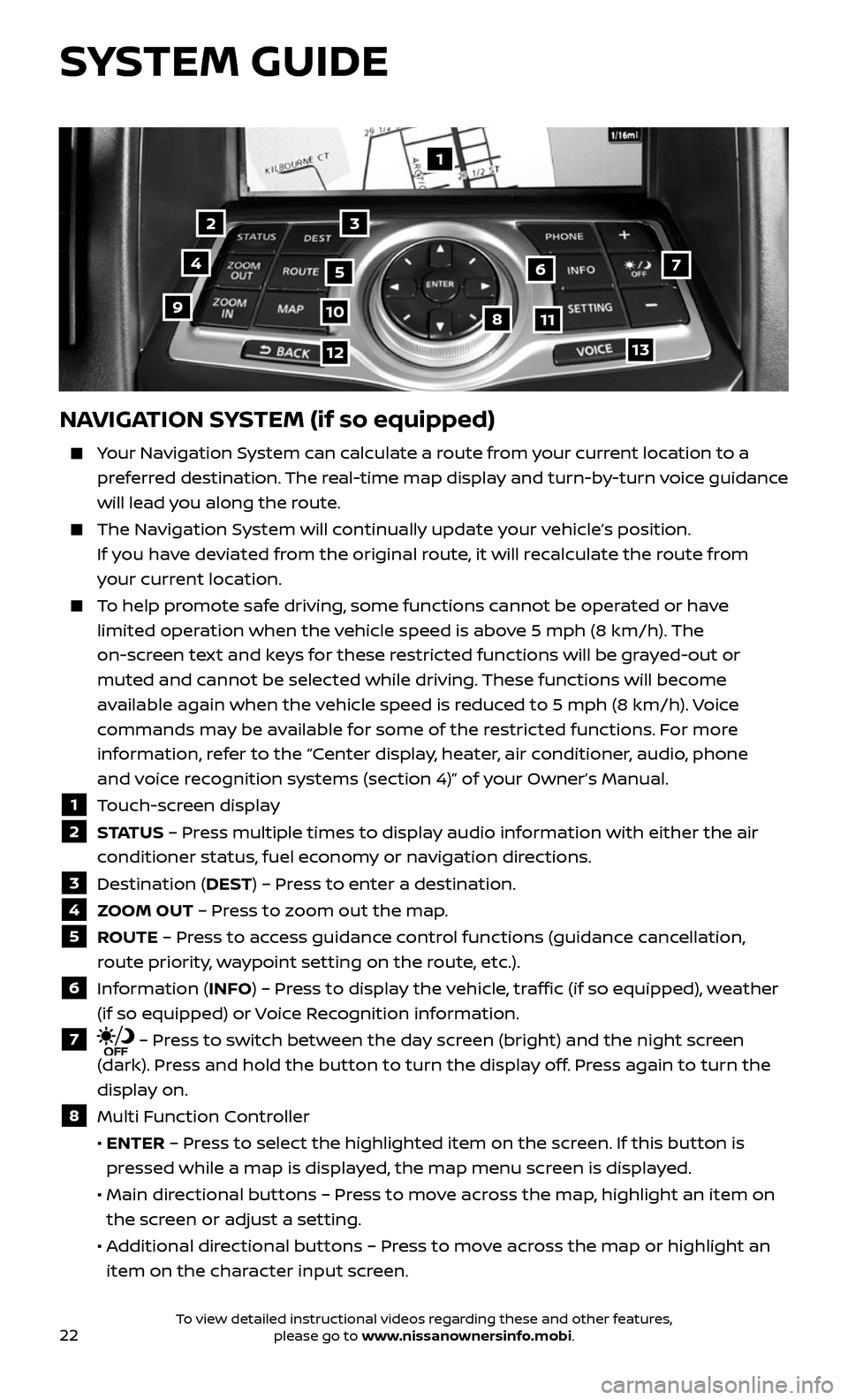
1 Touch-screen display
2 S TAT U S – Press multiple times to display audio information with either the air
conditioner status, fuel economy or navigation directions.
3 Destination (DEST) – Press to enter a destination.
4 ZOOM OUT – Press to zoom out the map.
5 ROUTE – Press to access guidance control functions (guidance cancellation,
route priority, waypoint setting on the route, etc.).
6 Information (INFO) – Press to display the vehicle, traffic (if so equipped), weather
(if so equipped) or Voice Recognition information.
7 – Press to switch between the day screen (bright) and the night screen
(dark). Press and hold the button to turn the display off. Press again to turn the
display on.
8 Multi Function Controller
• ENTER – Press to select the highlighted item on the screen. If this button is
pressed while a map is displayed, the map menu screen is displayed.
• Main dir ectional buttons – Press to move across the map, highlight an item on
the screen or adjust a setting.
• Additional directional buttons – Press to move across the map or highlight an
item on the character input screen.
SYSTEM GUIDE
To view detailed instructional videos regarding these and other features, please go to www.nissanownersinfo.mobi.