phone NISSAN ALTIMA 2013 L33 / 5.G Owners Manual
[x] Cancel search | Manufacturer: NISSAN, Model Year: 2013, Model line: ALTIMA, Model: NISSAN ALTIMA 2013 L33 / 5.GPages: 413, PDF Size: 4.52 MB
Page 268 of 413
●Use Phonebook From:
Select “Handset” to use the phone’s phone-
book. Select “SIM” to use the phonebook on
the SIM card. Select “Both” to use both
sources.
● Download Phonebook Now
Select to download the phonebook to the
vehicle from the chosen source.
● Phone Notifications for
Select “Driver” to have phone notifications
shown in the vehicle information display. Se-
lect “Both” to have phone notifications
shown in both the vehicle information display
and the center display screen.
● Record Name for Phonebook Entry
Select to record a name for a phonebook
entry for use with the NISSAN Voice Recog-
nition System.
● Text Message Service
Select to toggle the text message function-
ality on or off. ●
Show Incoming Text for
Select “Driver” to have text message notifi-
cations shown in the vehicle information dis-
play. Select “Both” to have text message
notifications shown in both the vehicle infor-
mation display and the center display
screen. Select “None” to have text message
notifications not displayed.
● SMS Auto Reply Function
Select to toggle the SMS auto reply func-
tionality on or off.
● SMS Auto Reply Message
Select to choose a message that is sent
when the auto reply function is activated.
● Add Vehicle’s Signature
Select to toggle on or off the addition of the
vehicle signature to outgoing messages.
● Predefined SMS Messages
Select the predefined SMS messages that
are used by the system. The NISSAN Voice Recognition system allows
hands-free operation of the systems equipped on
this vehicle, such as the phone and navigation
systems.
To operate NISSAN Voice Recognition, press
the
button located on the steering wheel.
When prompted, speak the command for the
system you wish to activate. The command given
is picked up by the microphone and performed
when it is properly recognized. NISSAN Voice
Recognition will provide a voice response as well
as a message in the center display to inform you
of the command results.
USING THE SYSTEM
Initialization
When the ignition switch is in the ON position,
NISSAN Voice Recognition is initialized, which
takes a few seconds. When completed, the sys-
tem is ready to accept voice commands. If
the
button is pressed before the initializa-
tion completes, the system will announce: “Voice
Recognition System not ready. Please wait.”
NISSAN VOICE RECOGNITION
SYSTEM (if so equipped)
Monitor, climate, audio, phone and voice recognition systems4-109
Page 269 of 413
Giving voice commands
1. Press thebutton.
2. The system announces: “Please say a com- mand.” A list of available commands is spo-
ken by the system.
3. After the tone sounds and the face icon on the display changes, speak a command.
Available commands are discussed later in
this section.
4. Voice and display feedback are provided when the command is accepted. ●
If the command is not recognized, the sys-
tem announces: “Command not recog-
nized.” Repeat the command in a clear voice.
● If you want to cancel the command or go
back to the previous menu of commands,
press the
button. The system will an-
nounce: “Voice recognition canceled” or
“Go back” depending on the current menu
level.
● Press the
button to move back
through the menus displayed on the screen.
● If you want to adjust the volume of the voice
feedback, use the volume control switches
on the steering wheel or the volume knob on
the control panel. ●
The voice command screen can also be
accessed using the control panel display:
1. Press the MENU button.
2. Select the “Voice Commands” key.
Operating tips
To get the best performance out of NISSAN
Voice Recognition, observe the following: ● Keep the interior of the vehicle as quiet as
possible. Close the windows to eliminate the
surrounding noises (traffic noises, vibration
sounds, etc.) , which may prevent the system
from recognizing the voice commands cor-
rectly.
LHA2282LHA2253
4-110Monitor, climate, audio, phone and voice recognition systems
Page 270 of 413
●Wait until a tone sounds before speaking a
command. Otherwise, the command will not
be received properly.
● Start speaking a command within 3.5 sec-
onds after the tone sounds.
● Speak in a natural voice without pausing
between words.
SYSTEM FEATURES
NISSAN Voice Recognition can activate the fol-
lowing systems:
● Bluetooth Hands-Free Phone System
● Navigation
● Audio
● Information
For additional information on the navigation sys-
tem, see the separate Navigation System Own-
er’s Manual.
How to say numbers
NISSAN Voice Recognition requires a certain
way to speak numbers in voice commands. Refer
to the following examples.
General rule: Either “zero” or “oh” can be used for
“0”.
Phone numbers
Speak phone numbers according to the following
example. For 1-800-662-6200, say dial number
and then speak the phone number in any of the
following formats: ● “one eight oh oh six six two six two oh oh”
● “one eight hundred six six two six two oh oh”
● “one eight zero zero six six two six two oh oh”
For the best voice recognition phone dialing re-
sults, say phone numbers as single digits. Also,
full numbers can only be spoken for “800”. For
example, you cannot say 555-6000 as “five five
five six thousand”.
LHA2281
Monitor, climate, audio, phone and voice recognition systems4-111
Page 271 of 413
BLUETOOTH® HANDS-FREE
PHONE SYSTEM VOICE
COMMANDS
To access the Bluetooth® Hands-Free Phone
System voice commands:1. Press the
button.
2.
Say “Call” and then a name in the vehicle
phonebook to call that entry. Otherwise, say
“Phone” to access various phone commands.
If the Bluetooth® has been set to “Off”, the
system announces: “Bluetooth® is off. Would
you like to turn Bluetooth® on?”
If no phone is connected to the system and the
vehicle is stationary, the system announces:
“There is no phone connected. Would you like to
connect a phone now?” Say “Yes” to connect a
phone. All further Bluetooth® Hands-Free Phone
System voice commands are only available if a
phone is connected.
If a phone is connected and Bluetooth® is set to
“On”, the following voice commands are available:
● Dial Number
Allows for up to 24 digits to be dialed. After
the number is entered, say “Dial” to initiate
dialing. Say “Correction” to correct the num-
ber entered. Say “Go Back” to return to the
main menu. ●
List Phonebook
Starting with the first alphabetical entry in
the vehicle phonebook, the system prompts
for an additional command. Say “Dial” to call
the number of the phonebook entry. Say
“Send Text” to send a text message to the
number of the phonebook entry. Say “Next
Entry” to skip to the next alphabetical entry in
the vehicle phonebook, where the same op-
tions will then be available.
● Recent Calls
The system prompts for an additional com-
mand. Say “Missed Calls”, “Incoming Calls”
or “Outgoing Calls” to display a list of such
calls on the screen.
Speak the number of the entry displayed on
the screen to dial that number or say “Next
Page” to view entries on the next page (if
available) .
● Redial
Redials the last called number.
● Read Text
Reads an incoming text message. For more
information about text messaging with the
Bluetooth® Hands-Free Phone System, see
“Bluetooth® Hands-Free Phone System
with Navigation System” in this section. ●
Send Text
Sends a text message. For more information
about text messaging with the Bluetooth®
Hands-Free Phone System, see
“Bluetooth® Hands-Free Phone System
with Navigation System” in this section.
● Select Phone
The system replies “Please use manual con-
trols to continue”. Use manual controls to
change the active phone from among the
listed phones connected to the vehicle.
For more information about the Bluetooth®
Hands-Free Phone System, see “Bluetooth®
Hands-Free Phone System with Navigation Sys-
tem” in this section.
NAVIGATION SYSTEM VOICE
COMMANDS
The following voice commands are available for
the Navigation System: ● Places
● Street Address
● Address Book
● Home
● Previous Destination
4-112Monitor, climate, audio, phone and voice recognition systems
Page 272 of 413
For more information about these commands,
see the separate Navigation System Owner’s
Manual.
AUDIO SYSTEM VOICE
COMMANDS
To access the audio system voice commands:1. Press the button.
2. Say “Audio”
3. Speak a command from the following avail- able commands:
● FM
Switches the audio system to the FM mode.
● AM
Switches the audio system to the AM mode.
● XM (satellite radio, if so equipped)
Switches the audio system to the SiriusXM
Satellite Radio mode.
● CD
Switches the audio system to the CD mode.
A CD must be inserted for this command to
be functional. ●
iPod®
Switches the audio system to the iPod®
mode. An iPod® must be connected for this
command to be available and functional.
The following sub-commands are available
for iPod®:
– Now Playing
– Menu
– Playlists
– Artists
– Albums
– Genres
– Songs
– Shuffle Songs*
– Composers*
– Audiobooks*
– Podcasts*
* Say “Next Page” to access these com-
mands. Say “Previous Page” to return to the
first page of commands. ●
USB
Switches the audio system to the USB
mode. A USB device must be inserted for
this command to be available and functional.
● Pandora®
Switches the audio system to the Pandora®
audio mode. A compatible Bluetooth® au-
dio device with a Pandora® application
must be connected to the system for this
command to be functional.
● Bluetooth®
Switches the audio system to the
Bluetooth® audio mode. A compatible
Bluetooth® audio device must be con-
nected to the system for this command to be
functional.
● AUX
Switches the audio system to the AUX
mode. An AUX device must be connected
for this command to be functional.
For more information about the audio system, see
“Audio system” in this section.
Monitor, climate, audio, phone and voice recognition systems4-113
Page 273 of 413
INFORMATION VOICE COMMANDS
The following voice commands are available for
the information functions of the Navigation Sys-
tem:● Traffic
● Current Weather
● Weather Forecast
● Google™ Send-To-Car
● POIs Powered by Google™
For more information about these commands,
see the separate Navigation System Owner’s
Manual.
HELP VOICE COMMANDS
The following voice commands can be spoken to
have the system provide instructions and tips for
using the NISSAN Voice Recognition system. ● List Commands
● What Can I Say?
● General Help
● Quit
● Exit
4-114Monitor, climate, audio, phone and voice recognition systems
Page 274 of 413
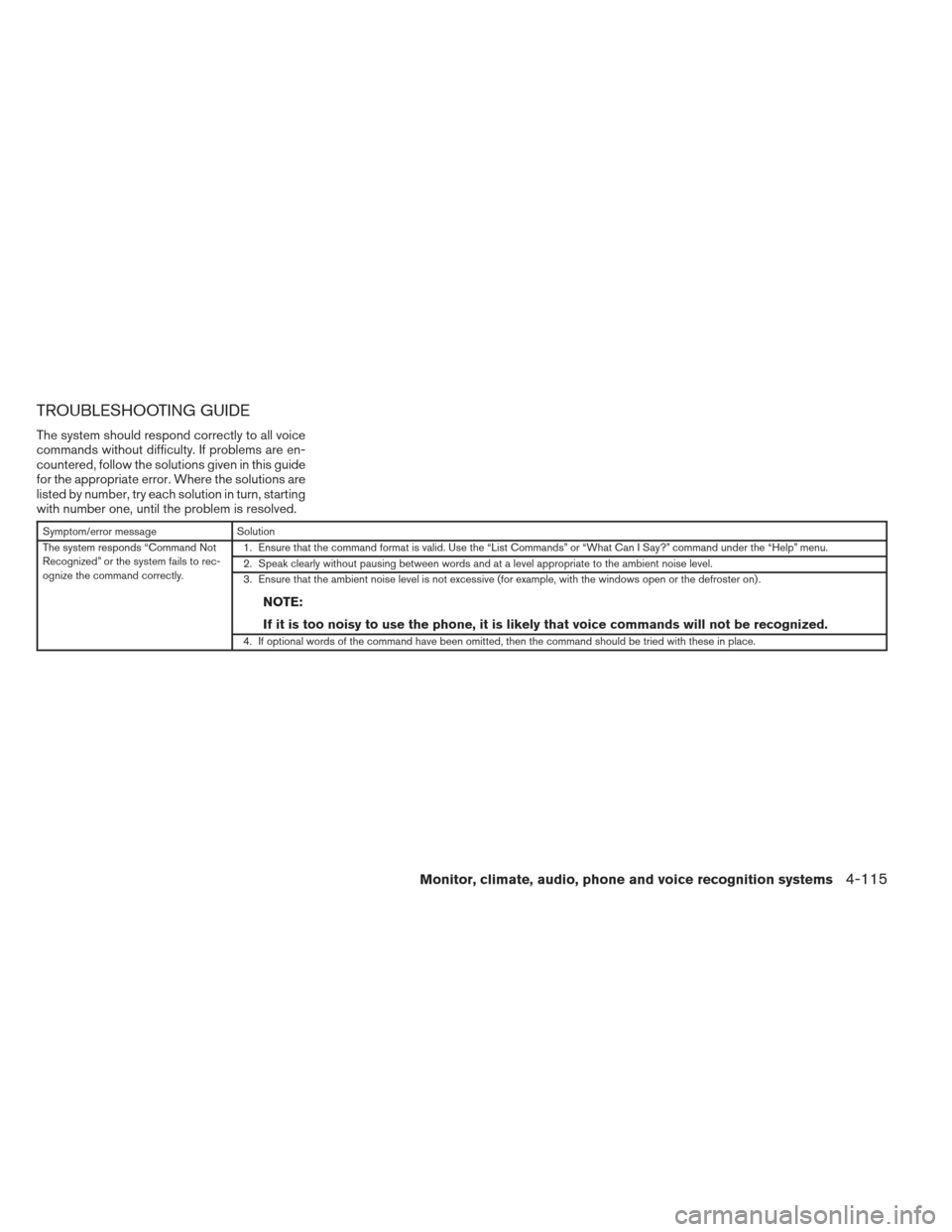
TROUBLESHOOTING GUIDE
The system should respond correctly to all voice
commands without difficulty. If problems are en-
countered, follow the solutions given in this guide
for the appropriate error. Where the solutions are
listed by number, try each solution in turn, starting
with number one, until the problem is resolved.
Symptom/error messageSolution
The system responds “Command Not
Recognized” or the system fails to rec-
ognize the command correctly. 1. Ensure that the command format is valid. Use the “List Commands” or “What Can I Say?” command under the “Help” menu.
2. Speak clearly without pausing between words and at a level appropriate to the ambient noise level.
3. Ensure that the ambient noise level is not excessive (for example, with the windows open or the defroster on) .
NOTE:
If it is too noisy to use the phone, it is likely that voice commands will not be recognized.
4. If optional words of the command have been omitted, then the command should be tried with these in place.
Monitor, climate, audio, phone and voice recognition systems4-115
Page 287 of 413
1. Apply the parking brake.
2. Move the shift selector to P (Park) or N(Neutral) . P (Park) is recommended.
The starter is designed not to operate if
the shift selector is in any of the driving
positions.
3. Push the ignition switch to the ON position. Depress the brake pedal and push the igni-
tion switch to start the engine.
To start the engine immediately, push and
release the ignition switch while depressing
the brake pedal with the ignition switch in
any position.
● If the engine is very hard to start in ex-
tremely cold weather or when restarting,
depress the accelerator pedal a little (ap-
proximately 1/3 to the floor) and while
holding, crank the engine. Release the
accelerator pedal when the engine starts.
● If the engine is very hard to start because
it is flooded, depress the accelerator
pedal all the way to the floor and hold it.
Push the ignition switch to the ON posi-
tion to start cranking the engine. After 5 or
6 seconds, stop cranking by pushing the
ignition switch to LOCK. After cranking
the engine, release the accelerator pedal.
Crank the engine with your foot off the accelerator pedal by depressing the
brake pedal and pushing the push-button
ignition switch to start the engine. If the
engine starts, but fails to run, repeat the
above procedure.
CAUTION
Do not operate the starter for more than
15 seconds at a time. If the engine does
not start, push the ignition switch to the
OFF position and wait 10 seconds before
cranking again, otherwise the starter
could be damaged.
4. Warm-up
Allow the engine to idle for at least 30 sec-
onds after starting. Do not race the engine
while warming it up. Drive at moderate
speed for a short distance first, especially in
cold weather. In cold weather, keep the en-
gine running for a minimum of2-3minutes
before shutting it off. Starting and stopping
the engine over a short period of time may
make the vehicle more difficult to start.
5. To stop the engine, shift the shift selector to the P (Park) position and push the ignition
switch to the OFF position. NOTE:
Care should be taken to avoid situations
that can lead to potential battery discharge
and potential no-start conditions such as:
1. Installation or extended use of electronic accessories that consume battery power
when the engine is not running (Phone char-
gers, GPS, DVD players, etc.)
2. Vehicle is not driven regularly and/or only driven short distances. In these cases, the
battery may need to be charged to maintain
battery health.
REMOTE START (if so equipped)
Vehicles started with the remote start require the
ignition switch to be placed in the ON position
before the shift selector can be moved from the P
(Park) position. To place the ignition switch to the
ON position, follow these steps:
1. Make sure that the Intelligent Key is on you.
2. Apply the brake.
3. Press the ignition switch once to the ON position.
For additional information, see “NISSAN Intelli-
gent Key®” in the “Pre-driving checks and ad-
justments” section of this manual.
STARTING THE ENGINE
5-12Starting and driving
Page 339 of 413
Seat beltsCheck that all parts of the seat belt
system (for example, buckles, anchors, adjusters
and retractors) operate properly and smoothly,
and are installed securely. Check the belt web-
bing for cuts, fraying, wear or damage.
Steering wheel Check for changes in the steer-
ing system, such as excessive freeplay, hard
steering or strange noises.
Warning lights and chimes Make sure all
warning lights and chimes are operating properly.
Windshield wiper and washer* Check that
the wipers and washer operate properly and that
the wipers do not streak.
Windshield defroster Check that the air
comes out of the defroster outlets properly and in
sufficient quantity when operating the heater or
air conditioner.
Under the hood and vehicle
The maintenance items listed here should be
checked periodically (for example, each time you
check the engine oil or refuel) .
Battery* Check the fluid level in each cell. It
should be between the MAX and MIN lines. Ve-
hicles operated in high temperatures or under
severe conditions require frequent checks of the
battery fluid level. NOTE:
Care should be taken to avoid situations that
can lead to potential battery discharge and
potential no-start conditions such as: 1. In-
stallation or extended use of electronic ac-
cessories that consume battery power when
the engine is not running (Phone chargers,
GPS, DVD players, etc.) 2. Vehicle is not
driven regularly and/or only driven short dis-
tances. In these cases, the battery may need
to be charged to maintain battery health.
Brake fluid levels*
Make sure that the brake
fluid level is between the MIN and MAX lines on
the reservoir.
Engine coolant level* Check the coolant level
when the engine is cold.
Engine drive belts* Make sure the drive belts
are not frayed, worn, cracked or oily.
Engine oil level* Check the level after parking
the vehicle on a level surface with the engine off.
Wait more than 10 minutes for the oil to drain
back into the oil pan.
Exhaust system Make sure there are no loose
supports, cracks or holes. If the sound of the
exhaust seems unusual or there is a smell of
exhaust fumes, immediately have the exhaust
system inspected by a NISSAN dealer. See “Ex-
haust gas (carbon monoxide)” in the “Starting
and driving” section of this manual. Fluid leaks
Check under the vehicle for fuel, oil,
water or other fluid leaks after the vehicle has
been parked for a while. Water dripping from the
air conditioner after use is normal. If you should
notice any leaks or if gasoline fumes are evident,
check for the cause and have it corrected imme-
diately.
Power steering fluid level* and lines Check
the level when the fluid is cold, with the engine
off. Check the lines for proper attachment, leaks,
cracks, etc.
Radiator and hoses Check the front of the
radiator and clean off any dirt, insects, leaves,
etc., that may have accumulated. Make sure the
hoses have no cracks, deformation, rot or loose
connections.
Underbody The underbody is frequently ex-
posed to corrosive substances such as those
used on icy roads or to control dust. It is very
important to remove these substances from the
underbody, otherwise rust may form on the floor
pan, frame, fuel lines and exhaust system. At the
end of winter, the underbody should be thor-
oughly flushed with plain water, in those areas
where mud and dirt may have accumulated. See
the “Appearance and care” section of this
manual.
Windshield-washer fluid* Check that there is
adequate fluid in the reservoir.
8-4Maintenance and do-it-yourself
Page 351 of 413
●Pre-mix washer fluid concentrates with
water to the manufacturer’s recom-
mended levels before pouring the fluid
into the windshield-washer fluid reser-
voir. Do not use the windshield-washer
fluid reservoir to mix the washer fluid
concentrate and water. ●
Keep the battery surface clean and dry.
Clean the battery with a solution of baking
soda and water.
● Make certain the terminal connections are
clean and securely tightened.
● If the vehicle is not to be used for 30 days or
longer, disconnect the negative (-) battery
terminal cable to prevent discharge.
NOTE:
Care should be taken to avoid situations
that can lead to potential battery discharge
and potential no-start conditions such as: 1. Installation or extended use of electronic accessories that consume battery power
when the engine is not running (Phone char-
gers, GPS, DVD players, etc.)
2. Vehicle is not driven regularly and/or only driven short distances. In these cases, the
battery may need to be charged to maintain
battery health.WARNING
●Do not expose the battery to flames, an
electrical spark or a cigarette. Hydro-
gen gas generated by the battery is ex-
plosive. Explosive gases can cause
blindness or injury. Do not allow battery
fluid to contact your skin, eyes, fabrics
or painted surfaces. Sulfuric acid can
cause blindness or injury. After touch-
ing a battery or battery cap, do not
touch or rub your eyes. Thoroughly
wash your hands. If the acid contacts
your eyes, skin or clothing, immediately
flush with water for at least 15 minutes
and seek medical attention.
● Do not operate the vehicle if the fluid in
the battery is low. Low battery fluid can
cause a higher load on the battery
which can generate heat, reduce bat-
tery life, and in some cases lead to an
explosion.
● When working on or near a battery, al-
ways wear suitable eye protection and
remove all jewelry.
● Battery posts, terminals and related ac-
cessories contain lead and lead com-
pounds. Wash hands after handling.
BATTERY
8-16Maintenance and do-it-yourself