AUTOMATIC START NISSAN ALTIMA 2015 L33 / 5.G 08IT Navigation Manual
[x] Cancel search | Manufacturer: NISSAN, Model Year: 2015, Model line: ALTIMA, Model: NISSAN ALTIMA 2015 L33 / 5.GPages: 241, PDF Size: 4.22 MB
Page 109 of 241
![NISSAN ALTIMA 2015 L33 / 5.G 08IT Navigation Manual .[Use Statistical Traffic Information]:
Uses statistical traffic information that is
stored in the map data.
. [Use Real Time Traffic Information]:
Uses the latest traffic information received
via the](/img/5/407/w960_407-108.png "NISSAN ALTIMA 2015 L33 / 5.G 08IT Navigation Manual .[Use Statistical Traffic Information]:
Uses statistical traffic information that is
stored in the map data.
. [Use Real Time Traffic Information]:
Uses the latest traffic information received
via the")
.[Use Statistical Traffic Information]:
Uses statistical traffic information that is
stored in the map data.
. [Use Real Time Traffic Information]:
Uses the latest traffic information received
via the SiriusXM broadcast.
. [Use Avoid Area Settings]:
Enables the avoid area setting.
. [Use Ferries]:
Includes the use of ferries.
. [Use Learned Routes]:
Uses the roads that are most frequently
traveled with the help of self-learning
technology.
. [Auto Reroute]:
If the vehicle deviates from the suggested
route, the system automatically recalculates
a route that leads the vehicle to the
suggested route.
INFO:
. The recalculated route may not be the
shortest route because the system priori-
tizes easy-to-drive roads for safety reasons.
. If route conditions are set from [Route
Settings], all sections in the route are subject to the same route conditions even
though different route conditions are set for
different sections in [Edit/Add to Route].
. If [Use Time Restricted Roads] is deacti-
vated, the system calculates a route without
any consideration of the regulations con-
cerning the time or day of the week. There-
fore, the suggested route may include a road
subject to traffic regulations concerning the
time or day of the week. When driving along
the route, always follow all traffic regulations
regardless of whether [Use Time Restricted
Roads] is ON or OFF.
. If the system cannot calculate any alternative
routes, it displays the previous route.
. If the vehicle overly deviates from the
suggested route, the system calculates a
new route.
. Statistical traffic information is based on
previous traffic data. When the traffic situa-
tion rapidly changes due to unexpected
accidents, construction work, traffic restric-
tions, emergencies, etc., the prediction
accuracy of the system may be reduced.
. Traffic jam information displayed on the map
screen is not statistical traffic information. .
When [Use Statistical Traffic Information] is
turned on, the system may lead to a road
where a traffic jam occurs or to a detour
even though the shortest route does not
have a traffic jam.
. Even when [Use Real Time Traffic Informa-
tion] is turned on, if traffic information has
not been provided for the area, sometimes it
is possible that a detour will not be indicated
in a location where a traffic jam occurs.
. The system may not lead to a detour if traffic
closure or a traffic jam occurs far from the
present location.
. The system calculates to reduce the time
required for the entire route from the start to
destination. If there are no appropriate
routes, the system may lead to a route
where a traffic jam occurs instead of leading
to a detour.
. This system can learn and memorize the
route that is most frequently used. However,
despite driving on the same route several
times so that the system can learn the route,
the system may have difficulty learning the
route under the following conditions:
— [Use Time Restricted Roads] is turned on.
Route guidance5-25
Page 152 of 241
7-16Viewing technical information
The message includes the weather icon and text
describing the event.
INFO:
. The pop-up messages and announcements
can be set to on or off.
“Weather information settings”
(page 7-16)
. If multiple warning/watch events are de-
tected, they will be displayed in order
starting with the one having the shortest
linear distance from the vehicle.
Weather information settings
The settings can be confirmed and changed for
the urgent weather information related functions.
1. Push
2. Highlight [Navigation] and push
3. Highlight [Weather Info Settings] and push
4. Highlight the preferred setting and push
illuminates.
Available setting items: . Display an Alert for Weather Warnings:
Displays a message screen automatically
when the system detects urgent warning
information.
. Display an Alert for Weather Watches:
Displays a message screen automatically
when the system detects urgent watch
information.
. Voice Announcements:
Provides urgent information announcements
for warnings and watches around the current location.
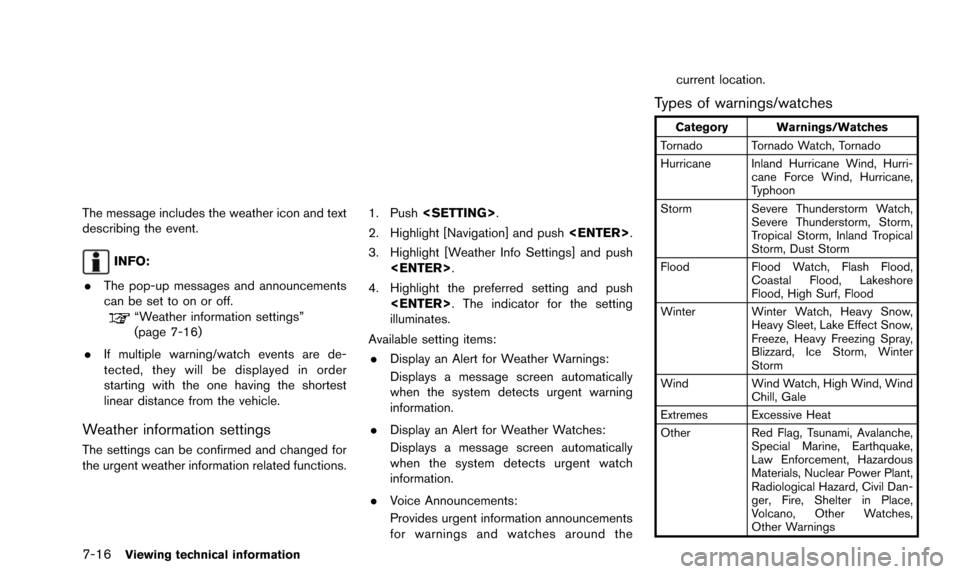
Types of warnings/watches
Category Warnings/Watches
Tornado Tornado Watch, Tornado
Hurricane Inland Hurricane Wind, Hurri- cane Force Wind, Hurricane,
Typhoon
Storm Severe Thunderstorm Watch, Severe Thunderstorm, Storm,
Tropical Storm, Inland Tropical
Storm, Dust Storm
Flood Flood Watch, Flash Flood,
Coastal Flood, Lakeshore
Flood, High Surf, Flood
Winter Winter Watch, Heavy Snow, Heavy Sleet, Lake Effect Snow,
Freeze, Heavy Freezing Spray,
Blizzard, Ice Storm, Winter
Storm
Wind Wind Watch, High Wind, Wind
Chill, Gale
Extremes Excessive Heat
Other Red Flag, Tsunami, Avalanche,
Special Marine, Earthquake,
Law Enforcement, Hazardous
Materials, Nuclear Power Plant,
Radiological Hazard, Civil Dan-
ger, Fire, Shelter in Place,
Volcano, Other Watches,
Other Warnings
Page 174 of 241
![NISSAN ALTIMA 2015 L33 / 5.G 08IT Navigation Manual 9-4Voice recognition
1. Highlight [Let’s Practice] and push<ENTER>.
2. Practice voice commands in accordance with the audio guidance.
Tutorials on operation of voice recogni-
tion system
When highli](/img/5/407/w960_407-173.png "NISSAN ALTIMA 2015 L33 / 5.G 08IT Navigation Manual 9-4Voice recognition
1. Highlight [Let’s Practice] and push<ENTER>.
2. Practice voice commands in accordance with the audio guidance.
Tutorials on operation of voice recogni-
tion system
When highli")
9-4Voice recognition
1. Highlight [Let’s Practice] and push
2. Practice voice commands in accordance with the audio guidance.
Tutorials on operation of voice recogni-
tion system
When highlighting [Using the Address Book],
[Finding a Street Address] or [Placing Calls] and
pushing
ials on how to perform these operations using
voice recognition.
Useful tips for correct operation
It is possible to display useful speaking informa-
tion that may help the system to accept a voice
command correctly.
1. Highlight [Help on Speaking] and push
2. To confirm the page, scroll the screen using the multi-function controller.
USING THE SYSTEM
Initialization
When the ignition switch is pushed to the ON
position, Voice Recognition is initialized, which
may take up to one minute. When completed,
the system is ready to accept voice commands.
If
completes, the display will show the message:
“System not ready”.
BEFORE STARTING
To get the best recognition performance from
Voice Recognition, observe the following items.
. The interior of the vehicle should be as quiet
as possible. Close the windows to eliminate
the surrounding noises (traffic noise and
vibration sounds, etc.) , which may prevent
the system from correctly recognizing the
voice commands.
. Wait until the tone sounds before speaking a
command.
. Speak in a natural conversational voice
without pausing between words.
. If the air conditioner is set to “Auto”, the fan
speed is automatically lowered so that voice
commands can be recognized more easily.
Page 188 of 241
![NISSAN ALTIMA 2015 L33 / 5.G 08IT Navigation Manual 9-18Voice recognition
1. Highlight [Let’s Practice] and push<ENTER>.
2. Practice voice commands in accordance with the audio guidance.
Tutorials on operation of voice recogni-
tion system
When highl](/img/5/407/w960_407-187.png "NISSAN ALTIMA 2015 L33 / 5.G 08IT Navigation Manual 9-18Voice recognition
1. Highlight [Let’s Practice] and push<ENTER>.
2. Practice voice commands in accordance with the audio guidance.
Tutorials on operation of voice recogni-
tion system
When highl")
9-18Voice recognition
1. Highlight [Let’s Practice] and push
2. Practice voice commands in accordance with the audio guidance.
Tutorials on operation of voice recogni-
tion system
When highlighting [Using the Address Book],
[Finding a Street Address] or [Placing Calls] and
pushing
ials on how to perform these operations using
voice recognition.
Example: With [Using the Address Book] high-
lighted
1. Highlight [Using the Address Book] and push
2. The voice guide demonstrates how to speak
when giving commands.
3. When the tutorial is completed, the system automatically switches to the Menu screen.
Useful tips for correct operation
It is possible to display useful speaking tips that
may help the system to accept a voice command
correctly.
1. Highlight [Help on Speaking] and push
2. To confirm the page, scroll the screen using the multi-functionI controller.
Voice recognition settings
The settings for easy operation of the voice
recognition system are displayed.
Page 189 of 241
![NISSAN ALTIMA 2015 L33 / 5.G 08IT Navigation Manual 1. Highlight [Voice Recognition Settings] andpush <ENTER>.
2. To confirm the page, scroll the screen using the multi-function controller.
Adapting System to Your Voice
The voice recognition system is](/img/5/407/w960_407-188.png "NISSAN ALTIMA 2015 L33 / 5.G 08IT Navigation Manual 1. Highlight [Voice Recognition Settings] andpush <ENTER>.
2. To confirm the page, scroll the screen using the multi-function controller.
Adapting System to Your Voice
The voice recognition system is")
1. Highlight [Voice Recognition Settings] andpush
2. To confirm the page, scroll the screen using the multi-function controller.
Adapting System to Your Voice
The voice recognition system is equipped with a
learning function to adapt to the user’s voice for
better recognition. It is possible to confirm how
to operate the learning function through this
tutorial.
1. Highlight [Adapting the System to YourVoice] and push
starts.
2. The voice guide demonstrates the steps that have to be performed.
3. When the tutorial is completed, the system automatically switches to the Menu screen.
USING THE SYSTEM
Initialization
When the ignition switch is pushed to the ON
position, Voice Recognition is initialized, which
may take up to one minute. When completed,
the system is ready to accept voice commands.
If
completes, the display will show the message:
“System not ready”.
BEFORE STARTING
To get the best recognition performance out of
Voice Recognition, observe the following:
. The interior of the vehicle should be as quiet
as possible. Close the windows to eliminate
the surrounding noises (traffic noise and vibration sounds, etc.) , which may prevent
the system from correctly recognizing the
voice commands.
. Wait until the tone sounds before speaking a
command.
. Speak in a natural conversational voice
without pausing between words.
. If the air conditioner is set to “Auto”, the fan
speed is automatically lowered so that voice
commands can be recognized more easily.
. The voice recognition system cannot be
operated when the soft top is not closed (for
Roadster models) .
GIVING VOICE COMMANDS
1. Push
wheel.
2. A list of commands appears on the screen, and the system announces, “Please say a
command”.
3. After the tone sounds and the icon on the screen changes from [
]to[], speak a
command.
Operating tips
. If the command is not recognized, the
system announces, “Please say again”.
Repeat the command in a clear voice.
Voice recognition9-19
Page 203 of 241
INFO:
. The vehicle icon may be misaligned when
starting the vehicle just after starting the
engine or the hybrid system.
. The vehicle icon may also be misaligned if
different sized tires or tire chains are
installed.
. The system has a function that automatically
corrects the vehicle icon position when it is
misaligned from the actual position.
. Vehicle position correction by GPS may not
function when the vehicle is stopped.
. If the vehicle icon position does not return to
normal even after driving for a while, correct
the vehicle icon position manually.
“Adjusting current vehicle location”
(page 8-9)
DETAILED MAP COVERAGE AREAS
(MCA) FOR NAVIGATION SYSTEM
This system is designed to help guiding to the
destination, and it also performs other functions
as outlined in this manual. However, the system
must be used safely and properly. Information
concerning road conditions, traffic signs and the
availability of services may not always be up-to-
date. The system is not a substitute for safe,
proper and legal driving. Map data covers select metropolitan areas in the United States and
Canada.
Map data includes two types of areas: “Detailed
coverage areas” providing all detailed road data
and other areas showing “Main roads only”.
NOTE:
Detailed map data is not available in many
areas and is generally limited to select
major metropolitan areas.
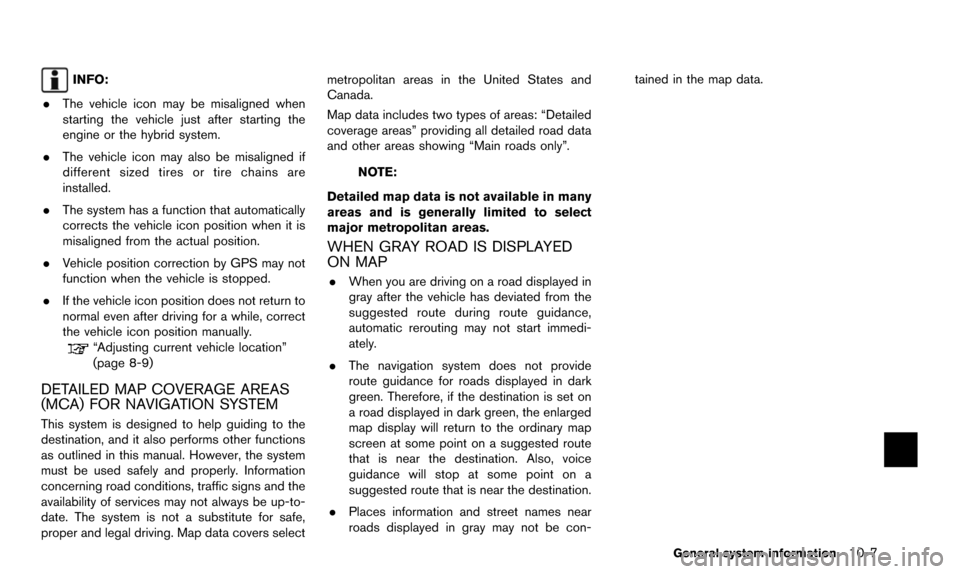
WHEN GRAY ROAD IS DISPLAYED
ON MAP
. When you are driving on a road displayed in
gray after the vehicle has deviated from the
suggested route during route guidance,
automatic rerouting may not start immedi-
ately.
. The navigation system does not provide
route guidance for roads displayed in dark
green. Therefore, if the destination is set on
a road displayed in dark green, the enlarged
map display will return to the ordinary map
screen at some point on a suggested route
that is near the destination. Also, voice
guidance will stop at some point on a
suggested route that is near the destination.
. Places information and street names near
roads displayed in gray may not be con- tained in the map data.
General system information10-7
Page 205 of 241
— If it is impossible to reach the destinationor waypoints because of traffic regula-
tions, etc.
— If the only route to reach the destination or waypoints is extremely complicated.
— If the destination, current vehicle position or waypoint is within the “Avoid Area”.
— If a part of the route is included in the “Avoid Area”.
. The following may occur when the route is
displayed.
— If you calculate a route on a main road, the starting point of the route may not
exactly match the current vehicle loca-
tion.
— The endpoint of the route may not exactly match the destination.
— If you calculate a route on a main road, the system may display a route from
another main road. This may be because
the position of the vehicle icon is not
accurate. In this case, park the vehicle in
a safe location and reset the vehicle icon,
or continue driving to see if the position
of the vehicle icon is automatically
adjusted before recalculating the route. — There are cases in which the system
shows an indirect route to reach the
destination or waypoints, if you set them
from stored or facility information. In
order to correct this, you must be careful
about the traffic direction, especially
when lanes with different travel directions
are shown separately, such as inter-
changes and service areas.
— This system makes no distinction be- tween limited traffic control and total
control (blockage) . It may show an
indirect route even if the road is usable.
— Even if the freeway preference is set to OFF, a route that uses the freeway may
be suggested.
— Even if the ferry preference is set to OFF, a route that uses a ferry line may be
suggested.
— Ferry lines, excluding those that are only for pedestrians, bicycles and motor-
cycles, are stored in this system. Take
into consideration the travel time required
and operational condition before decid-
ing whether to use them or not.INFO:
The system will only announce street names
when the system language is set to English.
Street names are not announced when the
system is set to Franc¸ ais (French) .
BASICS OF VOICE GUIDANCE
Voice guidance announces which direction to
turn when approaching an intersection in which
a turn is necessary.
NOTE:
. There may be some cases in which
voice guidance and actual road condi-
tions do not correspond. This may
occur because of discrepancies be-
tween the actual road and the informa-
tion on the map data, or it is due to the
vehicle’s speed.
. In case voice guidance does not corre-
spond to the actual road conditions,
follow the information obtained from
traffic signs or notices on the road.
. Route guidance provided by the navi-
gation system does not take carpool
lane driving into consideration, espe-
cially when carpool lanes are separated
from other road lanes.
General system information10-9
ROUTE GUIDANCE
Page 208 of 241
10-12General system information
INFO:
. If
deviating from the suggested route and
when the automatic reroute function is off,
voice guidance will announce, “Proceed to
the highlighted route.”
. If
going in the wrong direction, voice guidance
will announce: “Please make a legal U-turn if
possible.”
NOTES ON VOICE GUIDANCE
. Voice guidance in this system should be
regarded as a supplementary function.
When driving the vehicle, check the route
on the map and follow the actual roads and
traffic regulations.
. Voice guidance is activated only for inter-
sections with certain conditions. There may
be cases that the vehicle has to turn, but
voice guidance is not provided.
. Voice guidance contents may vary, depend-
ing on the direction of the turn and the type
of intersection.
. The voice guidance timing will vary depend-
ing on the situation. .
When the vehicle has deviated from the
suggested route, voice guidance is not
available. The system will not announce this.
Refer to the map and recalculate the route.
“Recalculating route” (page 5-21)
. Voice guidance may not accurately corre-
spond with road numbers and directions at
freeway junctions.
. Voice guidance may not accurately corre-
spond to street names at freeway exits.
. The displayed street names may sometimes
differ from the actual names, or “UN-
KNOWN STREET NAME” may be dis-
played.
. Voice guidance is not available when the
[Guidance Voice] is turned off.
“Turning voice guidance ON/OFF”
(page 2-22)
. Voice guidance will start when the vehicle
enters the suggested route. Refer to the
map for directions to the starting point of the
route.
. When approaching a waypoint, voice gui-
dance will announce, “You have arrived at
waypoint 1 (2, 3, 4,...) .” Voice guidance will
switch to the next section of the route. When
voice guidance is not available, refer to the
map for directions. .
In some cases, voice guidance ends before
arrival at the destination. Refer to the
destination icon on the map to reach the
destination.
. If the system recognizes on which side the
destination (waypoint) is located, voice
guidance will announce “on the right/left”
after announcing the arrival at the destina-
tion.
. Voice guidance may be partially operational
or inoperative due to the angle of roads at an
intersection.
. Because freeway lane information is avail-
able only for approximately 7,000 major
freeways in North America, it is not possible
to display information for all junctions and
exits.
. Freeway exit information may differ from the
information on the actual exit signs.
. Because it is not possible to consider data
concerning roads that are seasonally avail-
able or unavailable, a route may be displayed
that does not match the actual traffic
restrictions. Be sure to follow the actual
traffic restrictions while driving.
. Canada and Alaska contain many roads with
incomplete map data. As a result, when
searching for a route, the route may include
Page 235 of 241
Number
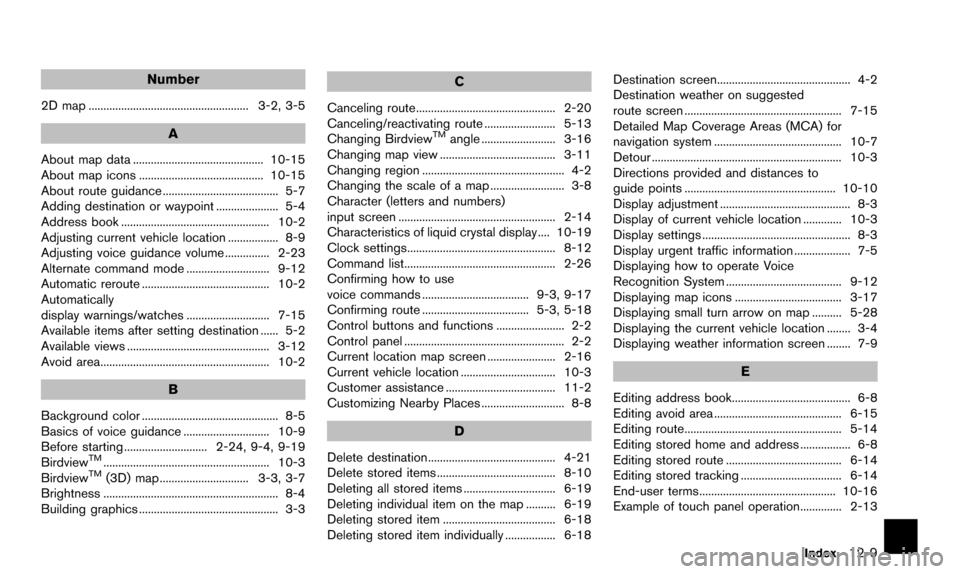
2D map ...................................................... 3-2, 3-5
A
About map data ............................................ 10-15
About map icons .......................................... 10-15
About route guidance ....................................... 5-7
Adding destination or waypoint ..................... 5-4
Address book .................................................. 10-2
Adjusting current vehicle location ................. 8-9
Adjusting voice guidance volume ............... 2-23
Alternate command mode ............................ 9-12
Automatic reroute ........................................... 10-2
Automatically
display warnings/watches ............................ 7-15
Available items after setting destination ...... 5-2
Available views ................................................ 3-12
Avoid area......................................................... 10-2
B
Background color .............................................. 8-5
Basics of voice guidance ............................. 10-9
Before starting ............................ 2-24, 9-4, 9-19
Birdview
TM........................................................ 10-3
BirdviewTM(3D) map .............................. 3-3, 3-7
Brightness ........................................................... 8-4
Building graphics ............................................... 3-3
C
Canceling route............................................... 2-20
Canceling/reactivating route ........................ 5-13
Changing Birdview
TMangle ......................... 3-16
Changing map view ....................................... 3-11
Changing region ................................................ 4-2
Changing the scale of a map ......................... 3-8
Character (letters and numbers)
input screen ..................................................... 2-14
Characteristics of liquid crystal display .... 10-19
Clock settings.................................................. 8-12
Command list................................................... 2-26
Confirming how to use
voice commands .................................... 9-3, 9-17
Confirming route .................................... 5-3, 5-18
Control buttons and functions ....................... 2-2
Control panel ...................................................... 2-2
Current location map screen ....................... 2-16
Current vehicle location ................................ 10-3
Customer assistance ..................................... 11-2
Customizing Nearby Places ............................ 8-8
D
Delete destination........................................... 4-21
Delete stored items ........................................ 8-10
Deleting all stored items ............................... 6-19
Deleting individual item on the map .......... 6-19
Deleting stored item ...................................... 6-18
Deleting stored item individually ................. 6-18 Destination screen............................................. 4-2
Destination weather on suggested
route screen ..................................................... 7-15
Detailed Map Coverage Areas (MCA) for
navigation system ........................................... 10-7
Detour ................................................................ 10-3
Directions provided and distances to
guide points ................................................... 10-10
Display adjustment ............................................ 8-3
Display of current vehicle location ............. 10-3
Display settings .................................................. 8-3
Display urgent traffic information ................... 7-5
Displaying how to operate Voice
Recognition System ....................................... 9-12
Displaying map icons .................................... 3-17
Displaying small turn arrow on map .......... 5-28
Displaying the current vehicle location ........ 3-4
Displaying weather information screen ........ 7-9
E
Editing address book........................................ 6-8
Editing avoid area ........................................... 6-15
Editing route..................................................... 5-14
Editing stored home and address ................. 6-8
Editing stored route ....................................... 6-14
Editing stored tracking .................................. 6-14
End-user terms.............................................. 10-16
Example of touch panel operation.............. 2-13
Index12-9