ignition NISSAN ALTIMA 2018 Owner´s Manual
[x] Cancel search | Manufacturer: NISSAN, Model Year: 2018, Model line: ALTIMA, Model: NISSAN ALTIMA 2018Pages: 467, PDF Size: 5.42 MB
Page 226 of 467
iPod MENU button
This button can only be used for iPod® op-
erations. For additional information, refer to
“iPod® player operation (models without
navigation system)” in this section.
DISP (display) button
The DISP (display) button turns the display
screen on or off.
FM/AM/SAT radio operation
FM·AM button
Press the FM·AM button to change the
band as follows:
AM→FM1 →FM2 →AM
If another audio source is playing when the
FM·AM button is pressed, the audio source
playing will automatically be turned off and
the last radio station played will begin play-
ing.
XM band select
Press the XM button to change the band as
follows:
XM1* →XM2* →XM3* →XM1 (satellite, if so
equipped) When the XM button is pressed while the
ignition switch is in the ACC or ON position,
the radio will come on at the station last
played.
The last station played will also come on
when the
(power) button is pressed
on.
*When the XM button is pressed, the satel-
lite radio reception will not be available un-
less an optional satellite receiver and an-
tenna are installed and a SiriusXM® Satellite
Radio service subscription is active. Satel-
lite radio is not available in Alaska, Hawaii
and Guam.
If a compact disc is playing when the XM
button is pressed, the compact disc will
automatically be turned off and the last
radio station played will come on.
TUNE/SCROLL knob (Tuning)
Turn the TUNE/SCROLL knob to the lef t or
right for manual tuning.
SEEK/CAT tuning
Press the
SEEK button orCAT
button to tune from low to high or high to
low frequencies and to stop at the next
broadcasting station. SCAN (tuning) button
Press the SCAN button to stop at each
broadcasting station for 5 seconds. SCAN
will illuminate in the display while scan tun-
ing. Pressing the SCAN button again during
this 5 second period will stop the scan tun-
ing and the radio will remain tuned to that
station. If the SCAN button is not pressed
within 5 seconds, scan tuning moves to the
next station.
1 to 6 Station memory operations
Six stations can be set for the AM band.
Twelve stations can be set for the FM band
(6 for FM1, 6 for FM2). Eighteen channels can
be set for the satellite radio (6 for XM1, 6 for
XM2, 6 for XM3).
1. Choose the radio band AM, FM1 or FM2 using the FM·AM select button, or
choose the satellite band XM1, XM2 or
XM3 using the XM button.
2. Tune to the desired station using manual, SEEK or SCAN tuning. Press
and hold any of the desired station
memory buttons (1 – 6) until the preset
number is updated on the display and
the sound is briefly muted.
4-40Monitor, climate, audio, phone and voice recognition systems
Page 229 of 467
CAUTION
∙ Do not force the USB device into theUSB connection port. Inserting the
USB device tilted or up-side-down
into the port may damage the port.
Make sure that the USB device is con-
nected correctly into the USB connec-
tion port.
∙ Do not grab the USB port cover (if so equipped) when pulling the USB de-
vice out of the port. This could dam-
age the port and the cover.
∙ Do not leave the USB cable in a place where it can be pulled unintentionally.
Pulling the cable may damage the
port.
For additional information, refer to your de-
vice manufacturer’s owner information re-
garding the proper use and care of the
device.
The USB port is located in the center con-
sole. Insert the USB device into the connec-
tion port.
When a compatible storage device is
plugged into the connection port, compat-
ible audio files on the storage device can be
played through the vehicle’s audio system.
Audio file operation
MEDIA button
Place the ignition switch in the ON or ACC
position and press the MEDIA button to
switch to the USB input mode. If a CD is
playing or another audio source is plugged
in through the AUX IN jack, the MEDIA but-
ton toggles between the three sources.
Play information
Information about the audio files being
played can be displayed on the display
screen of the vehicle’s audio system. De-
pending on how the audio files are en-
coded, information such as Folder, Song
and Artist will be displayed.
The track number and number of total
tracks in the folder are displayed on the
screen as well.
SEEK/CAT and TRACK (Reverse or Fast For-
ward) buttons
Press and hold the
orSEEK/CAT
and TRACK buttons for 1.5 seconds while an
audio file on the USB device is playing to
reverse or fast forward the track being
played. The track plays at an increased
speed while reversing or fast forwarding. When the button is released, the audio file
returns to normal play speed.
SEEK/CAT and TRACK
buttons
Press the SEEK/CAT and TRACK
buttons
while an audio file on the
USB device is playing to return to the begin-
ning of the current track. Press the
SEEK/CAT and TRACK buttons
sev-
eral times to skip backward several tracks.
Press the SEEK/CAT and TRACK
buttons
while an audio file on the
USB device is playing to advance one track.
Press the SEEK/CAT and TRACK
buttons
several times to skip forward
several tracks. If the last track in a folder on
the USB device is skipped, the first track of
the next folder is played.
RDM (random) button
When the RDM button is pressed while an
audio file on the USB device is playing, the
play pattern can be changed as follows:
All Random →1 Folder Random →OFF
All Random: all tracks on the USB device will
be played randomly.
1 Folder Random: all tracks in the current
folder will be played randomly.
Monitor, climate, audio, phone and voice recognition systems4-43
Page 231 of 467
CAUTION
∙ Do not force the USB device into theUSB port. Inserting the USB device
tilted or up-side-down into the port
may damage the port. Make sure that
the USB device is connected correctly
into the USB connection port.
∙ Do not grab the USB port cover (if so equipped) when pulling the USB de-
vice out of the port. This could dam-
age the port and the cover.
∙ Do not leave the USB cable in a place where it can be pulled unintentionally.
Pulling the cable may damage the
port.
For additional information, refer to your de-
vice manufacturer’s owner information re-
garding the proper use and care of the
device.
To connect an iPod® to the vehicle so that
the iPod® can be controlled with the audio
system controls and display screen, use
the USB connection port located in the
center console. Connect the iPod®-specific
end of the cable to the iPod® and the USB
end of the cable to the USB connection
port. on the vehicle. If your iPod® supports
charging via a USB connection, its battery will be charged while connected to the ve-
hicle with the ignition switch in the ACC or
ON position.
While connected to the vehicle, the iPod®
can only be operated by the vehicle audio
controls.
To disconnect the iPod® from the vehicle,
remove the USB end of the cable from the
USB connection port. on the vehicle, then
remove the cable from the iPod®.
* iPod® is a trademark of Apple Inc., regis-
tered in the U.S. and other countries.
Compatibility
The following models are compatible:
∙ iPod® Classic - 5th Generation (firmware version 1.3.0 or later)
∙ iPod® Classic - 6th Generation (firm- ware version 2.0.1 or later)
∙ iPod® Classic - 7th Generation (firmware version 2.0.4 or later)
∙ iPod® nano - 1st generation (firmware version 1.3.1 or later)
∙ iPod® nano - 2nd generation (firmware version 1.1.3 or later) ∙ iPod® nano - 3rd generation (firmware
version 1.1.3 or later)
∙ iPod® nano - 4th generation (firmware version 1.0.4 or later)
∙ iPod® nano - 5th generation (firmware version 1.0.2 or later)
∙ iPod® nano - 6th generation (firmware version 1.1 or later)
∙ iPod® Touch - 2nd generation (firmware version 4.2.1 or later)
∙ iPod® Touch - 3rd generation (firmware version 5.1 or later) (minimum iOS 5.0
required for smartphone integration)
∙ iPod® Touch - 4th generation (firmware version 5.1 or later) (minimum iOS 5.0
required for smartphone integration)
∙ iPhone® 3G (firmware version 4.2.1 or later)
∙ iPhone® 3GS (firmware version 5.1 or later) (minimum iOS 5.0 required for
smartphone integration)
∙ iPhone® 4 (firmware version 5.1 or later) (minimum iOS 5.0 required for smart-
phone integration)
Monitor, climate, audio, phone and voice recognition systems4-45
Page 232 of 467
∙ iPhone® 4S (firmware version 5.1 or later)(minimum iOS 5.0 required for smart-
phone integration)
∙ iPhone®5 (firmware version 5.1 or later) (minimum iOS 5.0 required for smart-
phone integration)
Make sure that your iPod® firmware is up-
dated to the version indicated above.
Audio main operation
Place the ignition switch in the ACC or ON
position. Press the MEDIA button repeat-
edly to switch to the iPod® mode.
If the system has been turned off while the
iPod® was playing, pressing the
ENTER/SETTING or MENU button will start
the iPod®.
iPod MENU button
Press the iPod MENU button while the
iPod® is connected to show the iPod® op-
eration menu on the audio display. Scroll
through the menu list using the
TUNE/FOLDER or TUNE/SCROLL control
dial. Press ENTER/SETTING button to select
a menu item. Items in the iPod® menu ap-
pear on the display in the following order: ∙ Now playing ∙ Playlists
∙ Artists
∙ Albums
∙ Songs
∙ Podcasts
∙ Genres
∙ Composers
∙ Audiobooks
∙ Shuffle songs
For additional information about each
item, refer to the iPod® Owner’s Manual.
SEEK/CAT and TRACK buttons
When the
SEEK orCAT/TRACK
button is pressed for less than 1.5 seconds
while the iPod® is playing, the next track or
the beginning of the current track on the
iPod® will be played.
When the
SEEK orCAT/TRACK
button is pressed for more than 1.5 sec-
onds while the iPod® is playing, the iPod®
will play while fast forwarding or rewinding.
When the button is released, the iPod® will
return to the normal play speed. REPEAT (RPT)
When the RPT button is pressed while a
track is being played, the play pattern can
be changed as follows:
Repeat Off
→1 Track Repeat →All Repeat →
Repeat Off
1 Track Repeat: the current track will be
repeated.
All Repeat: all songs in the current list are
repeated.
Repeat Off: no repeat play pattern is ap-
plied.
RANDOM (RDM)
When the RDM button is pressed while a
track is being played, the play pattern can
be changed as follows:
Shuffle Off →Track Shuffle →Album Shuffle
→ Shuffle Off
Track Shuffle: the tracks in the current list
will be played randomly.
Album Shuffle: the albums in the current list
will be played randomly.
Shuffle Off: no random play pattern is ap-
plied.
4-46Monitor, climate, audio, phone and voice recognition systems
Page 234 of 467
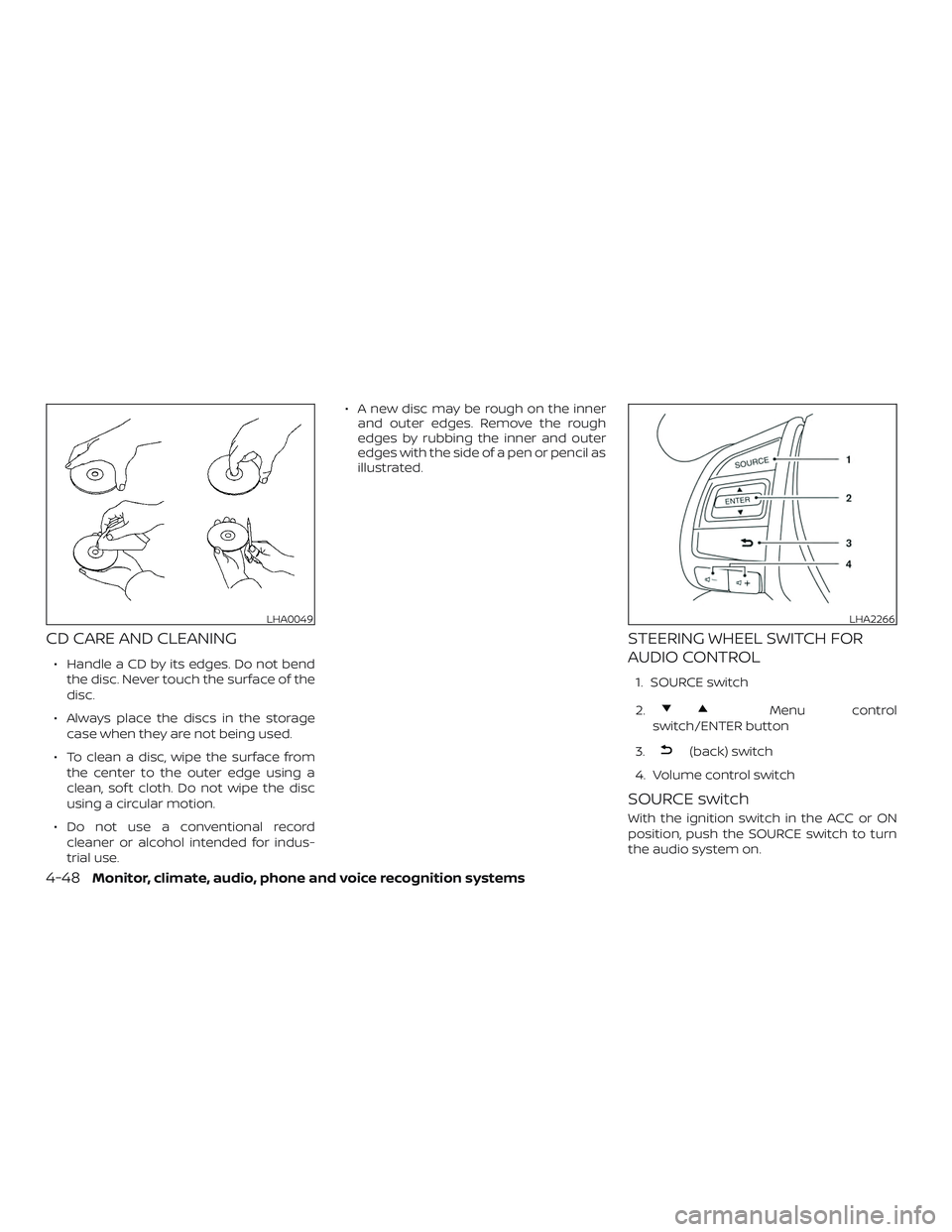
CD CARE AND CLEANING
∙ Handle a CD by its edges. Do not bendthe disc. Never touch the surface of the
disc.
∙ Always place the discs in the storage case when they are not being used.
∙ To clean a disc, wipe the surface from the center to the outer edge using a
clean, sof t cloth. Do not wipe the disc
using a circular motion.
∙ Do not use a conventional record cleaner or alcohol intended for indus-
trial use. ∙ A new disc may be rough on the inner
and outer edges. Remove the rough
edges by rubbing the inner and outer
edges with the side of a pen or pencil as
illustrated.
STEERING WHEEL SWITCH FOR
AUDIO CONTROL
1. SOURCE switch
2.
Menu control
switch/ENTER button
3.
(back) switch
4. Volume control switch
SOURCE switch
With the ignition switch in the ACC or ON
position, push the SOURCE switch to turn
the audio system on.
LHA0049LHA2266
4-48Monitor, climate, audio, phone and voice recognition systems
Page 241 of 467
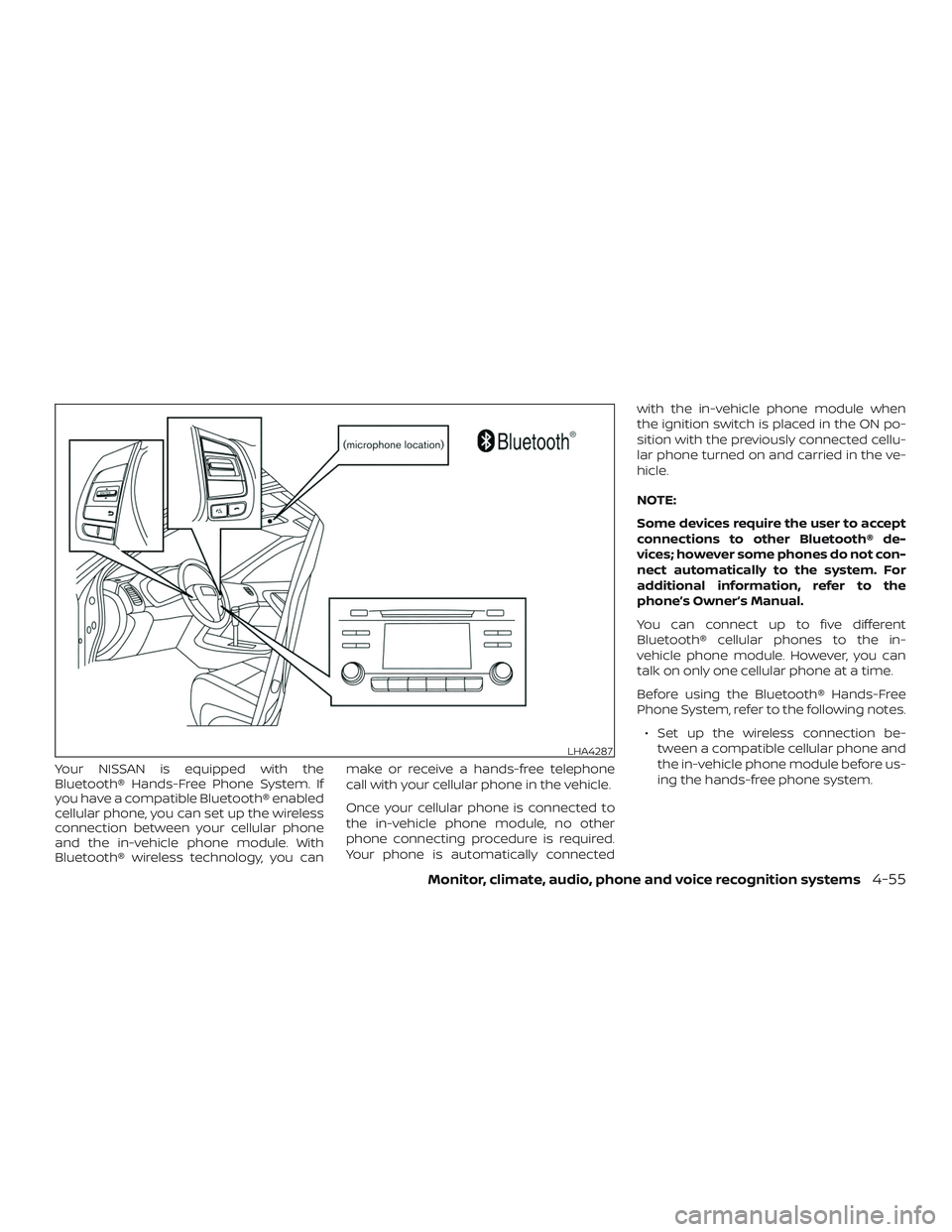
Your NISSAN is equipped with the
Bluetooth® Hands-Free Phone System. If
you have a compatible Bluetooth® enabled
cellular phone, you can set up the wireless
connection between your cellular phone
and the in-vehicle phone module. With
Bluetooth® wireless technology, you canmake or receive a hands-free telephone
call with your cellular phone in the vehicle.
Once your cellular phone is connected to
the in-vehicle phone module, no other
phone connecting procedure is required.
Your phone is automatically connectedwith the in-vehicle phone module when
the ignition switch is placed in the ON po-
sition with the previously connected cellu-
lar phone turned on and carried in the ve-
hicle.
NOTE:
Some devices require the user to accept
connections to other Bluetooth® de-
vices; however some phones do not con-
nect automatically to the system. For
additional information, refer to the
phone’s Owner’s Manual.
You can connect up to five different
Bluetooth® cellular phones to the in-
vehicle phone module. However, you can
talk on only one cellular phone at a time.
Before using the Bluetooth® Hands-Free
Phone System, refer to the following notes.
∙ Set up the wireless connection be- tween a compatible cellular phone and
the in-vehicle phone module before us-
ing the hands-free phone system.
LHA4287
Monitor, climate, audio, phone and voice recognition systems4-55
Page 243 of 467
USING THE SYSTEM
The system allows hands-free operation of
the Bluetooth® Hands-Free Phone System.
If the vehicle is in motion, some commands
may not be available so full attention may
be given to vehicle operation.
Initialization
When the ignition switch is placed in the ON
position, NISSAN Voice Recognition is initial-
ized, which takes a few seconds. If the
button is pressed before the initialization
completes, the system will announce
“Hands-free phone system not ready” and
will not react to voice commands.
Operating tips
To get the best performance out of the
NISSAN Voice Recognition system, observe
the following:∙ Keep the interior of the vehicle as quiet as possible. Close the windows to elimi-
nate surrounding noises (traffic noises,
vibration sounds, etc.), which may pre-
vent the system from recognizing voice
commands correctly.
∙ Wait until the tone sounds before speaking a command. Otherwise, the
command will not be received properly. ∙ Start speaking a command within
5 seconds af ter the tone sounds.
∙ Speak in a natural voice without paus- ing between words.
Giving voice commands
To operate NISSAN Voice Recognition,
press and release the
button located
on the steering wheel. Af ter the tone
sounds, speak a command.
The command given is picked up by the
microphone, and voice feedback is given
when the command is accepted.
∙ If you need to hear the available com- mands for the current menu again, say
“Help” and the system will repeat them.
∙ If a command is not recognized, the system announces, “Command not
recognized. Please try again.” Make sure
the command is said exactly as
prompted by the system and repeat
the command in a clear voice.
∙ If you want to go back to the previous command, you can say “Go back” or
“Correction” any time the system is
waiting for a response. ∙ You can cancel a command when the
system is waiting for a response by say-
ing, “Cancel” or “Quit.” The system an-
nounces “Cancel” and ends the Voice
Recognition session. You can also press
and hold the
button on the steer-
ing wheel for 5 seconds at any time to
end the Voice Recognition session.
Whenever the Voice Recognition ses-
sion is canceled, a double beep is
played to indicate you have exited the
system.
∙ If you want to adjust the volume of the voice feedback, push the volume con-
trol switches (+ or -) on the steering
wheel while being provided with feed-
back. You can also use the radio Volume
control knob.
Voice Prompt Interrupt
In most cases you can interrupt the voice
feedback to speak the next command by
pressing the
button on the steering
wheel. Af ter interrupting the system, wait
for a beep before speaking your command.
Monitor, climate, audio, phone and voice recognition systems4-57
Page 254 of 467
5 Starting and driving
Precautions when starting and driving..........5-2
Exhaust gas (carbon monoxide) ..............5-2
Three-way catalyst ...........................5-2
Tire Pressure Monitoring System
(TPMS)........................................5-3
Avoiding collision and rollover ................5-7
Off-roadrecovery ............................5-7
Rapid air pressure loss .......................5-7
Drinking alcohol/drugs and driving ...........5-8
Push-Button Ignition Switch .....................5-9
Operating range ............................. 5-10
Push-button ignition switch positions .......5-10
Emergency engine shut off ...................5-11
NISSAN Intelligent Key® battery
discharge .................................... 5-11
NISSAN Vehicle Immobilizer System .........5-12
Before starting the engine ......................5-12
Starting the engine ............................. 5-13
Remote Engine Start (if so equipped) ........5-14
Driving the vehicle .............................. 5-14
Continuously Variable Transmission
(CVT) ........................................ 5-14
Parking brake .................................. 5-21
Blind Spot Warning (BSW) (if so equipped) .......5-22 BSW system operation
......................5-23
How to enable/disable the BSW system .....5-25
BSW system limitations ......................5-25
BSW driving situations .......................5-26
System temporarily unavailable .............5-30
System maintenance ........................ 5-31
Rear Cross Traffic Alert (RCTA) (if so equipped) . . 5-32 RCTA system operation ......................5-33
How to enable/disable the RCTA
system ...................................... 5-35
RCTA system limitations .....................5-36
System temporarily unavailable .............5-39
System maintenance ........................ 5-40
Cruise control (if so equipped) ..................5-41
Precautions on cruise control ................5-41
Cruise control operations ....................5-42
Intelligent Cruise Control (ICC) (if so equipped) . . 5-43 ICC system operation .......................5-44
The
ICC switch .............................. 5-46
ICC system limitations .......................5-52
System temporarily unavailable .............5-55
System maintenance ........................ 5-57
Automatic Emergency Braking (AEB) ...........5-58
Page 257 of 467
∙ Do not stop or park the vehicle overflammable materials such as dry
grass, waste paper or rags. They may
ignite and cause a fire.
CAUTION
∙ Do not use leaded gasoline. Depositsfrom leaded gasoline will seriously re-
duce the three-way catalyst’s ability
to help reduce exhaust pollutants.
∙ Keep your engine tuned up. Malfunc- tions in the ignition, fuel injection, or
electrical systems can cause overrich
fuel flow into the three-way catalyst,
causing it to overheat. Do not keep
driving if the engine misfires, or if no-
ticeable loss of performance or other
unusual operating conditions are de-
tected. Have the vehicle inspected
promptly. It is recommended that you
visit a NISSAN dealer for this service.
∙ Avoid driving with an extremely low fuel level. Running out of fuel could
cause the engine to misfire, damag-
ing the three-way catalyst.
∙ Do not race the engine while warming it up. ∙ Do not push or tow your vehicle to
start the engine.
TIRE PRESSURE MONITORING
SYSTEM (TPMS)
Each tire, including the spare (if provided),
should be checked monthly when cold and
inflated to the inflation pressure recom-
mended by the vehicle manufacturer on
the vehicle placard or tire inflation pressure
label. (If your vehicle has tires of a different
size than the size indicated on the vehicle
placard or tire inflation pressure label, you
should determine the proper tire inflation
pressure for those tires.)
As an added safety feature, your vehicle
has been equipped with a Tire Pressure
Monitoring System (TPMS) that illuminates
a low tire pressure telltale when one or
more of your tires is significantly under-
inflated. Accordingly, when the low tire
pressure telltale illuminates, you should
stop and check all your tires as soon as
possible, and inflate them to the proper
pressure. Driving on a significantly under-
inflated tire causes the tire to overheat and
can lead to tire failure. Under-inflation also
reduces fuel efficiency and tire tread life,
and may affect the vehicle’s handling and
stopping ability. Please note that the TPMS is not a substi-
tute for proper tire maintenance, and it is
the driver’s responsibility to maintain cor-
rect tire pressure, even if under-inflation
has not reached the level to trigger illumi-
nation of the TPMS low tire pressure telltale.
Your vehicle has also been equipped with a
TPMS malfunction indicator to indicate
when the system is not operating properly.
The TPMS malfunction indicator is com-
bined with the low tire pressure telltale.
When the system detects a malfunction,
the telltale will flash for approximately one
minute and then remain continuously illu-
minated. This sequence will continue upon
subsequent vehicle start-ups as long as
the malfunction exists. When the malfunc-
tion indicator is illuminated, the system
may not be able to detect or signal low tire
pressure as intended. TPMS malfunctions
may occur for a variety of reasons, includ-
ing the installation of replacement or alter-
nate tires or wheels on the vehicle that
prevent the TPMS from functioning prop-
erly. Always check the TPMS malfunction
telltale af ter replacing one or more tires or
wheels on your vehicle to ensure that the
replacement or alternate tires and wheels
allow the TPMS to continue to function
properly.
Starting and driving5-3
Page 258 of 467
Additional information:∙ When replacing a wheel without the TPMS such as the spare tire, the TPMS
does not monitor the tire pressure of
the spare tire.
∙ The TPMS will activate only when the vehicle is driven at speeds above
16 mph (25 km/h). Also, this system may
not detect a sudden drop in tire pres-
sure (for example, a flat tire while driv-
ing).
∙ The low tire pressure warning light does not automatically turn off when the tire
pressure is adjusted on all four tires. Af-
ter all four tires are inflated to the rec-
ommended pressure, the vehicle must
be driven at speeds above 16 mph
(25 km/h) to activate the TPMS and turn
off the low tire pressure warning light.
Use a tire pressure gauge to check the
tire pressure.
∙ The “Tire Pressure Low - Add Air” warn- ing appears in the vehicle information
display when the low tire pressure
warning light is illuminated and low tire
pressure is detected. The “Tire Pressure
Low - Add Air” warning turns off when
the low tire pressure warning light turns
off. ∙ The “Tire Pressure Low - Add Air” warn-
ing appears each time the ignition
switch is placed in the ON position as
long as the low tire pressure warning
light remains illuminated.
∙ The “Tire Pressure Low - Add Air” warn- ing does not appear if the low tire pres-
sure warning light illuminates to indi-
cate a TPMS malfunction.
∙ Tire pressure rises and falls depending on the heat caused by the vehicle’s op-
eration and the outside temperature.
Do not reduce the tire pressure af ter
driving because the tire pressure rises
af ter driving. Low outside temperature
can lower the temperature of the air
inside the tire which can cause a lower
tire inflation pressure. This may cause
the low tire pressure warning light to
illuminate. If the warning light illumi-
nates, check the tire pressure for all four
tires.
∙ The Tire and Loading Information label is located in the driver’s door opening. ∙ You can also check the tire pressure of
all tires (except the spare) on the vehicle
information display screen. The order of
the tire pressure figures displayed on
the screen corresponds with the actual
order of the tire position.
For additional information, refer to “Low tire
pressure warning light” in the “Instruments
and controls” section, “Tire Pressure Moni-
toring System (TPMS)” in the “In case of
emergency” section and “Tire pressure” in
the “Do-it-yourself ” section of this manual.
WARNING
∙ Radio waves could adversely affect electric medical equipment. Those
who use a pacemaker should contact
the electric medical equipment
manufacturer for the possible influ-
ences before use.
5-4Starting and driving