warning NISSAN ALTIMA 2023 Owners Manual
[x] Cancel search | Manufacturer: NISSAN, Model Year: 2023, Model line: ALTIMA, Model: NISSAN ALTIMA 2023Pages: 644, PDF Size: 4.12 MB
Page 250 of 644
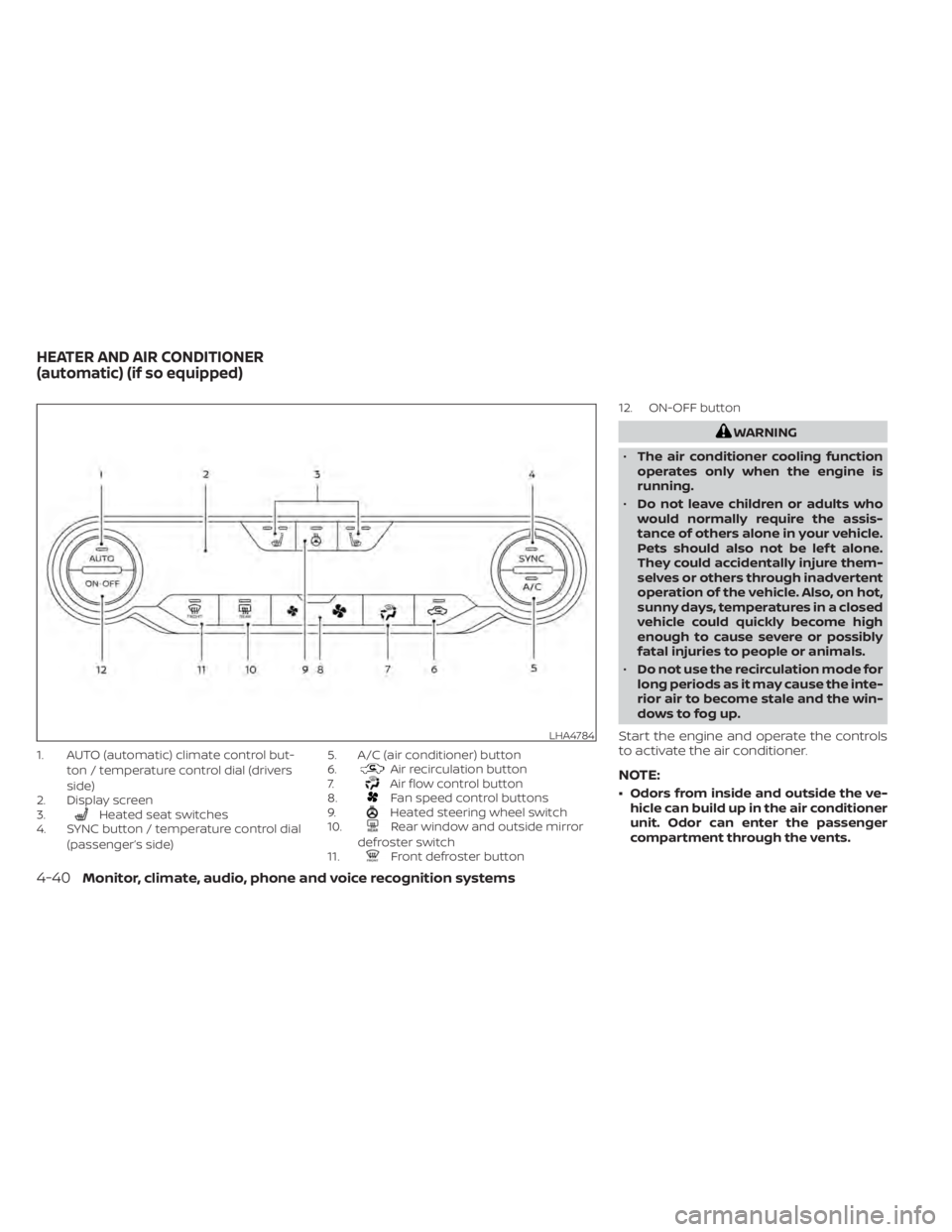
1. AUTO (automatic) climate control but-ton / temperature control dial (drivers
side)
2. Display screen
3.
Heated seat switches
4. SYNC button / temperature control dial
(passenger’s side) 5. A/C (air conditioner) button
6.
Air recirculation button
7.Air flow control button
8.Fan speed control buttons
9.Heated steering wheel switch
10.Rear window and outside mirror
defroster switch
11.
Front defroster button 12. ON-OFF button
WARNING
• The air conditioner cooling function
operates only when the engine is
running.
• Do not leave children or adults who
would normally require the assis-
tance of others alone in your vehicle.
Pets should also not be lef t alone.
They could accidentally injure them-
selves or others through inadvertent
operation of the vehicle. Also, on hot,
sunny days, temperatures in a closed
vehicle could quickly become high
enough to cause severe or possibly
fatal injuries to people or animals.
• Do not use the recirculation mode for
long periods as it may cause the inte-
rior air to become stale and the win-
dows to fog up.
Start the engine and operate the controls
to activate the air conditioner.
NOTE:
• Odors from inside and outside the ve- hicle can build up in the air conditioner
unit. Odor can enter the passenger
compartment through the vents.
LHA4784
HEATER AND AIR CONDITIONER
(automatic) (if so equipped)
4-40Monitor, climate, audio, phone and voice recognition systems
Page 254 of 644
• When the climate system is in automaticoperation and the engine coolant tem-
perature and outside air temperature are
low, the air flow outlet may default to de-
froster mode for a maximum of 2 min-
utes 30 seconds. This is not a malfunc-
tion. Af ter the engine coolant
temperature warms up, the air flow outlet
will return to foot mode and operation will
continue normally.
• When the outside and interior cabin tem- peratures are moderate to high, the in-
take setting may default to turn off air
recirculation to allow fresh air into the
passenger compartment. You may no-
tice air flow from the foot mode, bi-level
mode, or side demist vent outlets for a
maximum of 15 seconds. This may occur
when the previous climate setting was
turned off. This is not a malfunction. Af ter
the initial warm air is expelled, the intake
will return to automatic control, the air
flow outlet will return to previous settings,
and operation will continue normally. To
exit, press any climate control button.
• Keep the moonroof (if so equipped) closed while the air conditioner is in
operation. • If you feel that the air flow mode you have
selected and the outlets the air is coming
out do not match, select the
mode.
• When you change the air flow mode, you may feel air flow from the foot outlets for
just a moment. This is not a malfunction. The air conditioner system in your NISSAN
vehicle is charged with a refrigerant de-
signed with the environment in mind.
This refrigerant does not harm the
earth's ozone layer.
Special charging equipment and lubricant
is required when servicing your NISSAN air
conditioner. Using improper refrigerants or
lubricants will cause severe damage to
your air conditioner system. For additional
information, see “Air conditioner system re-
frigerant and oil recommendations”
(P. 10-8).
It is recommended that you visit a NISSAN
dealer to service your “environmentally
friendly ” air conditioner system.
WARNING
The air conditioner system contains re-
frigerant under high pressure. To avoid
personal injury, any air conditioner ser-
vice should be done only by an experi-
enced technician with proper
equipment.
SERVICING AIR CONDITIONER
4-44Monitor, climate, audio, phone and voice recognition systems
Page 256 of 644
for several seconds during ionospheric tur-
bulence even in areas where no obstacles
exist.
Static: Caused by thunderstorms, electrical
power lines, electric signs and even traffic
lights.
AUDIO OPERATION PRECAUTIONS
MP3 or WMA terms
•MP3 — MP3 is short for Moving Pictures
Experts Group Audio Layer 3. MP3 is the
most well-known compressed digital au-
dio file format. This format allows for near
“CD quality” sound, but at a fraction of the
size of normal audio files. MP3 conversion
of an audio track from CD-ROM can reduce
the file size by approximately a 10:1 ratio
with virtually no perceptible loss in quality.
MP3 compression removes the redundant
and irrelevant parts of a sound signal that
the human ear doesn’t hear.
• WMA — Windows Media Audio (WMA)* is a compressed audio format created by Mi-
crosof t as an alternative to MP3. The WMA
codec offers greater file compression
than the MP3 codec, enabling storage of
more digital audio tracks in the same
amount of space when compared to
MP3s at the same level of quality. • Bit rate — Bit rate denotes the number of
bits per second used by a digital music
file. The size and quality of a compressed
digital audio file is determined by the bit
rate used when encoding the file.
• Sampling frequency — Sampling fre- quency is the rate at which the samples
of a signal are converted from analog to
digital (A/D conversion) per second.
• Multisession — Multisession is one of the methods for writing data to media. Writ-
ing data once to the media is called a
single session, and writing more than
once is called a multisession.
• ID3/WMA Tag — The ID3/WMA tag is the part of the encoded MP3 or WMA file that
contains information about the digital
music file such as song title, artist, encod-
ing bit rate, track time duration, etc. ID3
tag information is displayed on the Artist/
song title line on the display.
* Windows® and Windows Media® are reg-
istered trademarks and trademarks in the
United States of America and other coun-
tries of Microsof t Corporation of the USA.
USB (Universal Serial Bus)
Connection Port
WARNING
• Do not connect, disconnect or oper-
ate the USB device while driving. Do-
ing so can be a distraction. If dis-
tracted you could lose control of your
vehicle and cause an accident or se-
rious injury.
CAUTION
• Do not force the USB device into the
USB port. Inserting the USB device
tilted or up-side-down into the port
may damage the port. Make sure
that the USB device is connected cor-
rectly into the USB port.
• Do not grab the USB port cover (if so
equipped) when pulling the USB de-
vice out of the port. This could dam-
age the port and the cover.
• Do not leave the USB cable in a place
where it can be pulled unintention-
ally. Pulling the cable may damage
the port.
4-46Monitor, climate, audio, phone and voice recognition systems
Page 264 of 644
USB (Universal Serial Bus)
CONNECTION PORT
Connecting a device to the USB
Connection Port
WARNING
Do not connect, disconnect, or operate
the USB device while driving. Doing so
can be a distraction. If distracted you
could lose control of your vehicle and
cause an accident or serious injury.
CAUTION
• To avoid damage and loss of function
when using a USB device, note the
following precautions.
• Do not force the USB device into the
USB port. Inserting the USB device
tilted or up-side-down into the port
may damage the port. Make sure
that the USB device is connected cor-
rectly into the USB port.
• Do not grab the USB port cover (if so
equipped) when pulling the USB de-
vice out of the port. This could dam-
age the port and the cover.
• Do not leave the USB cable in a place
where it can be pulled unintention-
ally. Pulling the cable may damage
the port.
For additional information, refer to your de-
vice manufacturer's owner information re-
garding the proper use and care of the
device.
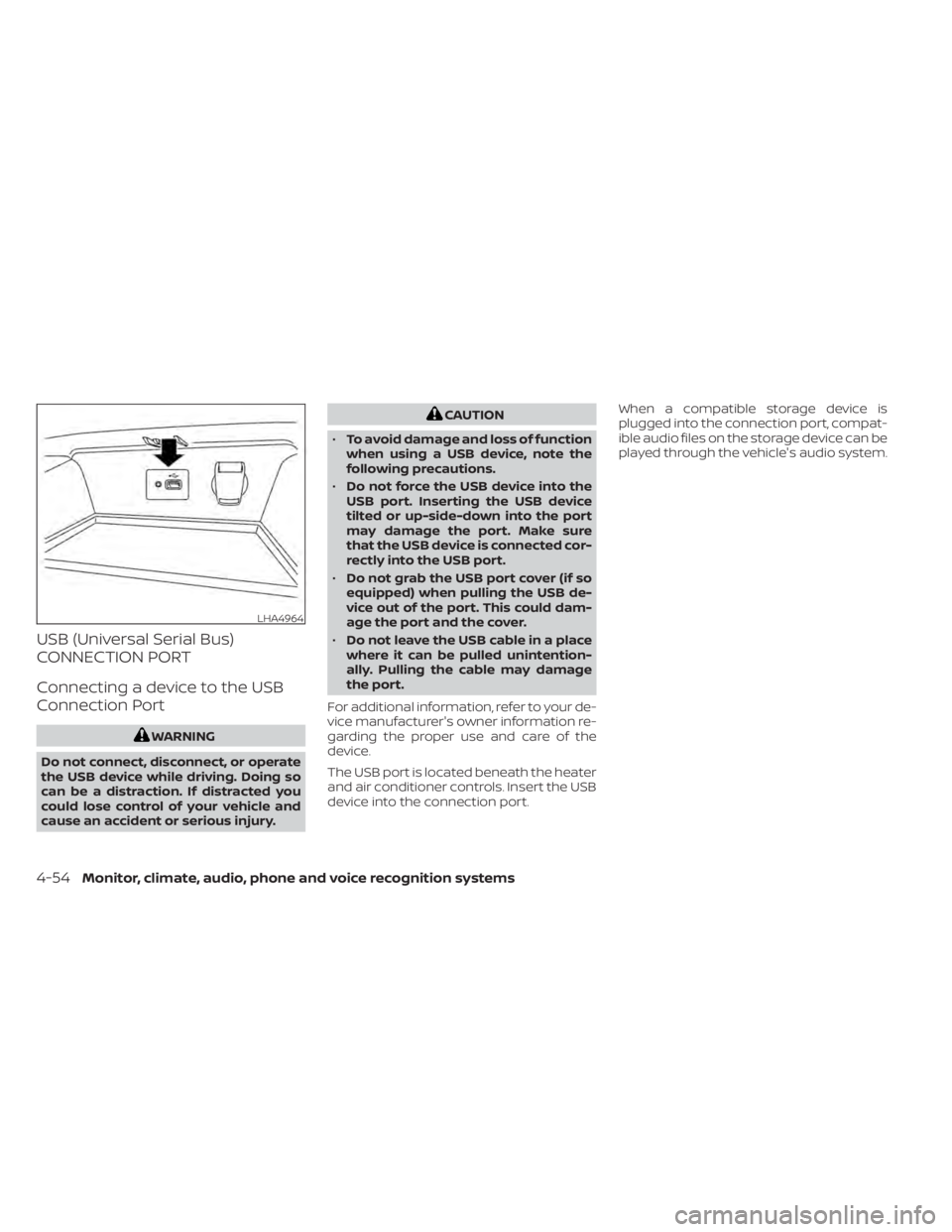
The USB port is located beneath the heater
and air conditioner controls. Insert the USB
device into the connection port. When a compatible storage device is
plugged into the connection port, compat-
ible audio files on the storage device can be
played through the vehicle's audio system.
LHA4964
4-54Monitor, climate, audio, phone and voice recognition systems
Page 267 of 644
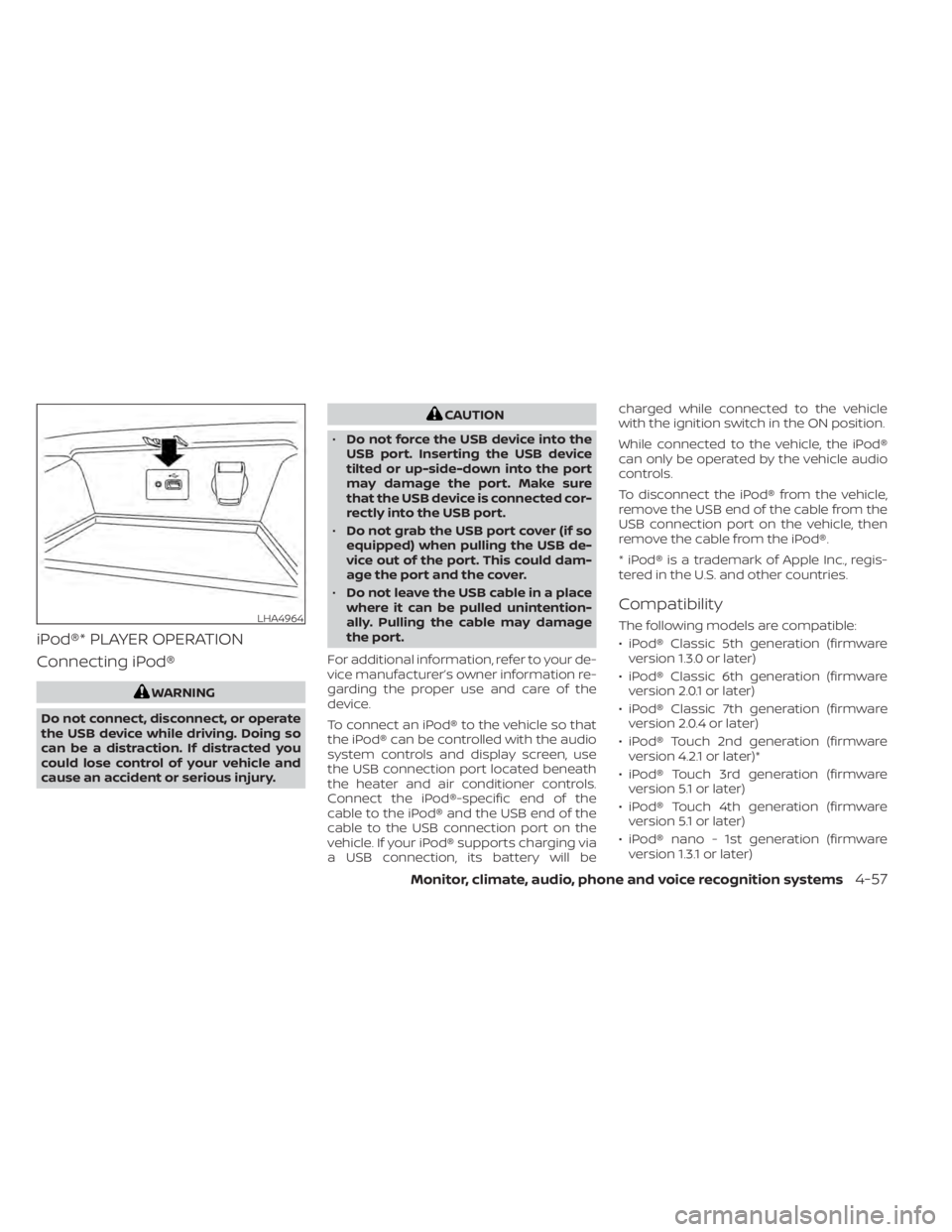
iPod®* PLAYER OPERATION
Connecting iPod®
WARNING
Do not connect, disconnect, or operate
the USB device while driving. Doing so
can be a distraction. If distracted you
could lose control of your vehicle and
cause an accident or serious injury.
CAUTION
• Do not force the USB device into the
USB port. Inserting the USB device
tilted or up-side-down into the port
may damage the port. Make sure
that the USB device is connected cor-
rectly into the USB port.
• Do not grab the USB port cover (if so
equipped) when pulling the USB de-
vice out of the port. This could dam-
age the port and the cover.
• Do not leave the USB cable in a place
where it can be pulled unintention-
ally. Pulling the cable may damage
the port.
For additional information, refer to your de-
vice manufacturer’s owner information re-
garding the proper use and care of the
device.
To connect an iPod® to the vehicle so that
the iPod® can be controlled with the audio
system controls and display screen, use
the USB connection port located beneath
the heater and air conditioner controls.
Connect the iPod®-specific end of the
cable to the iPod® and the USB end of the
cable to the USB connection port on the
vehicle. If your iPod® supports charging via
a USB connection, its battery will be charged while connected to the vehicle
with the ignition switch in the ON position.
While connected to the vehicle, the iPod®
can only be operated by the vehicle audio
controls.
To disconnect the iPod® from the vehicle,
remove the USB end of the cable from the
USB connection port on the vehicle, then
remove the cable from the iPod®.
* iPod® is a trademark of Apple Inc., regis-
tered in the U.S. and other countries.
Compatibility
The following models are compatible:
• iPod® Classic 5th generation (firmware
version 1.3.0 or later)
• iPod® Classic 6th generation (firmware version 2.0.1 or later)
• iPod® Classic 7th generation (firmware version 2.0.4 or later)
• iPod® Touch 2nd generation (firmware version 4.2.1 or later)*
• iPod® Touch 3rd generation (firmware version 5.1 or later)
• iPod® Touch 4th generation (firmware version 5.1 or later)
• iPod® nano - 1st generation (firmware version 1.3.1 or later)LHA4964
Monitor, climate, audio, phone and voice recognition systems4-57
Page 277 of 644
When installing a CB, ham radio or car
phone in your vehicle, be sure to observe
the following precautions; otherwise, the
new equipment may adversely affect the
engine control system and other electronic
parts.
WARNING
• A cellular phone should not be used
for any purpose while driving so full
attention may be given to vehicle op-
eration. Some jurisdictions prohibit
the use of cellular phones while
driving.
• If you must make a call while your
vehicle is in motion, the hands free
cellular phone operational mode is
highly recommended. Exercise ex-
treme caution at all times so full at-
tention may be given to vehicle
operation.
• If you are unable to devote full atten-
tion to vehicle operation while talk-
ing on the phone, pull off the road to
a safe location and stop your vehicle.
CAUTION
• Keep the antenna as far away as pos-
sible from the electronic control
modules.
• Keep the antenna wire more than 8 in
(20 cm) away from the electronic
control system harnesses. Do not
route the antenna wire next to any
harness.
• Adjust the antenna standing-wave
ratio as recommended by the
manufacturer.
• Connect the ground wire from the CB
radio chassis to the body.
• For additional information, it is rec-
ommended that you visit a NISSAN
dealer for servicing.WARNING
• Use a phone af ter stopping your ve-
hicle in a safe location. If you have to
use a phone while driving, exercise
extreme caution at all times so full
attention may be given to vehicle
operation.
• If you are unable to devote full atten-
tion to vehicle operation while talk-
ing on the phone, pull off the road to
a safe location and stop your vehicle.
CAUTION
To avoid discharging the vehicle bat-
tery, use a phone af ter starting the
engine.
CAR PHONE OR CB RADIO BLUETOOTH® HANDS-FREE PHONE
SYSTEM
Monitor, climate, audio, phone and voice recognition systems4-67
Page 287 of 644
DURING A CALL
While a call is active the following options
will appear on the control panel display:
• MuteTouch this key to mute or unmute the
system.
• Dial Number Touch this key to dial digits during the
phone call.
• Switch to Handset Touch the “Use Handset” key on the
screen to transfer the call to the handset
(cellular phone). To transfer the call back
from the handset to the Bluetooth®
Hands-Free Phone System, press the
button on the control panel then
select the “Transfer Hands-free” key on
the screen.
NOTE:
Some jurisdictions prohibit the use of
cellular telephones while driving.
• Switch Call
This option will only be available when a
second call is active. If supported by the phone, the
Bluetooth® Hands-Free Phone System
allows for call waiting functionality. If a
call is received while another call is al-
ready active, a message will be displayed
on the screen. Press the
button on
the steering wheel or touch the “
Answer” key on screen to accept the in-
coming call. Touch the “Decline” key
on the screen to reject the second call.
While a call is active, press the
button
on the steering wheel to access additional
options. Speak one of the following
commands:
• “Send Digits” Speak this command followed by the dig-
its to enter digits during the phone call.
• “Switch call” Speak this command to hold the second
call and switch back to the original call.
TEXT MESSAGING (if so equipped)
WARNING
• Laws in some jurisdictions may re-
strict the use of “Text-to-Speech”.
Check local regulations before using
this feature. •
Laws in some jurisdictions may re-
strict the use of some of the applica-
tions and features, such as social
networking and texting. Check local
regulations for any requirements.
• Use the text messaging feature af ter
stopping your vehicle in a safe loca-
tion. If you have to use the feature
while driving, exercise extreme
caution at all times so full attention
may be given to vehicle operation.
• If you are unable to devote full atten-
tion to vehicle operation while using
the text messaging feature, pull off
the road to a safe location and stop
your vehicle.
NOTE:
This feature is automatically disabled if
the connected device does not support
the Message Access Profile (MAP). For
additional information, refer to the
phone’s owner’s manual for details and
instructions.
Monitor, climate, audio, phone and voice recognition systems4-77
Page 296 of 644
5 Starting and driving
Precautions when starting and driving..........5-4
Exhaust gas (carbon monoxide) ..............5-4
Three-way catalyst ...........................5-4
Tire Pressure Monitoring System
(TPMS) .......................................5-5
Avoiding collision and rollover ................5-9
Off-roadrecovery ............................5-9
Rapid air pressure loss .......................5-9
Drinking alcohol/drugs and driving ..........5-10
Driving safety precautions ...................5-10
Push-button ignition switch ....................5-13
Operating range ............................ 5-14
Push-button ignition switch positions .......5-14
Emergency engine shut off ..................5-15
NISSAN Intelligent Key® battery
discharge ................................... 5-15
NISSAN Vehicle Immobilizer System .........5-16
Before starting the engine .....................5-16
Starting the engine ............................. 5-16
Remote Engine Start ........................ 5-17
Driving the vehicle .............................. 5-18
Continuously Variable Transmission
(CVT) ........................................ 5-18
Parking brake .................................. 5-25
Manual parking brake (pedal type) ...........5-25
Electronic parking brake (switch type) .......5-25 Automatic brake hold (if so equipped)
..........5-27
How to activate/deactivate the
automatic brake hold function ..............5-28
How to use the automatic brake hold
function ..................................... 5-29
Traffic Sign Recognition (TSR) (if so equipped) . . . 5-30 System operation ........................... 5-31
Turning the Traffic Sign Recognition
(TSR) system on and off .....................5-32
System temporarily unavailable .............5-32
System malfunction ......................... 5-32
System maintenance .......................5-33
Lane Departure Warning (LDW) .................5-33
LDW system operation ......................5-34
How to enable/disable the LDW system .....5-36
LDW system limitations .....................5-38
System temporarily unavailable .............5-39
System malfunction ......................... 5-39
System maintenance .......................5-39
Intelligent
Lane Intervention (I-LI)
(if so equipped) ................................. 5-40
I-LI system operation ........................ 5-41
How to enable/disable the I-LI system ......5-42
I-LI system limitations .......................5-43
System temporarily unavailable .............5-44
System malfunction ......................... 5-45
Page 297 of 644
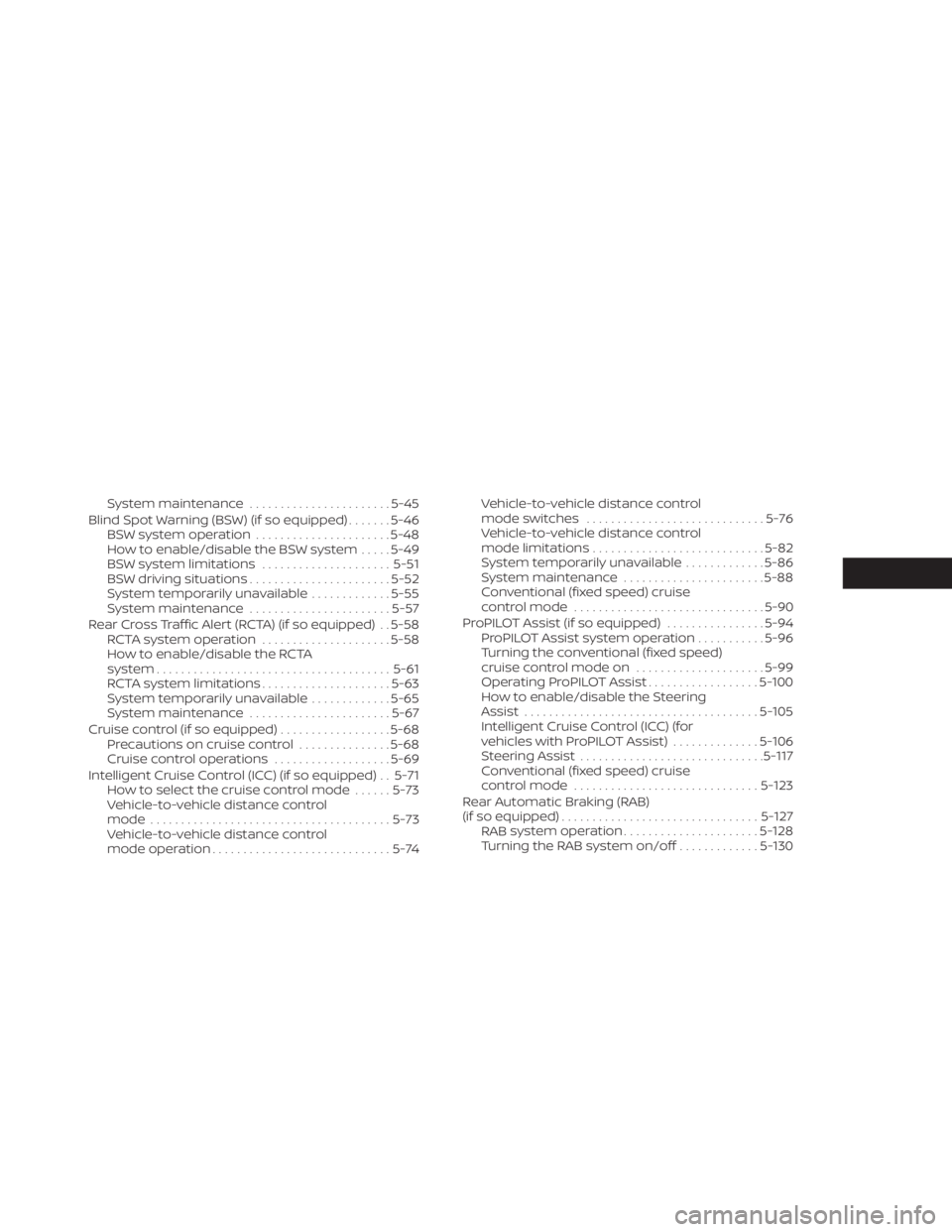
System maintenance.......................5-45
Blind Spot Warning (BSW) (if so equipped) .......5-46
BSW system operation ......................5-48
How to enable/disable the BSW system .....5-49
BSW system limitations .....................5-51
BSW driving situations .......................5-52
System temporarily unavailable .............5-55
System maintenance .......................5-57
Rear Cross Traffic Alert (RCTA) (if so equipped) . . 5-58 RCTA system operation .....................5-58
How to enable/disable the RCTA
system ...................................... 5-61
RCTA system limitations .....................5-63
System temporarily unavailable .............5-65
System maintenance .......................5-67
Cruise control (if so equipped) ..................5-68
Precautions on cruise control ...............5-68
Cruise control operations ...................5-69
Intelligent Cruise Control (ICC) (if so equipped) . . 5-71 How to select the cruise control mode ......5-73
Vehicle-to-vehicle distance control
mode ....................................... 5-73
Vehicle-to-vehicle distance control
mode operation .............................5-74 Vehicle-to-vehicle distance control
mode switches
............................. 5-76
Vehicle-to-vehicle distance control
mode limitations ............................ 5-82
System temporarily unavailable .............5-86
System maintenance .......................5-88
Conventional (fixed speed) cruise
control mode ............................... 5-90
ProPILOT Assist (if so equipped) ................5-94
ProPILOT Assist system operation ...........5-96
Turning the conventional (fixed speed)
cruise control mode on .....................5-99
Operating ProPILOT Assist ..................5-100
How to enable/disable the Steering
Assist ...................................... 5-105
Intelligent Cruise Control (ICC) (for
vehicles with ProPILOT Assist) ..............5-106
Steering Assist .............................. 5-117
Conventional (fixed speed) cruise
control mode .............................. 5-123
Rear Automatic Braking (RAB)
(if so equipped) ................................
5-127
RAB
system operation ...................... 5-128
Turning the RAB system on/off .............5-130
Page 298 of 644
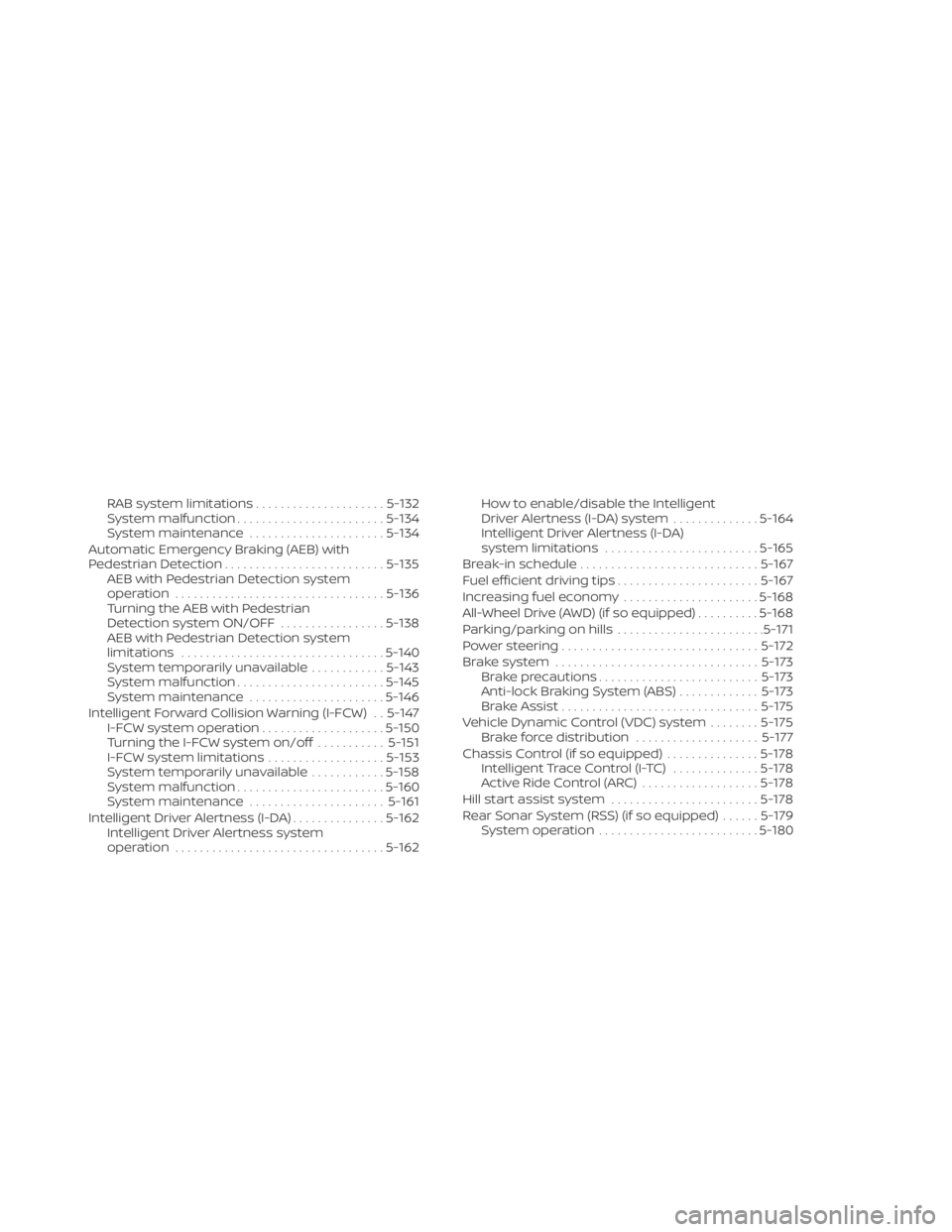
RAB system limitations.....................5-132
System malfunction ........................ 5-134
System maintenance ......................5-134
Automatic Emergency Braking (AEB) with
Pedestrian Detection .......................... 5-135
AEB with Pedestrian Detection system
operation .................................. 5-136
Turning the AEB with Pedestrian
Detection system ON/OFF .................5-138
AEB with Pedestrian Detection system
limitations ................................. 5-140
System temporarily unavailable ............5-143
System malfunction ........................ 5-145
System maintenance ......................5-146
Intelligent Forward Collision Warning (I-FCW) . . 5-147 I-FCW system operation ....................5-150
Turning the I-FCW system on/off ...........5-151
I-FCW system limitations ...................5-153
System temporarily unavailable ............5-158
System malfunction ........................ 5-160
System maintenance ......................5-161
Intelligent Driver Alertness (I-DA) ...............5-162
Intelligent Driver Alertness system
operation .................................. 5-162How to enable/disable the Intelligent
Driver Alertness (I-DA) system
..............5-164
Intelligent Driver Alertness (I-DA)
system limitations ......................... 5-165
Break-in schedule ............................. 5-167
Fuel efficient driving tips .......................5-167
Increasing fuel economy ......................5-168
All-Wheel Drive (AWD) (if so equipped) ..........5-168
Parking/parking on hills ........................5-171
Power steering ................................ 5-172
Brake system ................................. 5-173
Brake precautions .......................... 5-173
Anti-lock Braking System (ABS) .............5-173
Brake Assist ................................ 5-175
Vehicle Dynamic Control (VDC) system ........5-175
Brake force distribution ....................5-177
Chassis Control (if so equipped) ...............
5-178
Intelligent
Trace Control (I-TC) ..............5-178
Active Ride Control (ARC) ...................5-178
Hill start assist system ........................5-178
Rear Sonar System (RSS) (if so equipped) ......5-179
System operation .......................... 5-180