navigation system NISSAN ALTIMA SEDAN 2013 Owner's Guide
[x] Cancel search | Manufacturer: NISSAN, Model Year: 2013, Model line: ALTIMA SEDAN, Model: NISSAN ALTIMA SEDAN 2013Pages: 413, PDF Size: 4.52 MB
Page 225 of 413
4. When prompted for a Passkey code, enter“1234” from the handset. The Passkey code
“1234” has been assigned by NISSAN and
cannot be changed.
Audio main operation
To switch to the Bluetooth® audio mode, press
the AUX button repeatedly until the Bluetooth®
audio mode is displayed on the screen.
Use the vehicle audio controls or the Bluetooth®
device’s controls to play, pause, skip or reverse
tracks.
BLUETOOTH® STREAMING AUDIO
WITHOUT NAVIGATION SYSTEM
(Type B) (if so equipped)
If you have a compatible Bluetooth® audio de-
vice that is capable of playing audio files, the
device can be connected to the vehicle’s audio
system so that the audio files on the device play
through the vehicle’s speakers.
Connecting Bluetooth® audio
To connect your Bluetooth® audio device to the
vehicle, follow the procedure below:
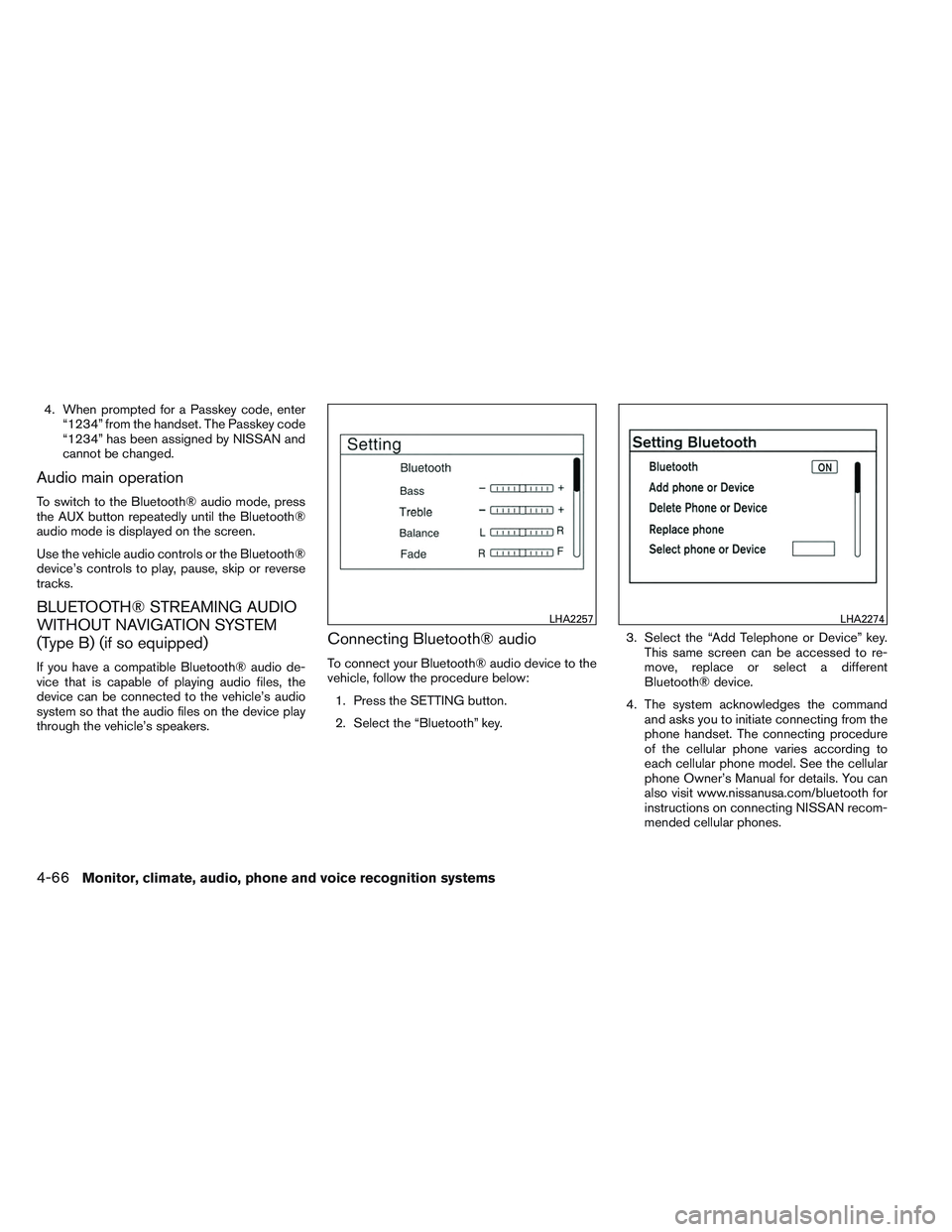
1. Press the SETTING button.
2. Select the “Bluetooth” key. 3. Select the “Add Telephone or Device” key.
This same screen can be accessed to re-
move, replace or select a different
Bluetooth® device.
4. The system acknowledges the command and asks you to initiate connecting from the
phone handset. The connecting procedure
of the cellular phone varies according to
each cellular phone model. See the cellular
phone Owner’s Manual for details. You can
also visit www.nissanusa.com/bluetooth for
instructions on connecting NISSAN recom-
mended cellular phones.
LHA2257LHA2274
4-66Monitor, climate, audio, phone and voice recognition systems
Page 226 of 413
Audio main operation
To switch to the Bluetooth® audio mode, press
the button repeatedly until the
Bluetooth® audio mode is displayed on the
screen.
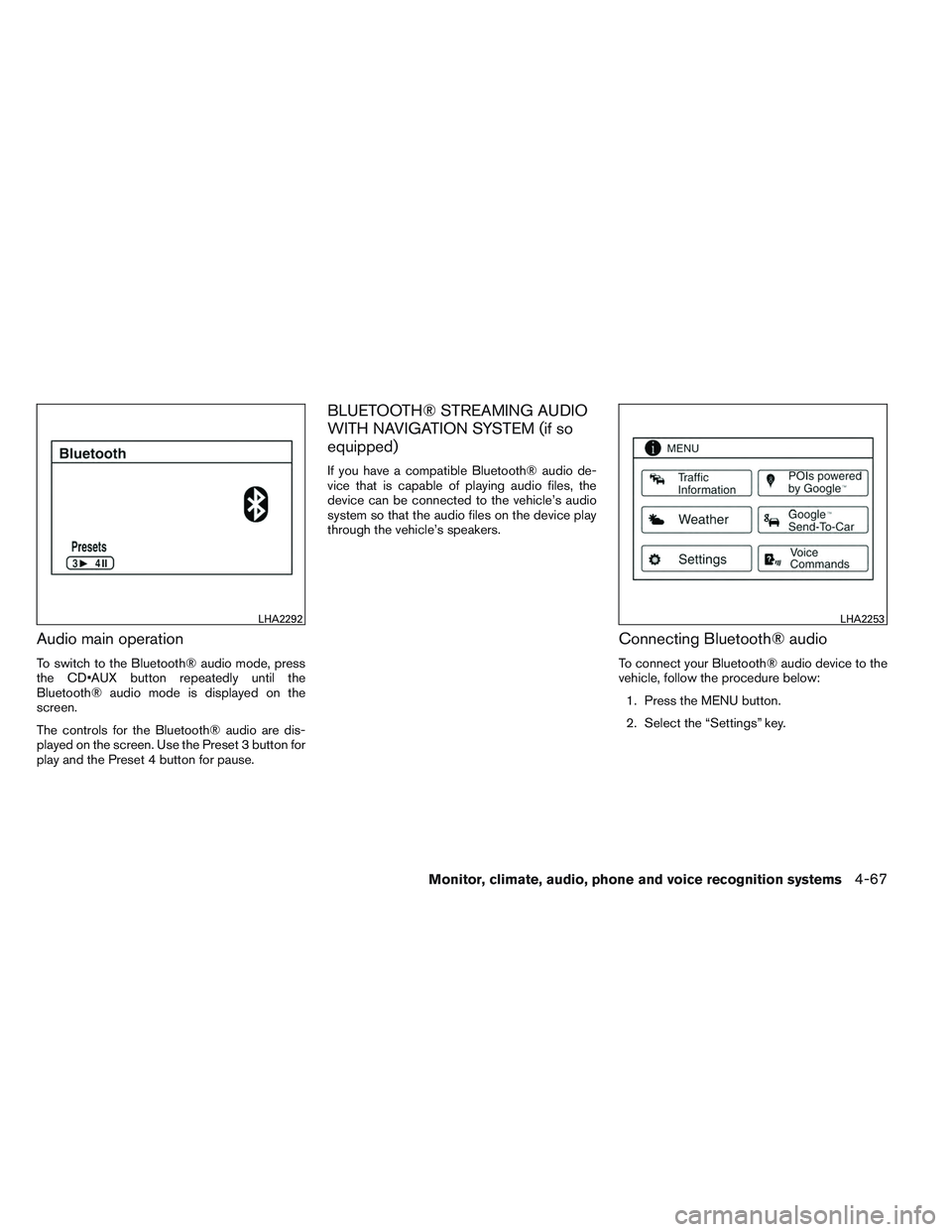
The controls for the Bluetooth® audio are dis-
played on the screen. Use the Preset 3 button for
play and the Preset 4 button for pause.
BLUETOOTH® STREAMING AUDIO
WITH NAVIGATION SYSTEM (if so
equipped)
If you have a compatible Bluetooth® audio de-
vice that is capable of playing audio files, the
device can be connected to the vehicle’s audio
system so that the audio files on the device play
through the vehicle’s speakers.
Connecting Bluetooth® audio
To connect your Bluetooth® audio device to the
vehicle, follow the procedure below:1. Press the MENU button.
2. Select the “Settings” key.
LHA2292LHA2253
Monitor, climate, audio, phone and voice recognition systems4-67
Page 228 of 413
Compatibility
The following iPhone® models are compatible
with the system:● iPhone® 3GS
● iPhone® 4
● iPhone® 4S
The latest Pandora® application should be in-
stalled on the phone.
Audio main operation
Models without Navigation System:
To switch to the Pandora® audio mode, press
the CD-AUX button repeatedly until the Pan-
dora® audio mode is displayed on the screen.
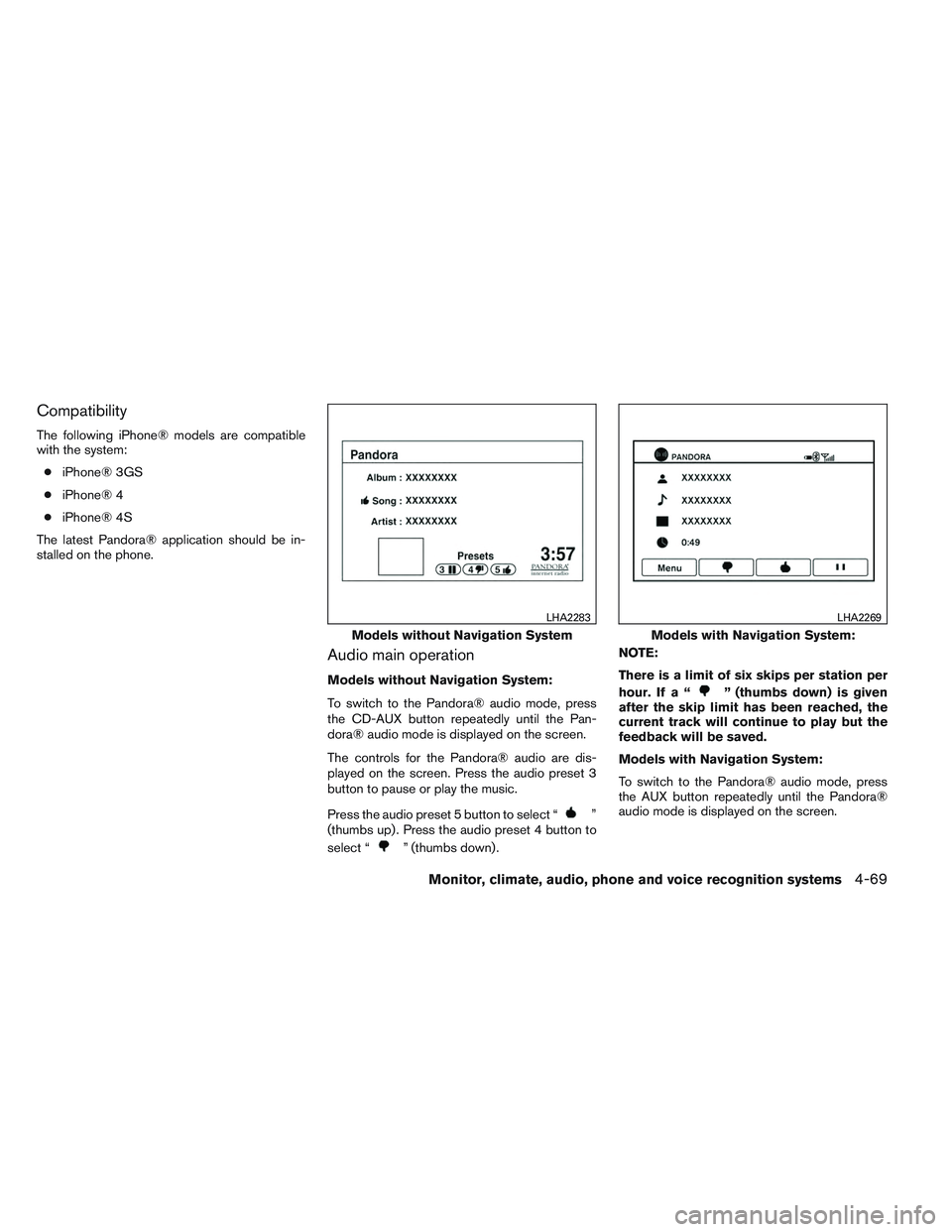
The controls for the Pandora® audio are dis-
played on the screen. Press the audio preset 3
button to pause or play the music.
Press the audio preset 5 button to select “
”
(thumbs up) . Press the audio preset 4 button to
select “
” (thumbs down) . NOTE:
There is a limit of six skips per station per
hour. If a “
” (thumbs down) is given
after the skip limit has been reached, the
current track will continue to play but the
feedback will be saved.
Models with Navigation System:
To switch to the Pandora® audio mode, press
the AUX button repeatedly until the Pandora®
audio mode is displayed on the screen.
Models without Navigation System
LHA2283
Models with Navigation System:
LHA2269
Monitor, climate, audio, phone and voice recognition systems4-69
Page 229 of 413
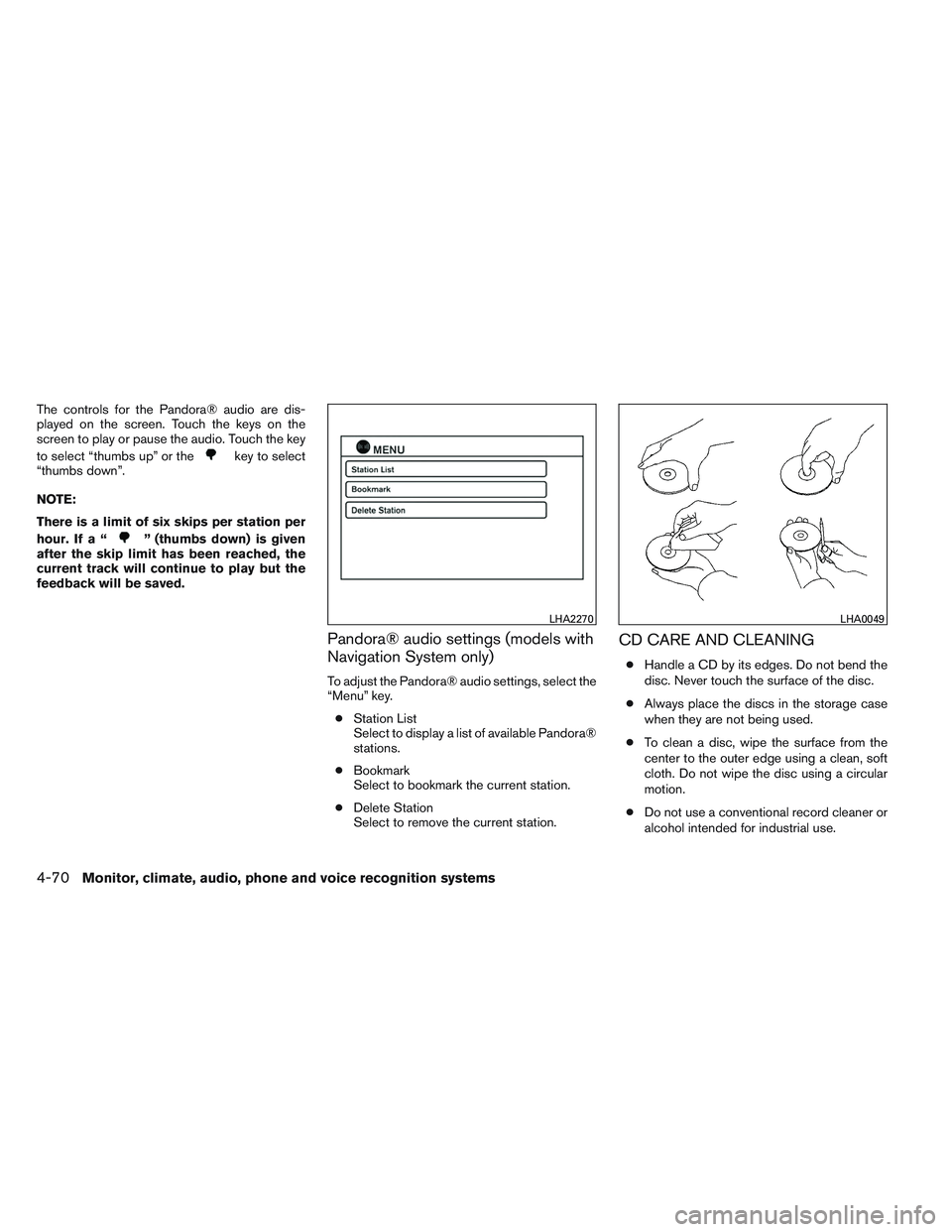
The controls for the Pandora® audio are dis-
played on the screen. Touch the keys on the
screen to play or pause the audio. Touch the key
to select “thumbs up” or the
key to select
“thumbs down”.
NOTE:
There is a limit of six skips per station per
hour. If a “
” (thumbs down) is given
after the skip limit has been reached, the
current track will continue to play but the
feedback will be saved.
Pandora® audio settings (models with
Navigation System only)
To adjust the Pandora® audio settings, select the
“Menu” key.
● Station List
Select to display a list of available Pandora®
stations.
● Bookmark
Select to bookmark the current station.
● Delete Station
Select to remove the current station.
CD CARE AND CLEANING
●Handle a CD by its edges. Do not bend the
disc. Never touch the surface of the disc.
● Always place the discs in the storage case
when they are not being used.
● To clean a disc, wipe the surface from the
center to the outer edge using a clean, soft
cloth. Do not wipe the disc using a circular
motion.
● Do not use a conventional record cleaner or
alcohol intended for industrial use.
LHA2270LHA0049
4-70Monitor, climate, audio, phone and voice recognition systems
Page 232 of 413
When installing a CB, ham radio or car phone in
your vehicle, be sure to observe the following
precautions; otherwise, the new equipment may
adversely affect the engine control system and
other electronic parts.
WARNING
●A cellular phone should not be used for
any purpose while driving so full atten-
tion may be given to vehicle operation.
Some jurisdictions prohibit the use of
cellular phones while driving.
● If you must make a call while your ve-
hicle is in motion, the hands free cellu-
lar phone operational mode is highly
recommended. Exercise extreme cau-
tion at all times so full attention may be
given to vehicle operation.
● If you are unable to devote full attention
to vehicle operation while talking on
the phone, pull off the road to a safe
location and stop your vehicle.
CAUTION
●Keep the antenna as far away as pos-
sible from the electronic control
modules.
● Keep the antenna wire more than 8 in
(20 cm) away from the electronic con-
trol system harnesses. Do not route the
antenna wire next to any harness.
● Adjust the antenna standing-wave ratio
as recommended by the manufacturer.
● Connect the ground wire from the CB
radio chassis to the body.
● For details, consult a NISSAN dealer.
WARNING
●Use a phone after stopping your vehicle
in a safe location. If you have to use a
phone while driving, exercise extreme
caution at all times so full attention may
be given to vehicle operation.
● If you are unable to devote full attention
to vehicle operation while talking on
the phone, pull off the road to a safe
location and stop your vehicle.
CAUTION
To avoid discharging the vehicle battery,
use a phone after starting the engine.
CAR PHONE OR CB RADIO BLUETOOTH® HANDS-FREE PHONE
SYSTEM WITHOUT NAVIGATION
SYSTEM (Type A) (if so equipped)
Monitor, climate, audio, phone and voice recognition systems4-73
Page 247 of 413
WARNING
●Use a phone after stopping your vehicle
in a safe location. If you have to use a
phone while driving, exercise extreme
caution at all times so full attention may
be given to vehicle operation.
● If you are unable to devote full attention
to vehicle operation while talking on
the phone, pull off the road to a safe
location and stop your vehicle.
CAUTION
To avoid discharging the vehicle battery,
use a phone after starting the engine.
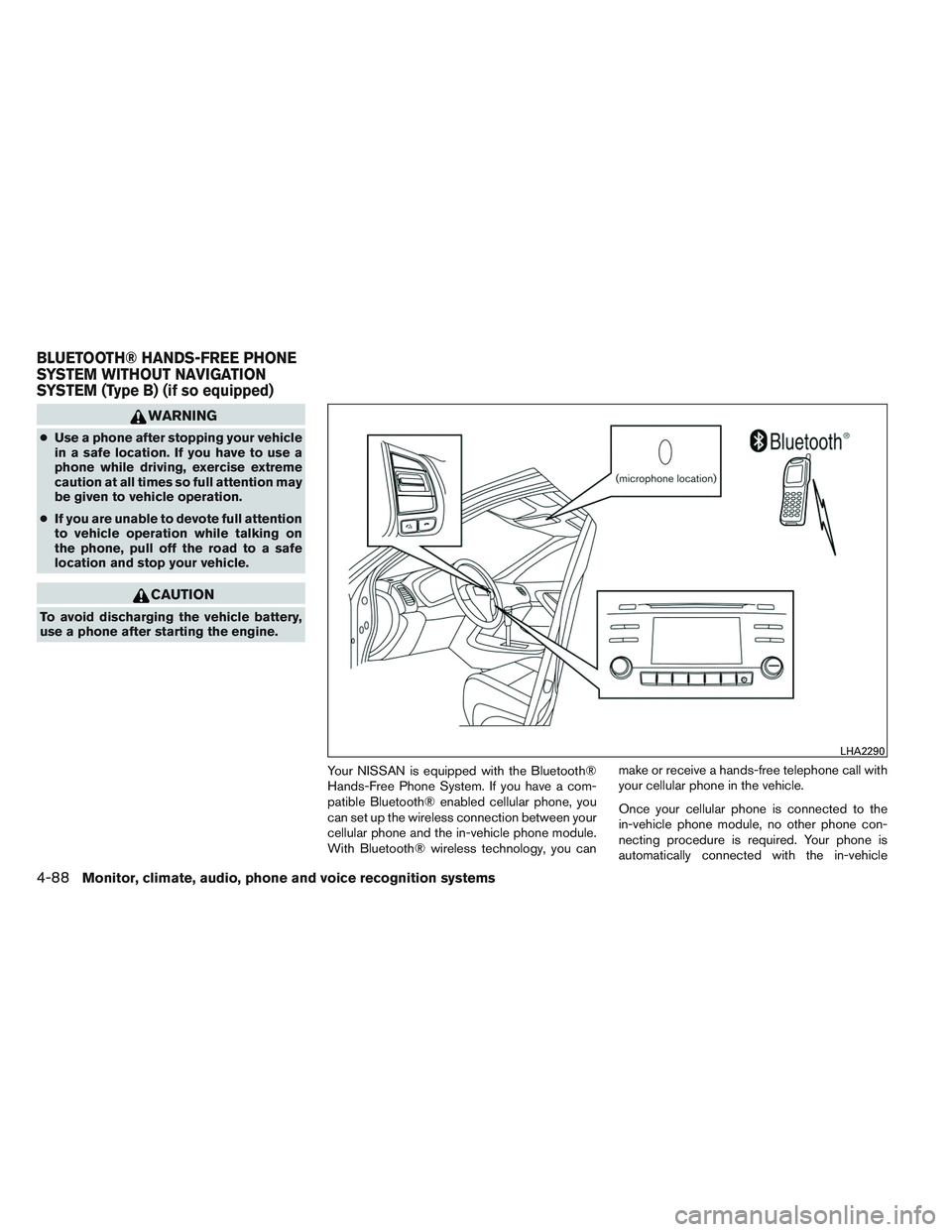
Your NISSAN is equipped with the Bluetooth®
Hands-Free Phone System. If you have a com-
patible Bluetooth® enabled cellular phone, you
can set up the wireless connection between your
cellular phone and the in-vehicle phone module.
With Bluetooth® wireless technology, you can make or receive a hands-free telephone call with
your cellular phone in the vehicle.
Once your cellular phone is connected to the
in-vehicle phone module, no other phone con-
necting procedure is required. Your phone is
automatically connected with the in-vehicle
LHA2290
BLUETOOTH® HANDS-FREE PHONE
SYSTEM WITHOUT NAVIGATION
SYSTEM (Type B) (if so equipped)
4-88Monitor, climate, audio, phone and voice recognition systems
Page 258 of 413
●New Text Sound
Select to adjust the volume of the sound that
plays when a new text is received by a phone
connected to the Bluetooth® Hands-Free
Phone System. The setting all the way to the
left indicates that the new text sound will be
muted.
● Show Incoming Text
Select “Driver Only” to have incoming text
messages displayed only in the vehicle infor-
mation display. Select “Both” to have incom-
ing text messages displayed in both the ve-
hicle information display and the center
display screen. Select “None” to have no
display of incoming text messages.
● Edit Custom Messages
Select to set a custom message that will be
available with the standard options when
sending a text message. To set a custom
message, send a text message to your own
phone number while the phone is connected
to the system. Three custom messages can
be set. Custom messages can only be set
while the vehicle is stationary. ●
Auto Reply
Select to turn on or off the Auto Reply func-
tion. When enabled, the vehicle will auto-
matically send a predefined text message to
the sender when a text message is received
while driving.
● Auto Reply Message
Select to choose the message that is sent
when the Auto Reply function is enabled.
Choose from “I’m Driving” or one of the three
custom messages stored in the system.
● Vehicle Signature On/Off
Select to choose whether or not the vehicle
signature is added to outgoing text mes-
sages from the vehicle. This message can-
not be changed or customized.
MANUAL CONTROL
While using the Voice Recognition system, it is
possible to select menu options by using the
steering wheel controls instead of speaking voice
commands. The manual control mode does not
allow dialing a phone number by digits. The user
may select an entry from the Phonebook or Re-
cent Calls lists. To re-activate Voice Recognition,
exit the manual control mode by pressing and
holding the PHONE/END (
) button. At that
time, pressing the PHONE/SEND (
) button
will start the Hands Free Phone System.
WARNING
● Use a phone after stopping your vehicle
in a safe location. If you have to use a
phone while driving, exercise extreme
caution at all times so full attention may
be given to vehicle operation.
● If you are unable to devote full attention
to vehicle operation while talking on
the phone, pull off the road to a safe
location and stop your vehicle.
CAUTION
To avoid discharging the vehicle battery,
use a phone after starting the engine.
BLUETOOTH® HANDS-FREE PHONE
SYSTEM WITH NAVIGATION SYSTEM
(if so equipped)
Monitor, climate, audio, phone and voice recognition systems4-99
Page 268 of 413
●Use Phonebook From:
Select “Handset” to use the phone’s phone-
book. Select “SIM” to use the phonebook on
the SIM card. Select “Both” to use both
sources.
● Download Phonebook Now
Select to download the phonebook to the
vehicle from the chosen source.
● Phone Notifications for
Select “Driver” to have phone notifications
shown in the vehicle information display. Se-
lect “Both” to have phone notifications
shown in both the vehicle information display
and the center display screen.
● Record Name for Phonebook Entry
Select to record a name for a phonebook
entry for use with the NISSAN Voice Recog-
nition System.
● Text Message Service
Select to toggle the text message function-
ality on or off. ●
Show Incoming Text for
Select “Driver” to have text message notifi-
cations shown in the vehicle information dis-
play. Select “Both” to have text message
notifications shown in both the vehicle infor-
mation display and the center display
screen. Select “None” to have text message
notifications not displayed.
● SMS Auto Reply Function
Select to toggle the SMS auto reply func-
tionality on or off.
● SMS Auto Reply Message
Select to choose a message that is sent
when the auto reply function is activated.
● Add Vehicle’s Signature
Select to toggle on or off the addition of the
vehicle signature to outgoing messages.
● Predefined SMS Messages
Select the predefined SMS messages that
are used by the system. The NISSAN Voice Recognition system allows
hands-free operation of the systems equipped on
this vehicle, such as the phone and navigation
systems.
To operate NISSAN Voice Recognition, press
the
button located on the steering wheel.
When prompted, speak the command for the
system you wish to activate. The command given
is picked up by the microphone and performed
when it is properly recognized. NISSAN Voice
Recognition will provide a voice response as well
as a message in the center display to inform you
of the command results.
USING THE SYSTEM
Initialization
When the ignition switch is in the ON position,
NISSAN Voice Recognition is initialized, which
takes a few seconds. When completed, the sys-
tem is ready to accept voice commands. If
the
button is pressed before the initializa-
tion completes, the system will announce: “Voice
Recognition System not ready. Please wait.”
NISSAN VOICE RECOGNITION
SYSTEM (if so equipped)
Monitor, climate, audio, phone and voice recognition systems4-109
Page 270 of 413
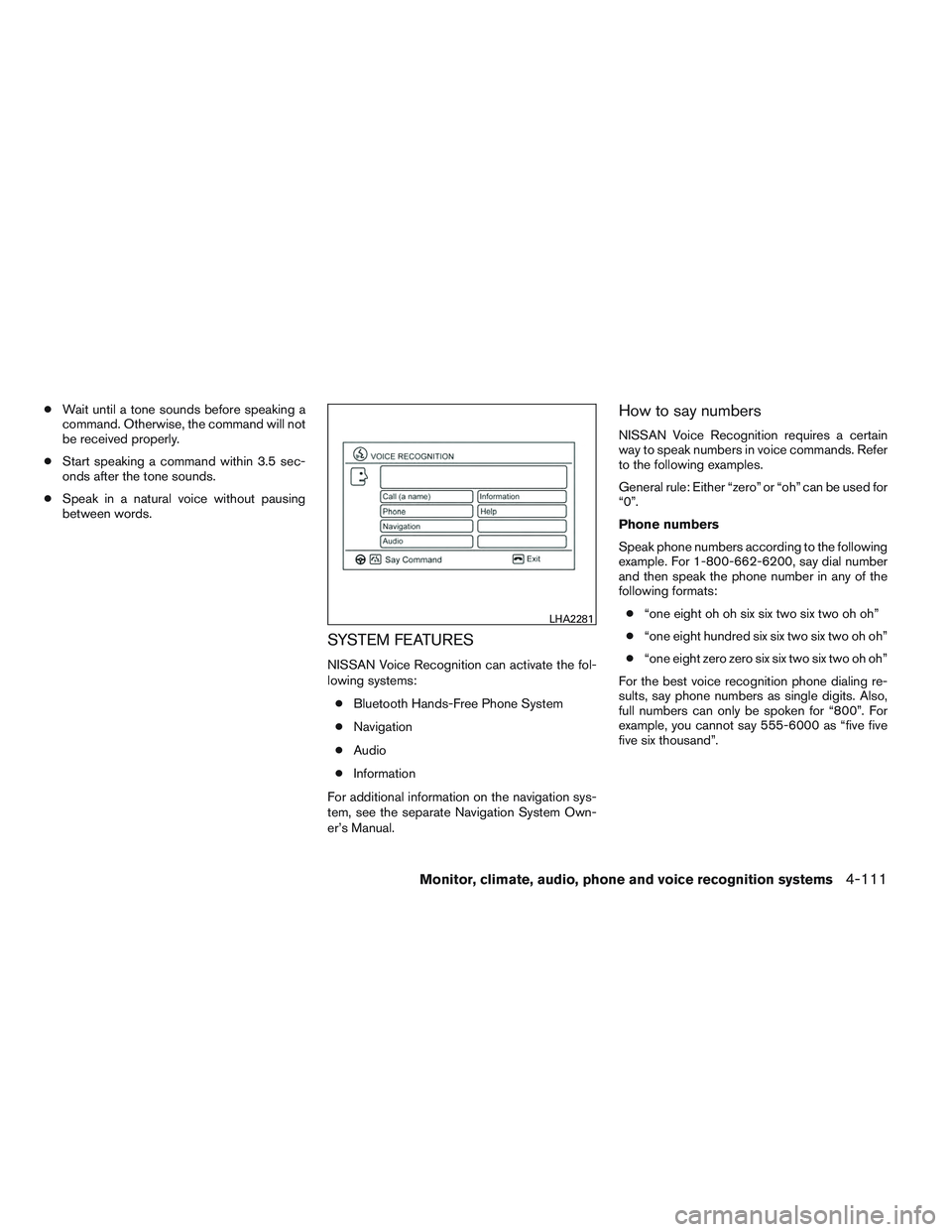
●Wait until a tone sounds before speaking a
command. Otherwise, the command will not
be received properly.
● Start speaking a command within 3.5 sec-
onds after the tone sounds.
● Speak in a natural voice without pausing
between words.
SYSTEM FEATURES
NISSAN Voice Recognition can activate the fol-
lowing systems:
● Bluetooth Hands-Free Phone System
● Navigation
● Audio
● Information
For additional information on the navigation sys-
tem, see the separate Navigation System Own-
er’s Manual.
How to say numbers
NISSAN Voice Recognition requires a certain
way to speak numbers in voice commands. Refer
to the following examples.
General rule: Either “zero” or “oh” can be used for
“0”.
Phone numbers
Speak phone numbers according to the following
example. For 1-800-662-6200, say dial number
and then speak the phone number in any of the
following formats: ● “one eight oh oh six six two six two oh oh”
● “one eight hundred six six two six two oh oh”
● “one eight zero zero six six two six two oh oh”
For the best voice recognition phone dialing re-
sults, say phone numbers as single digits. Also,
full numbers can only be spoken for “800”. For
example, you cannot say 555-6000 as “five five
five six thousand”.
LHA2281
Monitor, climate, audio, phone and voice recognition systems4-111
Page 271 of 413
BLUETOOTH® HANDS-FREE
PHONE SYSTEM VOICE
COMMANDS
To access the Bluetooth® Hands-Free Phone
System voice commands:1. Press the
button.
2.
Say “Call” and then a name in the vehicle
phonebook to call that entry. Otherwise, say
“Phone” to access various phone commands.
If the Bluetooth® has been set to “Off”, the
system announces: “Bluetooth® is off. Would
you like to turn Bluetooth® on?”
If no phone is connected to the system and the
vehicle is stationary, the system announces:
“There is no phone connected. Would you like to
connect a phone now?” Say “Yes” to connect a
phone. All further Bluetooth® Hands-Free Phone
System voice commands are only available if a
phone is connected.
If a phone is connected and Bluetooth® is set to
“On”, the following voice commands are available:
● Dial Number
Allows for up to 24 digits to be dialed. After
the number is entered, say “Dial” to initiate
dialing. Say “Correction” to correct the num-
ber entered. Say “Go Back” to return to the
main menu. ●
List Phonebook
Starting with the first alphabetical entry in
the vehicle phonebook, the system prompts
for an additional command. Say “Dial” to call
the number of the phonebook entry. Say
“Send Text” to send a text message to the
number of the phonebook entry. Say “Next
Entry” to skip to the next alphabetical entry in
the vehicle phonebook, where the same op-
tions will then be available.
● Recent Calls
The system prompts for an additional com-
mand. Say “Missed Calls”, “Incoming Calls”
or “Outgoing Calls” to display a list of such
calls on the screen.
Speak the number of the entry displayed on
the screen to dial that number or say “Next
Page” to view entries on the next page (if
available) .
● Redial
Redials the last called number.
● Read Text
Reads an incoming text message. For more
information about text messaging with the
Bluetooth® Hands-Free Phone System, see
“Bluetooth® Hands-Free Phone System
with Navigation System” in this section. ●
Send Text
Sends a text message. For more information
about text messaging with the Bluetooth®
Hands-Free Phone System, see
“Bluetooth® Hands-Free Phone System
with Navigation System” in this section.
● Select Phone
The system replies “Please use manual con-
trols to continue”. Use manual controls to
change the active phone from among the
listed phones connected to the vehicle.
For more information about the Bluetooth®
Hands-Free Phone System, see “Bluetooth®
Hands-Free Phone System with Navigation Sys-
tem” in this section.
NAVIGATION SYSTEM VOICE
COMMANDS
The following voice commands are available for
the Navigation System: ● Places
● Street Address
● Address Book
● Home
● Previous Destination
4-112Monitor, climate, audio, phone and voice recognition systems