navigation system NISSAN ALTIMA SEDAN 2014 User Guide
[x] Cancel search | Manufacturer: NISSAN, Model Year: 2014, Model line: ALTIMA SEDAN, Model: NISSAN ALTIMA SEDAN 2014Pages: 428, PDF Size: 4.36 MB
Page 171 of 428
FM/AM/SAT radio with compact disc (CD)
player (Type C) (if so equipped).................4-55
FM/AM/SAT radio with compact disc (CD)
player (if so equipped) ......................... 4-61
USB interface (models without Navigation
System) (if so equipped) .......................4-65
USB interface (models with Navigation
System) ...................................... 4-67
iPod®* player operation without Navigation
System (if so equipped) ........................ 4-70
iPod®* player operation with Navigation
System (if so equipped) ........................ 4-72
Bluetooth® streaming audio without
Navigation System (Type A) (if so equipped) ......4-75
Bluetooth® streaming audio without
Navigation System (Type B) (if so equipped) ......4-76
Bluetooth® streaming audio with Navigation
System (if so equipped) ........................ 4-76
CD care and cleaning .......................... 4-78
Steering wheel switch for audio control ..........4-78
Antenna ...................................... 4-80
NissanConnect App Smartphone Integration
(if so equipped) .................................. 4-80
Registering with NissanConnect App ............4-80 Connect Phone
............................... 4-80
Application Download .......................... 4-80
Car phone or CB radio ............................ 4-81
Bluetooth® Hands-Free Phone System without
Navigation System (Type A) (if so equipped) .........4-81
Regulatory Information ......................... 4-83
Using the system .............................. 4-83
Control buttons ............................... 4-86
Getting started ................................ 4-86
List of voice commands ........................ 4-88
Voice Adaptation (VA) mode ....................4-92
Manual control ................................ 4-94
Troubleshooting guide ......................... 4-95
Bluetooth® Hands-Free Phone System without
Navigation System (Type B) (if so equipped) . . . ......4-96
Regulatory Information ......................... 4-97
Using the system .............................. 4-98
Control buttons ............................... 4-99
Connecting
procedure ........................ 4-100
Voice commands ............................. 4-101
Making a call ................................. 4-102
Receiving a call .............................. 4-103
During a call ................................. 4-103
Page 172 of 428
Ending a call................................. 4-103
Text messaging ............................... 4-104
Bluetooth® settings .......................... 4-105
Manual control ............................... 4-106
Bluetooth® Hands-Free Phone System with
Navigation System (if so equipped) ................4-107
Regulatory Information ........................ 4-108
Voice commands ............................. 4-109
Connecting Procedure ........................ 4-109
Vehicle phonebook ........................... 4-110
Making a call ................................. 4-110
Receiving a call .............................. 4-110
During a call ................................. 4-110
Ending a call ................................. 4-110
Text messaging ............................... 4-111Bluetooth® settings
.......................... 4-112
Phone settings ............................... 4-113
NISSAN Voice Recognition System
(if so equipped) . . . .............................. 4-114
Using the system ............................. 4-114
System features .............................. 4-115
Bluetooth® Hands-Free Phone System
voice commands ............................. 4-116
Navigation System voice commands ............4-116
Audio system voice commands .................4-117
Information voice commands ...................4-117
My Apps Voice Commands ....................4-117
Help voice commands ........................ 4-117
Troubleshooting guide ........................ 4-118
Page 173 of 428
WARNING
●Positioning of the heating or air condi-
tioning controls and display controls
should not be done while driving in or-
der that full attention may be given to
the driving operation.
● Do not disassemble or modify this sys-
tem. If you do, it may result in accidents,
fire, or electrical shock.
● Do not use this system if you notice any
abnormality, such as a frozen screen or
lack of sound. Continued use of the
system may result in accident, fire or
electric shock.
● In case you notice any foreign object in
the system hardware, spill liquid on it,
or notice smoke or smell coming from it,
stop using the system immediately and
contact your nearest NISSAN dealer. Ig-
noring such conditions may lead to ac-
cidents, fire or electrical shock.
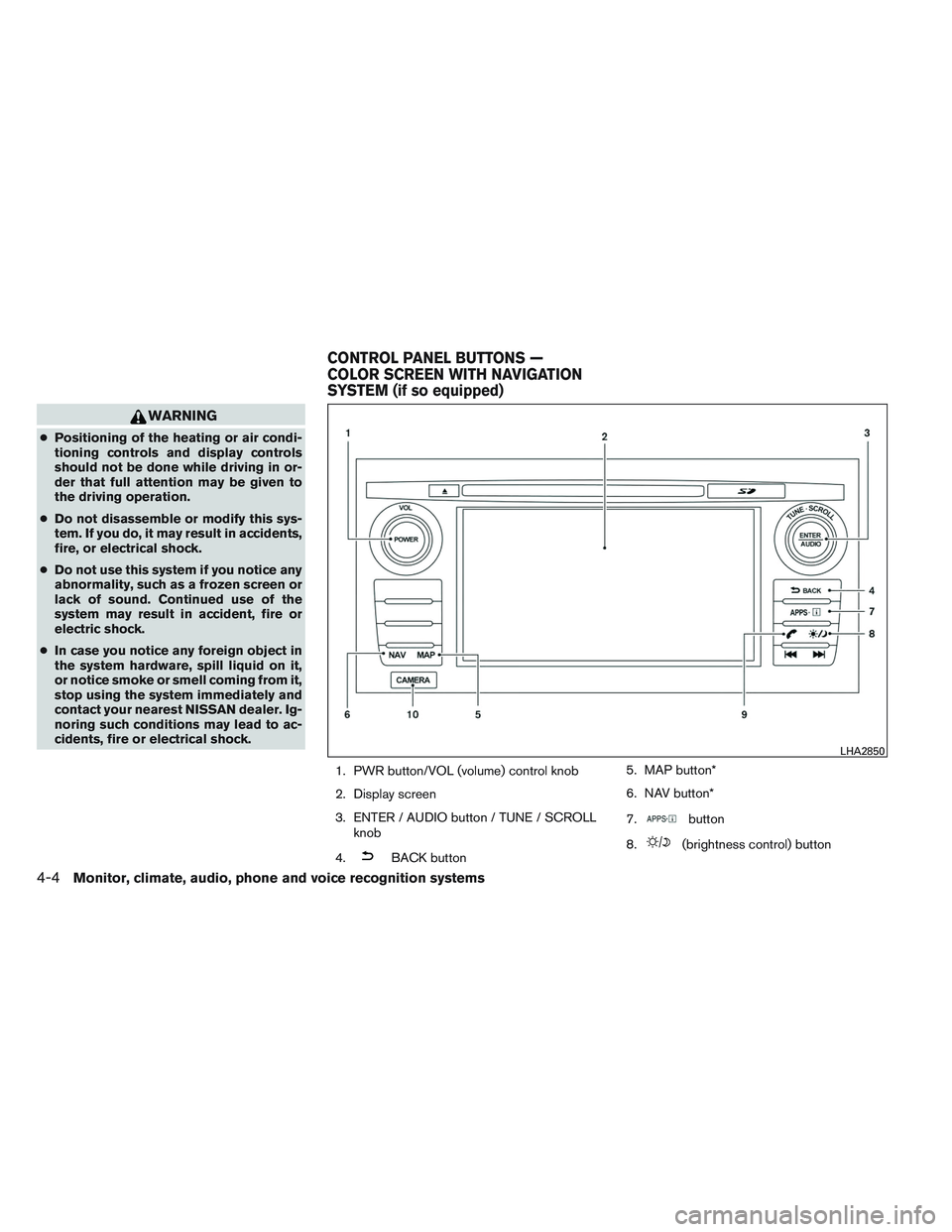
1. PWR button/VOL (volume) control knob
2. Display screen
3. ENTER / AUDIO button / TUNE / SCROLLknob
4.
BACK button 5. MAP button*
6. NAV button*
7.
button
8.
(brightness control) button
LHA2850
CONTROL PANEL BUTTONS —
COLOR SCREEN WITH NAVIGATION
SYSTEM (if so equipped)
4-4Monitor, climate, audio, phone and voice recognition systems
Page 174 of 428
9.button**
10. CAMERA button
* For information regarding the Navigation system
control buttons, refer to the separate Navigation
System Owner’s Manual.
** For information regarding the Bluetooth®
Hands-Free Phone System control button, see
“Bluetooth® Hands-Free Phone System with
Navigation System (if so equipped)” in this sec-
tion.
When you use this system, make sure the engine
is running.
If you use the system with the engine not
running (ignition ON or ACC) for a long
time, it will discharge the battery, and the
engine will not start.
Reference symbols:
“Example” — Words marked in quotes refer to a
key shown only on the display. These keys can be
selected by touching the screen.HOW TO USE THE TOUCH
SCREEN
CAUTION
● The glass display screen may break if it
is hit with a hard or sharp object. If the
glass screen breaks, do not touch it.
Doing so could result in an injury.
● To clean the display, never use a rough
cloth, alcohol, benzine, thinner or any
kind of solvent or paper towel with a
chemical cleaning agent. They will
scratch or deteriorate the panel.
● Do not splash any liquid such as water
or car fragrance on the display. Contact
with liquid will cause the system to
malfunction.
To help ensure safe driving, some functions can-
not be operated while driving.
The on-screen functions that are not available
while driving will be “grayed out” or muted.
Park the vehicle in a safe location and then oper-
ate the navigation system.
WARNING
● ALWAYS give your full attention to
driving.
● Avoid using vehicle features that could
distract you. If distracted, you could
lose control of your vehicle and cause
an accident.
Monitor, climate, audio, phone and voice recognition systems4-5
Page 176 of 428
Touch screen maintenance
If you clean the display screen, use a dry, soft
cloth. If additional cleaning is necessary, use a
small amount of neutral detergent with a soft
cloth. Never spray the screen with water or de-
tergent. Dampen the cloth first and then wipe the
screen.
HOW TO USE THE BACK BUTTON
Press theBACK button to return to the
previous screen.
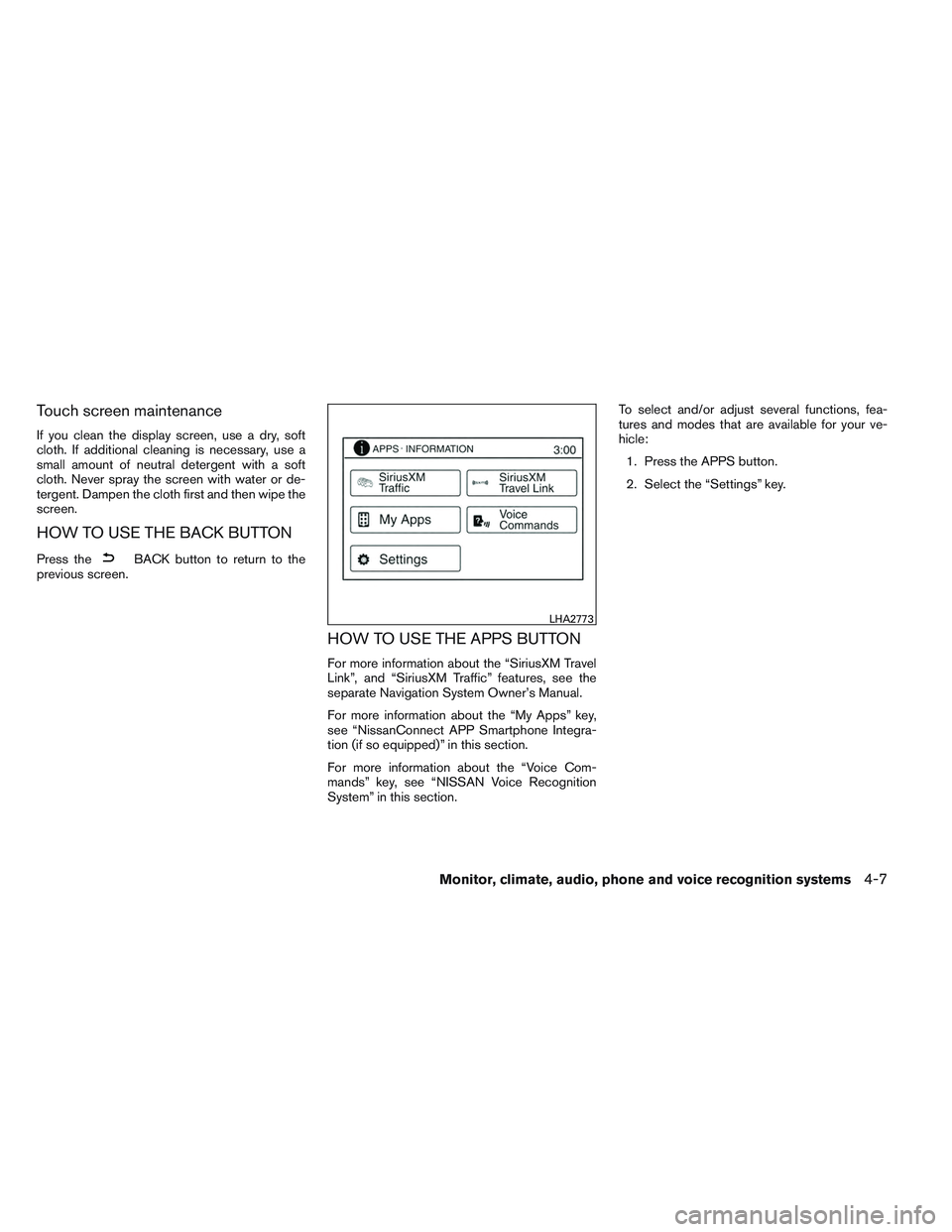
HOW TO USE THE APPS BUTTON
For more information about the “SiriusXM Travel
Link”, and “SiriusXM Traffic” features, see the
separate Navigation System Owner’s Manual.
For more information about the “My Apps” key,
see “NissanConnect APP Smartphone Integra-
tion (if so equipped)” in this section.
For more information about the “Voice Com-
mands” key, see “NISSAN Voice Recognition
System” in this section. To select and/or adjust several functions, fea-
tures and modes that are available for your ve-
hicle:
1. Press the APPS button.
2. Select the “Settings” key.
LHA2773
Monitor, climate, audio, phone and voice recognition systems4-7
Page 177 of 428
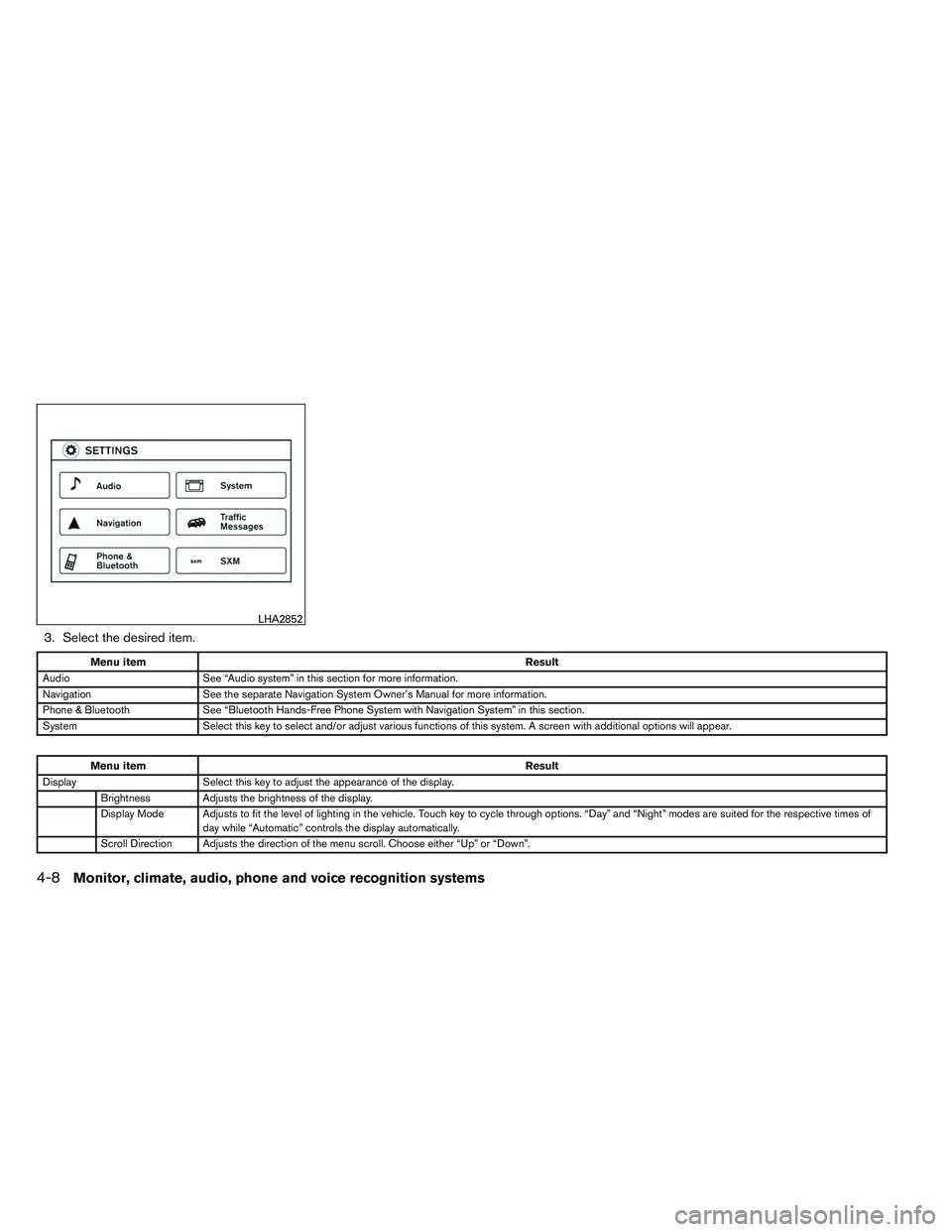
3. Select the desired item.
Menu itemResult
Audio See “Audio system” in this section for more information.
Navigation See the separate Navigation System Owner’s Manual for more information.
Phone & Bluetooth See “Bluetooth Hands-Free Phone System with Navigation System” in this section.
System Select this key to select and/or adjust various functions of this system. A screen with additional options will appear.
Menu item Result
Display Select this key to adjust the appearance of the display.
Brightness Adjusts the brightness of the display.
Display Mode Adjusts to fit the level of lighting in the vehicle. Touch key to cycle through options. “Day” and “Night” modes are suited for the respective times of day while “Automatic” controls the display automatically.
Scroll Direction Adjusts the direction of the menu scroll. Choose either “Up” or “Down”.
LHA2852
4-8Monitor, climate, audio, phone and voice recognition systems
Page 178 of 428
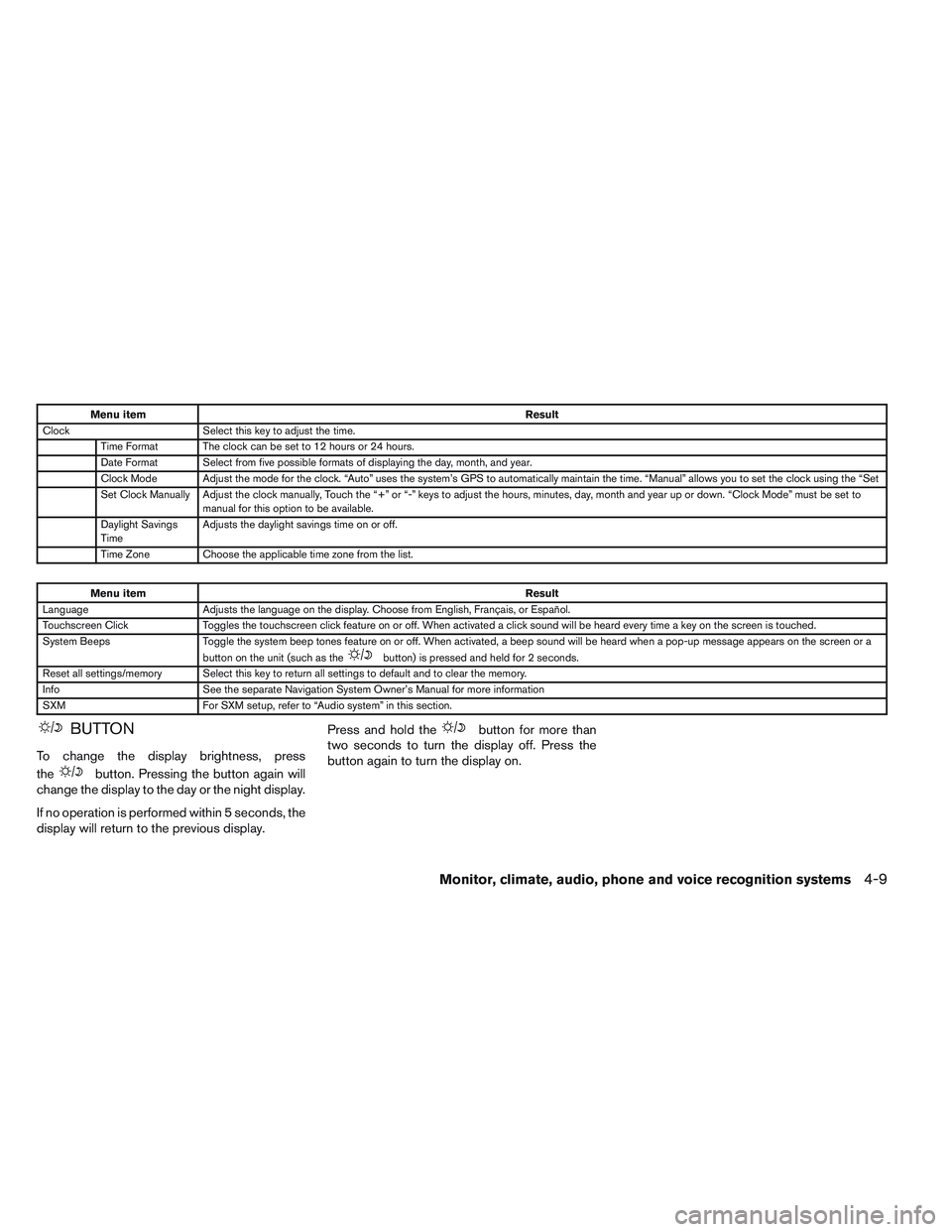
Menu itemResult
Clock Select this key to adjust the time.
Time Format The clock can be set to 12 hours or 24 hours.
Date Format Select from five possible formats of displaying the day, month, and year.
Clock Mode Adjust the mode for the clock. “Auto” uses the system’s GPS to automatically maintain the time. “Manual” allows you to set the clock using the “Set
Set Clock Manually Adjust the clock manually, Touch the “+” or “-” keys to adjust the hours, minutes, day, month and year up or down. “Clock Mode” must be set to manual for this option to be available.
Daylight Savings
Time Adjusts the daylight savings time on or off.
Time Zone Choose the applicable time zone from the list.
Menu item Result
Language Adjusts the language on the display. Choose from English, Français, or Español.
Touchscreen Click Toggles the touchscreen click feature on or off. When activated a click sound will be heard every time a key on the screen is touched.
System Beeps Toggle the system beep tones feature on or off. When activated, a beep sound will be heard when a pop-up message appears on the screen or a
button on the unit (such as the
button) is pressed and held for 2 seconds.
Reset all settings/memory Select this key to return all settings to default and to clear the memory.
Info See the separate Navigation System Owner’s Manual for more information
SXM For SXM setup, refer to “Audio system” in this section.
BUTTON
To change the display brightness, press
the
button. Pressing the button again will
change the display to the day or the night display.
If no operation is performed within 5 seconds, the
display will return to the previous display. Press and hold the
button for more than
two seconds to turn the display off. Press the
button again to turn the display on.
Monitor, climate, audio, phone and voice recognition systems4-9
Page 215 of 428
When the TRACKbutton is pressed, the
track being played returns to the beginning.
Press the TRACK
button several times to
skip back several tracks. Each time the button is
pressed the CD moves back one track.
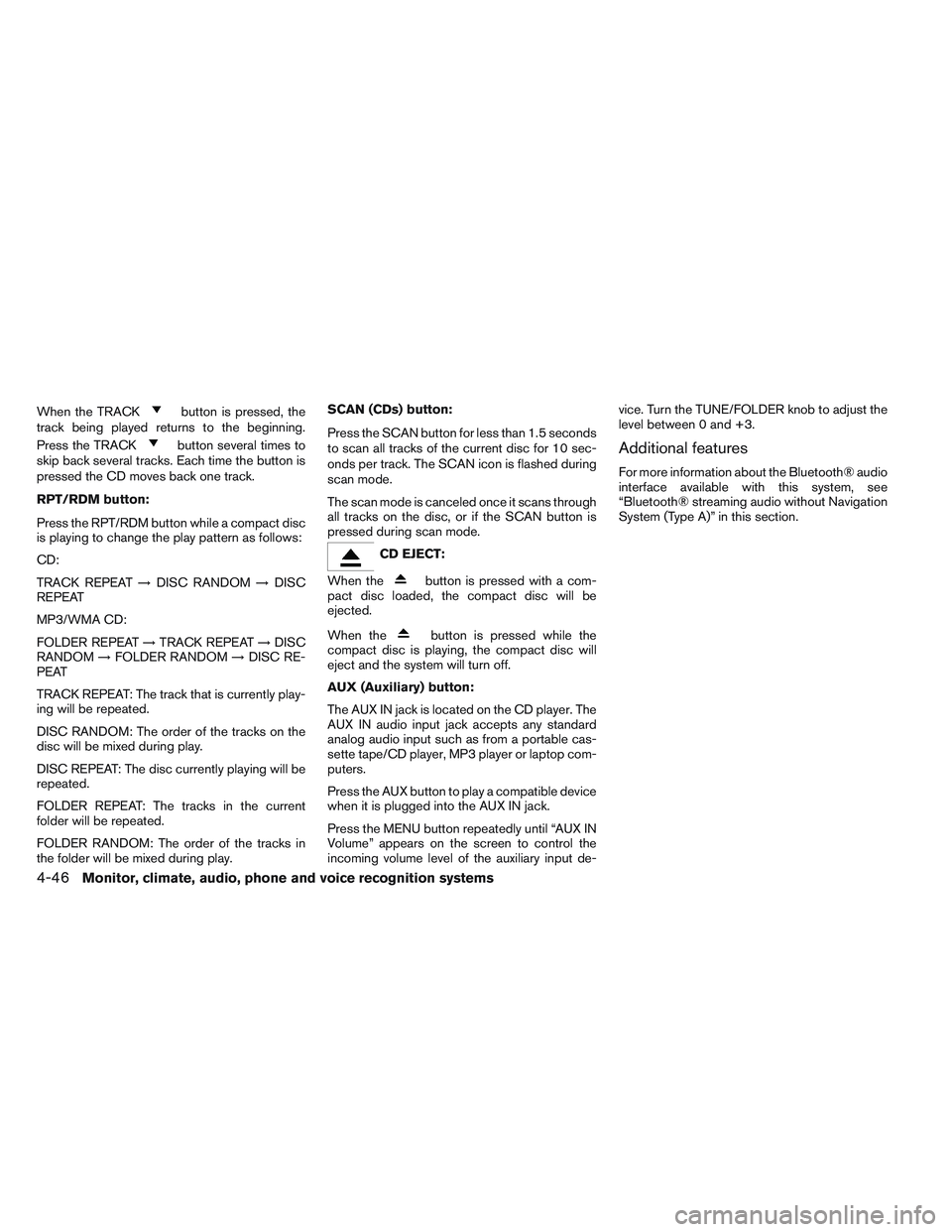
RPT/RDM button:
Press the RPT/RDM button while a compact disc
is playing to change the play pattern as follows:
CD:
TRACK REPEAT →DISC RANDOM →DISC
REPEAT
MP3/WMA CD:
FOLDER REPEAT →TRACK REPEAT →DISC
RANDOM →FOLDER RANDOM →DISC RE-
PEAT
TRACK REPEAT: The track that is currently play-
ing will be repeated.
DISC RANDOM: The order of the tracks on the
disc will be mixed during play.
DISC REPEAT: The disc currently playing will be
repeated.
FOLDER REPEAT: The tracks in the current
folder will be repeated.
FOLDER RANDOM: The order of the tracks in
the folder will be mixed during play. SCAN (CDs) button:
Press the SCAN button for less than 1.5 seconds
to scan all tracks of the current disc for 10 sec-
onds per track. The SCAN icon is flashed during
scan mode.
The scan mode is canceled once it scans through
all tracks on the disc, or if the SCAN button is
pressed during scan mode.
CD EJECT:
When the
button is pressed with a com-
pact disc loaded, the compact disc will be
ejected.
When the
button is pressed while the
compact disc is playing, the compact disc will
eject and the system will turn off.
AUX (Auxiliary) button:
The AUX IN jack is located on the CD player. The
AUX IN audio input jack accepts any standard
analog audio input such as from a portable cas-
sette tape/CD player, MP3 player or laptop com-
puters.
Press the AUX button to play a compatible device
when it is plugged into the AUX IN jack.
Press the MENU button repeatedly until “AUX IN
Volume” appears on the screen to control the
incoming volume level of the auxiliary input de- vice. Turn the TUNE/FOLDER knob to adjust the
level between 0 and +3.
Additional features
For more information about the Bluetooth® audio
interface available with this system, see
“Bluetooth® streaming audio without Navigation
System (Type A)” in this section.
4-46Monitor, climate, audio, phone and voice recognition systems
Page 222 of 428
APPS button
Press the APPS button to launch the Smart-
phone Integration Mode. See “NissanConnect
APP Smartphone Integration (if so equipped)” in
this section for more information about using this
feature.
To connect your phone see the “Bluetooth®
Hands-Free Phone system without Navigation
(Type B) (if so equipped) .
FM/AM radio operation
FM·AM button:
Press the FM·AM button to change the band as
follows:
AM→FM1 →FM2 →AM
If another audio source is playing when the
FM·AM button is pressed, the audio source play-
ing will automatically be turned off and the last
radio station played will begin playing.
The FM stereo indicator (STEREO) is shown on
the screen during FM stereo reception. When the
stereo broadcast signal is weak, the radio auto-
matically changes from stereo to monaural re-
ception.
TUNE/FOLDER knob (Tuning):
Turn the TUNE/FOLDER knob to the left or right
for manual tuning.
SEEK tuning:
Press the SEEK button
orto tune
from low to high or high to low frequencies and to
stop at the next broadcasting station.
SCAN tuning:
Press the SCAN button to stop at each broad-
casting station for 5 seconds. SCAN will appear
on the screen while the radio is scan tuning.
Pressing the button again during this 5 second
period will stop SCAN tuning and the radio will
remain tuned to that station. If the SCAN button is
not pressed within 5 seconds, SCAN tuning
moves to the next station.
1 to 6 Station memory operations:
Six stations can be set for the AM band. Twelve
stations can be set for the FM band (6 for FM1, 6
for FM2) .
1. Choose the radio band AM, FM1 or FM2 using the FM·AM select button.
2. Tune to the desired station using the SEEK
button or the TRACKbutton. Press and hold any of the desired
station memory buttons (1 – 6) until the
preset number is updated on the display and
the sound is briefly muted. 3. The channel indicator will then come on and
the sound will resume. Programming is now
complete.
4. Other buttons can be set in the same man- ner.
If the battery cable is disconnected, or if the fuse
opens, the radio memory will be canceled. In that
case, reset the desired stations.
Compact disc (CD) player operation
If the radio is already operating, it automatically
turns off and the compact disc begins to play.
MEDIA button:
With a CD loaded, press the MEDIA button until
the CD mode is displayed on the screen.
CD/MP3 display mode:
While listening to an MP3/WMA CD, certain text
may be displayed on the screen if the CD has
been encoded with text information. Depending
on how the MP3/WMA CD is encoded, informa-
tion such as Artist, Song and Folder will be dis-
played.
The track number and the total number of tracks
in the current folder or on the current disc are
displayed on the screen as well.
Monitor, climate, audio, phone and voice recognition systems4-53
Page 226 of 428
APPS button
Press the APPS button to launch the Smart-
phone Integration Mode. See “NissanConnect
APP Smartphone Integration (if so equipped)” in
this section for more information about using this
feature.
To connect your phone see the “Bluetooth®
Hands-Free Phone system without Navigation
(Type B) (if so equipped) .
FM/AM/SAT radio operation
FM·AM button:
Press the FM·AM button to change the band as
follows:
AM→FM1 →FM2 →AM
If another audio source is playing when the
FM·AM button is pressed, the audio source play-
ing will automatically be turned off and the last
radio station played will begin playing.
The FM stereo indicator (STEREO) is shown on
the screen during FM stereo reception. When the
stereo broadcast signal is weak, the radio auto-
matically changes from stereo to monaural re-
ception. XM band select:
Press the XM button to change the band as
follows:
XM1*
→XM2* →XM3* →XM1 (satellite, if so
equipped)
When the XM button is pressed while the ignition
switch is in the ACC or ON position, the radio will
come on at the station last played.
The last station played will also come on when
the VOL/ON·OFF control knob is pressed ON.
*When the XM button is pressed, the satellite
radio reception will not be available unless an
optional satellite receiver and antenna are in-
stalled and a SiriusXM Satellite Radio service
subscription is active. Satellite radio is not avail-
able in Alaska, Hawaii and Guam.
If a compact disc is playing when the XM button
is pressed, the compact disc will automatically be
turned off and the last radio station played will
come on.
TUNE/SCROLL knob (Tuning):
Turn the TUNE/SCROLL knob to the left or right
for manual tuning.
SEEK tuning:
Press the SEEK button
orto tune
from low to high or high to low frequencies and to
stop at the next broadcasting station.
SCAN tuning:
Press the SCAN button to stop at each broad-
casting station for 5 seconds. SCAN will appear
on the screen while the radio is scan tuning.
Pressing the button again during this 5 second
period will stop SCAN tuning and the radio will
remain tuned to that station. If the SCAN button is
not pressed within 5 seconds, SCAN tuning
moves to the next station.
1 to 6 Station memory operations:
Six stations can be set for the AM band. Twelve
stations can be set for the FM band (6 for FM1, 6
for FM2) . Eighteen channels can be set for the
satellite radio (6 for XM1, 6 for XM2, 6 for XM3) .
1. Choose the radio band AM, FM1 or FM2 using the FM·AM select button, or choose
the satellite band XM1, XM2 or XM3 using
the XM button.
Monitor, climate, audio, phone and voice recognition systems4-57