navigation NISSAN ALTIMA SEDAN 2017 Owner's Guide
[x] Cancel search | Manufacturer: NISSAN, Model Year: 2017, Model line: ALTIMA SEDAN, Model: NISSAN ALTIMA SEDAN 2017Pages: 497, PDF Size: 5.51 MB
Page 249 of 497
CAUTION
●Always properly tighten the antenna
rod during installation or the antenna
rod may break during vehicle operation.
● Be sure that the antenna is removed
before the vehicle enters an automatic
car wash.
● Be sure to fold down the antenna be-
fore the vehicle enters a garage with a
low ceiling.
Window antenna (if so equipped)
The antenna pattern is printed inside the rear
window.
CAUTION
● Do not place metalized film near the
rear window glass or attach any metal
parts to it. This may cause poor recep-
tion or noise.
● When cleaning the inside of the rear
window, be careful not to scratch or
damage the rear window antenna.
Lightly wipe along the antenna with a
dampened soft cloth. This vehicle is equipped with Smartphone Inte-
gration technology. This allows many compatible
Smartphone applications to be displayed and
easily controlled through the vehicle’s touch-
screen.
NOTE:
A compatible smartphone and registration
is required to use mobile applications or to
access connected features of certain ve-
hicle applications.
REGISTERING WITH
NISSANCONNECTSMMOBILE APPS
To use the Smartphone Integration feature, it is
necessary for the user to register. In order to
register, visit the NissanConnect
SMMobile App
website, www.nissanusa.com/connect/ or
www.canada.nissanconnect.com (For Canada)
and sign up or create an account through the
prompts on the NissanConnect Mobile App.
Once registered, download the NissanConnect
App from your compatible phone’s application
download source and then log into the applica-
tion. If you already have an account created
through the App, please log in.
CONNECT PHONE
To use this feature, a compatible smartphone
must be connected via Bluetooth® or USB to the
vehicle. For additional information on connecting
your phone, refer to “Bluetooth® Hands-Free
Phone System with Navigation System” in this
section.
NOTE:
For vehicles with Navigation, Apple
iPhones® must be plugged in via USB for
NissanConnect with Mobile Apps to func-
tion.
NOTE:
For vehicles without Navigation, Apple
iPhones® must be paired via Bluetooth®
for NissanConnect with Mobile Apps to
function.
NOTE:
For Android phones, NissanConnect with
Mobile Apps REQUIRES the phone to be
paired via Bluetooth® for NissanConnect
Mobile Apps to function.
NISSANCONNECTSMMOBILE APPS
(if so equipped)
4-70Monitor, climate, audio, phone and voice recognition systems
Page 250 of 497
APPLICATION DOWNLOAD
Once connected, the NissanConnect Mobile
Apps will search your phone to determine which
compatible applications are currently installed.
The vehicle will then download the in-vehicle inter-
face for each of these compatible applications.
Once downloaded, the user can access many
smartphone Applications through the vehicle dis-
play by pressing the INFO button followed by
touching the “My Apps” key or pressing the APPS
button on the audio unit. For additional information
on application availability refer to the NissanCon-
nect website https://canada.nissanconnect.com
or www.nissanusa.com/connect/ or contact
NISSAN Customer Service.
NissanConnectSMServices is a suite of telemat-
ics tools that provide emergency preparedness,
remote access, customizable alerts and conve-
nience services. This feature is an option on
Navigation equipped vehicles. For additional in-
formation, refer to the separate Navigation Sys-
tem Owner’s Manual. Apple Siri® Eyes Free personal assistant can be
accessed from the vehicle. Siri Eyes Free can be
accessed in Siri Eyes Free mode to reduce user
distraction. In this mode, Siri Eyes Free is avail-
able for interaction by voice control. After con-
necting a compatible Apple device by using
Bluetooth®, Siri Eyes Free can be activated from
the
TALK switch on the steering wheel.
Siri® is a trademark of Apple Inc., registered in
the U.S. and other countries.
● Some Siri Eyes Free functions, such as dis-
playing pictures or opening apps, may not
be available while driving.
● For best results, always update your device
to the latest software version.
● Keep the interior of the vehicle as quiet as
possible. Close the windows to eliminate the
surrounding noises (traffic noises, vibration
sounds, etc.) , which may prevent the system
from recognizing the voice commands cor-
rectly.
● For functions that can be used in Siri Eyes
Free, please refer to the Apple website.
NISSANCONNECTSMSERVICES (if so
equipped) SIRI® EYES FREE (if so equipped)
Monitor, climate, audio, phone and voice recognition systems4-71
Page 251 of 497
REQUIREMENTS
Siri is only available on the iPhone® 4S or later.
Devices released before iPhone® 4S are not
supported by the Siri Eyes Free system. Visit
www.apple.com/ios/siri for details about device
compatibility.
Siri must be enabled on the phone. Please check
phone settings.
If the device has a lock screen, Siri must be
accessible from the lock screen. Please check
phone settings.
For best results, always update your device to the
latest software version.
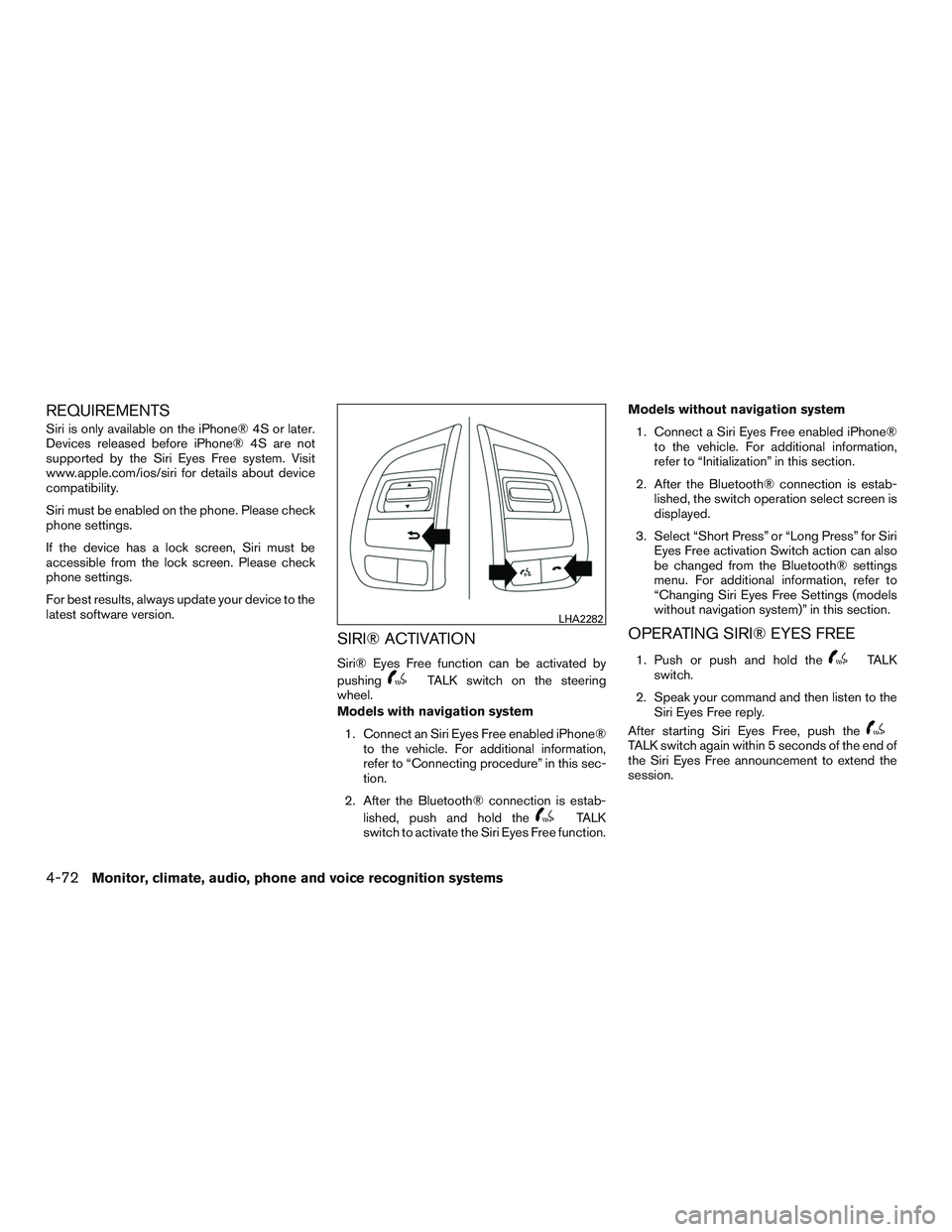
SIRI® ACTIVATION
Siri® Eyes Free function can be activated by
pushing
TALK switch on the steering
wheel.
Models with navigation system
1. Connect an Siri Eyes Free enabled iPhone® to the vehicle. For additional information,
refer to “Connecting procedure” in this sec-
tion.
2. After the Bluetooth® connection is estab- lished, push and hold the
TALK
switch to activate the Siri Eyes Free function. Models without navigation system
1. Connect a Siri Eyes Free enabled iPhone® to the vehicle. For additional information,
refer to “Initialization” in this section.
2. After the Bluetooth® connection is estab- lished, the switch operation select screen is
displayed.
3. Select “Short Press” or “Long Press” for Siri Eyes Free activation Switch action can also
be changed from the Bluetooth® settings
menu. For additional information, refer to
“Changing Siri Eyes Free Settings (models
without navigation system)” in this section.
OPERATING SIRI® EYES FREE
1. Push or push and hold theTALK
switch.
2. Speak your command and then listen to the Siri Eyes Free reply.
After starting Siri Eyes Free, push the
TALK switch again within 5 seconds of the end of
the Siri Eyes Free announcement to extend the
session.
LHA2282
4-72Monitor, climate, audio, phone and voice recognition systems
Page 252 of 497
Example 1 – Playing music1. Push or push and hold the
TALK
switch.
2. Say “Play (artist name, song name, etc.)”.
3. Your vehicle will automatically change to Bluetooth® Audio or iPod® mode* when
the music starts playing. Mode selection is
determined by the phone.
* If the iPhone® is also connected with the USB
cable.
If the audio track does not start playing automati-
cally after Siri Eyes Free ends, try changing the
track or audio source to resume playback.
NOTE:
For best results, use the native music app.
Performance of music control function
while using Podcasts, Audiobook or other
3rd party music apps may vary and is con-
trolled by the iPhone®. Example 2 – Replying to text messages
1. If a compatible iPhone® is connected and “Show Notifications” of the iPhone® set-
tings is enabled, the vehicle will display a
notification for new incoming text messages.
2. After reading the message, push or push and hold the
TALK switch to reply
using Siri Eyes Free.
3. After a beep sounds, say “Text message” or a similar command to reply using Siri Eyes
Free.
CHANGING SIRI® EYES FREE
SETTINGS (models without navigation
system)
Settings for Siri® Eyes Free can be found in the
Bluetooth settings menu. For additional informa-
tion, refer to “Bluetooth® settings” in this section.
1. Press the ENTER/SETTING button.
2. Use the TUNE/FOLDER or TUNE/SCROLL knob to select “Bluetooth” and then press
the ENTER/SETTING button. 3. Use the TUNE/FOLDER or TUNE/SCROLL
knob to select “Siri” and then press the
ENTER/SETTING button.
4. Select “Short Press” or “Long Press” using the TUNE/FOLDER or TUNE/SCROLL
knob and then press the ENTER/SETTING
button.
Monitor, climate, audio, phone and voice recognition systems4-73
Page 253 of 497
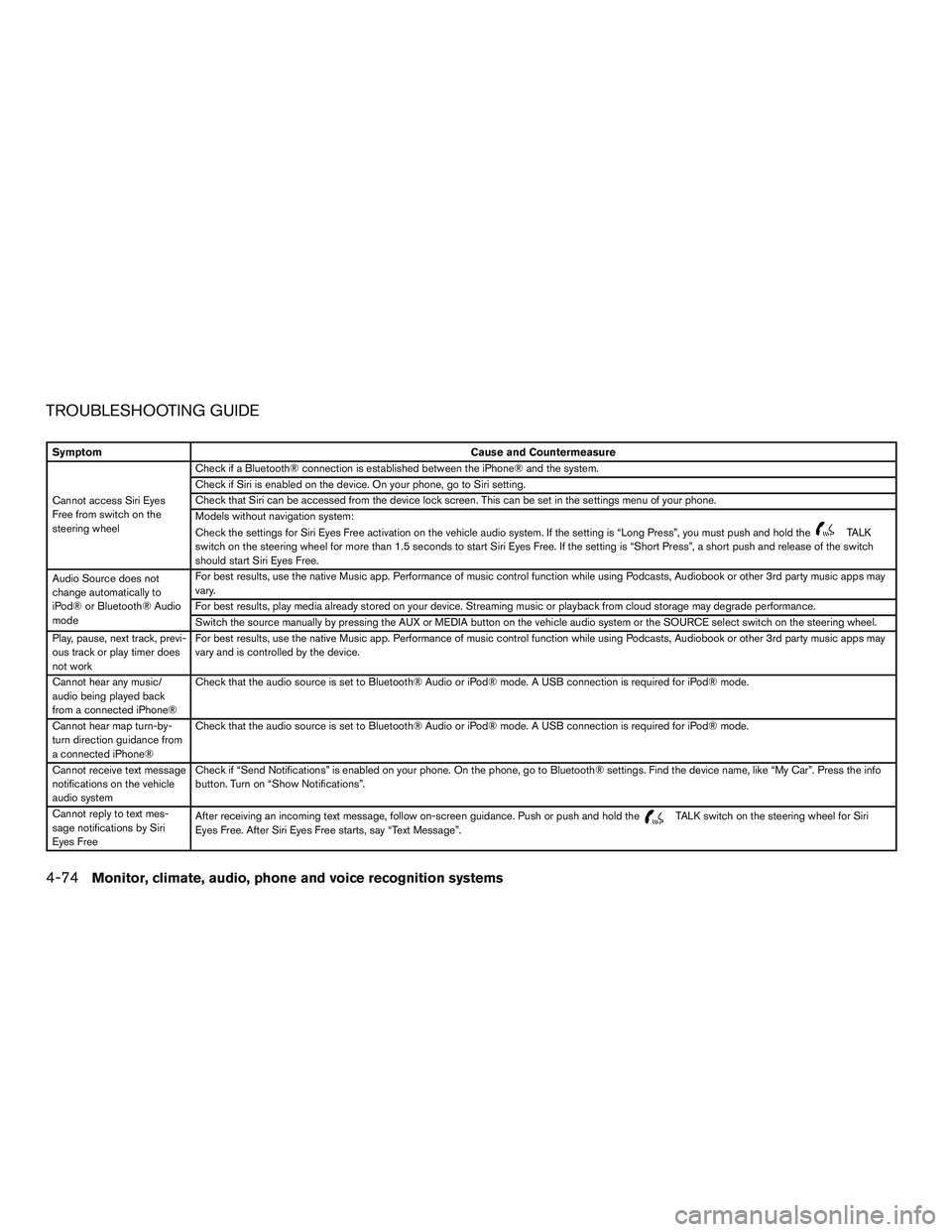
TROUBLESHOOTING GUIDE
SymptomCause and Countermeasure
Cannot access Siri Eyes
Free from switch on the
steering wheel Check if a Bluetooth® connection is established between the iPhone® and the system.
Check if Siri is enabled on the device. On your phone, go to Siri setting.
Check that Siri can be accessed from the device lock screen. This can be set in the settings menu of your phone.
Models without navigation system:
Check the settings for Siri Eyes Free activation on the vehicle audio system. If the setting is “Long Press”, you must push and hold the
TALK
switch on the steering wheel for more than 1.5 seconds to start Siri Eyes Free. If the setting is “Short Press”, a short push and release of the switch
should start Siri Eyes Free.
Audio Source does not
change automatically to
iPod® or Bluetooth® Audio
mode For best results, use the native Music app. Performance of music control function while using Podcasts, Audiobook or other 3rd party music apps may
vary.
For best results, play media already stored on your device. Streaming music or playback from cloud storage may degrade performance.
Switch the source manually by pressing the AUX or MEDIA button on the vehicle audio system or the SOURCE select switch on the steering wheel.
Play, pause, next track, previ-
ous track or play timer does
not work For best results, use the native Music app. Performance of music control function while using Podcasts, Audiobook or other 3rd party music apps may
vary and is controlled by the device.
Cannot hear any music/
audio being played back
from a connected iPhone® Check that the audio source is set to Bluetooth® Audio or iPod® mode. A USB connection is required for iPod® mode.
Cannot hear map turn-by-
turn direction guidance from
a connected iPhone® Check that the audio source is set to Bluetooth® Audio or iPod® mode. A USB connection is required for iPod® mode.
Cannot receive text message
notifications on the vehicle
audio system Check if “Send Notifications” is enabled on your phone. On the phone, go to Bluetooth® settings. Find the device name, like “My Car”. Press the info
button. Turn on “Show Notifications”.
Cannot reply to text mes-
sage notifications by Siri
Eyes Free After receiving an incoming text message, follow on-screen guidance. Push or push and hold the
TALK switch on the steering wheel for Siri
Eyes Free. After Siri Eyes Free starts, say “Text Message”.
4-74Monitor, climate, audio, phone and voice recognition systems
Page 254 of 497
When installing a CB, ham radio or car phone in
your vehicle, be sure to observe the following
precautions; otherwise, the new equipment may
adversely affect the engine control system and
other electronic parts.
WARNING
●A cellular phone should not be used for
any purpose while driving so full atten-
tion may be given to vehicle operation.
Some jurisdictions prohibit the use of
cellular phones while driving.
● If you must make a call while your ve-
hicle is in motion, the hands free cellu-
lar phone operational mode is highly
recommended. Exercise extreme cau-
tion at all times so full attention may be
given to vehicle operation.
● If you are unable to devote full attention
to vehicle operation while talking on
the phone, pull off the road to a safe
location and stop your vehicle.
CAUTION
● Keep the antenna as far away as pos-
sible from the electronic control
modules.
● Keep the antenna wire more than 8 in
(20 cm) away from the electronic control
system harnesses. Do not route the an-
tenna wire next to any harness.
● Adjust the antenna standing-wave ratio
as recommended by the manufacturer.
● Connect the ground wire from the CB
radio chassis to the body.
● For additional information, it is recom-
mended that you visit a NISSAN dealer
for servicing.
WARNING
● Use a phone after stopping your vehicle
in a safe location. If you have to use a
phone while driving, exercise extreme
caution at all times so full attention may
be given to vehicle operation.
● If you are unable to devote full attention
to vehicle operation while talking on
the phone, pull off the road to a safe
location and stop your vehicle.
CAUTION
To avoid discharging the vehicle battery,
use a phone after starting the engine.
CAR PHONE OR CB RADIO BLUETOOTH® HANDS-FREE PHONE
SYSTEM WITHOUT NAVIGATION
SYSTEM (Type A) (if so equipped)
Monitor, climate, audio, phone and voice recognition systems4-75
Page 269 of 497
WARNING
●Use a phone after stopping your vehicle
in a safe location. If you have to use a
phone while driving, exercise extreme
caution at all times so full attention may
be given to vehicle operation.
● If you are unable to devote full attention
to vehicle operation while talking on
the phone, pull off the road to a safe
location and stop your vehicle.
CAUTION
To avoid discharging the vehicle battery,
use a phone after starting the engine.
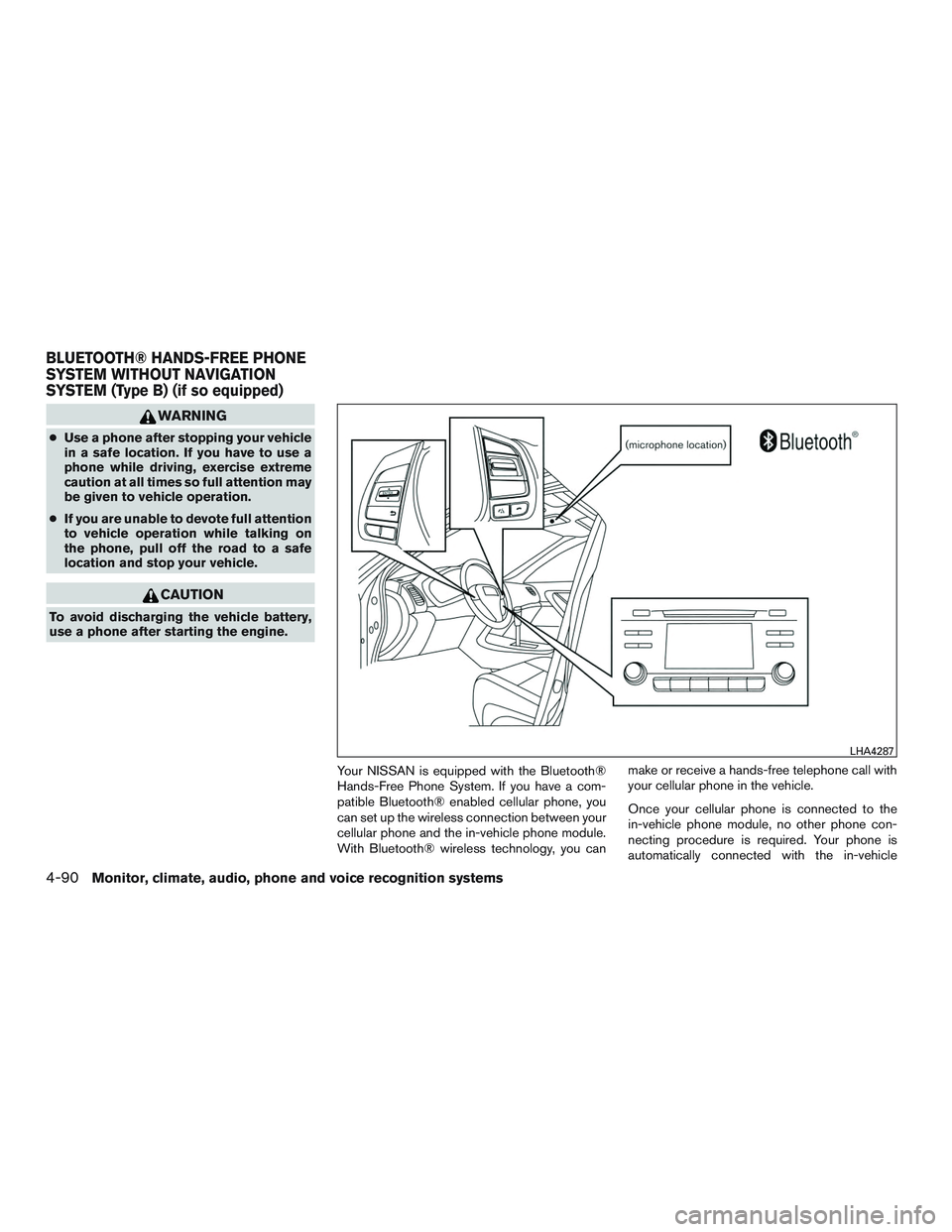
Your NISSAN is equipped with the Bluetooth®
Hands-Free Phone System. If you have a com-
patible Bluetooth® enabled cellular phone, you
can set up the wireless connection between your
cellular phone and the in-vehicle phone module.
With Bluetooth® wireless technology, you can make or receive a hands-free telephone call with
your cellular phone in the vehicle.
Once your cellular phone is connected to the
in-vehicle phone module, no other phone con-
necting procedure is required. Your phone is
automatically connected with the in-vehicle
LHA4287
BLUETOOTH® HANDS-FREE PHONE
SYSTEM WITHOUT NAVIGATION
SYSTEM (Type B) (if so equipped)
4-90Monitor, climate, audio, phone and voice recognition systems
Page 280 of 497
WARNING
●Use a phone after stopping your vehicle
in a safe location. If you have to use a
phone while driving, exercise extreme
caution at all times so full attention may
be given to vehicle operation.
● If you are unable to devote full attention
to vehicle operation while talking on
the phone, pull off the road to a safe
location and stop your vehicle.
CAUTION
To avoid discharging the vehicle battery,
use a phone after starting the engine.
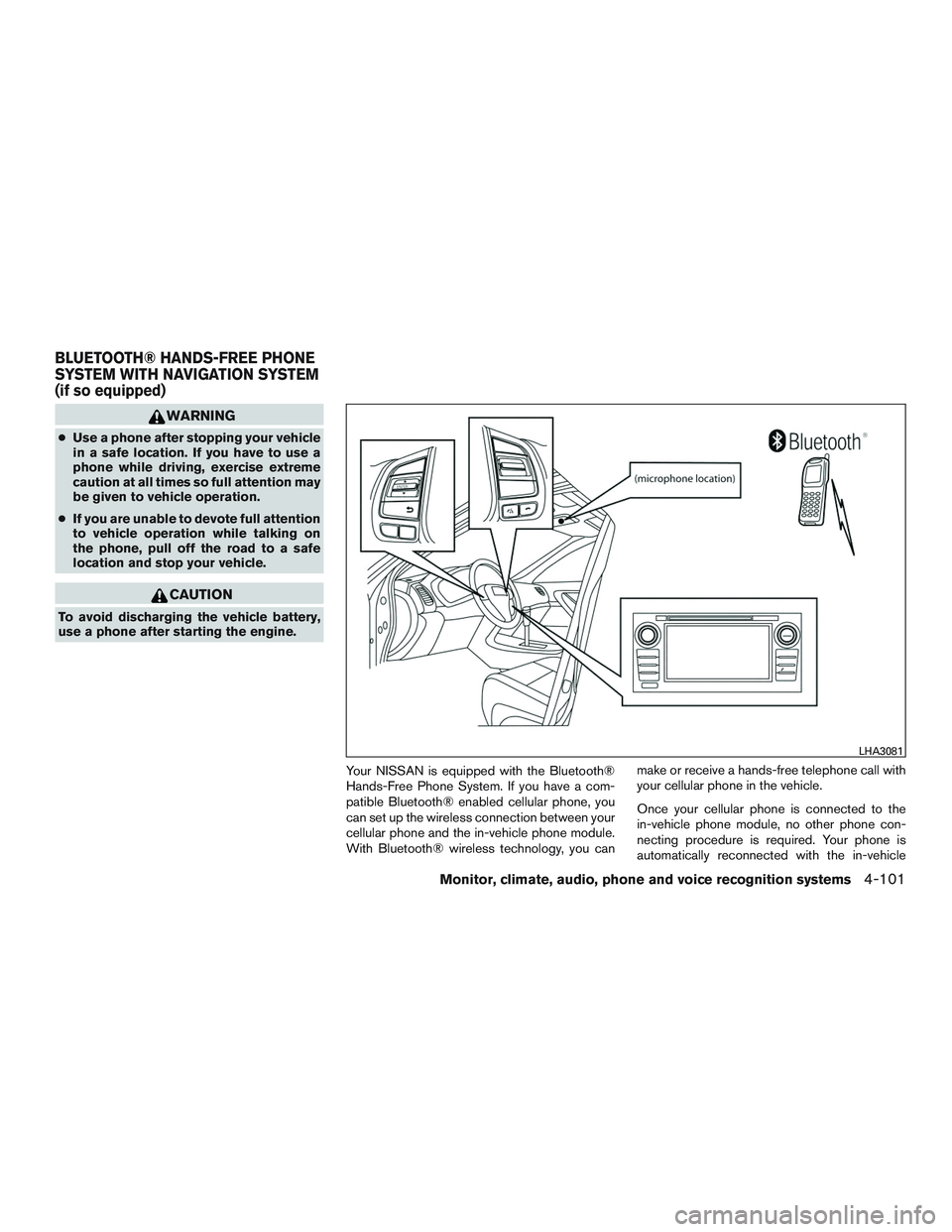
Your NISSAN is equipped with the Bluetooth®
Hands-Free Phone System. If you have a com-
patible Bluetooth® enabled cellular phone, you
can set up the wireless connection between your
cellular phone and the in-vehicle phone module.
With Bluetooth® wireless technology, you can make or receive a hands-free telephone call with
your cellular phone in the vehicle.
Once your cellular phone is connected to the
in-vehicle phone module, no other phone con-
necting procedure is required. Your phone is
automatically reconnected with the in-vehicle
LHA3081
BLUETOOTH® HANDS-FREE PHONE
SYSTEM WITH NAVIGATION SYSTEM
(if so equipped)
Monitor, climate, audio, phone and voice recognition systems4-101
Page 289 of 497
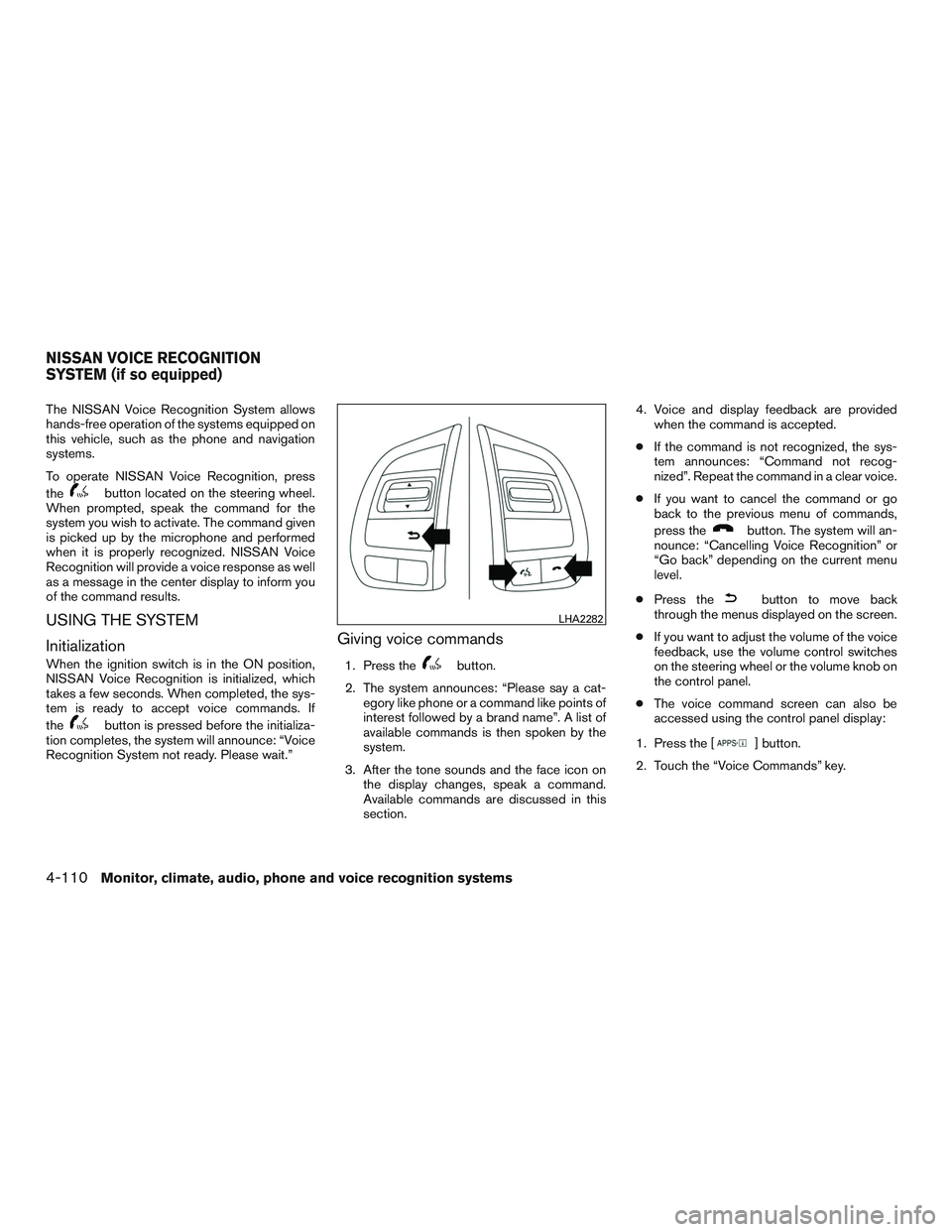
The NISSAN Voice Recognition System allows
hands-free operation of the systems equipped on
this vehicle, such as the phone and navigation
systems.
To operate NISSAN Voice Recognition, press
the
button located on the steering wheel.
When prompted, speak the command for the
system you wish to activate. The command given
is picked up by the microphone and performed
when it is properly recognized. NISSAN Voice
Recognition will provide a voice response as well
as a message in the center display to inform you
of the command results.
USING THE SYSTEM
Initialization
When the ignition switch is in the ON position,
NISSAN Voice Recognition is initialized, which
takes a few seconds. When completed, the sys-
tem is ready to accept voice commands. If
the
button is pressed before the initializa-
tion completes, the system will announce: “Voice
Recognition System not ready. Please wait.”
Giving voice commands
1. Press thebutton.
2. The system announces: “Please say a cat- egory like phone or a command like points of
interest followed by a brand name”. A list of
available commands is then spoken by the
system.
3. After the tone sounds and the face icon on the display changes, speak a command.
Available commands are discussed in this
section. 4. Voice and display feedback are provided
when the command is accepted.
● If the command is not recognized, the sys-
tem announces: “Command not recog-
nized”. Repeat the command in a clear voice.
● If you want to cancel the command or go
back to the previous menu of commands,
press the
button. The system will an-
nounce: “Cancelling Voice Recognition” or
“Go back” depending on the current menu
level.
● Press the
button to move back
through the menus displayed on the screen.
● If you want to adjust the volume of the voice
feedback, use the volume control switches
on the steering wheel or the volume knob on
the control panel.
● The voice command screen can also be
accessed using the control panel display:
1. Press the [
] button.
2. Touch the “Voice Commands” key.
LHA2282
NISSAN VOICE RECOGNITION
SYSTEM (if so equipped)
4-110Monitor, climate, audio, phone and voice recognition systems
Page 290 of 497
Operating tips
To get the best performance out of NISSAN
Voice Recognition, observe the following:● Keep the interior of the vehicle as quiet as
possible. Close the windows to eliminate the
surrounding noises (traffic noises, vibration
sounds, etc.) , which may prevent the system
from recognizing the voice commands cor-
rectly.
● Wait until a tone sounds before speaking a
command. Otherwise, the command will not
be received properly.
● Start speaking a command within 3.5 sec-
onds after the tone sounds.
● Speak in a natural voice without pausing
between words.
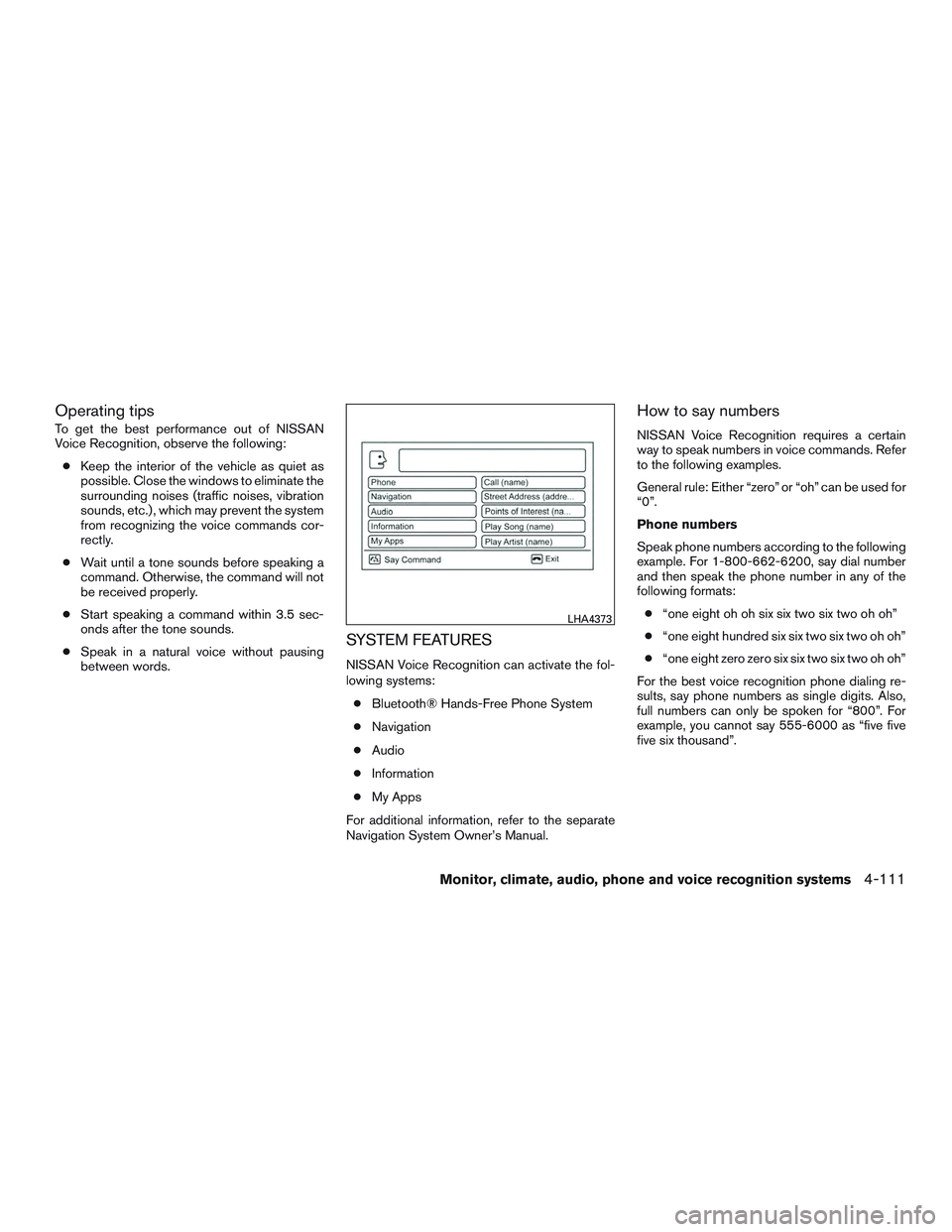
SYSTEM FEATURES
NISSAN Voice Recognition can activate the fol-
lowing systems:
● Bluetooth® Hands-Free Phone System
● Navigation
● Audio
● Information
● My Apps
For additional information, refer to the separate
Navigation System Owner’s Manual.
How to say numbers
NISSAN Voice Recognition requires a certain
way to speak numbers in voice commands. Refer
to the following examples.
General rule: Either “zero” or “oh” can be used for
“0”.
Phone numbers
Speak phone numbers according to the following
example. For 1-800-662-6200, say dial number
and then speak the phone number in any of the
following formats: ● “one eight oh oh six six two six two oh oh”
● “one eight hundred six six two six two oh oh”
● “one eight zero zero six six two six two oh oh”
For the best voice recognition phone dialing re-
sults, say phone numbers as single digits. Also,
full numbers can only be spoken for “800”. For
example, you cannot say 555-6000 as “five five
five six thousand”.
LHA4373
Monitor, climate, audio, phone and voice recognition systems4-111