buttons NISSAN ARMADA 2007 1.G User Guide
[x] Cancel search | Manufacturer: NISSAN, Model Year: 2007, Model line: ARMADA, Model: NISSAN ARMADA 2007 1.GPages: 344, PDF Size: 5.35 MB
Page 162 of 344
WARNING
cPositioning of the heating or air condi-
tioning controls and display controls
should not be done while driving in or-
der that full attention may be given to
the driving operation.
cDo not disassemble or modify this sys-
tem. If you do, it may result in accidents,
fire, or electrical shock.
cDo not use this system if you notice any
abnormality, such as a frozen screen or
lack of sound. Continued use of the
system may result in accident, fire or
electric shock.
cIn case you notice any foreign object in
the system hardware, spill liquid on it,
or notice smoke or smell coming from
it, stop using the system immediately
and contact your nearest NISSAN
dealer. Ignoring such conditions may
lead to accidents, fire or electrical
shock.
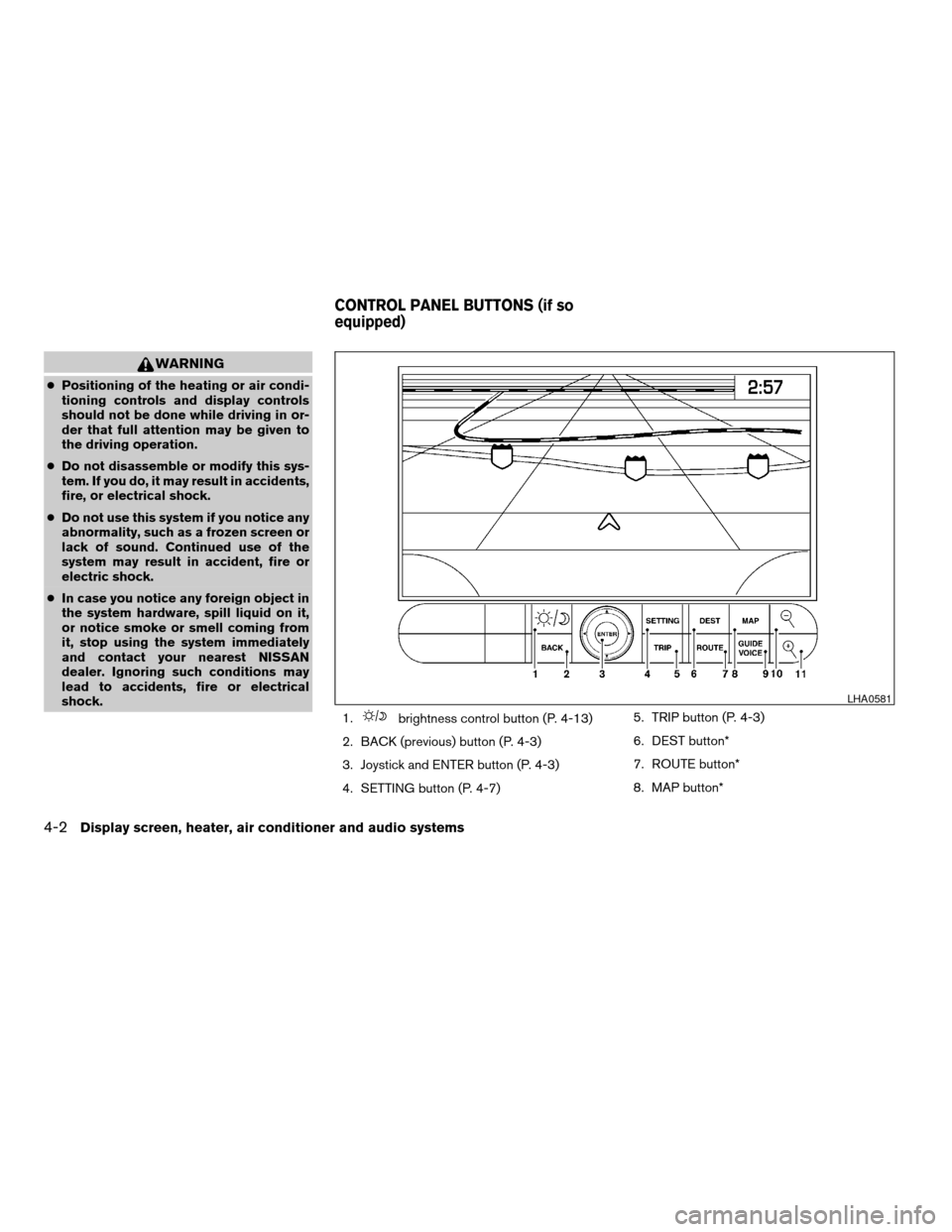
1.
brightness control button (P. 4-13)
2. BACK (previous) button (P. 4-3)
3. Joystick and ENTER button (P. 4-3)
4. SETTING button (P. 4-7)5. TRIP button (P. 4-3)
6. DEST button*
7. ROUTE button*
8. MAP button*
LHA0581
CONTROL PANEL BUTTONS (if so
equipped)
4-2Display screen, heater, air conditioner and audio systems
ZREVIEW COPYÐ2007 Armada(wzw)
Owners ManualÐUSA_English(nna)
07/08/06Ðtbrooks
X
Page 163 of 344

9. GUIDE VOICE button*
10.
zoom out button*
11.
zoom in button*
*For Navigation system control buttons, refer to
the separate Navigation System Owner’s
Manual.
When you use this system, make sure the engine
is running.
If you use the system with the engine not
running (ignition ON or ACC) for a long
time, it will use up all the battery power,
and the engine will not start.
Reference symbols:
ENTER button — This is a button on the control
panel.
Display key — This is a select key on the screen.
By selecting this key you can proceed to the next
function.
HOW TO USE THE JOYSTICK AND
ENTER BUTTON
Use the joystick to choose an item on the display
screen. Move the joystick up, down, left or right to
highlight an item. Then press the ENTER button
to select the item or perform the action.
HOW TO USE THE BACK BUTTON
This button has two functions.
cGo back to the previous display (cancel) .
If you press the BACK button during setup, the
setup will be canceled and/or the display will
return to the previous screen.
cFinish setup.
In some screens pressing the BACK button ac-
cepts the changes made during setup.
SETTING UP THE START-UP
SCREEN
When you turn the ignition key to ACC or ON, the
system start-up warning is displayed on the
screen. Read the warning and select the “OK”
key by pressing the ENTER button.
If you do not press the ENTER button, the Navi-
gation system will not proceed to the next step in
the Navigation display.
If you do not touch a button or screen key for
more than 1 minute on the system start-up warn-
ing screen, the screen will change to the audio
screen automatically.
To proceed to the next step, refer to the separate
Navigation System Owner’s Manual.HOW TO USE THE TRIP BUTTON
When the TRIP button is pressed, the following
modes will display on the screen.
Warning message (if any)!TRIP 1!TRIP 2!
FUEL ECONOMY!MAINTENANCE!Audio
or OFF!TRIP 1
Each trip display tracks an independent trip and
displays the following:
cElapsed Time - Journey time since the last
reset up to a maximum of 99 hours and 59
minutes.
cDriving Distance - Distance driven (mile or
km) since the last reset.
LHA0572
Display screen, heater, air conditioner and audio systems4-3
ZREVIEW COPYÐ2007 Armada(wzw)
Owners ManualÐUSA_English(nna)
07/08/06Ðtbrooks
X
Page 168 of 344

Brightness/contrast:
Select the “Brightness/Contrast” key to adjust
the brightness and contrast of the map back-
ground. Use the joystick to adjust the brightness
to darker or brighter and the contrast to lower or
higher.
The new settings are automatically saved when
you exit the setting screen by pressing the BACK
button or any other mode button.Display off:
Select the “Display Off” key. The indicator of the
“Display Off” turns amber and the message
above will be displayed briefly. When the audio,
HVAC (Heater and air conditioner) , or any mode
button on the control panel is operated, the dis-
play turns on for that operation. If one of the
control panel buttons is pressed, the display will
not automatically turn off until that operation is
finished. Otherwise, the screen turns off auto-
matically after 5 seconds.To turn the screen on,
cPress the SETTING button and select the
“Display” key and then select the “Display
Off” key. Then set the screen to on by press-
ing the ENTER button, or
cHold the
button for approximately 2
seconds and the message “resuming dis-
play” will appear and the “Display Off” key
will be automatically turned on (no amber
indicator) .
WHA0716LHA0642
4-8Display screen, heater, air conditioner and audio systems
ZREVIEW COPYÐ2007 Armada(wzw)
Owners ManualÐUSA_English(nna)
07/08/06Ðtbrooks
X
Page 179 of 344

1. Rear fan speed control dial.
2. Rear temperature control dial.
REAR CONTROL BUTTON
You can adjust the climate control system for rear
seat passengers using the buttons on the main
control panel. Front passengers can control the
rear functions by placing the controls on any
setting other than the “R”.
OPERATING TIPS
cWhen the engine coolant temperature and
outside air temperature are low, the air flow
from the foot outlets may not operate for a
maximum of 150 seconds. However, this is
not a malfunction. After the coolant tempera-
ture warms up, air flow from the foot outlets
will operate normally.
The sunload sensor
s1, located on the top center
of the instrument panel, helps the system main-
tain a constant temperature. Do not put anything
on or around this sensor.
WHA0509LIC0836
Display screen, heater, air conditioner and audio systems4-19
ZREVIEW COPYÐ2007 Armada(wzw)
Owners ManualÐUSA_English(nna)
07/08/06Ðtbrooks
X
Page 187 of 344

1. SEEK/TRACK button
2. TUNE/FOLDER·CAT button
3. DISP button
4. SCAN RPT button
5. PRESET A·B·C button6. CD·DVD button
7. RADIO button*
8. AUX button
9. REAR ON·OFF button
10.
speaker control button11. LOAD button
12. CD insert slot
13.
CD eject button
14. POWER/VOLUME control knob
15. Station and CD select (1 - 6) buttons
16. Tuning and AUDIO control knob
(BASS, MID, TREBLE, FADE and BAL-
ANCE)
*No satellite radio reception is available
and “NO SAT” is displayed when the
RADIO button is pressed to access
satellite radio stations unless optional
satellite receiver and antenna are in-
stalled and an XMTor SIRIUS™ satellite
radio service subscription is active. Sat-
ellite radio is not available in Alaska,
Hawaii and Guam.
Type A
WHA0769
Display screen, heater, air conditioner and audio systems4-27
ZREVIEW COPYÐ2007 Armada(wzw)
Owners ManualÐUSA_English(nna)
07/08/06Ðtbrooks
X
Page 188 of 344

1. SEEK/TRACK button
2. TUNE/FOLDER·CAT button
3. DISP button
4. SCAN RPT button
5. PRESET A·B·C button6. CD button
7. RADIO button*
8. DVD button
9. REAR ON·OFF button
10.
speaker control button11. LOAD button
12. CD insert slot
13.
CD eject button
14. POWER/VOLUME control knob
15. Station and CD select (1 - 6) buttons
16. Tuning and AUDIO control knob
(BASS, MID, TREBLE, FADE and BAL-
ANCE)
*No satellite radio reception is available
and “NO SAT” is displayed when the
RADIO button is pressed to access
satellite radio stations unless optional
satellite receiver and antenna are in-
stalled and an XMTor SIRIUS™ satellite
radio service subscription is active. Sat-
ellite radio is not available in Alaska,
Hawaii and Guam.
Type B
WHA0771
4-28Display screen, heater, air conditioner and audio systems
ZREVIEW COPYÐ2007 Armada(wzw)
Owners ManualÐUSA_English(nna)
07/08/06Ðtbrooks
X
Page 189 of 344
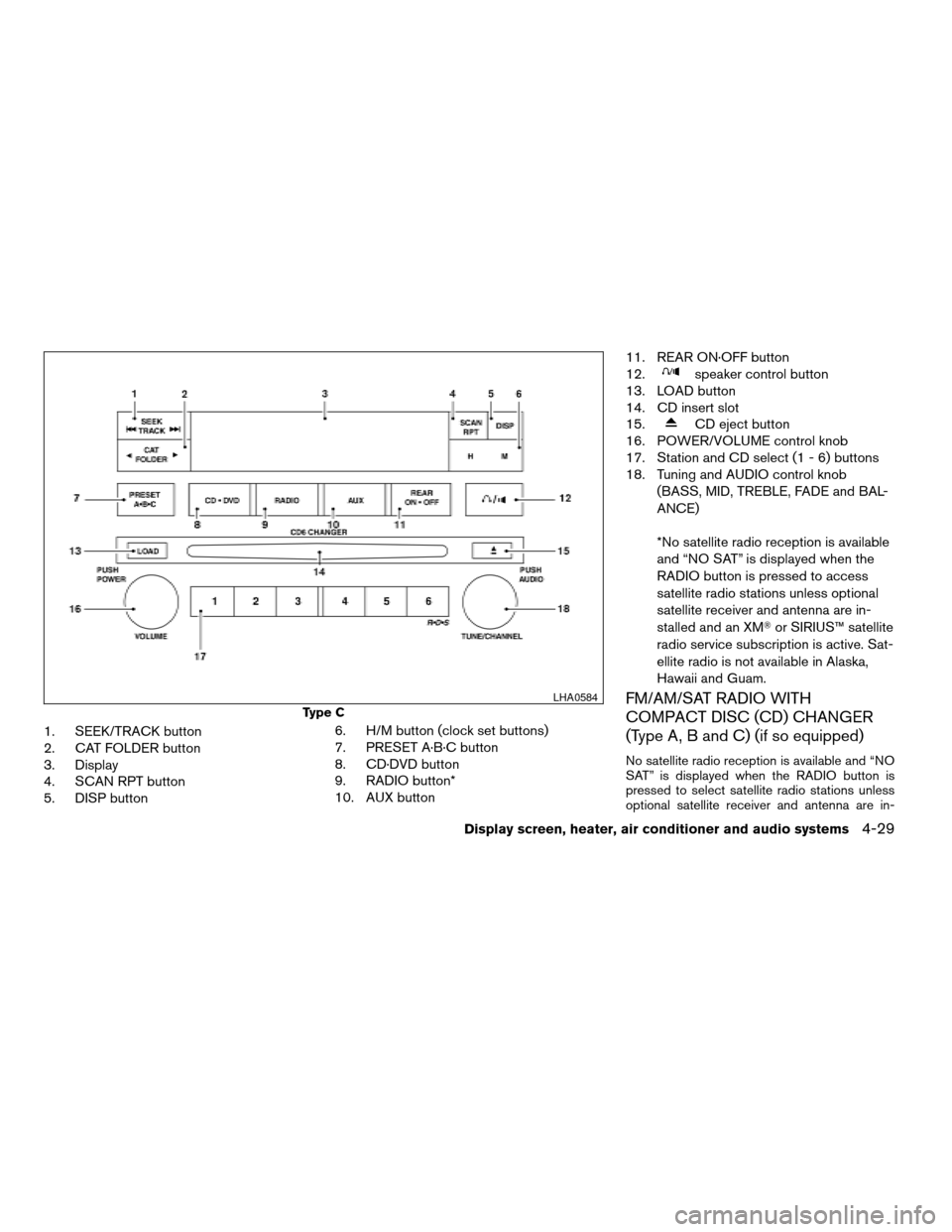
1. SEEK/TRACK button
2. CAT FOLDER button
3. Display
4. SCAN RPT button
5. DISP button6. H/M button (clock set buttons)
7. PRESET A·B·C button
8. CD·DVD button
9. RADIO button*
10. AUX button11. REAR ON·OFF button
12.
speaker control button
13. LOAD button
14. CD insert slot
15.
CD eject button
16. POWER/VOLUME control knob
17. Station and CD select (1 - 6) buttons
18. Tuning and AUDIO control knob
(BASS, MID, TREBLE, FADE and BAL-
ANCE)
*No satellite radio reception is available
and “NO SAT” is displayed when the
RADIO button is pressed to access
satellite radio stations unless optional
satellite receiver and antenna are in-
stalled and an XMTor SIRIUS™ satellite
radio service subscription is active. Sat-
ellite radio is not available in Alaska,
Hawaii and Guam.
FM/AM/SAT RADIO WITH
COMPACT DISC (CD) CHANGER
(Type A, B and C) (if so equipped)
No satellite radio reception is available and “NO
SAT” is displayed when the RADIO button is
pressed to select satellite radio stations unless
optional satellite receiver and antenna are in-
Type C
LHA0584
Display screen, heater, air conditioner and audio systems4-29
ZREVIEW COPYÐ2007 Armada(wzw)
Owners ManualÐUSA_English(nna)
07/08/06Ðtbrooks
X
Page 192 of 344

TUNE/FOLDER·CAT
(tuning) button (Type A
and B only):
To manually tune the radio, press the
TUNE/FOLDER·CAT button
oror
turn the tuning knob to right or left.
To move quickly through the channels, press and
hold either the
orbutton down for
more than 1.5 seconds.
CAT FOLDER (tuning)
button (Type C only):
To manually tune the radio, press the CAT
FOLDER button
oror turn the tun-
ing knob to right or left.
To move quickly through the channels, press and
hold either the
orbutton down for
more than 1.5 seconds.
SEEK/TRACK (tuning)
button (Type A and B
only):
Press the SEEK/TRACK button
orfor less than 1.5 seconds to tune from high to low
or low to high frequencies and stop at the next
broadcasting station.
To seek quickly through the channels, press and
hold the SEEK/TRACK button for more than 1.5seconds. When the button is released the radio
will seek to the next broadcasting station.
SEEK/TRACK (tuning)
button (Type C only):
Press the SEEK/TRACK button
orfor less than 1.5 seconds to tune from high to low
or low to high frequencies and stop at the next
broadcasting station.
To seek quickly through the channels, press and
hold the SEEK/TRACK button for more than 1.5
seconds. When the button is released the radio
will seek to the next broadcasting station.
SCAN/RPT tuning button:
Press the SCAN/RPT button for more than 1.5
seconds to stop at each broadcasting station
(AM, FM or SAT, if so equipped) for 5 seconds.
Pressing the button again during this 5 second
period will stop scan tuning and the radio will
remain tuned to that station. If the SCAN/RPT
button is not pressed within 5 seconds, scan
tuning moves to the next station.
PRESET A·B·C (Station memory opera-
tions):
18 stations can be set for the FM, AM and SAT
(satellite, if so equipped) radio to the A, B and C
preset button in any combination of FM, AM or
SAT stations.1. Choose preset bank A, B or C using the
PRESET A·B·C select button.
2. Select the desired FM, AM or SAT station
band.
3. Tune to the desired station using manual,
SEEK or SCAN tuning. Press and hold any
of the desired station memory buttons (1 –
6) until a beep sound is heard.
4. The channel indicator will then come on and
the sound will resume. Programming is now
complete.
5. Other buttons can be set in the same man-
ner.
If the battery cable is disconnected, or if the fuse
opens, the radio memory will be canceled. In that
case, reset the desired stations.
Radio data system (RDS):
RDS stands for Radio Data System, and is a data
information service transmitted by some radio
stations on the FM band (not AM band) . Cur-
rently, most RDS stations are in large cities, but
many stations are now considering broadcasting
RDS data.
RDS can display:
cStation call sign, such as “WHFR 98.3”.
cStation name, such as “The Groove”.
4-32Display screen, heater, air conditioner and audio systems
ZREVIEW COPYÐ2007 Armada(wzw)
Owners ManualÐUSA_English(nna)
07/08/06Ðtbrooks
X
Page 194 of 344

TUNE/FOLDER·CAT but-
ton (Type A and B only):
CD:
cWhile playing a CD press the
TUNE/FOLDER·CAT button
orto fast forward or rewind a track on a CD.
MP3 CD:
cWhile playing an MP3 CD, press the
TUNE/FOLDER·CAT button
orto scan backward or forward through avail-
able folders.
cPress and hold the TUNE/FOLDER·CAT
button
orto fast forward or re-
wind a track on an MP3 CD.
CAT FOLDER button
(Type C only):
CD:
cWhile playing a CD press the CAT FOLDER
button
orto fast forward or re-
wind a track on a CD.
MP3 CD:
cWhile playing an MP3 CD, press the CAT
FOLDER button
orto scan
backward or forward through available fold-
ers.cPress and hold the CAT FOLDER
button
orto fast forward or re-
wind a track on an MP3 CD.
CD select buttons:
To play another CD that has been loaded, press a
CD select button (1 – 6) .
SCAN/RPT:
When the SCAN/RPT play button is pushed
while the compact disc is played, the play pattern
can be changed as follows:
ALL DISC RPT!1 DISC RPT!1 TRACK RPT
!ALL DISC RDM!1 DISC RDM!ALL DISC
RPT
ALL DISC RPT: All discs loaded will be repeated.
1 DISC RPT: The disc that is currently playing will
be repeated.
1 TRACK RPT: The track that is currently playing
will be repeated
ALL DISC RDM: Tracks from all discs will be
played randomly
1 DISC RDM: Tracks from the disc that is cur-
rently playing will be played randomly
REAR ON·OFF:
Pressing the REAR ON·OFF button turns the rear
seat audio controller on. REAR CONT ON will
display. Pressing it again will turn the rear seat
audio controller off. REAR CONT OFF will dis-play. If the vehicle is not equipped with a rear seat
audio controller, the display will show “REAR AV
N/A”.
(SPEAKER CONTROL) button:
Press the
button to turn the rear speakers
off and headphones on. Press this button again
to turn rear seat speakers back on and head-
phones off.
CD EJECT:
Current/Selected disc:
cPress the
button, then press the slot
number (1 – 6) for the desired disc. The
compact disc will be ejected. If no slot num-
ber (1 – 6) is pressed, the current loaded
disc will be ejected. Also, if the ejected disc
is not removed within 15 seconds, the disc
will reload.
All discs:
cPress and hold the
button for more
than 1.5 seconds. The compact discs will be
ejected one by one. If a disc is not removed
within 15 seconds, or the
button is
pressed again during the eject sequence,
the entire disc eject sequence will be can-
celed.
4-34Display screen, heater, air conditioner and audio systems
ZREVIEW COPYÐ2007 Armada(wzw)
Owners ManualÐUSA_English(nna)
07/08/06Ðtbrooks
X
Page 205 of 344

ENTER:
In MENU mode, press the ENTER button to se-
lect MENU items.
In the display menu, press the ENTER button to
select items for modification, as per the on-
screen instructions.
MENU:
If the media is in PLAY mode and the MENU
button is pressed, the DVD menu will appear on
the screen. Use Navigation Keys to navigate
within the menu, and use ENTER to select the
item.
Press the MENU button again to return to PLAY
mode.
TITLE (Remote control only):
Press TITLE button to return the DVD media to
the “title” of the DVD.
Press TITLE button again to return to the previous
stop point and play.
BACK (Remote control only):
Press the BACK button to exit the current active
menu and return to the previous menu.
SUBTITLE (Remote control only):
Press the SUBTITLE button to call up subtitle
selection menu.Repeatedly press the SUBTITLE button to cycle
through each available subtitle.
AUDIO (Remote control only):
Press the AUDIO button to call up audio menu.
Repeatedly press the AUDIO button to cycle
through each available audio track.
ANGLE (Remote control only):
Press the ANGLE button to call up camera angle
menu.
Repeatedly press the ANGLE button to cycle
through each available angle.
CLEAR (Remote control only):
Press the CLEAR button to clear all numeric
inputs, if actuated prior to expiration of the
3-second timer.
NUMERIC KEYPAD (0–9 &¸10) (Remote
control only):
Press the NUMERIC KEYPAD to directly access
disc chapters, titles or tracks by inputting their
numeric value.
The “¸10” button input numbers greater than or
equal to 10, allowing up three digits to be input
for selecting chapter/title/track number.The subsequent actuation of numeric buttons will
continuously shift the previously input number to
the “left”.
The chapter/title/track number will be automati-
cally selected (if valid, based on media content) if
3 seconds expire without any keypad inputs.
The operator can cancel the input
chapter/title/track number by actuating the
CLEAR control prior to the expiration of the
3-second timer.
These functions can be used only for the DVD
discs which correspond to them.
Auxiliary input jacks
The auxiliary input jacks are located on the control
panel. Compatible devices such as video games,
camcorders and portable video players can be
connected to the auxiliary jacks.
The auxiliary jacks are color coded for identifica-
tion purposes.
cYellow - video input
cWhite - left channel audio input
cRed - right channel audio input
Display screen, heater, air conditioner and audio systems4-45
ZREVIEW COPYÐ2007 Armada(wzw)
Owners ManualÐUSA_English(nna)
07/08/06Ðtbrooks
X