light NISSAN ARMADA 2008 1.G Owners Manual
[x] Cancel search | Manufacturer: NISSAN, Model Year: 2008, Model line: ARMADA, Model: NISSAN ARMADA 2008 1.GPages: 456, PDF Size: 5.89 MB
Page 214 of 456
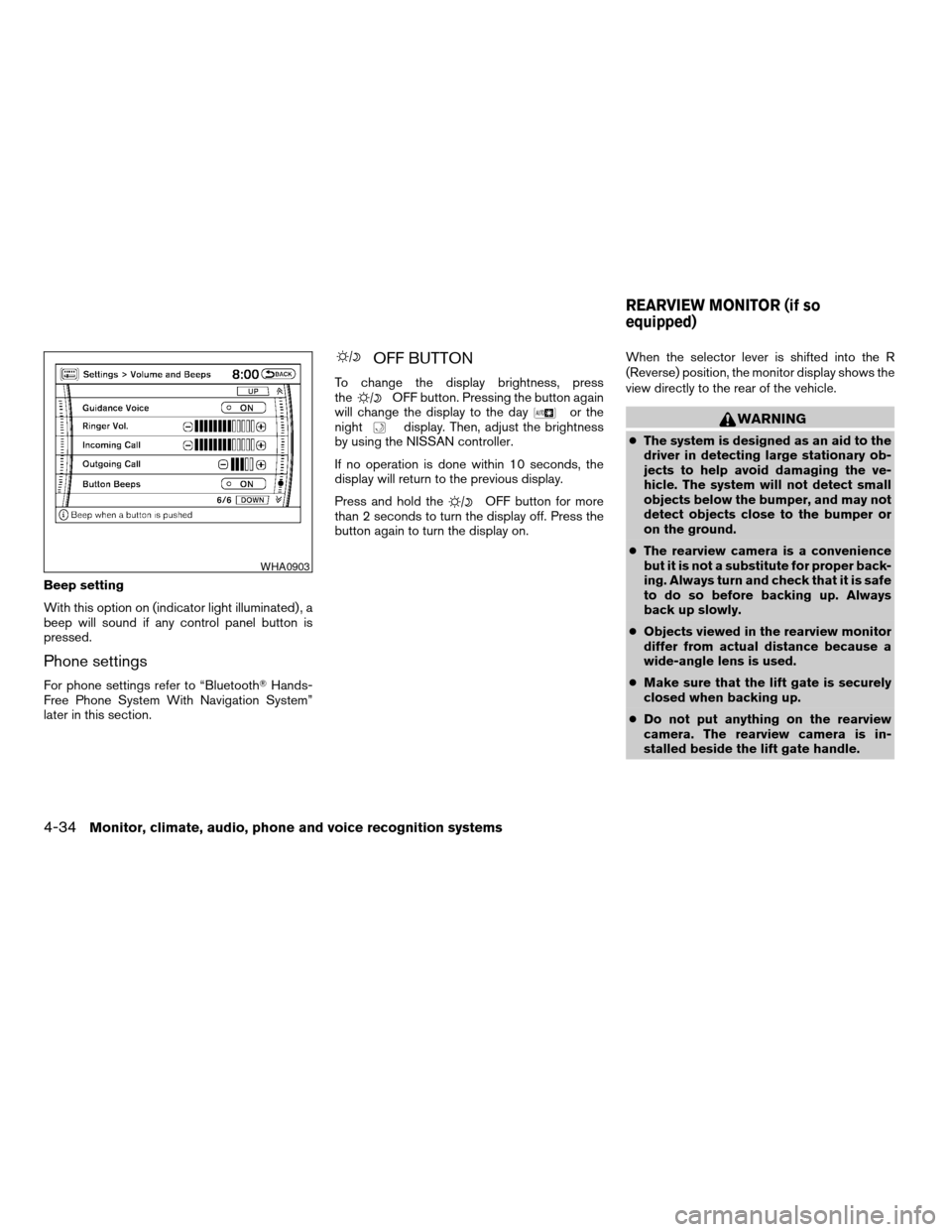
Beep setting
With this option on (indicator light illuminated) , a
beep will sound if any control panel button is
pressed.
Phone settings
For phone settings refer to “BluetoothTHands-
Free Phone System With Navigation System”
later in this section.
OFF BUTTON
To change the display brightness, press
theOFF button. Pressing the button again
will change the display to the dayor the
nightdisplay. Then, adjust the brightness
by using the NISSAN controller.
If no operation is done within 10 seconds, the
display will return to the previous display.
Press and hold the
OFF button for more
than 2 seconds to turn the display off. Press the
button again to turn the display on.When the selector lever is shifted into the R
(Reverse) position, the monitor display shows the
view directly to the rear of the vehicle.
WARNING
cThe system is designed as an aid to the
driver in detecting large stationary ob-
jects to help avoid damaging the ve-
hicle. The system will not detect small
objects below the bumper, and may not
detect objects close to the bumper or
on the ground.
cThe rearview camera is a convenience
but it is not a substitute for proper back-
ing. Always turn and check that it is safe
to do so before backing up. Always
back up slowly.
cObjects viewed in the rearview monitor
differ from actual distance because a
wide-angle lens is used.
cMake sure that the lift gate is securely
closed when backing up.
cDo not put anything on the rearview
camera. The rearview camera is in-
stalled beside the lift gate handle.
WHA0903
REARVIEW MONITOR (if so
equipped)
4-34Monitor, climate, audio, phone and voice recognition systems
ZREVIEW COPYÐ2008 Armada(wzw)
Owners ManualÐUSA_English(nna)
03/05/07Ðarosenma
X
Page 216 of 456

OPERATING TIPS
cWhen the selector lever is shifted to R (Re-
verse) , the monitor screen automatically
changes to the rearview monitor mode.
However, the radio can be heard.
cIt may take some time until the rearview
monitor is displayed after the selector lever
has been shifted to R (Reverse) . Objects
may be distorted momentarily until the rear-
view monitor screen is displayed completely.
When the selector lever is returned to a
position other than R (Reverse) , it may take
some time until the screen changes. Objects
on the screen may be distorted until they are
completely displayed.
cWhen the temperature is extremely high or
low, the screen may not clearly display ob-
jects. This is not a malfunction.
cWhen strong light directly enters the cam-
era, objects may not be displayed clearly.
cVertical lines may be seen in objects on the
screen. This is due to strong reflected light
from the bumper. This is not a malfunction.
cThe screen may flicker under fluorescent
light. This is not a malfunction.cThe colors of objects on the rearview moni-
tor may differ somewhat from those of the
actual object.
cWhen the contrast of objects is low at night,
pressing the SETTING button may not
change the brightness.
cObjects on the monitor may not be clear in a
dark place or at night.
cIf dirt, rain or snow attaches to the camera,
the rearview monitor may not display ob-
jects. Clean the camera.
cDo not use alcohol, benzine or thinner to
clean the camera. This will cause discolora-
tion. To clean the camera, wipe with a cloth
dampened with a diluted mild cleaning agent
and then wipe with a dry cloth.
cDo not damage the camera as the monitor
screen may be adversely affected.
cDo not use body wax on the camera window.
Wipe off the wax with a clean cloth damp-
ened with mild detergent diluted with water.
4-36Monitor, climate, audio, phone and voice recognition systems
ZREVIEW COPYÐ2008 Armada(wzw)
Owners ManualÐUSA_English(nna)
03/05/07Ðarosenma
X
Page 222 of 456

Reception conditions will constantly change be-
cause of vehicle movement. Buildings, terrain,
signal distance and interference from other ve-
hicles can work against ideal reception. De-
scribed below are some of the factors that can
affect your radio reception.
FM RADIO RECEPTION
Range: FM range is normally limited to 25 – 30
miles (40 – 48 km) , with monaural (single chan-
nel) FM having slightly more range than stereo
FM. External influences may sometimes interfere
with FM station reception even if the FM station is
within 25 miles (40 km) . The strength of the FM
signal is directly related to the distance between
the transmitter and receiver. FM signals follow a
line-of-sight path, exhibiting many of the same
characteristics as light. For example, they will
reflect off objects.
Fade and drift: As your vehicle moves away from
a station transmitter, the signals will tend to fade
and/or drift.
Static and flutter: During signal interference from
buildings, large hills or due to antenna position
(usually in conjunction with increased distance
from the station transmitter) static or flutter can
be heard. This can be reduced by adjusting the
treble control to reduce treble response.Multipath reception: Because of the reflective
characteristics of FM signals, direct and reflected
signals reach the receiver at the same time. The
signals may cancel each other, resulting in mo-
mentary flutter or loss of sound.
AM RADIO RECEPTION
AM signals, because of their low frequency, can
bend around objects and skip along the ground.
In addition, the signals can be bounced off the
ionosphere and bent back to earth. Because of
these characteristics, AM signals are also sub-
ject to interference as they travel from transmitter
to receiver.
Fading: Occurs while the vehicle is passing
through freeway underpasses or in areas with
many tall buildings. It can also occur for several
seconds during ionospheric turbulence even in
areas where no obstacles exist.
Static: Caused by thunderstorms, electrical
power lines, electric signs and even traffic lights.
SATELLITE RADIO RECEPTION (if so
equipped)
When the satellite radio is first installed or the
battery has been replaced, the satellite radio may
not work properly. This is not a malfunction. Wait
more than 10 minutes with satellite radio ON andthe vehicle outside of any metal or large building
for satellite radio to receive all of the necessary
data.
The satellite radio mode will be skipped unless an
optional satellite receiver and antenna are in-
stalled and an XMTsatellite radio service sub-
scription is active. Satellite radio is not available
in Alaska, Hawaii and Guam.
Satellite radio performance may be affected if
cargo carried on the roof blocks the satellite radio
signal.
If possible, do not put cargo over the satellite
antenna.
4-42Monitor, climate, audio, phone and voice recognition systems
ZREVIEW COPYÐ2008 Armada(wzw)
Owners ManualÐUSA_English(nna)
03/05/07Ðarosenma
X
Page 223 of 456
AUDIO OPERATION PRECAUTIONSCompact disc (CD) player
CAUTION
cDo not force a compact disc into the CD
insert slot. This could damage the CD
and/or CD changer/player.
cTrying to load a CD with the CD door
closed could damage the CD and/or CD
changer.
cOnly one CD can be loaded into the CD
player at a time.
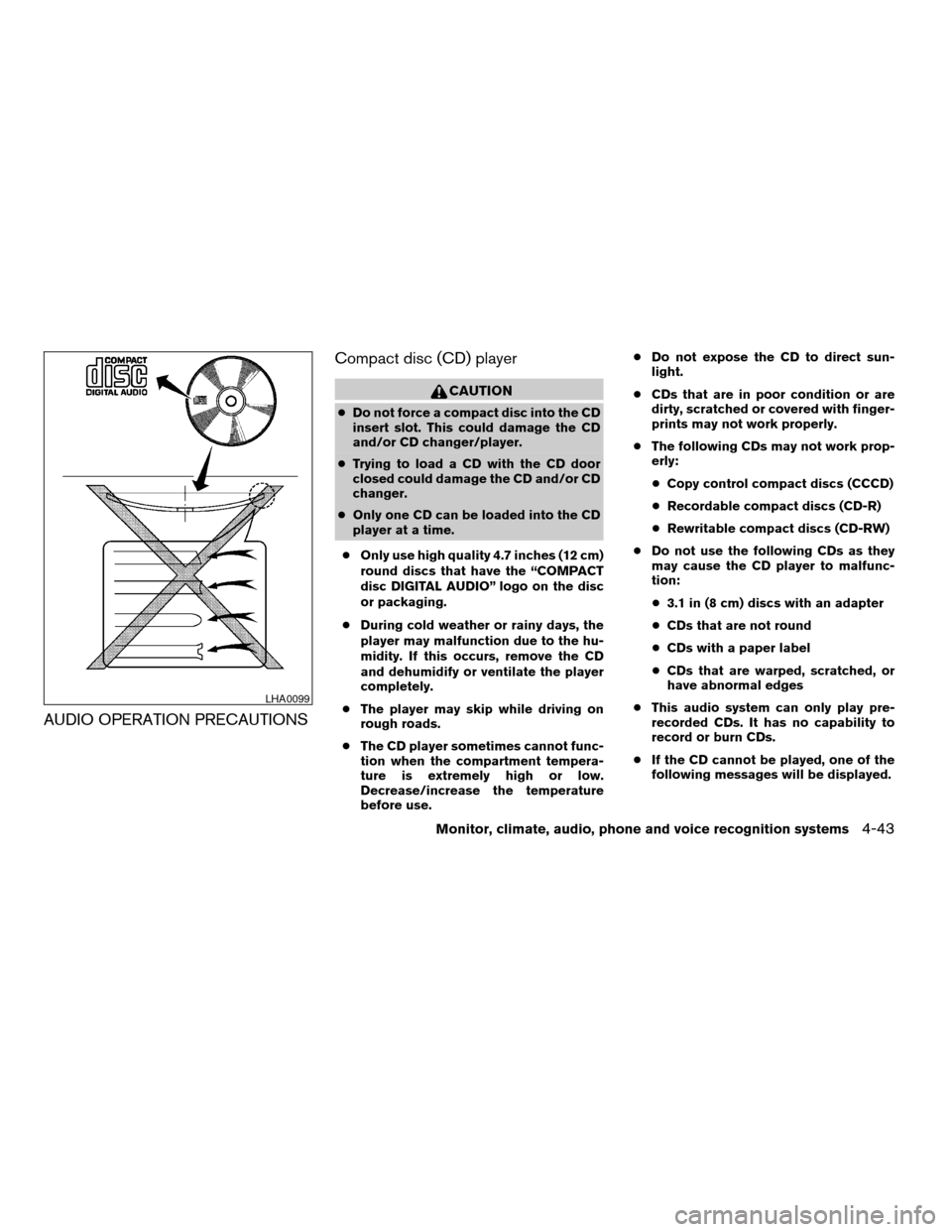
cOnly use high quality 4.7 inches (12 cm)
round discs that have the “COMPACT
disc DIGITAL AUDIO” logo on the disc
or packaging.
cDuring cold weather or rainy days, the
player may malfunction due to the hu-
midity. If this occurs, remove the CD
and dehumidify or ventilate the player
completely.
cThe player may skip while driving on
rough roads.
cThe CD player sometimes cannot func-
tion when the compartment tempera-
ture is extremely high or low.
Decrease/increase the temperature
before use.cDo not expose the CD to direct sun-
light.
cCDs that are in poor condition or are
dirty, scratched or covered with finger-
prints may not work properly.
cThe following CDs may not work prop-
erly:
cCopy control compact discs (CCCD)
cRecordable compact discs (CD-R)
cRewritable compact discs (CD-RW)
cDo not use the following CDs as they
may cause the CD player to malfunc-
tion:
c3.1 in (8 cm) discs with an adapter
cCDs that are not round
cCDs with a paper label
cCDs that are warped, scratched, or
have abnormal edges
cThis audio system can only play pre-
recorded CDs. It has no capability to
record or burn CDs.
cIf the CD cannot be played, one of the
following messages will be displayed.
LHA0099
Monitor, climate, audio, phone and voice recognition systems4-43
ZREVIEW COPYÐ2008 Armada(wzw)
Owners ManualÐUSA_English(nna)
03/05/07Ðarosenma
X
Page 224 of 456

CHECK DISC:
cConfirm that the CD is inserted cor-
rectly (the label side is facing up,
etc.) .
cConfirm that the CD is not bent or
warped and it is free of scratches.
PRESS EJECT:
This is an error due to excessive tem-
perature inside the player. Remove the
CD by pressing the EJECT button. After
a short time, reinsert the CD. The CD
can be played when the temperature of
the player returns to normal.
UNPLAYABLE:
The file is unplayable in this audio sys-
tem (only MP3 CD) .
CompactFlash™ (CF) player
cDo not force a CF card into the slot. This
could damage the CF card and/or player.
cDuring cold weather or rainy days, the player
may malfunction due to the humidity. If this
occurs, remove the CF card and dehumidify
or ventilate the player completely.
cThe CF player sometimes cannot function
when the passenger compartment tempera-ture is extremely high. Decrease the tem-
perature before use.
cDo not expose a CF card to direct sunlight.
cConfirm that a CF card is inserted correctly.
Compact Disc (CD)/CompactFlash™
(CF) with MP3 or WMA
Terms:
cMP3 — MP3 is short for Moving Pictures
Experts Group Audio Layer 3. MP3 is the
most well-known compressed digital audio
file format. This format allows for near “CD
quality” sound, but at a fraction of the size of
normal audio files. MP3 conversion of an
audio track from CD/CF can reduce the file
size by approximately 10:1 ratio (Sampling:
44.1 kHz, Bit rate: 128 kbps) with virtually no
perceptible loss in quality. MP3 compres-
sion removes the redundant and irrelevant
parts of a sound signal that the human ear
doesn’t hear.
cWMA — Windows Media Audio (WMA)* is a
compressed audio format created by Mi-
crosoft as an alternative to MP3. The WMA
codec offers greater file compression than
the MP3 codec, enabling storage of more
digital audio tracks in the same amount ofspace when compared to MP3s at the same
level of quality.
cBit rate — Bit rate denotes the number of
bits per second used by a digital music file.
The size and quality of a compressed digital
audio file is determined by the bit rate used
when encoding the file.
cSampling frequency — Sampling frequency
is the rate at which the samples of a signal
are converted from analog to digital (A/D
conversion) per second.
cMultisession — Multisession is one of the
methods for writing data to media. Writing
data once to the media is called a single
session, and writing more than once is called
a multisession.
cID3/WMA Tag — The ID3/WMA tag is the
part of the encoded MP3 or WMA file that
contains information about the digital music
file such as song title, artist, album title,
encoding bit rate, track time duration, etc.
ID3 tag information is displayed on the
Album/Artist/Track title line on the display.
* WindowsTand Windows MediaTare regis-
tered trademarks and trademarks of the Mi-
crosoft Corporation in the United States of
America and/or other countries.
4-44Monitor, climate, audio, phone and voice recognition systems
ZREVIEW COPYÐ2008 Armada(wzw)
Owners ManualÐUSA_English(nna)
03/05/07Ðarosenma
X
Page 230 of 456

For information on how to use the NISSAN con-
troller, see “How to use the NISSAN controller”
earlier in this section.Precision phased audio (if so equipped):
To turn on or off the precision phased audio,
press the SETTING button. Select the “Audio”
key using the NISSAN controller, then press the
ENTER button, the audio settings screen will be
displayed. Select the “Precision Phased Audio”
key, then press the ENTER button. If the amber
indicator light is displayed the precision phased
audio is enabled. Pressing the ENTER button
again will turn off the precision phased audio, the
indicator light will disappear.
When this item is turned on, super high pitch
sound and super low pitch sound are empha-
sized and midrange sound is played naturally.While in this screen you can also adjust the other
audio settings by selecting the corresponding
key.
Once you have adjusted the sound quality to the
desired level, press the BACK button.
For information on how to use the NISSAN con-
troller, see “How to use the NISSAN controller”
earlier in this section.
Clock set
For setting the clock, see “Clock” earlier in this
section.
WHA0941WHA0928
4-50Monitor, climate, audio, phone and voice recognition systems
ZREVIEW COPYÐ2008 Armada(wzw)
Owners ManualÐUSA_English(nna)
03/05/07Ðarosenma
X
Page 238 of 456

Precision phased audio (if so equipped):
To turn on or off the precision phased audio,
press the SETTING button. Then touch the “Au-
dio” key; the audio settings screen will be dis-
played. Touch the “Precision Phased Audio ON”
key. If the amber indicator light is displayed, the
precision phased audio is enabled. Touching the
“Precision Phased Audio ON” key again will turn
off the precision phased audio; the indicator light
will disappear.
When this item is turned on, super high pitch
sound and super low pitch sound are empha-
sized and midrange sound is played naturally.While in this screen you can also adjust the other
audio settings by touching the corresponding
key.
Once you have adjusted the sound quality to the
desired level, touch the “BACK” key.
Clock set
For setting the clock, see “Clock” earlier in this
section.
LHA0900WHA0942
4-58Monitor, climate, audio, phone and voice recognition systems
ZREVIEW COPYÐ2008 Armada(wzw)
Owners ManualÐUSA_English(nna)
03/05/07Ðarosenma
X
Page 254 of 456
CF cards:
CAUTION
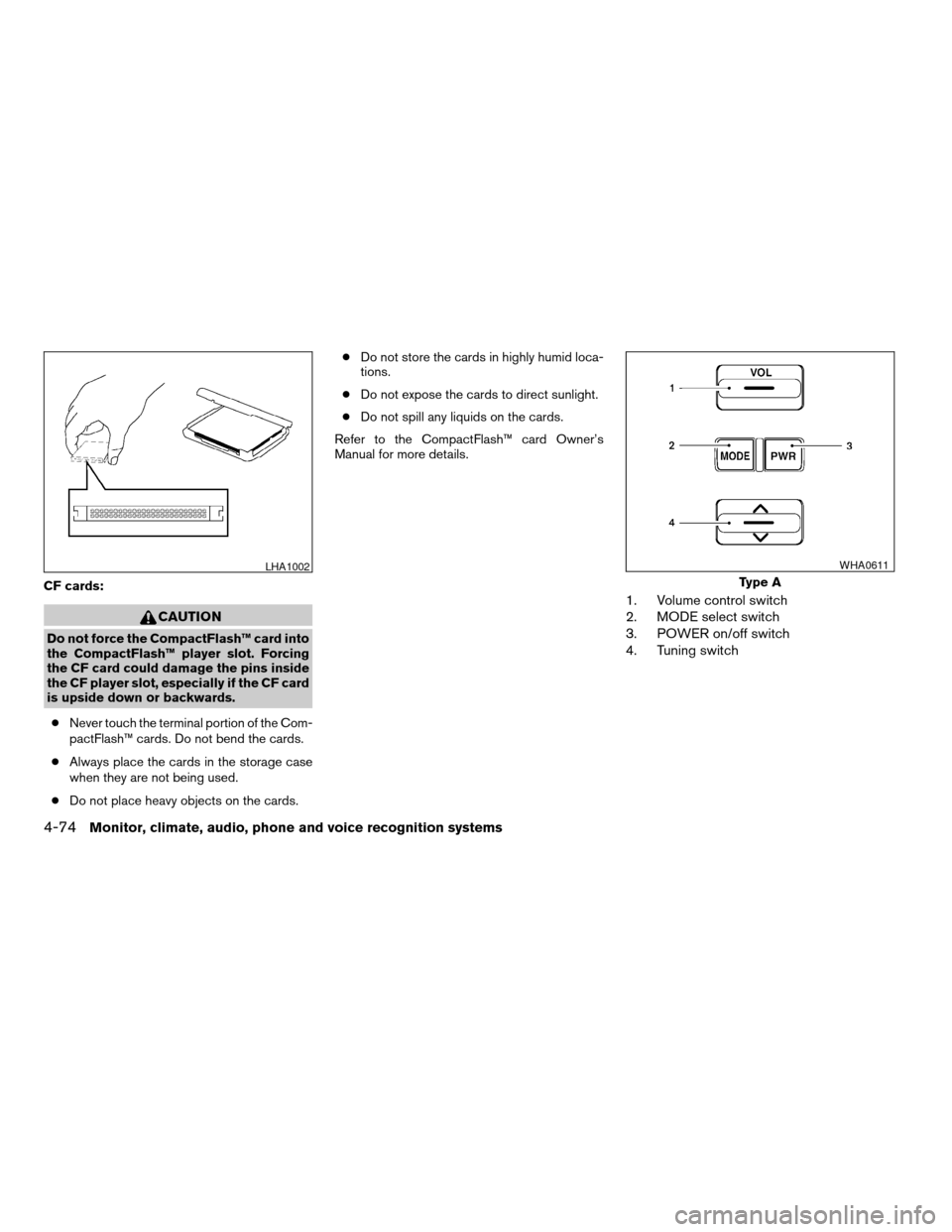
Do not force the CompactFlash™ card into
the CompactFlash™ player slot. Forcing
the CF card could damage the pins inside
the CF player slot, especially if the CF card
is upside down or backwards.
cNever touch the terminal portion of the Com-
pactFlash™ cards. Do not bend the cards.
cAlways place the cards in the storage case
when they are not being used.
cDo not place heavy objects on the cards.cDo not store the cards in highly humid loca-
tions.
cDo not expose the cards to direct sunlight.
cDo not spill any liquids on the cards.
Refer to the CompactFlash™ card Owner’s
Manual for more details.
1. Volume control switch
2. MODE select switch
3. POWER on/off switch
4. Tuning switch
LHA1002
Type A
WHA0611
4-74Monitor, climate, audio, phone and voice recognition systems
ZREVIEW COPYÐ2008 Armada(wzw)
Owners ManualÐUSA_English(nna)
03/05/07Ðarosenma
X
Page 257 of 456
REAR AUDIO CONTROLS
Press the REAR CTRL button on the front radio
control panel to turn the rear controls on. Press
the button again to turn rear controls off.
Press the
button; the headphones symbol
illuminates on the front display when the head-
phones are on. Two headphone jacks are pro-
vided so two rear seat passengers may listen to
the audio system privately.
One or two infrared headphones are included if
the vehicle is equipped with the DVD entertain-
ment system. Most portable radio headphones
work with the rear audio controls.
For vehicles equipped with the FM/AM/SAT radio
with compact disc player, if the rear passengers
turn off the rear speakers and are using head-
phones they may choose to listen to a different
media than the front passengers. The rear pas-
sengers can listen to the radio along with the
front passengers or they can listen to a CD or
SAT radio (if so equipped) .
VOL (volume) button:
The VOL button allows the rear passengers to
adjust the headphone volume level. The vehicle
volume can also be changed if the REAR CTRL is
enabled and the rear audio mode is the same as
the front.
(SPEAKER CONTROL) button:
Press this
button to turn the rear speakers
off and headphones on. Press thisbutton
again to turn rear seat speakers back on and
headphones off.
MODE button:
The MODE button allows the rear passengers to
change between AM, FM, CD, DVD and AUX.
The media options are listed on the face plate of
the rear audio controls. When a source of media
is selected, the media label will be illuminated.
SEEK button:
In AM or FM mode, the SEEK button allows the
rear seat passengers to find the next radio station
up or down the station band frequency.
In CD mode, the SEEK button allows the rear
passengers to find the next or previous selection
on the CD.
NEXT button:
When the NEXT button is pressed while in AM or
FM mode, the radio will change to the next preset.
The NEXT button does not function while in SAT
radio mode or when playing a DVD or CD.
ANTENNA
Window antenna
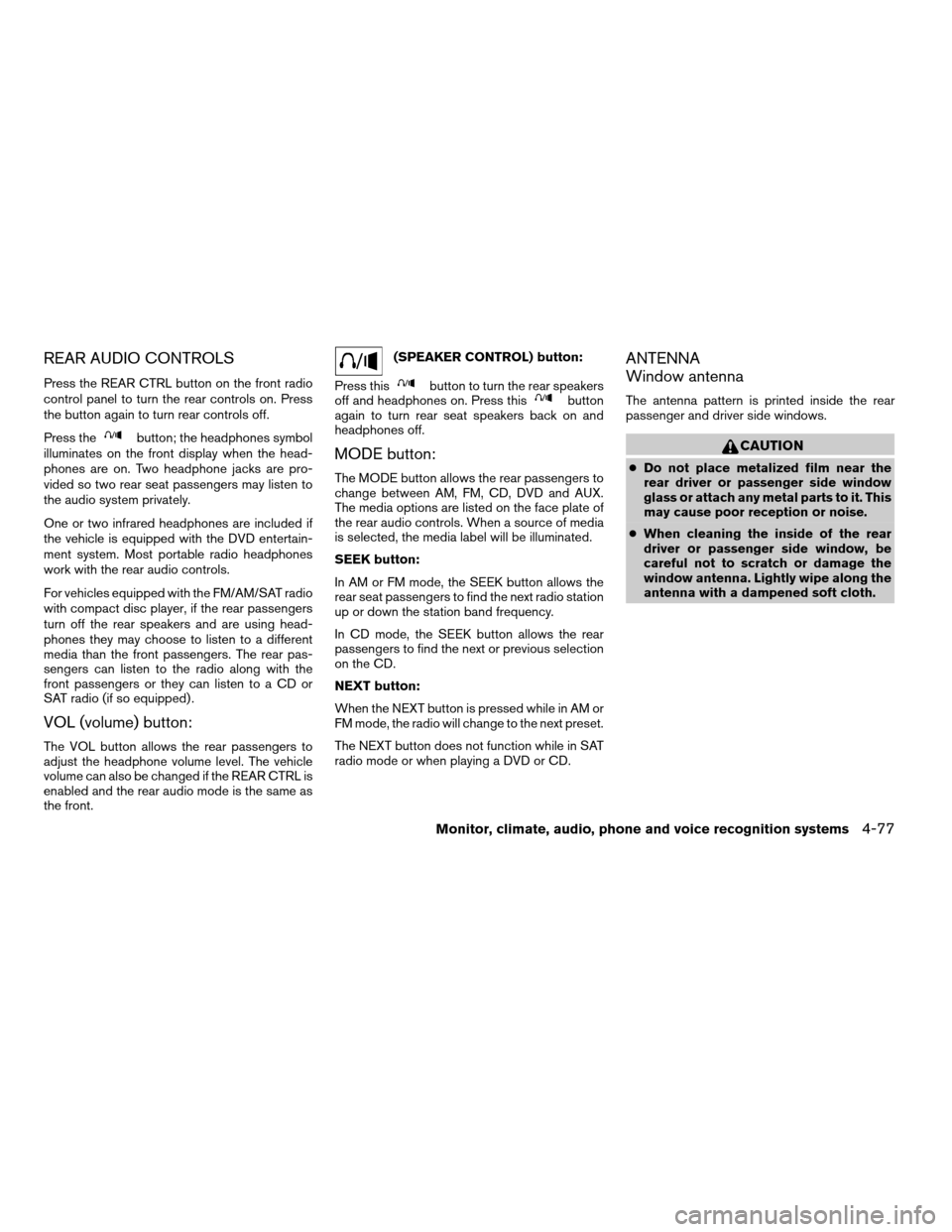
The antenna pattern is printed inside the rear
passenger and driver side windows.
CAUTION
cDo not place metalized film near the
rear driver or passenger side window
glass or attach any metal parts to it. This
may cause poor reception or noise.
cWhen cleaning the inside of the rear
driver or passenger side window, be
careful not to scratch or damage the
window antenna. Lightly wipe along the
antenna with a dampened soft cloth.
Monitor, climate, audio, phone and voice recognition systems4-77
ZREVIEW COPYÐ2008 Armada(wzw)
Owners ManualÐUSA_English(nna)
03/05/07Ðarosenma
X
Page 266 of 456

Switch to DVD-AUX:
Switch the output source from the DVD drive to
another device connected to the auxiliary input
jacks located on the DVD player.
For more information, see “DVD auxiliary input
jacks” later in this section.
Menu:
Some menus specific to each DVD will be
shown. For details, see the instructions attached
to the DVD.
Top Menu:
Each title menu in the disc will be shown. For
details, see the instructions attached to the DVD.
Audio:
Some audio tracks specific to each DVD will be
shown. For details, see the instructions attached
to the DVD.
Subtitle:
Choose the preferred DVD subtitle language by
touching the “
” key or the “” key.
Display Mode:
Choose from the Full, Wide, Normal or the Cin-
ema mode by touching the “
” key or the
“” key.Angle:
If the DVD contains different angles (such as
moving images) , the current image angle can be
switched to another one.
Choose a different angle by touching the “–” key
or the “+” key; the angle will change if available.
Angle Mark:
When this item is turned on, an angle mark will be
shown on the bottom of the screen if the scene
can be seen from a different angle. Touch the
“ON” key to enable the angle mark; the indicator
light will illuminate.
10Key Search:
Touch the “10Key Search” key to open the num-
ber entry screen. Input the number you want to
search for and touch the “OK” key. The specified
Title/Chapter or Group/Track will be played.
Title Search:
The scene with the specified title will be dis-
played the number of times the “–” key or the “+”
key is touched.
Menu Skip:
DVD menus are automatically configured and the
contents will be played directly when the “Menu
LHA0971
4-86Monitor, climate, audio, phone and voice recognition systems
ZREVIEW COPYÐ2008 Armada(wzw)
Owners ManualÐUSA_English(nna)
03/05/07Ðarosenma
X