lock NISSAN ARMADA 2008 1.G Repair Manual
[x] Cancel search | Manufacturer: NISSAN, Model Year: 2008, Model line: ARMADA, Model: NISSAN ARMADA 2008 1.GPages: 456, PDF Size: 5.89 MB
Page 173 of 456
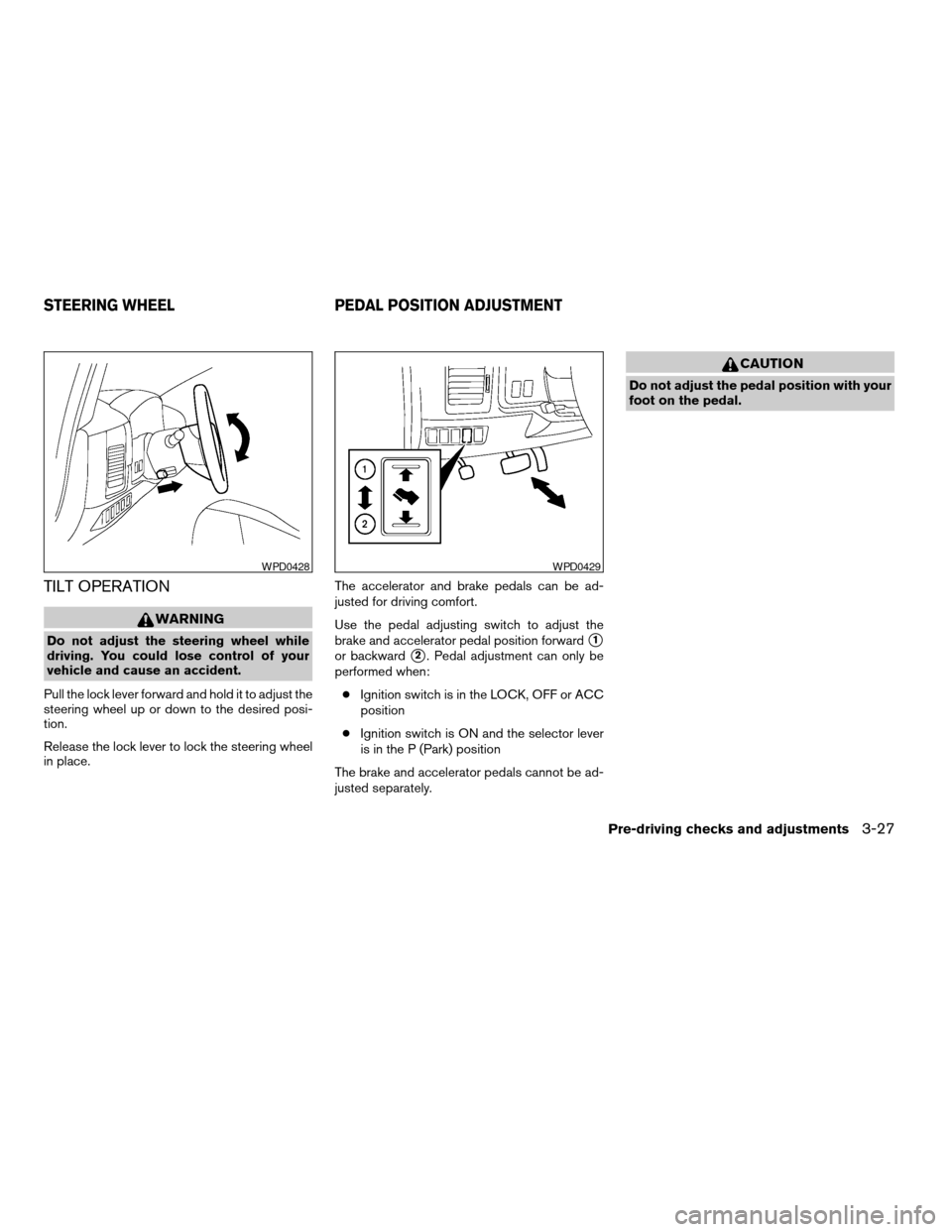
TILT OPERATION
WARNING
Do not adjust the steering wheel while
driving. You could lose control of your
vehicle and cause an accident.
Pull the lock lever forward and hold it to adjust the
steering wheel up or down to the desired posi-
tion.
Release the lock lever to lock the steering wheel
in place.The accelerator and brake pedals can be ad-
justed for driving comfort.
Use the pedal adjusting switch to adjust the
brake and accelerator pedal position forwards1
or backwards2. Pedal adjustment can only be
performed when:
cIgnition switch is in the LOCK, OFF or ACC
position
cIgnition switch is ON and the selector lever
is in the P (Park) position
The brake and accelerator pedals cannot be ad-
justed separately.
CAUTION
Do not adjust the pedal position with your
foot on the pedal.
WPD0428WPD0429
STEERING WHEEL PEDAL POSITION ADJUSTMENT
Pre-driving checks and adjustments3-27
ZREVIEW COPYÐ2008 Armada(wzw)
Owners ManualÐUSA_English(nna)
03/05/07Ðarosenma
X
Page 174 of 456
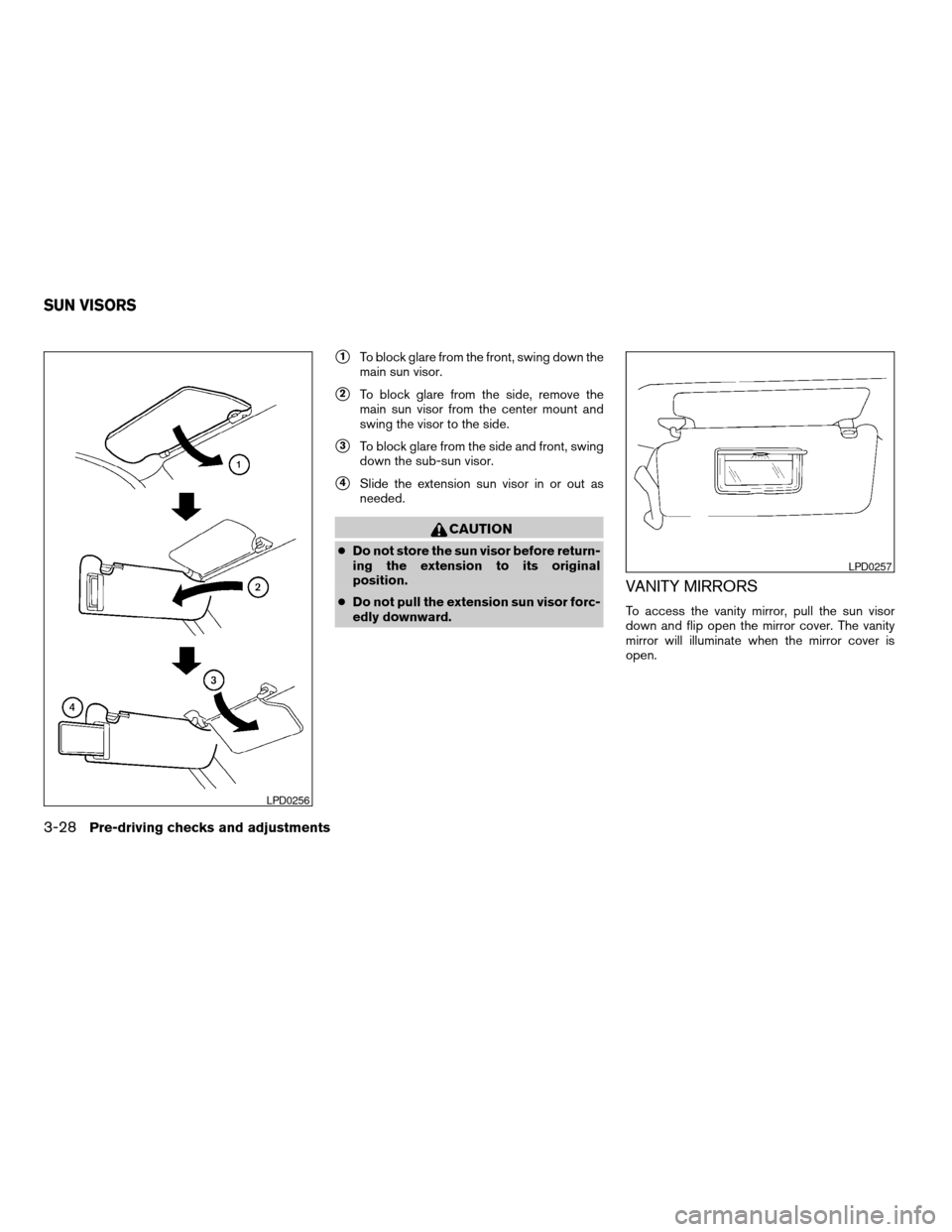
s1To block glare from the front, swing down the
main sun visor.
s2To block glare from the side, remove the
main sun visor from the center mount and
swing the visor to the side.
s3To block glare from the side and front, swing
down the sub-sun visor.
s4Slide the extension sun visor in or out as
needed.
CAUTION
cDo not store the sun visor before return-
ing the extension to its original
position.
cDo not pull the extension sun visor forc-
edly downward.
VANITY MIRRORS
To access the vanity mirror, pull the sun visor
down and flip open the mirror cover. The vanity
mirror will illuminate when the mirror cover is
open.
LPD0256
LPD0257
SUN VISORS
3-28Pre-driving checks and adjustments
ZREVIEW COPYÐ2008 Armada(wzw)
Owners ManualÐUSA_English(nna)
03/05/07Ðarosenma
X
Page 178 of 456

3. Adjust the driver’s seat, accelerator and
brake pedals, and outside mirrors to the
desired positions by manually operating
each adjusting switch. For additional infor-
mation, see “Seats” in the “Safety—Seats,
seat belts and supplemental restraint sys-
tem” section and “Pedal position adjust-
ment” and “Outside mirrors” earlier in this
section.
During this step, do not turn the ignition to
any position other than ON.
4. Push the SET switch and, within 5 seconds,
push the memory switch (1 or 2) fully for at
least 1 second.
The indicator light for the pushed memory
switch will come on and stay on for approxi-
mately 5 seconds after pushing the switch.
After the indicator light goes off, the se-
lected positions are stored in the selected
memory (1 or 2) .
If a new memory is stored in the same memory
switch, the previous memory will be deleted.
Linking a keyfob to a stored memory
position
Each keyfob can be linked to a stored memory
position (memory switch 1 or 2) with the follow-
ing procedure.1. Follow the steps for storing a memory posi-
tion.
2. While the indicator light for the memory
switch being set is illuminated for 5 sec-
onds, press the
button on the keyfob.
The indicator light will blink. After the indica-
tor light goes off, the keyfob is linked to that
memory setting.
With the key removed from the ignition switch,
press the
button on the keyfob. The driv-
er’s seat, accelerator and brake pedals, and out-
side mirrors will move to the memorized position.
NOTE:
If a new memory position is saved to the
memory switch, the keyfob automatically
re-links.
Confirming memory storage
cTurn the ignition ON and push the SET
switch. If the main memory has not been
stored, the indicator light will come on for
approximately 0.5 seconds. When the
memory has stored the position, the indica-
tor light will stay on for approximately 5 sec-
onds.
cIf the battery cable is disconnected, or if the
fuse opens, the memory storage function will
be canceled and must be restarted before astored memory position can be set again.
Drive the vehicle over 25 MPH (40 km/h) to
restart the memory storage function. You
can also restart the memory storage function
using the following procedure.
1. Connect the battery cable or replace the
fuse.
2. Open and close the driver’s door more than
two times with the ignition key in the LOCK
position.
Once the memory storage function has been
restarted, you can store a memory position.
See “Memory storage function” earlier in this
section.
Selecting the memorized position
Set the automatic transmission selector lever to
the P (Park) position, then:
cWithin 45 seconds of opening the driver’s
door, push the memory switch (1 or 2) fully
for at least 1 second, or
cTurn the ignition switch to the ON position
and push the memory switch (1 or 2) fully for
at least 1 second.
The driver’s seat, accelerator and brake pedals,
and outside mirrors will move to the memorized
position with the indicator light blinking, and then
the light will stay on for approximately 5 seconds.
3-32Pre-driving checks and adjustments
ZREVIEW COPYÐ2008 Armada(wzw)
Owners ManualÐUSA_English(nna)
03/05/07Ðarosenma
X
Page 179 of 456

ENTRY/EXIT FUNCTION
This system is designed so that the driver’s seat
will automatically move when the automatic
transmission selector lever is in the P (Park)
position. This allows the driver to get into and out
of the driver’s seat more easily.
The driver’s seat will slide backward:
cWhen the key is removed from the ignition
switch and the driver’s door is opened.
cWhen the driver’s door is opened with the
ignition key turned to LOCK.
cWhen the ignition key is turned from ACC to
LOCK with the driver’s door open.
The driver’s seat will return to the previous posi-
tion:
cWhen the key is inserted into the ignition
switch and the driver’s door is closed.
cWhen the driver’s door is closed with the key
turned to LOCK.
cWhen the key is turned from ACC to ON
while the automatic transmission selector
lever is in the P (Park) position.
The entry/exit function can be adjusted or can-
celed. For vehicles with navigation system, see
“Comfort & convenience settings” in the “Display
screen, heater, air conditioner and audio sys-tems” section of this manual. For vehicles without
navigation system, see your NISSAN dealer.Restarting the entry/exit function
If the battery cable is disconnected or if the fuse
opens, the entry/exit function will be disabled.
Drive the vehicle over 25 MPH (40 km/h) to
restart the entry/exit function. You can also restart
the entry/exit function using the following proce-
dure.
1. Connect the battery cable or replace the
fuse.
2. Open and close the driver’s door more than
two times with the ignition key in the LOCK
position.
The entry/exit function should now work properly.
SYSTEM OPERATION
The automatic drive positioner system will not
work or will stop operating under the following
conditions:
cWhen the vehicle speed is above 4 MPH (7
km/h) .
cWhen any of the memory switches are
pushed while the automatic drive positioner
is operating.cWhen the adjusting switch for the driver’s
seat is turned on while the automatic drive
positioner is operating.
cWhen the memory switch (1 or 2) is not
pushed and held for at least 1 second.
cWhen the seat has been already moved to
the memorized position.
cWhen no seat position is stored in the
memory switch.
cWhen the automatic transmission selector
lever is moved from P (Park) to any other
position.
cWhen the driver’s door remains open more
than 45 seconds and the ignition switch is
not in the ON position.
The automatic drive positioner system can be
adjusted and canceled. For vehicles with naviga-
tion system, see “Comfort & convenience set-
tings” in the “Display screen, heater, air condi-
tioner and audio systems” section of this manual.
For vehicles without navigation system, see your
NISSAN dealer.
Pre-driving checks and adjustments3-33
ZREVIEW COPYÐ2008 Armada(wzw)
Owners ManualÐUSA_English(nna)
03/05/07Ðarosenma
X
Page 191 of 456

Beeps settings
Select the “Beeps” key and press the ENTER
button. The Beeps settings screen will appear.
With this option on (indicator light illuminated) , a
beep will sound if any control panel button is
pressed.
Clock
The following display will appear after pressing
the SETTING button, then selecting the “Clock”
key using the NISSAN controller and pressing
the ENTER button.
On-screen Clock:
When this item is enabled (indicator light illumi-
nated) , a clock is always displayed in the upper
right corner of the screen.
Clock Format:
Choose either the 12h (12 hour) clock display or
the 24h (24 hour) clock display.Daylight Savings Time:
When this item is enabled (indicator light illumi-
nated) , daylight savings time is on. To turn off the
daylight savings time, touch the “ON” key; the
amber indicator light will disappear.
LHA0931LHA0932
Monitor, climate, audio, phone and voice recognition systems4-11
ZREVIEW COPYÐ2008 Armada(wzw)
Owners ManualÐUSA_English(nna)
03/05/07Ðarosenma
X
Page 192 of 456

Time Zone:
Select the “Time Zone” key; the Time Zone
screen will appear.
Select one of the following zones, depending on
the current location, by selecting the correct time
zone key and pressing the ENTER button to
enable that time zone (indicator light will illumi-
nate for that location) .
cPacific
cMountain
cCentral
cEasterncAtlantic
cNewfoundland
cAleutian
cHawaii
cAlaska
Clock Adjust:
Adjust the time by manually inputting the correct
time.
c0–9:
Select to change the number in the display.
cModify:
Select to change the number at the cursor
position.
c>:
Select to move the cursor position to the
right.
c<:
Select to move the cursor position to the left.
LHA0933LHA0943
4-12Monitor, climate, audio, phone and voice recognition systems
ZREVIEW COPYÐ2008 Armada(wzw)
Owners ManualÐUSA_English(nna)
03/05/07Ðarosenma
X
Page 193 of 456

cOK:
Select to accept the changes made and
return to the clock setting display.
After selection/settings, press the BACK button
or any other mode button to accept the changes.
Comfort & Convenience settings (if so
equipped)
Select the “Comfort & Conv.” key by using the
NISSAN controller and pressing the ENTER but-
ton. The comfort and convenience option screen
will be displayed.
You can set the following operating conditions by
selecting the desired item using the NISSAN
controller, then pressing the ENTER button. The
indicator light, box at the left of the selected item,
alternately turns on and off each time the ENTER
button is pressed.
Indicator light is illuminated — ONIndicator light is not illuminated — OFF
LHA0938LHA0939
Monitor, climate, audio, phone and voice recognition systems4-13
ZREVIEW COPYÐ2008 Armada(wzw)
Owners ManualÐUSA_English(nna)
03/05/07Ðarosenma
X
Page 194 of 456

Auto interior illumination:Select to turn on or
turn off the illumination of the interior lights when
any door is unlocked.
Auto headlights sensitivity:Select to adjust
the sensitivity of the automatic headlights higher
(right) or lower (left) .
Auto headlights off delay:Select to change
the duration of the automatic headlight off timer
from 0, 30, 45, 60, 90, 120, 150 and 180 second
periods.
Speed sensing wiper interval:Select to turn
on or turn off the wiper interval adjusted automati-
cally according to the vehicle speed.
Remote key response horn:Select to turn on
or turn off the horn chirp mode used when the
LOCK button on the keyfob is pressed.
NOTE:
If you change the horn beep or the lamp
flash feature with the keyfob, the mode will
not be changed with the display. Use the
keyfob to return to the previous mode and
re-enable the display control.
Remote key response light:Select to turn on
or turn off the hazard indicator flash mode used
when the LOCK or UNLOCK button on the key-
fob is pressed.NOTE:
If you change the horn beep or the lamp
flash feature with the keyfob, the mode will
not be changed with the display. Use the
keyfob to return to the previous mode and
re-enable the display control.
Auto re-lock time:Select to set the length of
time before doors automatically re-lock.
Selective door unlock:When this item is
turned on, only the driver’s door is unlocked first
after the door unlock operation. When the door
handle request switch on the driver’s or front
passenger’s side door is pushed to be unlocked,
only the corresponding door is unlocked first. All
the doors can be unlocked if the door unlock
operation is performed again within 5 seconds.
When this item is turned to off, all the doors will
be unlocked after the door unlock operation is
performed once.
Intelligent Key lock / unlock:Select to turn
on or turn off the door lock/unlock function by
pushing the door handle request switch.
Intelligent Key lock reply:Select to change
the sound of the Intelligent Key mode used when
a door handle request switch is pushed.
LHA0940
4-14Monitor, climate, audio, phone and voice recognition systems
ZREVIEW COPYÐ2008 Armada(wzw)
Owners ManualÐUSA_English(nna)
03/05/07Ðarosenma
X
Page 200 of 456

cSymbols:
Shows symbols such as the question mark
(?) .
cDelete:
Deletes the last character that has been
input with one touch. Touch and hold the
“Delete” key to delete all of the characters.
cOK:
Completes the character input.
Touch screen maintenance
If you clean the display screen, use a dry, soft
cloth. If additional cleaning is necessary, use a
small amount of neutral detergent with a soft
cloth. Never spray the screen with water or de-
tergent. Dampen the cloth first, and then wipe the
screen.
START-UP SCREEN
When you push the ignition switch to the ACC or
ON position, the SYSTEM START-UP warning is
displayed on the screen. When you read and
agree with the warning, press the ENTER button.
If you do not push the ENTER button, you will not
be able to use the navigation system.
To proceed to the next step, refer to the separate
Navigation System Owner’s Manual.
HOW TO SELECT MENUS ON THE
SCREEN
Vehicle functions are viewed on the center dis-
play screen in menus. Whenever a menu selec-
tion is made or menu item is highlighted, different
areas on the screen provide you with important
information. See the following for details.
1. Header:
Shows the path used to get to the current
screen (for example, press the SETTING
button > then select the “Comfort & Conv.”
key) .2. Menu Selections:
Shows the options to choose within that
menu screen (for example, Auto Interior Illu-
mination, etc.) .
3. UP/DOWN Movement Indicator:
Shows that the NISSAN controller may be
used to move UP/DOWN on the screen and
select more options.
4. Screen Count:
Shows the number of menu selections avail-
able for that screen (for example, 1/14) .
5. Footer/Information Line:
Provides more information (if available)
about the menu selection currently high-
lighted (for example, Cabin lighting when
unlocking doors) .
LHA0890
4-20Monitor, climate, audio, phone and voice recognition systems
ZREVIEW COPYÐ2008 Armada(wzw)
Owners ManualÐUSA_English(nna)
03/05/07Ðarosenma
X
Page 208 of 456

To turn the screen on:
cPress the SETTING button and select the
“Display” key and then select the “Display
ON” key. Then set the screen to on by press-
ing the ENTER button, or
cHold the
OFF button for approxi-
mately 2 seconds and the message “resum-
ing display” will appear and the “Display ON”
key will be automatically turned on (no am-
ber indicator) .
Background color
Select the “Background Color” key; the display
color changes between day and night.
The new settings are automatically saved when
you exit the setting screen by pressing the BACK
button or any other mode button.
Clock
The following display will appear after pressing
the SETTING button, then selecting the “Clock”
key using the NISSAN controller and pressing
the ENTER button.
On-screen Clock:
When this item is enabled (indicator light illumi-
nated) , a clock is always displayed in the upper
right corner of the screen.
This clock will indicate the time almost exactly
because it is always adjusted by the GPS system.Clock Format:
Choose either the 12h (12 hour) clock display or
the 24h (24 hour) clock display.
Offset Adjust:
Adjust the time by increasing or decreasing per
minute.
Daylight Savings Time:
When this item is enabled (indicator light illumi-
nated) , daylight savings time is on. To turn off the
daylight savings time, touch the “ON” key; the
amber indicator light will disappear.
LHA0904
4-28Monitor, climate, audio, phone and voice recognition systems
ZREVIEW COPYÐ2008 Armada(wzw)
Owners ManualÐUSA_English(nna)
03/05/07Ðarosenma
X