ignition NISSAN ARMADA 2008 1.G Manual PDF
[x] Cancel search | Manufacturer: NISSAN, Model Year: 2008, Model line: ARMADA, Model: NISSAN ARMADA 2008 1.GPages: 456, PDF Size: 5.89 MB
Page 239 of 456

CD/MP3 display mode
While listening to a CD or an MP3/WMA CD
certain text might be able to be displayed (when
CD encoded with text is being used) .
Depending on how the CD or MP3/WMA CD is
encoded the following text might be able to be
displayed by touching the “Text” key:
cFolder displays the name of the current
folder being accessed.
cFile displays the name of the file currently
playing.
cSong displays the ID3 encoded tag of the
song name.cAlbum displays the ID3 encoded tag of the
album name.
cArtist displays the ID3 encoded tag of the
artist’s name.
cDisc displays the disc name of the CD cur-
rently playing.
cTrack displays the name of the song on the
CD currently playing.
Some of this text or modes might not display
while playing a regular CD. Press the BACK
button to exit the CD text display screen.
FM/AM/SAT radio operation
FM/AM/SAT band select:
Pressing the RADIO AM·FM button will change
the band as follows:
AMÃ!FM or SAT* (satellite, if so equipped)
When the RADIO AM·FM button is pressed while
the ignition switch is in the ACC or ON position,
the radio will come on at the station last played.
The last station played will also come on when
the VOL/ON·OFF control knob is pressed ON.
*When the RADIO AM·FM button is pressed, the
satellite radio mode will be skipped unless an
optional satellite receiver and antenna are in-
stalled and an XMTsatellite radio service sub-
scription is active. Satellite radio is not available
in Alaska, Hawaii and Guam.
If a compact disc is playing when the RADIO
AM·FM button is pressed, the compact disc will
automatically be turned off and the last radio
station played will come on.
The FM stereo indicator ST will illuminate during
FM stereo reception. When the stereo broadcast
signal is weak, the radio will automatically change
from stereo to monaural reception.
WHA0949WHA0950
Monitor, climate, audio, phone and voice recognition systems4-59
ZREVIEW COPYÐ2008 Armada(wzw)
Owners ManualÐUSA_English(nna)
03/05/07Ðarosenma
X
Page 240 of 456

TUNE/FLDR (Tuning) knob:
To manually tune the radio, turn the TUNE/FLDR
knob to the right or left.
SEEK/CAT and TRACK
tuning buttons:
Press the SEEK/CAT
button or the
TRACKbutton for less than 1.5 seconds
to tune from high to low or low to high frequen-
cies and stop at the next broadcasting station.
SCAN·RPT (SCAN tuning) button:
Press the SCAN·RPT button to initiate scan tun-
ing. Scan tuning will stop at each broadcasting
station for 5 seconds. Press the SCAN·RPT but-
ton again during this 5 second period to stop
scan tuning; the radio will remain tuned to that
station. If the SCAN·RPT button is not pressed
within 5 seconds, scan tuning moves to the next
station.
PRESET A·B·C (Station memory opera-
tions):
18 stations can be set for the FM, AM and SAT
(satellite, if so equipped) radio to the A, B and C
preset button in any combination of FM, AM or
SAT stations.
1. Choose preset bank A, B or C using the
PRESET A·B·C select button.2. Select the desired FM, AM or SAT station
band.
3. Tune to the desired station using manual,
SEEK or SCAN tuning. Press and hold any
of the desired station memory buttons (1 –
6) until a beep sound is heard.
4. The channel indicator will then come on and
the sound will resume. Programming is now
complete.
5. Other buttons can be set in the same man-
ner.
If the battery cable is disconnected, or if the fuse
opens, the radio memory will be canceled. In that
case, reset the desired stations.
Radio data system (RDS):
RDS stands for Radio Data System, and is a data
information service transmitted by some radio
stations on the FM band (not AM band) . Cur-
rently, most RDS stations are in large cities, but
many stations are now considering broadcasting
RDS data.
RDS can display:
cStation call sign, such as “WHFR 98.3”.
cStation name, such as “The Groove”.
cMusic or programming type such as “Clas-
sical”, “Country”, or “Rock”.cArtist and song information.
If the station broadcasts RDS information, the
RDS icon is displayed.
Compact disc (CD) player operation
Turn the ignition key to the ACC or ON position
and insert the compact disc into the slot with the
label side facing up. The compact disc will be
guided automatically into the slot and start play-
ing.
If the radio is already operating, it will automati-
cally turn off and the compact disc will play.
If the system has been turned off while the com-
pact disc was playing, pressing the
VOL/ON·OFF control knob will start the compact
disc.
DISC/AUX button:
When the DISC/AUX button is pressed with the
system off and the compact disc loaded, the
system will turn on and the compact disc will start
to play.
When the DISC/AUX button is pressed with the
compact disc loaded but the radio playing, the
radio will automatically be turned off and the
compact disc will start to play.
4-60Monitor, climate, audio, phone and voice recognition systems
ZREVIEW COPYÐ2008 Armada(wzw)
Owners ManualÐUSA_English(nna)
03/05/07Ðarosenma
X
Page 242 of 456

Whenbutton is pressed while the com-
pact disc is being played, the compact disc will
eject and the system will turn off.
AUX jack (if so equipped)
The AUX jack
s1is located below the air condi-
tioner controls. The AUX audio input jack accepts
any standard analog audio input, such as from a
portable cassette tape player, MP3 player or
laptop computers.
Press the DISC/AUX button to play a compatible
device when it is plugged into the AUX jack.
COMPACTFLASH™ (CF) PLAYER
OPERATION (if so equipped)
Turn the ignition switch to the ACC or ON posi-
tion, and insert a CF card
s1into the Compact-
Flash™ player slot
s2. Then press the DISC/AUX
button repeatedly to switch to the Compact-
Flash™ mode.
If the system has been turned off while the Com-
pactFlash™ card was playing, pressing the
VOL/ON·OFF control knob will start the Com-
pactFlash™ card.
WHA0948LHA0952
4-62Monitor, climate, audio, phone and voice recognition systems
ZREVIEW COPYÐ2008 Armada(wzw)
Owners ManualÐUSA_English(nna)
03/05/07Ðarosenma
X
Page 246 of 456

cThe number of albums reaches the maximum
of 500.
cThe number of tracks reaches the maximum
of 3,000.
Automatic recording:
If the “Automatic Recording” function is turned to
ON, recording starts when a CD is inserted. For
more information, see “Music Box settings” later
in this section.
Stopping recording:
To stop the recording, touch the “STOP” key on
the screen. If the CD is ejected, the audio system
is turned off or the ignition switch is turned to the
OFF position, the recording also stops.
Playing recorded songs
Select the Music Box audio system by using one
of the following methods:
cPress the mode select switch on the steer-
ing wheel.
For information, see “Steering wheel switch
for audio control” later in this section.
cPress the MUSIC BOX button.
cGive voice commands.
For information, see “NISSAN voice recog-
nition system” later in this section.Stopping playback:
The system stops playing when:
cAnother mode (radio, CD, CompactFlash™
or AUX) is selected.
cThe audio system is turned off.
cThe ignition switch is turned to the OFF
position.
SEEK/CAT and TRACK buttons:
Press the
SEEK/CAT button or theTRACK button while a track is being played; the
next track or the beginning of the current track will
be played.
Press and hold the
SEEK/CAT (rewind)
button or theTRACK (fast forward) button
for more than approximately 1.5 seconds; the
track will play while rewinding or fast forwarding.
When the
SEEK/CAT (rewind) button or
theTRACK (fast forward) button is re-
leased, the track will return to the normal playing
speed.
The NISSAN controller can also be used to se-
lect tracks.
For more information on how to use the NISSAN
controller, see “How to use the NISSAN control-
ler” earlier in this section.
WHA0957
4-66Monitor, climate, audio, phone and voice recognition systems
ZREVIEW COPYÐ2008 Armada(wzw)
Owners ManualÐUSA_English(nna)
03/05/07Ðarosenma
X
Page 255 of 456

1. Volume control switch
2. Phone operation switch
3. POWER on and MODE select switch
4. Tuning switch
STEERING WHEEL SWITCH FOR
AUDIO CONTROL
The audio system can be operated using the
controls on the steering wheel.
POWER on/off switch
With the ignition key turned to the ACC or ON
position, push the POWER switch to turn the
audio system on or off.If you have the Type B switch, with the ignition key
turned to the ACC or ON position push the
MODE switch to turn the audio system on.
MODE select switch
Push the mode select switch to change the mode
in the following sequence: PRESET A!PRE-
SET B!PRESET C!Music Box** (if so
equipped)!CD*!CompactFlash™* (if so
equipped)!DVD* (if so equipped)!AUX***.
*These modes are only available when compat-
ible media storage is inserted into the device.
**This mode is only available when music has
been downloaded into the Music Box hard-disk
drive audio system.
***This mode is only available when a compatible
auxiliary device is plugged into the AUX jack.
Volume control switch
Push the volume control switch up or down to
increase or decrease the volume.
Tuning
Memory change (radio):
While in one of the preset radio station banks (A,
B or C) , push the tuning switch
orfor less than 1.5 seconds to change to the next
preset station in memory.Seek tuning (radio):
Push the tuning switch
orfor more
than 1.5 seconds to seek the next or previous
radio station.
Next/Previous track (CD/CF):
Push the tuning switch
orfor less
than 1.5 seconds to return to the beginning of the
present track or skip to the next track. Push
several times to skip back or skip through tracks.
This system searches for the blank intervals be-
tween selections. If there is a blank interval within
1 program or there is no interval between pro-
grams, the system may not stop in the desired or
expected location.
Next/Previous track (Music Box):
Push the tuning switch
orfor less
than 1.5 seconds to return to the beginning of the
present track or skip to the next track. Push
several times to skip back or skip through tracks.
Push and hold the tuning switch
orfor more than 1.5 seconds to change playlists.
When the last playlist is playing, the next playlist
will be selected.
Type B
WHA0612
Monitor, climate, audio, phone and voice recognition systems4-75
ZREVIEW COPYÐ2008 Armada(wzw)
Owners ManualÐUSA_English(nna)
03/05/07Ðarosenma
X
Page 268 of 456
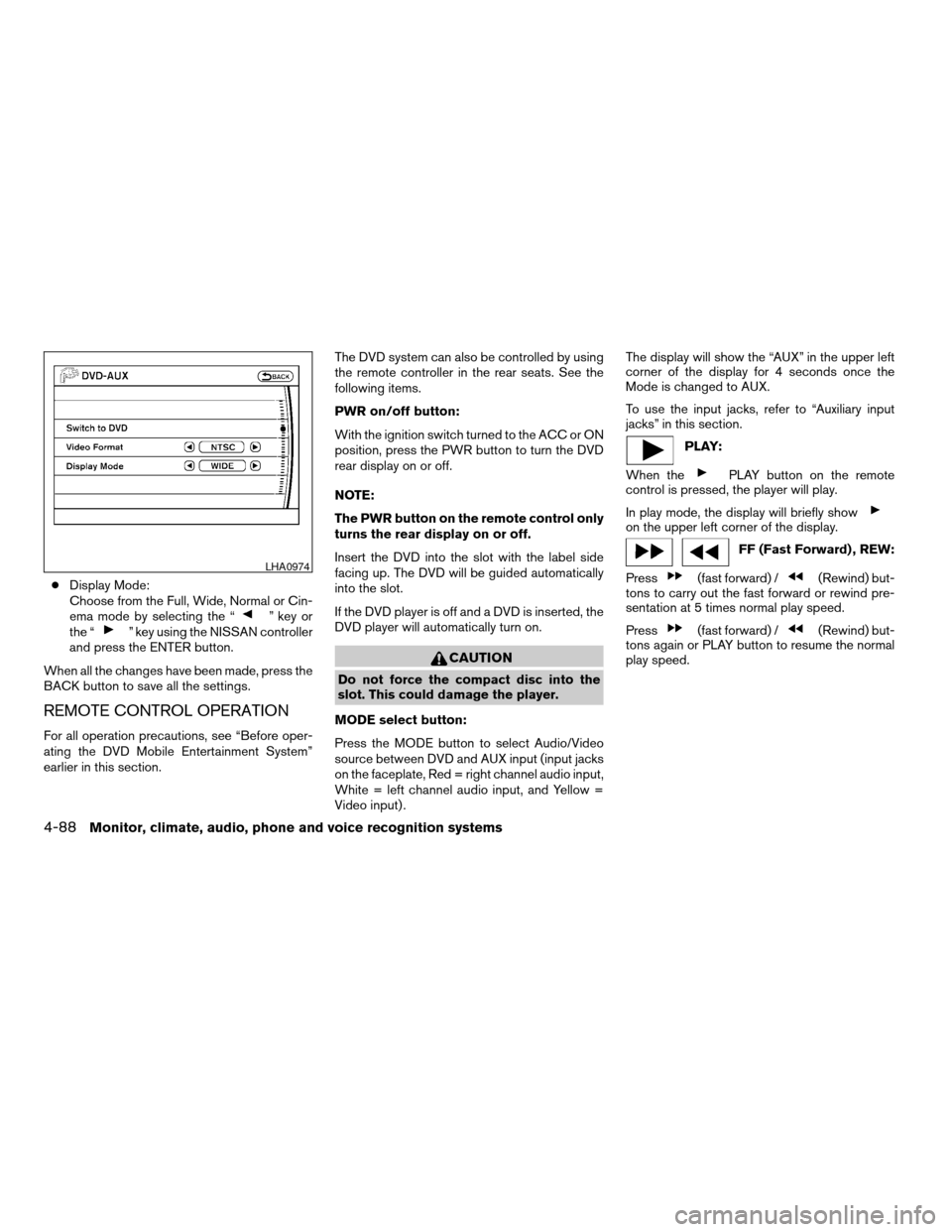
cDisplay Mode:
Choose from the Full, Wide, Normal or Cin-
ema mode by selecting the “
” key or
the “” key using the NISSAN controller
and press the ENTER button.
When all the changes have been made, press the
BACK button to save all the settings.
REMOTE CONTROL OPERATION
For all operation precautions, see “Before oper-
ating the DVD Mobile Entertainment System”
earlier in this section.The DVD system can also be controlled by using
the remote controller in the rear seats. See the
following items.
PWR on/off button:
With the ignition switch turned to the ACC or ON
position, press the PWR button to turn the DVD
rear display on or off.
NOTE:
The PWR button on the remote control only
turns the rear display on or off.
Insert the DVD into the slot with the label side
facing up. The DVD will be guided automatically
into the slot.
If the DVD player is off and a DVD is inserted, the
DVD player will automatically turn on.
CAUTION
Do not force the compact disc into the
slot. This could damage the player.
MODE select button:
Press the MODE button to select Audio/Video
source between DVD and AUX input (input jacks
on the faceplate, Red = right channel audio input,
White = left channel audio input, and Yellow =
Video input) .The display will show the “AUX” in the upper left
corner of the display for 4 seconds once the
Mode is changed to AUX.
To use the input jacks, refer to “Auxiliary input
jacks” in this section.
PLAY:
When the
PLAY button on the remote
control is pressed, the player will play.
In play mode, the display will briefly show
on the upper left corner of the display.
FF (Fast Forward) , REW:
Press
(fast forward) /(Rewind) but-
tons to carry out the fast forward or rewind pre-
sentation at 5 times normal play speed.
Press
(fast forward) /(Rewind) but-
tons again or PLAY button to resume the normal
play speed.
LHA0974
4-88Monitor, climate, audio, phone and voice recognition systems
ZREVIEW COPYÐ2008 Armada(wzw)
Owners ManualÐUSA_English(nna)
03/05/07Ðarosenma
X
Page 275 of 456

Your NISSAN is equipped with the BluetoothT
Hands-Free Phone System. If you are an owner
of a BluetoothTenabled cellular phone, you can
set up the wireless connection between your
cellular phone and the in-vehicle phone module.
With BluetoothTwireless technology, you canmake or receive a hands-free telephone call with
your cellular phone in the vehicle.
Once your cellular phone is paired to the in-
vehicle phone module, no other phone connect-
ing procedure is required. Your phone is auto-
matically connected with the in-vehicle phonemodule when the ignition switch is placed in the
ON position with the paired cellular phone turned
on and carried in the vehicle.
You can register up to 5 different BluetoothT
cellular phones to the in-vehicle phone module.
However, you can talk on only one cellular phone
at a time.
Before using the BluetoothTHands-Free Phone
System, refer to the following notes.
cSet up the wireless connection between a
cellular phone and the in-vehicle phone
module before using the hands-free phone
system.
cSome BluetoothTenabled cellular phones
may not be recognized by the in-vehicle
phone module. Please visit
www.nissanusa.com/bluetooth for a recom-
mended phone list.
cYou will not be able to use a hands-free
phone under the following conditions:
– Your vehicle is outside of the cellular ser-
vice area.
– Your vehicle is in an area where it is
difficult to receive a cellular signal; such
as in a tunnel, in an underground parking
garage, near a tall building or in a moun-
tainous area.
WHA0975
Monitor, climate, audio, phone and voice recognition systems4-95
ZREVIEW COPYÐ2008 Armada(wzw)
Owners ManualÐUSA_English(nna)
03/05/07Ðarosenma
X
Page 276 of 456

– Your cellular phone is locked to prevent it
from being dialed.
cWhen the radio wave condition is not ideal
or ambient sound is too loud, it may be
difficult to hear the other person’s voice dur-
ing a call.
cDo not place the cellular phone in an area
surrounded by metal or far away from the
in-vehicle phone module to prevent tone
quality degradation and wireless connection
disruption.
cWhile a cellular phone is connected through
the BluetoothTwireless connection, the bat-
tery power of the cellular phone may dis-
charge quicker than usual. The BluetoothT
Hands-Free Phone System cannot charge
cellular phones.
cIf the hands-free phone system seems to be
malfunctioning, please refer to “Trouble-
shooting guide” later in this section. You can
also visit www.nissanusa.com/bluetooth for
troubleshooting help.
cRefer to the cellular phone Owner’s Manual
regarding the telephone charges, cellular
phone antenna and body, etc.
This device complies with Part 15 of the
FCC Rules. Operation is subject to the fol-
lowing two conditions: (1) this device maynot cause harmful interference, and (2) this
device must accept any interference re-
ceived, including interference that may
cause undesired operation.
FCC Radiation Exposure Statement:
This equipment complies with FCC radiation ex-
posure limits set forth for an uncontrolled envi-
ronment. This equipment should be installed and
operated with minimum distance of 8 inches (20
cm) between the radiator and your body. This
Transmitter must not be co-located or operating
in conjunction with any other antenna or transmit-
ter.
USING THE SYSTEM
The NISSAN Voice Recognition system allows
hands-free operation of the BluetoothTPhone
System.
If the vehicle is in motion, some commands may
not be available so full attention may be given to
vehicle operation.
Initialization
When the ignition switch is turned to the ON
position, NISSAN Voice Recognition is initialized,
which takes a few seconds. If the
button is
pressed before the initialization completes, the
system will announce “Hands-free phone system
not ready” and will not react to voice commands.
Operating tips
To get the best performance out of the NISSAN
Voice Recognition system, observe the following:
cKeep the interior of the vehicle as quiet as
possible. Close the windows to eliminate
surrounding noises (traffic noises, vibration
sounds, etc.) , which may prevent the system
from recognizing voice commands correctly.
cWait until the tone sounds before speaking a
command. Otherwise, the command will not
be received properly.
cStart speaking a command within 5 seconds
after the tone sounds.
cSpeak in a natural voice without pausing
between words.
Giving voice commands
To operate NISSAN Voice Recognition, press
and release thebutton located on the
steering wheel. After the tone sounds, speak a
command.
The command given is picked up by the micro-
phone, and voice feedback is given when the
command is accepted.
cIf you need to hear the available commands
for the current menu again, say “Help” and
the system will repeat them.
4-96Monitor, climate, audio, phone and voice recognition systems
ZREVIEW COPYÐ2008 Armada(wzw)
Owners ManualÐUSA_English(nna)
03/05/07Ðarosenma
X
Page 284 of 456

“Play”sB
The system plays back all the memos in the order
of newest to oldest. The system ends the VR
session.
If there are no memos recorded, the system an-
nounces “No messages to play.” The system
ends the VR session.
“Delete”
sC
The Delete command erases all memos. The
system asks you to confirm this action before
deleting all memos.
“Setup”
Main Menu
“Setup”
“Pair Phone”
sA
“List Phone”sB
“Select Phone”sC
“Change Priority”sD
“Delete Phone”sE
“Select Ringtone”sF
“Bluetooth Off”sG
Use the Setup command to change options as-
sociated with the BluetoothTHands-Free Phone
System.
“Pair phone”
sA
Use the Pair Phone command to pair a phone to
the BluetoothTHands-Free Phone System.
NOTE:
The pairing procedure must be performed
when the vehicle is stationary. If the vehicle
starts moving during the procedure, the
procedure will be cancelled. Also, see
“Pairing procedure” earlier in this section
for additional information.
Up to 5 phones can be paired. If you try to pair a
sixth phone, the system announces that you must
first delete one phone or replace an existing
phone.
If you try to pair a phone that has already been
paired to your vehicle’s system, the system an-
nounces the name the phone is already using.
The pairing procedure will then be cancelled.
When prompted by the system, choose from the
following commands:
c“New phone” — Refer to “Pairing a phone”
earlier in this section.c“Replace phone” — The system announces
the names of the phones already paired and
asks which you would like to replace.
Once you say the name of the phone you
wish to replace, the pairing procedure will
begin. Refer to “Pairing procedure” earlier in
this section.
c“List phone” – See the description below.
“List phone”
sB
Use the List Phone command to hear the names
of the phones currently paired. If no phones are
paired, the system announces, “No paired
phones to list.” The system then ends the VR
session.
“Select phone”
sC
Use the Select Phone command to select a
phone of lesser priority when two or more phones
paired with BluetoothTHands-Free Phone Sys-
tem are in the vehicle at the same time.
The system asks you to name the phone and
confirm the selection.
Once the selection is confirmed, the selected
phone remains active until the ignition switch is
turned OFF or you select a new phone.
4-104Monitor, climate, audio, phone and voice recognition systems
ZREVIEW COPYÐ2008 Armada(wzw)
Owners ManualÐUSA_English(nna)
03/05/07Ðarosenma
X
Page 286 of 456

Training procedure
The procedure for training a voice is as follows.
1. Position the vehicle in a reasonably quiet
outdoor location.
2. Sit in the driver’s seat with the engine run-
ning, the parking brake on, and the transmis-
sion in P (Park) .
3. Press and hold the
button for more
than 5 seconds.
4. The system announces: “Press the
PHONE/SEND (
) button for the
hands-free phone system to enter the
speaker adaptation mode or press the
PHONE/END (
) button to select a dif-
ferent language.”
5. Press the
button.
For information on selecting a different lan-
guage, see “Choosing a language” earlier in
this section.
6. Voice memory A or memory B is selected
automatically. If both memory locations are
already in use, the system will prompt you to
overwrite one. Follow the instructions pro-
vided by the system.
7. When preparation is complete and you are
ready to begin, the press the
button.8. The SA mode will be explained. Follow the
instructions provided by the system.
9. When training is finished, the system will tell
you an adequate number of phrases have
been recorded.
10. The system will ask you to say your name.
Follow the instructions to register your
name.
11. The system will announce that speaker ad-
aptation has been completed and the sys-
tem is ready.
The SA mode will stop if:
cThe
button is pressed for more than 5
seconds in SA mode.
cThe vehicle begins moving during SA mode.
cThe ignition switch is turned to the OFF or
LOCK position.
Training phrases
During the SA mode, the system instructs the
trainer to say the following phrases. (The system
will prompt you for each phrase.)
cphone book new entry
cdial three oh four two nine
cdelete call back numbercsetup pair phone
cmemo pad play
ceight pause nine three two pause seven
cdelete all entries
ccall seven two four zero nine
cphone book delete entry
cmemo pad record
cdial star two one seven oh
cYe s
cNo
cselect ring tone
cdial eight five six nine two
cBluetooth on
csetup change priority
ccall three one nine oh two
cnine seven pause pause three oh eight
cCancel
ccall back number
ccall star two zero nine five
cdelete phone
4-106Monitor, climate, audio, phone and voice recognition systems
ZREVIEW COPYÐ2008 Armada(wzw)
Owners ManualÐUSA_English(nna)
03/05/07Ðarosenma
X