light NISSAN ARMADA 2009 Owners Manual
[x] Cancel search | Manufacturer: NISSAN, Model Year: 2009, Model line: ARMADA, Model: NISSAN ARMADA 2009Pages: 465, PDF Size: 6.33 MB
Page 255 of 465
(SPEAKER CONTROL) button:
Press this
button to turn the rear speakers
off and headphones on. Press thisbutton
again to turn rear seat speakers back on and
headphones off.
MODE button:
The MODE button allows the rear passengers to
change between AM, FM, CD, DVD and AUX.
The media options are listed on the face plate of
the rear audio controls. When a source of media
is selected, the media label will be illuminated.
SEEK button:
In AM or FM mode, the SEEK button allows the
rear seat passengers to find the next radio station
up or down the station band frequency.
In CD mode, the SEEK button allows the rear
passengers to find the next or previous selection
on the CD.
NEXT button:
When the NEXT button is pressed while in AM or
FM mode, the radio will change to the next preset.
The NEXT button does not function while in SAT
radio mode or when playing a DVD or CD.
ANTENNA
Window antenna
The antenna pattern is printed inside the rear
passenger and driver side windows.
CAUTION
cDo not place metalized film near the
rear driver or passenger side window
glass or attach any metal parts to it. This
may cause poor reception or noise.
cWhen cleaning the inside of the rear
driver or passenger side window, be
careful not to scratch or damage the
window antenna. Lightly wipe along the
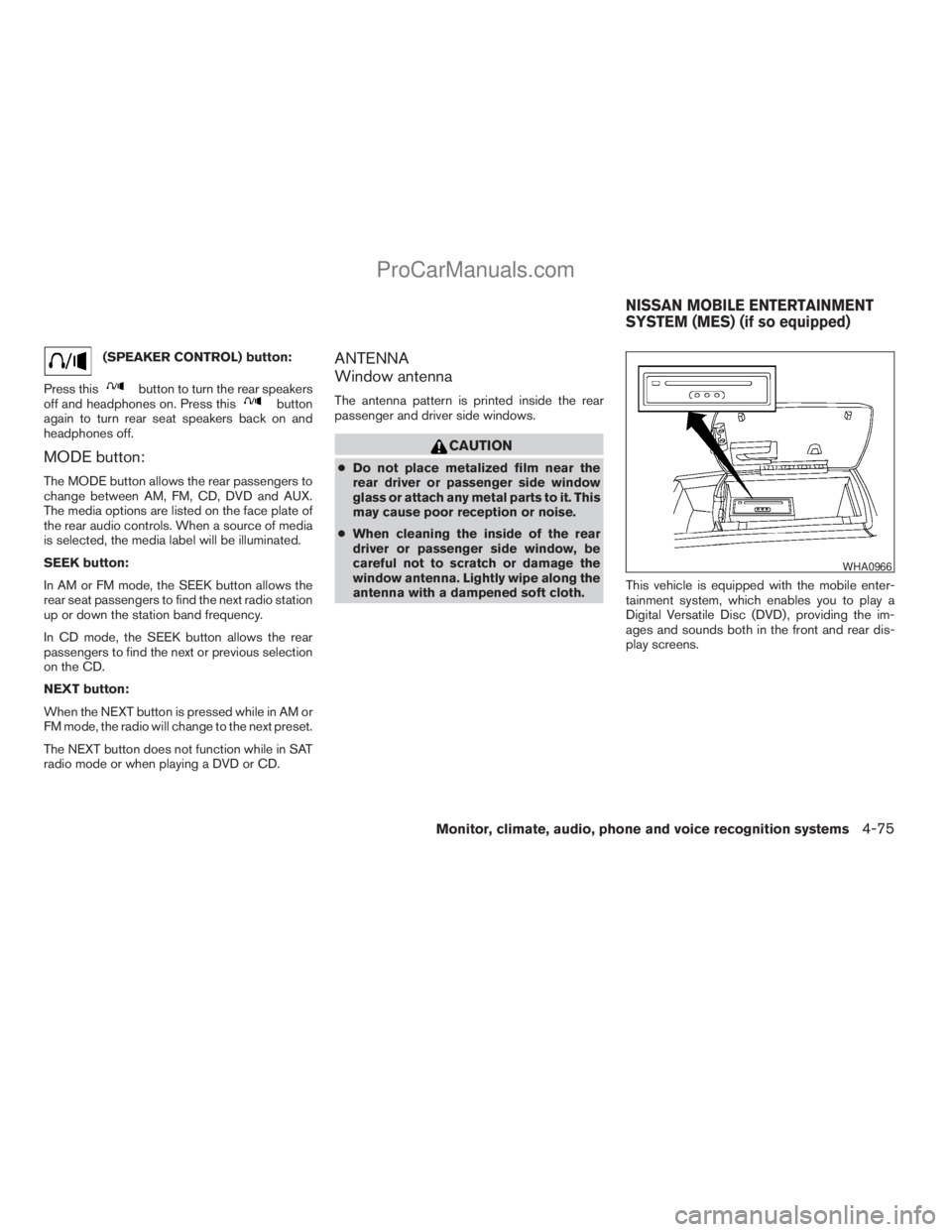
antenna with a dampened soft cloth.This vehicle is equipped with the mobile enter-
tainment system, which enables you to play a
Digital Versatile Disc (DVD) , providing the im-
ages and sounds both in the front and rear dis-
play screens.
WHA0966
NISSAN MOBILE ENTERTAINMENT
SYSTEM (MES) (if so equipped)
Monitor, climate, audio, phone and voice recognition systems4-75
ZREVIEW COPYÐ2009 Armada(wzw)
Owners ManualÐUSA_English(nna)
02/26/08Ðdebbie
X
ProCarManuals.com
Page 264 of 465
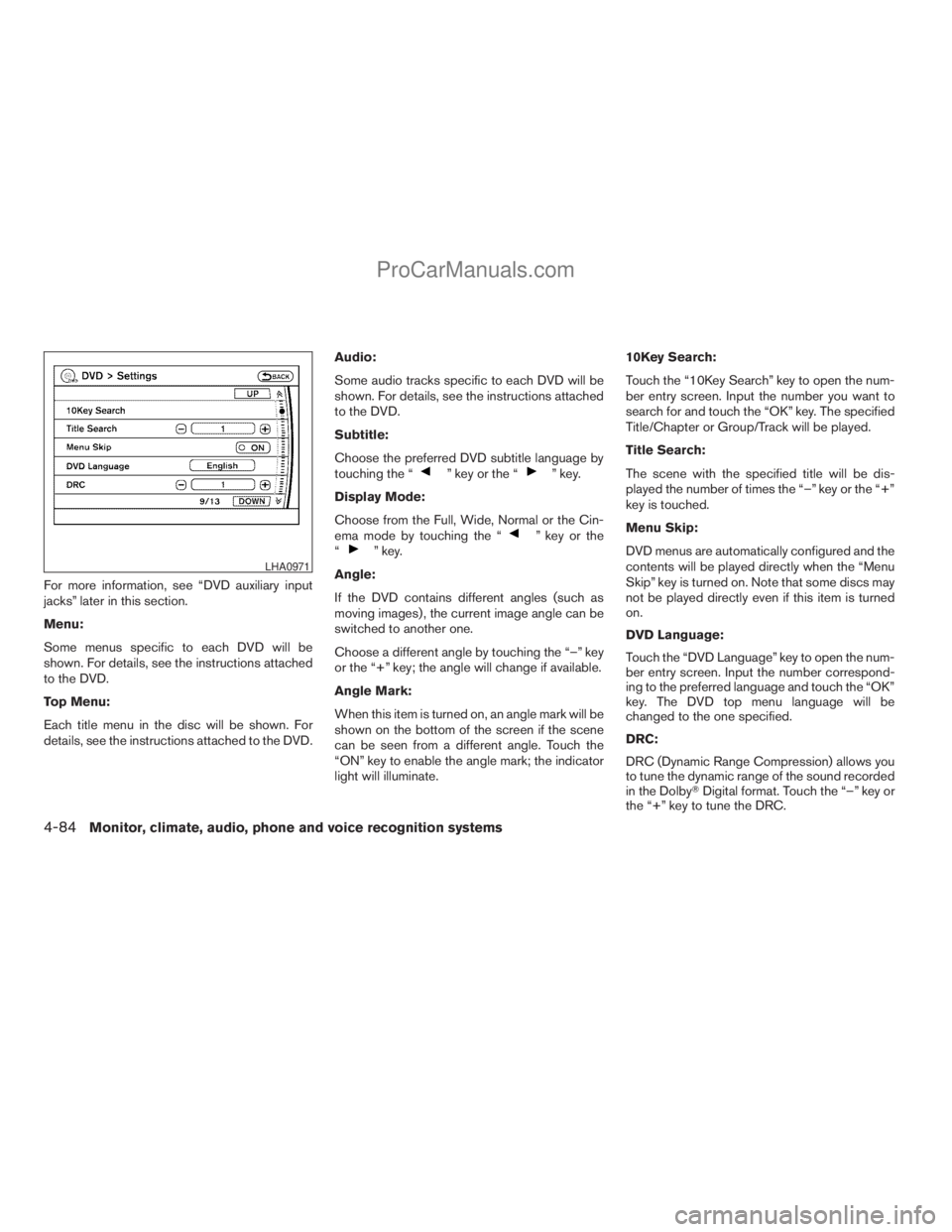
For more information, see “DVD auxiliary input
jacks” later in this section.
Menu:
Some menus specific to each DVD will be
shown. For details, see the instructions attached
to the DVD.
Top Menu:
Each title menu in the disc will be shown. For
details, see the instructions attached to the DVD.Audio:
Some audio tracks specific to each DVD will be
shown. For details, see the instructions attached
to the DVD.
Subtitle:
Choose the preferred DVD subtitle language by
touching the “
” key or the “” key.
Display Mode:
Choose from the Full, Wide, Normal or the Cin-
ema mode by touching the “
” key or the
“” key.
Angle:
If the DVD contains different angles (such as
moving images) , the current image angle can be
switched to another one.
Choose a different angle by touching the “–” key
or the “+” key; the angle will change if available.
Angle Mark:
When this item is turned on, an angle mark will be
shown on the bottom of the screen if the scene
can be seen from a different angle. Touch the
“ON” key to enable the angle mark; the indicator
light will illuminate.10Key Search:
Touch the “10Key Search” key to open the num-
ber entry screen. Input the number you want to
search for and touch the “OK” key. The specified
Title/Chapter or Group/Track will be played.
Title Search:
The scene with the specified title will be dis-
played the number of times the “–” key or the “+”
key is touched.
Menu Skip:
DVD menus are automatically configured and the
contents will be played directly when the “Menu
Skip” key is turned on. Note that some discs may
not be played directly even if this item is turned
on.
DVD Language:
Touch the “DVD Language” key to open the num-
ber entry screen. Input the number correspond-
ing to the preferred language and touch the “OK”
key. The DVD top menu language will be
changed to the one specified.
DRC:
DRC (Dynamic Range Compression) allows you
to tune the dynamic range of the sound recorded
in the DolbyTDigital format. Touch the “–” key or
the “+” key to tune the DRC.LHA0971
4-84Monitor, climate, audio, phone and voice recognition systems
ZREVIEW COPYÐ2009 Armada(wzw)
Owners ManualÐUSA_English(nna)
02/26/08Ðdebbie
X
ProCarManuals.com
Page 268 of 465
The chapter/title/track number will be automati-
cally selected (if valid, based on media content) if
3 seconds expire without any keypad inputs.
The operator can cancel the input
chapter/title/track number by actuating the
CLEAR control prior to the expiration of the
3-second timer.
These functions can be used only for the DVD
discs which correspond to them.
CARE AND MAINTENANCE
Use a lightly dampened, lint free cloth to clean the
surfaces of your NISSAN Mobile Entertainment
System (DVD player face, screen, remote control,
etc.) .
Do not attempt to use the system in extreme
temperature conditions [below -4°F (-20°C) or
above 158°F (70°C)].
Do not attempt to operate the system in extreme
humidity conditions (less than 10% or more than
75%) .
CAUTION
cDo not use any solvents or cleaning
solutions when cleaning the video
system.
cDo not use excessive force on the moni-
tor screen.
cAvoid touching or scratching the moni-
tor screen as it may become dirty or
damaged.
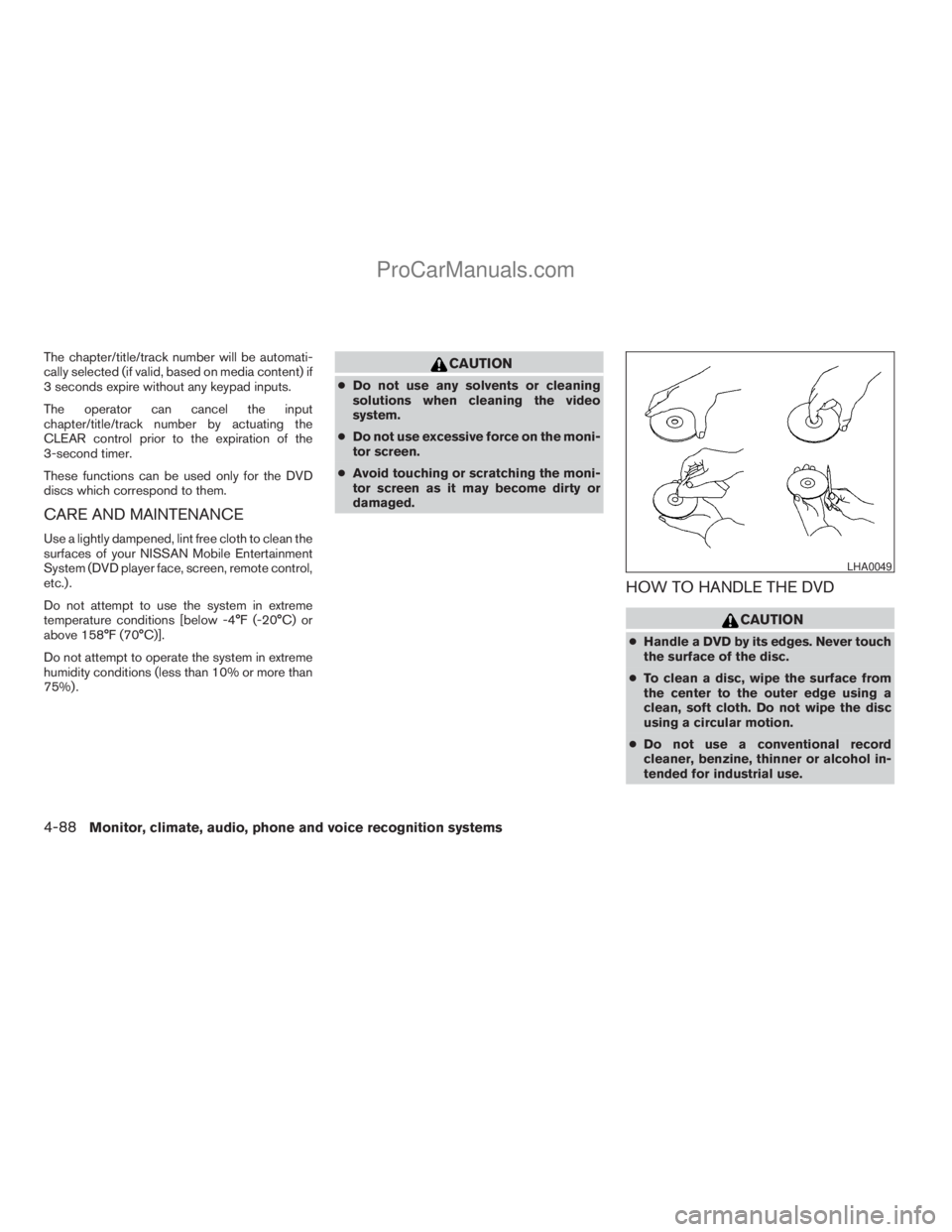
HOW TO HANDLE THE DVD
CAUTION
cHandle a DVD by its edges. Never touch
the surface of the disc.
cTo clean a disc, wipe the surface from
the center to the outer edge using a
clean, soft cloth. Do not wipe the disc
using a circular motion.
cDo not use a conventional record
cleaner, benzine, thinner or alcohol in-
tended for industrial use.
LHA0049
4-88Monitor, climate, audio, phone and voice recognition systems
ZREVIEW COPYÐ2009 Armada(wzw)
Owners ManualÐUSA_English(nna)
02/26/08Ðdebbie
X
ProCarManuals.com
Page 269 of 465
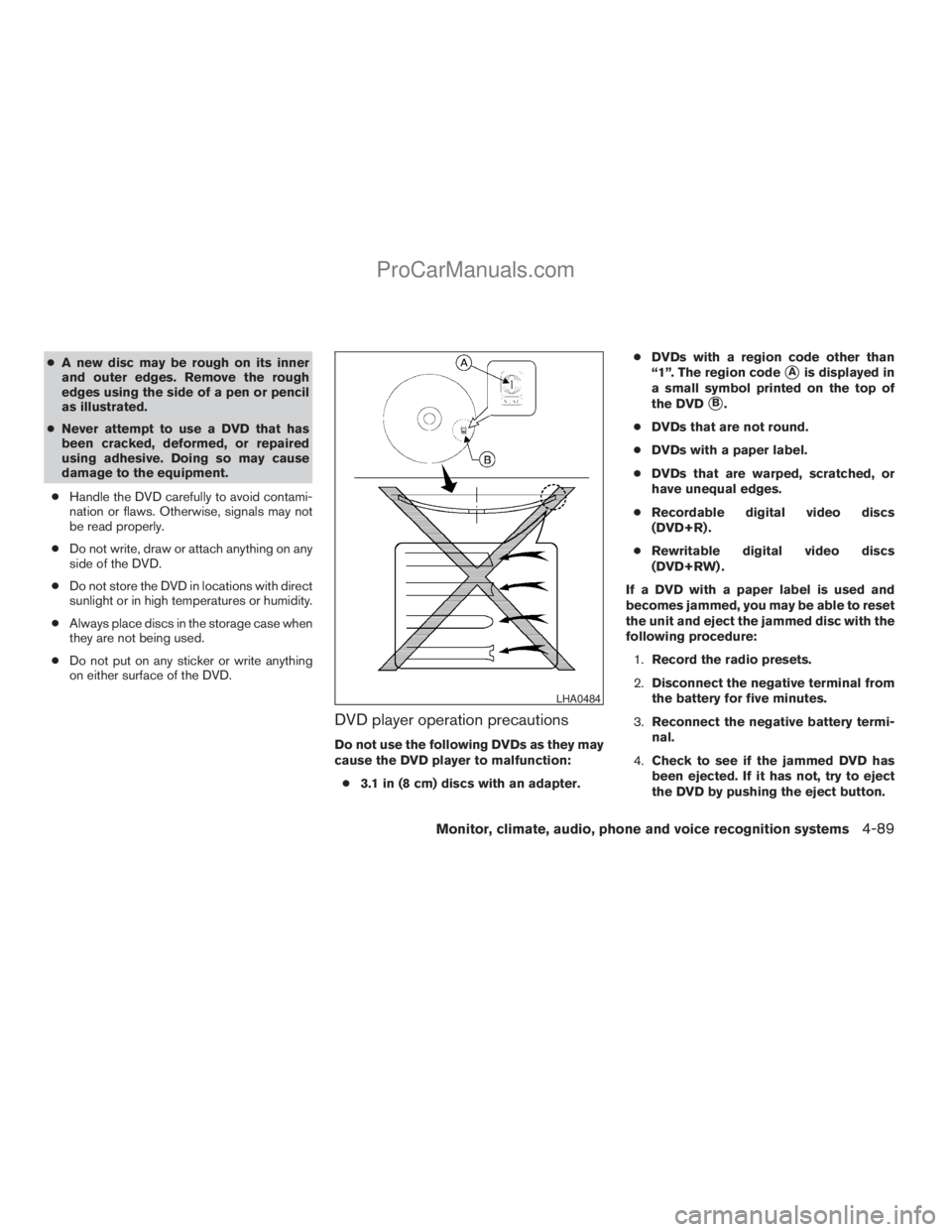
cA new disc may be rough on its inner
and outer edges. Remove the rough
edges using the side of a pen or pencil
as illustrated.
cNever attempt to use a DVD that has
been cracked, deformed, or repaired
using adhesive. Doing so may cause
damage to the equipment.
cHandle the DVD carefully to avoid contami-
nation or flaws. Otherwise, signals may not
be read properly.
cDo not write, draw or attach anything on any
side of the DVD.
cDo not store the DVD in locations with direct
sunlight or in high temperatures or humidity.
cAlways place discs in the storage case when
they are not being used.
cDo not put on any sticker or write anything
on either surface of the DVD.
DVD player operation precautions
Do not use the following DVDs as they may
cause the DVD player to malfunction:
c3.1 in (8 cm) discs with an adapter.cDVDs with a region code other than
“1”. The region code
sAis displayed in
a small symbol printed on the top of
the DVD
sB.
cDVDs that are not round.
cDVDs with a paper label.
cDVDs that are warped, scratched, or
have unequal edges.
cRecordable digital video discs
(DVD+R) .
cRewritable digital video discs
(DVD+RW) .
If a DVD with a paper label is used and
becomes jammed, you may be able to reset
the unit and eject the jammed disc with the
following procedure:
1.Record the radio presets.
2.Disconnect the negative terminal from
the battery for five minutes.
3.Reconnect the negative battery termi-
nal.
4.Check to see if the jammed DVD has
been ejected. If it has not, try to eject
the DVD by pushing the eject button.
LHA0484
Monitor, climate, audio, phone and voice recognition systems4-89
ZREVIEW COPYÐ2009 Armada(wzw)
Owners ManualÐUSA_English(nna)
02/26/08Ðdebbie
X
ProCarManuals.com
Page 297 of 465
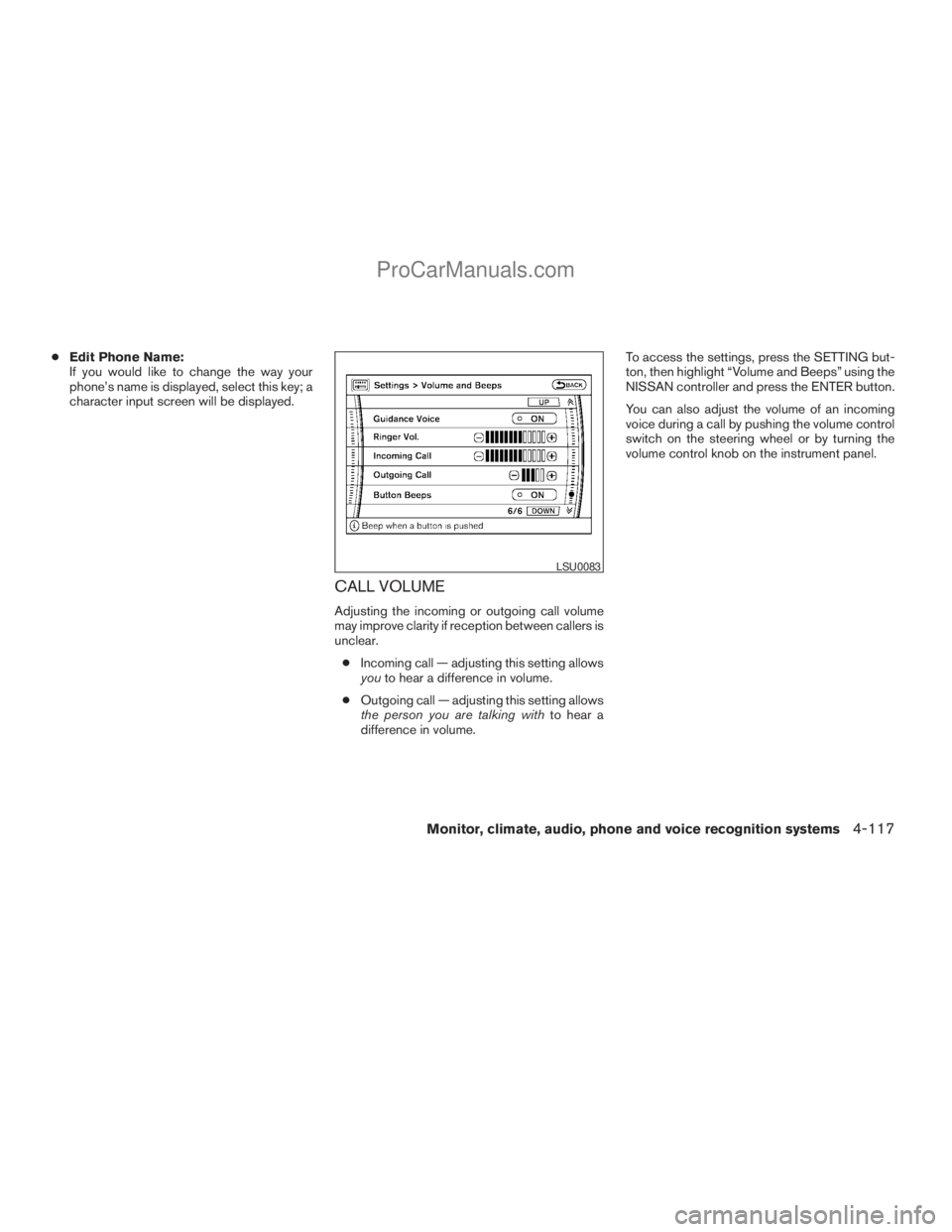
cEdit Phone Name:
If you would like to change the way your
phone’s name is displayed, select this key; a
character input screen will be displayed.
CALL VOLUME
Adjusting the incoming or outgoing call volume
may improve clarity if reception between callers is
unclear.
cIncoming call — adjusting this setting allows
youto hear a difference in volume.
cOutgoing call — adjusting this setting allows
the person you are talking withto hear a
difference in volume.To access the settings, press the SETTING but-
ton, then highlight “Volume and Beeps” using the
NISSAN controller and press the ENTER button.
You can also adjust the volume of an incoming
voice during a call by pushing the volume control
switch on the steering wheel or by turning the
volume control knob on the instrument panel.
LSU0083
Monitor, climate, audio, phone and voice recognition systems4-117
ZREVIEW COPYÐ2009 Armada(wzw)
Owners ManualÐUSA_English(nna)
02/26/08Ðdebbie
X
ProCarManuals.com
Page 299 of 465
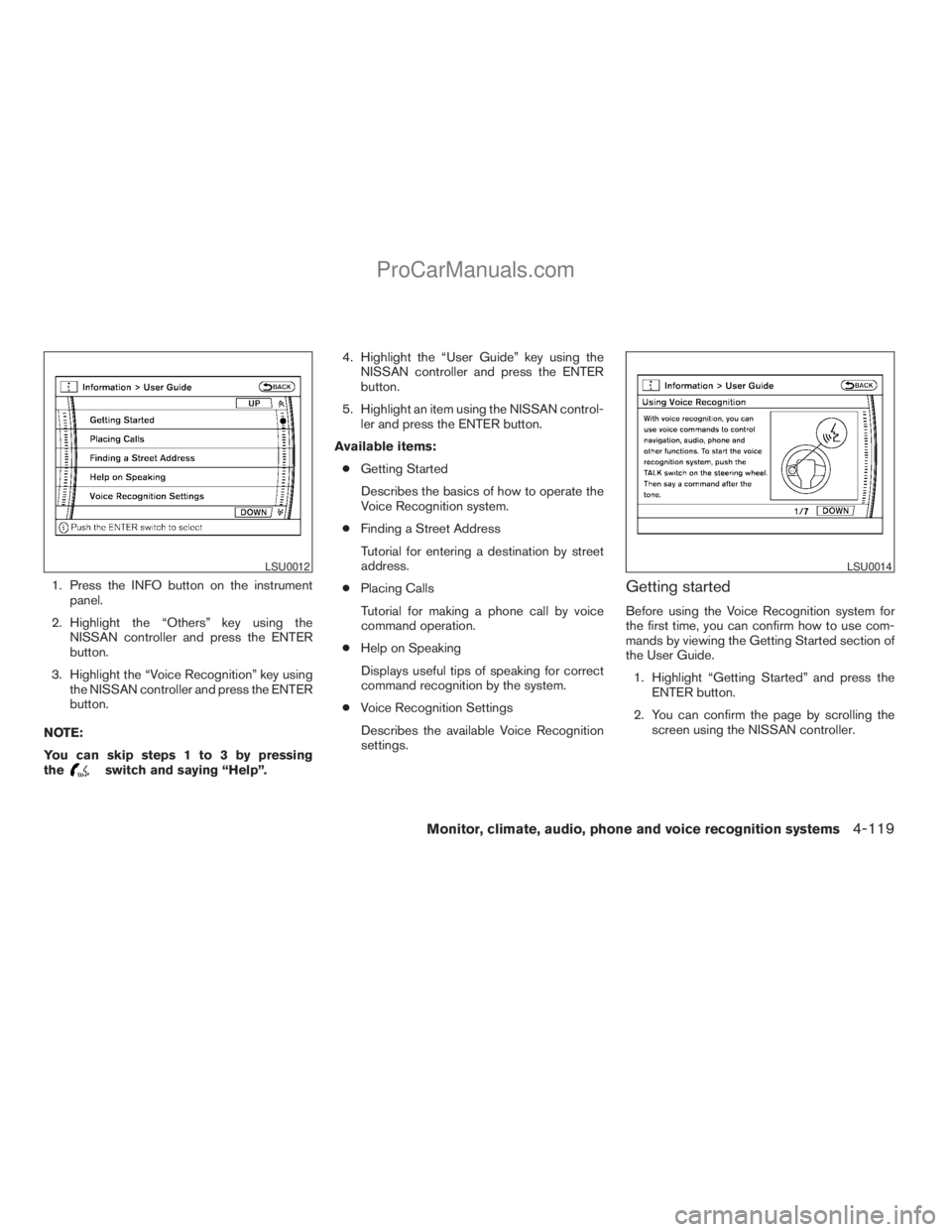
1. Press the INFO button on the instrument
panel.
2. Highlight the “Others” key using the
NISSAN controller and press the ENTER
button.
3. Highlight the “Voice Recognition” key using
the NISSAN controller and press the ENTER
button.
NOTE:
You can skip steps 1 to 3 by pressing
the
switch and saying “Help”.4. Highlight the “User Guide” key using the
NISSAN controller and press the ENTER
button.
5. Highlight an item using the NISSAN control-
ler and press the ENTER button.
Available items:
cGetting Started
Describes the basics of how to operate the
Voice Recognition system.
cFinding a Street Address
Tutorial for entering a destination by street
address.
cPlacing Calls
Tutorial for making a phone call by voice
command operation.
cHelp on Speaking
Displays useful tips of speaking for correct
command recognition by the system.
cVoice Recognition Settings
Describes the available Voice Recognition
settings.
Getting started
Before using the Voice Recognition system for
the first time, you can confirm how to use com-
mands by viewing the Getting Started section of
the User Guide.
1. Highlight “Getting Started” and press the
ENTER button.
2. You can confirm the page by scrolling the
screen using the NISSAN controller.
LSU0012LSU0014
Monitor, climate, audio, phone and voice recognition systems4-119
ZREVIEW COPYÐ2009 Armada(wzw)
Owners ManualÐUSA_English(nna)
02/26/08Ðdebbie
X
ProCarManuals.com
Page 300 of 465
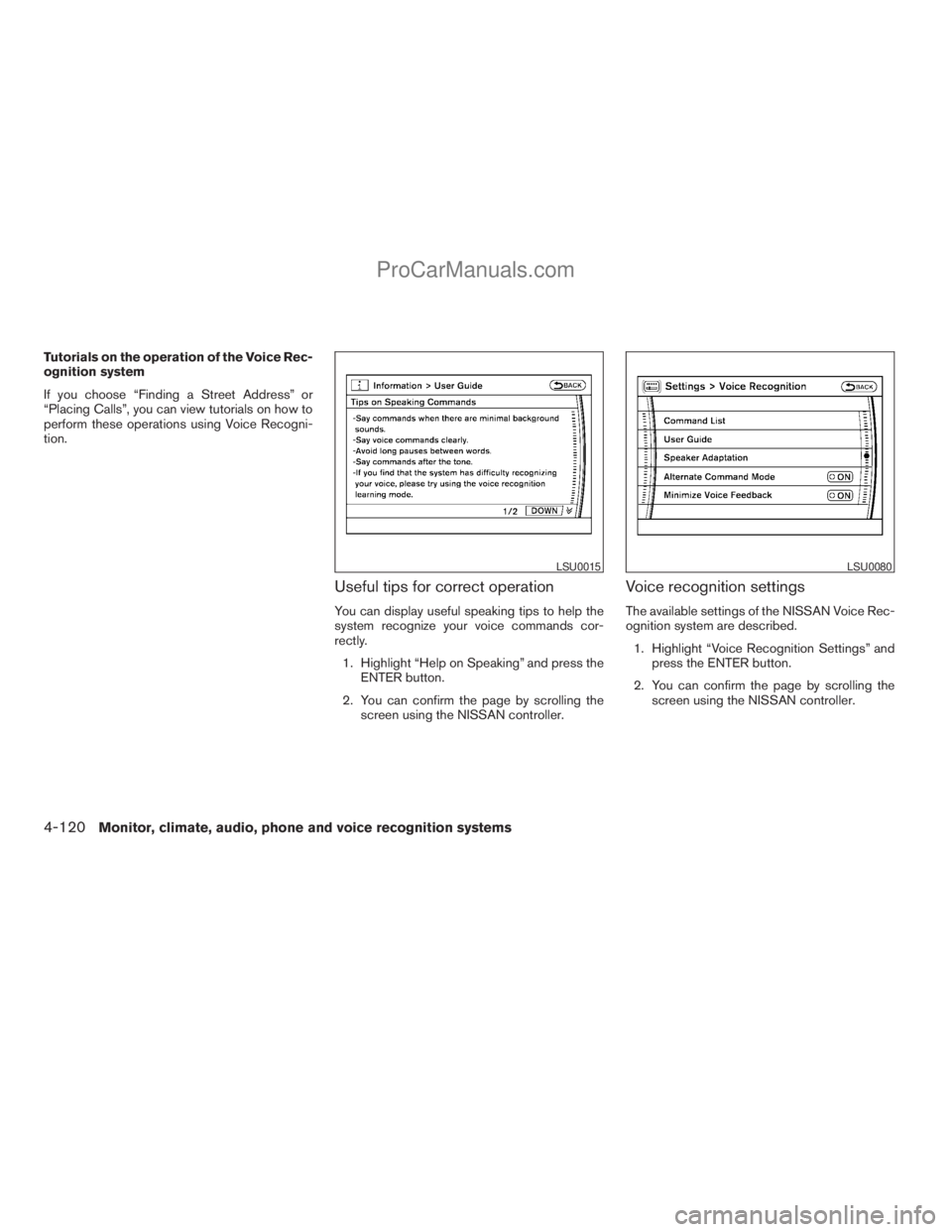
Tutorials on the operation of the Voice Rec-
ognition system
If you choose “Finding a Street Address” or
“Placing Calls”, you can view tutorials on how to
perform these operations using Voice Recogni-
tion.
Useful tips for correct operation
You can display useful speaking tips to help the
system recognize your voice commands cor-
rectly.
1. Highlight “Help on Speaking” and press the
ENTER button.
2. You can confirm the page by scrolling the
screen using the NISSAN controller.
Voice recognition settings
The available settings of the NISSAN Voice Rec-
ognition system are described.
1. Highlight “Voice Recognition Settings” and
press the ENTER button.
2. You can confirm the page by scrolling the
screen using the NISSAN controller.
LSU0015LSU0080
4-120Monitor, climate, audio, phone and voice recognition systems
ZREVIEW COPYÐ2009 Armada(wzw)
Owners ManualÐUSA_English(nna)
02/26/08Ðdebbie
X
ProCarManuals.com
Page 310 of 465
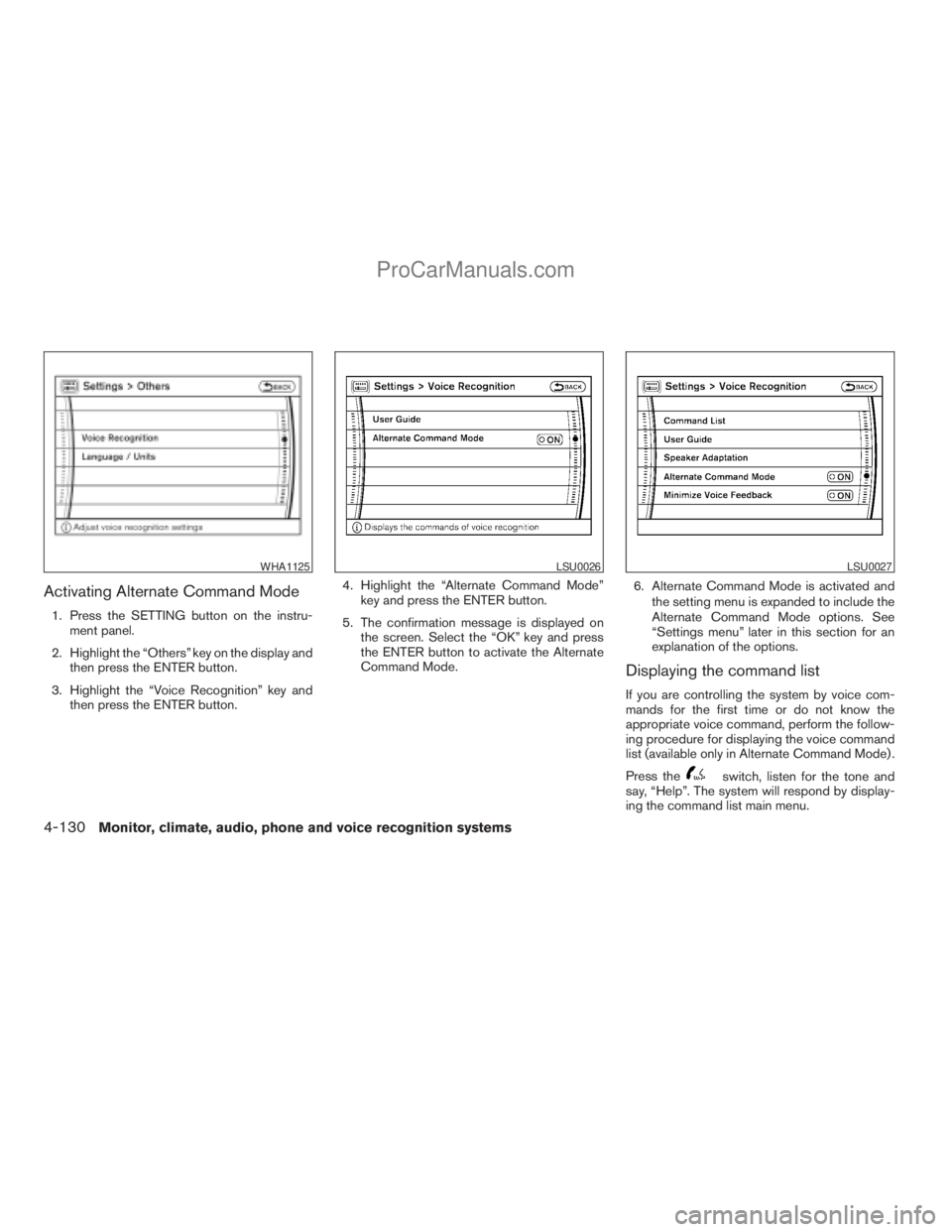
Activating Alternate Command Mode
1. Press the SETTING button on the instru-
ment panel.
2. Highlight the “Others” key on the display and
then press the ENTER button.
3. Highlight the “Voice Recognition” key and
then press the ENTER button.4. Highlight the “Alternate Command Mode”
key and press the ENTER button.
5. The confirmation message is displayed on
the screen. Select the “OK” key and press
the ENTER button to activate the Alternate
Command Mode.6. Alternate Command Mode is activated and
the setting menu is expanded to include the
Alternate Command Mode options. See
“Settings menu” later in this section for an
explanation of the options.
Displaying the command list
If you are controlling the system by voice com-
mands for the first time or do not know the
appropriate voice command, perform the follow-
ing procedure for displaying the voice command
list (available only in Alternate Command Mode) .
Press the
switch, listen for the tone and
say, “Help”. The system will respond by display-
ing the command list main menu.
WHA1125LSU0026LSU0027
4-130Monitor, climate, audio, phone and voice recognition systems
ZREVIEW COPYÐ2009 Armada(wzw)
Owners ManualÐUSA_English(nna)
02/26/08Ðdebbie
X
ProCarManuals.com
Page 311 of 465
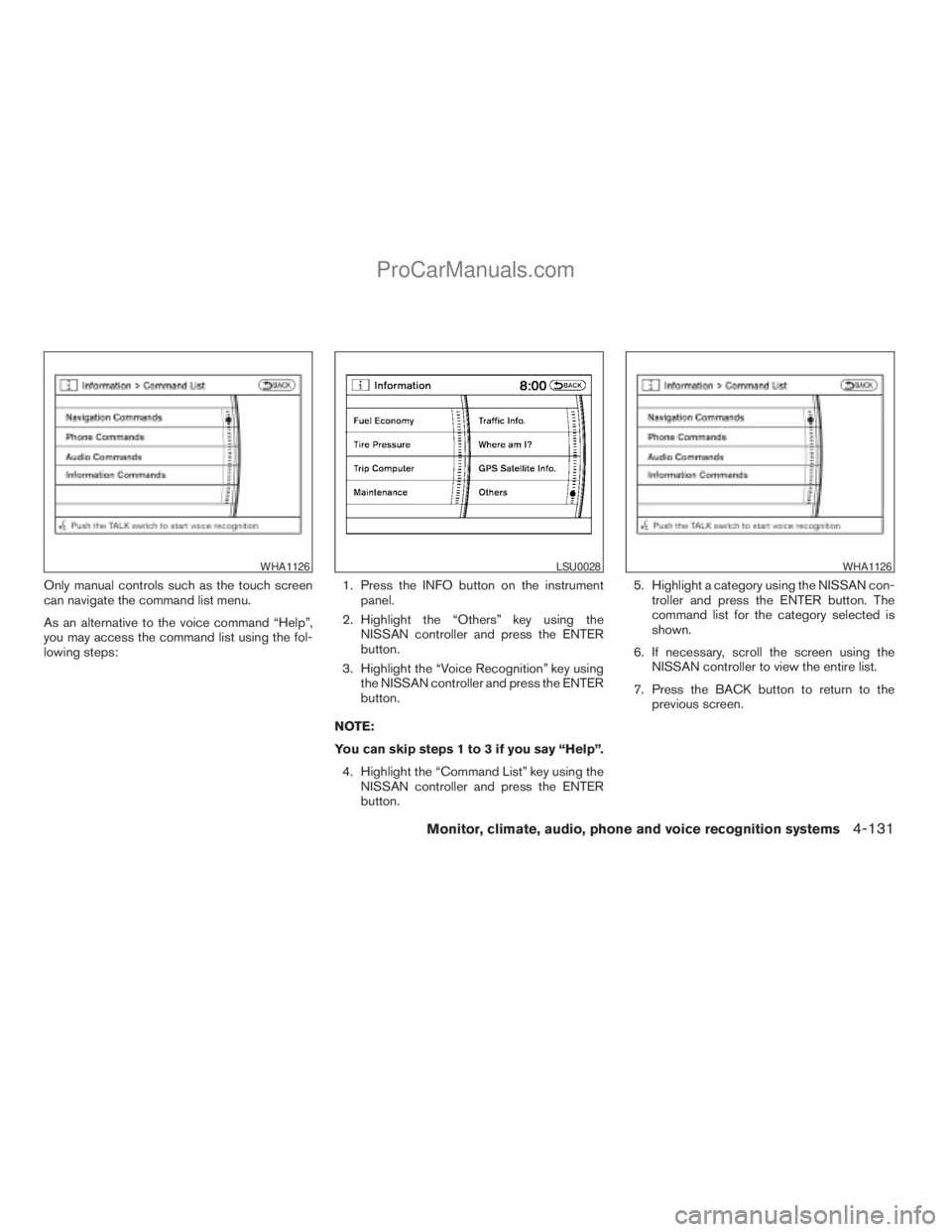
Only manual controls such as the touch screen
can navigate the command list menu.
As an alternative to the voice command “Help”,
you may access the command list using the fol-
lowing steps:1. Press the INFO button on the instrument
panel.
2. Highlight the “Others” key using the
NISSAN controller and press the ENTER
button.
3. Highlight the “Voice Recognition” key using
the NISSAN controller and press the ENTER
button.
NOTE:
You can skip steps 1 to 3 if you say “Help”.
4. Highlight the “Command List” key using the
NISSAN controller and press the ENTER
button.5. Highlight a category using the NISSAN con-
troller and press the ENTER button. The
command list for the category selected is
shown.
6. If necessary, scroll the screen using the
NISSAN controller to view the entire list.
7. Press the BACK button to return to the
previous screen.
WHA1126LSU0028WHA1126
Monitor, climate, audio, phone and voice recognition systems4-131
ZREVIEW COPYÐ2009 Armada(wzw)
Owners ManualÐUSA_English(nna)
02/26/08Ðdebbie
X
ProCarManuals.com
Page 315 of 465
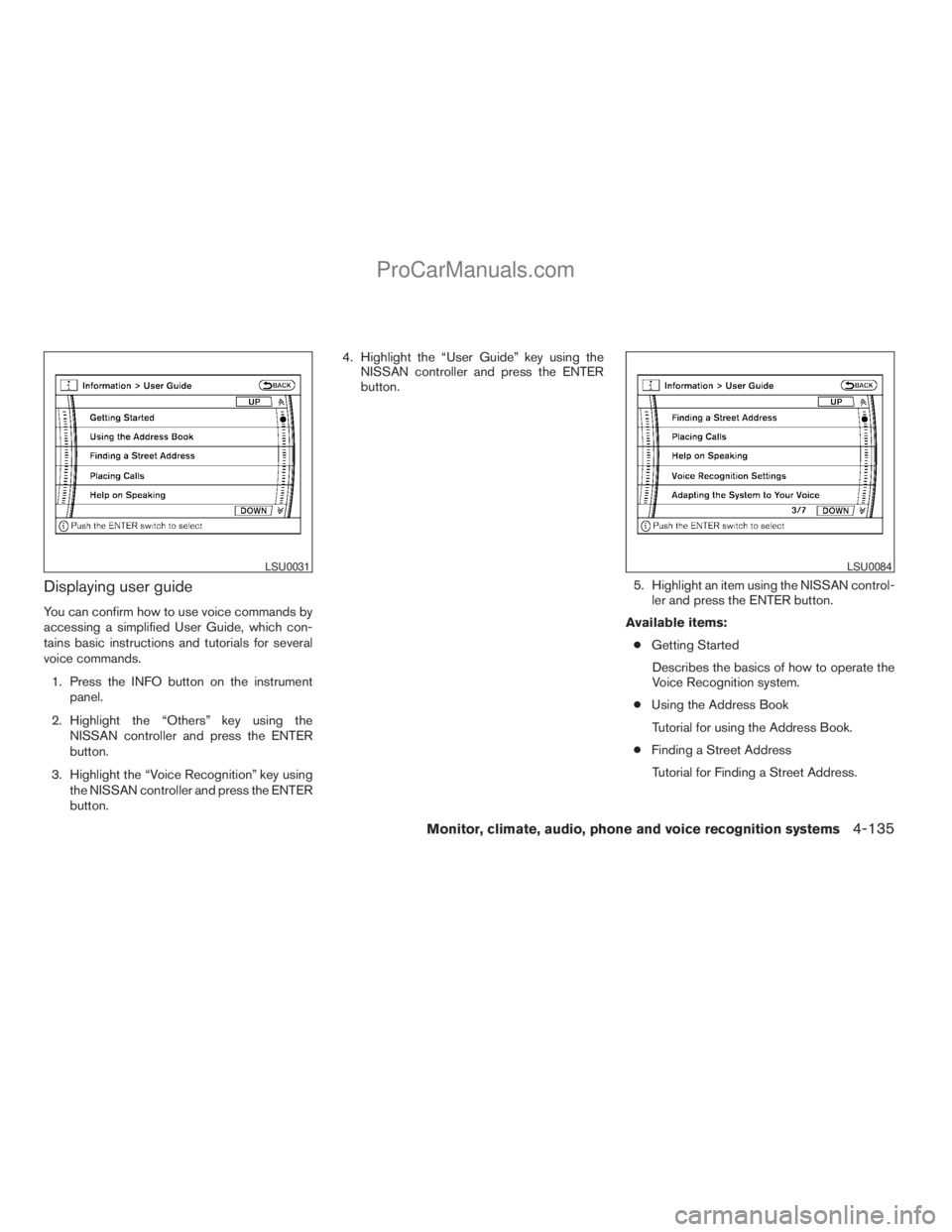
Displaying user guide
You can confirm how to use voice commands by
accessing a simplified User Guide, which con-
tains basic instructions and tutorials for several
voice commands.
1. Press the INFO button on the instrument
panel.
2. Highlight the “Others” key using the
NISSAN controller and press the ENTER
button.
3. Highlight the “Voice Recognition” key using
the NISSAN controller and press the ENTER
button.4. Highlight the “User Guide” key using the
NISSAN controller and press the ENTER
button.
5. Highlight an item using the NISSAN control-
ler and press the ENTER button.
Available items:
cGetting Started
Describes the basics of how to operate the
Voice Recognition system.
cUsing the Address Book
Tutorial for using the Address Book.
cFinding a Street Address
Tutorial for Finding a Street Address.
LSU0031LSU0084
Monitor, climate, audio, phone and voice recognition systems4-135
ZREVIEW COPYÐ2009 Armada(wzw)
Owners ManualÐUSA_English(nna)
02/26/08Ðdebbie
X
ProCarManuals.com