key NISSAN ARMADA 2009 Owners Manual
[x] Cancel search | Manufacturer: NISSAN, Model Year: 2009, Model line: ARMADA, Model: NISSAN ARMADA 2009Pages: 465, PDF Size: 6.33 MB
Page 293 of 465
4. After the call is over, perform one of the
following to finish the call:
a. Select the “Hang up” key on the Call in
Progress screen and press the ENTER
button.
b. Press the
switch on the steering
wheel.
c. When the Call in Progress screen is dis-
played, press the PHONE button on the
instrument panel to hang up. If any other
screen is currently displayed, press the
PHONE button to display the Call in
Progress screen first, then press the
PHONE button again to hang up.
There are different methods to make a call. Select
one of the following options instead of “Call
(Phonebook)” in Step 2 above.
cRedial:
Dial the previously dialed number again.
cCall (Call Logs):
Select the name or phone number from the
incoming or outgoing call logs.
cCall (Downloaded):
Select the name or phone number from the
downloaded call list.cDial (Keypad):
Input the phone number manually using the
keypad displayed on the screen. For infor-
mation on how to use the touch screen, see
“How to use the touch screen” earlier in this
section.
RECEIVING A CALL
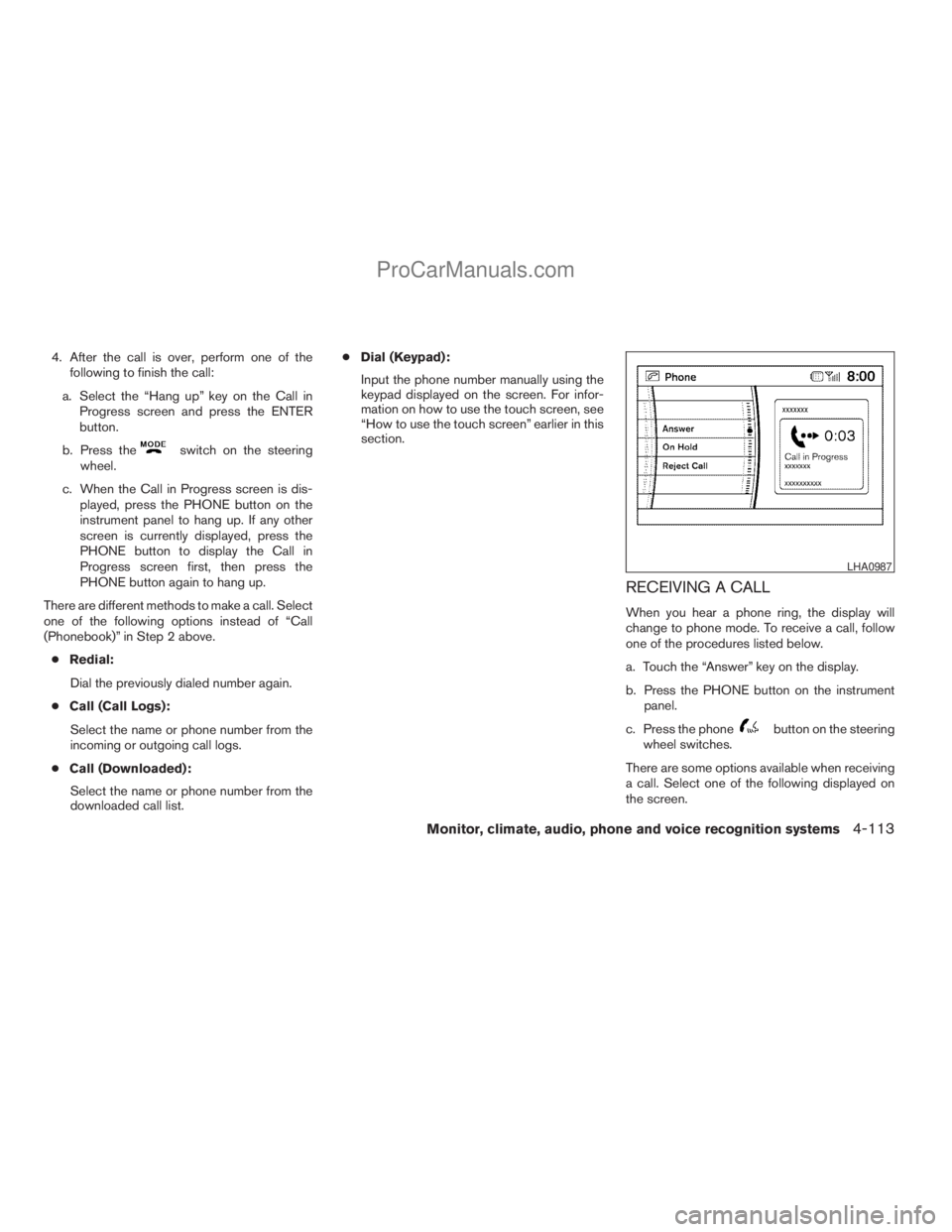
When you hear a phone ring, the display will
change to phone mode. To receive a call, follow
one of the procedures listed below.
a. Touch the “Answer” key on the display.
b. Press the PHONE button on the instrument
panel.
c. Press the phone
button on the steering
wheel switches.
There are some options available when receiving
a call. Select one of the following displayed on
the screen.
LHA0987
Monitor, climate, audio, phone and voice recognition systems4-113
ZREVIEW COPYÐ2009 Armada(wzw)
Owners ManualÐUSA_English(nna)
02/26/08Ðdebbie
X
ProCarManuals.com
Page 294 of 465
Answer:
Accept an incoming call to talk.
On Hold:
Put an incoming call on hold.
Reject Call:
Reject an incoming call.
To finish the call, follow one of the procedures
listed below.
a. Touch the “Reject Call” key on the display.
b. Press the PHONE button on the instrument
panel.
c. Press and hold the phone
button on the
steering wheel switches.
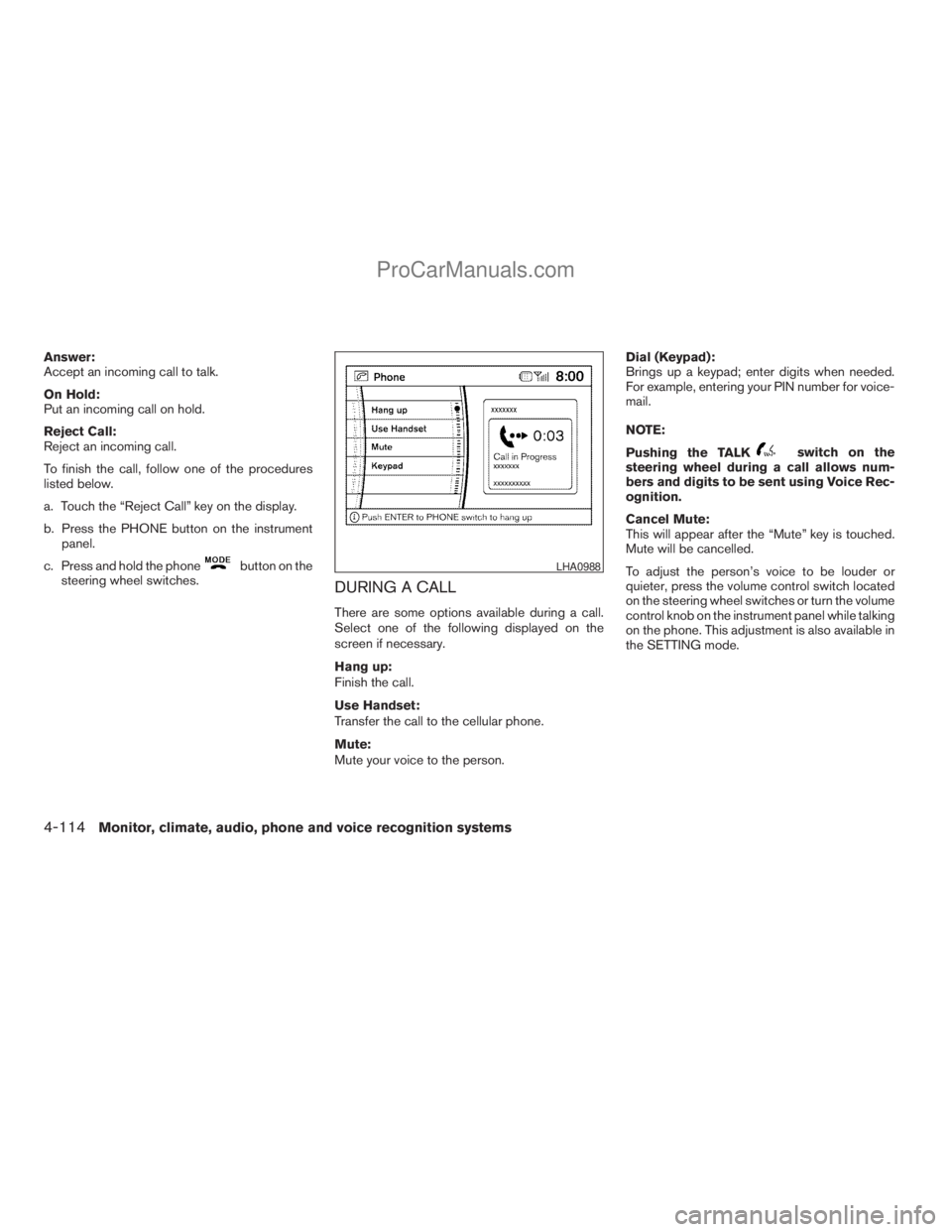
DURING A CALL
There are some options available during a call.
Select one of the following displayed on the
screen if necessary.
Hang up:
Finish the call.
Use Handset:
Transfer the call to the cellular phone.
Mute:
Mute your voice to the person.Dial (Keypad):
Brings up a keypad; enter digits when needed.
For example, entering your PIN number for voice-
mail.
NOTE:
Pushing the TALK
switch on the
steering wheel during a call allows num-
bers and digits to be sent using Voice Rec-
ognition.
Cancel Mute:
This will appear after the “Mute” key is touched.
Mute will be cancelled.
To adjust the person’s voice to be louder or
quieter, press the volume control switch located
on the steering wheel switches or turn the volume
control knob on the instrument panel while talking
on the phone. This adjustment is also available in
the SETTING mode.
LHA0988
4-114Monitor, climate, audio, phone and voice recognition systems
ZREVIEW COPYÐ2009 Armada(wzw)
Owners ManualÐUSA_English(nna)
02/26/08Ðdebbie
X
ProCarManuals.com
Page 295 of 465
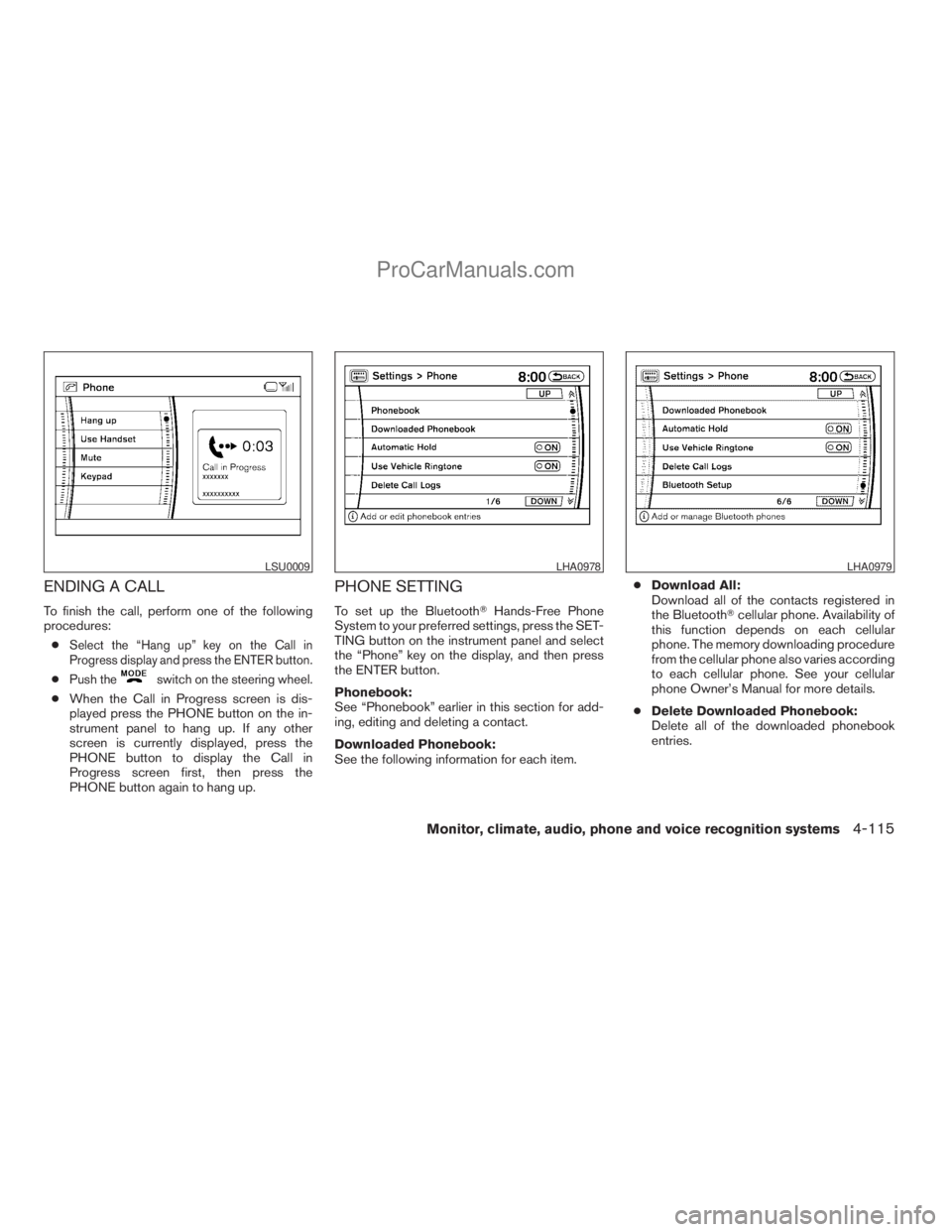
ENDING A CALL
To finish the call, perform one of the following
procedures:
c
Select the “Hang up” key on the Call in
Progress display and press the ENTER button.
cPush theswitch on the steering wheel.
cWhen the Call in Progress screen is dis-
played press the PHONE button on the in-
strument panel to hang up. If any other
screen is currently displayed, press the
PHONE button to display the Call in
Progress screen first, then press the
PHONE button again to hang up.
PHONE SETTING
To set up the BluetoothTHands-Free Phone
System to your preferred settings, press the SET-
TING button on the instrument panel and select
the “Phone” key on the display, and then press
the ENTER button.
Phonebook:
See “Phonebook” earlier in this section for add-
ing, editing and deleting a contact.
Downloaded Phonebook:
See the following information for each item.cDownload All:
Download all of the contacts registered in
the BluetoothTcellular phone. Availability of
this function depends on each cellular
phone. The memory downloading procedure
from the cellular phone also varies according
to each cellular phone. See your cellular
phone Owner’s Manual for more details.
cDelete Downloaded Phonebook:
Delete all of the downloaded phonebook
entries.
LSU0009LHA0978LHA0979
Monitor, climate, audio, phone and voice recognition systems4-115
ZREVIEW COPYÐ2009 Armada(wzw)
Owners ManualÐUSA_English(nna)
02/26/08Ðdebbie
X
ProCarManuals.com
Page 296 of 465
cDelete an Entry of Downloaded Phone-
book:
Delete a single entry from the downloaded
phonebook. Touch the corresponding letter
key, then touch on the name key you wish to
delete. Touch the “Yes” key to delete the
entry.
Automatic Hold:
If this item is turned on, an incoming call will be
placed on hold automatically after several rings.
Use Vehicle Ringtone:
If this item is turned on, a specific ringtone that is
different from the cellular phone’s will sound
when receiving a call.
Delete Call Logs:
Delete all the outgoing or incoming call logs from
the list.
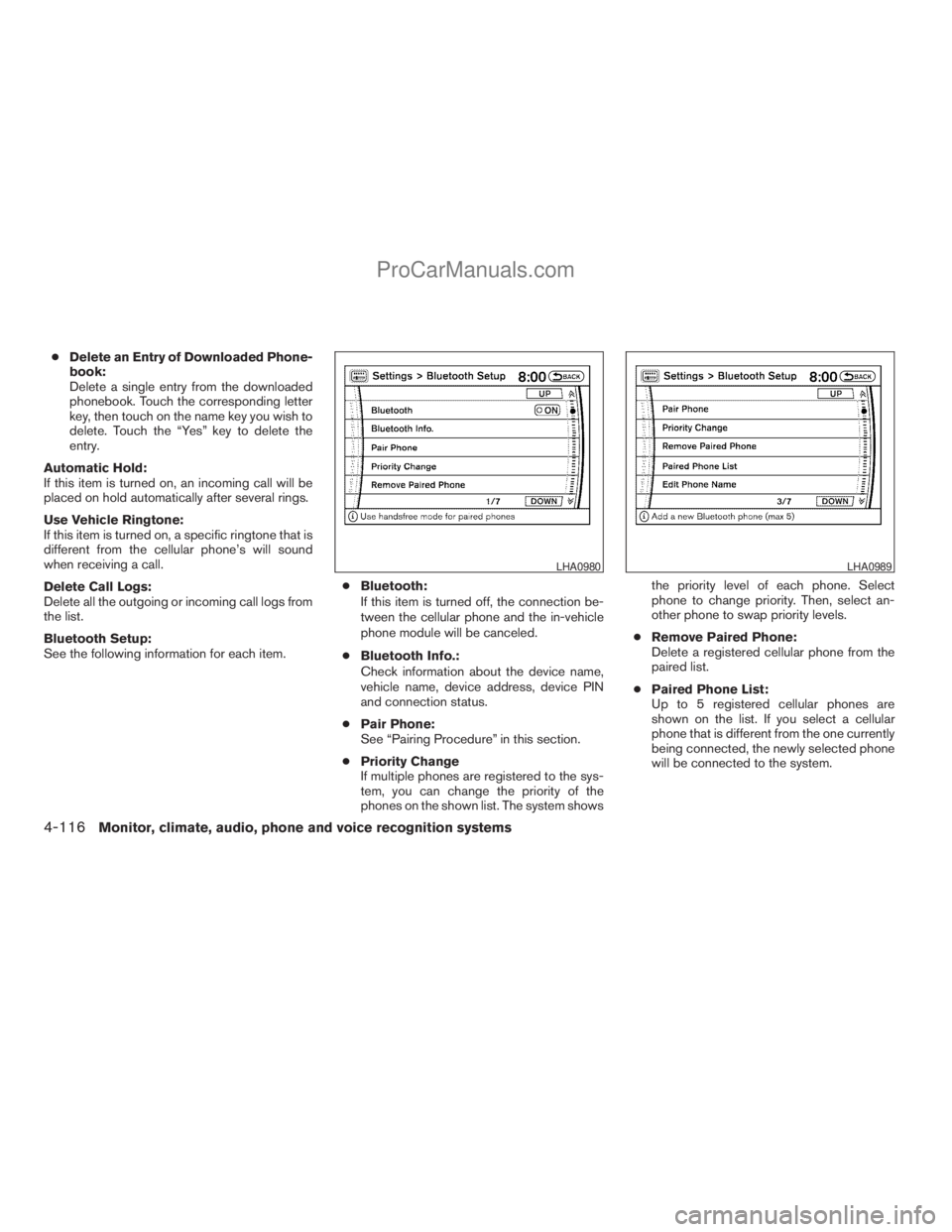
Bluetooth Setup:
See the following information for each item.cBluetooth:
If this item is turned off, the connection be-
tween the cellular phone and the in-vehicle
phone module will be canceled.
cBluetooth Info.:
Check information about the device name,
vehicle name, device address, device PIN
and connection status.
cPair Phone:
See “Pairing Procedure” in this section.
cPriority Change
If multiple phones are registered to the sys-
tem, you can change the priority of the
phones on the shown list. The system showsthe priority level of each phone. Select
phone to change priority. Then, select an-
other phone to swap priority levels.
cRemove Paired Phone:
Delete a registered cellular phone from the
paired list.
cPaired Phone List:
Up to 5 registered cellular phones are
shown on the list. If you select a cellular
phone that is different from the one currently
being connected, the newly selected phone
will be connected to the system.
LHA0980LHA0989
4-116Monitor, climate, audio, phone and voice recognition systems
ZREVIEW COPYÐ2009 Armada(wzw)
Owners ManualÐUSA_English(nna)
02/26/08Ðdebbie
X
ProCarManuals.com
Page 297 of 465
cEdit Phone Name:
If you would like to change the way your
phone’s name is displayed, select this key; a
character input screen will be displayed.
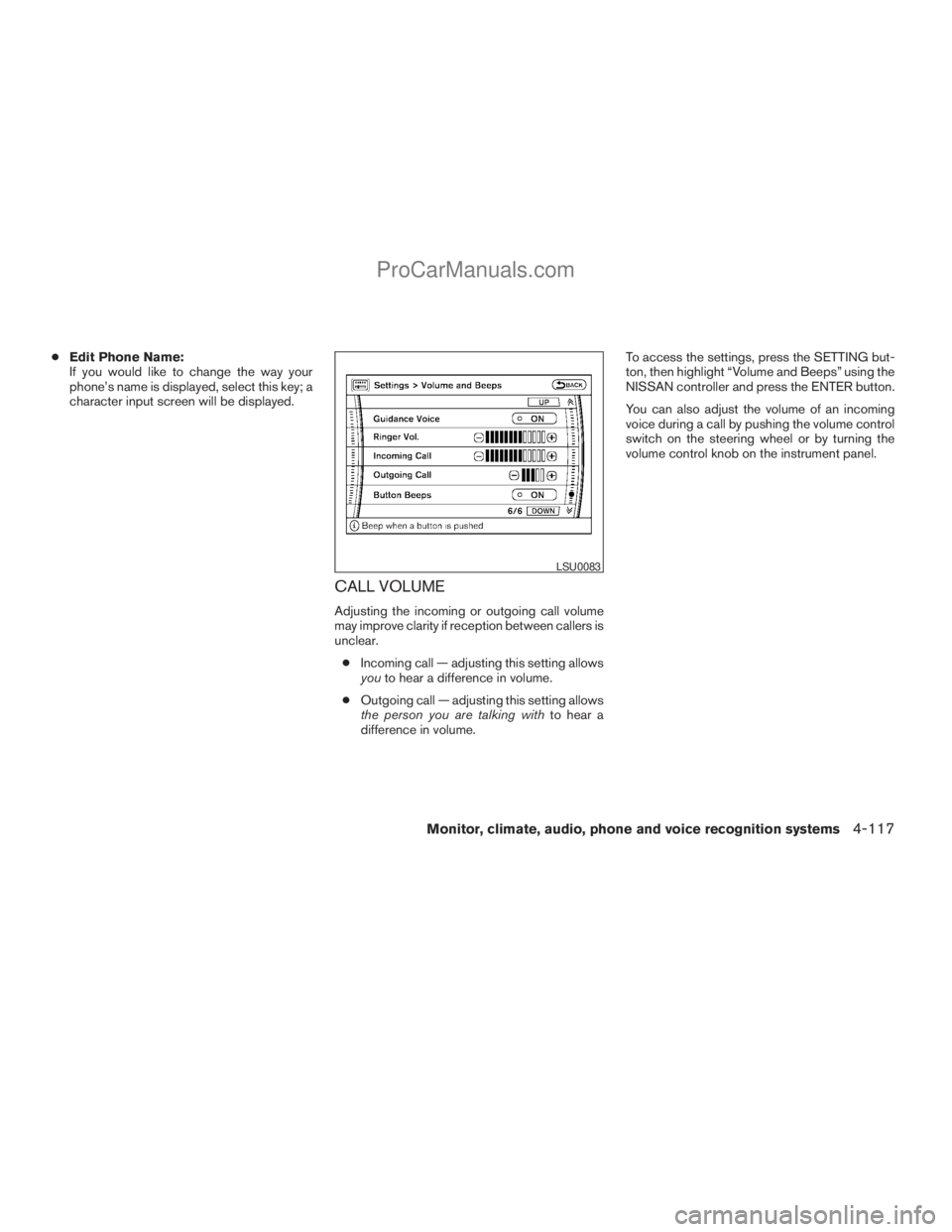
CALL VOLUME
Adjusting the incoming or outgoing call volume
may improve clarity if reception between callers is
unclear.
cIncoming call — adjusting this setting allows
youto hear a difference in volume.
cOutgoing call — adjusting this setting allows
the person you are talking withto hear a
difference in volume.To access the settings, press the SETTING but-
ton, then highlight “Volume and Beeps” using the
NISSAN controller and press the ENTER button.
You can also adjust the volume of an incoming
voice during a call by pushing the volume control
switch on the steering wheel or by turning the
volume control knob on the instrument panel.
LSU0083
Monitor, climate, audio, phone and voice recognition systems4-117
ZREVIEW COPYÐ2009 Armada(wzw)
Owners ManualÐUSA_English(nna)
02/26/08Ðdebbie
X
ProCarManuals.com
Page 299 of 465
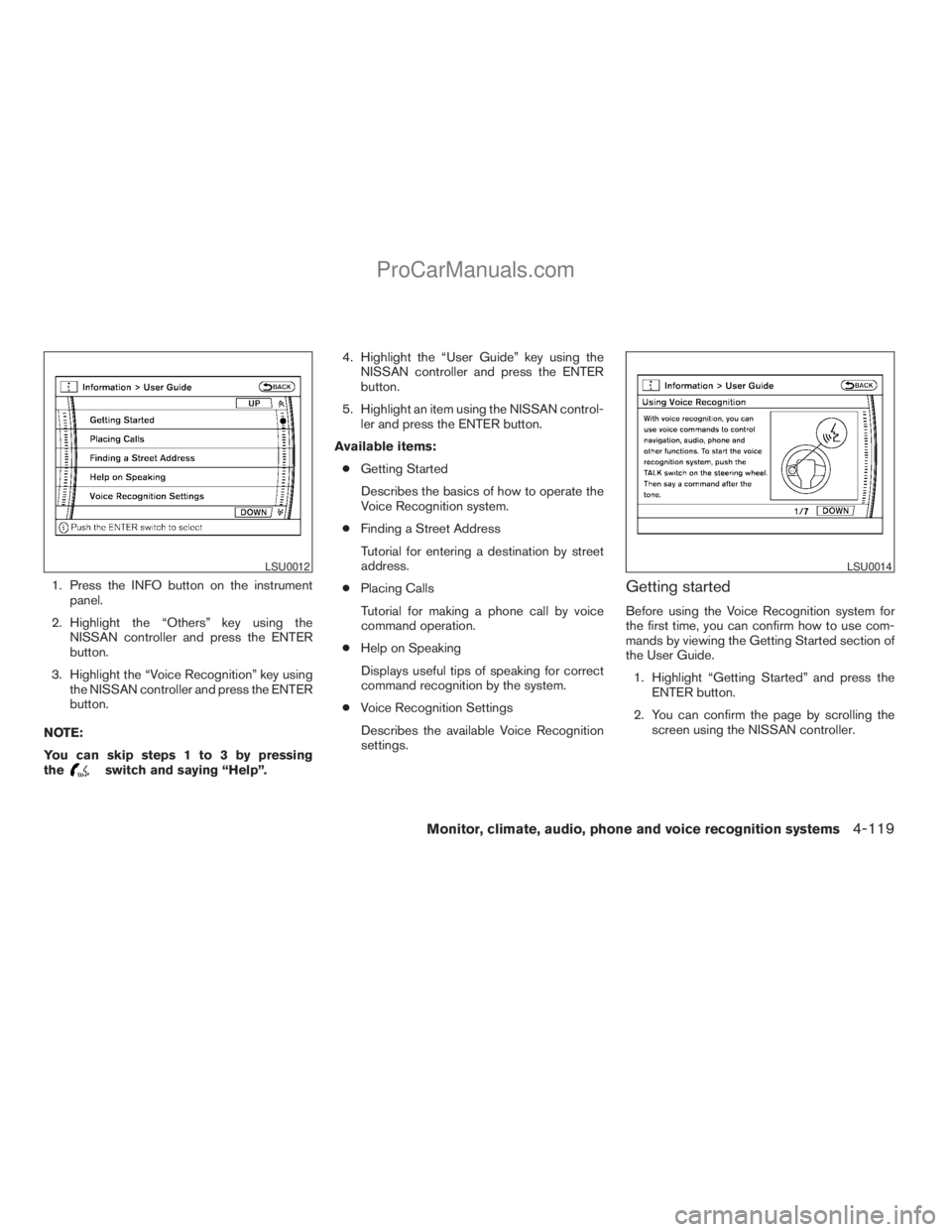
1. Press the INFO button on the instrument
panel.
2. Highlight the “Others” key using the
NISSAN controller and press the ENTER
button.
3. Highlight the “Voice Recognition” key using
the NISSAN controller and press the ENTER
button.
NOTE:
You can skip steps 1 to 3 by pressing
the
switch and saying “Help”.4. Highlight the “User Guide” key using the
NISSAN controller and press the ENTER
button.
5. Highlight an item using the NISSAN control-
ler and press the ENTER button.
Available items:
cGetting Started
Describes the basics of how to operate the
Voice Recognition system.
cFinding a Street Address
Tutorial for entering a destination by street
address.
cPlacing Calls
Tutorial for making a phone call by voice
command operation.
cHelp on Speaking
Displays useful tips of speaking for correct
command recognition by the system.
cVoice Recognition Settings
Describes the available Voice Recognition
settings.
Getting started
Before using the Voice Recognition system for
the first time, you can confirm how to use com-
mands by viewing the Getting Started section of
the User Guide.
1. Highlight “Getting Started” and press the
ENTER button.
2. You can confirm the page by scrolling the
screen using the NISSAN controller.
LSU0012LSU0014
Monitor, climate, audio, phone and voice recognition systems4-119
ZREVIEW COPYÐ2009 Armada(wzw)
Owners ManualÐUSA_English(nna)
02/26/08Ðdebbie
X
ProCarManuals.com
Page 310 of 465
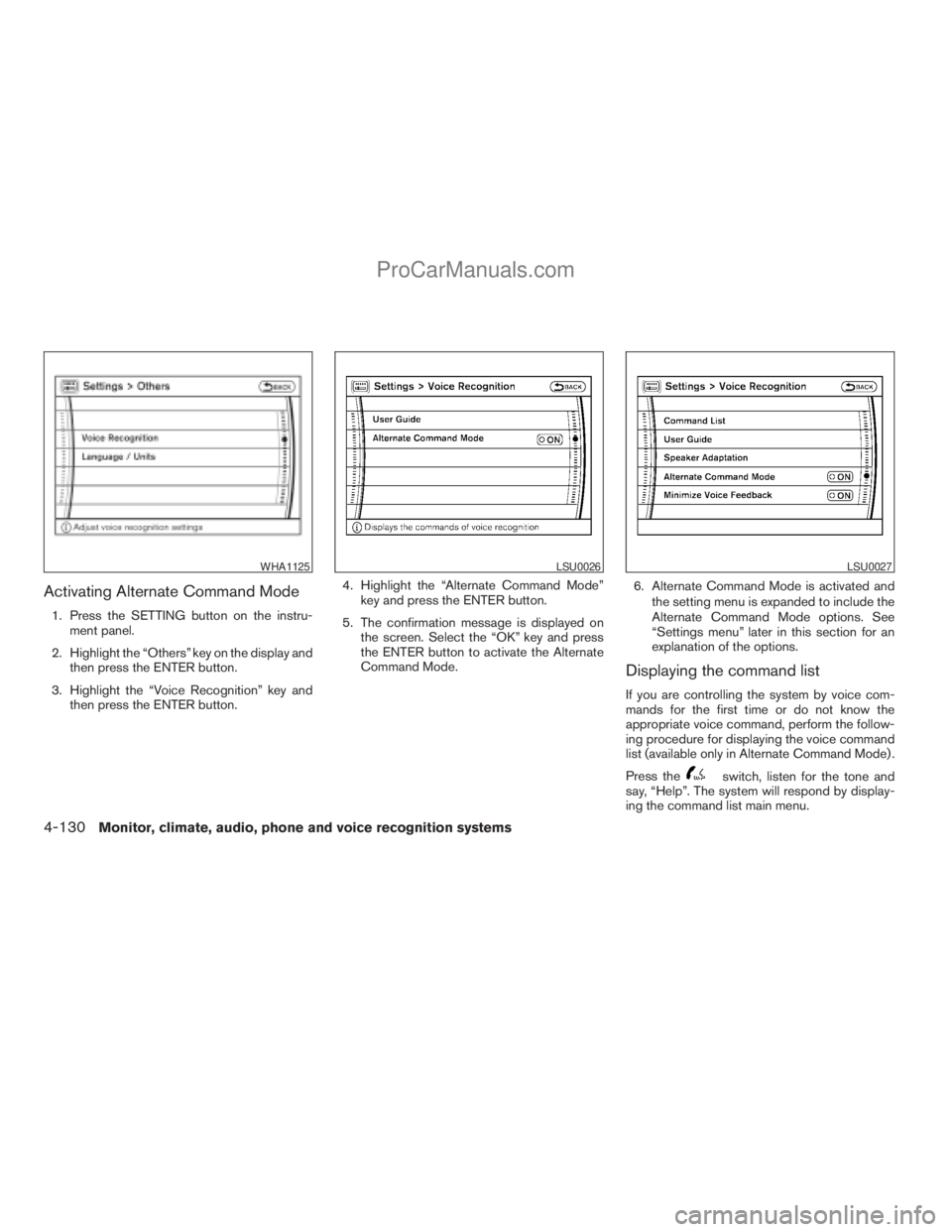
Activating Alternate Command Mode
1. Press the SETTING button on the instru-
ment panel.
2. Highlight the “Others” key on the display and
then press the ENTER button.
3. Highlight the “Voice Recognition” key and
then press the ENTER button.4. Highlight the “Alternate Command Mode”
key and press the ENTER button.
5. The confirmation message is displayed on
the screen. Select the “OK” key and press
the ENTER button to activate the Alternate
Command Mode.6. Alternate Command Mode is activated and
the setting menu is expanded to include the
Alternate Command Mode options. See
“Settings menu” later in this section for an
explanation of the options.
Displaying the command list
If you are controlling the system by voice com-
mands for the first time or do not know the
appropriate voice command, perform the follow-
ing procedure for displaying the voice command
list (available only in Alternate Command Mode) .
Press the
switch, listen for the tone and
say, “Help”. The system will respond by display-
ing the command list main menu.
WHA1125LSU0026LSU0027
4-130Monitor, climate, audio, phone and voice recognition systems
ZREVIEW COPYÐ2009 Armada(wzw)
Owners ManualÐUSA_English(nna)
02/26/08Ðdebbie
X
ProCarManuals.com
Page 311 of 465
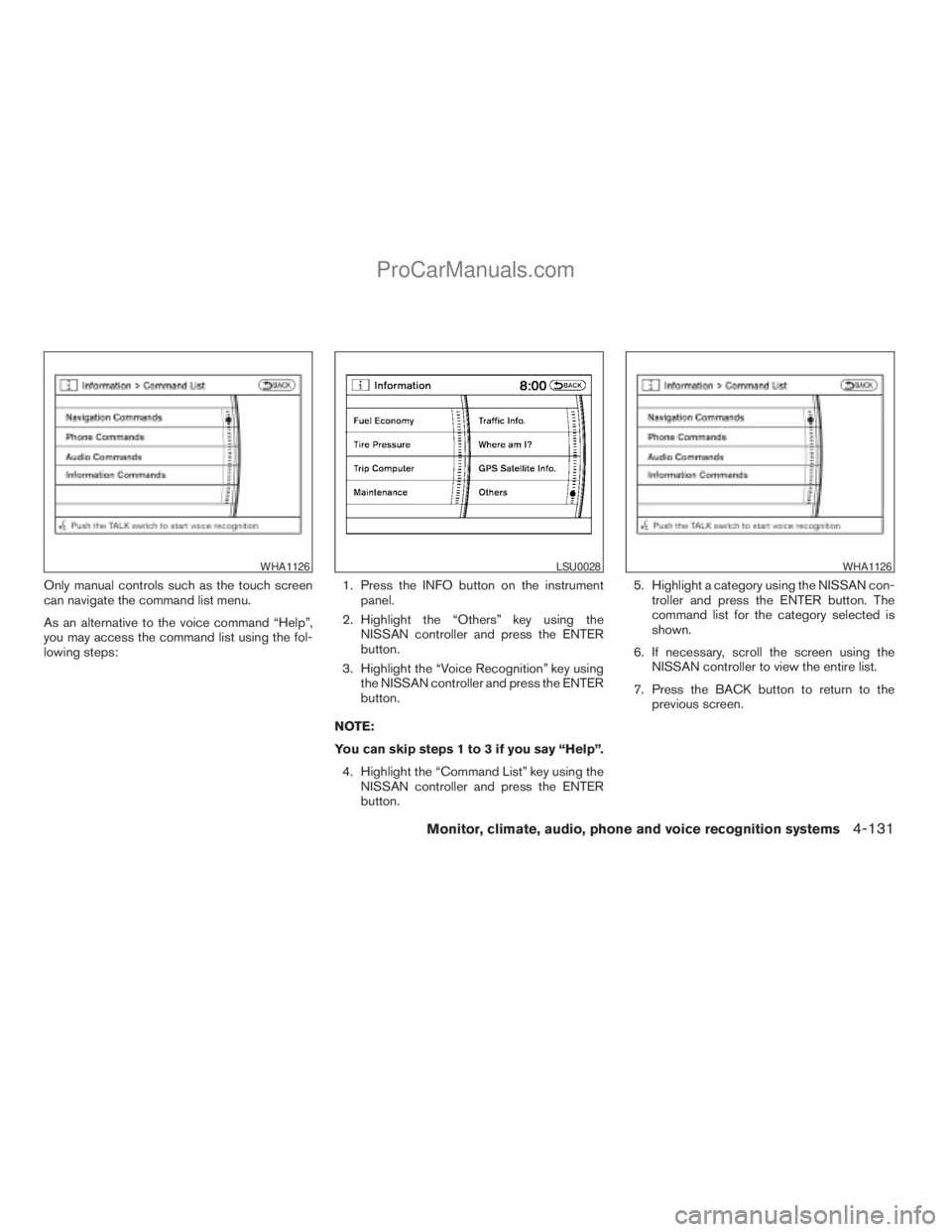
Only manual controls such as the touch screen
can navigate the command list menu.
As an alternative to the voice command “Help”,
you may access the command list using the fol-
lowing steps:1. Press the INFO button on the instrument
panel.
2. Highlight the “Others” key using the
NISSAN controller and press the ENTER
button.
3. Highlight the “Voice Recognition” key using
the NISSAN controller and press the ENTER
button.
NOTE:
You can skip steps 1 to 3 if you say “Help”.
4. Highlight the “Command List” key using the
NISSAN controller and press the ENTER
button.5. Highlight a category using the NISSAN con-
troller and press the ENTER button. The
command list for the category selected is
shown.
6. If necessary, scroll the screen using the
NISSAN controller to view the entire list.
7. Press the BACK button to return to the
previous screen.
WHA1126LSU0028WHA1126
Monitor, climate, audio, phone and voice recognition systems4-131
ZREVIEW COPYÐ2009 Armada(wzw)
Owners ManualÐUSA_English(nna)
02/26/08Ðdebbie
X
ProCarManuals.com
Page 315 of 465
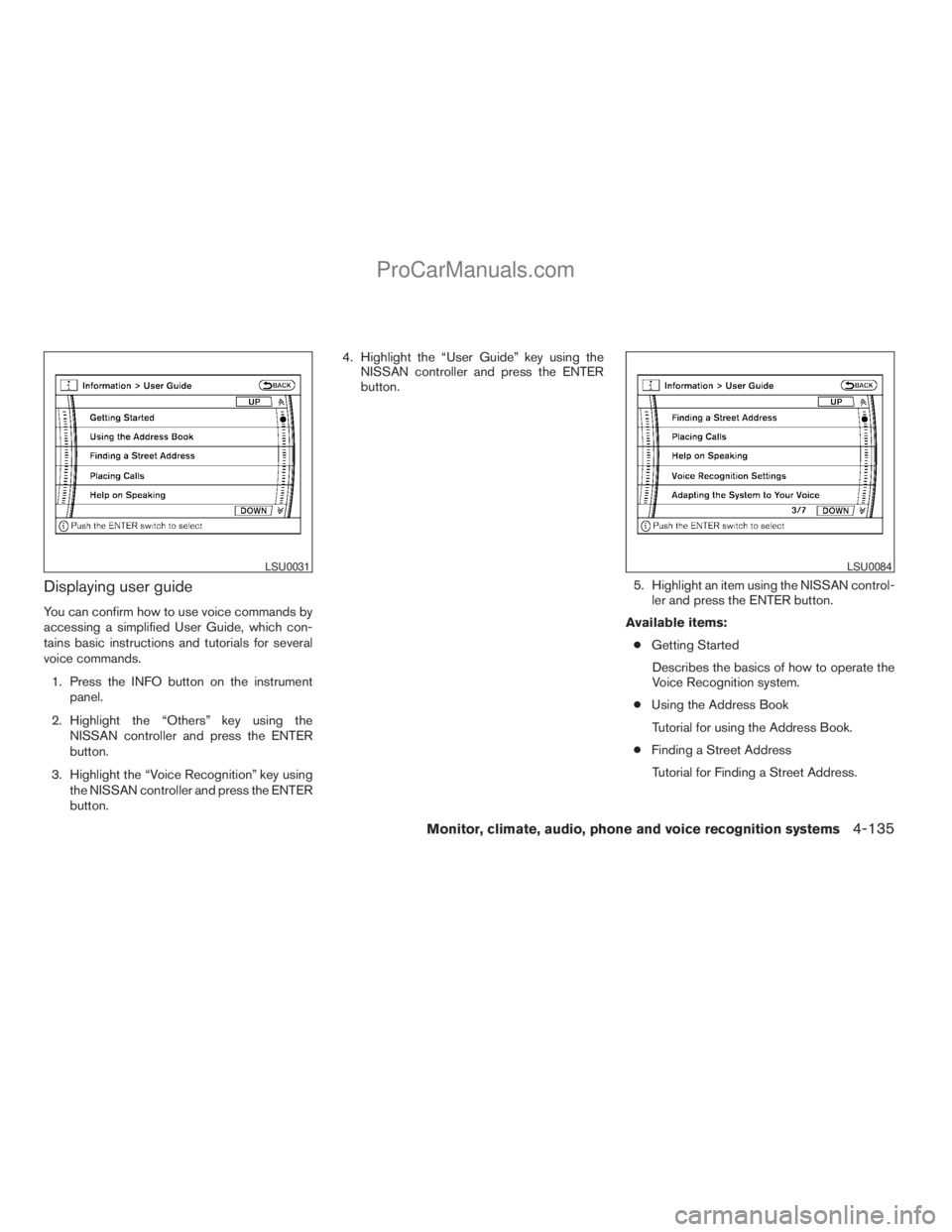
Displaying user guide
You can confirm how to use voice commands by
accessing a simplified User Guide, which con-
tains basic instructions and tutorials for several
voice commands.
1. Press the INFO button on the instrument
panel.
2. Highlight the “Others” key using the
NISSAN controller and press the ENTER
button.
3. Highlight the “Voice Recognition” key using
the NISSAN controller and press the ENTER
button.4. Highlight the “User Guide” key using the
NISSAN controller and press the ENTER
button.
5. Highlight an item using the NISSAN control-
ler and press the ENTER button.
Available items:
cGetting Started
Describes the basics of how to operate the
Voice Recognition system.
cUsing the Address Book
Tutorial for using the Address Book.
cFinding a Street Address
Tutorial for Finding a Street Address.
LSU0031LSU0084
Monitor, climate, audio, phone and voice recognition systems4-135
ZREVIEW COPYÐ2009 Armada(wzw)
Owners ManualÐUSA_English(nna)
02/26/08Ðdebbie
X
ProCarManuals.com
Page 317 of 465
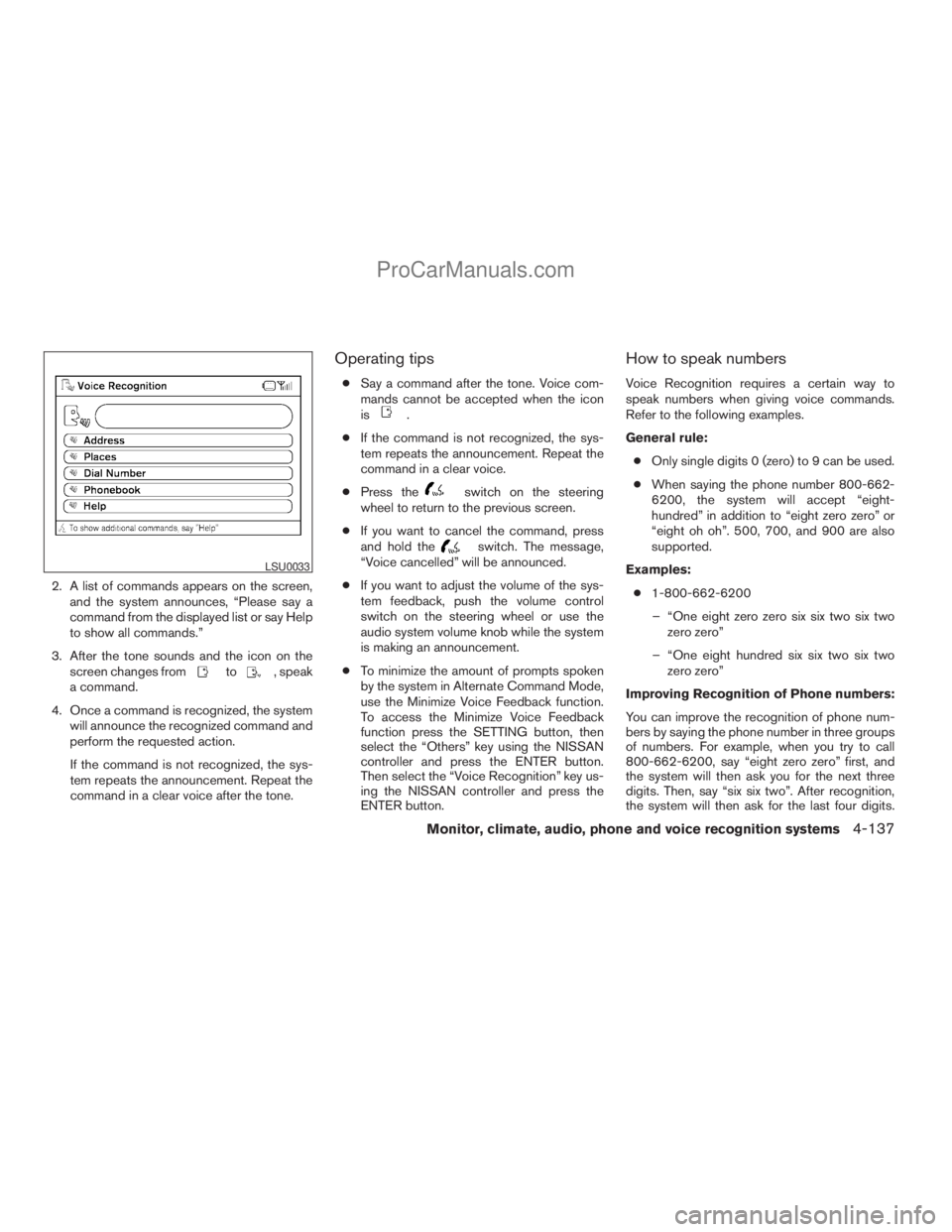
2. A list of commands appears on the screen,
and the system announces, “Please say a
command from the displayed list or say Help
to show all commands.”
3. After the tone sounds and the icon on the
screen changes from
to, speak
a command.
4. Once a command is recognized, the system
will announce the recognized command and
perform the requested action.
If the command is not recognized, the sys-
tem repeats the announcement. Repeat the
command in a clear voice after the tone.
Operating tips
cSay a command after the tone. Voice com-
mands cannot be accepted when the icon
is
.
cIf the command is not recognized, the sys-
tem repeats the announcement. Repeat the
command in a clear voice.
cPress the
switch on the steering
wheel to return to the previous screen.
cIf you want to cancel the command, press
and hold the
switch. The message,
“Voice cancelled” will be announced.
cIf you want to adjust the volume of the sys-
tem feedback, push the volume control
switch on the steering wheel or use the
audio system volume knob while the system
is making an announcement.
cTo minimize the amount of prompts spoken
by the system in Alternate Command Mode,
use the Minimize Voice Feedback function.
To access the Minimize Voice Feedback
function press the SETTING button, then
select the “Others” key using the NISSAN
controller and press the ENTER button.
Then select the “Voice Recognition” key us-
ing the NISSAN controller and press the
ENTER button.
How to speak numbers
Voice Recognition requires a certain way to
speak numbers when giving voice commands.
Refer to the following examples.
General rule:
cOnly single digits 0 (zero) to 9 can be used.
cWhen saying the phone number 800-662-
6200, the system will accept “eight-
hundred” in addition to “eight zero zero” or
“eight oh oh”. 500, 700, and 900 are also
supported.
Examples:
c1-800-662-6200
– “One eight zero zero six six two six two
zero zero”
– “One eight hundred six six two six two
zero zero”
Improving Recognition of Phone numbers:
You can improve the recognition of phone num-
bers by saying the phone number in three groups
of numbers. For example, when you try to call
800-662-6200, say “eight zero zero” first, and
the system will then ask you for the next three
digits. Then, say “six six two”. After recognition,
the system will then ask for the last four digits.
LSU0033
Monitor, climate, audio, phone and voice recognition systems4-137
ZREVIEW COPYÐ2009 Armada(wzw)
Owners ManualÐUSA_English(nna)
02/26/08Ðdebbie
X
ProCarManuals.com