AUX NISSAN ARMADA 2009 User Guide
[x] Cancel search | Manufacturer: NISSAN, Model Year: 2009, Model line: ARMADA, Model: NISSAN ARMADA 2009Pages: 465, PDF Size: 6.33 MB
Page 253 of 465
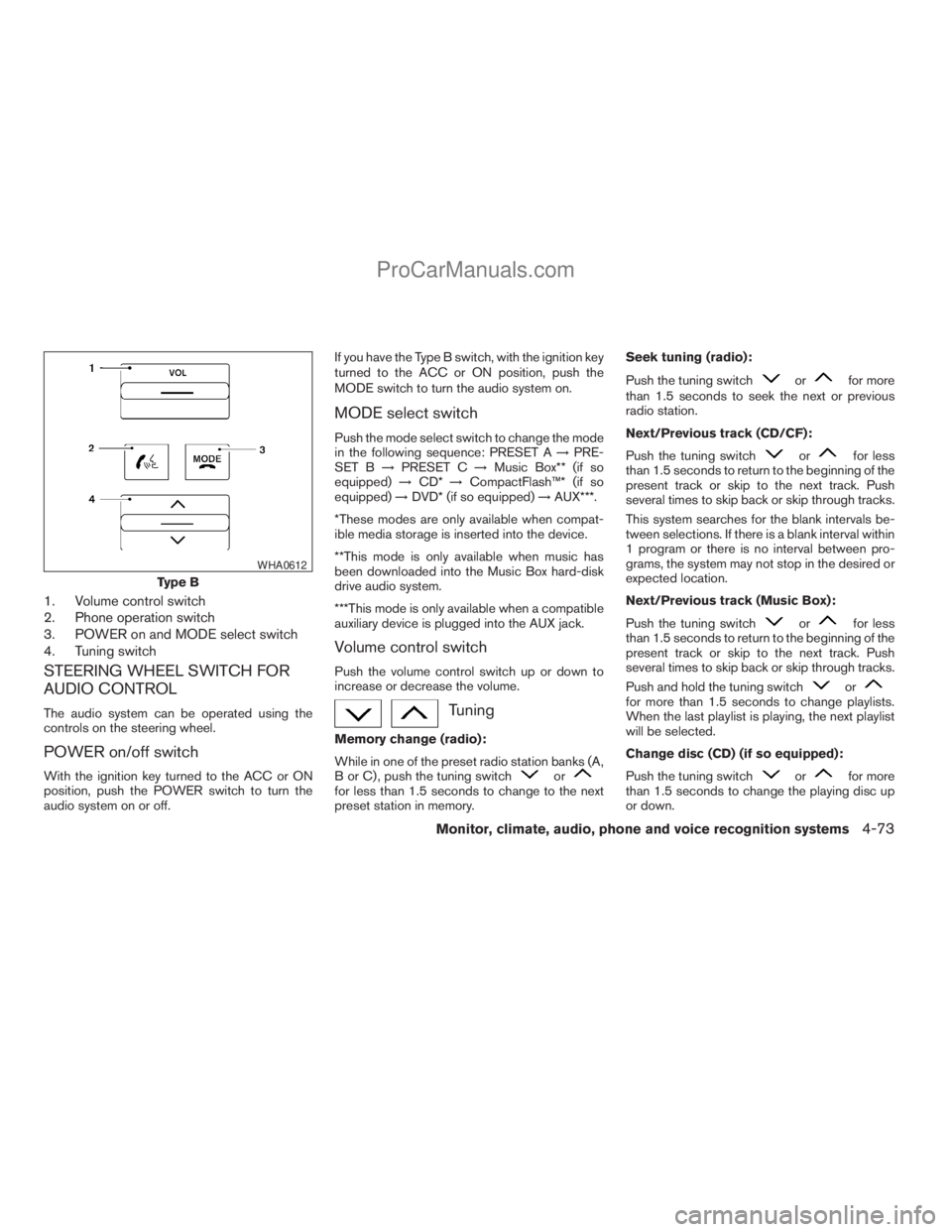
1. Volume control switch
2. Phone operation switch
3. POWER on and MODE select switch
4. Tuning switch
STEERING WHEEL SWITCH FOR
AUDIO CONTROL
The audio system can be operated using the
controls on the steering wheel.
POWER on/off switch
With the ignition key turned to the ACC or ON
position, push the POWER switch to turn the
audio system on or off.If you have the Type B switch, with the ignition key
turned to the ACC or ON position, push the
MODE switch to turn the audio system on.
MODE select switch
Push the mode select switch to change the mode
in the following sequence: PRESET A!PRE-
SET B!PRESET C!Music Box** (if so
equipped)!CD*!CompactFlash™* (if so
equipped)!DVD* (if so equipped)!AUX***.
*These modes are only available when compat-
ible media storage is inserted into the device.
**This mode is only available when music has
been downloaded into the Music Box hard-disk
drive audio system.
***This mode is only available when a compatible
auxiliary device is plugged into the AUX jack.
Volume control switch
Push the volume control switch up or down to
increase or decrease the volume.
Tuning
Memory change (radio):
While in one of the preset radio station banks (A,
B or C) , push the tuning switch
orfor less than 1.5 seconds to change to the next
preset station in memory.Seek tuning (radio):
Push the tuning switch
orfor more
than 1.5 seconds to seek the next or previous
radio station.
Next/Previous track (CD/CF):
Push the tuning switch
orfor less
than 1.5 seconds to return to the beginning of the
present track or skip to the next track. Push
several times to skip back or skip through tracks.
This system searches for the blank intervals be-
tween selections. If there is a blank interval within
1 program or there is no interval between pro-
grams, the system may not stop in the desired or
expected location.
Next/Previous track (Music Box):
Push the tuning switch
orfor less
than 1.5 seconds to return to the beginning of the
present track or skip to the next track. Push
several times to skip back or skip through tracks.
Push and hold the tuning switch
orfor more than 1.5 seconds to change playlists.
When the last playlist is playing, the next playlist
will be selected.
Change disc (CD) (if so equipped):
Push the tuning switch
orfor more
than 1.5 seconds to change the playing disc up
or down.
Type B
WHA0612
Monitor, climate, audio, phone and voice recognition systems4-73
ZREVIEW COPYÐ2009 Armada(wzw)
Owners ManualÐUSA_English(nna)
02/26/08Ðdebbie
X
ProCarManuals.com
Page 255 of 465
(SPEAKER CONTROL) button:
Press this
button to turn the rear speakers
off and headphones on. Press thisbutton
again to turn rear seat speakers back on and
headphones off.
MODE button:
The MODE button allows the rear passengers to
change between AM, FM, CD, DVD and AUX.
The media options are listed on the face plate of
the rear audio controls. When a source of media
is selected, the media label will be illuminated.
SEEK button:
In AM or FM mode, the SEEK button allows the
rear seat passengers to find the next radio station
up or down the station band frequency.
In CD mode, the SEEK button allows the rear
passengers to find the next or previous selection
on the CD.
NEXT button:
When the NEXT button is pressed while in AM or
FM mode, the radio will change to the next preset.
The NEXT button does not function while in SAT
radio mode or when playing a DVD or CD.
ANTENNA
Window antenna
The antenna pattern is printed inside the rear
passenger and driver side windows.
CAUTION
cDo not place metalized film near the
rear driver or passenger side window
glass or attach any metal parts to it. This
may cause poor reception or noise.
cWhen cleaning the inside of the rear
driver or passenger side window, be
careful not to scratch or damage the
window antenna. Lightly wipe along the
antenna with a dampened soft cloth.This vehicle is equipped with the mobile enter-
tainment system, which enables you to play a
Digital Versatile Disc (DVD) , providing the im-
ages and sounds both in the front and rear dis-
play screens.
WHA0966
NISSAN MOBILE ENTERTAINMENT
SYSTEM (MES) (if so equipped)
Monitor, climate, audio, phone and voice recognition systems4-75
ZREVIEW COPYÐ2009 Armada(wzw)
Owners ManualÐUSA_English(nna)
02/26/08Ðdebbie
X
ProCarManuals.com
Page 257 of 465
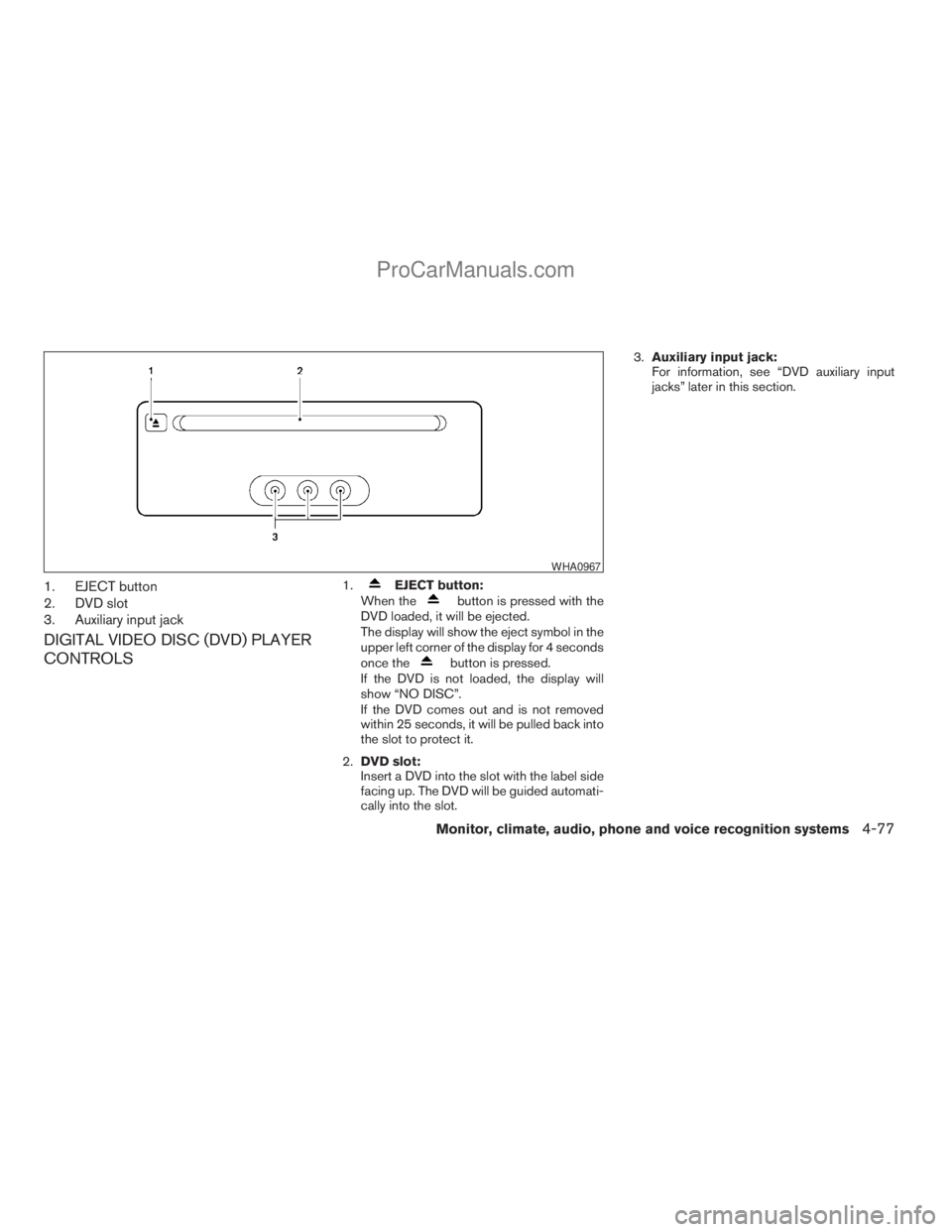
1. EJECT button
2. DVD slot
3. Auxiliary input jack
DIGITAL VIDEO DISC (DVD) PLAYER
CONTROLS
1.EJECT button:
When thebutton is pressed with the
DVD loaded, it will be ejected.
The display will show the eject symbol in the
upper left corner of the display for 4 seconds
once the
button is pressed.
If the DVD is not loaded, the display will
show “NO DISC”.
If the DVD comes out and is not removed
within 25 seconds, it will be pulled back into
the slot to protect it.
2.DVD slot:
Insert a DVD into the slot with the label side
facing up. The DVD will be guided automati-
cally into the slot.3.Auxiliary input jack:
For information, see “DVD auxiliary input
jacks” later in this section.
WHA0967
Monitor, climate, audio, phone and voice recognition systems4-77
ZREVIEW COPYÐ2009 Armada(wzw)
Owners ManualÐUSA_English(nna)
02/26/08Ðdebbie
X
ProCarManuals.com
Page 261 of 465
Display settings
Front display:
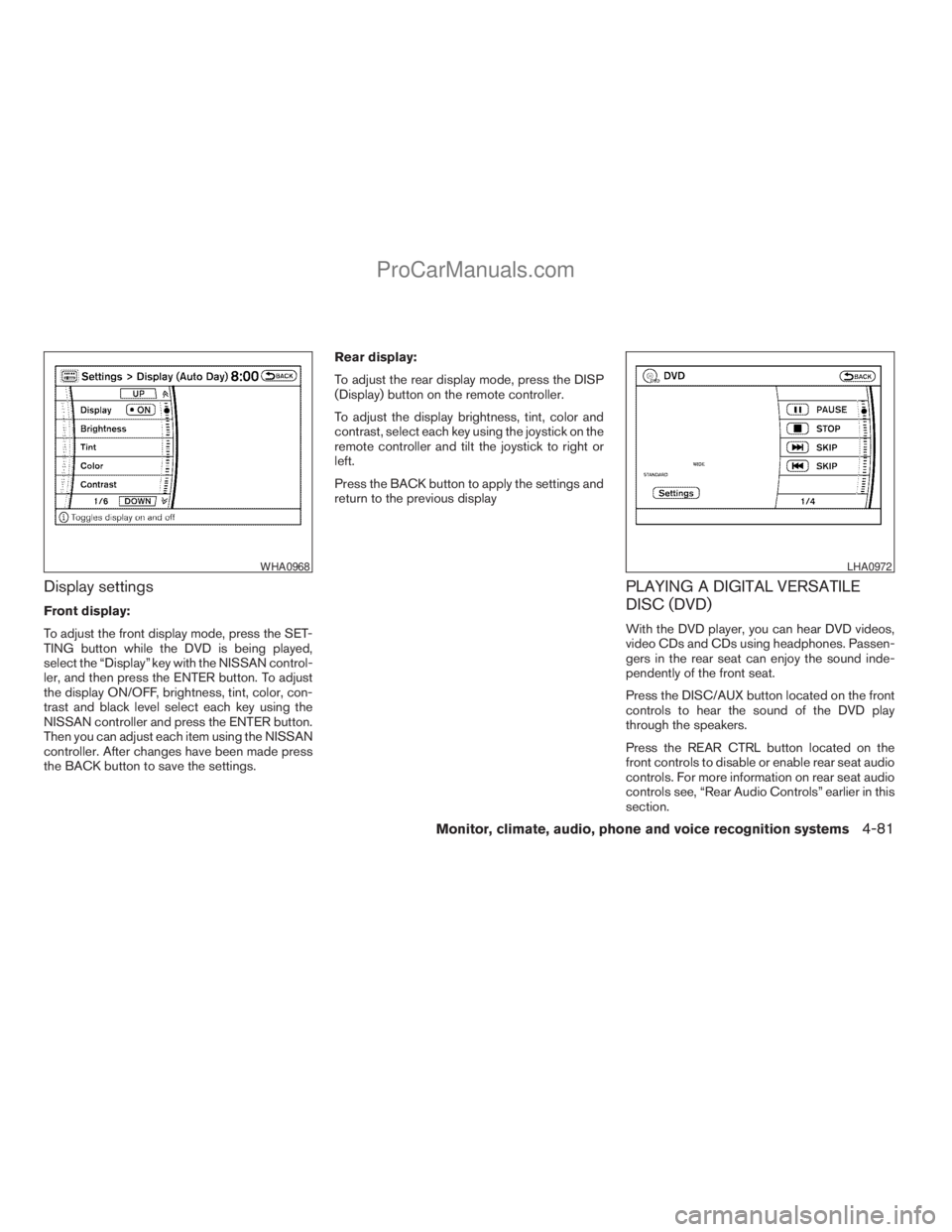
To adjust the front display mode, press the SET-
TING button while the DVD is being played,
select the “Display” key with the NISSAN control-
ler, and then press the ENTER button. To adjust
the display ON/OFF, brightness, tint, color, con-
trast and black level select each key using the
NISSAN controller and press the ENTER button.
Then you can adjust each item using the NISSAN
controller. After changes have been made press
the BACK button to save the settings.Rear display:
To adjust the rear display mode, press the DISP
(Display) button on the remote controller.
To adjust the display brightness, tint, color and
contrast, select each key using the joystick on the
remote controller and tilt the joystick to right or
left.
Press the BACK button to apply the settings and
return to the previous display
PLAYING A DIGITAL VERSATILE
DISC (DVD)
With the DVD player, you can hear DVD videos,
video CDs and CDs using headphones. Passen-
gers in the rear seat can enjoy the sound inde-
pendently of the front seat.
Press the DISC/AUX button located on the front
controls to hear the sound of the DVD play
through the speakers.
Press the REAR CTRL button located on the
front controls to disable or enable rear seat audio
controls. For more information on rear seat audio
controls see, “Rear Audio Controls” earlier in this
section.
WHA0968LHA0972
Monitor, climate, audio, phone and voice recognition systems4-81
ZREVIEW COPYÐ2009 Armada(wzw)
Owners ManualÐUSA_English(nna)
02/26/08Ðdebbie
X
ProCarManuals.com
Page 262 of 465
Pressing thebutton on the front controls
turns the rear speakers on or off and enables or
disables the wireless headphones .
It is possible to operate the DVD player by remote
control.
Headphones are a wireless type and no cables
are necessary. You can use them in almost all the
ranges in the rear seat. (It is not possible to use
the headphones in the front seat.)
DISC/AUX button
Park the vehicle in a safe location and
apply the parking brake for the front seat
occupants to operate the DVD drive while
watching the images.
Press the DISC/AUX button on the instrument
panel and turn the display to the DVD mode.
When a DVD is loaded, it will be replayed auto-
matically.
The operation screen will be turned on when the
DISC/AUX button located on the instrument
panel is pressed while a DVD is being played,
and it will turn off automatically after a period of
time. To turn it on again, press the DISC/AUX
button once more.
DVD operation keys
To operate the DVD drive, touch the preferred key
(if so equipped) or select the preferred key dis-
played on the operation screen using the
NISSAN controller.
NOTE:
If the display in your vehicle is not touch
screen enabled; use the NISSAN controller
and the ENTER button to operate the fol-
lowing functions. For more information on
how to operate the NISSAN controller, see
“How to use the NISSAN controller” earlier
in this section.
PAUSE key:
Touch the “
” PAUSE key to pause the DVD.
To resume playing the DVD, touch the
“
”PLAY key.
To pause the DVD, it is also possible to press
the
button on the keypad of the remote
controller.
PLAY key:
Touch the “
” PLAY key to start playing the
DVD, for example, after pausing the DVDTo start playing the DVD, it is also possible to
press the
button on the keypad of the
remote controller.
STOP key:
Touch the “
” STOP key to stop playing the
DVD.
To stop playing the DVD, it is also possible to
press the
button on the keypad of the
remote controller.
SKIP (forward) key:
Touch the “
” SKIP key to skip the chapter(
s) of the disc forward. The chapters will advance
the number of times the “
” SKIP key is
touched.
Touch and hold the “
” SKIP key for more
than 1.5 seconds to fast forward the disc. When
the “
” SKIP key is released the disc will be
played normally.
To skip the chapter(s) forward, it is also possible
to press the
button on the keypad of the
remote controller.
4-82Monitor, climate, audio, phone and voice recognition systems
ZREVIEW COPYÐ2009 Armada(wzw)
Owners ManualÐUSA_English(nna)
02/26/08Ðdebbie
X
ProCarManuals.com
Page 263 of 465
SKIP (rewind) key:
Touch the “
” SKIP key to skip the chapter(s)
of the disc backward. The chapters will go back
the number of times the “
” SKIP key is
touched.
Touch and hold the “
” SKIP key for more
than 1.5 seconds to rewind the disc. When the
“
” SKIP key is released the disc will be
played normally.
To skip the chapter(s) backward, it is also pos-
sible to press the
button on the keypad of
the remote controller.
DVD settings
Touch the “Settings” key to adjust the following
settings while playing a DVD.
When all the changes have been made, press
BACK button to save all the settings.NOTE:
If the display in your vehicle is not touch
screen enabled; use the NISSAN controller
and the ENTER button to operate the fol-
lowing functions. For more information on
how to operate the NISSAN controller see,
“How to use the NISSAN controller” earlier
in this section.
Switch to DVD-AUX:
Switch the output source from the DVD drive to
another device connected to the auxiliary input
jacks located on the DVD player.
LHA0969LHA0970
Monitor, climate, audio, phone and voice recognition systems4-83
ZREVIEW COPYÐ2009 Armada(wzw)
Owners ManualÐUSA_English(nna)
02/26/08Ðdebbie
X
ProCarManuals.com
Page 264 of 465
For more information, see “DVD auxiliary input
jacks” later in this section.
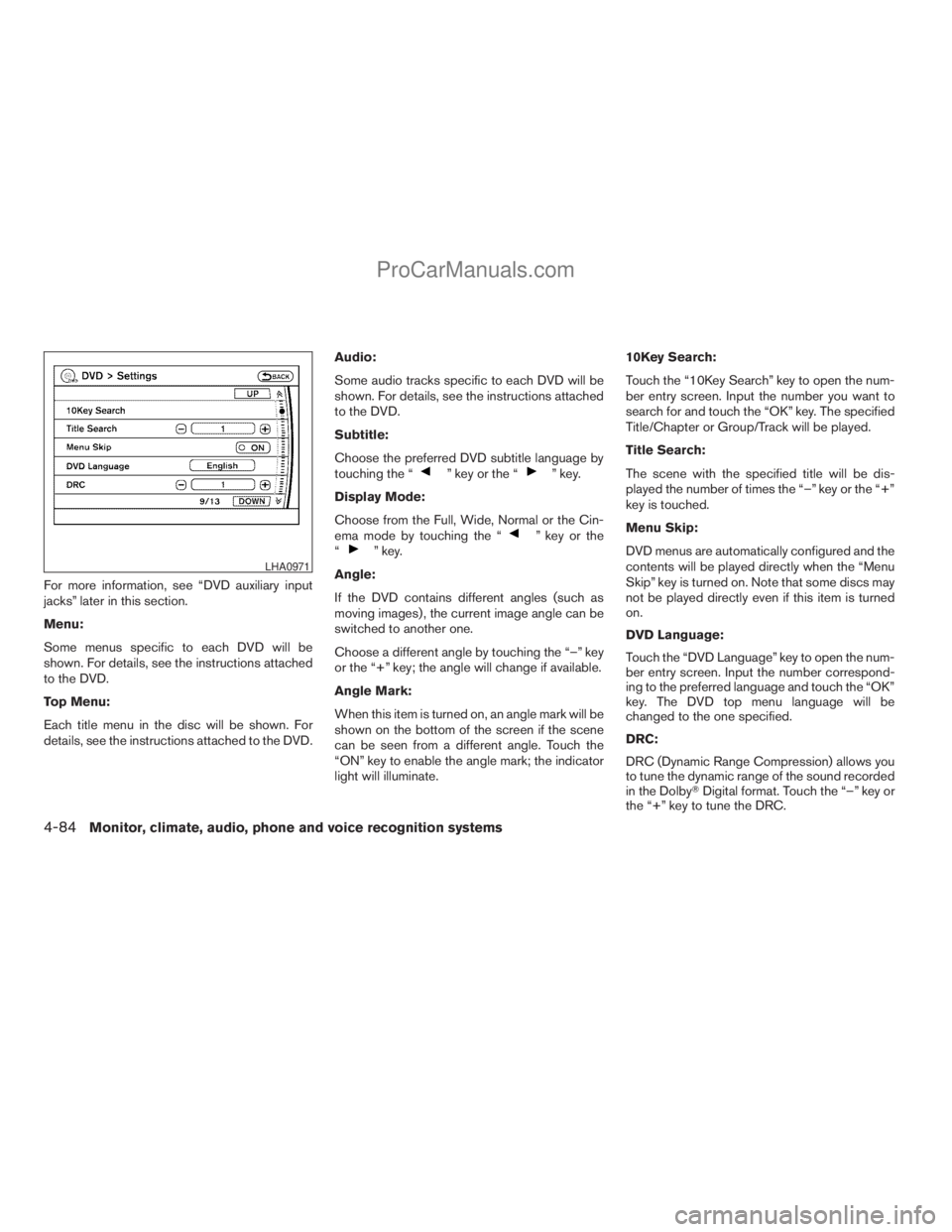
Menu:
Some menus specific to each DVD will be
shown. For details, see the instructions attached
to the DVD.
Top Menu:
Each title menu in the disc will be shown. For
details, see the instructions attached to the DVD.Audio:
Some audio tracks specific to each DVD will be
shown. For details, see the instructions attached
to the DVD.
Subtitle:
Choose the preferred DVD subtitle language by
touching the “
” key or the “” key.
Display Mode:
Choose from the Full, Wide, Normal or the Cin-
ema mode by touching the “
” key or the
“” key.
Angle:
If the DVD contains different angles (such as
moving images) , the current image angle can be
switched to another one.
Choose a different angle by touching the “–” key
or the “+” key; the angle will change if available.
Angle Mark:
When this item is turned on, an angle mark will be
shown on the bottom of the screen if the scene
can be seen from a different angle. Touch the
“ON” key to enable the angle mark; the indicator
light will illuminate.10Key Search:
Touch the “10Key Search” key to open the num-
ber entry screen. Input the number you want to
search for and touch the “OK” key. The specified
Title/Chapter or Group/Track will be played.
Title Search:
The scene with the specified title will be dis-
played the number of times the “–” key or the “+”
key is touched.
Menu Skip:
DVD menus are automatically configured and the
contents will be played directly when the “Menu
Skip” key is turned on. Note that some discs may
not be played directly even if this item is turned
on.
DVD Language:
Touch the “DVD Language” key to open the num-
ber entry screen. Input the number correspond-
ing to the preferred language and touch the “OK”
key. The DVD top menu language will be
changed to the one specified.
DRC:
DRC (Dynamic Range Compression) allows you
to tune the dynamic range of the sound recorded
in the DolbyTDigital format. Touch the “–” key or
the “+” key to tune the DRC.LHA0971
4-84Monitor, climate, audio, phone and voice recognition systems
ZREVIEW COPYÐ2009 Armada(wzw)
Owners ManualÐUSA_English(nna)
02/26/08Ðdebbie
X
ProCarManuals.com
Page 265 of 465
DVD auxiliary input jacks
The auxiliary input jacks are located on the front of
the DVD player which is located inside the center
console. NTSC and PAL compatible devices
such as video games, camcorders and portable
video players can be connected to the auxiliary
jacks.
The auxiliary jacks are color coded for identifica-
tion purposes.
cYellow - video input
cWhite - left channel audio input
cRed - right channel audio input
Before connecting a device to a jack, power off
the portable device and turn off the DVD player.
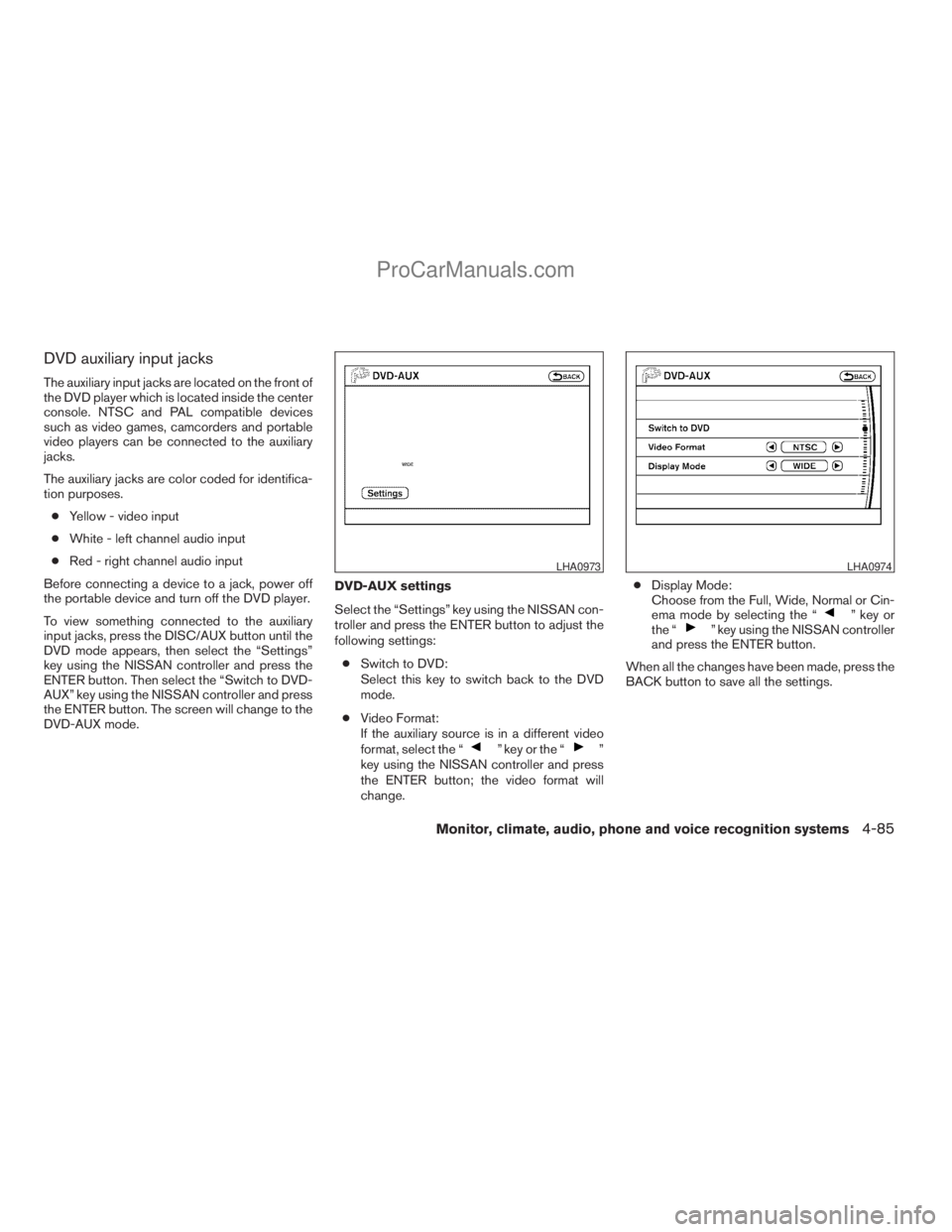
To view something connected to the auxiliary
input jacks, press the DISC/AUX button until the
DVD mode appears, then select the “Settings”
key using the NISSAN controller and press the
ENTER button. Then select the “Switch to DVD-
AUX” key using the NISSAN controller and press
the ENTER button. The screen will change to the
DVD-AUX mode.DVD-AUX settings
Select the “Settings” key using the NISSAN con-
troller and press the ENTER button to adjust the
following settings:
cSwitch to DVD:
Select this key to switch back to the DVD
mode.
cVideo Format:
If the auxiliary source is in a different video
format, select the “
” key or the “”
key using the NISSAN controller and press
the ENTER button; the video format will
change.cDisplay Mode:
Choose from the Full, Wide, Normal or Cin-
ema mode by selecting the “
” key or
the “” key using the NISSAN controller
and press the ENTER button.
When all the changes have been made, press the
BACK button to save all the settings.
LHA0973LHA0974
Monitor, climate, audio, phone and voice recognition systems4-85
ZREVIEW COPYÐ2009 Armada(wzw)
Owners ManualÐUSA_English(nna)
02/26/08Ðdebbie
X
ProCarManuals.com
Page 266 of 465
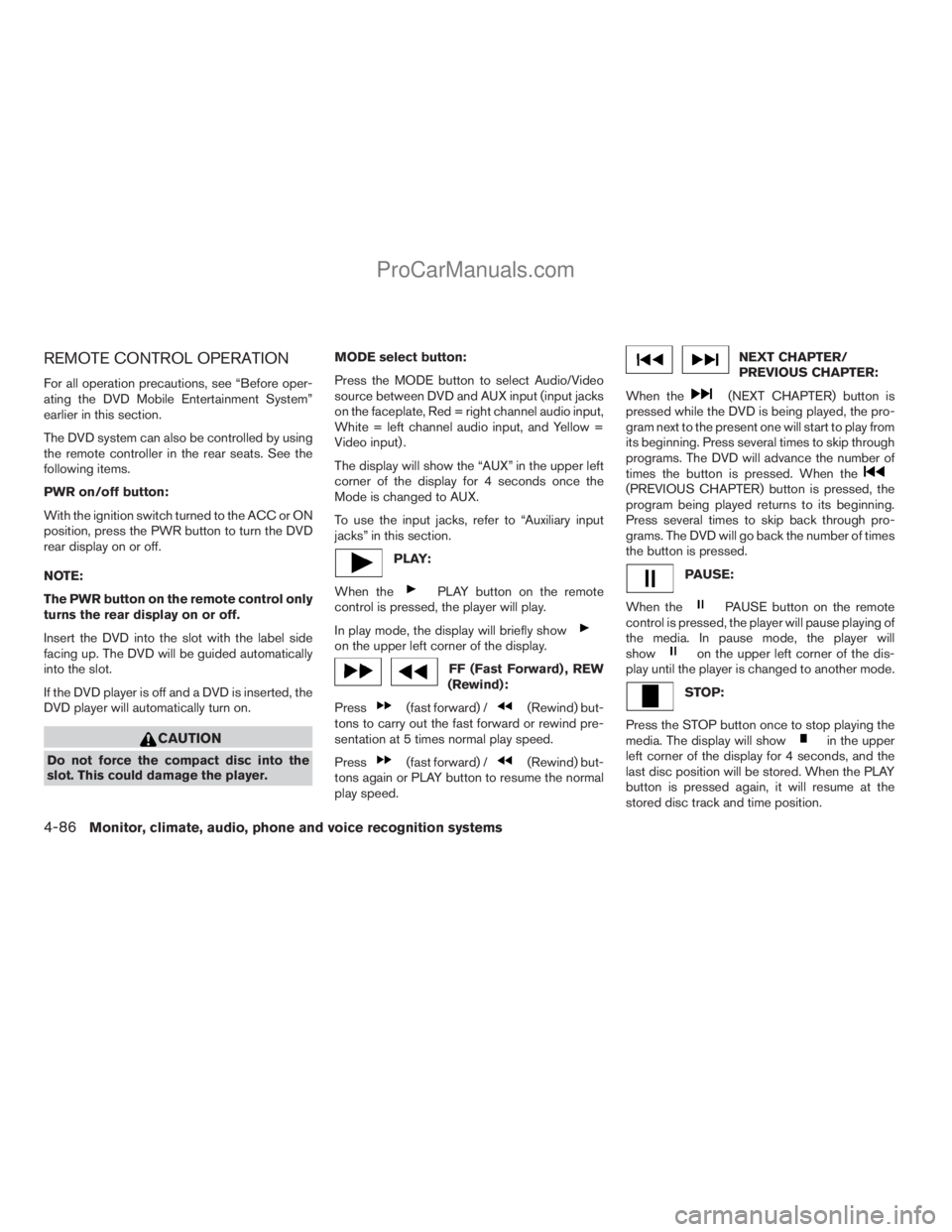
REMOTE CONTROL OPERATION
For all operation precautions, see “Before oper-
ating the DVD Mobile Entertainment System”
earlier in this section.
The DVD system can also be controlled by using
the remote controller in the rear seats. See the
following items.
PWR on/off button:
With the ignition switch turned to the ACC or ON
position, press the PWR button to turn the DVD
rear display on or off.
NOTE:
The PWR button on the remote control only
turns the rear display on or off.
Insert the DVD into the slot with the label side
facing up. The DVD will be guided automatically
into the slot.
If the DVD player is off and a DVD is inserted, the
DVD player will automatically turn on.
CAUTION
Do not force the compact disc into the
slot. This could damage the player.MODE select button:
Press the MODE button to select Audio/Video
source between DVD and AUX input (input jacks
on the faceplate, Red = right channel audio input,
White = left channel audio input, and Yellow =
Video input) .
The display will show the “AUX” in the upper left
corner of the display for 4 seconds once the
Mode is changed to AUX.
To use the input jacks, refer to “Auxiliary input
jacks” in this section.
PLAY:
When the
PLAY button on the remote
control is pressed, the player will play.
In play mode, the display will briefly show
on the upper left corner of the display.
FF (Fast Forward) , REW
(Rewind):
Press
(fast forward) /(Rewind) but-
tons to carry out the fast forward or rewind pre-
sentation at 5 times normal play speed.
Press
(fast forward) /(Rewind) but-
tons again or PLAY button to resume the normal
play speed.
NEXT CHAPTER/
PREVIOUS CHAPTER:
When the
(NEXT CHAPTER) button is
pressed while the DVD is being played, the pro-
gram next to the present one will start to play from
its beginning. Press several times to skip through
programs. The DVD will advance the number of
times the button is pressed. When the
(PREVIOUS CHAPTER) button is pressed, the
program being played returns to its beginning.
Press several times to skip back through pro-
grams. The DVD will go back the number of times
the button is pressed.
PAUSE:
When the
PAUSE button on the remote
control is pressed, the player will pause playing of
the media. In pause mode, the player will
show
on the upper left corner of the dis-
play until the player is changed to another mode.
STOP:
Press the STOP button once to stop playing the
media. The display will show
in the upper
left corner of the display for 4 seconds, and the
last disc position will be stored. When the PLAY
button is pressed again, it will resume at the
stored disc track and time position.
4-86Monitor, climate, audio, phone and voice recognition systems
ZREVIEW COPYÐ2009 Armada(wzw)
Owners ManualÐUSA_English(nna)
02/26/08Ðdebbie
X
ProCarManuals.com
Page 457 of 465
10 Index
4WD warning light...............2-16
A
Active Head Restraint..............1-9
Adjusting pedal position............3-28
Air bag (See supplemental restraint
system).....................1-49
Air bag system
Front (See supplemental front impact
air bag system)...............1-57
Air bag warning labels.............1-64
Air bag warning light...........1-64, 2-18
Air cleaner housing filter............8-17
Air conditioner
Air conditioner service...........4-39
Air conditioner specification label.....9-12
Air conditioner system refrigerant and
oil recommendations.............9-7
Heater and air conditioner controls. . . .4-36
Rear seat air conditioner..........4-38
Servicing air conditioner..........4-39
Alarm system
(See vehicle security system).........2-27
Anchor point locations.............1-32
Antenna.....................4-75
Anti-lock brake warning light......2-13, 2-14
Anti-lock Braking System (ABS)........5-29
Audible reminders................2-20
Audio system..................4-39
Compact Disc (CD) changer.......4-50Compact disc (CD) player.........4-58
Audio System
CompactFlash (CF) player.........4-60
Audio system
FM/AM/SAT radio with compact disc
(CD) changer................4-47
FM/AM/SAT radio with compact disc
(CD) player.................4-55
Audio System
Music Box hard-disk drive audio
system....................4-62
Audio system
Radio....................4-39
Rear audio controls.............4-74
Audio System
Settings................4-47, 4-55
Audio system
Steering wheel audio control switch. . . .4-73
Autolight switch.................2-33
Automatic
Automatic drive positioner.........3-32
Automatic power window switch.....2-53
Automatic transmission position indicator
light.....................2-27
Driving with automatic transmission. . . .5-14
Transmission selector lever lock
release....................5-16
Automatic anti-glare inside mirror.......3-29
Automatic transmission fluid temperature
gauge.......................2-9
AUX jack.................4-53, 4-60B
Battery......................8-13
Charge warning light............2-15
Before starting the engine...........5-12
Belt (See drive belt)..............8-15
Block heater
Engine....................5-35
BluetoothThands-free phone
system..................4-92, 4-107
Booster seats..................1-44
Brake
Anti-lock Braking System (ABS)......5-29
Brake fluid..................8-12
Brake light (See stop light).........8-30
Brake system................5-28
Brake warning light.............2-14
Brake wear indicators........2-20, 8-22
Parking brake operation..........5-17
Self-adjusting brakes............8-22
Brakes......................8-22
Break-in schedule................5-19
Brightness control
Instrument panel..............2-35
Brightness/contrast button.......4-16, 4-32
Bulb check/instrument panel..........2-13
Bulb replacement................8-30
ZREVIEW COPYÐ2009 Armada(wzw)
Owners ManualÐUSA_English(nna)
02/26/08Ðdebbie
X
ProCarManuals.com