instrument panel NISSAN ARMADA 2009 Owner's Guide
[x] Cancel search | Manufacturer: NISSAN, Model Year: 2009, Model line: ARMADA, Model: NISSAN ARMADA 2009Pages: 465, PDF Size: 6.33 MB
Page 295 of 465
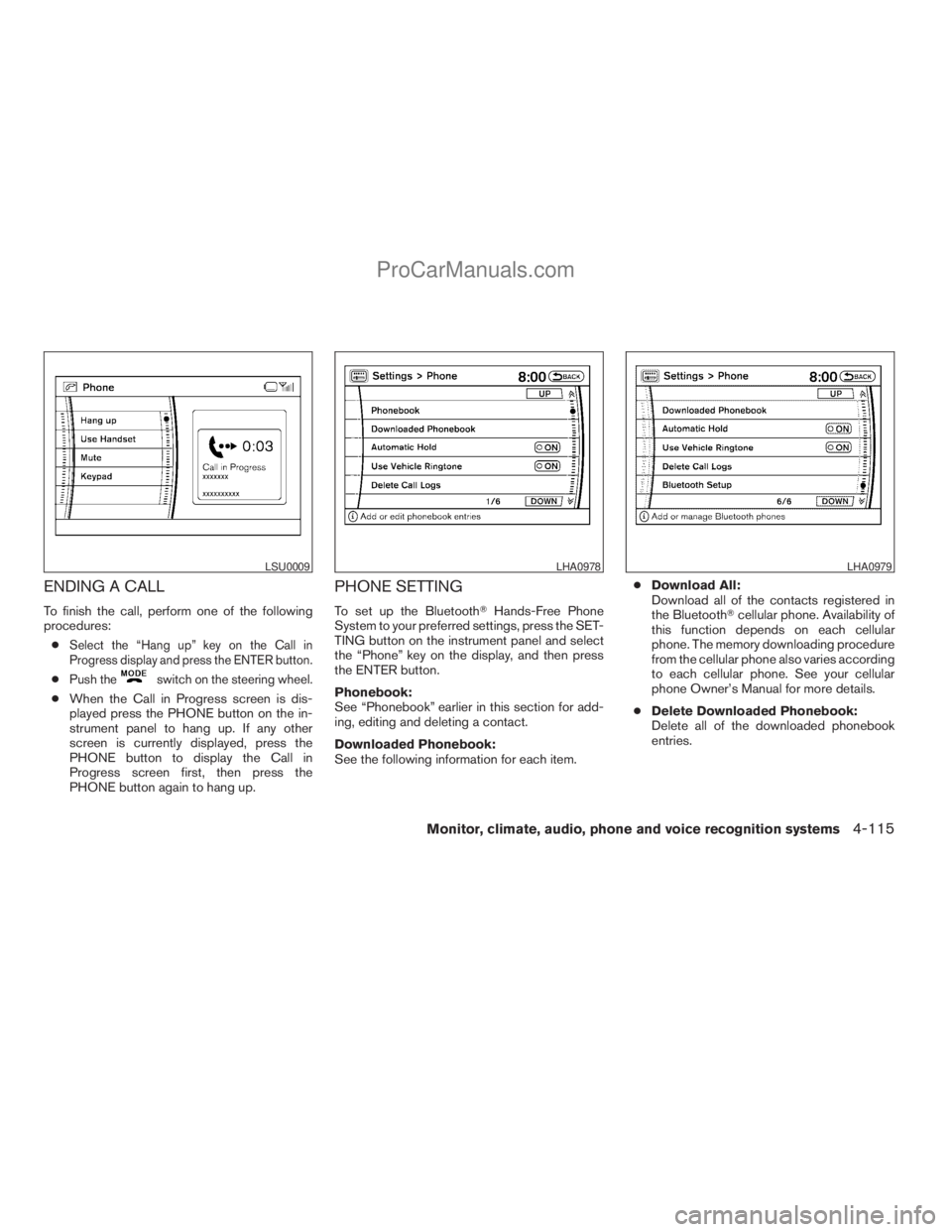
ENDING A CALL
To finish the call, perform one of the following
procedures:
c
Select the “Hang up” key on the Call in
Progress display and press the ENTER button.
cPush theswitch on the steering wheel.
cWhen the Call in Progress screen is dis-
played press the PHONE button on the in-
strument panel to hang up. If any other
screen is currently displayed, press the
PHONE button to display the Call in
Progress screen first, then press the
PHONE button again to hang up.
PHONE SETTING
To set up the BluetoothTHands-Free Phone
System to your preferred settings, press the SET-
TING button on the instrument panel and select
the “Phone” key on the display, and then press
the ENTER button.
Phonebook:
See “Phonebook” earlier in this section for add-
ing, editing and deleting a contact.
Downloaded Phonebook:
See the following information for each item.cDownload All:
Download all of the contacts registered in
the BluetoothTcellular phone. Availability of
this function depends on each cellular
phone. The memory downloading procedure
from the cellular phone also varies according
to each cellular phone. See your cellular
phone Owner’s Manual for more details.
cDelete Downloaded Phonebook:
Delete all of the downloaded phonebook
entries.
LSU0009LHA0978LHA0979
Monitor, climate, audio, phone and voice recognition systems4-115
ZREVIEW COPYÐ2009 Armada(wzw)
Owners ManualÐUSA_English(nna)
02/26/08Ðdebbie
X
ProCarManuals.com
Page 297 of 465
cEdit Phone Name:
If you would like to change the way your
phone’s name is displayed, select this key; a
character input screen will be displayed.
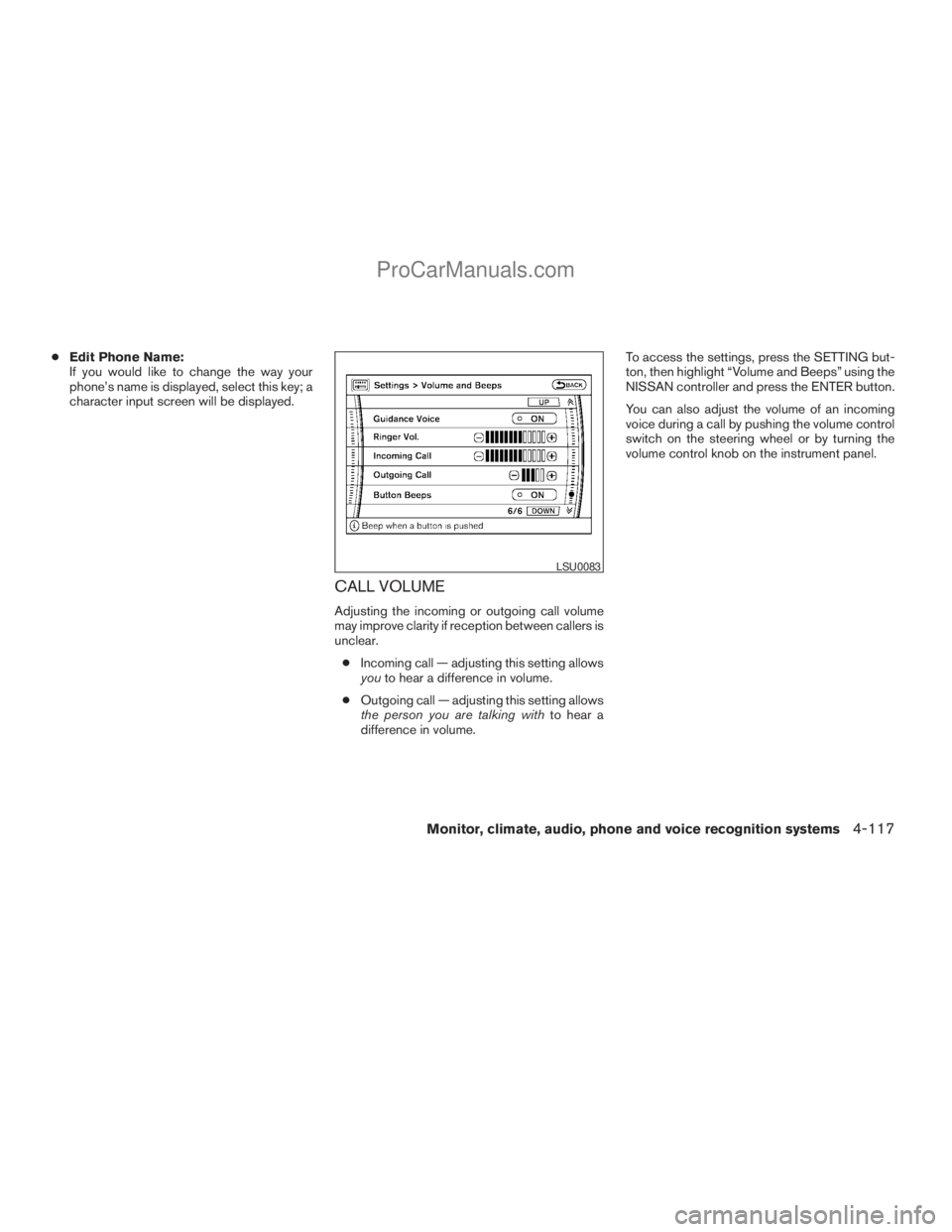
CALL VOLUME
Adjusting the incoming or outgoing call volume
may improve clarity if reception between callers is
unclear.
cIncoming call — adjusting this setting allows
youto hear a difference in volume.
cOutgoing call — adjusting this setting allows
the person you are talking withto hear a
difference in volume.To access the settings, press the SETTING but-
ton, then highlight “Volume and Beeps” using the
NISSAN controller and press the ENTER button.
You can also adjust the volume of an incoming
voice during a call by pushing the volume control
switch on the steering wheel or by turning the
volume control knob on the instrument panel.
LSU0083
Monitor, climate, audio, phone and voice recognition systems4-117
ZREVIEW COPYÐ2009 Armada(wzw)
Owners ManualÐUSA_English(nna)
02/26/08Ðdebbie
X
ProCarManuals.com
Page 299 of 465
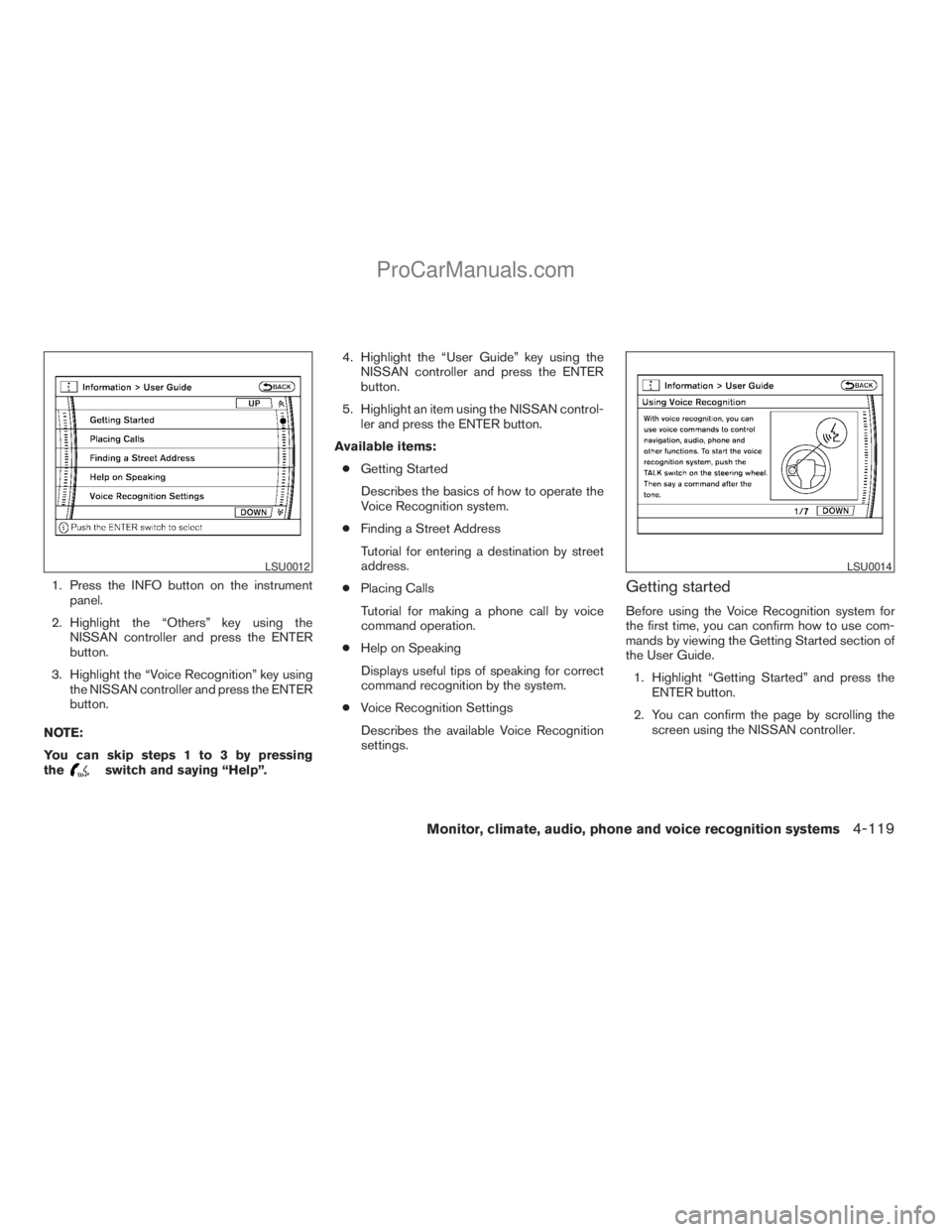
1. Press the INFO button on the instrument
panel.
2. Highlight the “Others” key using the
NISSAN controller and press the ENTER
button.
3. Highlight the “Voice Recognition” key using
the NISSAN controller and press the ENTER
button.
NOTE:
You can skip steps 1 to 3 by pressing
the
switch and saying “Help”.4. Highlight the “User Guide” key using the
NISSAN controller and press the ENTER
button.
5. Highlight an item using the NISSAN control-
ler and press the ENTER button.
Available items:
cGetting Started
Describes the basics of how to operate the
Voice Recognition system.
cFinding a Street Address
Tutorial for entering a destination by street
address.
cPlacing Calls
Tutorial for making a phone call by voice
command operation.
cHelp on Speaking
Displays useful tips of speaking for correct
command recognition by the system.
cVoice Recognition Settings
Describes the available Voice Recognition
settings.
Getting started
Before using the Voice Recognition system for
the first time, you can confirm how to use com-
mands by viewing the Getting Started section of
the User Guide.
1. Highlight “Getting Started” and press the
ENTER button.
2. You can confirm the page by scrolling the
screen using the NISSAN controller.
LSU0012LSU0014
Monitor, climate, audio, phone and voice recognition systems4-119
ZREVIEW COPYÐ2009 Armada(wzw)
Owners ManualÐUSA_English(nna)
02/26/08Ðdebbie
X
ProCarManuals.com
Page 311 of 465
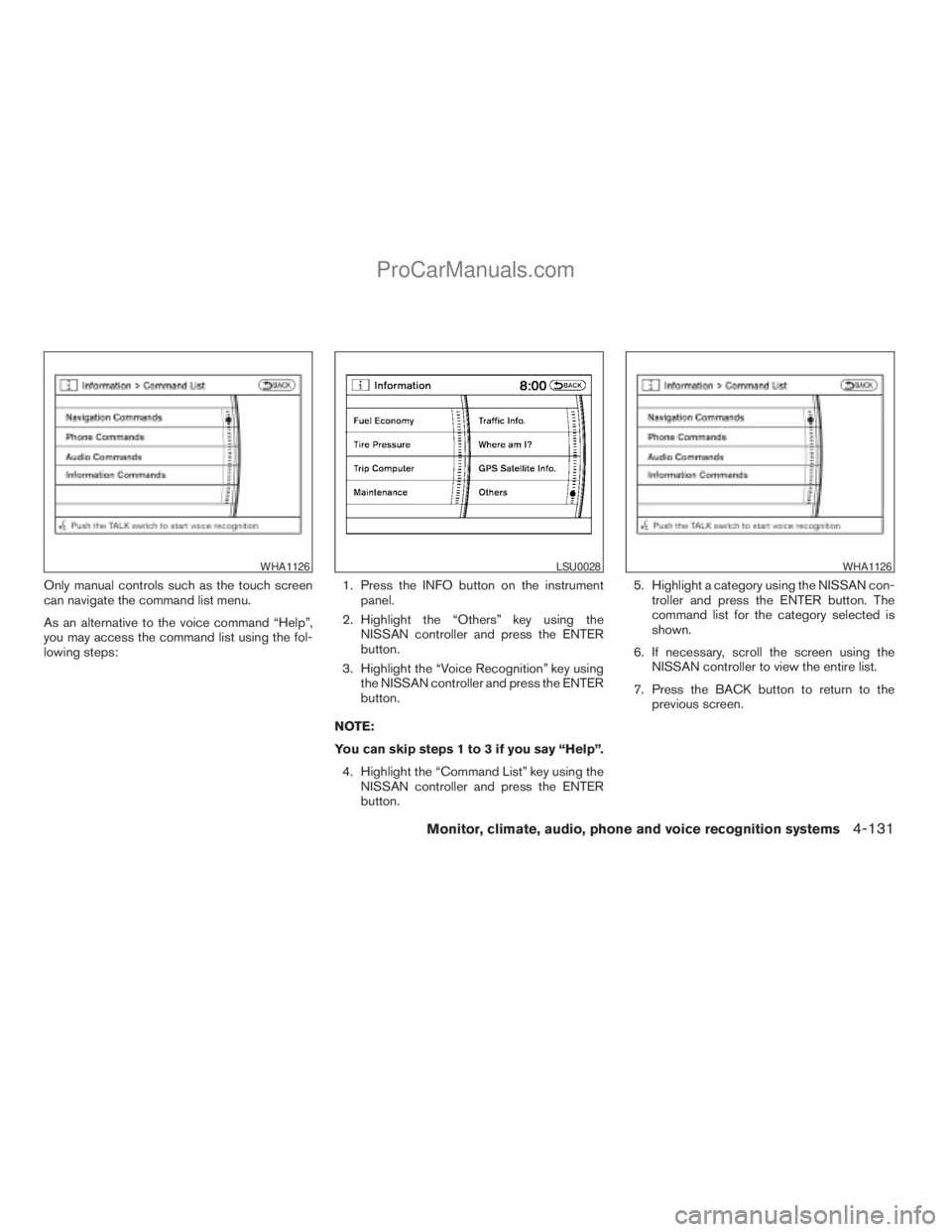
Only manual controls such as the touch screen
can navigate the command list menu.
As an alternative to the voice command “Help”,
you may access the command list using the fol-
lowing steps:1. Press the INFO button on the instrument
panel.
2. Highlight the “Others” key using the
NISSAN controller and press the ENTER
button.
3. Highlight the “Voice Recognition” key using
the NISSAN controller and press the ENTER
button.
NOTE:
You can skip steps 1 to 3 if you say “Help”.
4. Highlight the “Command List” key using the
NISSAN controller and press the ENTER
button.5. Highlight a category using the NISSAN con-
troller and press the ENTER button. The
command list for the category selected is
shown.
6. If necessary, scroll the screen using the
NISSAN controller to view the entire list.
7. Press the BACK button to return to the
previous screen.
WHA1126LSU0028WHA1126
Monitor, climate, audio, phone and voice recognition systems4-131
ZREVIEW COPYÐ2009 Armada(wzw)
Owners ManualÐUSA_English(nna)
02/26/08Ðdebbie
X
ProCarManuals.com
Page 315 of 465
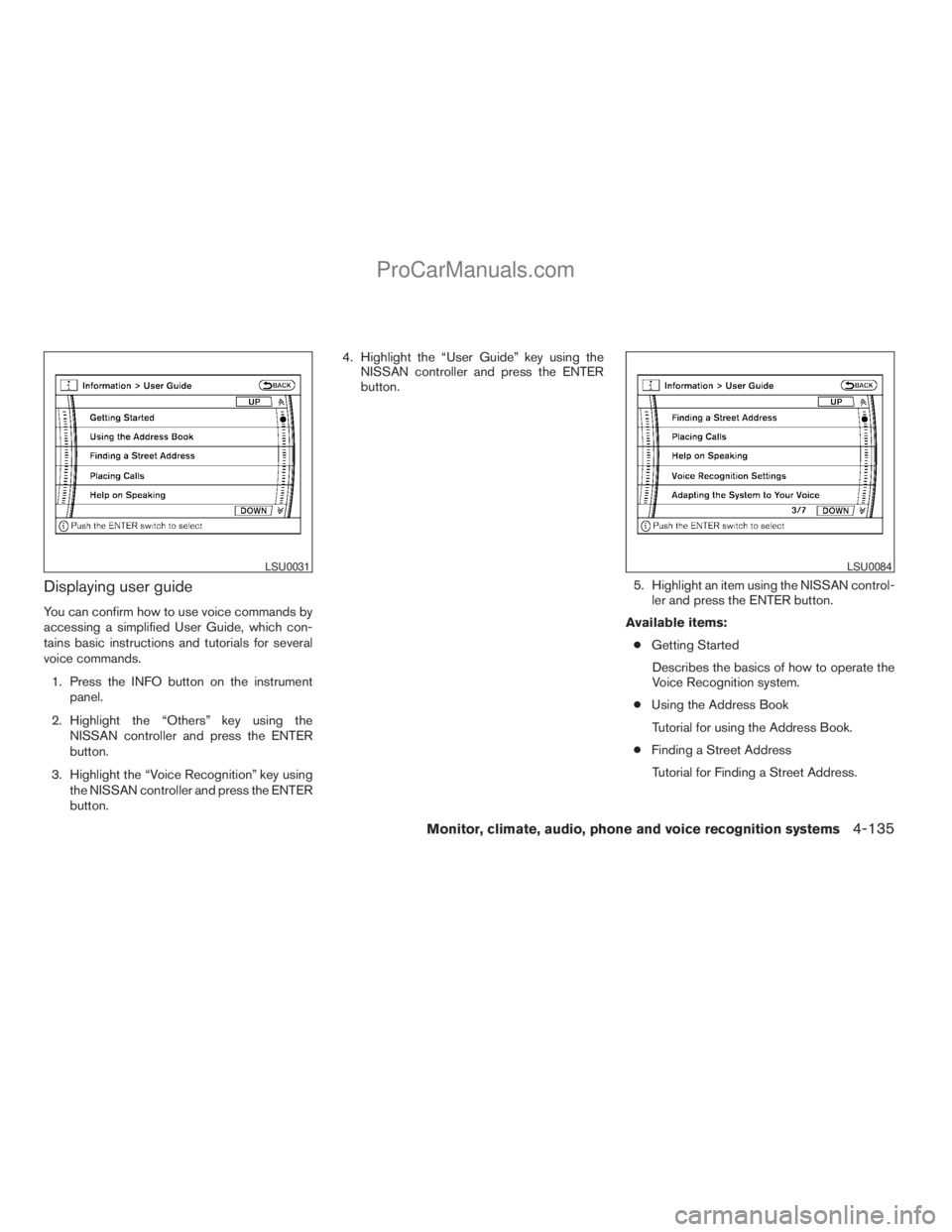
Displaying user guide
You can confirm how to use voice commands by
accessing a simplified User Guide, which con-
tains basic instructions and tutorials for several
voice commands.
1. Press the INFO button on the instrument
panel.
2. Highlight the “Others” key using the
NISSAN controller and press the ENTER
button.
3. Highlight the “Voice Recognition” key using
the NISSAN controller and press the ENTER
button.4. Highlight the “User Guide” key using the
NISSAN controller and press the ENTER
button.
5. Highlight an item using the NISSAN control-
ler and press the ENTER button.
Available items:
cGetting Started
Describes the basics of how to operate the
Voice Recognition system.
cUsing the Address Book
Tutorial for using the Address Book.
cFinding a Street Address
Tutorial for Finding a Street Address.
LSU0031LSU0084
Monitor, climate, audio, phone and voice recognition systems4-135
ZREVIEW COPYÐ2009 Armada(wzw)
Owners ManualÐUSA_English(nna)
02/26/08Ðdebbie
X
ProCarManuals.com
Page 352 of 465
pedal. This is normal and does not indicate a
malfunction. If the computer senses a malfunc-
tion, it switches the ABS off and illuminates the
ABS warning light on the instrument panel. The
brake system then operates normally, but without
anti-lock assistance.
If the ABS warning light illuminates during the
self-test or while driving, have the vehicle
checked by a NISSAN dealer.When accelerating or driving on slippery sur-
faces, the tires may spin or slide. With the Vehicle
Dynamic Control (VDC) system, sensors detect
these movements and control the braking and
engine output to help improve vehicle stability.
cWhen the Vehicle Dynamic Control (VDC)
system is operating, the slip indicator in the
instrument panel blinks.
cIf the slip indicator blinks, the road condi-
tions are slippery. Be sure to adjust your
speed and driving to these conditions. See
“Slip indicator light”, and “Vehicle Dynamic
Control (VDC) off indicator light” in the “In-
struments and controls” section.
cIndicator light
– If a malfunction occurs in the system, the
SLIPand
indicator lights come on
in the instrument panel.
– If the 4WD transfer case is shifted into
4LO the
indicator light will come
on and the VDC system will be turned off.
See “Transfer case shifting procedures”
earlier in this section.
– As long as these indicator lights are on,
the traction control function is canceled.If the vehicle is operated with the Vehicle Dy-
namic Control system off using the VDC OFF
switch, most VDC functions will be turned off.
The VDC system will still try to transfer power
from a slipping drive wheel to one with more
traction when the VDC system switch is OFF. The
SLIPindicator light will flash if wheel spin is
detected. The ABS will still operate with the VDC
system off.
When the VDC system is operating, you may feel
a pulsation in the brake pedal and hear a noise or
vibration from under the hood. This is normal and
indicates that the VDC system is working prop-
erly.
The computer has a built in diagnostic feature
that tests the system each time you start the
engine and move the vehicle forward or in reverse
at a slow speed. When the self-test occurs, you
may hear a clunk noise and/or feel a pulsation in
the brake pedal. This is normal and is not an
indication of a malfunction.
VEHICLE DYNAMIC CONTROL (VDC)
SYSTEM
5-30Starting and driving
ZREVIEW COPYÐ2009 Armada(wzw)
Owners ManualÐUSA_English(nna)
02/27/08Ðtbrooks
X
ProCarManuals.com
Page 354 of 465
cThe system is designed as an aid to the
driver in detecting large stationary ob-
jects to help avoid damaging the ve-
hicle. The system will not detect small
objects below the bumper, and may not
detect objects close to the bumper or
on the ground.
cIf your vehicle sustains damage to the
rear bumper fascia, leaving it mis-
aligned or bent, the sensing zone may
be altered causing inaccurate measure-
ment of obstacles or false alarms.
The Rear Sonar System (RSS) sounds a tone to
warn the driver of obstacles near the rear bumper
when the shift selector is in R (Reverse) . The
system may not detect objects at speeds above
3 mph (5 km/h) and may not detect certain angu-
lar or moving objects.
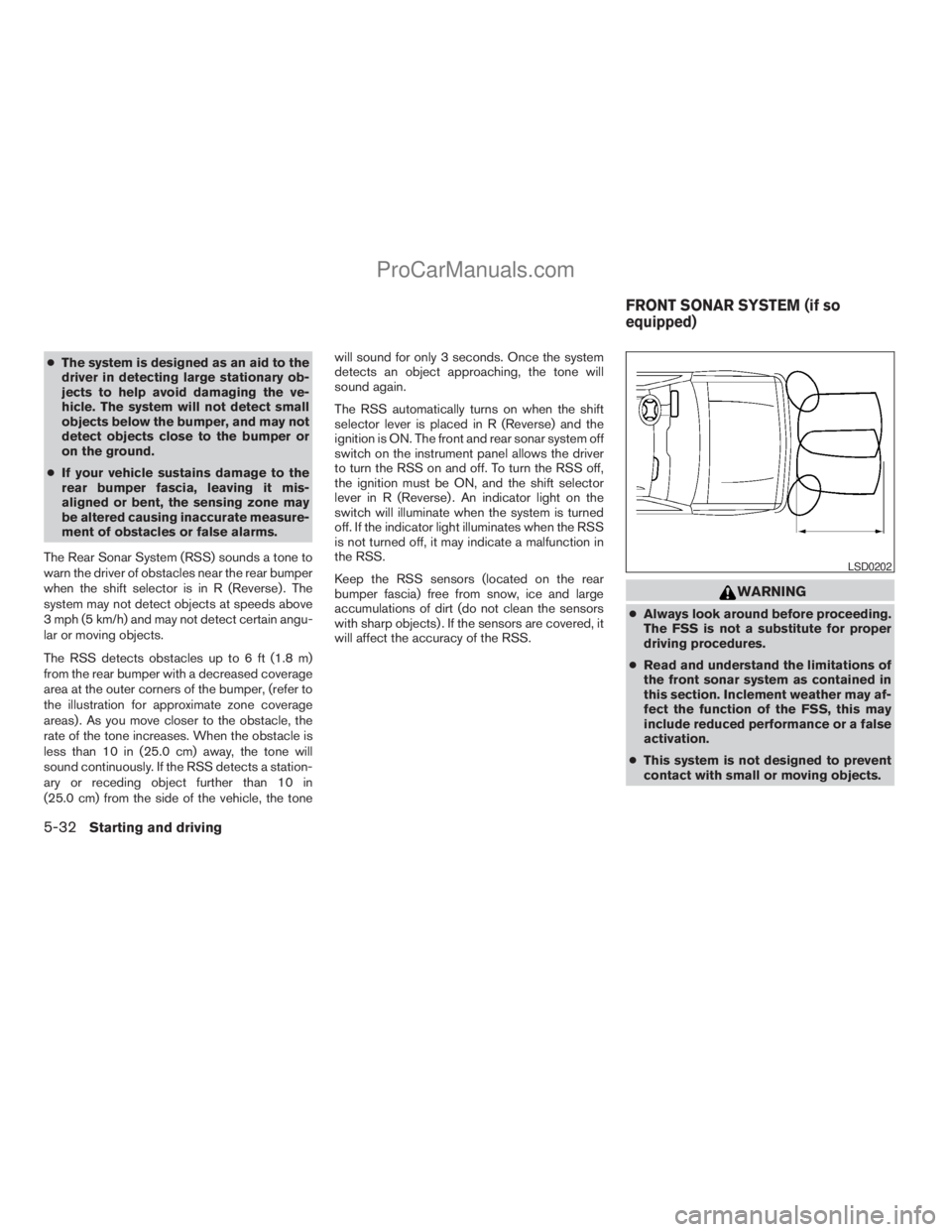
The RSS detects obstacles up to 6 ft (1.8 m)
from the rear bumper with a decreased coverage
area at the outer corners of the bumper, (refer to
the illustration for approximate zone coverage
areas) . As you move closer to the obstacle, the
rate of the tone increases. When the obstacle is
less than 10 in (25.0 cm) away, the tone will
sound continuously. If the RSS detects a station-
ary or receding object further than 10 in
(25.0 cm) from the side of the vehicle, the tonewill sound for only 3 seconds. Once the system
detects an object approaching, the tone will
sound again.
The RSS automatically turns on when the shift
selector lever is placed in R (Reverse) and the
ignition is ON. The front and rear sonar system off
switch on the instrument panel allows the driver
to turn the RSS on and off. To turn the RSS off,
the ignition must be ON, and the shift selector
lever in R (Reverse) . An indicator light on the
switch will illuminate when the system is turned
off. If the indicator light illuminates when the RSS
is not turned off, it may indicate a malfunction in
the RSS.
Keep the RSS sensors (located on the rear
bumper fascia) free from snow, ice and large
accumulations of dirt (do not clean the sensors
with sharp objects) . If the sensors are covered, it
will affect the accuracy of the RSS.
WARNING
cAlways look around before proceeding.
The FSS is not a substitute for proper
driving procedures.
cRead and understand the limitations of
the front sonar system as contained in
this section. Inclement weather may af-
fect the function of the FSS, this may
include reduced performance or a false
activation.
cThis system is not designed to prevent
contact with small or moving objects.
LSD0202
FRONT SONAR SYSTEM (if so
equipped)
5-32Starting and driving
ZREVIEW COPYÐ2009 Armada(wzw)
Owners ManualÐUSA_English(nna)
02/26/08Ðdebbie
X
ProCarManuals.com
Page 355 of 465
cThe system is designed as an aid to the
driver in detecting large stationary ob-
jects to help avoid damaging the ve-
hicle. The system will not detect small
objects below the bumper, and may not
detect objects close to the bumper or
on the ground.
cIf your vehicle sustains damage to the
front bumper fascia, leaving it mis-
aligned or bent, the sensing zone may
be altered causing inaccurate measure-
ment of obstacles or false alarms.
The Front Sonar System (FSS) sounds a tone to
warn the driver of obstacles near the front
bumper when the shift selector is in a forward
gear. The system may not detect objects at
speeds above 3 mph (5 km/h) and may not detect
certain angular or moving objects.
The FSS detects obstacles up to 6 ft (1.8 m) from
the front bumper with a decreased coverage area
at the outer corners of the bumper, (refer to the
illustration for approximate zone coverage areas) .
As you move closer to the obstacle, the rate of the
tone increases. When the obstacle is less than
10 in (25.0 cm) away, the tone will sound con-
tinuously. If the FSS detects a stationary or re-
ceding object further than 10 in (25.0 cm) from
the side of the vehicle, the tone will sound for only3 seconds. Once the system detects an object
approaching, the tone will sound again.
The FSS automatically turns on when the shift
selector lever is placed in a forward gear and the
ignition is ON. The front and rear sonar system off
switch on the instrument panel allows the driver
to turn the FSS on and off. To turn the FSS off, the
ignition must be ON, and the shift selector lever in
D (Drive) . An indicator light on the switch will
illuminate when the system is turned off. If the
indicator light illuminates when the FSS is not
turned off, it may indicate a malfunction in the
FSS.
Keep the FSS sensors (located on the front
bumper fascia) free from snow, ice and large
accumulations of dirt (do not clean the sensors
with sharp objects) . If the sensors are covered, it
will affect the accuracy of the FSS.FREEING A FROZEN DOOR LOCK
To prevent a door lock from freezing, apply de-
icer through the key hole. If the lock becomes
frozen, heat the key before inserting it into the key
hole or use the remote keyless entry keyfob (if so
equipped) .
ANTI-FREEZE
In the winter when it is anticipated that the tem-
perature will drop below 32°F (0°C) , check the
anti-freeze to assure proper winter protection.
For details, see “Engine cooling system” in the
“Maintenance and do-it-yourself” section of this
manual.
BATTERY
If the battery is not fully charged during extremely
cold weather conditions, the battery fluid may
freeze and damage the battery. To maintain maxi-
mum efficiency, the battery should be checked
regularly. For details, see “Battery” in the “Main-
tenance and do-it-yourself” section of this
manual.
COLD WEATHER DRIVING
Starting and driving5-33
ZREVIEW COPYÐ2009 Armada(wzw)
Owners ManualÐUSA_English(nna)
02/26/08Ðdebbie
X
ProCarManuals.com
Page 396 of 465
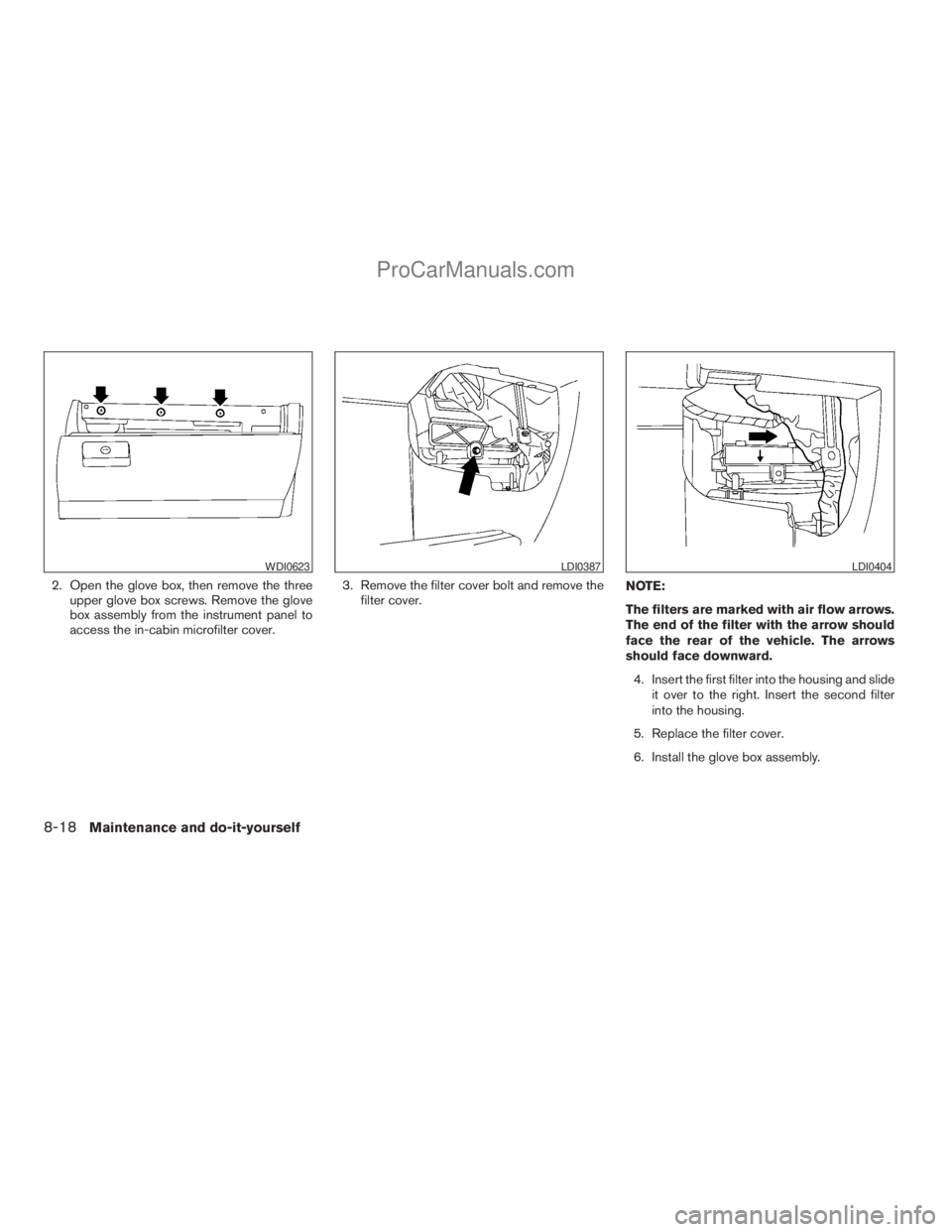
2. Open the glove box, then remove the three
upper glove box screws. Remove the glove
box assembly from the instrument panel to
access the in-cabin microfilter cover.3. Remove the filter cover bolt and remove the
filter cover.NOTE:
The filters are marked with air flow arrows.
The end of the filter with the arrow should
face the rear of the vehicle. The arrows
should face downward.
4. Insert the first filter into the housing and slide
it over to the right. Insert the second filter
into the housing.
5. Replace the filter cover.
6. Install the glove box assembly.
WDI0623LDI0387LDI0404
8-18Maintenance and do-it-yourself
ZREVIEW COPYÐ2009 Armada(wzw)
Owners ManualÐUSA_English(nna)
02/26/08Ðdebbie
X
ProCarManuals.com
Page 447 of 465
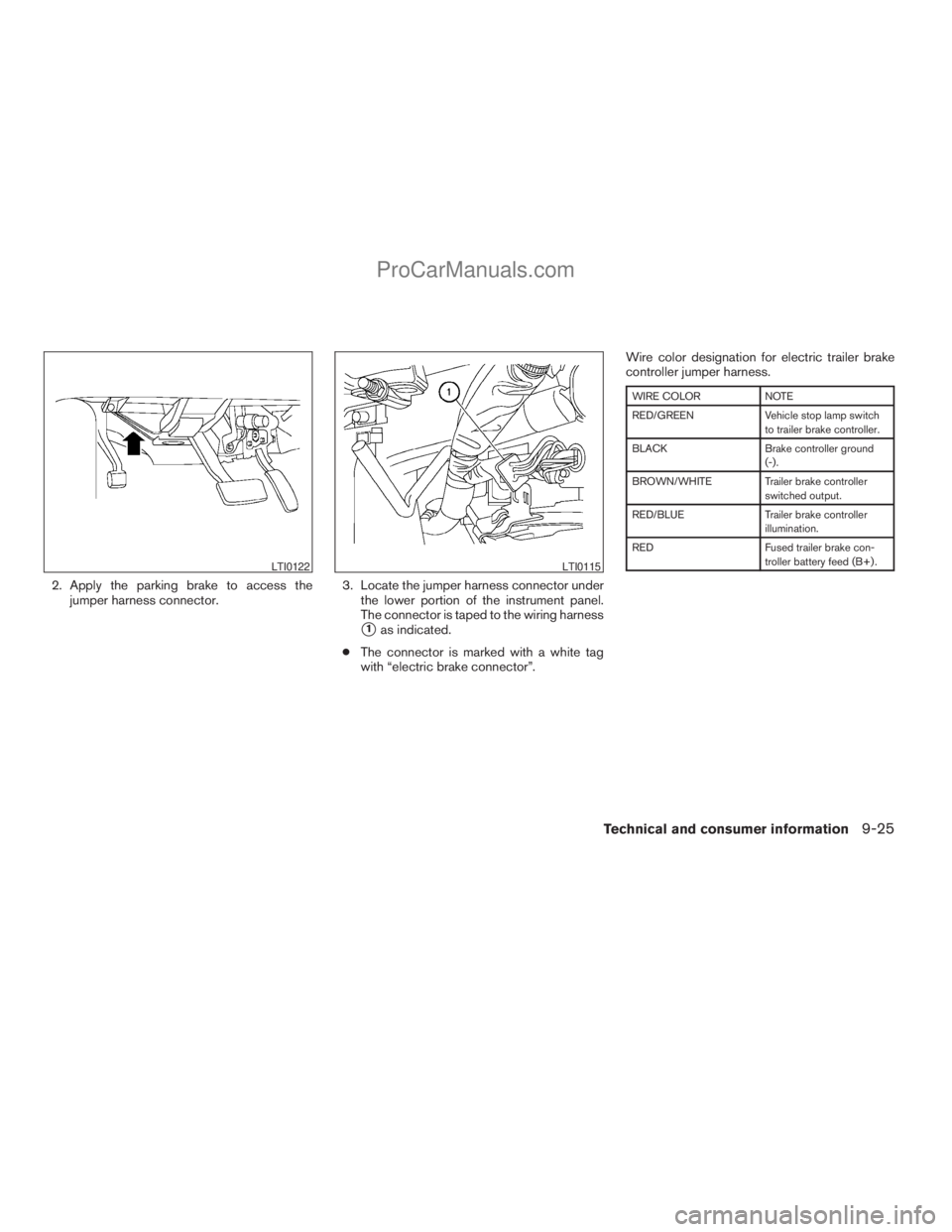
2. Apply the parking brake to access the
jumper harness connector.3. Locate the jumper harness connector under
the lower portion of the instrument panel.
The connector is taped to the wiring harness
s1as indicated.
cThe connector is marked with a white tag
with “electric brake connector”.Wire color designation for electric trailer brake
controller jumper harness.
WIRE COLOR NOTE
RED/GREEN Vehicle stop lamp switch
to trailer brake controller.
BLACK Brake controller ground
(-) .
BROWN/WHITE Trailer brake controller
switched output.
RED/BLUE Trailer brake controller
illumination.
RED Fused trailer brake con-
troller battery feed (B+) .
LTI0122LTI0115
Technical and consumer information9-25
ZREVIEW COPYÐ2009 Armada(wzw)
Owners ManualÐUSA_English(nna)
02/26/08Ðdebbie
X
ProCarManuals.com