ignition NISSAN ARMADA 2017 2.G Repair Manual
[x] Cancel search | Manufacturer: NISSAN, Model Year: 2017, Model line: ARMADA, Model: NISSAN ARMADA 2017 2.GPages: 614, PDF Size: 2.87 MB
Page 194 of 614
4. The outside mirror surfaces move down-ward.
When one of the following conditions has
occurred, the outside mirror surfaces will return
to their original positions.
. The shift lever is moved to any position other
than R (Reverse) .
. The outside mirror control switch is set to
the center position.
. The ignition switch is placed in the OFF
position.
Automatic anti-glare (if so equipped)
The outside rearview mirrors are designed so
that its automatically change reflection accord-
ing to the intensity of the headlights of the
vehicle following you.
The anti-glare system will be automatically
turned on when the ignition switch is placed in
the ON position.SIC4448
VANITY MIRROR
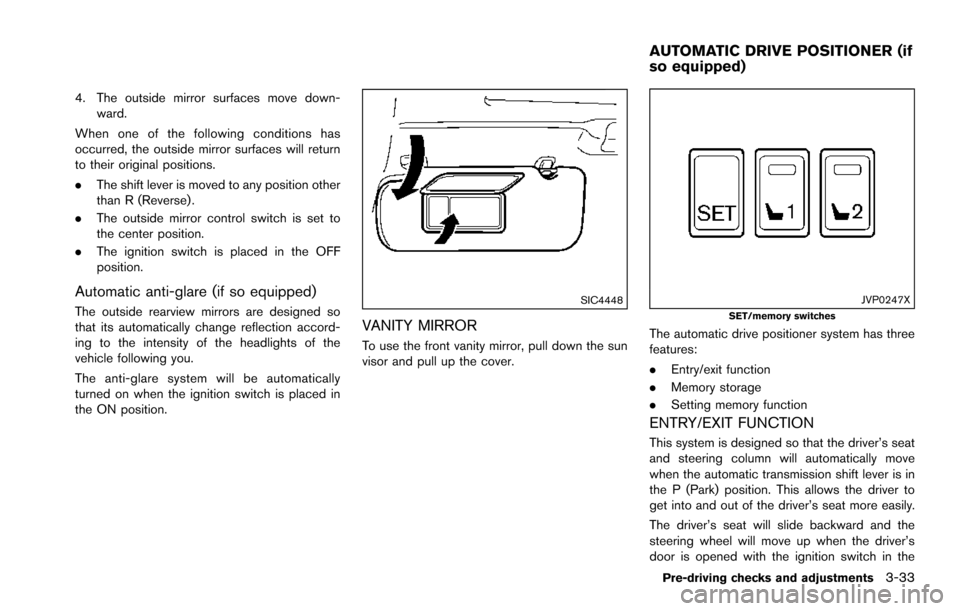
To use the front vanity mirror, pull down the sun
visor and pull up the cover.
JVP0247XSET/memory switches
The automatic drive positioner system has three
features:
.Entry/exit function
. Memory storage
. Setting memory function
ENTRY/EXIT FUNCTION
This system is designed so that the driver’s seat
and steering column will automatically move
when the automatic transmission shift lever is in
the P (Park) position. This allows the driver to
get into and out of the driver’s seat more easily.
The driver’s seat will slide backward and the
steering wheel will move up when the driver’s
door is opened with the ignition switch in the
Pre-driving checks and adjustments3-33
AUTOMATIC DRIVE POSITIONER (if
so equipped)
Page 195 of 614
3-34Pre-driving checks and adjustments
LOCK position.
The driver’s seat and steering wheel will return
to the previous positions when the ignition
switch is pushed to the ACC position.
The driver’s seat will not return to the previous
positions if the seat or steering adjusting switch
is operated when the seat is at the exit position.
Cancel or activate entry/exit function
The shift lever must be in the P (Park) position
with the ignition switch in the OFF position.
The entry/exit function can be activated or
canceled by pressing and holding the SET
switch for more than 10 seconds.
The entry/exit function can also be activated or
canceled if the “Lift Steering Wheel on Exit” key
or “Slide Driver Seat Back on Exit” key is turned
to ON or OFF in the “Comfort” settings. (See
“How to use SETTING button” (P.4-13) .)
Initialize entry/exit function
If the battery cable is disconnected, or if the fuse
opens, the entry/exit function will not work
though this function was set on before. In such
a case, after connecting the battery or replacing
with a new fuse, open and close the driver’s
door more than two times after the ignition
switch is turned from the ON position to the
LOCK position. The entry/exit function will beactivated.
MEMORY STORAGE
Two positions for the driver’s seat, steering
column and outside mirrors can be stored in the
automatic drive positioner memory. Follow these
procedures to use the memory system.
1. Move the shift lever to the P (Park) position.
2. Adjust the driver’s seat, steering column and
outside mirrors to the desired positions by
manually operating each adjusting switch.
For additional information, see “Seats” (P.1-
2) and “Tilt/telescopic steering” (P.3-29)
and “Outside mirrors” (P.3-31) .
3. Push the SET switch and, within 5 seconds, push the memory switch (1 or 2) fully for at
least 1 second.
The indicator light for the pushed memory
switch will stay on for approximately 5
seconds after pushing the switch.
When the memory is stored in the memory
switch (1 or 2) , a buzzer will sound.
If memory is stored in the same memory
switch, the previous memory will be deleted.
Linking Intelligent Key to a stored mem-
ory position
The Intelligent Key can be linked to a stored
memory position with the following procedure.
1. Follow the steps for storing a memoryposition.
2. While the indicator light for the memory switch being set is illuminated for 5 sec-
onds, push the
button on the Intelligent
Key. If the indicator light blinks, the Intelli-
gent Key is linked to that memory setting.
Push the ignition switch to the OFF position, and
then push the
button on the Intelligent Key.
The driver’s seat, steering wheel and outside
mirrors will move to the memorized position.
Confirming memory storage
. Push the ignition switch to the ON position
and push the SET switch. If the main
memory has not been stored, the indicator
light will come on for approximately 0.5
second. When the memory has stored in
position, the indicator light will stay on for
approximately 5 seconds.
. If the battery cable is disconnected, or if the
fuse opens, the memory will be canceled. In
this case, reset the desired position using
the previous procedure.
Page 196 of 614
.If optional Intelligent Keys are added to your
vehicle, the memory storage procedure to
switch 1 or 2 and linking Intelligent Key
procedure to a stored memory position
should be performed again for each Intelli-
gent Key. For additional Intelligent Key
information, see “Keys” (P.3-2) .
Selecting the memorized position
1. Move the shift lever to the P (Park) position.
2. Use one of the following methods to move
the driver’s seat, the outside mirrors and the
steering wheel.
.Within 45 seconds of opening thedriver’s door, push the memory switch
(1 or 2) fully for at least 1 second.
The driver’s seat, steering column and
outside mirrors will move to the memorized
position or to the exit position when the
entry/exit function is set to active with the
indicator light flashing, and then the light will
stay on for approximately 5 seconds.
SETTING MEMORY FUNCTION
The status of the following settings can be linked
to the Intelligent Key and the memorized settings
can be available for each Intelligent Key.
. Air conditioner system .
Navigation system
. Audio system
To use the memory function, lock the doors with
the Intelligent Key that is linked to the settings.
To enable the memorized settings:
1. Carry the Intelligent Key that is linked to the settings, and unlock the doors by pushing
the driver’s door handle request switch or
“UNLOCK”
button on the Intelligent
Key.
2. Place the ignition switch in the ON position. “Connection with the key has been done”
will be displayed on the screen and the
memorized settings are available (only when
a new Intelligent Key is used) .
SYSTEM OPERATION
The automatic drive positioner system will not
work or will stop operating under the following
conditions:
.When the vehicle speed is above 4 MPH (7
km/h) .
. When the adjusting switch for the driver’s
seat and steering column is turned on while
the automatic drive positioner is operating.
. When the memory switch 1 or 2 is not
pushed for at least 1 second. .
When the seat, steering column and outside
mirrors have already been moved to the
memorized position.
. When no position is stored in the memory
switch.
. When the engine is started while moving the
automatic drive positioner.
. When the AT shift lever is moved from the P
(Park) position to any other position. (How-
ever, it will not be canceled if the switch is
pushed while the seat and steering column
are returning to the previous positions
(entry/exit function) .)
. When the driver’s door remains open for
more than 45 seconds and the ignition
switch is not in the ON position.
Pre-driving checks and adjustments3-35
Page 208 of 614
visit a NISSAN dealer for these
services.
. Replacing tires with those not ori-
ginally specified by NISSAN could
affect the proper operation of the
TPMS.
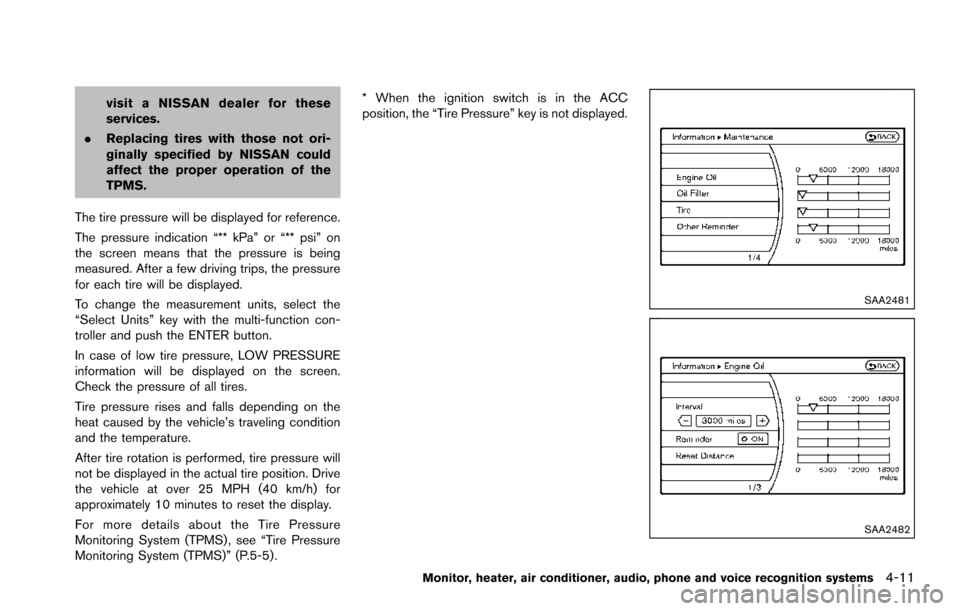
The tire pressure will be displayed for reference.
The pressure indication “** kPa” or “** psi” on
the screen means that the pressure is being
measured. After a few driving trips, the pressure
for each tire will be displayed.
To change the measurement units, select the
“Select Units” key with the multi-function con-
troller and push the ENTER button.
In case of low tire pressure, LOW PRESSURE
information will be displayed on the screen.
Check the pressure of all tires.
Tire pressure rises and falls depending on the
heat caused by the vehicle’s traveling condition
and the temperature.
After tire rotation is performed, tire pressure will
not be displayed in the actual tire position. Drive
the vehicle at over 25 MPH (40 km/h) for
approximately 10 minutes to reset the display.
For more details about the Tire Pressure
Monitoring System (TPMS) , see “Tire Pressure
Monitoring System (TPMS)” (P.5-5) . * When the ignition switch is in the ACC
position, the “Tire Pressure” key is not displayed.
SAA2481
SAA2482
Monitor, heater, air conditioner, audio, phone and voice recognition systems4-11
Page 209 of 614
4-12Monitor, heater, air conditioner, audio, phone and voice recognition systems
Maintenance information
The maintenance intervals can be displayed for
the engine oil, oil filter, tire and other reminders.
To set a maintenance interval, select a preferred
item from the list.
You can also set to display a message to remind
you that the maintenance needs to be per-
formed.
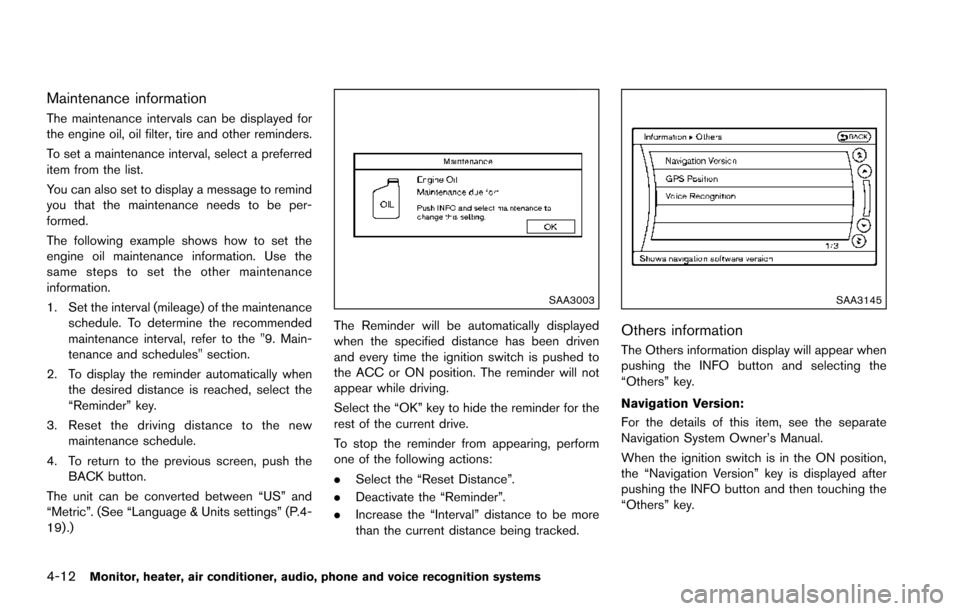
The following example shows how to set the
engine oil maintenance information. Use the
same steps to set the other maintenance
information.
1. Set the interval (mileage) of the maintenanceschedule. To determine the recommended
maintenance interval, refer to the "9. Main-
tenance and schedules" section.
2. To display the reminder automatically when the desired distance is reached, select the
“Reminder” key.
3. Reset the driving distance to the new maintenance schedule.
4. To return to the previous screen, push the BACK button.
The unit can be converted between “US” and
“Metric”. (See “Language & Units settings” (P.4-
19) .)
SAA3003
The Reminder will be automatically displayed
when the specified distance has been driven
and every time the ignition switch is pushed to
the ACC or ON position. The reminder will not
appear while driving.
Select the “OK” key to hide the reminder for the
rest of the current drive.
To stop the reminder from appearing, perform
one of the following actions:
. Select the “Reset Distance”.
. Deactivate the “Reminder”.
. Increase the “Interval” distance to be more
than the current distance being tracked.
SAA3145
Others information
The Others information display will appear when
pushing the INFO button and selecting the
“Others” key.
Navigation Version:
For the details of this item, see the separate
Navigation System Owner’s Manual.
When the ignition switch is in the ON position,
the “Navigation Version” key is displayed after
pushing the INFO button and then touching the
“Others” key.
Page 214 of 614
When any mode button is pushed with the
screen off, the screen turns on for further
operation. The screen will turn off automatically
5 seconds after the operation is finished.
To turn on the screen, set this item to the ON
position, or push the
OFF button.
. Brightness/Contrast/Background Color
To adjust the brightness and contrast of the
screen, select the “Brightness” or “Contrast”
key.
Then, you can adjust the brightness and the
contrast using the multi-function controller.
For information on the “Background Color” key,
refer to the separate Navigation System Own-
er’s Manual.
Color Theme:
Choose the theme color of the menu screen.
SAA3151
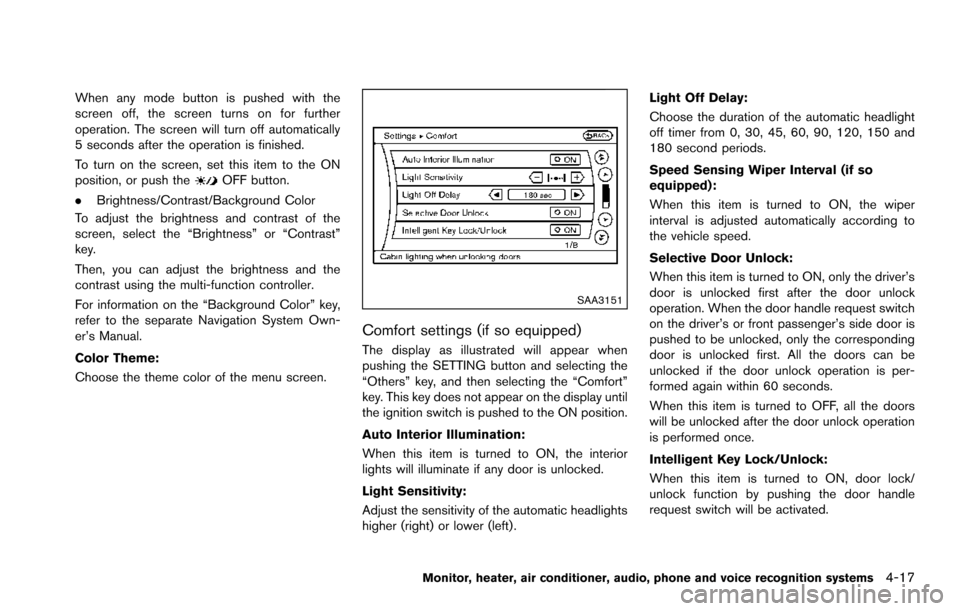
Comfort settings (if so equipped)
The display as illustrated will appear when
pushing the SETTING button and selecting the
“Others” key, and then selecting the “Comfort”
key. This key does not appear on the display until
the ignition switch is pushed to the ON position.
Auto Interior Illumination:
When this item is turned to ON, the interior
lights will illuminate if any door is unlocked.
Light Sensitivity:
Adjust the sensitivity of the automatic headlights
higher (right) or lower (left) . Light Off Delay:
Choose the duration of the automatic headlight
off timer from 0, 30, 45, 60, 90, 120, 150 and
180 second periods.
Speed Sensing Wiper Interval (if so
equipped):
When this item is turned to ON, the wiper
interval is adjusted automatically according to
the vehicle speed.
Selective Door Unlock:
When this item is turned to ON, only the driver’s
door is unlocked first after the door unlock
operation. When the door handle request switch
on the driver’s or front passenger’s side door is
pushed to be unlocked, only the corresponding
door is unlocked first. All the doors can be
unlocked if the door unlock operation is per-
formed again within 60 seconds.
When this item is turned to OFF, all the doors
will be unlocked after the door unlock operation
is performed once.
Intelligent Key Lock/Unlock:
When this item is turned to ON, door lock/
unlock function by pushing the door handle
request switch will be activated.
Monitor, heater, air conditioner, audio, phone and voice recognition systems4-17
Page 215 of 614
4-18Monitor, heater, air conditioner, audio, phone and voice recognition systems
Lift Steering Wheel on Exit (if so
equipped):
When this item is turned to ON, the steering
wheel moves upward for easy exit if the ignition
switch is in the LOCK position and the driver’s
door is opened. After getting into the vehicle and
pushing the ignition switch to the ACC position,
the steering wheel moves to the previous
position.
Slide Driver Seat Back on Exit (if so
equipped):
When this item is turned to ON, the driver’s seat
moves backward for easy exit if the ignition
switch is in the OFF position and the driver’s
door is opened. After getting into the vehicle and
pushing the ignition switch to the ACC position,
the driver’s seat moves to the previous position.
Return All Settings to Default:
Select this item and then select “YES” to return
all settings to the default.
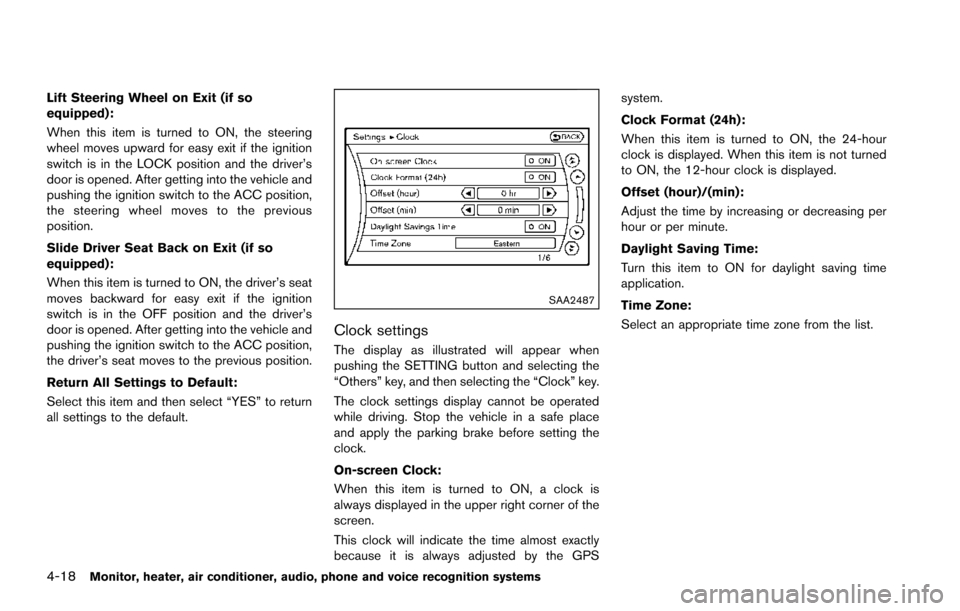
SAA2487
Clock settings
The display as illustrated will appear when
pushing the SETTING button and selecting the
“Others” key, and then selecting the “Clock” key.
The clock settings display cannot be operated
while driving. Stop the vehicle in a safe place
and apply the parking brake before setting the
clock.
On-screen Clock:
When this item is turned to ON, a clock is
always displayed in the upper right corner of the
screen.
This clock will indicate the time almost exactly
because it is always adjusted by the GPSsystem.
Clock Format (24h):
When this item is turned to ON, the 24-hour
clock is displayed. When this item is not turned
to ON, the 12-hour clock is displayed.
Offset (hour)/(min):
Adjust the time by increasing or decreasing per
hour or per minute.
Daylight Saving Time:
Turn this item to ON for daylight saving time
application.
Time Zone:
Select an appropriate time zone from the list.
Page 216 of 614
SAA3007
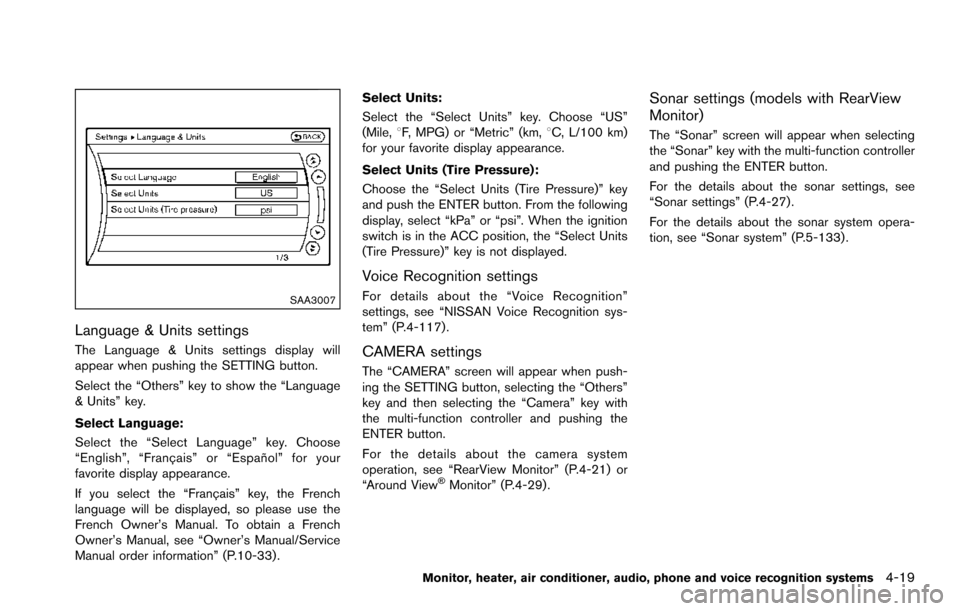
Language & Units settings
The Language & Units settings display will
appear when pushing the SETTING button.
Select the “Others” key to show the “Language
& Units” key.
Select Language:
Select the “Select Language” key. Choose
“English”, “Franc¸ ais” or “Espan˜
ol” for your
favorite display appearance.
If you select the “Franc¸ ais” key, the French
language will be displayed, so please use the
French Owner’s Manual. To obtain a French
Owner’s Manual, see “Owner’s Manual/Service
Manual order information” (P.10-33) . Select Units:
Select the “Select Units” key. Choose “US”
(Mile,
8F, MPG) or “Metric” (km, 8C, L/100 km)
for your favorite display appearance.
Select Units (Tire Pressure):
Choose the “Select Units (Tire Pressure)” key
and push the ENTER button. From the following
display, select “kPa” or “psi”. When the ignition
switch is in the ACC position, the “Select Units
(Tire Pressure)” key is not displayed.
Voice Recognition settings
For details about the “Voice Recognition”
settings, see “NISSAN Voice Recognition sys-
tem” (P.4-117).
CAMERA settings
The “CAMERA” screen will appear when push-
ing the SETTING button, selecting the “Others”
key and then selecting the “Camera” key with
the multi-function controller and pushing the
ENTER button.
For the details about the camera system
operation, see “RearView Monitor” (P.4-21) or
“Around View
ŠMonitor” (P.4-29).
Sonar settings (models with RearView
Monitor)
The “Sonar” screen will appear when selecting
the “Sonar” key with the multi-function controller
and pushing the ENTER button.
For the details about the sonar settings, see
“Sonar settings” (P.4-27).
For the details about the sonar system opera-
tion, see “Sonar system” (P.5-133) .
Monitor, heater, air conditioner, audio, phone and voice recognition systems4-19
Page 219 of 614
4-22Monitor, heater, air conditioner, audio, phone and voice recognition systems
CAUTION
Do not scratch the camera lens when
cleaning dirt or snow from the front of
camera.
The RearView Monitor system automatically
shows a rear view of the vehicle when the shift
lever is placed in the R (Reverse) position.
The radio can still be heard while the RearView
Monitor is active.
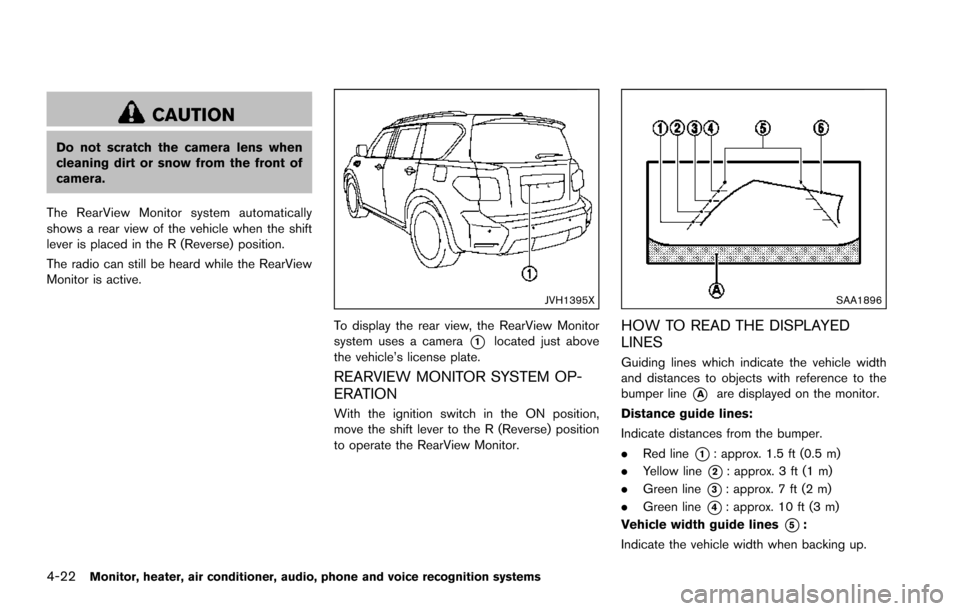
JVH1395X
To display the rear view, the RearView Monitor
system uses a camera
*1located just above
the vehicle’s license plate.
REARVIEW MONITOR SYSTEM OP-
ERATION
With the ignition switch in the ON position,
move the shift lever to the R (Reverse) position
to operate the RearView Monitor.
SAA1896
HOW TO READ THE DISPLAYED
LINES
Guiding lines which indicate the vehicle width
and distances to objects with reference to the
bumper line
*Aare displayed on the monitor.
Distance guide lines:
Indicate distances from the bumper.
. Red line
*1: approx. 1.5 ft (0.5 m)
. Yellow line
*2: approx. 3 ft (1 m)
. Green line
*3: approx. 7 ft (2 m)
. Green line
*4: approx. 10 ft (3 m)
Vehicle width guide lines
*5:
Indicate the vehicle width when backing up.
Page 227 of 614
4-30Monitor, heater, air conditioner, audio, phone and voice recognition systems
Available views:
.Front view
An approximately 150-degree view of the
front of the vehicle.
. Rear view
An approximately 150-degree view of the
rear of the vehicle.
. Bird’s-eye view
The surrounding view of the vehicle from
above.
. Front-side view
The view around and ahead of the front
passenger’s side wheel.
. Front-wide view
An approximately 180-degree view of the
front of the vehicle.
. Rear-wide view
An approximately 180-degree view of the
rear of the vehicle.
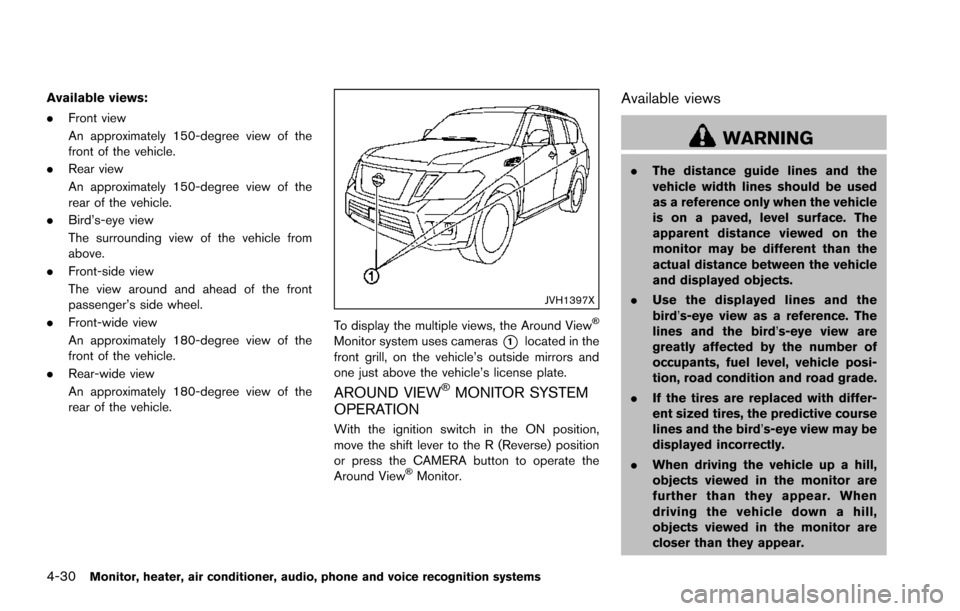
JVH1397X
To display the multiple views, the Around ViewŠ
Monitor system uses cameras*1located in the
front grill, on the vehicle’s outside mirrors and
one just above the vehicle’s license plate.
AROUND VIEWŠMONITOR SYSTEM
OPERATION
With the ignition switch in the ON position,
move the shift lever to the R (Reverse) position
or press the CAMERA button to operate the
Around View
ŠMonitor.
Available views
WARNING
. The distance guide lines and the
vehicle width lines should be used
as a reference only when the vehicle
is on a paved, level surface. The
apparent distance viewed on the
monitor may be different than the
actual distance between the vehicle
and displayed objects.
. Use the displayed lines and the
bird’s-eye view as a reference. The
lines and the bird’s-eye view are
greatly affected by the number of
occupants, fuel level, vehicle posi-
tion, road condition and road grade.
. If the tires are replaced with differ-
ent sized tires, the predictive course
lines and the bird’s-eye view may be
displayed incorrectly.
. When driving the vehicle up a hill,
objects viewed in the monitor are
further than they appear. When
driving the vehicle down a hill,
objects viewed in the monitor are
closer than they appear.