air condition NISSAN ARMADA 2018 Owner´s Manual
[x] Cancel search | Manufacturer: NISSAN, Model Year: 2018, Model line: ARMADA, Model: NISSAN ARMADA 2018Pages: 532, PDF Size: 2.3 MB
Page 188 of 532
WARNING
To avoid risk of injury or death, do
not use the remote engine start
function when the vehicle is in an
enclosed area such as a garage.
JVP0445X
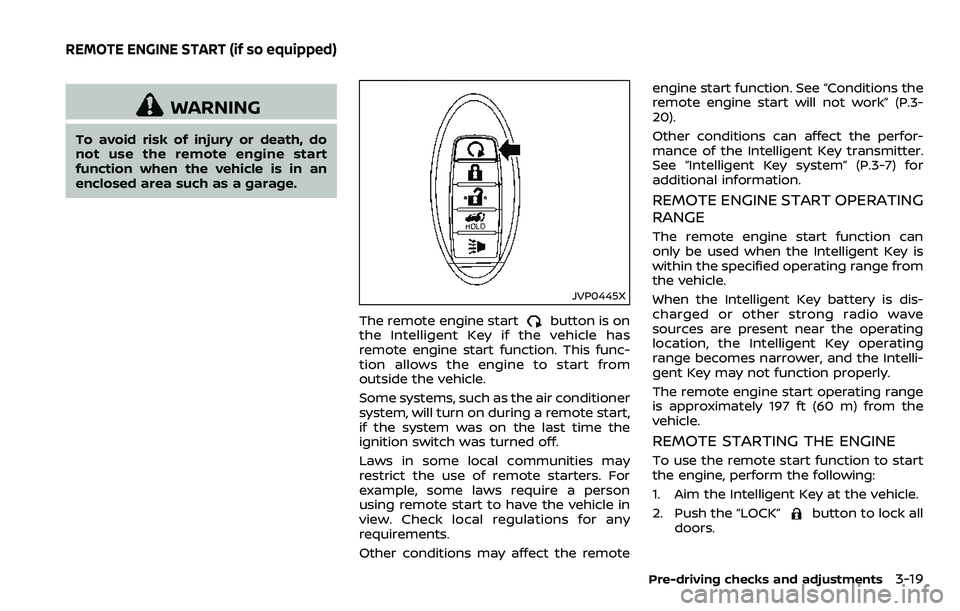
The remote engine startbutton is on
the Intelligent Key if the vehicle has
remote engine start function. This func-
tion allows the engine to start from
outside the vehicle.
Some systems, such as the air conditioner
system, will turn on during a remote start,
if the system was on the last time the
ignition switch was turned off.
Laws in some local communities may
restrict the use of remote starters. For
example, some laws require a person
using remote start to have the vehicle in
view. Check local regulations for any
requirements.
Other conditions may affect the remote engine start function. See “Conditions the
remote engine start will not work” (P.3-
20).
Other conditions can affect the perfor-
mance of the Intelligent Key transmitter.
See “Intelligent Key system” (P.3-7) for
additional information.
REMOTE ENGINE START OPERATING
RANGE
The remote engine start function can
only be used when the Intelligent Key is
within the specified operating range from
the vehicle.
When the Intelligent Key battery is dis-
charged or other strong radio wave
sources are present near the operating
location, the Intelligent Key operating
range becomes narrower, and the Intelli-
gent Key may not function properly.
The remote engine start operating range
is approximately 197 ft (60 m) from the
vehicle.
REMOTE STARTING THE ENGINE
To use the remote start function to start
the engine, perform the following:
1. Aim the Intelligent Key at the vehicle.
2. Push the “LOCK”
button to lock all
doors.
Pre-driving checks and adjustments3-19
REMOTE ENGINE START (if so equipped)
Page 189 of 532
3-20Pre-driving checks and adjustments
3. Within 5 seconds push and hold theremote engine startbutton until
the turn signal lights flash and the tail
lights illuminate. If the vehicle is not
within view, push and hold the remote
engine start
button for at least 2
seconds.
The following events will occur when the
engine starts:
. The front parking lights will turn on
and remain on as long as the engine is
running.
. The doors will be locked and the air
conditioner system may turn on.
. The engine will continue to run for
about 10 minutes. Repeat the steps to
extend the time for an additional 10
minutes. See “Extending engine run
time” (P.3-20).
Depress and hold the brake pedal, then
place the ignition switch in the ON posi-
tion before driving. For further instruc-
tions, see “Driving the vehicle” (P.5-17).
EXTENDING ENGINE RUN TIME
The remote engine start function can be
extended one time by performing the
steps listed in “Remote starting the en-
gine” (P.3-19). Run time will be calculated
as follows:
. The first 10 minute run time will start
when the remote engine start func- tion is performed.
. The second 10 minutes will start im-
mediately when the remote engine
start function is performed. For exam-
ple, if the engine has been running for
5 minutes, and 10 minutes are added,
the engine will run for a total of 15
minutes.
. Extending engine run time will count
towards the two remote start limit.
A maximum of two remote starts, or a
single start with an extension, are allowed
between ignition cycles.
The ignition switch must be cycled to the
ON position and then back to the OFF
position before the remote engine start
procedure can be used again.
CANCELING A REMOTE START
To cancel a remote start, perform one of
the following:
. Aim the Intelligent Key at the vehicle
and push and hold the remote engine
start
button until the front park-
ing lights turn off.
. Turn on the hazard indicator flashers.
. Cycle the ignition switch ON and then
OFF.
. The extended engine run time has
expired. .
The first 10 minute timer has expired.
. The engine hood has been opened.
. The shift lever is moved out of the P
(Park) position.
. The theft alarm sounds due to illegal
entry into the vehicle.
. The ignition switch is pushed without
an Intelligent Key in the vehicle.
. The ignition switch is pushed with an
Intelligent Key in the vehicle but the
brake pedal is not depressed.
CONDITIONS THE REMOTE ENGINE
START WILL NOT WORK
The remote engine start will not operate
if any of the following conditions are
present:
.The ignition switch is placed in the ON
position.
. The hood is not securely closed.
. The hazard indicator flashers are on.
. The engine is still running. The engine
must be completely stopped. Wait at
least 6 seconds if the engine goes
from running to off. This is not applic-
able when extending engine run time.
. The remote engine start
button is
not pushed and held for at least 2
seconds.
. The remote engine start
button is
not pushed and held within 5 seconds
Page 211 of 532
3-42Pre-driving checks and adjustments
Confirming memory storage
.Push the ignition switch to the ON
position and push the SET switch. If
the main memory has not been
stored, the indicator light will come
on for approximately 0.5 second.
When the memory has stored in posi-
tion, the indicator light will stay on for
approximately 5 seconds.
. If the battery cable is disconnected, or
if the fuse opens, the memory will be
canceled. In this case, reset the de-
sired position using the previous pro-
cedure.
. If optional Intelligent Keys are added
to your vehicle, the memory storage
procedure to switch 1 or 2 and linking
Intelligent Key procedure to a stored
memory position should be per-
formed again for each Intelligent Key.
For additional Intelligent Key informa-
tion, see “Keys” (P.3-2).
Selecting the memorized position
1. Move the shift lever to the P (Park)
position.
2. Use one of the following methods to move the driver’s seat, the outside
mirrors and the steering wheel.
.Push the memory switch (1 or 2)fully for at least 1 second. The driver’s seat, steering column and
outside mirrors will move to the
memorized position or to the exit
position when the entry/exit function
is set to active with the indicator light
flashing, and then the light will stay on
for approximately 5 seconds.
SETTING MEMORY FUNCTION
The status of the following settings can
be linked to the Intelligent Key and the
memorized settings can be available for
each Intelligent Key.
.
Air conditioner system
. Navigation system (if so equipped)
. Audio system
To use the memory function, lock the
doors with the Intelligent Key that is
linked to the settings.
To enable the memorized settings:
1. Carry the Intelligent Key that is linked to the settings, and unlock the doors
by pushing the driver’s door handle
request switch or “UNLOCK”
but-
ton on the Intelligent Key.
2. Place the ignition switch in the ON position. “Connection with the key has
been done” will be displayed on the
screen and the memorized settings
are available (only when a new Intel-
ligent Key is used).
SYSTEM OPERATION
The automatic drive positioner system
will not work or will stop operating under
the following conditions:
.When the vehicle speed is above 0
MPH (0 km/h) or 4 MPH (7 km/h) for
some limited functions such linking an
Intelligent Key to the vehicle when the
power source is turned on from off or
during the Exit function.
. When any of the memory switches are
pushed while the automatic drive
positioner is operating.
. When the adjusting switch for the
driver’s seat and steering column is
turned on while the automatic drive
positioner is operating.
. When the seat has already been
moved to the memorized position.
. When no seat position is stored in the
memory switch.
. When the shift lever is moved from the
P (Park) position to any other position.
Page 212 of 532
4 Monitor, heater, air conditioner, audio,phone and voice recognition systems
NissanConnectSMOwner’s Manual ................................. 4-2
Safety note ........................................................................\
................ 4-2
RearView Monitor (if so equipped) ................................. 4-3
RearView Monitor system operation ..................... 4-4
How to read the displayed lines ................................ 4-4
Difference between predictive and
actual distances ...................................................................... 4-4
How to park with predictive course lines .......... 4-6
Sonar indicator ........................................................................\
4-7
Adjusting the screen ........................................................... 4-7
Predictive course line settings .................................... 4-8
RearView Monitor system limitations .................... 4-8
System maintenance .......................................................... 4-9
Intelligent Around View Monitor (if
so equipped) ........................................................................\
.......... 4-10 Intelligent Around View Monitor
system operation ................................................................ 4-11
How to adjust the screen view ................................ 4-19
Intelligent Around View Monitor settings ....... 4-19
Intelligent Around View Monitor
system limitations .............................................................. 4-21
System maintenance ....................................................... 4-23
Camera aiding sonar function (models with
Intelligent Around View Monitor) .................................. 4-24 Sonar system operation ................................................ 4-24 Turning on and off the sonar function .......... 4-25
Sonar system limitations ........................................... 4-26
System temporarily unavailable ........................... 4-27
System maintenance .................................................... 4-27
Moving Object Detection (MOD) ................................... 4-28 MOD system operation ................................................ 4-29
Turning on and off the MOD system ............... 4-30
MOD system limitations .............................................. 4-31
System maintenance .................................................... 4-32
Ventilators ........................................................................\
.............. 4-33
Center ventilators ............................................................ 4-33
Side ventilators .................................................................. 4-33
Rear ventilators .................................................................. 4-33
Heater and air conditioner ................................................ 4-34 Automatic air conditioner ......................................... 4-35
Rear automatic air conditioning system ....... 4-38
Operating tips ..................................................................... 4-42
Linking Intelligent Key (if so equipped) ........... 4-42
In-cabin microfilter .......................................................... 4-42
Servicing air conditioner ............................................. 4-42
Antenna ........................................................................\
.................... 4-42 Window antenna ............................................................... 4-42
Satellite antenna ............................................................... 4-43
Car phone or CB radio ......................................................... 4-43
Page 213 of 532
4-2Monitor, heater, air conditioner, audio, phone and voice recognition systems
For models with NissanConnectSMwith
Navigation (if so equipped), Apps and
Services (if so equipped), refer to the
NissanConnect
SMOwner’s Manual re-
garding the following information.
. Audio system
. Bluetooth® Hands-Free Phone
. NissanConnect
SMApps
. NissanConnectSMServices
. Navigation system
. Voice recognition
. Information and settings viewable on
NissanConnect
SM
WARNING
.Do not disassemble or modify
this system. If you do, it may
result in accidents, fire, or electric
shock.
. Do not use this system if you
notice any abnormality, such as
a frozen screen or lack of sound.
Continued use of the system may
result in accident, fire or electric
shock.
. In case you notice any foreign
object in the system hardware,
spill liquid on it, or notice smoke
or smell coming from it, stop
using the system immediately. It
is recommended you visit a
NISSAN dealer for servicing.
Ignoring such conditions may
lead to accidents, fire, or electric
shock.
. Park the vehicle in a safe location
and apply the parking brake to
view the images on the front
center display screen.
CAUTION
Do not use the system when the
engine is not running for extended
periods of time to prevent battery
discharge.
Do not attempt to operate the system in
extreme temperature conditions [below
−4°F (−20°C) and above 158°F (70°C)].
Operating this system under these con-
ditions may result in system malfunc-
tions.
NISSANCONNECTSMOWNER’S MANUALSAFETY NOTE
Page 214 of 532
JVH1688X
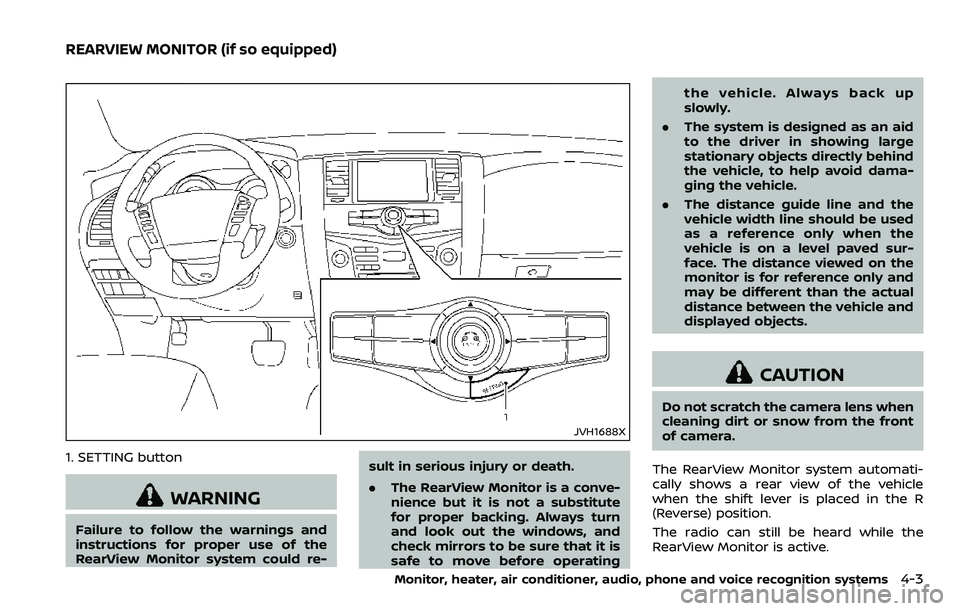
1. SETTING button
WARNING
Failure to follow the warnings and
instructions for proper use of the
RearView Monitor system could re-sult in serious injury or death.
.
The RearView Monitor is a conve-
nience but it is not a substitute
for proper backing. Always turn
and look out the windows, and
check mirrors to be sure that it is
safe to move before operating the vehicle. Always back up
slowly.
. The system is designed as an aid
to the driver in showing large
stationary objects directly behind
the vehicle, to help avoid dama-
ging the vehicle.
. The distance guide line and the
vehicle width line should be used
as a reference only when the
vehicle is on a level paved sur-
face. The distance viewed on the
monitor is for reference only and
may be different than the actual
distance between the vehicle and
displayed objects.
CAUTION
Do not scratch the camera lens when
cleaning dirt or snow from the front
of camera.
The RearView Monitor system automati-
cally shows a rear view of the vehicle
when the shift lever is placed in the R
(Reverse) position.
The radio can still be heard while the
RearView Monitor is active.
Monitor, heater, air conditioner, audio, phone and voice recognition systems4-3
REARVIEW MONITOR (if so equipped)
Page 215 of 532
4-4Monitor, heater, air conditioner, audio, phone and voice recognition systems
JVH1395X
To display the rear view, the RearView
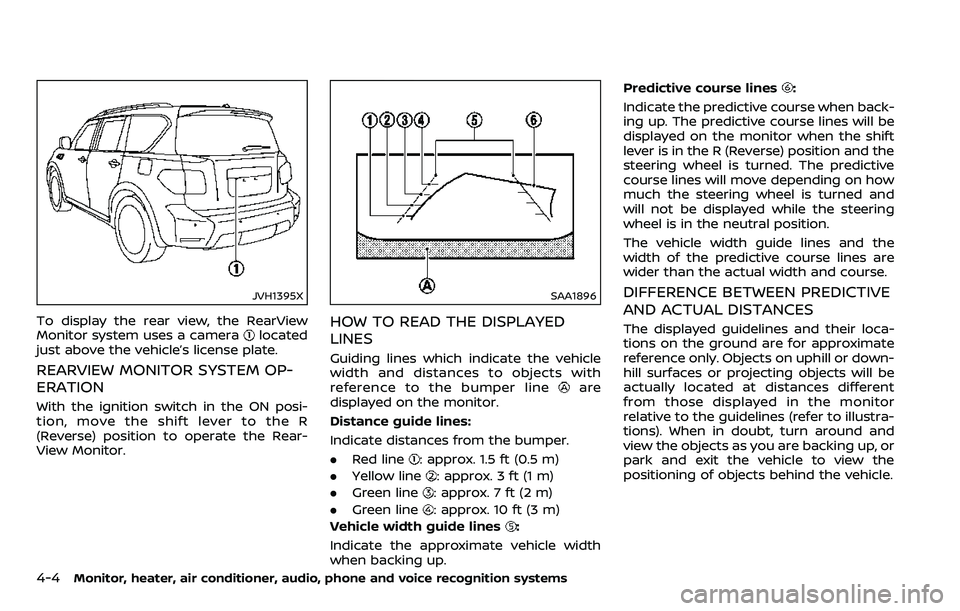
Monitor system uses a cameralocated
just above the vehicle’s license plate.
REARVIEW MONITOR SYSTEM OP-
ERATION
With the ignition switch in the ON posi-
tion, move the shift lever to the R
(Reverse) position to operate the Rear-
View Monitor.
SAA1896
HOW TO READ THE DISPLAYED
LINES
Guiding lines which indicate the vehicle
width and distances to objects with
reference to the bumper line
are
displayed on the monitor.
Distance guide lines:
Indicate distances from the bumper.
. Red line
: approx. 1.5 ft (0.5 m)
. Yellow line
: approx. 3 ft (1 m)
. Green line
: approx. 7 ft (2 m)
. Green line
: approx. 10 ft (3 m)
Vehicle width guide lines
:
Indicate the approximate vehicle width
when backing up. Predictive course lines
:
Indicate the predictive course when back-
ing up. The predictive course lines will be
displayed on the monitor when the shift
lever is in the R (Reverse) position and the
steering wheel is turned. The predictive
course lines will move depending on how
much the steering wheel is turned and
will not be displayed while the steering
wheel is in the neutral position.
The vehicle width guide lines and the
width of the predictive course lines are
wider than the actual width and course.
DIFFERENCE BETWEEN PREDICTIVE
AND ACTUAL DISTANCES
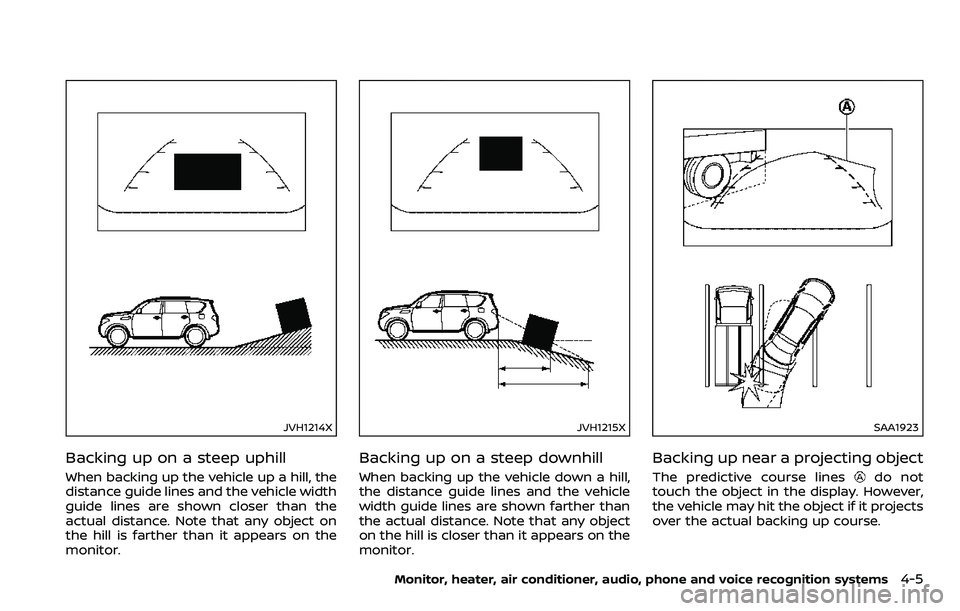
The displayed guidelines and their loca-
tions on the ground are for approximate
reference only. Objects on uphill or down-
hill surfaces or projecting objects will be
actually located at distances different
from those displayed in the monitor
relative to the guidelines (refer to illustra-
tions). When in doubt, turn around and
view the objects as you are backing up, or
park and exit the vehicle to view the
positioning of objects behind the vehicle.
Page 216 of 532
JVH1214X
Backing up on a steep uphill
When backing up the vehicle up a hill, the
distance guide lines and the vehicle width
guide lines are shown closer than the
actual distance. Note that any object on
the hill is farther than it appears on the
monitor.
JVH1215X
Backing up on a steep downhill
When backing up the vehicle down a hill,
the distance guide lines and the vehicle
width guide lines are shown farther than
the actual distance. Note that any object
on the hill is closer than it appears on the
monitor.
SAA1923
Backing up near a projecting object
The predictive course linesdo not
touch the object in the display. However,
the vehicle may hit the object if it projects
over the actual backing up course.
Monitor, heater, air conditioner, audio, phone and voice recognition systems4-5
Page 217 of 532
4-6Monitor, heater, air conditioner, audio, phone and voice recognition systems
JVH1216X
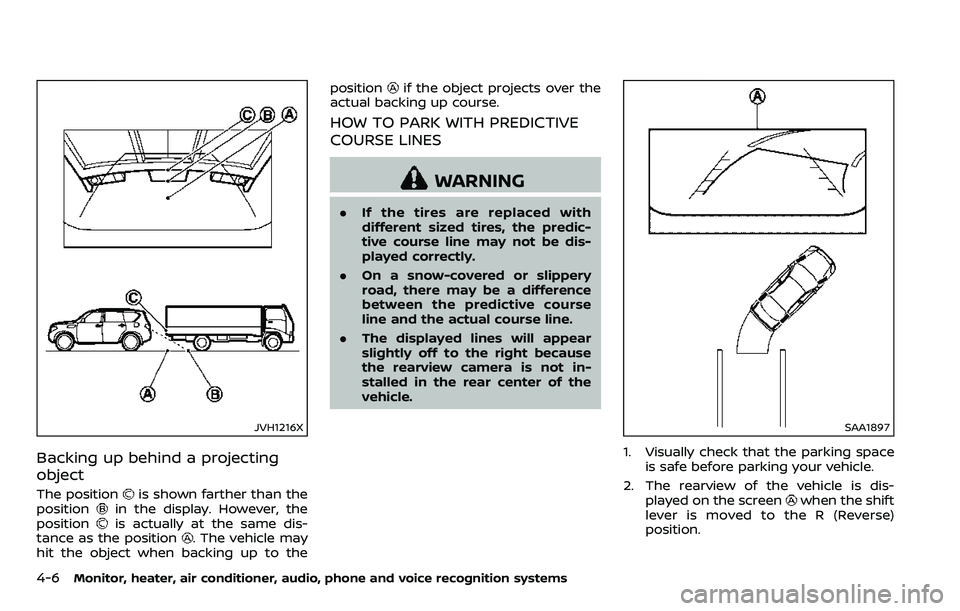
Backing up behind a projecting
object
The positionis shown farther than the
positionin the display. However, the
positionis actually at the same dis-
tance as the position. The vehicle may
hit the object when backing up to the position
if the object projects over the
actual backing up course.
HOW TO PARK WITH PREDICTIVE
COURSE LINES
WARNING
. If the tires are replaced with
different sized tires, the predic-
tive course line may not be dis-
played correctly.
. On a snow-covered or slippery
road, there may be a difference
between the predictive course
line and the actual course line.
. The displayed lines will appear
slightly off to the right because
the rearview camera is not in-
stalled in the rear center of the
vehicle.
SAA1897
1. Visually check that the parking space
is safe before parking your vehicle.
2. The rearview of the vehicle is dis- played on the screen
when the shift
lever is moved to the R (Reverse)
position.
Page 218 of 532
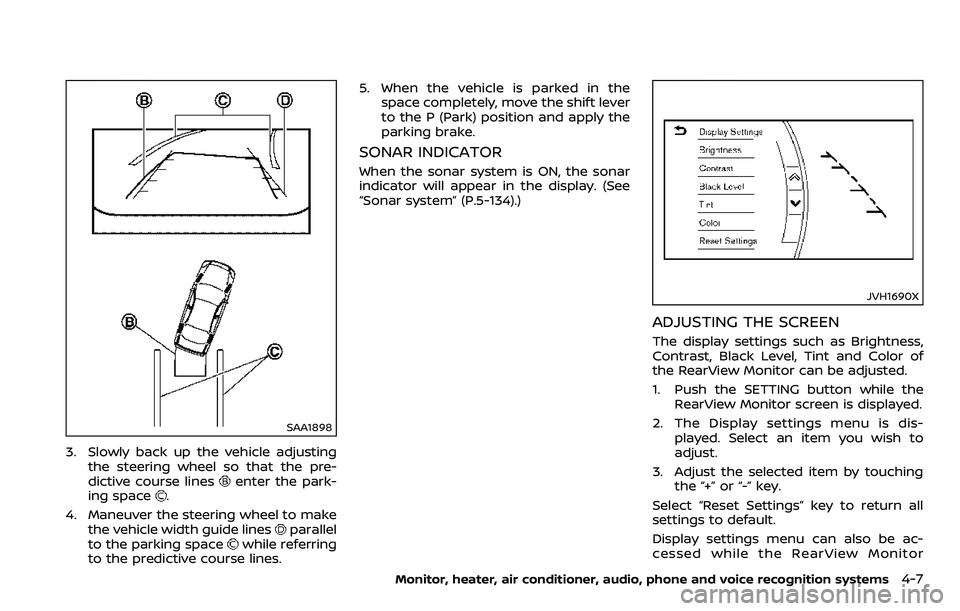
SAA1898
3. Slowly back up the vehicle adjustingthe steering wheel so that the pre-
dictive course lines
enter the park-
ing space.
4. Maneuver the steering wheel to make the vehicle width guide lines
parallel
to the parking spacewhile referring
to the predictive course lines. 5. When the vehicle is parked in the
space completely, move the shift lever
to the P (Park) position and apply the
parking brake.
SONAR INDICATOR
When the sonar system is ON, the sonar
indicator will appear in the display. (See
“Sonar system” (P.5-134).)
JVH1690X
ADJUSTING THE SCREEN
The display settings such as Brightness,
Contrast, Black Level, Tint and Color of
the RearView Monitor can be adjusted.
1. Push the SETTING button while theRearView Monitor screen is displayed.
2. The Display settings menu is dis- played. Select an item you wish to
adjust.
3. Adjust the selected item by touching the “+” or “-” key.
Select “Reset Settings” key to return all
settings to default.
Display settings menu can also be ac-
cessed while the RearView Monitor
Monitor, heater, air conditioner, audio, phone and voice recognition systems4-7